Internal Revenue Manual § 3.41.269 - Information Returns Processing on Scrips
3.41.269 Information Returns Processing on SCRIPS
Manual Transmittal
September 11, 2025
Purpose
(1) This transmits revised IRM 3.41.269, Optical Character Recognition Scanning Operations, Information Returns Processing on Service Center Recognition/Image Processing System.
Material Changes
(1) IRM 3.41.269.1 (2) Revised Exception to Forms, Added new Forms to list.
(2) IRM 3.41.269.2.2 Added Forms 3921,3922 and W-2G..
(3) IRM 3.41.269.2.4 Added bullet for Form 1096, submitted individually, without payee returns or if disassociated from their respective information returns.
(4) IRM 3.41.269.11.12 Updated instructions for PULL.
(5) IRM 3.41.269.11.14 Add instructions for Fraud list and classify waste.
(6) Exhibit 3.41.269-8 Separated large paragraph into bullets.
(7) Exhibit 3.41.269-9 Updated to add Contact Name, Email, Phone and Fax instructions.
(8) Exhibit 3.41.269-21 Add new Form.
(9) Exhibit 3.41.269-28 Removed Prompt
, Excess golden parachute payment.
(10) Exhibit 3.41.269-29 Add prompt
, Excess golden parachute payment.
(11) Exhibit 3.41.269-32 Update instructions for prompts
and
(12) Exhibit 3.41.269-33 Form 1099-QA instructions added.
(13) Exhibit 3.41.269-43 Add new Form.
(14) Exhibit 3.41.269-44 Added additional instructions for Box 11 and 12.
(15) Revised IRM for editorial changes for spelling, grammar, formatting and plain language.
Effect on Other Documents
IRM 3.41.269 dated November 25, 2024 (effective January 01, 2025) is superseded. This IRM incorporates the following IRM Procedural Updates (IPU): IPU 25U0440 issued 04/10/2025 and IPU 25U0463 issued 04/23/2025.
Audience
Taxpayer Services
Submission Processing
Data Conversion Operation
Effective Date
(01-01-2026)
James L. Fish
Director, Submission Processing
Taxpayer Services
3.41.269.1 (01-01-2026)
Program Scope and Objectives
-
This IRM describes certain tasks necessary in the processing of Information Returns Processing (IRP) through the Service Center Recognition/Image Processing System (SCRIPS).
-
This chapter also provides information for Quality Review in performing the review of information transcribed on SCRIPS.
-
IRM deviations must be submitted in writing following instructions from IRM 1.11.2.2.3, When Procedures Deviate from the IRM, and elevated through correct channels for executive approval.
-
-
Purpose: The instructions in this section apply to the IRP documents processed on SCRIPS listed below:
Note:
As of processing year 2023 all IRP documents are processed through SCRIPS.
Exception:
Prior year Form 1096 , Annual Summary and Transmittal of U.S. Information Returns, processed through Integrated Submission and Remittance Processing System (ISRP) to Generalized Master File.
-
Form 1096, Annual Summary and Transmittal of U.S. Information Returns, which transmit the payee form types below:
-
Form 1097-BTC, Bond Tax Credit
-
Form 1098, Mortgage Interest Statement
-
Form 1098-C, Contributions of Motor Vehicles, Boats, and Airplanes
-
Form 1098-E, Student Loan Interest Statement
-
Form 1098-F, Fines, Penalties, and Other Amounts
-
Form 1098-Q, Qualifying Longevity Annuity Contract Information
-
Form 1098-T, Tuition Statement
-
Form 1099-A, Acquisition or Abandonment of Secured Property
-
Form 1099-B, Proceeds From Broker and Barter Exchange Transactions
-
Form 1099-C, Cancellation of Debt
-
Form 1099-CAP, Changes in Corporate Control and Capital Structure
-
Form 1099-DA,Digital Asset Proceeds From Broker Transactions
-
Form 1099-DIV, Dividends and Distributions
-
Form 1099-G, Certain Government Payments
-
Form 1099-INT, Interest Income
-
Form 1099-K, Payment Card and Third Network Transactions
-
Form 1099-LS, Reportable Life Insurance Sale
-
Form 1099-LTC, Long-Term Care and Accelerated Death Benefits
-
Form 1099-MISC, Miscellaneous Information
-
Form 1099-NEC, Nonemployee Compensation
-
Form 1099-OID, Original Issue Discount
-
Form 1099-PATR, Taxable Distributions Received From Cooperatives
-
Form 1099-Q, Payments From Qualified Education Programs (Under Sections 529 and 530)
-
Form 1099-QA, Distributions From ABLE Accounts
-
Form 1099-R, Distributions From Pensions, Annuities, Retirement or Profit-Sharing Plans, IRAs, Insurance Contracts, etc.
-
Form 1099-S, Proceeds From Real Estate Transactions
-
Form 1099-SA, Distributions From an HSA, Archer MSA, or Medicare Advantage MSA
-
Form 1099-SB, Seller’s Investment in Life Insurance Contract
-
Form 3921, Exercise of an Incentive Stock Option Under Section 422(b)
-
Form 3922, Transfer of Stock Acquired Through an Employee Stock Purchase Plan Under Section 423(c)
-
Form 5498, IRA Contribution Information
-
Form 5498-ESA, Coverdell ESA Contribution Information
-
Form 5498-SA, HSA, Archer MSA, or Medicare Advantage Information
-
Form 5498-QA, ABLE Account Contribution Informarion
-
Form W-2G, Certain Gambling Winnings
-
.
Note:
If a Form 1096, is received transmitting a payee form not listed above, suspend the Unit-of-Work (UW) for supervisor action. The entire UW is deleted and returned to the IRP Sort function.
-
-
Audience: The content contained within this IRM is intended for the use of the following audience:
-
Taxpayer Services
-
Submission Processing
-
SCRIPS Processing Site employees
-
-
Policy Owner: Director, Submission Processing, Taxpayer Services Division.
-
Program Owner: Return Processing Branch, Mail Management/Data Conversion Section (an organization within Submission Processing).
-
Primary Stakeholders:
-
Submission Processing, Receipt and Control IRP Sort Team,
-
Submission Processing, Data Conversion SCRIPS processing personnel,
-
Submission Processing, Input Corrections Error Resolution function,
-
Small Business/Self Employed (SB/SE), Office of Servicewide Penalties,
-
SB/SE, Campus Examination/Automated Underreporter.
-
-
Program Goals: Convert paper IRP media to electronic data records on SCRIPS for posting to Information Return Master File (IRMF), Payer Master File (PMF) and Information Returns Database (IRDB). Capture data and keep the retention image of Form 1096, Annual Summary and Transmittal of U.S. Information Returns, for subsequent use in downstream processes.
3.41.269.1.1 (01-01-2022)
Background
-
Among the updates made to this IRM were items necessitated by legislative mandates as listed below:
-
Public Law (PL) 114-113, Protecting Americans from Tax Hikes (PATH) Act, provision 201 created changes on Form 1099-MISC, Miscellaneous Information, and created new Form 1099-NEC, Nonemployee Compensation.
-
Public Law (PL) 115-97, Tax Reform, provision 11011 created changes for Form 1099-PATR, Taxable Distribution Received from Cooperatives.
-
Public Law (PL) 116-94, False Claims Act (FCA), provision 113 created changes on Form 5498, IRA Contribution Information.
-
3.41.269.1.2 (01-01-2020)
Authority
-
This IRM takes into consideration information contained in 26 CFR 601.602 and Rev. Proc. 2016-35.
-
Policy statements for Submission Processing are contained in IRM 1.2.1, Servicewide Policies and Authorities, Servicewide Policy Statements.
3.41.269.1.3 (01-01-2020)
Roles and Responsibilities
-
At each processing site execution of instructions within this IRM are to be applied by the following personnel as listed below:
-
Planning and Analysis (P&A): Works in unison with the Data Conversion Operation (DCO) Manager to ensure all specific business goals are accomplished timely for applicable site.
-
Data Conversion Operation Manager: Executes work plan decisions to enable applicable site to timely meet established program completion dates (PCD).
-
SCRIPS Department Manager: Executes work plan decisions directed by the DCO Operation Manager to timely meet PCD’s.
-
SCRIPS Team Leader: Provides direct leadership and guidance to local SCRIPS personnel on processing and releasing of data to maximize efficiency critical to meeting established PCD’s.
-
3.41.269.1.4 (01-01-2020)
Program Management and Review
-
Program Reports: Below is a list of reports which show work schedules, receipts, production and inventory for the paper documents to electronic data conversion and posting process. These reports are used to report and monitor daily (IPS0698 throughout each workday) and weekly status of the program to completeness:
-
IPS0083, Workstation Operator Statistics Program and Function Summary Report
-
IPS0698, Workflow Status
-
IPS01119, Run Balance Report
-
IPS06440, Throughput Statistics Report
-
PCC 2240, Daily Production Report - Program Sequence
-
PCC 6040, SC WP&C Performance and Cost Report
-
PCC 6240, SC WP&C Program Analysis Report
-
PCB 0440, Daily Workload and Staff Hours Schedule
-
PCB 0540, Weekly Workload and Staffing Schedule
-
-
Program Effectiveness: Management measure weekly goals using standard documents per hour reports. Each function is expected to meet or exceed schedule prior to the PCD as stated in IRM 3.30.123, Processing Timeliness: Cycles, Criteria and Critical Dates. Quality reviews are conducted and monitored by local management and corrective action taken to ensure quality products are released to the next function. Managerial and product reviews supplement the quality review process required.
-
Annual Review: Review the processes included in this manual annually to ensure accuracy and promote consistent tax administration. This is included under responsibilities for a manager. An IRM Document Clearance review is completed annually to ensure accuracy of the contents and to promote consistent tax administration. The reviewers are provided with the opportunity to provide feedback to the IRM author for consideration in completing the IRM.
3.41.269.1.5 (01-01-2020)
Program Controls
-
Unit Production Cards (UPCs) are dropped daily to record activity in each functionality of this program. See Exhibit 3.41.269-46 Unit Production Log Input Batch Block Tracking System (BBTS), for instruction on where to obtain each number for required reporting.
-
Local reports can be used to establish more information for supporting daily program control. Local reports never replace the established official reports and required production reports.
-
For specific guidelines and responsibilities, refer to the Circular, and to IRM 1.4.1, Resource Guide for Managers, Management Roles and Responsibilities, and IRM 1.4.2, Resource Guide for Managers, Monitoring and Improving Internal Control.
3.41.269.1.6 (01-01-2023)
Acronyms/Terms/Definitions
-
The following is a list of acronyms and terms used in this IRM:
Acronym/Term Definition Alpha Character A character (letter) of the alphabet. Alphanumeric Field A field that accepts both alpha and numeric characters. APO Army Post Office Application Refers to the form type being processed (i.e., IRP, K-1s, 940s, 941s). AUSPC Austin Submission Processing Center Bleached Image One of two images created by the scanner software. The system uses the bleached image for character recognition purposes. Also, see True and Complete Image. Capture The process of obtaining images of a document for character recognition and operator use. Character Any symbol or alpha (special or numeric), that represents information. Character Recognition The process of converting information from paper to digital form. Cursor A vertical line showing the position where the next entry is to be keyed in. Data Fields Those fields not including entity fields, on all documents listed in IRM 3.41.269.1.1, such as: money amounts, dates, and indicators. DCO Data Conversion Operation Detail Document Any form listed in IRM 3.41.269.1.1, except Form 1096, submitted to the IRS by payers reporting various payments made to payees. DLN A 14-digit Document Locator Number that consists of a two-digit File Location Code, Tax Class, (Tax Class is always 5 for IRP), two-digit document type, three-digit Julian day, three-digit block number, two-digit sequence number and a year digit. Also see Block DLN. DPO Diplomatic Post Office DV Data Validation EIN An employer identification number (a nine-digit number) typically identifies an entity such as a corporation, a trust, a nonprofit association, or a sole proprietor. Usually in nn-nnnnnnn format. Entity/Entity Fields That portion of the document that deals with TIN, name, and address information. FI Forms Identification Field Specific area provided for data entry. Flag A question mark used to designate an unrecognizable character, or an error within a field. <F12\> also flags a Form 1096, Annual Summary and Transmittal of U.S. Information Returns, for re-image. FPO Fleet Post Office Function Keys The upper row of keys of the standard keyboard. The function keys are <F1\> through <F12\>. Highlighting A three-dimensional shadowing of a template field used to direct attention to the field. Used in OE to show the current cursor position. Used in DV to show the current cursor position, and the current field containing an error. The **-**5 function key highlights the corresponding field on the image template. Image Strip A section of the true and complete image that is magnified and displayed above the template. The image strip displayed is a magnified version of the corresponding field that is highlighted on the image. Pressing **-**3 toggles the image strip on and off. IRP Information Returns Processing. This program processes documents listed in this IRM allowing IRS to identify underreported income, excess deductions, and non-filers of tax returns. ISRP Integrated Submission and Remittance Processing KCSPC Kansas City Submission Processing Center Key Combination Keystroke commands that require two or more simultaneous key presses. For example, press -P for (post-to-close) means to press and hold the key and then press the P key before releasing the key. Menu A list of operations/options from which the workstation operator selects. Message Window A window that appears within the main window. It usually appears in the center of the screen. The system uses these windows to relay messages to the operator. NABR Name and Address Block Reader. NABR compares the address captured from the scanner and the United States Postal Service database of addresses. Name Control A code of up to four characters consisting of alphas, numerics, and/or derived from a taxpayer's name to identify them on the label image. Non-Conforming Form A form the scanner cannot recognize. Numeric Character A number ranging from 0 to 9. OE Original Entry OSPC Ogden Submission Processing Center P&A Planning and Analysis Payer An issuer of money amounts to a payee. Generally, payer information is found in the upper portion of IRP documents. A form may identify the payer as one or more of the following: Fiduciary, Estate, Partnership, Corporation, Employer, Payer, Trustee, Issuer, Filer, Lender, or Borrower. For Form 1098, Mortgage Interest Statement, Recipient means Payer. Prompt A message or statement displayed requiring an operator response. R&C Receipt and Control Operation SCRIPS Service Center Recognition/Image Processing System Sequence Number / Serial Number (SN) A two-digit number within the DLN that uniquely identifies the document. For IRP, the 12th and 13th positions. Sight-Verify Examine a highlighted field in DV. If correct, release the field. If incorrect, correct the field. Also, called verify. Special Characters (symbols) \*, &, /, -, %, #, ?, etc. ### Note: Ampersand (&) considered a special character for name line entries. SSN Social security number. A nine-digit number issued to an individual by the Social Security Administration. The IRS uses this number to process tax documents and returns. Usually in nnn-nn-nnnn format. Status Line A strip of information found along the bottom right side of the main working window below the prompt area. Shows the program number, DLN/SN, document count, and AUTO, INSERT and NUMERIC indicators. Submission A Form 1096, Annual Summary and Transmittal of U.S. Information Returns, and its associated detail documents. Also, called a unit-of-work (UW). Template A window that contains fields for data entry. The template mirrors the actual form layout, to the fullest extent possible. The system always displays it in the right half of the monitor screen. TIN Taxpayer identification number. Either an EIN or an SSN. Transmittal A Form 1096, Annual Summary and Transmittal of U.S. Information Returns. True and Complete Image The image that the system displays for data entry or validation purposes. If available, the system always displays it on the left half of the monitor screen. It is like a photocopy. Also, see Bleached Image. Unit-of-Work (UW) A group of IRP documents containing one Form 1096, Annual Summary and Transmittal of U.S. Information Returns, and its associated detail documents. SCRIPS controls a unit-of-work by the Form 1096 14-digit DLN. yyty The current tax year being processed is current year minus one. Term used to eliminate dates on form prompts which change each year. yypy The current processing year is the current year. Term used to eliminate dates on form prompts which change each year.
3.41.269.1.7 (06-11-2021)
Related Resources
-
The following table lists related sources of guidance on the conversion to electronic data records of paper filed documents contained in this instruction.
Resource Title Guidance on IRM 3.10.5 Campus Mail and Work Control - Batch/Block Tracking System (BBTS) utilizing BBTS to drop Unit Production Cards for daily incoming receipts and production IRM 3.10.72 Campus Mail and Work Control - Receiving, Extracting, and Sorting receiving, extracting, sorting, and routing mail within the Submission Processing campuses IRM 3.10.8 Campus Mail and Work Control - Information Returns Processing fine sorting, correspondence routing and disposition for Information Returns Program IRM 3.13.62 Campus Document Services, Media Transport and Control shipping of SCRIPS requests IRM 3.41.274 Optical Character Recognition Scanning Operations, General Instructions for Processing via Service Center Recognition/Image Processing System workstation functions, workstation keyboard, windows environment and general instruction for entering data from tax returns and related data through SCRIPS IRM 3.41.275 Optical Character Recognition Scanning Operations, Scanner Operations on Service Center Recognition/Image Processing System scanning returns on the SCRIPS scanner IRM 10.5.1 Privacy and Information Protection - Privacy Policy shipping of SCRIPS requests Document 12990 Records and Information Management Records Control Schedules time frame to destroy paper sample after conversion to electronic data records Document 13056 Employee Toolkit: Shipping for Personally Identifiable Information (PII) shipping of SCRIPS requests Document 13144 Proper PII Shipping Procedures shipping of SCRIPS requests Training 2335-E-001 Introduction to IRP Processing on SCRIPS (Student Guide) course material for SCRIPS entry -
IRMs are located on Servicewide Electronic Research Program (SERP) at the following site: Servicewide Electronic Research Program (SERP). Specific instructional links are available on the IMF Data Conversion Research Portal located at IMF Data Conversion Research Portal.
-
IRM deviations must be submitted in writing following instructions from IRM 1.11.2.2 Internal Management Documents System - Internal Revenue Manual (IRM) Process, IRM Standards, and elevated through correct channels for executive approval.
-
The IRS adopted the Taxpayer Bill of Rights in June 2014. Employees are responsible for being familiar with and acting in accordance with taxpayer rights. See IRC 7803(a)(3), and the following site for more information about the Taxpayer Bill of Rights: Taxpayer Bill of Rights.
-
Ship SCRIPS document requests per IRM 3.13.62, Campus Document Services, Media Transport and Control, or IRM 10.5.1, Privacy and Information Protection - Privacy Policy, following Personally Identifiable Information (PII) guidelines located at: Postal and Transport Policy, titled Postal and Transport Policy. Prepare Form 3210, Document Transmittal, and include with ship documents.
3.41.269.1.8 (01-01-2023)
How to Use This Internal Revenue Manual (IRM)
-
Keystroke Combinations
-
Carets enclose keystroke combinations (e.g., ).
-
A hyphen separates multiple keystroke combinations (e.g., -M). This means hold down the key while pressing the "M" key.
-
-
QUICK START — Each function (Original Entry Image (OE - Image), Data Validation Image (DV - Image)) begins with QUICK START instructions intended to speed access to a unit-of-work (UW). Detailed data entry and validation instructions are found in the narrative that follows, see IRM 3.41.269.8, General Correction Procedures, and the tables and transcription sheet exhibits at the end of the IRM. Also, general instructions may be found in IRM 3.41.274, Optical Character Recognition Scanning Operations, General Instructions For Processing via Service Center Recognition/Image Processing System.
-
Tables
Table Location Table Table Entries and Use IRM 3.41.269.1.6 Acronyms/Terms/Definitions list of acronyms/terms and definitions used throughout this IRM IRM 3.41.269.1.7 Related Resources lists related resources to use in conjunction with the instruction given in this IRM Exhibit 3.41.269-1 States, State Codes, and ZIP Codes Sorted by State lists states in alphabetical order Exhibit 3.41.269-2 States, State Codes, and ZIP Codes Sorted by ZIP lists states sorted by the ZIP Code Exhibit 3.41.269-3 ZIP Code, City and State Exceptions lists exceptions to the ZIP Code ranges Exhibit 3.41.269-4 Alphabetical Listing of Major Cities with Major City Codes and ZIP Codes lists major city codes and their major city codes, sorted by city Exhibit 3.41.269-5 Street Abbreviations (Required) lists required street abbreviations Exhibit 3.41.269-6 Street Abbreviations (Optional) lists optional street abbreviations Exhibit 3.41.269-7 Standard Abbreviations (Optional) lists optional standard abbreviations Exhibit 3.41.269-45 Valid Characters lists valid characters and describes the characters allowed in each field present on the transcription sheets -
Transcription Sheets
-
Exhibit 3.41.269-8 through Exhibit 3.41.269-44, contain transcription sheets for each IRP form for use in the OE and DV functions. These sheets provide most of the information needed to process IRP documents on SCRIPS.
-
There are separate sheets for the Form 1096, Annual Summary and Transmittal of U.S. Information Returns, entity fields, and Form 1096 data fields.
-
3.41.269.2 (01-01-2016)
Information Return Processing Document Preparation (Doc Prep)
- During scanning, certain documents may reject because the submissions are invalid. The scanning function routes these submissions to the Doc Prep function for disposition. The Doc Prep function is in charge of returning them for scanning or returning them to the IRP Sort function.
3.41.269.2.1 (01-01-2023)
Coding of Late-Filed Submissions
-
Late-FiledForm 1096, Annual Summary and Transmittal of U.S. Information Returns - Late filed submissions received from the IRP Sort function with an IRS Received Date stamp ensure the Delinquent Return Date (IRS received date) and Delinquent Return Indicator information are processed.
Figure 3.41.269-1
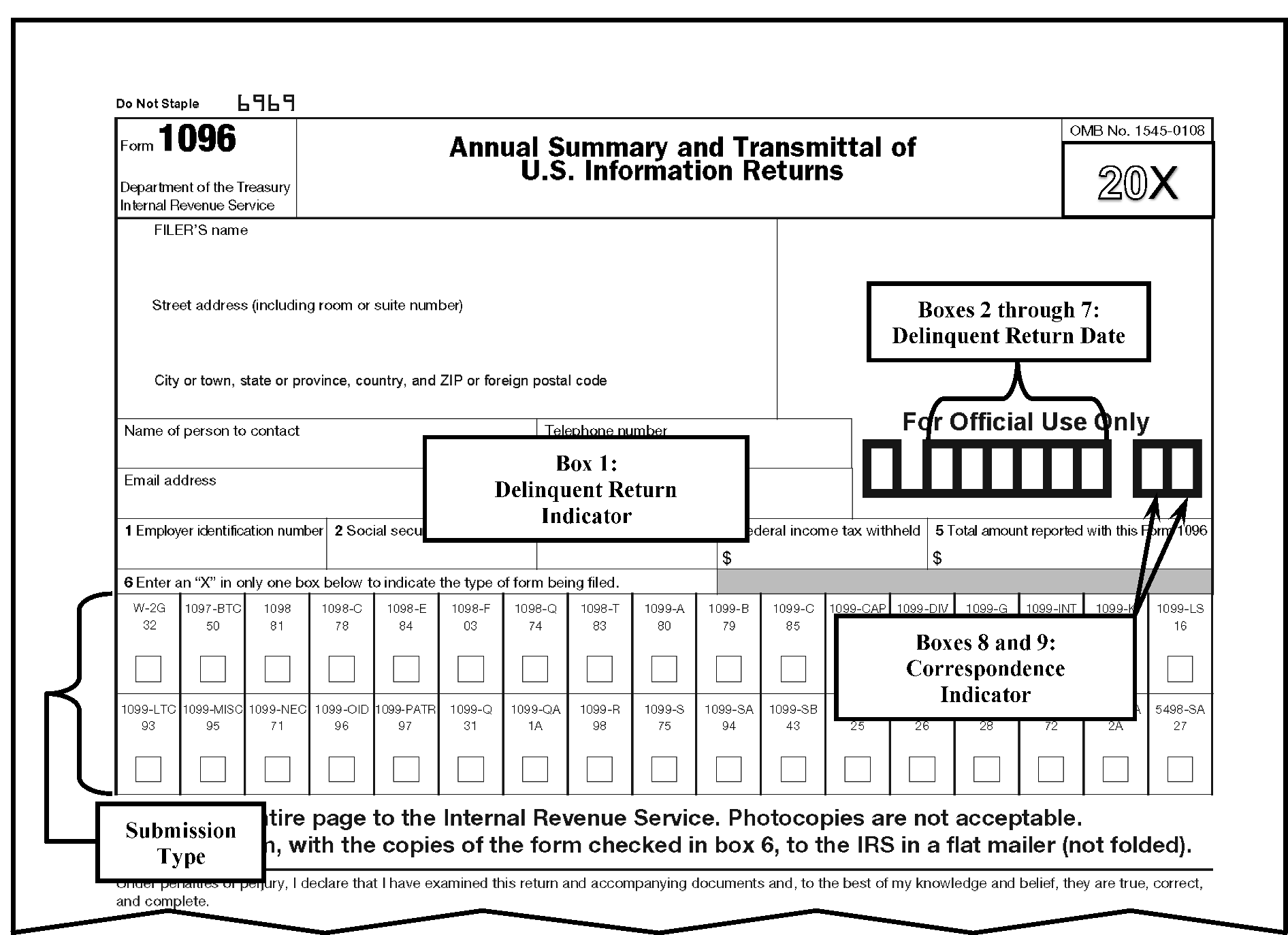
The pictured above is of a blank Form 1096, Annual Summary and Transmittal of U.S. Information Returns, with call outs boxes containing the following: Box 1: Delinquent Return Indicator; Box 2 through 7: Delinquent Return Date: Box 8 and 9 Correspondence Indicator; and Submission Type Indicator on page 1.
Please click here for the text description of the image.
-
≡ ≡ ≡ ≡ ≡ ≡ ≡ ≡ ≡ ≡ ≡ ≡ ≡ ≡ ≡ ≡ ≡ ≡ ≡ ≡ ≡ ≡ ≡ ≡ ≡ ≡ ≡ ≡ ≡ ≡ ≡ ≡ ≡ ≡ ≡ ≡ ≡ ≡ ≡ ≡ ≡ ≡ ≡ ≡ ≡ ≡ ≡ ≡ ≡ ≡ ≡ ≡ ≡"≡ ≡ ≡ ≡ ≡ ≡ ≡ ≡ ≡ ≡ ≡ ≡ ≡ ≡ ≡" ≡ ≡ ≡ ≡ ≡ ≡ ≡ ≡ ≡ ≡ ≡ ≡ ≡ ≡ ≡ ≡ ≡ ≡ ≡ ≡ ≡ ≡ ≡ ≡ ≡ ≡ ≡ ≡ ≡ ≡ ≡ ≡ ≡ ≡ ≡ ≡ ≡ ≡ ≡ ≡ ≡ ≡ ≡ ≡ ≡ ≡ ≡ ≡ ≡ ≡
≡ ≡ ≡ ≡ ≡ ≡ ≡ ≡ ≡ ≡ ≡ ≡ ≡ ≡ ≡ ≡ ≡ ≡ ≡ ≡ ≡ ≡ ≡ ≡ ≡ ≡ ≡ ≡ ≡ ≡ ≡ ≡ ≡ ≡ ≡ ≡ ≡ ≡ ≡ ≡ ≡ ≡ ≡ ≡ ≡ ≡ ≡ ≡ ≡ ≡ ≡ ≡ ≡ ≡ ≡ ≡ ≡ ≡ ≡ ≡ ≡ ≡ ≡ ≡ ≡ ≡ ≡ ≡ ≡ ≡ ≡ ≡ ≡ ≡ ≡ ≡ ≡ ≡ ≡ ≡ ≡ ≡ ≡ ≡ ≡ ≡ ≡ ≡ ≡ ≡ ≡ ≡ ≡ ≡ ≡ ≡ ≡ ≡ ≡ ≡ ≡ ≡ ≡ ≡ ≡ ≡ ≡ ≡ ≡ ≡ ≡ ≡ ≡ ≡ ≡ ≡ ≡ ≡ ≡ ≡ ≡ ≡ ≡ ≡ ≡ ≡ ≡ ≡ ≡ ≡ ≡ ≡ ≡ ≡ ≡ ≡ ≡ ≡ ≡ ≡ ≡ ≡ ≡ ≡ ≡ ≡ ≡ ≡ ≡ ≡ ≡ ≡ ≡ ≡ ≡ ≡ ≡ ≡ ≡ ≡ ≡ ≡ ≡ ≡ ≡ ≡ ≡ ≡ ≡ ≡ ≡ ≡ ≡ ≡ ≡ ≡ ≡ ≡ ≡ ≡ ≡ ≡ ≡ ≡ ≡ ≡ ≡ ≡ ≡ ≡ ≡ ≡ ≡ ≡ ≡ ≡ ≡ ≡ ≡ ≡ ≡ ≡ ≡ ≡ ≡ ≡ ≡ ≡ ≡ ≡ ≡ ### Exception: ≡ ≡ ≡ ≡ ≡ ≡ ≡ ≡ ≡ ≡ ≡ ≡ ≡ ≡ ≡ ≡ ≡ ≡ ≡ ≡ ≡ ≡ ≡ ≡ ≡ ≡ ≡ ≡ ≡ ≡ ≡ ≡ ≡ ≡ ≡ ≡ ≡ ≡ ≡ ≡ ≡ ≡ ≡ ≡ ≡ ≡ ≡ ≡ ≡ ≡ ≡ ≡ ≡ ≡ ≡ ≡ ≡ ≡ ≡ ≡ -
≡ ≡ ≡ ≡ ≡ ≡ ≡ ≡ ≡ ≡ ≡ ≡ ≡ ≡ ≡ ≡ ≡ ≡ ≡ ≡ ≡ ≡ ≡ ≡ ≡ ≡ ≡ ≡ ≡ ≡ ≡ ≡ ≡ ≡ ≡ ≡ ≡ ≡ ≡ ≡ ≡ ≡ ≡ ≡ ≡ ≡≡ ≡ ≡ ≡ ≡ ≡ ≡≡ ≡ ≡ ≡ ≡ ≡ ≡ ≡ ≡ ≡ ≡ ≡ ≡ ≡ ≡ ≡ ≡ ≡ ≡ ≡ ≡ ≡ ≡ ≡ ≡ ≡ ≡ ≡ ≡ ≡ ≡ ≡ ≡ ≡ ≡≡ ≡ ≡ ≡≡ ≡ ≡ ≡ ≡ ≡ ≡ ≡ ≡ ≡ ≡ ≡ ≡ ≡ ≡ ≡ ≡ ≡ ≡ ≡ ≡ ≡ ≡ ≡ ≡ ≡ ≡ ≡ ≡ ≡ ≡ ≡ ≡ ≡ ≡ ≡ ≡ ≡ ≡ ≡ ≡ ≡ ≡ ≡ ≡ ≡ ≡"≡" ≡ ≡ ≡ ≡ ≡ ≡ ≡ ≡ ≡ ≡ ≡ ≡ ≡ ≡ ≡ ≡ ≡ ≡ ≡ ≡ ≡ ≡ ≡ ≡ ≡ ≡ ≡ ≡ ≡ ≡ ≡ ≡ ≡ ≡ ≡ ≡ ≡ ≡ ≡ ≡ ≡"≡ ≡ ≡ ≡ ≡ ≡ ≡ ≡ ≡ ≡ ≡" ≡ ≡ ≡ ≡ ≡ ≡ ≡ ≡ ≡ ≡ ≡ ≡ ≡ ≡ ≡ ≡ ≡ ≡ ≡ ≡ ≡ ≡ ≡ ≡ ≡ ≡ ≡ ≡ ≡ ≡ ≡ ≡ ≡ ≡ ≡ ≡ ≡ ≡ ≡ ≡ ≡ ≡ ≡ ≡ ≡ ≡ ≡ ≡ ≡ ≡ ≡ ≡ ≡"≡ ≡" ≡ ≡ ≡ ≡ ≡ ≡ ≡ ≡ ≡ ≡ ≡ ≡ ≡ ≡ ≡ ≡ ≡ ≡ ≡ ≡ ≡ ≡ ≡ ≡ ≡ ≡ ≡ ≡ ≡ ≡ ≡ ≡ ≡ ≡ ≡ ≡ ≡ ≡ ≡ ≡ ≡ ≡ ≡ ≡ ≡ ≡ ≡ ≡ ≡ ≡"≡" ≡ ≡ ≡
3.41.269.2.2 (01-01-2026)
Scanner Rejects
-
The scanner prints a one-character reject code to the left of the Document Locator Number (DLN) area on any form that rejects. The reject codes and descriptions are shown below. If the scanner printed more than one code, decide whether the submission can be corrected and re-scanned, or returned to the IRP Sort function.
Form Reject Code Description Form 1096 X Form 1096 with no detail documents. Form 1097-BTC, Form 1098 series, Form 1099 series, Form 5498 Form 3921 Form 3922 Form W-2G M Mixed detail document types in a submission. Documents of mixed form types are not rejected at the scanner when there is an unrecognized (FI) document positioned directly before the rejected documents. -
Reject Code "X" is any Form 1096, Annual Summary and Transmittal of U.S. Information Returns, with no detail documents and needs to be routed to the IRP Sort function for processing on ISRP. Line through the DLN if the scanner printed one on the form.
-
Reject Code "M" (Mixed Document Type).
-
A mixed document type submission received from the scanning function always is one of the form types listed in Exhibit 3.41.269-8 through Exhibit 3.41.269-44. This is because the scanner accepts at least one of the detail document types with the Form 1096 and only the non-conforming, mixed, or invalid document types are rejected.
-
Route reject code "M" documents to the IRP Sort function for disposition.
-
3.41.269.2.3 (01-01-2016)
Correspondence on Processable Returns
-
Correspondence concerning information returns requiring extra effort to process (i.e., cannot scan documents without extra handling) is automated for scanned returns. Until further notice, due to the Correspondence Unit being disbanded, only use Correspondence Indicator 99.
-
Enter indicator "99" on every "dummy" Form 1096, Annual Summary and Transmittal of U.S. Information Returns, which IRS prepared. If a filer submitted a Form 1096, but preparing another Form 1096 is necessary enter "99" on the "dummy."
3.41.269.2.4 (01-01-2026)
Unprocessable Conditions
-
All unprocessable documents are returned to the IRP Sort function. The IRP Sort function corresponds with the filer concerning their submission and asks the filer to re-file the documents (see below).
Reminder:
Tag each condition prior to forwarding to IRP Sort function.
-
The following conditions make a return unprocessable:
-
You can’t determine what the taxpayer data is (foreign language, completely illegible).
-
You can’t determine the type of return.
-
You can’t determine the tax year.
-
You can’t determine the money amount boxes. (The Doc Prep function isn't responsible for analyzing and converting non-IRS forms).
-
The filer altered the box titles.
-
The document payer information doesn't match the Form 1096, Annual Summary and Transmittal of U.S. Information Returns.
-
The submission did not contain a transmittal document stating the form being transmitted.
-
Form 1096, submitted individually, without payee returns or if disassociated from their respective information returns.
-
3.41.269.2.5 (01-01-2021)
Post Document Preparation (Doc Prep) Required
-
Pull and return to the IRP Sort function daily unprocessable documents and UWs listed on the IRP Pull Document/Submission Report (see IRM 3.41.269.11.12) that can’t be resolved in SCRIPS.
-
Integrated Data Retrieval System (IDRS) Image requests are sent daily by secure e-mail to the Unit manager of the requesting unit. The IDRS Unit & USR Database located at the following link is used to retrieve the e-mail addresses: https://iors.web.irs.gov/HomeIUUD.aspx. Use "ESTAB Request" as the subject of the secure e-mail.
Note:
An IDRS List Report is available under General Reports in the backend of the system for use on volumes. Other actions or distribution can be negotiated with requesting organizations at a local level barring excessive staff hour usage.
-
At the discretion of site management "dummy" Form 1096 are prepared in the Post Doc Prep function if necessary, to make a submission processable. Write correspondence indicator "99" on the "dummy."
3.41.269.3 (01-01-2016)
Workstation Operations
-
Refer to IRM 3.41.274, Optical Character Recognition Scanning Operations, General Instructions for Processing via Service Center Recognition/Image Processing System, for a description of these and other items:
-
Keyboard Layout
-
Login/Logoff
-
Operator Statistics
-
Post-to-Close
-
Interrupt/Resume
-
Suspend/Resume
-
Status Line
-
Window Prompts
-
Key Functions
-
-
Whenever IRM 3.41.274, Optical Character Recognition Scanning Operations, General Instructions For Processing via Service Center Recognition/Image Processing System and this IRM conflict, this IRM takes precedence.
3.41.269.4 (01-01-2016)
Forms Identification (FI) Function
- The scanner doesn't recognize all documents. These documents are called non-conforming forms. They range from photocopies of official documents, that might be official forms but for some reason don't meet the official specifications for measurement, homemade documents of varying formats, to non-IRP forms. The Form Identification (FI) function allows the manager/work leader to identify the form to avoid rework at the scanner. The FI screen has an image on the left and an entry template on the right. The entry template permits the operator to select the form type of the image or delete a single image or an entire submission from further processing. The menus shown on the screen vary depending on how your supervisor profiled you. For instance, if you are not profiled for the FI function, this option isn't present or is grayed on the OE Function Menu.
3.41.269.4.1 (01-01-2019)
Forms Identification (FI) QUICK START
-
From the Workstation Main Menu, select the numeric code for Original Entry (OE).
-
From the Original Entry (OE) Selection Menu, select the numeric code for Form Identification (FI) Selection Menu.
-
From the Form Identification (FI) Selection Menu, select the numeric code for the type of FI needed.
-
The first group of images, from a Unit-of-Work (UW) requiring identification, opens.
-
If an incorrect option is selected from the Form Identification (FI) Selection Menu, press the ******-**P key combination to set (post-to-close) and press to suspend, before entering any data, to return to the Form Identification (FI) Selection Menu.
Note:
Notify your supervisor.
-
Press the -P key combination to end OE after completing the current UW.
-
The system returns you to the Form Identification (FI) Selection Menu when the last image identification in the UW is completed.
3.41.269.4.2 (01-01-2022)
Form Identification (FI) Processing
-
The system assigns a six-digit sequence number instead of a DLN to IRP documents it can’t identify. This number helps in locating the UW when researching documents. Once the form type has been identified, the system assigns a DLN to the submission.
-
If you can identify the image, make the correct letter or number selection from the template (e.g., press "M" for Form 1099-MISC, Miscellaneous Information, "R" for Form 1099-R, Distributions From Pensions, Annuities, Retirement or Profit Sharing Plans, IRAs, Insurance Contracts,). The key must be pressed to complete a selection.
-
If you can’t identify the image, press to suspend the document for research. Some documents are scanned backwards. These require research to determine exactly which document type they are. If the image is unprocessable, press "X" to remove the document from further processing.
-
If there are multiple form types in a submission, research further to determine if the submission should be deleted. Deleting the entire submission is sometimes more efficient than removing many single documents (e.g., if the first document is recognized and the remainder is of another type and they are not recognized). Delete submissions by pressing the key.
-
Removing single documents is more efficient if most of the images in the UW were recognized.
-
Pull and research the UW before it is either corrected and re-scanned or sent to the IRP Sort function for correction.
-
-
To end a session, press the ******-**P key combination. The system returns you to the Original Entry (OE) Selection Menu when you complete the last image in the UW.
3.41.269.5 (01-01-2016)
Original Entry (OE) Function
- The OE function is used to manually key enter data from scanned images. Menu options vary depending on operator profiles set by the supervisor. For instance, if you are not profiled for the OE function, this option isn't listed or is grayed on the menu.
3.41.269.5.1 (01-01-2020)
Original Entry (OE) Image QUICK START
-
From the Workstation Main Menu, select the numeric code for Original Entry (OE).
-
From the Original Entry (OE) Selection Menu, select the numeric code for OE Image Selection Menu.
-
From the OE Image Selection Menu, select the numeric code for the type of OE needed.
-
The first UW, or first individual document requiring OE opens (because an entire UW may not require OE Image). Use Exhibit 3.41.269-8 through Exhibit 3.41.269-44, and the other exhibits in this IRM, as needed, when entering data.
-
If an incorrect option is selected from the OE Image Selection Menu, press -P, then press to suspend the UW and to return to the OE Image Selection Menu.
Note:
Notify your supervisor.
-
After entering the last field on the document press the key to release the document and display the next template. The system automatically goes to the next template.
-
Press the -P key combination to end OE Image when the current UW is finished.
-
The system returns you to the Original Entry (OE) Selection Menu when you complete the last document in the current UW.
3.41.269.5.2 (01-01-2019)
Original Entry (OE) Image Processing
-
The Status Line at the bottom of the screen displays the following information:
-
The program field shows "44340" for IRP documents.
-
The DLN field shows the DLN of the document being displayed.
-
The document field shows the relative count of the document.
Example:
If it is the first document in a UW that contains 250 documents, the document field shows a count of "1 of 250" .
-
The num field shows either "NU" or blank, depending on whether the embedded numeric keypad is activated.
-
-
In OE Image, you manually enter:
-
form submission type
-
each two-digit sequence number is required
-
information into the template using a scanned image of the return as the source
-
3.41.269.5.3 (01-01-2016)
Releasing a Unit-of-Work (UW) in Original Entry (OE)
-
For OE Image when you release the last document the UW is released.
-
If -P has been pressed before releasing the UW, the Original Entry (OE) Selection Menu opens.
-
If -P has not been pressed, another UW opens.
-
3.41.269.5.4 (01-01-2016)
Selecting a Specific Unit-of-Work/Block in Original Entry (OE)
-
A specific IRP UW is selected for OE by following these steps:
-
From the Workstation Main Menu, select the numeric code for OE. The Workstation Main Menu closes, and the OE Selection Menu opens. The menus shown on the screen vary depending on how your supervisor profiled you. For instance, if you are not profiled for OE function, this option isn't displayed or is grayed on the menu.
-
From the OE Selection Menu, enter the numeric code for OE Select Block. The OE Selection Menu closes, and the Open Block/Unit-of-Work window opens.
-
From the Open Block/Unit-of-Work window, enter the 14-digit DLN from the Form 1096, Annual Summary and Transmittal of U.S. Information Returns.
-
Press the key. The Open Block/Unit-of-Work window closes, and the selected UW opens.
-
The designated Form 1096 opens. Enter data using Exhibit 3.41.269-8 through Exhibit 3.41.269-44, and other exhibits, as needed, in this IRM.
-
If the block isn't available, an error message is displayed indicating the block isn't available.
Example:
A message is displayed if you previously worked on this block in FI, or if another operator is currently working on the block/UW.
-
If an incorrect UW is selected for the Open Block/Unit-of-Work menu, press the -P key combination, then suspend the UW.
Note:
Notify your supervisor.
-
3.41.269.6 (01-01-2016)
Data Validation (DV) Function
- The Data Validation (DV) function is used to manually correct data from scanned images. The menus shown on the screen vary depending on how your supervisor profiled you. For instance, this option is grayed on the menu Workstation Main Menu if the DV function isn't in your profile.
3.41.269.6.1 (01-01-2016)
Data Validation (DV) From Image QUICK START
-
From the Workstation Main Menu, select the numeric code for Data Validation (DV).
-
From the Data Validation (DV) Selection Menu, select the numeric code for DV Selection Menu.
-
From the DV Selection Menu, select the numeric code for the type of DV needed.
-
The first UW opens, and the cursor stops at the first highlighted field when the AUTO is on. Use the exhibits in this IRM and the general correction procedures to make necessary corrections.
-
If an incorrect option is selected from the DV Selection Menu before entering any data, press -P, then press to suspend and return to the DV Selection Menu.
Note:
Notify your supervisor.
-
After entering the last field of the document, if AUTO is off, press the key to release the document and display the next template.
-
Press the -P key combination to not receive extra blocks before the current UW is completed.
-
The system returns you to the Data Validation (DV) Selection Menu when you release the last document.
3.41.269.6.2 (01-01-2022)
Selecting a Specific Unit-of-Work/Block in Data Validation (DV)
-
A specific UW of IRP documents, may be selected for DV by following these steps:
-
From the Workstation Main Menu, select the numeric code for Data Validation (DV). The Workstation Main Menu closes, and the Data Validation (DV) Selection Menu opens. The menus shown on the screen vary depending on the profile entered by your supervisor. For instance, this option doesn't display on the menu if you are not profiled for the DV function.
-
From the Data Validation (DV) Selection Menu, enter the numeric code for DV Select Block. The Data Validation (DV) Selection Menu closes, and the Open Block/Unit-of-Work window opens.
-
Enter the 14-digit DLN from Form 1096, Annual Summary and Transmittal of U.S. Information Returns.
-
Press the key. The Open Block/Unit-of-Work window closes, and the selected UW opens.
-
The first document needing correction opens. Enter data using Exhibit 3.41.269-8 through Exhibit 3.41.269-44, and other exhibits, as needed, in this IRM.
-
A suspended UW in DV requires the operator to restore the AUTO on mode if you wish to process the work in AUTO mode.
Reminder:
If after entering the DLN, the screen goes white for a second and then returns to the menu, the block is technically worked. The system ran through all the checks and there were no errors.
-
If an incorrect UW is selected from the Open Block/Unit-of-Work menu, press the -P key combination and then suspend the UW.
Note:
Notify your supervisor.
-
3.41.269.7 (01-01-2020)
Name and Address Block Reader (NABR)
-
Name and Address Block Reader is referred to as NABR. NABR is used to improve the accuracy of addresses captured by the scanner from IRP documents. The NABR accomplishes this improvement by comparing the address captured by the scanner with a database of addresses used by the United States Postal Service. SCRIPS processes the NABR through the Postal Database.
-
When validating a NABR change, ensure the system read the correct ZIP Code. If address, city and state changes have been made and a correct ZIP Code isn't present on the template, correct the information to match what is on the image.
-
The system prompts you to "Please verify" the following conditions:
-
State is determined by the system from the city present
-
State is determined from the ZIP Code present
-
City is updated by the system to a phonetic match
-
City is determined from ZIP Code
-
Acceptable city name used
-
Leftover characters present and no other address warning sent
-
ZIP Code not found
Note:
NABR doesn't appear in the bottom right-hand corner in the conditions listed above.
-
3.41.269.8 (01-01-2024)
General Correction Procedures
-
Use these procedures as a guide during the Original Entry (OE) and Data Validation (DV) functions. Not all items always apply to specific situations in either function. You may have to correct a field that isn't highlighted because of a correction made to a highlighted field. You must sight verify and correct any field containing incorrect characters. If the system stops on a field, sight verify and correct all incorrect items in that field.
-
If you reach the maximum field length while entering data, the cursor, in most cases, automatically moves to the next field. Therefore, incorrect characters can be inadvertently entered into the next field. Remove or correct these characters. Use standard abbreviations in Exhibit 3.41.269-6, Street Abbreviations (Optional), and Exhibit 3.41.269-7, Standard Abbreviations (Optional), to help avoid this situation.
-
Error Messages—Error messages with information are often helpful to correct the error and may be found in the Prompt Area. Most IRP error messages are two lines with the first line being the error message and the second line containing information that may help resolve the error condition.
-
While working in OE Image or DV Image, if you cannot determine the data for any field (except the Street Address, City and Account Number fields) from the image because it is illegible or the image is incomplete, suspend the UW and pull the paper document for verification. If the entries for required fields still cannot be determined, void the document and send to Receipt and Control for disposition. See IRM 3.41.269.8.7.
Exception:
Void the document if it is a detail document within a UW and two of the following three items are illegible or missing: TIN, name, and address. Don’t forward to Receipt and Control for research but continue working the UW.
-
When correcting description type fields, enter up to 100 valid characters. Leave a space for illegible characters but don't leave two spaces in a row. If all characters are illegible, blank the field.
-
The key may be pressed to view the entity information from a Form 1096, Annual Summary and Transmittal of U.S. Information Returns, while the transmitted form is displayed. It also displays the entity information from the transmitted form while a Form 1096 is displayed.
-
The key may be pressed to examine and alter the Form 1096 EIN, SSN, or Correspondence Indicator information while the transmitted form is displayed.
-
In certain situations, the scanner may read a name, address or city without spaces or spread them over the name lines or address fields. If the system reads the name and address correctly, leave as is.
Note:
If the scanner reads a line correctly but placed the information in an incorrect field, move the information as scanned to the correct entry field using key combination of -up arrow and -down arrow. Standard abbreviations are not required for addresses moved to the correct field.
-
The - combination key function provides the ability to access the last edited field or the last flagged field of the previous document.
-
Recipient ID fields (EIN, SSN, or TIN) presented as 1-xxx-xx-xxxx-0 or 1-xx-xxxxxxx-0, or any variation thereof, should be entered as xxxxxxxxx, omitting the leading and ending numerics.
Note:
The Recipient ID fields are nine-digit fields. Find further guidance on entering Recipient IDs in Exhibit 3.41.269-8, Information Returns (IRP) Entity Fields Transcription.
-
If detail documents are presented consecutively with the same recipient’s name and money amounts duplicated, enter one document and VOID the duplicates. See IRM 3.41.269.8.7 for more void conditions.
-
For more information on function keys: refer to IRM 3.41.274, Optical Character Recognition Scanning Operations, General Instructions For Processing via Service Center Recognition/Image Processing System, and Exhibit 3.41.274-1, Function Key Use and Description by Form Type.
3.41.269.8.1 (03-04-2024)
Name Entries
-
Enter the information as shown on the document, except as instructed below. See Exhibit 3.41.269-6, Street Abbreviations (Optional), and Exhibit 3.41.269-7, Standard Abbreviations (Optional), for standard abbreviations and Exhibit 3.41.269-45, Valid Characters, to determine valid characters.
Example:
Except as noted below, enter the information exactly as shown or edited on the document, including all Trust numbers and dates if part of name line.
Example of Taxpayer Entry Enter as: Iris Frank IRIS FRANK Estate of Lilly Family ESTATE OF LILLY FAMILY Trust 11323 TRUST 11323 -
Don’t enter periods and do not space for them. Only enter a space in an internet name.
Example:
Enter "Flower.com" as "FLOWER COM" .
-
If the name appears with the last name first and the first name last, and the system read it correctly, leave as is.
Note:
If during sight verification a correction needs to be made, or if in OE, enter the first name first and last name last.
-
If a foreign address is present, don't use the Name 2 field to enter names. For further guidance on entering foreign addresses refer to IRM 3.41.269.8.2, Address Elements.
-
If the filer submitted the same name twice on a form, enter it only once. If Name 1 and Name 2 are exactly the same, delete Name 2 field. If there is any information that is different from Name 1 in Name 2, leave the information as is on Name 2.
-
If Name 1 or Name 2 entry is too long for the field, shorten it using the abbreviations listed in Exhibit 3.41.269-7, Standard Abbreviations (Optional).
Note:
If either Name 1 or Name 2 is too long after applying abbreviations mentioned above, then enter as many characters as possible. Don’t continue the entry on Name 2. Don’t abbreviate entries used for the Name Control.
-
Don’t enter a slash (/), if shown in the name line. Leave a space.
-
-
Space before and after an ampersand (&). In Name 1, enter "and" or "&" as shown.
Example of Taxpayer Entry Enter as: Jim Lime and Joe Doe, Ptrs. JIM LIME AND JOE DOE PTRS J. Elm & R. Ash, Inc. J ELM & R ASH INC -
Omit all punctuation, except for hyphens (-). The hyphen is keyed using the MINUS (-).
Example of Taxpayer Entry Enter as: O'Talcum OTALCUM Maple-Pecan MAPLE-PECAN -
Space within a true last name if shown.
Example of Taxpayer Entry Enter as: De Pine DE PINE Van Yew VAN YEW -
If Name 2 contains three characters or less, override the field error by pressing the -<4> key.
-
In the second name line change "and" to "&" .
-
If "In-Care-Of" or "%" is found in the middle of Name 1, move the information to the Name 2 field.
Example:
Roger Banana c/o Anaconda Trucking and Moving Corporation
Enter name In Prompt ROGER BANANA Name 1 % ANACONDA TRUCKING & MOVING CORP Name 2 -
If an "In-Care-Of" name is present, enter "%" , space, and the name. If information is already present on Name Line 2, include as much as possible after the "In-Care-Of" information is input.
Note:
If two or more "In-Care-Of" name lines are present enter the first "In-Care-Of" name.
-
-
If there are two or more names in Name 2, separate them with the word "OR" , unless "and (&)" or "C/O (%)" are present. Enter "&C" when edited as the last two characters of Name 2 data (no space between the two characters) when the taxpayer entry is too long for the field.
Example:
Wood N Willow, Tulip R. Spaniel or Rose E. Locust, Edmund Beech, Evergreen R. Henry &C
-
Enter name In Prompt WOOD N WILLOW Name 1 TULIP R SPANIEL OR ROSE E LOCUST &C Name 2 Example:
Robert Woodpecker OR Eleanor Woodpecker or Gloria Robin
Enter name In Prompt ROBERT WOODPECKER Name 1 ELEANOR WOODPECKER OR GLORIA ROBIN Name 2 Example:
Albert Palm, Jr. OR Rose Holly or Robert Coffee
Enter name In Prompt ALBERT PALM JR Name 1 ROSE HOLLY OR ROBERT COFFEE Name 2 Example:
Arthur AND Roberta Poplar or Stephen Poplar
Enter name In Prompt ARTHUR POPLAR Name 1 ROBERTA POPLAR OR STEPHEN POPLAR Name 2
-
-
Second Name Line data, such as DBA, C/O or %, should be entered on the second line if placed on the address line and clerk intervention is required.
-
IMF Only - Don’t enter titles such as Mr., Mrs., Capt., Dr., Rev., in any individual's name (except for Form 1096, Annual Summary and Transmittal of U.S. Information Returns).
Exception:
Enter "Mrs" or "Ms" when the taxpayer places it before a masculine name, initials or a first name which could be masculine or feminine.
-
Example:
Mr. OR Mrs. Joe Walnut - and/or ampersand (&) included.
Enter name In Prompt JOE WALNUT Name 1 MRS JOE WALNUT Name 2
-
-
BMF Only
-
Abbreviate corporate name information only when it is abbreviated on the document or the name line exceeds the allowable space. Never abbreviate the first four characters containing the Name Control.
Exception:
Always use the following abbreviations for corporate entries:
ASSN for Association
CO for Company
CORP for Corporation
FDN for Foundation
INC for Incorporated
LLC for Limited Liability Company
PA for Professional Association
PC for Professional Corporation
PS for Professional Service
SC for Small Corporation -
Use the following when you see one of these symbols:
• #, enter NO
• ¢, enter CENT
• +, enter PLUS -
Omit special characters and/or symbols not outlined above and enter a blank space instead in its position in the name line.
Note:
The ampersand (&) isn't considered a symbol for name line.
-
Omit the designation only such as TA, DBA, AKA, Owner, Proprietor when entering data.
Note:
Don’t enter DBA or TA. If scanner reads DBA or TA correctly and no other corrections are needed, leave as is.
Don’t enter the designations or data for FKA, formerly DBA or any data that follows these designations. -
If a city or state is shown as part of the first name line, enter the complete name of the city or state. NO abbreviations.
-
If the name begins with the word "The" and has more than one word following "The" , Do Not enter "The" .
-
If the name begins with the word "The" and has only one word following "The" , enter "The" as the first word on the name line.
-
If there are initials in a person's name or a company name with abbreviations such as LLC, MD, PC, don't space for periods. If scanner picks up spaces, leave as is.
-
If there is a business name in the name line such as "Rug Doctor" or "Mister Clean" and the system drops the Doctor or Mister, re-enter the name as submitted.
-
If Name 2 contains three characters or less, override the field error by pressing -<4>.
-
If a foreign address is present, don't use the Name 2 field to enter names. Find further instruction for entering foreign addresses in IRM 3.41.269.8.2, Address Elements.
-
If sole proprietor is notated and a corporate designation isn't part of the business name, enter the individual’s name as Name 1 and list any business name present as Name 2.
BMF NAME LINE ENTRY EXAMPLES
Example of Paragraph (10) alpha above Taxpayer entry Enter (First Name Line) as a, f The SPANIEL Corp. Apple Spaniel, Pres. SPANIEL CORP APPLE SPANIEL PRES (Second Name Line) b Banana Dental Office Ltd. BANANA DENTAL OFFICE LTD a Fig Spaniel Corporation FIG SPANIEL CORP i Dr. Fig Spaniel Inc. DR FIG SPANIEL INC c 5 & 10 & 25¢. Store 5 & 10 & 25 CENT STORE d, h Service Cleaners L.L.C. DBA The Clean Machine SERVICE CLEANERS LLC CLEAN MACHINE (Second Name Line) d, f The Clean Machine, Irene R. Servis Proprietor CLEAN MACHINE IRENE R SERVIS (Second Name Line) l The Clean Machine, Irene R. Servis Sole Proprietorship IRENE R SERVIS CLEAN MACHINE (Second Name Line) e First Bank of GA FIRST BANK OF GEORGIA f The First National Bank FIRST NATIONAL BANK g The Hideaway THE HIDEAWAY -
3.41.269.8.2 (01-01-2021)
Address Elements
-
Enter the information exactly as shown on the document except as instructed below or when the NABR has perfected the address. See IRM 3.41.269.7 (2).
-
If the address can be determined whether it is all or partially in Name 2 and Address field, leave the address where it is. It isn't necessary to move the entire address to the Address field.
Caution:
Omit "In-Care-Of" symbol (%) if shown with an address.
-
Do not enter periods in the Address field, however, punctuation such as slash (/) and hyphen (-) are acceptable. If a period is present between two numbers enter a space for the period.
Exception:
If an ampersand (&) is present in the street address, enter as "AND." If an apostrophe (‘) is present omit the apostrophe and don't leave a space for the apostrophe.
-
Use the "required" street abbreviations when entering the entire field. Enter abbreviations for street addresses as shown in Exhibit 3.41.269-5, Street Abbreviations (Required), and Exhibit 3.41.269-6, Street Abbreviations (Optional). If perfecting only part of the address, such as the state or ZIP Code, don't go back to the street address to abbreviate if the scanner picked up the street address as present on the document.
Exception:
If the name of the street is a direction, the direction must be spelled out. Don’t abbreviate street names.
Example:
123 North Street should be entered as 123 NORTH ST.
-
"(Optional)" If a document has a PO Box, Post Office Box, POB, PO, or PO Drawer, enter an asterisk (*) followed by a space in the first two positions of the Address field instead of "PO Box." It isn't necessary to change "PO Box" to an asterisk (*) if scanned correctly. Don’t substitute an asterisk for Personal Mailbox (PMB).
Example:
PO Box #24; ENTER *(space) 24.
-
If a document contains a street address and a PO Box, enter both on the Address field with the PO Box or (*) entered first. If the combination is too long, the PO Box takes precedence. Also, use abbreviations as necessary to limit this entry to 35 positions. Enter as much of the street address with abbreviations as possible.
-
If two street addresses are present with the same city and ZIP Code, enter the first street address. If two addresses are present, including a PO Box and an address, with different city and ZIP Code, enter the first in the Address, City, State and ZIP fields.
-
If the system presents all nine-digits of the ZIP Code and the digits are correct, accept them. If there is a change to be made, only the first five-digits of the ZIP Code must be entered. If other than five or nine-digits use the system default ZIP Code.
-
Omit "No, No., Num, #" symbol and "Number" if it appears as a prefix to a house, apartment, Route, or PO Box number.
-
If the street address cannot be determined or is blank on the transmitted form, enter "Z" in the Address field as shown in Exhibit 3.41.269-8, Information Returns (IRP) Entity Fields Transcription Sheet.
-
If the city cannot be determined or is blank on the supporting forms being transmitted, enter "ZZZ" in the City field and leave the State and ZIP fields blank as shown in Exhibit 3.41.269-8, Information Returns (IRP) Entity Fields Transcription Sheet. If the State and ZIP fields are missing or cannot be determined, leave blank.
-
If multiple street designations are present only abbreviate the last designation present.
Example:
1234 Circle Road Drive should be entered as: 1234 CIRCLE ROAD DR
-
Major City Codes are listed in Exhibit 3.41.269-4, Alphabetical Listing of Major Cities with Major City Codes and ZIP Codes. If a Major City Code is used and a ZIP Code isn't present, a valid five-digit ZIP Code for the city is generated by the system.
-
If North, South, East or West is shown as part of the city name, use the standard abbreviation (N=North, S=South, etc.). NEVER use a Major City Code and the standard abbreviation together.
Example:
West Miami enter as W MIAMI, not W MF.
-
For domestic addresses only, if the city contains numerics, enter as alphas.
Example:
29 Palms enter as TWENTY NINE PALMS.
-
If correcting or transcribing an Address field add st, nd, rd or th to a numbered street when there is a street designation such as Road or Street.
Note:
102 S. 38 Road would be transcribed as 102 S 38TH RD
-
Enter standard abbreviations for states and territories as shown in Exhibit 3.41.269-1, States, State Codes, and ZIP Codes Sorted by State, through Exhibit 3.41.269-3, ZIP Code, City, and State Exceptions.
-
If there is no state but a ZIP Code is present, press the key in the ZIP field. This generates the state code for this ZIP Code in the prompt area. Follow the screen prompts to accept this code or to enter a different code.
-
If there is no ZIP Code (or the ZIP Code is less than or more than the standard five or nine-digits) but a state is present, press the key in the ZIP field. The system generates the default ZIP Code for this state.
Note:
Don’t generate the default ZIP Code without first entering the ZIP Code "if" present on the form.
-
If the system prompts that the ZIP Code entered and present on the form doesn't match the state, delete the ZIP Code entered from the form and generate the default ZIP Code for this state.
Note:
Don’t generate the default ZIP Code without first entering the ZIP Code present on the form.
-
Army Post Office (APO), Diplomatic Post Office (DPO) and Fleet Post Office (FPO) addresses must be transcribed with the correct two-character state code followed by the corresponding unique five-digit ZIP Code.
-
When an APO, DPO or FPO is used, don't enter any other data in the City field.
-
If the ZIP Code is out of range on APO, DPO or FPO addresses, enter 34001 for Miami, 09001 for New York and 96201 for San Francisco or Seattle.
-
If APO, DPO or FPO cannot be determined, enter "ZZZ" in the City field.
-
When APO, DPO or FPO is to be transcribed in the City field, the State field must correspond with the following:
State Code ZIP Code Range Geographic Location AA 340 Americas AE 090-098 Europe AP 962-966 Pacific EXAMPLE: ENTER AS: APO New York, NY 090XX APO AE 090XX FPO San Francisco, CA 962XX FPO AP 962XX
-
-
Foreign addresses on Form 1096, Annual Summary and Transmittal of U.S. Information Returns, are never entered. Enter "Z" for the street address, "ZZZ" for the city. Don’t enter a period in the State field. Don’t enter the street address on the second name line.
Note:
Press to bypass the State field.
-
Foreign addresses on payee documents are entered as follows:
-
Enter the foreign street address in Name 2 field. Don’t use Name 2 field for "In-Care-Of" information or as an overflow of Name 1 information when entering foreign addresses.
-
Enter the foreign city, state or province, and mailing code, if present, in the Address field. Use abbreviations as necessary to limit this entry to 25 positions. Use Exhibit 3.41.269-5, Street Abbreviations (Required), through Exhibit 3.41.269-7, Standard Abbreviations (Optional). Separate the postal code from the foreign city or province by a space.
Example:
London 02.
-
Enter the foreign country in the City field. If missing or unknown, enter "ZZZ" . Use abbreviations to limit this entry to 15 positions. Use Exhibit 3.41.269-5, Street Abbreviations (Required), through Exhibit 3.41.269-7, Standard Abbreviations (Optional).
-
Enter a period (.) in the first position of the State field to identify the address as foreign.
-
Leave the ZIP Code blank.
Figure 3.41.269-2
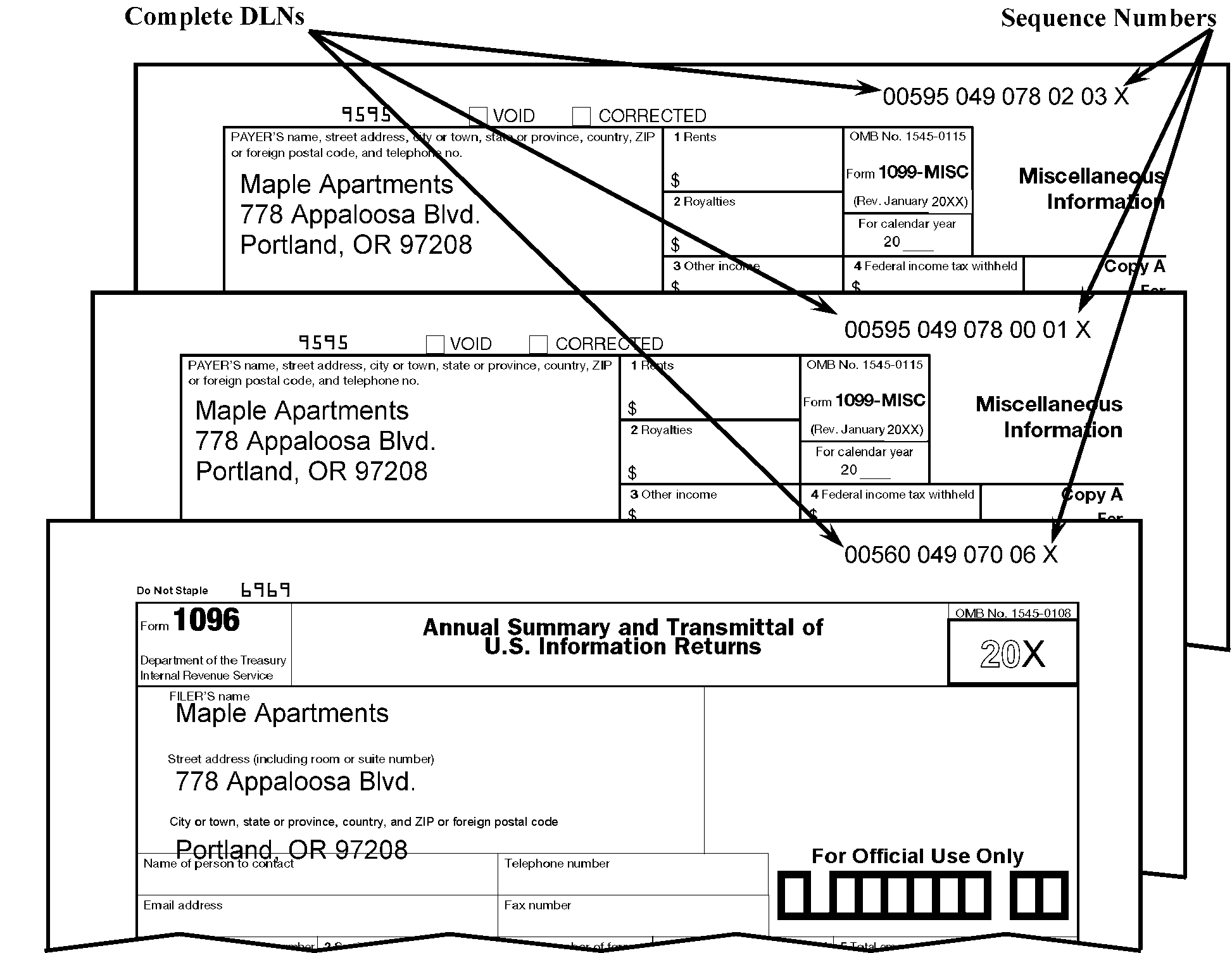
Example of Form 1096 with a DLN on it. Example of Form 1099-MISC with a DLN containing two serial numbers one for the form on the top left portion of the page and one for the form on the bottom portion of the page. All forms have the date year located on the top right of the form.
Please click here for the text description of the image.
-
3.41.269.8.3 (01-01-2020)
Form 1096, Annual Summary and Transmittal of U.S. Information Returns, Taxpayer Identification Number (TIN)
-
If both EIN (box 1) and SSN (box 2) are present, enter the EIN only.
-
If there are 2 TINS in the same box and the primary TIN cannot be determined, use the top or first TIN.
Note:
If the TIN is a single digit such as 111111111, 222222222, or sequential 123456789 then see IRM 3.41.269.8.3 (5) below.
-
If both an EIN and SSN are present on Form 1096, Annual Summary and Transmittal of U.S. Information Returns, enter the EIN on the form. If detail documents are submitted with an SSN, and all payer information is the same, enter the EIN from the Form 1096, on the detail documents.
Reminder:
A payer EIN, if available, is always placed in box 1 over a SSN value.
-
If the TIN is missing, has more or less than nine-digits and can be determined or found on the first detail document, suspend. The TIN is physically edited (entered) on the Form 1096 for processing.
Exception:
If the Form 1096, is completed by the IRS (as annotated by correspondence indicator "99" ) don't suspend to have the TIN physically placed on the form but continue processing and enter the TIN from the first available detail document.
-
If a valid TIN isn't present in any of these locations, enter "999999999" in the EIN field of the Form 1096. On detail documents the payer’s federal identification number is left blank.
Note:
An entry of all 9s need not be physically entered on the Form 1096, for processing.
9 or 9- may be edited and requires an entry of "999999999" .
-
All TINs are entered in the proper field. The format for an EIN is XX-XXXXXXX and the format for a SSN is XXX-XX-XXXX. If the TIN is placed in the wrong box, then enter the TIN in the correct data field.
3.41.269.8.4 (01-01-2024)
Account Number Field
-
Enter the alphanumeric characters from the account number box.
-
If illegible, leave blank.
-
Accept partial names as a valid entry.
Example:
An entry such as Tom B 4508–1, would be entered as, TOM B 45081.
-
Accept TINs as valid entries.
-
Don’t accept a company’s name as a valid entry. If present, do not enter.
-
Don’t enter, or leave spaces for, any special character(s), punctuation or leading zero(es).
-
Don’t enter any descriptive words or addresses. Examples of descriptive words are: "SSN, TELEPHONE NO, SAVINGS BONDS, NAMES, or COMPANY NAMES, BATCH," etc.
Example:
An entry such as, 003223 Batch 45789-478b, would be entered as, 3223 45789478B.
-
Don’t enter money amounts or net totals.
-
If an entry has more than 30 characters, enter the first 30, after considering (b) and (c) above.
-
3.41.269.8.5 (01-01-2022)
Money Amount Fields
-
Enter all money amounts as Dollars Only. Do Not enter money amounts from any form or document that is "X'd out." Consider a form that is "X'd out" voided.
-
If any document has more than one money amount in the same box, suspend so the amounts can be added together and enter the total. If an amount is labeled "net," enter only that amount.
-
If a negative money amount appears in a positive only field, enter a zero. Negative amounts can be identified by a minus sign or being enclosed in parentheses. Void the document if the corrected box isn't marked and there are no other money amounts present.
-
Enter negative amounts, where allowed, by leading the amount with a hyphen (-). Below are the only forms where negative amounts are permitted. Enter these amounts with a leading hyphen (-).
-
Form 1099-B, Proceeds From Broker and Barter Exchange Transactions, boxes 1d, 1g, 8, 9, 10, and 11.
-
Form 1099-DIV, Dividends and Distributions, box 2a.
-
Form 1099-OID, Original Issue Discount, box 10.
-
-
If a money amount is in a field SCRIPS doesn't enter, input the entity information, leave the money fields blank and release the document. Don’t void the document.
-
If the money amount isn't entered on the template or verified during DV, and there is a money amount present on the document, turn the AUTO mode off and enter the amount in the correct field on the template.
-
If the clerk is unable to read the money amount, suspend the block of work, pull the paper documents and input the data. If the money amount cannot be determined, void the document.
-
If the only money amount is less than $1.00, void the document unless the document is:
-
marked as corrected
-
the FATCA box is marked
-
listed in paragraph 4 above
-
Form 1098-T, Tuition Statement
-
Form 1099-MISC, Miscellaneous Information, with an entry in box 7
-
-
If a money field that didn’t require correcting is incorrectly entered, turn the AUTO mode off and enter the correct money amount.
3.41.269.8.6 (04-23-2018)
Deleting a Submission
-
To delete a payer's entire submission (or unit-of-work, or transmittal), enter nine zeroes in both the EIN (box 1) and SSN (box 2) of the Form 1096, Annual Summary and Transmittal of U.S. Information Returns. Pull and send the deleted Form 1096, and all the associated detail documents back to the IRP Sort function. Usually, deleting a submission is a procedure used by a manager or work leader. Always delete a submission if:
-
the detail document payer information doesn't match the Form 1096
-
the box titles have been changed
-
the tax year cannot be determined
-
money amounts cannot be determined (e.g., decimal point placed incorrectly)
-
it has prior or subsequent year documents
-
the incorrect detail document type is selected during FI
-
the Form 1096, is missing both the name and SSN
-
-
Deleted submissions being perfected in SCRIPS for re-scanning needs to have UPC counts entered in BBTS to ensure capture of the activity. This is inclusive of deletes initiated either due to clerk action or automatic system deletion (i.e., mixed blocks of work). Receipts and production need to be entered under function code 550. See IRM 3.41.269.2.5.
3.41.269.8.7 (01-01-2022)
Voiding a Supporting Form
-
Always void a payee document (never a Form 1096, Annual Summary and Transmittal of U.S. Information Returns) if:
-
the void box on the top of the form is marked
-
the form is crossed out or the word VOID is written over it
-
the void box and corrected box are both checked
-
the dollar amounts are all zeroes or less than $1.00 (indicators and codes on the form are not considered money amounts) "AND" the corrected box "OR" the FATCA box isn't marked
Exception:
Form 1098-T, Tuition Statement, and Form 1099-MISC, Miscellaneous Information. See IRM 3.41.269.8.7 (3) and IRM 3.41.269.8.7 (5) instruction below.
-
the form is a duplicate of the previous form. See also IRM 3.41.269.8 (11)
-
the form is a summary record of dollar amounts in the submission. The form may be marked by the filer as a "summary, total, or subtotal" form
-
the form is blank
-
-
VOID Form 1099-R, Distributions From Pensions, Annuities, Retirement or Profit Sharing Plans, IRAs, Insurance Contracts, etc., if its only entry is in box 7.
-
DON’T void Form 1099-MISC, if the Direct sales, box 7, is marked.
-
DON’T void supporting forms if the corrected box is marked.
-
DON’T void Form 1098-T, Tuition Statement, with no money amount. Void the document only if the void box is checked.
-
DON’T void a form the system misread and placed an "X" in either the void or corrected boxes when one isn't present on the document.
3.41.269.9 (01-01-2016)
Re-Imaging Form 1096, Annual Summary and Transmittal of U.S. Information Returns
-
The key allows you to flag or mark Form 1096, Annual Summary and Transmittal of U.S. Information Returns, to be sent through IRP 1096 Image Only due to the true and complete image not being clear enough or complete. It is necessary to re-image a Form 1096, for the following conditions:
-
The document is skewed or folded.
-
The document is scanned backwards.
-
The document is missing a TIN.
Exception:
If the Form 1096 is completed by the IRS (as annotated by correspondence indicator "99" ) don't suspend to have the TIN physically placed on the form but continue processing and enter the TIN from the first available detail document.
-
-
To flag a Form 1096, for Re-Imaging, the following steps should be taken in either OE or DV:
-
Press the re-image key . This flags the block for Re-Imaging until the process has been performed.
-
Notate the block number.
-
Press the key to get an image of the first entity area of a detail document. This information should be used to complete Form 1096.
-
Continue processing the block until it is complete.
-
Notify your supervisor.
-
3.41.269.10 (06-11-2021)
Form 1096, Annual Summary and Transmittal of U.S. Information Returns, Image Only Processing
- Route to the SCRIPS scanning function Form 1096, Annual Summary and Transmittal of U.S. Information Returns, set for re-imaging with the key for image only processing and archiving. Only a true and complete image is taken for this purpose. However, to allow for retrieval of the image in the future, the document locator number (DLN) must be key entered with each image. The menus shown on the screen vary depending on how your supervisor profiled you. This option isn't present on the Data Validation Function Menu if "IRP 1096 Image Only" function isn't in your profile.
3.41.269.10.1 (01-01-2022)
IRP 1096 Image Only
-
From the Workstation Main Menu, select Data Validation (DV).
-
From the Data Validation (DV) Selection Menu, select "IRP 1096 Image Only" .
-
A 1096 Image Only block opens a UW containing up to 100 documents.
-
If a document isn't recognized by the scanner, a window opens that allows you to identify the image as an envelope or Form 1096, Annual Summary and Transmittal of U.S. Information Returns. Additionally, a single image or entire block may be removed from further processing.
-
If the image is neither an envelope nor Form 1096 press - to remove the document from further processing.
-
Press - to identify the image as an envelope.
-
Press -<6> to identify the image as a Form 1096.
-
Press -- key combination to remove the entire block.
-
If the image is identified as a Form 1096, the DLN must be entered. If the document is removed, a DLN isn't required.
-
-
Enter the 14-digit DLN for each Form 1096. The previously entered DLN is displayed at the upper half of the DLN entry window.
-
Whenever a 14-digit DLN is entered, the DLN is validated by requiring you to enter it twice. Each component of the DLN (i.e., the File Location Code, Tax Class, Doc Code, Julian Date, Blocking Series, Sequence Number and Year Digit) undergoes validation. Any invalid component generates an error message explaining the error.
3.41.269.11 (01-01-2022)
Supervisor Section/Information Return Program (IRP) Reports
-
The Supervisor Section is for IRP reports that are generated, the report title and number and how the reports may be used. The following is a listing of the reports:
Report Name Image Process System (IPS) Report Number IRP Cumulative DLN Report IPS06191 IRP Assigned DLN Report IPS03339 IRP DLN Output Report IPS01118 IRP Override Report IPS03338 Inventory Report (IRP) IPS03350 IRP Production Report IPS03331 IRP Run Balancing Report IPS01119 Federal Tax Withheld (FTWH) Report IPS01122 Throughput Statistics Report IPS06440 IDRS Request Report IPS00470 Workflow Status IPS0698 IRP Pull Document/Submission Report IPS00812 Workstation Operator Statistics Program and Function Summary Report IPS0083 -
The following subsections contain the content found on the reports.
3.41.269.11.1 (01-01-2019)
Information Return Processing Cumulative Document Locator Number Report
-
Title of Report: IRP Cumulative DLN Report (IPS06191)
-
Description: This report provides a cumulative year-to-date summary of document volumes by IRP form type. It is updated each time the IRP Assigned DLN Report is generated. The report is purged only once, at the end of the processing year. This report is generated on demand, but no search criteria is required. When the report is selected, it is immediately run.
-
Using the Report: Although this report is still available, it became obsolete with the introduction of the IRP Production Report. There is no longer a reason to print this report.
3.41.269.11.2 (01-01-2019)
Information Return Processing Assigned Document Locator Number Report
-
Title of Report: IRP Assigned DLN Report (IPS03339)
-
Description: This report lists the beginning and ending IRP DLNs assigned by the scanner and lists any unused DLNs within that range. It is automatically generated and printed out upon completion of a scanner job and cannot be repeated. The report number is different than other report numbers in that it consists of the module number and the scanner Job ID.
-
Using the Report: This report should remain with the tub/box of documents after they are scanned. Scanner operators should generate a report for each tub/box. If documents are not released from the SCRIPS area after they are output, printing this report isn't necessary. In this case, the scanner operator should write the range of DLNs assigned on the tub/box.
3.41.269.11.3 (01-01-2019)
Information Return Processing Document Locator Number Output Report
-
Title of Report: IRP DLN Output Report (IPS01118)
-
Description: This report lists the Block Numbers assigned to output blocks as well as the number of documents within each block. It is generated automatically upon completion of IRP Block Output Processing (i.e., when the output tape is finished). The report is sorted by the DLN of the Form 1096, Annual Summary and Transmittal of U.S. Information Returns, and is grouped by UW. The Form 1096 documents are marked with an asterisk (*).
-
Using the Report: This report should be printed and accompany documents as they are output. If documents are not released from the SCRIPS area after output, it isn't necessary to print the report.
3.41.269.11.4 (01-01-2019)
Information Return Processing Override Report
-
Title of Report: IRP Override Report (IPS03338)
-
Description: This report details the year-to-date cumulative number of validation overrides recorded for IRP documents. It provides a "snapshot" of the - Key Usage Audit Table at the time the report is generated. It is generated on demand but no search criteria are required. When the report is selected, it is immediately run. The report is sorted by Operator Login ID, Function Code, Program Number, and Form Field Number. The Operator Login ID isn't displayed in the output.
-
Using the Report: This report may be used to identify conditions that force workstation operators to override an IRP validation. The only way an operator can proceed is to override the validation. This may signal a need to revise the IRP programs.
3.41.269.11.5 (01-01-2019)
Inventory Report Information Return Processing
-
Title of Report: Inventory Report (IRP) (IPS03350)
-
Description: This report provides information on the amount of IRP work currently on the system. It provides a "snapshot" of the Document Summary Audit table at the time the report is generated. This report is sorted by date.
-
Using the Report: This report can be used to track the IRP inventory on the system at the time that the report is run. Be careful when using this report because if IRP is still being worked, the statistics changes.
3.41.269.11.6 (02-18-2020)
Information Return Processing Production Report
-
Title of Report: IRP Production Report (IPS03331)
-
Description: This report provides a detailed status of all IRP documents. For each form type, the report shows how many documents were scanned, entered in OE paper, and the output for the current day, and includes year-to-date figures as well. Supervisors can’t purge this report. It is cleared at the beginning of each year as part of the production startup procedures.
-
Page 1 shows the input and processed volumes by form type. Cumulative volumes are given for the day and cumulative volumes for the processing year.
-
Page 2 shows the daily workflow location volumes by form type and historical workflow location volumes for the processing year.
Caution:
This report gives a "snapshot" of daily (midnight to midnight) activity, but only up to the time of the day that the report is generated. If a report is generated one day and later referenced on a different day, keep in mind that the volumes shown are for only up to the time the report is generated. Likewise, a new report should be generated within a given day if the latest information is needed.
-
-
Using the Report: This report is used locally as a record of IRP processing through the processing year and, to the degree possible, as a record of daily activity and as an aid in validating production volume reporting. This report should be used when analyzing managerial production reports for accuracy and total year-to-date deleted items on both page one and two should be considered.
-
Submitting the Report: Weekly the sites run the IRP Production Report and e-mail’s a copy of this report - by close of business Monday - to National Office. Send to *IT SCRIPS PO.
3.41.269.11.7 (01-01-2019)
Information Return Processing Run Balancing Report
-
Title of Report: IRP Run Balancing Report (IPS01119)
-
Description: This report lists the tape designation and file number of the output tape. It also lists the volumes output and dropped during output, as well as the total, for a particular output run. It is generated automatically upon completion of IRP Block Output Processing (i.e., when the output tape is finished). It doesn't include a breakdown by form type.
-
Using the Report: This report is the most convenient source of output volumes, per output run. See Exhibit 3.41.269-46, Unit Production Log Input Batch/Block Tracking System (BBTS), for more information on using report information for unit production and receipt input.
Note:
When using this report to calculate Unit Production Card (UPC) totals to be input into BBTS, care needs to be exercised to ensure the total function 500 production volume is minus voids and deletes for the specified period. Function 500 receipt volume for UPC purposes is the weighted volume released from Receipt and Control to Data Conversion.
3.41.269.11.8 (01-01-2019)
Federal Tax Withheld (FTWH) Report
-
Title of Report: Federal Tax Withheld (FTWH) Report (IPS01122)
-
Description: This report prints during output for transmitted documents having federal tax withheld as the only money amount. Images of the documents are printed with the report. Any document listed on this report is deleted and not output.
-
Generating the Report: This report generates automatically during output.
-
Printing the Report: This report prints automatically during output.
-
Using the Report: Route this report, along with the images, to the IRP Sort function.
-
Reviewing the Report: Prior to routing the report for disposition review the report and the images for accuracy.
-
Review each image to ensure the only dollar entry is box 4 - Federal income tax withheld.
-
If other entries are present on the submission prepare Form 1096, Annual Summary and Transmittal of U.S. Information Returns, and process the copy of the submission attached to the FTWH Report.
-
Edit the report to reflect any submissions removed prior to forwarding to the IRP Sort function.
-
-
The system prints an image for each document where federal tax withholding is the only money amount present.
Note:
This may mean you could have up to three copies of the same image if all three documents are FTWH only.
3.41.269.11.9 (01-01-2019)
Throughput Statistics Report
-
Title of Report: Throughput Statistics Report (IPS06440)
-
Description: This report lists the total number of blocks, documents, processing time, and documents per hour for scanning operations by scandriver. Transport and crossover are also available for the time entered.
-
Using the Report: This report is used to drop Unit Production Cards (UPCs) to document daily volume of data documents scanned into the system. See Exhibit 3.41.269-46, Unit Production Log Input Batch/Block Tracking System (BBTS).
3.41.269.11.10 (01-01-2019)
Integrated Data Retrieval System (IDRS) Request Report
-
Title of Report: IDRS Request Report (IPS00470)
-
Description: This report lists the total number of requests, number of requests not found, and number of images printed for each request type on a given day.
-
Using the Report: This report is used to trouble shoot missing IDRS print requests.
3.41.269.11.11 (01-01-2024)
Workflow Status
-
Title of Report: Workflow Status (IPS0698)
-
Description: This report lists the task/sub-task number, the sub-task description, blocks at the sub-task, total documents for the block, and documents ready for the sub-task. This report also contains percentages for system capacity used under the following three categories: General, IRP, and IRP/ACA/K1/941/940/Stand-Alone.
-
Using the Report: This report is used to monitor documents and system capacity. Once blocks/UWs of documents have been processed through SCRIPS and accepted by down-stream processing, the files containing the documents images, ASCII data, and statistical information can be purged from the system.
Reminder:
Files containing reports must remain on the system for seven days from the output date before they can be purged by DLN association.
Note:
Don't purge any data records prior to Cycle 5 unless approved by Submission Processing Headquarters.
3.41.269.11.12 (01-01-2026)
Information Return Processing Pull Document/Submission Report
-
Title of Report: IRP Pull Document/Submission Report (IPS00812)
-
Description: This report lists each document and submission removed from the SCRIPS system by clerk or supervisor intervention during system processing in FI, OE or DV functions. This report is generated using backend General Report located in the SCRIPS Utilities menu.
-
Using the Report: This report is used to identify the deleted documents in addition to the clerk manually notating the documents to pull.
-
The reason is one of the following pull document report codes:
Report Reason Condition Possible Action Required PULL SUBMISSION 1096 EIN and/or SSN is equal to "000000000" * Return to IRP Sort for correspondence * Classified waste CONSECUTIVE 1096 consecutive 1096s * Return to IRP Sort for correspondence * Classified waste MIXED SUBMISSION * mixed 1099 types in UW * non-conforming form identified by the operator * Return to IRP Sort for correction (correspondence if applicable) * Correct and reprocess (see IRM 3.41.269.4.2 (3). DLNS EXCEEDED sequence number exceeds "99" Pull and reprocess PULL 1096 any Form 1096 identified as a stand-alone document * Return to IRP Sort for correspondence * Classified waste if duplicate PULL IMAGE ONLY any non-conforming form identified by the operator in Data Validation as "Remove" * Return to IRP Sort for proper disposition (correspondence if applicable) * Classified waste IMAGE ONLY BLOCK REMOVED any non-conforming form identified by the operator in 1096 Image Only Data Validation as "Remove Block" * Pull and reprocess * Classified waste * No action if duplicate PULL when the key is selected to remove document * Leads correct EIN or TIN on the Form 1096 * Send to be scanned as re-image * No action if duplicate 1099-MISC FTWH FRAUD if FTWH Fraud conditions still exists on the record Return to IRP Sort for proper disposition ### Note: Tag document(s) as FRAUD and include copy of Form 1096 with the document. 1099-NEC FTWH FRAUD if FTWH Fraud conditions still exists on the record Return to IRP Sort for proper disposition ### Note: Tag document(s) as FRAUD and include copy of Form 1096 with the document.
3.41.269.11.13 (01-01-2022)
Work Station Operator Statistics Program and Function Summary Report
-
Title of Report: Work Station Operator Statistics Program and Function Summary Report (IPS0083)
-
Description: This report lists Operator Statistics as queried for SCRIPS programs and applicable functions both individually and cumulatively.
-
Using the Report: This report is used to identify the number of documents processed by operators in Forms Identification, Data Validation and Original Entry for specified queried periods of time. Information retrieved can be used for BBTS Unit Production input of receipts and production. See Exhibit 3.41.269-46, Unit Production Log Input Batch/Block Tracking System (BBTS).
3.41.269.11.14 (01-01-2026)
Purging and Fraud Documents
-
Purge from SCRIPS the files including the document images and statistical information once the block/UWs of documents have been processed through SCRIPS and reach "accepted" by down-stream processing, and the transmittals have moved to archive.
Note:
Accepted means the output files and "the returns in those files"
clear all error conditions.
-
It is recommended a system purge occur a minimum of two weeks after the output date.
-
Purge only those blocks/UWs available for purge. The system keeps track of block/UWs available for purge and only allows you to purge those blocks/UWs. SCRIPS doesn’t allow any block waiting for Quality Review (QR) Block Summarization or flagged for Quality Review to be purge.
-
Do not purge files for reports before six weeks.
Exception:
Reports allow deletion after seven working days however six weeks is the preference.
-
A deleted document and/or block/UW is removed from the system when the form type is purged. The remainder of the form types on SCRIPS operate in the same manner.
Example:
Information return document (UW) is removed when an information return block purge is performed.
-
A purge for the form type is initiated and activated before removal of deleted documents/block/UWs from the system. If you open a purge window but do not select any blocks for purge, the deleted documents/blocks/UWs do not leave the system. Until the deletion is properly done documents/blocks/UWs remain on the system.
-
Retain for 30 days after data is verified as converted to tape per Document 12990, Records and Information Management Control Schedules, Record Control Schedule (RCS) 29, item 85, Information Returns, the physical documents (UWs scanned in the SCRIPS area). If systemic issues exist for downstream systems a longer period is enforced by headquarters staff.
-
Fraud list will be sent out weekly or Biweekly from Headquarters to the sites Point of Contacts.
-
Gather all Fraud Forms from the list, If you cannot locate the physical form you may send the printed version from SCRIPS.
-
All Fraud Forms will need to be sent directly to the Frivolous Return Program (FRP) address listed below..
-
Classify waste all Forms up to the date of the Fraud list.
Note:
Internal Revenue Service, Frivolous Return Program Mail Stop 4390, 1973 Rulon White Blvd, Ogden, UT 84201.
-
Exhibit 3.41.269-1
States, State Codes, and ZIP Codes Sorted by State
Note:
If the ZIP Code is missing or invalid, add 01 to the first three-digit ZIP Code shown.
| STATE | STATE CODE | ZIP CODE RANGE |
|---|---|---|
| Alabama | AL | 350-369 |
| Alaska | AK | 995-999 |
| America Samoa | AS | 96799 (only) |
| Americas APO/DPO/FPO | AA | 340 |
| Arizona | AZ | 850-865 |
| Arkansas | AR | 716-729 |
| California | CA | 900-908, 910-961 |
| Colorado | CO | 800-816 |
| Connecticut | CT | 060-069 |
| Delaware | DE | 197-199 |
| District of Columbia | DC | 200, 202-205 |
| Europe APO/DPO/FPO | AE | 090-098 |
| Federated States of Micronesia | FM | 969 |
| Florida | FL | 320-342, 344, 346, 347, 349 |
| Georgia | GA | 300-319,398-399 |
| Guam | GU | 969 |
| Hawaii | HI | 967, 968 |
| Idaho | ID | 832-838 |
| Illinois | IL | 600-629 |
| Indiana | IN | 460-479 |
| Iowa | IA | 500-528 |
| Kansas | KS | 660-679 |
| Kentucky | KY | 400-427 |
| Louisiana | LA | 700-714 |
| Maine | ME | 039-049 |
| Marshall Islands | MH | 969 |
| Maryland | MD | 206-219 |
| Massachusetts | MA | 010-027, 055 |
| Michigan | MI | 480-499 |
| Minnesota | MN | 550-567 |
| Mississippi | MS | 368-397 |
| Missouri | MO | 630-658 |
| Montana | MT | 590-599 |
| Nebraska | NE | 680-693 |
| Nevada | NV | 889-898 |
| New Hampshire | NH | 030-038 |
| New Jersey | NJ | 070-089 |
| New Mexico | NM | 870-884 |
| New York | NY | 005, 100-149 |
| North Carolina | NC | 270-289 |
| North Dakota | ND | 580-588 |
| Northern Mariana Islands | MP | 969 |
| Ohio | OH | 430-459 |
| Oklahoma | OK | 730-732, 734-749 |
| Oregon | OR | 970-979 |
| Pacific APO/DPO/FPO | AP | 962-966 |
| Palau | PW | 969 |
| Pennsylvania | PA | 150-196 |
| Puerto Rico | PR | 006, 007, 009 |
| Rhode Island | RI | 028, 029 |
| South Carolina | SC | 290-299 |
| South Dakota | SD | 570-577 |
| Tennessee | TN | 370-385 |
| Texas | TX | 733, 750-799 |
| Utah | UT | 840-847 |
| Vermont | VT | 050-054, 056-059 |
| Virginia | VA | 201, 220-246 |
| Virgin Islands | VI | 008 |
| Washington | WA | 980-986, 988-994 |
| West Virginia | WV | 247-268 |
| Wisconsin | WI | 530-549 |
| Wyoming | WY | 820-831 |
Exhibit 3.41.269-2
States, State Codes, and ZIP Codes Sorted by ZIP
Note:
If the ZIP Code is missing or invalid, add 01 to the first three-digit ZIP Code shown.
| ZIP CODE RANGE | STATE CODE | STATE |
|---|---|---|
| 005, 063, 100-149 | NY | New York |
| 006, 007-009 | PR | Puerto Rico |
| 008 | VI | Virgin Islands |
| 010-027, 055 | MA | Massachusetts |
| 028, 029 | RI | Rhode Island |
| 030-038 | NH | New Hampshire |
| 039-049 | ME | Maine |
| 050-054, 056-059 | VT | Vermont |
| 060-069 | CT | Connecticut |
| 070-089 | NJ | New Jersey |
| 090-098 | AE | Europe APO/DPO/FPO |
| 150-196 | PA | Pennsylvania |
| 197-199 | DE | Delaware |
| 200, 202-205 | DC | District of Columbia |
| 201, 220-246 | VA | Virginia |
| 206-212, 214-219 | MD | Maryland |
| 247-268 | WV | West Virginia |
| 270-289 | NC | North Carolina |
| 290-299 | SC | South Carolina |
| 300-319, 398-399 | GA | Georgia |
| 320-342, 344, 346, 347, 349 | FL | Florida |
| 340 | AA | Americas APO/DPO/FPO |
| 350-352, 354-369 | AL | Alabama |
| 370-385 | TN | Tennessee |
| 386-397 | MS | Mississippi |
| 400-427 | KY | Kentucky |
| 430-459 | OH | Ohio |
| 460-479 | IN | Indiana |
| 480-499 | MI | Michigan |
| 500-516, 520-528 | IA | Iowa |
| 530-532, 534-535, 537-549 | WI | Wisconsin |
| 550-551, 553-567 | MN | Minnesota |
| 570-577 | SD | South Dakota |
| 580-588 | ND | North Dakota |
| 590-599 | MT | Montana |
| 600-620, 622-629 | IL | Illinois |
| 630-631, 633-641, 644-658 | MO | Missouri |
| 660-662, 664-679 | KS | Kansas |
| 680-681, 683-693 | NE | Nebraska |
| 700-701, 703-708, 710-714 | LA | Louisiana |
| 716-729 | AR | Arkansas |
| 730-731, 734-741, 743-749 | OK | Oklahoma |
| 733, 739, 750-770, 772-779, 885 | TX | Texas |
| 800-816 | CO | Colorado |
| 820-831, 834 | WY | Wyoming |
| 832-838 | ID | Idaho |
| 840-847 | UT | Utah |
| 850-853, 855-857, 859-860, 863-865 | AZ | Arizona |
| 870-871, 873-876, 877-884 | NM | New Mexico |
| 889-891, 893-895, 897-898 | NV | Nevada |
| 900-928, 930-961 | CA | California |
| 962-966 | AP | Pacific APO/DPO/FPO |
| 96799 (only) | AS | American Samoa |
| 967, 968 | HI | Hawaii |
| 969 | PW | Palau |
| 969 | GU | Guam |
| 969 | MP | Northern Mariana Islands |
| 969 | MH | Marshall Islands |
| 969 | FM | Federated States of Micronesia |
| 970-979 | OR | Oregon |
| 980-986, 988-994 | WA | Washington |
| 995-999 | AK | Alaska |
Exhibit 3.41.269-3
ZIP Code, City, and State Exceptions
| ZIP | CITY | STATE |
|---|---|---|
| 75502 | Texarkana | AR |
| 45275 | Airport | KY |
| 71749 | Junction City | LA |
| 03801 | Naval Base | ME |
| 20331 | Andrews AFB | MD |
| 06390 | Fishers Island | NY |
| 73949 | Texhoma | TX |
| 20041 | Dulles Int'l Airport | VA |
| 20370 | Navy Annex | VA |
| 20301 | Pentagon | VA |
| 49936 | Alvin | WI |
Exhibit 3.41.269-4
Alphabetical Listing of Major Cities with Major City Codes and ZIP Codes
| Major City | State Code | Major City Code | ZIP Code |
|---|---|---|---|
| Aberdeen | SD | AD | 574 |
| Abilene | TX | AB | 796 |
| Akron | OH | AK | 443 |
| Albany | GA | AY | 317 |
| Albany | NY | AL | 122 |
| Albuquerque | NM | AQ | 871 |
| Alexandria | VA | AX | 223 |
| Alhambra | CA | YA | 918 |
| Allentown | PA | AW | 181 |
| Amarillo | TX | AM | 791 |
| Anaheim | CA | AH | 928 |
| Anchorage | AK | AN | 995-996 |
| Anderson | SC | AJ | 296 |
| Ann Arbor | MI | AP | 481 |
| Arlington | TX | IA | 760 |
| Arlington | VA | AR | 222 |
| Arvada | CO | AV | 800, 804 |
| Asheville | NC | AS | 288 |
| Athens | GA | AE | 306 |
| Atlanta | GA | AT | 303, 311, 399 |
| Atlantic City | NJ | AC | 084 |
| Auburn | AL | AF | 368 |
| Augusta | GA | AG | 309 |
| Augusta | ME | AA | 043 |
| Aurora | CO | AZ | 800 |
| Aurora | IL | AO | 605 |
| Austin | TX | AU | 733, 787 |
| Bakersfield | CA | BD | 933 |
| Baltimore | MD | BA | 212 |
| Baton Rouge | LA | BR | 708 |
| Battle Creek | MI | QK | 490 |
| Beaumont | TX | BT | 777 |
| Bellingham | WA | BH | 982 |
| Berkeley | CA | BE | 947 |
| Bethlehem | PA | BM | 180 |
| Billings | MT | IB | 591 |
| Biloxi | MS | BL | 395 |
| Binghamton | NY | BC | 139 |
| Birmingham | AL | BI | 352 |
| Bismarck | ND | BB | 585 |
| Bloomington | IN | BQ | 474 |
| Bloomington | MN | BN | 554 |
| Boca Raton | FL | BZ | 334 |
| Boise | ID | BS | 837 |
| Bossier City | LA | BW | 711 |
| Boston | MA | BO | 021, 022 |
| Boulder | CO | BV | 803 |
| Bradenton | FL | BG | 342 |
| Bremerton | WA | BY | 983 |
| Bridgeport | CT | BP | 066 |
| Bronx | NY | BX | 104 |
| Brooklyn | NY | BK | 112 |
| Brownsville | TX | BJ | 785 |
| Buffalo | NY | BF | 142 |
| Burlington | VT | BU | 054 |
| Cambridge | MA | CB | 021, 022 |
| Camden | NJ | CD | 081 |
| Canton | OH | CA | 447 |
| Cape Coral | FL | CF | 339 |
| Casper | WY | CZ | 826 |
| Cedar Rapids | IA | CR | 524 |
| Champaign | IL | CX | 618 |
| Chandler | AZ | YZ | 852 |
| Chapel Hill | NC | CJ | 275 |
| Charleston | SC | CT | 294 |
| Charleston | WV | CW | 253 |
| Charlotte | NC | CE | 282 |
| Charlottesville | VA | CV | 229 |
| Chattanooga | TN | CG | 374 |
| Chesapeake | VA | CP | 233 |
| Cheyenne | WY | CY | 820 |
| Chicago | IL | CH | 606-608 |
| Chula Vista | CA | DV | 919 |
| Cincinnati | OH | CN | 452, 459 |
| Clarksville | TN | YN | 370 |
| Clearwater | FL | CQ | 337 |
| Cleveland | OH | CL | 441 |
| Colorado Springs | CO | CS | 809 |
| Columbia | SC | CU | 292 |
| Columbus | GA | CM | 318, 319 |
| Columbus | OH | CO | 430, 432 |
| Corpus Christi | TX | CC | 783, 784 |
| Cranston | RI | RT | 029 |
| Cumberland | MD | CK | 215 |
| Dallas | TX | DA | 752, 753 |
| Davenport | IA | DP | 528 |
| Dayton | OH | DY | 453, 454 |
| Daytona Beach | FL | DF | 321 |
| Dearborn | MI | DB | 481 |
| Decatur | IL | DT | 625 |
| Denver | CO | DN | 800-802 |
| Des Moines | IA | DM | 503, 509 |
| Detroit | MI | DE | 482 |
| Dubuque | IA | DQ | 520 |
| Duluth | MN | DL | 557, 558 |
| Durham | NC | DU | 277 |
| East Lansing | MI | ET | 488 |
| East Orange | NJ | EO | 070 |
| East St Louis | IL | ES | 622 |
| Easton | PA | EA | 180 |
| El Paso | TX | EP | 799, 885 |
| Elizabeth | NJ | EL | 072 |
| Erie | PA | ER | 165 |
| Eugene | OR | EU | 974 |
| Evanston | IL | EN | 602 |
| Evansville | IN | EV | 477 |
| Fairbanks | AK | FK | 997 |
| Fall River | MA | FR | 027 |
| Far Rockaway | NY | RK | 110, 116 |
| Fargo | ND | FA | 581 |
| Fayetteville | AR | FB | 727 |
| Fayetteville | NC | FN | 283 |
| Flint | MI | FT | 485 |
| Florence | AL | FC | 356 |
| Florence | SC | FE | 295 |
| Flushing | NY | FG | 113 |
| Fort Lauderdale | FL | FL | 333 |
| Fort Pierce | FL | FP | 349 |
| Fort Smith | AR | FS | 729 |
| Fort Wayne | IN | FY | 468 |
| Fort Worth | TX | FW | 761 |
| Fresno | CA | FO | 936-938 |
| Gainesville | FL | GF | 326 |
| Gaithersburg | MD | GG | 208 |
| Galveston | TX | GA | 775 |
| Garland | TX | GD | 750 |
| Gary | IN | GY | 464 |
| Gastonia | NC | GN | 280 |
| Glendale | AZ | GE | 853 |
| Glendale | CA | GL | 912 |
| Grand Rapids | MI | GR | 495 |
| Great Falls | MT | GT | 594 |
| Greeley | CO | GC | 806 |
| Green Bay | WI | GB | 543 |
| Greensboro | NC | GO | 274 |
| Greenville | SC | GV | 296 |
| Greenwood | MS | GW | 389 |
| Hackensack | NJ | HS | 076 |
| Hamilton | OH | HA | 450 |
| Hammond | IN | HM | 463 |
| Hampton | VA | HP | 236 |
| Harlingen | TX | HR | 785 |
| Hartford | CT | HD | 061 |
| Harrisburg | PA | HG | 171 |
| Hattiesburg | MS | HT | 394 |
| Helena | MT | HE | 596 |
| Henderson | NV | HF | 890 |
| Hialeah | FL | HI | 330 |
| High Point | NC | HC | 272 |
| Hollywood | FL | HW | 330 |
| Honolulu | HI | HL | 968 |
| Houston | TX | HO | 770, 772 |
| Huntington | WV | HN | 257 |
| Huntington Beach | CA | HB | 926 |
| Huntsville | AL | HU | 358 |
| Independence | MO | IE | 640 |
| Indianapolis | IN | IN | 462 |
| Inglewood | CA | ID | 903 |
| Irvine | CA | IV | 926, 927 |
| Irving | TX | IR | 750 |
| Jackson | MS | JN | 392 |
| Jacksonville | FL | JV | 322 |
| Jamaica | NY | JA | 114 |
| Jamestown | NY | JM | 147 |
| Janesville | WI | JE | 535 |
| Jersey City | NJ | JC | 070, 073 |
| Johnson City | TN | JH | 376 |
| Johnstown | PA | JO | 159 |
| Joliet | IL | JT | 604 |
| Jonesboro | AR | JB | 724 |
| Kalamazoo | MI | KZ | 490 |
| Kansas City | KS | KA | 661 |
| Kansas City | MO | KC | 641, 649 |
| Kennewick | WA | KW | 993 |
| Kenosha | WI | KE | 531 |
| Kingsport | TN | KP | 376 |
| Knoxville | TN | KN | 379 |
| Lafayette | IN | LF | 479 |
| Lafayette | LA | LL | 705 |
| Lake Charles | LA | LC | 706 |
| Lakeland | FL | LK | 338 |
| Lakewood | CO | LW | 801, 802, 804 |
| Lancaster | PA | LP | 176 |
| Lansing | MI | LG | 489 |
| Laredo | TX | LD | 780 |
| Las Cruces | NM | LZ | 880 |
| Las Vegas | NV | LV | 891 |
| Lawrence | MA | LQ | 018 |
| Lewiston | ME | LT | 042 |
| Lexington | KY | LX | 405 |
| Lincoln | NE | LN | 685 |
| Little Rock | AR | LR | 722 |
| Long Beach | CA | LB | 907, 908 |
| Long Island City | NY | LI | 111 |
| Lorain | OH | LO | 440 |
| Los Angeles | CA | LA | 900, 901 |
| Louisville | KY | LE | 402 |
| Lowell | MA | LM | 018 |
| Lubbock | TX | LU | 794 |
| Lynn | MA | LY | 019 |
| Macon | GA | MA | 312 |
| Madison | WI | MN | 537 |
| Manchester | NH | MR | 031 |
| Marietta | GA | MT | 300 |
| Melbourne | FL | ML | 329 |
| Memphis | TN | ME | 375, 381 |
| Meridian | MS | MD | 393 |
| Mesa | AZ | MZ | 852 |
| Metairie | LA | MI | 700 |
| Miami | FL | MF | 330-332 |
| Milwaukee | WI | MW | 532 |
| Minneapolis | MN | MS | 554 |
| Missoula | MT | MM | 598 |
| Mobile | AL | MO | 366 |
| Modesto | CA | MC | 953 |
| Monroe | LA | MB | 712 |
| Montgomery | AL | MG | 361 |
| Muskegon | MI | MK | 494 |
| Naperville | IL | NP | 605 |
| Nashua | NH | NS | 030 |
| Nashville | TN | NA | 372 |
| Newark | NJ | NK | 071 |
| New Bedford | MA | ND | 027 |
| New Brunswick | NJ | NB | 089 |
| New Haven | CT | NH | 065 |
| New Orleans | LA | NO | 701 |
| Newport News | VA | NN | 236 |
| Newton | MA | NE | 024 |
| New York | NY | NY | 100-102 |
| Niagara Falls | NY | NF | 143 |
| Norfolk | VA | NV | 235 |
| Norman | OK | NR | 730 |
| North Charleston | SC | NC | 294 |
| North Hollywood | CA | NW | 916 |
| North Las Vegas | NV | NT | 890 |
| North Little Rock | AR | NL | 721 |
| Oakland | CA | OA | 946 |
| Oak Park | IL | OP | 603 |
| Oceanside | CA | OE | 920 |
| Ogden | UT | OG | 842, 844 |
| Oklahoma City | OK | OC | 731 |
| Olympia | WA | OL | 985 |
| Omaha | NE | OM | 681 |
| Orlando | FL | OR | 328 |
| Oshkosh | WI | OK | 549 |
| Overland Park | KS | OV | 662 |
| Owensboro | KY | OW | 423 |
| Oxnard | CA | OX | 930 |
| Palo Alto | CA | PQ | 943 |
| Parkersburg | WV | PK | 261 |
| Parma | OH | PZ | 441 |
| Pasadena | CA | PD | 910, 911 |
| Paterson | NJ | PN | 075 |
| Pembroke Pines | FL | PP | 330 |
| Pensacola | FL | PE | 325 |
| Peoria | AZ | PY | 853 |
| Peoria | IL | PL | 616 |
| Petersburg | VA | PG | 238 |
| Philadelphia | PA | PH | 190-192 |
| Phoenix | AZ | PX | 850 |
| Pine Bluff | AR | PB | 716 |
| Pittsburgh | PA | PI | 151, 152 |
| Pocatello | ID | PC | 832 |
| Port Arthur | TX | PA | 776 |
| Portland | ME | PT | 041 |
| Portland | OR | PO | 972 |
| Portsmouth | NH | PS | 038 |
| Portsmouth | VA | PM | 237 |
| Providence | RI | PR | 029 |
| Provo | UT | PV | 846 |
| Pueblo | CO | PU | 810 |
| Punta Gorda | FL | PJ | 339 |
| Quincy | MA | QU | 021, 022 |
| Racine | WI | RA | 534 |
| Raleigh | NC | RL | 276 |
| Reading | PA | RD | 196 |
| Reno | NV | RE | 895 |
| Richmond | VA | RI | 231, 232 |
| Riverside | CA | RS | 925 |
| Roanoke | VA | RO | 240 |
| Rochester | NY | RC | 146 |
| Rock Hill | SC | RH | 297 |
| Rockford | IL | RF | 611 |
| Sacramento | CA | SC | 942, 958 |
| Saginaw | MI | SG | 486 |
| Salem | OR | XR | 973 |
| Salinas | CA | YL | 939 |
| Salt Lake City | UT | XU | 841 |
| San Antonio | TX | SO | 782 |
| San Bernardino | CA | SR | 924 |
| San Diego | CA | SD | 921 |
| San Francisco | CA | SF | 941 |
| San Jose | CA | SJ | 951 |
| San Juan | PR | XJ | 009 |
| Santa Ana | CA | SA | 927 |
| Santa Barbara | CA | SZ | 931 |
| Santa Fe | NM | YF | 875 |
| Sarasota | FL | XS | 342 |
| Savannah | GA | GS | 314 |
| Schenectady | NY | SK | 120, 123 |
| Scottsdale | AZ | YS | 852 |
| Scranton | PA | XC | 185 |
| Seattle | WA | SE | 981 |
| Shawnee Mission | KS | SM | 662 |
| Sheboygan | WI | XB | 530 |
| Shreveport | LA | SH | 711 |
| Silver Spring | MD | SS | 209 |
| Sioux City | IA | SX | 511 |
| Sioux Falls | SD | IQ | 571 |
| South Bend | IN | SB | 466 |
| Spartanburg | SC | SQ | 293 |
| Spokane | WA | SW | 992 |
| Springfield | IL | XL | 627 |
| Springfield | MA | XA | 011 |
| Springfield | MO | XO | 657, 658 |
| Springfield | OH | XH | 455 |
| Stamford | CT | ST | 069 |
| Staten Island | NY | SI | 103 |
| St Joseph | MO | XM | 645 |
| St Louis | MO | SL | 631 |
| St Paul | MN | SU | 551 |
| St Petersburg | FL | SP | 337 |
| Sterling Heights | MI | YH | 483 |
| Stockton | CA | SN | 952 |
| Syracuse | NY | SY | 132 |
| Tacoma | WA | TC | 984 |
| Tallahassee | FL | TL | 323 |
| Tampa | FL | TA | 336 |
| Tempe | AZ | TE | 852 |
| Terre Haute | IN | TH | 478 |
| Titusville | FL | TT | 327 |
| Toledo | OH | TO | 436 |
| Torrance | CA | TN | 905 |
| Topeka | KS | TP | 666 |
| Trenton | NJ | TR | 086 |
| Tucson | AZ | TU | 857 |
| Tulsa | OK | TS | 741 |
| Tuscaloosa | AL | TB | 354 |
| Utica | NY | UT | 135 |
| Van Nuys | CA | VN | 913, 914 |
| Vancouver | WA | VA | 986 |
| Virginia Beach | VA | VB | 234 |
| Waco | TX | WX | 767 |
| Warren | MI | WR | 480 |
| Warren | OH | WO | 444 |
| Warwick | RI | WW | 028 |
| Washington | DC | DC | 200, 202-205, 569 |
| Waterbury | CT | WT | 067 |
| Waterloo | IA | WL | 507 |
| West Allis | WI | WA | 532 |
| West Valley City | UT | WC | 841 |
| West Palm Beach | FL | WP | 334 |
| Westminster | CO | WD | 800, 802 |
| Wheeling | WV | WH | 260 |
| White Plains | NY | WJ | 106 |
| Wichita | KS | WK | 672 |
| Wichita Falls | TX | WF | 763 |
| Wilkes-Barre | PA | WB | 187 |
| Williamsport | PA | WM | 177 |
| Wilmington | DE | WI | 198 |
| Wilmington | NC | WN | 284 |
| Winston-Salem | NC | WS | 271 |
| Winter Haven | FL | WG | 338 |
| Worcester | MA | WE | 016 |
| Yonkers | NY | YK | 107 |
| York | PA | YR | 173, 174 |
| Youngstown | OH | YO | 445 |
Exhibit 3.41.269-5
Street Abbreviations (Required)
The following abbreviations MUST be used, however; it isn't necessary to abbreviate any word if it is correctly recognized by the scanner. This requirement applies only if the word is manually entered. These are the only abbreviations honored by the United States Postal Service.
| WORD | ABBREVIATION |
|---|---|
| Air Force Base | AFB |
| Apartment | APT |
| Avenue | AVE |
| Boulevard | BLVD |
| Building | BLDG |
| Circle | CIR |
| Court | CT |
| Department | DEPT |
| Drive | DR |
| East, Ea ### Caution: When used as a direction. | E |
| Floor | FL |
| Fort | FT |
| Highway | HWY |
| Highway Contract | HC |
| Lane | LN |
| North, No., No ### Caution: When used as a direction. | N |
| Northeast, N.E. ### Caution: When used as a direction. | NE |
| Northwest, N.W. ### Caution: When used as a direction. | NW |
| One-half (all fractions space before and after the number) | 1/2 |
| Parkway | PKWY |
| Place | PL |
| Plaza | PLZ |
| Post Office Box, PO Box, P.O. Box, P.O. Drawer, POB, PO | PO BOX |
| Private Mailbox | PMB |
| Route, Rte., RT | RTE |
| Road | RD |
| Room | RM |
| R.D, RFD, R.F.D., RR, Rural Delivery | RR |
| Rural Route | RR |
| South, So., So ### Caution: When used as a direction. | S |
| Southeast, S.E. ### Caution: When used as a direction. | SE |
| Southwest, S.W. ### Caution: When used as a direction. | SW |
| Space | SPC |
| Square | SQ |
| Street(s) | ST(S) |
| Suite | STE |
| Terrace, Terr | TER |
| West, We ### Caution: When used as a direction. | W |
Exhibit 3.41.269-6
Street Abbreviations (Optional)
The following abbreviations MAY BE used. These are abbreviations honored by the United States Postal Service.
| WORD | ABBREVIATION |
|---|---|
| Alley | ALY |
| Annex | ANX |
| Arcade | ARC |
| Basement | BSMT |
| Bayou | BYU |
| Beach | BCH |
| Bend | BND |
| Bluff | BLF |
| Bottom | BTM |
| Branch | BR |
| Bridge | BRG |
| Brook | BRK |
| Burg | BG |
| Bypass | BYP |
| Camp | CP |
| Canyon | CYN |
| Cape | CPE |
| Causeway | CSWY |
| Center | CTR |
| Cliffs | CLFS |
| Club | CLB |
| Common | CMN |
| Corner | COR |
| Corners | CORS |
| Course | CRSE |
| Cove | CV |
| Creek | CRK |
| Crescent | CRES |
| Crest | CRST |
| Crossing | |
| Crossroad | XRD |
| Curve | CURV |
| Dale | DL |
| Dam | DM |
| Divide | DV |
| Estate, Estates | EST, ESTS |
| Expressway | EXPY |
| Extension | EXT |
| Falls | FLS |
| Ferry | FRY |
| Field | FLD |
| Fields | FLDS |
| Flats | FLTS |
| Ford | FRD |
| Forest | FRST |
| Forge | FRG |
| Fork | FRK |
| Forks | FRKS |
| Freeway | FWY |
| Front | FRNT |
| Gardens | GDNS |
| Gateway | GTWY |
| Glen | GLN |
| Green | GRN |
| Grove | GRV |
| Hangar | HNGR |
| Harbor | HBR |
| Haven | HVN |
| Heights | HTS |
| Hill | HL |
| Hills | HLS |
| Hollow | HOLW |
| Inlet | INLT |
| Island | IS |
| Islands | ISS |
| Junction | JCT |
| Key | KY |
| Knolls | KNLS |
| Lake | LK |
| Lakes | LKS |
| Landing | LNDG |
| Light | LGT |
| Loaf | LF |
| Locks | LCKS |
| Lodge | LDG |
| Lower | LOWR |
| Manor | MNR |
| Meadows | MDWS |
| Mill | ML |
| Mills | MLS |
| Mission | MSN |
| Mount | MT |
| Mountain | MTN |
| Neck | NCK |
| Orchard | ORCH |
| Overpass | OPAS |
| Penthouse | PH |
| Pine | PNE |
| Plain | PLN |
| Plains | PLNS |
| Point | PT |
| Port | PRT |
| Prairie | PR |
| Radial | RADL |
| Ranch | RNCH |
| Rapids | RPDS |
| Rest | RST |
| Ridge | RDG |
| River | RIV |
| Shoal | SHL |
| Shoals | SHLS |
| Shore | SHR |
| Shores | SHRS |
| Skyway | SKWY |
| Spring | SPG |
| Springs | SPGS |
| Square | SQ |
| Station | STA |
| Stravenue | STRA |
| Stream | STRM |
| Summit | SMT |
| Throughway | TRWY |
| Trace | TRCE |
| Track | TRAK |
| Trafficway | TRFY |
| Trail | TRL |
| Trailer | TRLR |
| Tunnel | TUNL |
| Turnpike | TPKE |
| Underpass | UPAS |
| Union | UN |
| Upper | UPPR |
| Valley | VLY |
| Viaduct | VIA |
| View | VW |
| Village | VLG |
| Ville | VL |
| Vista | VIS |
| Wells | WLS |
Exhibit 3.41.269-7
Standard Abbreviations (Optional)
These abbreviations may be used to shorten entries which are too long for entry on an Entity with the EXCEPTION of word used to determine name control.
| WORD | ABBREVIATION |
|---|---|
| Accounting | ACCTG |
| Accounts | ACCTS |
| Administration | ADMIN |
| America(n) | AMER |
| Associates | ASSOC |
| Association | ASSN |
| Blue Cross/Blue Shield | BC BS |
| Brotherhood | BRTHHD |
| Brothers | BROS |
| Casualty | CASLTY |
| Commission | COMM |
| Company | CO |
| Comptroller | COMPT |
| Computer | COMP |
| Consolidation | CONS |
| Construction | CONST |
| Cooperative | COOP |
| Credit Union | CU |
| Data Processing | DP |
| Deceased | DECD |
| Department | DEPT |
| District | DIST |
| Division | DIV |
| Electrical | ELEC |
| Enterprises | ENT |
| Federal | FED |
| Federal Credit Union | FCU |
| Finance | FIN |
| First National Bank | FNB |
| Group | GRP |
| Headquarters | HDQTRS |
| Hourly | HRLY |
| Human Resources | HUM RES |
| Human Development | HUM DEVLP |
| Industry(ies) | INDUST |
| Institute, Institution | INST |
| Insurance | INS |
| International | INT |
| Investment, Investors | INVEST |
| Limited | LTD |
| Management | MGMT |
| Manufacturing | MFG |
| Mental Health | MEN HLTH |
| Municipal | MUN |
| Mutual | MUTL |
| National | NAT |
| National Guard | NAT GD |
| Pension | PENS |
| Products | PROD |
| Railroad | RR |
| Realty | RLTY |
| Retirement | RET |
| Salary(ies) | SAL |
| Savings | SAV |
| Savings and Loan | SL |
| Service | SERV |
| Stevedoring | STVDG |
| Transportation | TRANS |
| Telegraph | TEL |
| Telephone | TEL |
| United States | US |
| University | UNIV |
| US Air Force | USAF |
| US Army | USA |
| US Coast Guard | USCG |
| US Marine Corp | USMC |
| US Navy | USN |
Exhibit 3.41.269-8
Information Returns (IRP) Entity Fields Transcription Sheet
Two symbols are used throughout the IRP Transcription Sheets to denote certain conditions.
-
▸ Must enter field. These are used in the Screen Prompt column.
-
* Skip may be used to skip to this field after releasing the Account Number Field. These are used in the Screen Prompt column and shown on the workstation template.
-
Every field on Form 1096, Annual Summary and Transmittal of U.S. Information Returns, needs to be entered and/or sight verified.
-
In DV turn AUTO Key off to access fields. The clerk is required to sight verify and correct all incorrect information on all lines of Form 1096 as stated above.
-
If the Name, Address, City, and State fields are missing or illegible and are available on the first detail document, enter as shown.
-
If Form 1096, doesn't have a valid TIN and it is available on the first detail document the block must be suspended. The TIN is entered on the Form 1096 and re-scanned.
Exception:
If the Form 1096 is completed by the IRS(as annotated by correspondence code "99" ) don't suspend to have the TIN physically placed on the form but continue processing and enter the TIN from the first available detail document.
All Information Returns (IRP) TRANSCRIPTION SHEET: Entity Fields
| OE/DV Screen Prompt | Description | Instructions |
|---|---|---|
| VOID Box | VOID Box | Enter "X" if marked or if the document is blank. ### Note: For further instructions on what documents to void, see also IRM 3.41.269.8.7. |
| CORRECTED Box | Corrected Box | Enter "X" if marked. |
| Tax Year | Tax Year | The tax year is a must enter field. * Enter the tax year printed/present in the upper right-hand corner of the form. * Requires two consecutive matching and valid entries to leave the field. * Enter "00" if an invalid tax year is present, then select "yes" when prompted to delete the UW. ### Note: The system 1) recognizes the tax year present and 2) presents the year for site verification before releasing from the field. |
| Payer TIN - for Form 1099 series: * Payer’s * Lender’s Form 1098 series: * Recipient’s * Lender’s * Filer’s Form 5498: Trustee’s /Issuer’s TIN **Form 1097-BTC:**Issuer’s TIN | Payer/Filer TIN | Enter the nine-digit Payer, Trustee, Filer, Issuer Lender, or Recipient TIN. ### Note: If the TIN is missing or isn’t consistent with the TIN data on Form 1096 or more or less than nine-digits, compare the filer names. If the information matches substantially, enter the TIN from the Form 1096 to all forms. |
| Recipient ID - for Form 1099 series: * Recipient's * Payee’s * Borrower's * Transferor's * Debtor’s Form 1098 series: * Payer’s * Borrower’s * Student’s Form 5498 series: Participant’s | Recipient ID | Enter the nine-digit Recipient, Participant, Payee ID or Bond Issuer ID. Notes: * If the TIN isn’t present, or is more or less than nine-digits, leave the field blank. * If two or more SSNs are present in the same box, enter the top or first SSN listed. |
| Name 1 | First Name Line | Enter the full name shown. |
| Name 2 | Second Name Line | Enter from the lower entity portion of the document. Notes: * If an "In-Care-Of" name is present, enter "%" , space, and enter the name(s). * If a foreign address is present, enter the street address portion in this field. |
| ▸Address | Street Address | Enter the street address from the lower entity portion of the document. Notes: * If PO Box is present, enter an asterisk (\*) and a space in the first two positions of the field, followed by the PO Box number (optional). * If the address is missing or illegible, enter "Z" . * If a foreign address is present, enter the city, state or province, and postal code in this field. |
| ▸City | City | Enter the name of the city. Notes: * If a Major City Code (MCC) applies, enter the MCC for the listed city (optional). * If the city is missing or illegible, enter "ZZZ" . * If a foreign address is present, enter the complete country name in this field. |
| State | State Code | Enter the two-character code for the state listed in the lower entity portion of the document. Notes: * If a MCC is entered in the City field, this field is bypassed. * If a foreign address is present, enter a period (.) in the first position of this field. |
| ZIP | ZIP Code | Enter the ZIP Code. If missing, press to bypass this field. |
| Account Number | Account Number Box | Enter up to 30 alpha/numeric characters from the Account number box. If illegible, leave blank. ### Note: Omit special characters, leading zeroes, and descriptive words, such as SSN or Savings Bonds. |
| 2nd TIN Not. | 2nd TIN Not. Box | Enter "X" , if marked. |
Exhibit 3.41.269-9
Form 1096, Annual Summary and Transmittal of U.S. Information Returns, Data Field Transcription Sheet
| OE/DV Screen Prompt | Description | Instructions |
|---|---|---|
| Name Ctrl | Name Control | Never enter name control. |
| Name 1 | Payer Name | Enter the full name(s) shown. ### Note: If the name is missing or illegible and it is present on the first detail document, enter as shown. If not present press to bypass the Name field. |
| Name 2 | Second Name Line | Enter the second name line if present. |
| ▸Address | Street Address | Enter the street address shown. If missing, illegible, or foreign, enter "Z" . ### Note: If the address is missing or illegible and it is present on the first detail document, enter as shown. |
| ▸City | City | Enter the name of the city. If missing, illegible, or foreign, enter "ZZZ" . ### Note: If the city is missing or illegible and it is present on the detail document, enter as shown. |
| State | State Code | Enter the two-character code for the state shown. ### Note: If the state is missing or illegible and it is present on the first detail document, enter as shown. Press to bypass the State field. Never enter a period in this field for Form 1096. If a Major City Code is entered in the City field, this field is bypassed. |
| ZIP | ZIP Code | Enter the ZIP Code. ### Reminder: If the ZIP Code is missing or illegible and it is present on the first detail document, enter as shown. Press to generate generic ZIP Code. |
| Name of person to contact | Name of Contact | Enter the full name as shown if present. |
| Email address | Enter the valid email address if present. Leave the email blank if any of the following apply: * Incomplete * Has invalid characters * Illegible * Has no domain:@gmail, @hotmail, @icloud ### Note: Characters allowed are alphas, numerics, ampersand(&),hyphen(-),At sign (@), period(.), and spaces in the email field. | |
| Telephone number | Phone | Enter the phone number as shown including extensions if applicable * Numeric (0-9) * Maximum 30 Numerics * Omit Hyphens and any alpha characters. * If illegible numbers, leave blank * If less than 10 digits, leave blank |
| Fax number | Fax | Enter the fax number as shown including extensions if applicable |
| ▸(1) EIN | Box 1 ### Note: Proper format for EIN is XX-XXXXXXX. | If the detail documents have been submitted with a different EIN and the remaining entity information is the same, the EIN on the detail documents should be physically entered on the Form 1096 unless otherwise edited. Enter the nine-digit EIN in box 1. * If the EIN is missing, is more or less than nine-digits and is present on the first detail document, suspend the block. The EIN is physically entered on the Form 1096 and re-scanned, except for Service prepared forms. Press to bypass the EIN field. * If the entry is in SSN format, then enter the data in box 2. |
| (2) SSN | Box 2 ### Note: Proper format for SSN is XXX-XX-XXXX. | Enter the nine-digit SSN from box 2 if an EIN isn't present. * If the SSN is missing, is more or less than nine-digits, and is present on the first detail document, suspend the block. The SSN will be entered on the Form 1096 and re-scanned, except for IRS prepared forms. * If the entry is in EIN format, then enter the data in box 1. * Otherwise, enter "999999999" in the (1) EIN field. |
| ≡ ≡ ≡ ≡ ≡ ≡ ≡ ≡ ≡ ≡ ≡ ≡ | Delinquent Return Indicator | Enter the code, if present, from the first "For Official Use Only" box. Notes: * ≡ ≡ ≡ ≡ ≡ ≡ ≡ ≡ ≡ ≡ ≡ ≡ ≡ ≡ ≡ ≡ ≡ ≡ ≡ ≡ ≡ ≡ ≡ ≡ ≡ ≡ ≡ ≡ ≡ ≡ ≡ ≡ ≡ ≡ ≡ ≡ ≡ ≡ ≡ ≡ * ≡ ≡ ≡ ≡ ≡ ≡ ≡ ≡ ≡≡ ≡ ≡ ≡≡ ≡ ≡ ≡ ≡ ≡≡ ≡ ≡≡≡ ≡≡ ≡ ≡ ≡≡ ≡ ≡ ≡≡ ≡ ≡≡ ≡ ≡ ≡≡ ≡ ≡ ≡ ≡≡ ≡ ≡ ≡ ≡ ≡ ≡ ≡ ≡ ≡ ≡ ≡ ≡ ≡ ≡ ≡ ≡ ≡ ≡ ≡ ≡ ≡ ≡ * ≡ ≡ ≡ ≡ ≡ ≡ ≡ ≡ ≡≡ ≡ ≡≡ ≡ ≡ ≡ ≡ ≡ ≡ ≡ ≡ ≡ ≡ ≡ ≡ ≡ ≡ ≡ ≡ ≡ ≡ ≡ ≡ ≡ ≡ ≡ ≡ ≡ ≡ ≡ ≡ ≡ |
| Delinq. Return Date | Delinquent Return Date | Enter the date from the IRS received date stamp, if present. 1. If the boxes are blank, enter the date from the IRS received date stamp in MMDDYY format. See the valid dates below. 2. If multiple conflicting received dates are present or the received date stamp is circled out, leave blank. 3. If the received date stamp is illegible, enter the signature date. If the signature date is illegible, missing, or timely, leave blank. 4. The valid dates are ≡ ≡ ≡ ≡ through 123126. ### Exception: Form 1096 transmitting Form 1099-NEC the valid date range is ≡ ≡ ≡ ≡ ≡. through **123126.**Form 1096 transmitting Form 5498 has a valid date range of ≡ ≡ ≡ ≡ ≡ through 123126 If the "X" is missing and a valid Delinquent Date is present in the Delinquent Return Date field, enter an "X" . If the received date isn't valid remove the "X" from the Delinquent Indicator field. |
| Corr Ind | Correspondence Indicator | Enter only the two-digit code "99" from the last two "For Official Use Only" boxes. DON’T enter any other codes present. If the boxes are blank, press . |
| Submission Type ### Note: For OE Paper entry. | Detail Document Type | Enter a document type from the menu in the middle of the Form 1096 template. |
Exhibit 3.41.269-10
Form 1097-BTC, Bond Tax Credit, Data Field Transcription Sheet
| OE/DV Screen Prompt | Description | Instructions |
|---|---|---|
| Issuer of bond | Issuer of bond or its agent filing current year Form 1097-BTC Bottom left side | Enter "X" if the box is marked. |
| An entity or a person received | An entity or a person that received a current year Form 1097-BTC Bottom left side | Enter "X" if the box is marked. |
| \ |
\* Total | Box 1$ | Enter the dollar amount from box 1. | | \
2a\Code | Box 2a | Enter the code from box 2a. Valid codes are A, C, O or blank. | | \
2b\Unique Identifier | Box 2b | Enter Unique Identifier present in box 2b. | | \
3\Bond type | Box 3 | Enter the Bond type present from box 3. Valid entries are 101, 199 or blank. | | \
5a\January | Box 5a$ | Enter the dollar amount from box 5a. | | \
5b\February | Box 5b$ | Enter the dollar amount from box 5b. | | \
5c\March | Box 5c$ | Enter the dollar amount from box 5c. | | \
5d\April | Box 5d$ | Enter the dollar amount from box 5d. | | \
5e\May | Box 5e$ | Enter the dollar amount from box 5e. | | \
5f\June | Box 5f$ | Enter the dollar amount from box 5f. | | \
5g\July | Box 5g$ | Enter the dollar amount from box 5g. | | \
5h\August | Box 5h$ | Enter the dollar amount from box 5h. | | \
5i\September | Box 5i$ | Enter the dollar amount from box 5i. | | \
5j\October | Box 5j$ | Enter the dollar amount from box 5j. | | \
5k\November | Box 5k$ | Enter the dollar amount from box 5k. | | \
5l\December | Box 5l$ | Enter the dollar amount from box 5l. | | \
6\Comments | Box 6 | Enter the information if present from box 6. |
Exhibit 3.41.269-11
Form 1098, Mortgage Interest Statement, Data Field Transcription Sheet
| OE/DV Screen Prompt | Description | Instructions |
|---|---|---|
| \ |
\* Mortgage interest received | Box 1$ | Enter the dollar amount from box 1. | | \
2\Outstanding mortgage principal | Box 2$ | Enter the dollar amount from box 2. | | \
3\Mortgage origination date | Box 3 | Enter the date from box 3 if present in MMDDYY format. Leave blank if no date is present or a complete date cannot be determined. | | \
4\Refund of overpaid interest | Box 4$ | Enter the dollar amount from box 4. | | \
5\Mortgage insurance premium | Box 5$ | Enter the dollar amount from box 5. | | \
6\Points paid | Box 6$ | Enter the dollar amount from box 6. | | \
7\Address of property verification | Box 7 | Enter "X" if the box is marked. | | \
8\Address or description of property | Box 8 | Enter information if present from box 8. | | \
9\Number of mortgaged properties | Box 9 | Enter information if present from box 9. | | \
10\Other | Box 10 | Enter information if present from box 10. | | \
11\Mortgage acquisition date | Box 11 | Enter the date from box 11 if present in MMDDYY format. Leave blank if no date is present or a complete date cannot be determined. |
Exhibit 3.41.269-12
Form 1098-C, Contributions of Motor Vehicles, Boats, and Airplanes, Data Field Transcription Sheet
| OE/DV Screen Prompt | Description | Instructions |
|---|---|---|
| \ |
\* Date of contribution | Box 1 | Enter the date if present from box 1 in MMDDYY format. Leave blank if no date is present or a complete date cannot be determined. | | \
2a\Odometer mileage | Box 2a | Enter the information if present from box 2a. | | \
2b\Year | Box 2b | Enter the information from box 2b in YYYY format. | | \
2c\Make | Box 2c | Enter information if present from box 2c. ### Note: Don’t enter numeric or special characters. | | \
2d\Model | Box 2d | Enter the alphanumeric information if present from box 2d. ### Note: Don’t enter special characters. | | \
3\Vehicle or other ID num | Box 3 | Enter the information if present from box 3. | | \
4a\Arm’s length transaction checkbox | Box 4a | Enter "X" if the box is marked. | | \
4b\Date of sale | Box 4b | Enter the date if present from box 4b in MMDDYY format. | | \
4c\Gross proceeds from sale | Box 4c$ | Enter the dollar amount from box 4c. | | \
5a\Not transferred for money checkbox | Box 5a | Enter "X" if the box is marked. | | \
5b\Transferred to needy individual | Box 5b | Enter "X" if the box is marked. | | \
5c\Detail description | Box 5c | Enter the information if present from box 5c. | | \
6a\Provide goods in exchange | Box 6a | Enter "X" if the box is marked Yes. | | \
6a\Provide goods in exchanged | Box 6a | Enter "X" if the box is marked No. | | \
6b\Value of goods | Box 6b$ | Enter the dollar amount from box 6b. | | \
6c\Describe goods and services | Box 6c | Enter the description from box 6c. | | \
6c\Intangible religious | Box 6c | Enter "X" if the box is marked. | | \
7\May not claim deduction | Box 7 | Enter "X" if the box is marked. |
Exhibit 3.41.269-13
Form 1098-E, Student Loan Interest Statement, Data Field Transcription
| OE/DV Screen Prompt | Description | Instructions |
|---|---|---|
| \ |
\* Student Loan Interest Received | Box 1$ | Enter the dollar amount from box 1. | | \
2\Check if Box 1 does NOT include loan origination fees and/or capitalized interest, and the loan was made before September 1, 2004. | Box 2 | Enter "X" if the box is marked. |
Exhibit 3.41.269-14
Form 1098-F, Fines, Penalties, and Other Amounts, Data Field Transcription Sheet
| OE/DV Screen Prompt | Description | Instructions |
|---|---|---|
| \ |
\* Total amount required | Box 1$ | Enter the dollar amount from box 1. | | \
2\Amount paid for violation | Box 2$ | Enter the dollar amount from box 2. | | \
3\Restitution amount | Box 3$ | Enter the dollar amount from box 3. | | \
4\Compliance amount | Box 4$ | Enter the dollar amount from box 4. | | \
5\Date of order | Box 5 | Enter the date if present from box 5 in MMDDYY format. Leave blank if no date is present or a complete date cannot be determined. | | \
6\Court or entity | Box 6 | Enter the information from box 6. | | \
7\Case number | Box 7 | Enter the information from box 7. | | \
8\Case name or parties to suit | Box 8 | Enter the information from box 8. | | \
9\Code | Box 9 | Enter the code present in box 9 up to five characters. ### Note: Valid characters are: A,B,C,D or E. |
Exhibit 3.41.269-15
Form 1098-Q, Qualifying Longevity Annuity Contract Information, Data Field Transcription Sheet
| OE/DV Screen Prompt | Description | Instructions |
|---|---|---|
| \ |
\* Annuity amount on start | Box 1a$ | Enter the amount from box 1a. | | \
1b\Annuity start date | Box 1b | Enter the date if present in box 1b in MMDDYY format. Leave blank if no date is present or a complete date cannot be determined. | | \
2\Start date may be accelerated checkbox | Box 2 | Enter "X" if the box is marked. | | \
3\Total premiums | Box 3$ | Enter the dollar amount from box 3. | | \
4\FMV of QLAC | Box 4$ | Enter the dollar amount from box 4. | | \
5a\January | Box 5a$ | Enter the dollar amount from box 5a. | | \
5a\January | Box 5a-dd | Enter the information if present from box 5a-dd. Valid entry is 1-31. | | \
5b\February | Box 5b$ | Enter the dollar amount from box 5b. | | \
5b\February | Box 5b-dd | Enter the information if present from box 5b-dd. Valid entry is 1-29. | | \
5c\March | Box 5c$ | Enter the dollar amount from box 5c. | | \
5c\March | Box 5c-dd | Enter the information if present from box 5c-dd. Valid entry is 1-31. | | \
5d\April | Box 5d$ | Enter the dollar amount from box 5d. | | \
5d\April | Box 5d-dd | Enter the information from box 5d-dd if present. Valid entry is 1-30. | | \
5e\May | Box 5e$ | Enter the dollar amount from box 5e. | | \
5e\May | Box 5e-dd | Enter the information if present from box 5e-dd. Valid entry is 1-31. | | \
5f\June | Box 5f$ | Enter the dollar amount from box 5f. | | \
5f\June | Box 5f-dd | Enter the information if present from box 5f-dd. Valid entry is 1-30. | | \
5g\July | Box 5g$ | Enter the dollar amount from box 5g. | | \
5g\July | Box 5g-dd | Enter the information if present from box 5g-dd. Valid entry is 1-31. | | \
5h\August | Box 5h$ | Enter the dollar amount from box 5h. | | \
5h\August | Box 5h-dd | Enter the information if present from box 5h-dd. Valid entry is 1-31. | | \
5i\September | Box 5i$ | Enter the dollar amount from box 5i. | | \
5i\September | Box 5i-dd | Enter the information if present from box 5i-dd. Valid entry is 1-30. | | \
5j\October | Box 5j$ | Enter the dollar amount from box 5j. | | \
5j\October | Box 5j-dd | Enter the information if present from box 5j-dd. Valid entry is 1-31. | | \
5k\November | Box 5k$ | Enter the dollar amount from box 5k. | | \
5k\November | Box 5k-dd | Enter the information if present from box 5k-dd. Valid entry is 1-30. | | \
5l\December | Box 5l$ | Enter the dollar amount from box 5l. | | \
5l\December | Box 5l-dd | Enter the information if present from box 5l-dd. Valid entry is 1-31. |
Exhibit 3.41.269-16
Form 1098-T, Tuition Statement, Data Field Transcription Sheet
| OE/DV Screen Prompt | Description | Instructions |
|---|---|---|
| \ |
\* Rec’d for qual. tuition | Box 1$ | Enter the dollar amount from box 1. | | TIN Checkbox | Student’s TIN Checkbox Right of box 3 | Enter "X" if the box is marked. | | \
4\Adjustments made for prior year | Box 4$ | Enter the dollar amount from box 4. | | \
5\Scholarships or grants | Box 5$ | Enter the dollar amount from box 5. | | \
6\Adjust. to scholarships | Box 6$ | Enter the dollar amount from box 6. | | \
7\Check Box 1 include yypy | Box 7 | Enter "X" if the box is marked. ### Note: yypy = current processing year. | | \
8\Check if at least half-time student | Box 8 | Enter "X" if the box is marked. | | \
9\Check if a graduate student | Box 9 | Enter "X" if the box is marked. | | \
10\Ins. contract reimb./refund | Box 10$ | Enter the dollar amount from box 10. |
Exhibit 3.41.269-17
Form 1099-A, Acquisition or Abandonment of Secured Property, Data Field Transcription Sheet
| OE/DV Screen Prompt | Description | Instructions |
|---|---|---|
| \ |
Date of lender’s acquisition | Box 1 | Enter the date if present from box 1 in MMDDYY format. Leave blank if no date is present. | | \
2\Balance of Principal | Box 2$ | Enter the dollar amount from box 2. | | \
4\\* Fair Market Value | Box 4$ | Enter the dollar amount from box 4. | | \
5\Check if borrower was personally liable for repayment of the debt | Box 5 | Enter "X" if the box is marked. | | \
6\Description of property | Box 6 | Enter the description from box 6. |
Exhibit 3.41.269-18
Form 1099-B, Proceeds From Broker and Barter Exchange Transactions, Data Field Transcription Sheet
| OE / DV Screen Prompt | Description | Instructions |
|---|---|---|
| Applicable chbx on Form 8949 | Above Box 1a | Enter the information. Valid characters are: A, B, D, E, X or blank. |
| \ |
\* Description | Box 1a | Enter the description from box 1a. | | \
1b\Date acquired | Box 1b | Enter the date from box 1b in MMDDYY format. Leave blank if no date is present. Notes: * If MMDD is present without YY, use the current tax year being processed as YY. * If MMYY is present without DD, use the last day of the month. * If only YY is present leave the field blank. * If two dates are present, enter the earliest date. | | \
1c\Date sold | Box 1c | Enter the date from box 1c in MMDDYY format. Notes: * If MMDD is present without YY, use the current tax year being processed as YY. * If MMYY is present without DD, use the last day of the month. * If only YY is present or the YY isn't the current year being processed, leave the field blank. * If two dates are present, enter the earliest date for YY for the current year being processed. | | \
1d\Proceeds | Box 1d$ | Enter the dollar amount from box 1d. ### Note: Positive or negative money amounts valid. | | \
1e\Cost or other basis | Box 1e$ | Enter the dollar amount from box 1e. | | \
1f\Accrued market disc | Box 1f$ | Enter the dollar amount from box 1f. | | \
1g\Wash sale disallowed | Box 1g$ | Enter the dollar amount from box 1g. ### Note: Positive or negative money amounts valid. | | \
2\Short term | Short-term Box 2 Type of gain or loss | Enter "X" if the box is marked. | | \
2\Long term | Long-term Box 2 Type of gain or loss | Enter "X" if the box is marked. | | \
2\Ordinary | Ordinary Box 2 | Enter "X" if the box is marked. | | \
3\Proceeds from Collectibles | Collectible Box 3 Check if proceeds from | Enter "X" if the box is marked. | | \
3\QOF | QOF Box 3 Check if proceeds from | Enter "X" if the box is marked. | | \
4\Federal income tax withheld | Box 4$ | Enter the dollar amount from box 4. | | \
5\Noncovered security | Box 5 | Enter "X" if the box is marked. | | \
6\Gross proceeds | Box 6 (Upper Box) | Enter "X" if the box is marked. | | \
6\Net proceeds | Box 6 (Lower Box) | Enter "X" if the box is marked. | | \
7\Check if loss | Box 7 | Enter "X" if the box is marked. | | \
8\Profit or (loss) yyty | Box 8$ | Enter the dollar amount from box 8. ### Note: Positive or negative money amounts valid and yyty = current year being processed. | | \
9\Unreal. profit or (loss) yyty-1 | Box 9$ | Enter the dollar amount from box 9. ### Note: Positive or negative money amounts valid and yyty = current year being processed. | | CUSIP No. | lower left-hand box | Enter the CUSIP number present on the lower left-hand box. | | FATCA filing | FATCA filing requirement checkbox | Enter "X" if the box is marked. | | \
10\Unreal. Profit or (loss) yyty | Box 10$ | Enter the dollar amount from box 10. ### Note: Positive or negative money amounts valid and yyty = current year being processed. | | \
11\Aggr. profit or (loss) | Box 11$ | Enter the dollar amount from box 11. ### Note: Positive or negative money amounts valid. | | \
12\Basis reported to IRS | Box 12 | Enter "X" if the box is marked. | | \
13\Bartering | Box 13$ | Enter the dollar amount from box 13. | | \
14\State name | Box 14 | Enter the information from box 14. | | \
15\State ID no. | Box 15 | Enter the information from box 15. | | \
16\State tax withheld | Box 16$ | Enter the dollar amount from box 16. |
Exhibit 3.41.269-19
Form 1099-C, Cancellation of Debt, Data Field Transcription Sheet
| OE/DV Screen Prompt | Description | Instructions |
|---|---|---|
| \ |
Date of identifiable event | Box 1 | Enter the date from box 1 in MMDDYY format. Notes: * If MMDD is present without YY, use the current year being processed as YY. * If MMYY is present without DD, use the last day of the month. * If only YY is present or YY isn't the current year, change the date to the current processing year. * If two dates are present, enter the earliest for the current year being processed. * If no date is present and cannot be determined from any attachment, use the current date (previous weekday). | | \
2\\* Amount of debt discharged | Box 2$ | Enter the dollar amount from box 2. | | \
3\Interest in box 2 | Box 3$ | Enter the dollar amount from box 3. | | \
4\Debt description | Box 4 | Enter the description from box 4. | | \
5\Check if the debtor was personally liable for repayment of the debt | Box 5 | Enter "X" if the box is marked. | | \
6\Identifiable event code | Box 6 | Enter the alpha character present in box 6. Valid characters are A-H or blank. | | \
7\Fair market value of prop. | Box 7$ | Enter the dollar amount from box 7. |
Exhibit 3.41.269-20
Form 1099-CAP, Changes in Corporate Control and Capital Structure, Data Field Transcription Sheet
| OE/DV Screen Prompt | Description | Instructions |
|---|---|---|
| \ |
\* Date of sale or exchange | Box 1 | Enter the date from the box in MMDDYY format. | | \
2\Aggregate amount rec’d | Box 2$ | Enter the dollar amount from box 2. | | \
3\No. of shares | Box 3 | Enter the information from box 3. | | \
4\Classes of stock | Box 4 | Enter the information from box 4. |
Exhibit 3.41.269-21
Form 1099-DA, Digital Asset Proceeds From Broker Transactions.
| OE/DV Screen Prompt | Description | Instructions |
|---|---|---|
| \ |
\* Application checkbox on Form 8949 | Box 1 | Enter X if the box is marked. | | \
2\Code for digital asset | Box 1a | Enter the information from box 1a. | | \
3\Name of digital asset | Box 1b | Enter the information from box 1b | | \
4\Number of units | Box 1c | Enter the information from box 1c. | | \
5\Date acquired | Box 1d | Enter the date from the box in MMDDYY format. | | \
6\Date sold or disposed | Box 1e | Enter the date from the box in MMDDYY format. | | \
7\Proceeds | box 1f$ | Enter the dollar amount from box 1f. | | \
8\Cost or other basis | Box 1g$ | Enter the dollar amount from box 1g. | | \
9\Accrued market discount | Box 1h$ | Enter the dollar amount from box 1h. | | \
10\Wash sales loss disallowed | Box 1i$ | Enter the dollar amount from box 1i. | | \
11\Check if basis reported to IRS | Box 2 | Enter X if the box is marked. | | \
12\Reported to IRS: Gross proceeds Net proceeds | Box 3a | Enter X for the box that is marked. If more than one box is marked or you cannot determine which box is correct, leave all boxes blank. | | \
13\Check if proceeds from: QOF | Box 3b | Enter X if the QOF box is marked. | | \
14\Federal income tax withheld | Box 4$ | Enter the dollar amount from box 4. | | \
15\Check if loss is not allowed based on amount in 1f | Box 5 | Enter X if the box is marked. | | \
16\Gain or loss: Short-term Ordinary Long-term | Box 6 | Enter X for the box that is marked. If more than one box is marked or you cannot determine which box is correct, leave all boxes blank. | | \
17\Check if 1f is only cash | Box 7 | Enter X if the box is marked. | | \
18\Check if broker relied on customer-provided acquisition information | Box 8 | Enter X if the box is marked. | | \
19\Check if digital asset is a noncovered security | Box 9 | Enter X if the box is marked. | | \
20\Check if gross proceeds reported in 1f is an aggregate amount for: Qualifying stablecoins Specified NFT’s | Box 11a | Enter X for the box that is marked. If more than one box is marked or you cannot determine which box is correct, leave all boxes blank. | | \
21\If 11a checked, number of transactions | Box 11b | Enter the information from box 11b. | | \
22\For aggregate reporting of specified NFT, aggregate gross proceeds reported in 1f that are attributable to first sales by creator or minter | Box 11c$ | Enter the dollar amount from box 11c. | | \
23\Number of units transferred in | Box 12a | Enter the information from box 12a. | | \
24\If transferred in, provide transfer-in date | Box 12b | Enter the date from the box in MMDDYY format. | | \
25\State name | Box 14 | Enter the information from box 14. | | \
26\State identification no. | Box 15 | Enter the information from box 15. | | \
27\State tax withheld | Box 16$ | Enter the dollar amount from box 16. |
Exhibit 3.41.269-22
Form 1099-DIV, Dividends and Distributions, Data Field Transcription Sheet
| OE/DV Screen Prompt | Description | Instructions |
|---|---|---|
| \ |
\* Total ord. dividends | Box 1a$ | Enter the dollar amount from box 1a. | | \
1b\Qualified dividends | Box 1b$ | Enter the dollar amount from box 1b. | | \
2a\Total capital gain dist. | Box 2a$ | Enter the dollar amount from box 2a. ### Note: Positive or negative money amounts valid. | | \
2b\Unrecap. Sec 1250 gain | Box 2b$ | Enter the dollar amount from box 2b. | | \
2c\Section 1202 gain | Box 2c$ | Enter the dollar amount from box 2c. | | \
2d\Collectibles (28%) gain | Box 2d$ | Enter the dollar amount from box 2d. | | \
2e\Section 897 ord. dividends | Box 2e$ | Enter the dollar amount from box 2e. | | \
2f\Section 897 capital gain | Box 2f$ | Enter the dollar amount from box 2f. | | \
3\Nondividend distributions | Box 3$ | Enter the dollar amount from box 3. | | \
4\Federal income tax | Box 4$ | Enter the dollar amount from box 4. | | \
5\Section 199A | Box 5$ | Enter the dollar amount from box 5. | | \
6\Investment expenses | Box 6$ | Enter the dollar amount from box 6. | | \
7\Foreign tax paid | Box 7$ | Enter the dollar amount from box 7. | | \
8\Foreign country or US | Box 8 | Enter the information from box 8. | | \
9\Cash | Box 9$ | Enter the dollar amount from box 9. | | \
10\Noncash | Box 10$ | Enter the dollar amount from box 10. | | \
11\FATCA filing | Box 11 | Enter "X" if the box is marked. | | \
12\Exempt-int dividends | Box 12$ | Enter the dollar amount from box 12. | | \
13\Specified ... dividends | Box 13$ | Enter the dollar amount from box 13. | | \
14\State | Box 14 | Enter the information from box 14. | | \
15\State ID no. | Box 15 | Enter the information from box 15. | | \
16\State tax withheld | Box 16$ | Enter the dollar amount from box 16. |
Exhibit 3.41.269-23
Form 1099-G, Certain Government Payments, Data Field Transcription Sheet
| OE/DV Screen Prompt | Description | Instructions |
|---|---|---|
| \ |
Unempl. Compens | Box 1$ | Enter the dollar amount from box 1. | | \
2\State Local Income Tax | Box 2$ | Enter the dollar amount from box 2. | | \
3\Box 2 Tax Year | Box 3 | Enter the year from box 3 in YY format. | | \
4\Fed. Tax Withheld | Box 4$ | Enter the dollar amount from box 4. | | \
5\RTAA Payments | Box 5$ | Enter the dollar amount from box 5. | | \
6\Taxable Grants | Box 6$ | Enter the dollar amount from box 6. | | \
7\\* Agricultural Payments | Box 7$ | Enter the dollar amount from box 7. | | \
8\Box 2 Applies to Business | Box 8 | Enter "X" if the box is marked. | | \
9\Market Gain | Box 9$ | Enter the dollar amount from box 9. | | \
10a\State | Box 10a | Enter the information from box 10a. | | \
10b\State ID no. | Box 10b | Enter the information from box 10b. | | \
11\State tax withheld | Box 11$ | Enter the dollar amount from box 11. |
Exhibit 3.41.269-24
Form 1099-INT, Interest Income, Data Field Transcription Sheet
| OE/DV Screen Prompt | Description | Instructions |
|---|---|---|
| Payer’s RTN | Above Box 1 | Enter the information. Must start with 01-12 or 21-32. |
| \ |
\* Interest Income | Box 1$ | Enter the dollar amount from box 1. | | \
2\Early Withdr Penalty | Box 2$ | Enter the dollar amount from box 2. | | \
3\Interest on Svgs Bond | Box 3$ | Enter the dollar amount from box 3. | | \
4\Federal Income Tax Withheld | Box 4$ | Enter the dollar amount from box 4. | | \
5\Investment Expenses | Box 5$ | Enter the dollar amount from box 5. | | \
6\Foreign Tax Paid | Box 6$ | Enter the dollar amount from box 6. | | \
7\Foreign or US Possession | Box 7 | Enter the information from box 7. | | \
8\Tax-exempt Interest | Box 8$ | Enter the dollar amount from box 8. | | \
9\Specified Bond Interest | Box 9$ | Enter the dollar amount from box 9. | | \
10\Market disc. | Box 10$ | Enter the dollar amount from box 10. | | \
11\Bond premium | Box 11$ | Enter the dollar amount from box 11. | | FATCA filing | FATCA filing requirement checkbox | Enter "X" if the box is marked. | | \
12\Bond Premium on Treasury Obligations | Box 12$ | Enter the dollar amount from box 12. | | \
13\Bond premium on tax-exempt | Box 13$ | Enter the dollar amount from box 13. | | \
14\CUSIP No | Box 14 | Enter the alpha/numeric information from box 14. | | \
15\State | Box 15 | Enter the information from box 15. | | \
16\State ID no. | Box 16 | Enter the information from box 16. | | \
17\State tax withheld | Box 17$ | Enter the dollar amount from box 17. |
Exhibit 3.41.269-25
Form 1099-K, Payment Card and Third Party Network Transactions, Data Field Transcription Sheet
| OE/DV Screen Prompt | Description | Instructions |
|---|---|---|
| PSE’s Name | Lower left hand box | Enter the information if present. |
| PSE’s telephone | Lower left hand box | Enter the information if present. |
| Check box if FILER is PSE | Check to indicate if FILER checkboxes (PSE) or (EPF) | Enter "X" if the PSE box is marked. |
| Check box if FILER is EPF | Check to indicate FILER checkboxes (PSE) or (EPF) | Enter "X" if the EPF box is marked. |
| Payment Card | Check to indicate transactions reported checkboxes | Enter "X" if Payment card box is marked. |
| Third Party Network | Check to indicate transactions reported checkboxes | Enter "X" if Third party network box is marked. |
| \ |
\* Gross amount | Box 1a$ | Enter the dollar amount from box 1a. | | \
1b\Card not present | Box 1b$ | Enter the dollar amount from box 1b. | | \
2\Merchant category code | Box 2 | Enter the three or four-digit code from box 2. | | \
3\Number of payment transactions | Box 3 | Enter the number from box 3. | | \
4\Fed Tax Withheld | Box 4$ | Enter the dollar amount from box 4. | | \
5a\January | Box 5a$ | Enter the dollar amount from box 5a. | | \
5b\February | Box 5b$ | Enter the dollar amount from box 5b. | | \
5c\March | Box 5c$ | Enter the dollar amount from box 5c. | | \
5d\April | Box 5d$ | Enter the dollar amount from box 5d. | | \
5e\May | Box 5e$ | Enter the dollar amount from box 5e. | | \
5f\June | Box 5f$ | Enter the dollar amount from box 5f. | | \
5g\July | Box 5g$ | Enter the dollar amount from box 5g. | | \
5h\August | Box 5h$ | Enter the dollar amount from box 5h. | | \
5i\September | Box 5i$ | Enter the dollar amount from box 5i. | | \
5j\October | Box 5j$ | Enter the dollar amount from box 5j. | | \
5k\November | Box 5k$ | Enter the dollar amount from box 5k. | | \
5l\December | Box 5l$ | Enter the dollar amount from box 5l. | | \
6\State | Box 6 | Enter the information from box 6. | | \
7\State ID no. | Box 7 | Enter the information from box 7. | | \
8\State tax withheld | Box 8$ | Enter the dollar amount from box 8. |
Exhibit 3.41.269-26
Form 1099-LS, Reportable Life Insurance Sale, Data Field Transcription Sheet
| OE/DV Screen Prompt | Description | Instructions |
|---|---|---|
| \ |
\* Amount paid to payment recipient | Box 1$ | Enter the dollar amount from box 1. | | \
2\Date of sale | Box 2 | Enter the date from box 2 in MMDDYY format. | | Issuer’s name | Below Box 2 | Enter the contact name if present up to 75 alpha, numeric, and special characters. Abbreviate if possible, to enter as much data as possible. | | Acquirer’s name | Acquirer’s Information Box | Enter the information if present up to 75 alpha, numeric, and special characters. Abbreviate if possible, to enter as much data as possible. | | Acquirer’s address | Acquirer’s Information Box | Enter the information if present. Abbreviate if possible, to enter as much data as possible. ### Note: If address isn’t present enter "Z" . | | Acquirer’s city | Acquirer’s Information Box | Enter the information if present. ### Note: If city isn’t present enter "ZZZ" . | | Acquirer’s state | Acquirer’s Information Box | Enter the information if present. ### Note: If foreign enter the province. | | Acquirer’s country | Acquirer’s Information Box | Enter the information if present. | | Acquirer’s ZIP Code | Acquirer’s Information Box | Enter the information if present. ### Note: If foreign enter the foreign postal code. | | Acquirer’s telephone | Acquirer’s Information Box | Enter the information if present. |
Exhibit 3.41.269-27
Form 1099-LTC, Long-Term Care and Accelerated Death Benefits, Data Field Transaction Sheets
| OE/DV Screen Prompt | Description | Instructions |
|---|---|---|
| \ |
\* Gross long-term care benefits | Box 1$ | Enter the dollar amount from box 1. | | \
2\Accelerated death benefits | Box 2$ | Enter the dollar amount from box 2. | | \
3\Check if Per diem | Box 3 | Enter "X" if the box is marked. | | \
3\Check it Reimbursed amount | Box 3 | Enter "X" if the box is marked. | | INSURED’S TIN | Right of box 3 | Enter the information if present. | | INSURED’S name | Below box 3 | Enter the information if present. | | Street address | Below INSURED’S name box | Enter the information if present. ### Note: If address isn’t present enter "Z" . | | City | Below Street address box | Enter the information if present. ### Note: If city isn’t present enter "ZZZ" . | | State | Below Street address box | Enter the information if present. ### Note: If foreign enter the province. | | ZIP | Below Street address box | Enter the information if present. ### Note: If foreign enter the foreign postal code. | | \
4\Qualified contract (optional) | Box 4 | Enter "X" if the box is marked. | | \
5\Check if applicable Chronically ill | Box 5 | Enter "X" if the Chronically ill box is marked. If more than one box is marked or you can’t determine which box is correct, leave all boxes blank. | | \
5\Check if applicable Terminally ill | Box 5 | Enter "X" if the Terminally ill box is marked. If more than one box is marked or you can’t determine which box is correct, leave all boxes blank. | | Date certified | Right of box 5 | Enter the date in MMDDYY format. |
Exhibit 3.41.269-28
Form 1099-MISC, Miscellaneous Information, Data Field Transcription Sheet
| OE/DV Screen Prompt | Description | Instructions |
|---|---|---|
| \ |
Rents | Box 1$ | Enter the dollar amount from box 1. | | \
2\Royalties | Box 2$ | Enter the dollar amount from box 2. | | \
3\Other Inc. | Box 3$ | Enter the dollar amount from box 3. | | \
4\Federal Inc. Tax Withheld | Box 4$ | Enter the dollar amount from box 4. | | \
5\Fishing Boat Proceeds | Box 5$ | Enter the dollar amount from box 5. | | \
6\Medical Payments | Box 6$ | Enter the dollar amount from box 6. | | \
7\\* Direct Sales of $5000 For Resale | Box 7 | Enter "X" if the box is marked. | | \
8\Substitute Payments | Box 8$ | Enter the dollar amount from box 8. | | \
9\Crop Insurance Proceeds | Box 9$ | Enter the dollar amount from box 9. | | \
10\Gross Proceeds Paid To An Attorney | Box 10$ | Enter the dollar amount from box 10. | | \
11\Fish purchased for resale | Box 11$ | Enter the dollar amount from box 11. | | \
12\Section 409A Deferrals | Box 12$ | Enter the dollar amount from box 12. | | \
13\FATCA filing | Box 13 | Enter "X" if the box is marked. | | | | | | \
15\Nonqualified Deferred Compensation | Box 15$ | Enter the dollar amount from box 15. | | \
16\State tax wthld | Box 16$ | Enter the dollar amount from box 16. | | \
17\State/Pay no. | Box 17 | Enter the information from box 17. | | \
18\State income | Box 18$ | Enter the dollar amount from box 18. |
Exhibit 3.41.269-29
Form 1099-NEC, Nonemployee Compensation, Data Field Transcription Sheet
| OE/DV Screen Prompt | Description | Instructions |
|---|---|---|
| \ |
\* Nonemployee Compensation | Box 1$ | Enter the dollar amount from box 1. | | \
2\Direct sales $5000 or more | Box 2 | Enter "X" if the box is marked. | | \
3\Excess golden parachute payments | Box 3$ | Enter the dollar amount from box 3. | | \
4\Federal Income Tax Withheld | Box 4$ | Enter the dollar amount from box 4. | | \
5\State tax wthld | Box 5$ | Enter the dollar amount from box 5. | | \
6\State/Pay no. | Box 6 | Enter the information from box 6. | | \
7\State income | Box 7$ | Enter the information from box 7. |
Exhibit 3.41.269-30
Form 1099-OID, Original Issue Discount, Data Field Transcription Sheet
| OE/DV Screen Prompt | Description | Instructions |
|---|---|---|
| \ |
\* Orig. Disc. For The Year | Box 1$ | Enter the dollar amount from box 1. | | \
2\Other Periodic Interest | Box 2$ | Enter the dollar amount from box 2. | | \
3\Withdrawal Penalty | Box 3$ | Enter the dollar amount from box 3. | | \
4\Fed. Income Tax Withheld | Box 4$ | Enter the dollar amount from box 4. | | \
5\Market Discount | Box 5$ | Enter the dollar amount from box 5. | | \
6\Acquisition premium | Box 6$ | Enter the dollar amount from box 6. | | \
7\Description | Box 7 | Enter the description from box 7. | | \
8\Original Issue Discount on U.S. Treas. Obligations | Box 8$ | Enter the dollar amount from box 8. | | FATCA filing | FATCA filing requirement checkbox | Enter "X" if the box is marked. | | \
9\Investment Expenses | Box 9$ | Enter the dollar amount from box 9. | | \
10\Bond Premium | Box 10$ | Enter the dollar amount from box 10. ### Note: Positive or negative money amounts valid. | | \
11\Tax-Exempt OID | Box 11$ | Enter the dollar amount from box 11. | | \
12\State | Box 12 | Enter the information from box 12. | | \
13\State ID no. | Box 13 | Enter the information from box 13. | | \
14\State tax withheld | Box 14$ | Enter the dollar amount from box 14. |
Exhibit 3.41.269-31
Form 1099-PATR, Taxable Distributions Received From Cooperatives, Data Field Transcription Sheet
| OE/DV Screen Prompt | Description | Instructions |
|---|---|---|
| \ |
Patronage Dividends | Box 1$ | Enter the dollar amount from box 1. | | \
2\Nonpatronage Distributions | Box 2$ | Enter the dollar amount from box 2. | | \
3\Per-Unit Retain Allocation | Box 3$ | Enter the dollar amount from box 3. | | \
4\Fed. Income Tax Withheld | Box 4$ | Enter the dollar amount from box 4. | | \
5\\* Redeemed Nonqualified Notices | Box 5$ | Enter the dollar amount from box 5. | | \
6\Section 199A(g) Deduct | Box 6$ | Enter the dollar amount from box 6. | | \
7\Qual. Paymnt. Sec. 199A(b)(7) | Box 7$ | Enter the dollar amount from box 7. | | \
8\Sec 199A(a) Qual. Items | Box 8$ | Enter the dollar amount from box 8. | | \
9\Sec 199A(a) SSTB Items | Box 9$ | Enter the dollar amount from box 9. | | \
10\Investment Credit | Box 10$ | Enter the dollar amount from box 10. | | \
11\Work Oppor. Credit | Box 11$ | Enter the dollar amount from box 11. | | \
12\Other Cred and Deduct. | Box 12$ | Enter the dollar amount from box 12. | | \
13\Specified Coop | Box 13 | Enter "X" if the box is marked. |
Exhibit 3.41.269-32
Form 1099-Q, Payments From Qualified Education Programs (Under Section 529 and 530), Data Field Transcription Sheet
| OE/DV Screen Prompt | Description | Instructions |
|---|---|---|
| \ |
\* Gross Distribution | Box 1$ | Enter the dollar amount from box 1. | | \
2\Earnings | Box 2$ | Enter the dollar amount from box 2. | | \
3\Basis | Box 3$ | Enter the dollar amount from box 3. | | \
4\Type of Transfer Trustee-to-trustee QTP to Roth IRA | Box 4 | Enter "X" if the box is marked. If more than one box is marked or you cannot determine which box is correct, leave all boxes blank. | | \
5\Check one: Private QTP State QTP Coverdell ESA | Box 5 | Enter "X" for the box that is marked. If more than one box is marked or you cannot determine which box is correct, leave all boxes blank. | | \
6\Check if the recipient is not the designated beneficiary | Box 6 | Enter "X" if the box is marked. |
Exhibit 3.41.269-33
Form 1099-QA, Distributions From ABLE Accounts.
| OE/DV Screen Prompt | Description | Instructions |
|---|---|---|
| \ |
\* Gross Distribution | Box 1$ | Enter the dollar amount from box 1. | | \
2\Earnings | Box 2$ | Enter the dollar amount from box 2. | | \
3\Basis | Box 3$ | Enter the dollar amount from box 3. | | \
4\Program to program transfer | Box 4 | Enter "X" if the box is marked. | | \
5\Check if ABLE account terminated in the calendar year reported | Box 5 | Enter X if the box is marked. | | \
6\Check if the recipient is not the designated beneficiary | Box 6 | Enter "X" if the box is marked. |
Exhibit 3.41.269-34
Form 1099-R, Distributions From Pensions, Annuities, Retirement or Profit Sharing Plans, IRAs, Insurance Contracts, etc., Data Field Transcription Sheet
| OE/DV Screen Prompt | Description | Instructions |
|---|---|---|
| \ |
Gross Distribution | Box 1$ | Enter the dollar amount from box 1. | | \
2a\Taxable Amount | Box 2a$ | Enter the dollar amount from box 2a. | | \
2b\Taxable Amount Not Determined | Box 2b (Left Box) | Enter "X" if the box is marked. | | \
2b\Total Distribution | Box 2b (Right Box) | Enter "X" if the box is marked. | | \
3\Capital Gain | Box 3$ | Enter the dollar amount from box 3. | | \
4\\* Federal Income Tax | Box 4$ | Enter the dollar amount from box 4. | | \
5\Employee Contributions | Box 5$ | Enter the dollar amount from box 5. | | \
6\Net Unreal. | Box 6$ | Enter the dollar amount from box 6. | | \
7a\Distribution Code(s) | Box 7 (Left Box) | Enter the code(s) from box 7. ### Note: The valid codes are 1 through 9, A, B, C, D, E, F, G, H, J, K, L, M, N, P, Q, R, S, T, U, W, and blank. | | \
7b\IRA/SEP | Box 7 (Right Box) IRA/ SEP/ SIMPLE | Enter "X" if the box is marked. | | \
8\Other Amount | Box 8a$ Left Box | Enter the dollar amount from box 8. | | \
8\Other % | Box 8b Right Box | Enter the information from box 8 if present. | | \
9a\Your percent. | Box 9a | Enter the information from box 9a if present. | | \
9b\Total empl cont | Box 9b$ | Enter the dollar amount from box 9b. | | \
10\Amount Allocable to IRR | Box 10$ | Enter the dollar amount from box 10. | | \
11\1st Year of Roth Contrib. | Box 11 | Enter the year from box 11 in YY format. | | \
12\FATCA filing | Box 12 | Enter "X" if box is marked. | | \
13\Date of Payment | Box 13 | Enter the date in MMDDYY format. Notes: * If MMDD is present but YY is missing, use the current year being processed. * If MMYY is present but DD is missing, use the last day of the month. * If only the YY is present or the YY is other than the current year being processed leave the field blank. * If two dates are present, enter the earliest date. * If the date cannot be determined from the entry leave the field blank. | | \
14\State tax wthld | Box 14$ | Enter the dollar amount from box 14. | | \
15\State/Pay no. | Box 15 | Enter the information from box 15. | | \
16\State distr | Box 16$ | Enter the dollar amount from box 16. | | \
17\Local tax withheld | Box 17$ | Enter the dollar amount from box 17. | | \
18\Name of locality | Box 18 | Enter the information from box 18. | | \
19\Local distr | Box 19$ | Enter the dollar amount from box 19. |
Exhibit 3.41.269-35
Form 1099-S, Proceeds From Real Estate Transactions, Data Field Transcription Sheet
| OE/DV Screen Prompt | Description | Instructions |
|---|---|---|
| \ |
Date of Closing | Box 1 | Enter the date from box 1 in MMDDYY format. Notes: * If MMDD is present but YY is missing, use the current year being processed. * If MMYY is present but DD is missing, use the last day of the month. * If only the YY is present or the YY is other than the current year being processed leave the field blank. * If two dates are present, enter the earliest date. | | \
2\\* Gross Proceeds | Box 2$ | Enter the dollar amount from box 2. | | \
3\Address or Legal Description | Box 3 | Enter the description from box 3. | | \
4\Transferor Rec'd Property | Box 4 | Enter "X" if the box is marked. | | \
5\Foreign Person | Box 5 | Enter "X" if the box is marked. | | \
6\Buyer’s Part Of Real Estate Tax | Box 6$ | Enter the dollar amount from box 6. |
Exhibit 3.41.269-36
Form 1099-SA, Distributions From an HSA, Archer, or Medicare Advantage MSA, Data Field Transcription Sheet
| OE/DV Screen Prompt | Description | Instructions |
|---|---|---|
| \ |
\* ▸Gross distribution | Box 1$ | Enter the dollar amount from box 1. | | \
2\▸Earnings on excess cont. | Box 2$ | Enter the dollar amount from box 2. | | \
3\Distribution code | Box 3 | Enter the number(s) from box 3. ### Note: 4 and 6 cannot be used together. | | \
4\▸FMV on date of death | Box 4$ | Enter the dollar amount from box 4. | | \
5\HSA | Box 5 HSA | Enter "X" if box is marked. | | \
5\Archer MSA | Box 5 Archer MSA | Enter "X" if box is marked. | | \
5\MA MSA | Box 5 MA MSA | Enter "X" if box is marked. |
Exhibit 3.41.269-37
Form 1099-SB, Seller’s Investment in Life Insurance Contract, Data Field Transcription Sheet
| OE/DV Screen Prompt | Description | Instructions |
|---|---|---|
| \ |
\* ▸Investment in contract | Box 1$ | Enter the dollar amount from box 1. | | \
2\▸Surrender amount | Box 2$ | Enter the dollar amount from box 2. | | Issuer’s name | Below Box 2 | Enter the contact name if present up to 75 alpha, numeric, and special characters. Abbreviate if possible, to enter as much data as possible. | | Issuer’s address | Below Box 2 | Enter the information if present. ### Note: If address isn’t present enter "Z" . | | Issuer’s city | Below Box 2 | Enter the information if present. ### Note: If city isn’t present enter "ZZZ" . | | Issuer’s state | Below Box 2 | Enter the information if present. ### Note: If foreign enter province. | | Issuer’s country | Below Box 2 | Enter the information if present. | | Issuer’s ZIP | Below Box 2 | Enter the information if present. ### Note: If foreign enter foreign postal code. | | Issuer’s telephone | Below Box 2 | Enter the information if present. |
Exhibit 3.41.269-38
Form 3921, Exercise of an Incentive Stock Option Under Section 422(b), Data Field Transcription Sheet
| OE/DV Screen Prompt | Description | Instructions |
|---|---|---|
| \ |
\* Date option granted | Box 1 | Enter the date from box 1 in MMDDYY format. | | \
2\Date option exercised | Box 2 | Enter the date from box 2 in MMDDYY format. | | \
3\▸Exercised price / share | Box 3$ | Enter the dollar amount from box 3. | | \
4\▸Fair market value / share | Box 4$ | Enter the dollar amount from box 4. | | \
5\No. of shares transferred | Box 5 | Enter the information from box. 5 | | \
6\If other than TRANSFEROR, name | Box 6 | Enter the information from box 6. ### Note: Enter as many characters as possible up to 75. | | \
6\TRANSFEROR street address | Box 6 | Enter the information from box 6. ### Note: Enter as many characters as possible up to 35 | | \
6\TRANSFEROR city | Box 6 | Enter the information from box 6. | | \
6\TRANSFEROR state | Box 6 | Enter the information from box 6. | | \
6\TRNASFEROR country | Box 6 | Enter the information from box 6. | | \
6\TRANSFEROR Tin | Box 6 | Enter the information from box 6. |
Exhibit 3.41.269-39
Form 3922, Transfer of Stock Acquired Through an Employee Stock Purchase Plan Under Section 423(c), Data Field Transcription Sheet
| OE/DV Screen Prompt | Description | Instructions |
|---|---|---|
| \ |
\* Date option granted | Box 1 | Enter the date from box 1 in MMDDYY format. | | \
2\Date option exercised | Box 2 | Enter the date from box 2 in MMDDYY format. | | \
3\Fair market value on grant date | Box 3$ | Enter the dollar amount from box 3. | | \
4\Fair market value on exercise date | Box 4$ | Enter the dollar amount from box 4. | | \
5\Exercise price / share | Box 5$ | Enter the dollar amount from box 5. | | \
6\No. of shares transferred | Box 6 | Enter the information from box 6. | | \
7\Date title transferred | Box 7 | Enter the date from box 7 in MMDDYY format. | | \
8\Excise price if date shown in box 1 | Box 8$ | Enter the dollar amount from box 8. |
Exhibit 3.41.269-40
Form 5498, IRA Contribution Information, Data Field Transcription Sheet
| OE/DV Screen Prompt | Description | Instructions |
|---|---|---|
| \ |
\* IRA contributions | Box 1$ | Enter the dollar amount from box 1. | | \
2\Rollover contributions | Box 2$ | Enter the dollar amount from box 2. | | \
3\Roth conv. amount | Box 3$ | Enter the dollar amount from box 3. | | \
4\Recharacterized contributions | Box 4$ | Enter the dollar amount from box 4. | | \
5\Fair market value | Box 5$ | Enter the dollar amount from box 5. | | \
6\Life insurance cost in box 1 | Box 6$ | Enter the dollar amount from box 6. | | \
7\Check for IRA SEP SIMPLE Roth IRA | Box 7 | Enter "X" in any of the four boxes if marked. ### Note: Needs to be sight verified by operator. | | \
8\SEP Contributions | Box 8$ | Enter the dollar amount from box 8. ### Caution: Amount must be positive. | | \
9\SIMPLE Contributions | Box 9$ | Enter the dollar amount from box 9. ### Caution: Amount must be positive. | | \
10\Roth IRA Contributions | Box 10$ | Enter the dollar amount from box 10. | | \
11\Check if RMD for yypy | Box 11 | Enter "X" if the box is marked. ### Note: yypy = current processing year. | | \
12a\RMD date | Box 12a | Enter the date from box 12a. | | \
12b\RMD amount | Box 12b$ | Enter the dollar amount from box 12b. | | \
13a\Postponed contribution | Box 13a$ | Enter the dollar amount from box 13a. | | \
13b\Year | Box 13b | Enter the year from box 13b in YY format. | | \
13c\Code | Box 13c | Enter the code from box 13c. Prompted to sight verify - 1st two positions must be "PL" or "EO," followed by six numerics or "FD, PO, or SC" followed by blanks. Remove invalid entries. | | \
14a\Repayments | Box 14a$ | Enter the dollar amount from box 14a. | | \
14b\Code | Box 14b | Enter the two-character alpha code from box 14b. ### Note: The valid entries are QR, DD, BA, or blank. | | \
15a\FMV of certain specified assets | Box 15a$ | Enter the dollar amount from box 15a. | | \
15b\Code(s) | Box 15b | Enter the code from box 15b. ### Note: Remove one character if two matching characters appear in the field. ### Example: Change an entry of "BB" to "B" . |
Exhibit 3.41.269-41
Form 5498-ESA, Coverdell ESA Contribution Information, Data Field Transcription Sheet
| OE/DV Screen Prompt | Description | Instructions |
|---|---|---|
| \ |
\* Coverdell ESA contributions | Box 1$ | Enter the dollar amount from box 1. | | \
2\Rollover contributions | Box 2$ | Enter the dollar amount from box 2. |
Exhibit 3.41.269-42
Form 5498-SA, HSA, Archer MSA, or Medicare Advantage MSA Information, Data Field Transcription Sheet
| OE/DV Screen Prompt | Description | Instructions |
|---|---|---|
| \ |
\* Empl Archer MSA contributions | Box 1$ | Enter the dollar amount from box 1. | | \
2\Total contributions | Box 2$ | Enter the dollar amount from box 2. | | \
3\Total HSA or Archer contributions | Box 3$ | Enter the dollar amount from box 3. | | \
4\Rollover contributions | Box 4$ | Enter the dollar amount from box 4. | | \
5\Fair market value | Box 5$ | Enter the dollar amount from box 5. | | \
6\HSA | Box 6 HSA Archer MSA MA MSA | Enter "X" if box is marked. |
Exhibit 3.41.269-43
Form 5498-QA, ABLE Account Contribution Information.
| OE/DV Screen Prompt | Description | Instructions |
|---|---|---|
| \ |
\* ABLE contributions | Box 1$ | Enter the dollar amount from box 1. | | \
2\ABLE to ABLE Rollovers | Box 2$ | Enter the dollar amount from box 2. | | \
3\Cumulative contributions | Box 3$ | Enter the dollar amount from box 3. | | \
4\Fair market value | Box 4$ | Enter the dollar amount from box 4. | | \
5\Check if account opened in 2025 | Box 5 | Enter "X" if box is marked. | | \
6\Basis of eligibility | Box 6 | Enter the code from box 6. ### Note: The Valid codes are A, B, C and blank. | | \
7\Code | Box 7 | Enter the code from box 7. ### Note: The Valid codes are 1 through 7and blank. |
Exhibit 3.41.269-44
Form W-2G, Certain Gambling Winnings, Data Field Transcription Sheet
| OE/DV Screen Prompt | Description | Instructions |
|---|---|---|
| \ |
\* Reportable winnings | Box 1$ | Enter the dollar amount from box 1. | | \
2\Date won | Box 2 | Enter the date from box 2 in MMDDYY format. | | \
3\Type of wager | Box 3 | Enter the information from box 3. Valid characters are 1-9 or blank. | | \
4\Federal income tax withheld | Box 4$ | Enter the dollar amount from box 4. | | \
5\Transaction | Box 5 | Enter the information from box 5. | | \
6\Race | Box 6 | Enter the information from box 6. | | \
7\Winnings from identical wagers | Box 7$ | Enter the dollar amount from box 7. | | \
8\Cashier | Box 8 | Enter the information from box 8. | | \
9\Winner’s taxpayer ID num. | Box 9 | Enter the information from box 9. | | \
10\Window | Box 10 | Enter the information from box 10. | | \
11\First identification | Box 11 | Enter the information from box 11. * Numeric 0-9 * Omit any Alpha Characters | | \
12\Second identification | Box 12 | Enter the information from box 12. * Numeric 0-9 * Omit any Alpha Characters | | \
13\State/Payer’s ID num | Box 13 | Enter the information from box 13. | | \
14\State winnings | Box 14 | Enter the dollar amount from box 14. | | \
15\State income tax withheld | Box 15 | Enter the dollar amount from box 15. | | \
16\Local winnings | Box 16 | Enter the dollar amount from box 16. | | \
17\Local income tax withheld | Box 17 | Enter the dollar amount from box 17. | | \
18\Name of locality | Box 18 | Enter the information from box 18. |
Exhibit 3.41.269-45
Valid Characters
Note:
No other characters are to be entered even if they appear on the form.
| OE/DV Screen Prompt | Valid Characters |
|---|---|
| Payer/Payee First Name Line | 1. Alphas (A through Z) 2. Numerics (0 through 9) 3. Hyphen (\-) 4. Blank/Space 5. Ampersand (&) 6. Maximum 75 characters |
| Payer/Payee Second Name Line | 1. Alphas (A through Z) 2. Numerics (0 through 9) 3. Hyphen (\-) 4. Blank/Space 5. Ampersand (&) 6. Percent sign (%) 7. Maximum 75 characters |
| Address Line | 1. Alphas (A through Z) 2. Numerics (0 through 9) 3. Hyphen (\-) 4. If blank, enter "Z" 5. Slash (/) 6. Asterisk (\*) only valid in first position for PO Box 7. Space 8. Maximum 35 characters |
| City Line | 1. Alphas (A through Z) 2. If blank, enter "ZZZ" 3. Space ### Note: Space for all special characters in the city/state line with exception of an apostrophe. Never enter two consecutive spaces and leave no space for the apostrophe. 4. Maximum 22 characters |
| State Line | 1. Alphas (A through Z) 2. Period (.) in the first position for foreign address only ### Note: Never enter a foreign address for the payer 3. Blank/Space 4. Maximum 2 characters |
| ZIP Code | 1. Numerics (0-9) 2. Space 3. Maximum five numerics or nine numerics ### Reminder: The ZIP Code must be consistent with the ZIP tables list in Exhibit 1, 2, 3, and 4. |
| Account Number | 1. Alphas (A-Z) 2. Numerics (0-9) 3. Blank/Space 4. Maximum 30 characters |
| 2nd TIN Notification | 1. Alpha "X" 2. Blank |
Exhibit 3.41.269-46
Unit Production Log Input Batch/Block Tracking System (BBTS)
| SCRIPS Report Number | Report Name | Applicable Function/Program Number | Use for BBTS Input of Receipts (Yes or No) | Use for BBTS Input of Production Records (Yes or No) |
|---|---|---|---|---|
| IPS0083 | Work Station Operator Statistics Program and Function Summary Report | 460-44340, 470-44340, 480-44340 | Yes | Yes |
| IPS01119 | Run Balance Report | 450-44340 | No | Yes |
| IPS01119 | Run Balance Report | 500-44340 | No | Yes |
| IPS06440 | Throughput Statistics Report | 450-44340 | Yes (minus the previous days Data records Deleted) | No |