Internal Revenue Manual § 3.17.278 - Paper Check Conversion (pcc) and Remittance Strategy Paper Check Conversion (rspcc) Systems
3.17.278 Paper Check Conversion (PCC) and Remittance Strategy Paper Check Conversion (RSPCC) Systems
Manual Transmittal
November 24, 2025
Purpose
(1) This transmits revised IRM 3.17.278, Accounting and Data Control, Paper Check Conversion (PCC) and Remittance Strategy Paper Check Conversion (RSPCC) Systems.
Material Changes
(1) 3.17.278.10.4 Removed specific contact information. IPU 25U0089 issued 01/22/2025.
(2) Updated Submission Processing Director to Scott Wallace and removed Division from Taxpayer Services title.
(3) Editorial Changes Throughout:
-
Used plain writing techniques including active voice and present tense.
-
Updated web addresses and references.
-
Corrected capitalization, typos, grammar, etc.
Effect on Other Documents
IRM 3.17.278, Paper Check Conversion (PCC) and Remittance Strategy Paper Check Conversion (RSPCC) Systems, dated and effective August 25, 2024 (effective October 2024), is superseded. This IRM incorporates the following IRM Procedural Updates 25U0089 issued January 22,2025.
Audience
The primary users of this IRM: TS Consolidated Sites, Field Assistance Taxpayer Assistance Centers involved with the Paper Check Conversion (PCC), Remittance Strategy Paper Check Conversion (RSPCC), and Austin Submission Processing Center Manual Deposit for OVDP payment processing.
Effective Date
(11-24-2025)
Scott Wallace
Director, Submission Processing
Taxpayer Services
3.17.278.1 (11-24-2025)
Program Scope and Objectives
-
The Paper Check Conversion (PCC) and The Remittance Strategy for Paper Check Conversion (RSPCC) are web-based systems to convert paper checks into electronic format. RSPCC enables Consolidated Campuses and Taxpayer Assistance Centers (TAC) to electronically process and convert checks into electronic format. The objective is to provide a systems that can process checks, automates the receipts, accepts and transfers funds, and provides a recording of the transaction at the point of receipt. Paper checks are no longer required to be physically sent to the financial institution for processing.
-
Purpose: The purpose of this IRM section is to provide guidance, structure, and the overall functionality for processing remittances through the Remittance Strategy Paper Check Conversion (RSPCC) program. The Service started using the Remittance Strategy Paper Check Conversion (RSPCC) to electronically process paper checks in February 2008. Paper check remittances, presented for payment, are scanned with a desktop scanner and the data is converted to electronic format for processing and long-term storage. RSPCC accepts payments for scanning purposes, records the conversion of funds from check to electronic format, automates the receipts, then transfers the funds through a secure internet transmission to the Fiscal Service (FS). RSPCC interfaces with the Electronic Federal Payment Posting System (EFPPS). This allows the taxpayer’s payment information to post to Master-file. RSPCC enables Consolidated Campuses and Taxpayers Assistance Centers (TACs) to electronically process paper remittances at the point of receipt.
-
Audience: TS Consolidated Campus Sites, Field Assistance Taxpayer Assistance Centers involved with the Paper Check Conversion (PCC), Remittance Strategy Paper Check Conversion (RSPCC) sites, and Austin Submission Processing Center Manual Deposit for VDP payment processing.
-
Policy Owner: The Electronic Payment Section is part of the Accounting and Tax Payment Branch in Submission Processing under the Taxpayer Services Business Operating Division Customer Account Service.
-
Program Owner: Headquarters Submission Processing, Electronic Payment Section handles policy and guidance for the Remittance Strategy for Paper Check Conversion (RSPCC) Program.
-
Primary Stakeholders: Field Assistance, Taxpayer Assistance Centers and Accounts Management, Campus Support Employees
-
Program Goals: To create policies and procedures for the development of converting paper checks to electronic transactions for collecting tax payments, and to continue improving and supporting existing policy and procedures and encourage electronic methods as the preferred form of payment.
3.17.278.1.1 (10-01-2019)
Background
- IRS started using the Remittance Strategy Paper Check Conversion (RSPCC) to electronically process paper checks remittances. Paper check remittances, presented for payment, are scanned with a desktop scanner and the data is converted to electronic format for processing and long-term storage. RSPCC accepts payments for scanning purposes, records the conversion of funds from check to electronic format, automates the receipts, then transfers the funds through a secure internet transmission to Fiscal Service. RSPCC interfaces with the Electronic Federal Payment Posting System (EFPPS). This allows the taxpayer’s payment information to post to Master-file. The RSPCC system enables Consolidated Campuses and Taxpayers Assistance Centers (TACs) to electronically process paper remittances at the point of receipt.
3.17.278.1.2 (10-01-2017)
Authority
-
Every employee is accountable for remittances they receive or collect on behalf of the Service. By law, Internal Revenue Code IRC 7804(c) imposes liability against any officer or employee of the Internal Revenue Service or Treasury Department who does not account for and pay over any amount of money or property collected or received in connection with the Internal Revenue Law. The statute does not require intentional misconduct, such as willfulness, on the part of the employee.
-
The IRS mission is to provide America’s taxpayers top quality service by helping them understand and meet their tax responsibilities and by applying the tax law with integrity and fairness to all.
-
The IRS frames internal controls by principles outlined in Standards for Internal Control in the Federal Government, GAO-14-704G. Internal control is a process used by management to help achieve its objective.
-
Ethical conduct for federal employees is explained in Document 9300 14 General Principles of Ethical Conduct for Federal Employees (5 C.F.R. § 2635.101(b).
3.17.278.1.3 (11-24-2025)
Roles and Responsibilities
-
The Director, Field Assistance, Taxpayer Assistance Centers, Accounts Management, Campus Support, and Austin Field Director, Submission Processing handles monitoring operational performance for the Field Assistance, Taxpayer Assistance Centers and Accounts Management, Campus Support Employees.
-
The Field Assistance, Taxpayer Assistance Centers Area Analysts and Accounts Management, Campus Support Analyst handles monitoring operational performance for their operation.
-
The team manager/lead handles performance monitoring and ensuring employees have the tools to perform their duties.
-
The team employees are responsible to follow the instructions contained in this IRM and keep updated IRM procedures.
3.17.278.1.4 (11-24-2025)
Program Management and Review
-
Program Reports: The reports listed below can be accessed through the RSPCC and OTCnet applications, these reports are used by Headquarters (HQ), Management and Technicians to control, monitor and balance RSPCC inventories.
-
RSPCC End of Day Report
-
RSPCC End of Week Report
-
215 Report
-
-
Program Effectiveness:
-
Key Verification (KV)
-
Managerial Reviews
-
3.17.278.1.5 (12-02-2021)
Program Controls
-
Key Verification (KV)
-
Negative TIN List (NTIN)
-
Government Accountability Office (GAO)
-
Federal Information Security Management Act (FISMA)
-
Treasury Inspector General for Tax Administration (TIGTA)
3.17.278.1.6 (11-24-2025)
Terms/Definitions/Acronyms
-
ACA - The Affordable Care Act was enacted on March 23, 2010. It consists of two pieces of legislation: Patient Protections & Affordable Care Act and Health Care & Education.
-
ACH - Automated Clearing House - The payment method in which the taxpayer's financial institution initiates an electronic payment to the financial agent.
-
ALC - Agency Location Code - An eight-digit number identifying a governmental agency for accounting purposes - used in the CIR system to distribute funds.
-
ALC+2 - Agency Location Code plus 2 - The agency identifying code plus a unique two-digit number that is used in POS to identify a cash-flow. The Treasury OTC Support Center assigns this number.
-
Batch - A collection or group of remittances scanned and identified as a unit.
-
Batch Life Cycles:
-
In Data Entry - The batch has been created and remittance transactions are being added to it.
-
Awaiting Supervisor Approval -The batch is waiting for a supervisor to make a correction to the payment’s MICR line.
-
Ready for Key Verification - All remittance transactions have been added to the batch and the operator has marked the batch as complete.
-
In Key Verification - The batch has been opened for key verification and an operator is verifying the information.
-
Ready for Deposit - The batch has been key verified and is ready for deposit with the Fiscal Service (FS).
-
Failed to Transmit - The batch failed to be transmitted to Fiscal Service.
-
Transmitting for Deposit - The batch is in the process of being transmitted for deposit to Fiscal Service.
-
Failed During Transmit - An error occurred while transmitting the batch to Fiscal Service.
-
Sent for Deposit - The system has successfully transmitted the batch to Fiscal Service.
-
Acknowledged - The Fiscal Service (FS) has sent notification to RSPCC confirming that the batch was successfully processed.
-
-
Cashflow - Collections belonging to an Agency for a specific business purpose. A unique ALC+2 is assigned to identify an individual cash-flow.
-
CIR - Collection Information Repository (formerly TRS). A collection reporting tool, supplying the latest information on deposits and detail of collections transactions to federal agencies. The system will allow financial transactions systems and settlement mechanisms to be exchanged in a single system.
-
CIR Deposit Report - The funds and accounting information contained on the deposit report for a given deposit date. Also known as SF215.
-
Check 21 - 'Check Clearing for the 21st Century' Act - The act was signed into law on October 28, 2003. Provisions of the law took effect on October 28, 2004. Check 21 provides the legal framework for the creation of substitute checks, which can be used in place of the original paper document, without an agreement in place with other financial institutions. A substitute check is a paper reproduction of the original check.
-
Central Image and Research Archive (CIRA) - The image archive component of Electronic Verification and Image Service (ELVIS) that an authorized user will be able to view transactions and reports via web site.
-
Debit Voucher Report (SF 5515 Report) - The report provided by the Treasury OTC Support Center to an Agency that funds have been debited from their CIR account.
-
Deposit Ticket Report (215 Report) - The report provided by the Treasury OTC Support Center to an Agency which confirms funds deposited into the Agency’s CIR account.
-
Firewall - A system designed to prevent unauthorized access to or from a private network.
-
Interface - An interface is a device or a system that unrelated entities use to interact.
-
Individual Reference Number (IRN) - The unique number used to identify transactions within CIR.
-
Item Status - Item statuses are defined below:
-
Received - The agency has sent this transaction into TRS (CIR). No settlement has been performed for this transaction yet.
-
Failed - The item was unable to be processed and/or settled by Federal Reserve Bank of Cleveland.
-
Settled - This transaction is complete and the funds have been credited to the Agency's CIR account. The effective date of the deposit and the 215 Deposit Ticket Report deposit ticket number will be provided.
-
Represented - This transaction was returned with a reason code that allows for another collection attempt to be made. Depending on agency policy, the item is reprocessed in an attempt to collect the funds from the check writer. Items with this status are in-process of collection.
-
Retired - This transaction was unable to be collected. The Agency will receive a 5515 Report (Debit Voucher) with a debit processed to CIR and the effective date and debit voucher number will be provided. The offset to the Agency's debit was an ACH return or a paper return (Check 21) received from the check writer's financial institution. This transaction cannot be processed again through PCC OTCnet.
-
-
Login - The name assigned to a user and used to sign into the POS or the CIR system along with a unique password.
-
Local Verification Database (LVD) - LVD is an optional verification database that resides on each POS terminal. The information in the LVD prevents checks being cashed on accounts, or other agencies specified criteria, that is a violation of the agency policy.
-
Magnetic Ink Character Recognition (MICR) - A character recognition system using special ink and characters which can be magnetized and read automatically. This line is at the bottom of a check representing payment information such as routing number, account number, and check number.
-
Master Verification Database (MVD) - The Master Verification Database is an online database that keeps the agency hierarchy check cashing policy, dishonored check information, and manually entered blocked items based on an agency policy. The Master Verification Database (MVD) provides downloads of negative check information and blocked items to the POS via the Local Verification Database (LVD) on a daily basis.
-
OTCnet****Paper Check Conversion Over the Counter - The process of converting paper checks into electronic Automated Clearing House (ACH) debit or to image documents that are cleared through the Check 21 network.
-
Reconciliation Report - Provides the Deposit Summary from Fiscal Service and the life cycle state for Deposit Tickets. The state changes as the batch is promoted through the RSPCC life cycles:
-
Summary Received - The creation of the deposit ticket ALC+2, deposit date, deposit ticket number, IRN.
-
Detailed Received - Deposit ticket has been successfully retrieved and stored within the RSPCC application.
-
Transmitted for Posting - RSPCC has successfully prepared and transmitted the payment record file to EFPPS.
-
Out of Balance - This is when the deposit ticket information on the 215 report does not match the information in RSPCC. Typically caused by rejected payments.
-
Posted - Response has been received from EFPPS that all transactions have successfully posted to the master files.
-
Transmitted for Archival - Deposit data has been transmitted to Remittance Transaction Research System (RTR) for long-term research.
-
-
Remittance Processing System Identification Number (RPSID) - also known as the batch number. Each block of work is assigned its own unique number.
-
Redesigned Revenue Accounting Control System (RRACS) - RRACS records and reports revenue financial data processed from all IRS automated and manual tax systems. Government Accountability Office (GAO) recognizes RRACS as the revenue accounting system of record for IRS.
-
Single Sign-On - A user authentication that permits users to use one set of login credentials to access multiple applications.
-
CS - Campus Support
-
DPC - Designated Payment Code
-
EFPPS - Electronic Federal Payment Processing System
-
EFT Number - Electronic Funds Transfer Number
-
ELVIS - ELectronic Verification and Image Service
-
EOD - End of Day Balance Report
-
EST - Eastern Standard Time
-
FRB - Federal Reserve Bank
-
FS - Fiscal Service
-
LAN - Local Area Networks
-
MFT - Master File Tax
-
POS - Point of Sale
-
RSPCC - Remittance Strategy for Paper Check Conversion
-
SEID - Standard Employee Identification Number
-
SOP - Standard Operating Procedure
-
SP-PMO - Submission Processing Project Management Office
-
TEP - Tape Edit Processor
-
TS - Taxpayer Services
-
URL - Uniform Resource Locator
-
VDP - Voluntary Disclosure Practice
3.17.278.1.7 (11-24-2025)
Related Resources
-
IRS users of the OTCnet and RSPCC system must view and/or print the Fiscal Service OTCnet Participant Users Guide Check Capture and Check Processing (PCC OTC) by accessing the OTCnet Web-based Training.
-
All Campus Support employees who use the PCC OTCnet and RSPCC systems must also familiarize themselves with the following IRM 21.1.7, Campus Support, IRM 3.8.44, Campus Deposit Activity , and IRM 3.8.45, Manual Deposit Process to ensure accuracy, timely deposits, and adherence to internal controls.
-
All Field Assistance Taxpayer Assistance Center employees who use the RSPCC system must also familiarize themselves with the following IRM 21.3.4.7, Receipt of Payments, IRM 3.8.44, Campus Deposit Activity , and IRM 3.8.45, Manual Deposit Process to ensure accuracy, timely deposits, and adherence to internal controls.
-
All Submission Processing Campus employees who use the RSPCC system must also familiarize themselves with the following IRMs: IRM 3.8.47, Manual Deposit for Field Office Payments, IRM 3.8.44, Campus Deposit Activity, IRM 10.8.34, Information Technology (IT) Security, IRM 3.8.45, Manual Deposit Process, IRM 10.8.34, IDRS Security Controls and Document 6209 IRS Processing codes and Information to ensure accuracy, timely deposits, and adherence to internal controls.
-
IRM Deviation Statement IRM deviations must be submitted in writing following instructions from IRM 1.11.2.2, Internal Management Documents System - Internal Revenue Manual (IRM) Process, IRM Standards, and elevated through proper channels for executive approval.
3.17.278.2 (08-15-2024)
Paper Check Conversion (PCC) and Remittance Strategy Paper Check Conversion (RSPCC) Overview
-
Paper Check Conversion (PCC) is a system that converts checks into electronic format. The PCC system scans checks, automates the receipts, accepts, transfers, and provides a recording of electronic funds. Paper checks are no longer being sent to the bank for processing. A shredder must be located within the unit where the scanned checks are securely stored.
-
IRS started using the Remittance Strategy Paper Check Conversion (RSPCC) to electronically process paper checks. Paper check remittances, presented for payment, are scanned with a desktop scanner and the data is converted to electronic format for processing and long-term storage. RSPCC accepts payments for scanning purposes, records the conversion of funds from check to electronic format, automates the receipts, then transfers the funds through a secure internet transmission to Fiscal Service. RSPCC interfaces with the Electronic Federal Payment Posting System (EFPPS). This allows the taxpayer’s payment information to post to Master-file. The RSPCC system enables Consolidated Campuses, Field Office Collections, and Taxpayers Assistance Centers (TAC) to electronically process paper remittances at the point of receipt.
RSPCC processes the following types of remittance:
-
Discovered Remittances: Are payments found outside of the Receipt and Control Extracting secured/restricted area.
-
Field Office Remittances: Are payments that are received in the TAC and Field Collection.
-
Insolvency Remittances: Are payments sent to the IRS by taxpayers that have filed bankruptcy.
-
Mis-Direct Remittances: Are payments sent to an erroneous IRS address.
-
Offer in Compromise Remittances: Are payments sent to the IRS by taxpayers offering a portion amount of their tax liability.
-
Voluntary Disclosure Practice (VDP) Remittances: Are initial payments from taxpayers pre-cleared for the VDP program that are directed to Austin Submission Processing Center.
-
Perfect and Imperfect Remittances: Perfect remittances are payments that have all the essential data needed to process the payment such as name control, tax period, social security number (SSN) or employer identification number (EIN). Imperfect remittances are payments with one or more essential items missing. This type of payment is not perfected and requires research before processing.
-
Decedent and Gift Remittances: Are payments sent with the Form 706 United States Estate (and Generation-Skipping Transfer) Tax Return and Form 709 United States Gift (and Generation-Skipping Transfer) Tax Return.
-
Unidentified Remittances: Unidentified remittances are payments that cannot be immediately identified, applied to an specific taxpayer or tax period.
-
-
As of October 1, 2012, IRS started using Over the Counter Channel Application (OTCnet).
3.17.278.3 (11-24-2025)
Remittance Policy
-
Remittance Policy. The IRS mission is "to provide America's taxpayers top quality service by helping them understand and meet their tax responsibilities and by applying the tax law with integrity and fairness to all." This section outlines functional remittance policy that is the general framework for procedures.
-
Public Trust and Integrity. The public can trust that IRS remittance processing operations are timely, accurate, and conducted with the highest integrity. Functional remittance policy is following the laws governing money, finance, and standards for internal control in the federal government.
-
24 Hour Deposit Standard. The Service is committed to a 24-hour deposit standard for tax payments collected. The standard is for the remittances collected in field offices to be processed on the day of receipt or by the next business day. For payments processed through the RSPCC system, the 24-hour deposit standard is met by scanning the paper check and submitting it for deposit no later than the first business day after the date of receipt of the check. For campuses that process mailed receipts, all remittances of $100,000 or more must be deposited on the day of extraction. If the remittance is extracted after the daily cut-off time for processing the daily deposit, the remittance must be deposited with the next scheduled deposit that will be delivered to the depository.
-
Receipts for Payment of Taxes. Every cash paying taxpayer will be issued an official completed receipt for their tax payment. Taxpayers will be issued Form 809, Receipt for Payment of Taxes, for other types of payment upon request. Form 809 is the only official receipt for payment of taxes.
-
Accuracy. Payment remittances must be handled with precision and accuracy. That is required for ensuring accuracy in the amount collected from the taxpayer, accuracy in the government’s fund for the payment of taxes, and accuracy in crediting the customer’s account(s). All transactions must be recorded in the system and on the paper documents correctly. Ensuring that the exact and correct money amount must be paramount when processing a payment(s). Keep the integrity of the IRS received date. Credit accounts for the earliest date the funds are received at the IRS, Department of Treasury, or by an IRS field official. Refer to IRM 3.8.44, Campus Deposit Activity.
-
Accountability. Custodians of government funds are accountable. If it is necessary to transfer funds to another IRS employee for processing, an audit trail must be established to ensure clear accountability. Refer to IRM 3.0.167, Losses and Shortages for more information.
-
Remittance Security. The Remittance Security Coordinator (RSC) for all RSPCC payment is Ogden. Secure remittances and protect taxpayer information in all remittance operations. Ensure that:
-
Taxpayer information collected to credit customer accounts is protected. Refer to IRM 10.5.1, Privacy and Information Protection - Privacy Policy, provides guidance concerning IRS employee responsibility to protect and safeguard SBU data and PII.
-
Remittances are physically secured. Keep a secure environment. Refer to IRM 10.2.1, Physical Security.
-
Key duties of remittance processing, reviewing, or adjusting taxpayer accounts must be segregated amongst different employees to reduce the risk of error, fraud, or embezzlement.
-
Payment processing was expanded to the local Taxpayer Assistance Center (TAC) Offices; therefore, remittances must be processed locally whenever possible. If it is necessary to transship a remittance(s), the receiving office must acknowledge receipt and the originator must follow up with the destination office timely.
-
-
The RSPCC Application is approved to process remittances with a received date that is no more than 180 days from the date the remittance was received. Therefore, the system will only allow the acceptance of a payment not greater than 180 days from the actual received date.
3.17.278.4 (11-24-2025)
Integrity of the IRS Received Date
-
Keep the Integrity of the IRS Received Date. Keeping the integrity of the IRS received date is a Service wide requirement. It is paramount to ensure fair and equitable tax administration. All processed payments must be credited for the earliest date the payment is received by the Internal Revenue Service or the Department of the Treasury. Refer to IRM 3.8.44, Campus Deposit Activity for Date Stamp Requirements for information on date stamping requirements.
-
Control Source Documents and Remittances Locally. Each campus and field office with local processing establishes local procedures for controlling source documents and remittances throughout payment processing. Keep source documents in searchable order until the correction and balancing processes are complete. Coordinate locally, as necessary with Quality, for reviews to ensure accuracy of work. Refer to IRM 3.8.44, Campus Deposit Activity.
3.17.278.5 (11-24-2025)
Privacy and Security Responsibilities (Campuses and Field Offices)
-
In the Campus, payment processing must be performed in a secure remittance processing area of Receipt and Control with limited access, ensuring adherence to all security and privacy standards. In the Field Office, payment processing must be performed away from the public, ensuring the highest level of security, and adherence to all security and privacy standards. All physical security requirements for the secure remittance processing area must be strictly adhered to per other manuals. All employees and managers of the IRS and Treasury are accountable for remittances under their control, including physical security.
Remittance processing managers must ensure adherence to all security standards and internal controls in all remittance processing and physical security manuals:-
IRM 10.2.11, Basic Security Concepts.
-
IRM 3.8.45, Manual Deposit Process.
-
IRM 10.5.1, Privacy Policy.
-
IRM 10.8.34, IDRS Security Controls.
-
-
In addition, any interim guidance or procedure about physical or remittance security must be implemented immediately. Interim guidance or procedures may be issued through memorandum or on the Servicewide Electronic Research Program (SERP) to the Submission Processing portal for Receipt and Control.
3.17.278.5.1 (11-24-2025)
Physical and Remittance Security Responsibilities
-
Adequate security equipment and facilities must be provided to safeguard money, securities, etc., handled in the Field Office Payment Processing Function. All requirements listed in IRM 3.8.45, Manual Deposit Process must be strictly adhered to and are not repeated in this manual.
-
All employees must report any employee or manager suspected of embezzlement, fraud or identity theft to the Treasury Inspector General for Tax Administration (TIGTA) Office of Investigations at 800-366-4484 immediately. If reporting potential losses to TIGTA, you must also inform the Campus Remittance Security Coordinator.
-
All employees must protect all IRS sensitive but unclassified (SBU) data (including PII and tax information) entrusted to us by taxpayers, fellow employees, and other individuals. Any loss of PII could result in information being compromised to perpetuate identity theft. All SBU data, including PII and tax information, must be encrypted on computers, in all internal email messages using IRS IT-approved encryption technology (i.e., secure messaging), or in password-protected encrypted attachments as outlined in IRM 10.5.1, Privacy Policy. All taxpayer PII must be sanitized, unless there is a business reason. If a business reason exists, then secure messaging must be used. If you suspect or know of a potential information loss, report it to your manager, the TIGTA Office of Investigations at 800-366-4484, and the Privacy Governmental Liaison and Disclosure (PGLD). Please see IRM 10.5.4.3.3, Inadvertent Unauthorized Disclosures and Losses or Thefts of IT Assets, BYOD Assets and Hardcopy Records/Documents, for the reporting requirements for an inadvertent unauthorized disclosure of sensitive information, or the loss or theft of an IRS IT asset or "BYOD" asset or hardcopy record or document containing sensitive information, etc. You can also find incident-reporting guidance in the Disclosure and Privacy Knowledge Base**, or on IRS Source under Incident Reporting, then Data Protection.**
-
Incidents involving inadvertent unauthorized disclosures, verbal disclosures, the loss or theft of hardcopy records or documents containing sensitive information, packages lost during shipment, etc., are reported to the Office of Privacy, Governmental Liaison and Disclosure (PGLD) via the PII Breach Reporting Form.
3.17.278.5.2 (11-24-2025)
Securing Remittances for Transit
-
Internal control of tax receipts and personally identifiable information (PII) to ensure security during transit is required. Policy is to process remittances where collected and tax receipt must not leave the restricted area except for authorized contingencies. Do not transship unless specifically directed. If you have to transship, then send all tax receipt via overnight traceable method and adhere to shipping guidance in IRM 10.5.1, Privacy Policy, in addition to the following requirements:
-
Double packaging with both an inner and outer label affixed with the specific address for remittances.
-
Secure packaging of the material.
-
Ensure outer packaging and or label do not indicate the package contains PII or other sensitive material.
-
Use of completed Form 3210 Document Routing Transmittal, with a control established to ensure package contents are correlated to the package number. For example, if notified by the private deliver service provider that package number 12345-6789 was destroyed, then you must have a control in place to identify and protect the impacted taxpayers.
-
Monitoring shipments for delivery through the tracking number.
-
Recipient’s acknowledgement of receipt is confirmed by signing and returning Form 3210, Document Routing Transmittal.
If a remittance package containing PII is lost and/or undelivered, reporting requirements to the manager, the Office of Privacy Governmental Liaison and Disclosure (PGLD) and Treasury Inspector General for Tax Administration (TIGTA) are set forth in IRM 10.5.4.3.3, Inadvertent Unauthorized Disclosures and Losses or Thefts of IT Assets, BYOD Assets and Hardcopy Records/Documents. Also refer to IRM 3.0.167, Losses and Shortages for guidance on handling lost or stolen remittances.
-
Incidents involving inadvertent unauthorized disclosures, verbal disclosures, the loss or theft of hardcopy records or documents containing sensitive information, packages lost during shipment, etc., are reported to the office of Privacy, Governmental Liaison and Disclosure**(PGLD)** via the PII Breach Reporting Form.
-
Please see IRM 10.5.4.3.3, Inadvertent Unauthorized Disclosures and Losses or Thefts of IT Assets, BYOD Assets and Hardcopy Records/Documents, for the reporting requirements for an inadvertent unauthorized disclosure of sensitive information, or the loss or theft of an IRS IT asset or "BYOD" asset or hardcopy record or document containing sensitive information, etc. You can also find incident-reporting guidance in the Disclosure and Privacy Knowledge Base, or on IRS Source under Incident Reporting, then Data Protection.
-
3.17.278.6 (11-24-2025)
Over the Counter Channel Application (OTCnet)
-
The Over-the-Counter Channel Application (OTCnet) financial service is a secure, web-based system combining the functionality and features of two former applications: Paper Check Conversion Over The Counter (PCC OTC) which electronically processes US checks presented for payment and the Treasury General Account Deposit Network (TGAnet), which processes US currency. IRS began using OTCnet on October 1, 2012. OTCnet is the system that converts paper checks (personal and business) into electronic Automated Clearing House (ACH) debits or image documents that are cleared through the Check 21 network. Automation, collection, and the payment reporting process has become more efficient with the addition of OTCnet.
-
OTCnet is comprised of three elements:
-
Administration.
-
Check Capture, Check Processing and Reporting and
-
Deposit Processing and Reporting.
The Administration element is a component of the Check Capture, Check Processing and Reporting as well as Deposit Processing and Reporting.
-
-
The Administration element allows those with administrative permissions to install, setup users, and manage OTCnet.
-
Check Capturing, Check Processing converts personal and business checks into electronic fund transfers. Transactions can be consumer, consumer accounts receivable, and business transactions.
-
Deposit Processing permits Federal agencies the ability to create and submit deposits for confirmation. This platform also allows for Financial Institutions to confirm those deposits and create adjustments electronically. Deposits can be created for US currency, foreign cash and foreign check items.
-
The operator takes the completed check and inserts it into the Point-of-Sale scanner. The scanner reads the Magnetic Ink Character Recognition (MICR) line on the bottom of the check and captures the image of the check into the POS computer. The bank account information that is captured from the MICR line is transmitted to the Fiscal Service for processing. The paper check is no longer sent to the bank. For checks received through the mail, the agency must destroy the check after 14 days of the PCC process. However, prior to destroying the checks Managers, Leads, or authorized designees must ensure that the checks/batches cleared Fiscal Service/OTCnet.
-
The check image is forwarded and stored for 7 years in a central database called Check Image and Research Archive (CIRA).
-
The financial information captured from the MICR line is transmitted to the Fiscal Service and the transaction data is processed through the ACH network or the Check 21 network, depending on the initial agency set up. The Fiscal Service makes entries to the Collection Information Repository (CIR) and provides the electronic OTCnet Deposit Ticket for IRS retrieval.
-
The CA$HLINK system was decommissioned October 2012, and was replaced by functionality in OTCnet and the Collection Information Repository (CIR).
3.17.278.7 (11-24-2025)
OTCnet Web Based Training
-
IRS users and managers of the OTCnet system must view and/or print the US Fiscal Service OTCnet Participant User Guides (Check Capture and Check Processing) and Training Modules by accessing the OTCnet Web-based Training.
Note:
This website is continuously updated throughout the year by the Fiscal Service. IRS users and managers of the OTCnet system are responsible for monitoring this link for latest revisions.
3.17.278.8 (11-24-2025)
PCC (OTCNet) and RSPCC Equipment and Supplies
-
Each Field Assistance and Campus Support site handles ordering, installing and maintaining PCC (OTCNet) and RSPCC scanner equipment and software. This includes ensuring the scanner is equipped with ink for printing during the check scanning process.
-
The PCC (OTCNet) program Software - OTCnet Local Bridge. Scanner - EC9100i and EC9600i
-
RSPCC Program Software – Silver bullet or Ranger for Canon. Scanner - EC7000i and Canon CR-L1.
-
-
If you are experiencing problems with the OTCnet screens, accessing the application, transmitting or processing work, contact Treasury OTC Support Center at either 866-945-7920 or 302-324-6442 or via email at: FiscalService.OTCChannel@citi.com.
-
If you experience problems with the RSPCC system, contact the RSPCC HQ Analysts via email at &TS CAS:SP:ATP:EP:RSPCC (There is a space between I and CAS).
-
All sites must upkeep of new equipment purchases for OTCnet or RSPCC by coordinating with their individual Organization Procurement Analyst. The Submission Processing Accounting and Tax Payment Branch is no longer responsible for the upkeep or purchase of new equipment for users of OTCnet and RSPCC.
-
The Canon Scanners do not include Ink Cartridges. The receiving site handles ordering ink cartridges to ensure the scanner is capable of printing during the scanning process. The scanner will not function without an ink cartridge.
3.17.278.8.1 (08-15-2024)
Trouble Shooting Scanner Issues
-
Follow Campus Support or Field Assistance trouble shooting guide for scanner issues.:
-
If you are not able to resolve the issue, a IRWorks ticket must be submitted requesting additional trouble shooting by the RSPCC IT Team.
-
If it is determined that replacement scanner is needed a second ticket to order a replacement scanner must be submitted.
-
-
Additional Scanner Trouble Shooting requires a IRWorks ticket::
-
From the IRS Source page click on IRS Service Central (IRWorks).
-
Type RSPCC in Search Bar.
-
Select RSPCC Software Issue from Service Catalog.
-
Type in the scanner issue being experienced.
-
Select Scanner for the request type.
-
Click submit in the upper left of the screen.
-
3.17.278.8.2 (08-15-2024)
Ordering Scanners
-
Ordering a Scanner requires a IRWorks ticket::
-
From the IRS Source page click on IRS Service Central (IRWorks).
-
Using the search field in the center of the screen. Enter Check Image Scanner.
-
Click on Check Image Scanner from the service catalog.
-
-
Completing the Check Image Scanner page (Follow Campus Support or Field Assistance instructions):
Note:
All field designated with an * must be completed.
-
The Requested For section defaults to the name of the person opening the ticket. If you are opening a ticket for another employee, you will need to enter that employee’s name in this section.
-
Change the First Level Approver from the manager to designated approver for Campus Support or Field Assistance.
-
Address the question Will you be using this device with the RSPCC Application? by selecting yes.
-
Input the IRS Building Code for the building location where the scanner will be shipped.
-
Complete the shipping address by selecting Requested for POD or Telework Location select POD Address and completed all required field designated with an *.
-
Address the question Shipping address has been Verified? by selecting yes.
-
In the box requesting additional detail Provide the reason for ordering a scanner.
-
Click add to cart at the top of the screen.
-
On the next screen, the requestor will see a message You have 1 item in your cart.
-
Click on View Cart/Checkout.
-
On the next screen, click on Checkout in the bottom right corner.
-
Click Submit in the bottom right corner.
-
3.17.278.8.3 (08-15-2024)
Removal and Disposal of Defective and Unused Scanner Equipment
-
If a PCC (OTCNet) or RSPCC processing site is in the possession of unused or defective scanner requirement, they must submit a IRWorks ticket for proper disposal.
-
From the IRS Source page click on IRS Service Central (IRWorks).
-
In search bar type IT equipment return to Depot .
-
-
Completing the IT Equipment Return to Depot page (Follow Campus Support or Field Assistance instructions):
Note:
All field designated with an * must be completed.
-
The Requested By, Requested For and Location fields will auto populate. Updated Requested For and location fields if requesting for someone else.
-
Under the field of Are you returning barcoded (computers, printers, etc.) or nonbarcoded IT equipment (monitors, etc.)?; Select IRS Barcoded and enter the barcode of the scanner.
-
Under the field of Are you returning a computer or smart device (iPhone, BlackBerry, etc.)?; Select ‘No (Shipping to Austin)'
-
Under the field of Do you have a tracking number?; Select 'No'.
-
Under the field of What are you shipping?; Select ' Scanner'.
-
Click submit at the upper left of the screen.
-
3.17.278.9 (11-24-2025)
OTCnet Access/Security Forms and Passwords
-
If you are a permitted authorized OTCnet user, your Local Security Administrator (LSA) will need to create your profile in order for you to access OTCnet. This is done by completing Form 15081, Over The Counter Deposit Reporting Network (OTCnet) User Authorization. The user must ensure that section 1 through section 3 are completed and digitally signed by the user’s manager. The user must also select a role(s) and complete or provide proof of completeness of the OTCnet web-based training lesson applicable to the specific role. Forward the perfected documents along with a copy of the training certificate(s), or proof of completeness of the training, to the LSA for processing.
Note:
Critical tasks within the training lessons are identified with a certificate icon. Once the lesson has been completed, print a copy of the certificate and keep a copy for your records. This will serve as proof of completeness and a copy of the certificate must be included with the Form 15081 when requesting access for a specific role(s).
-
The user’s manager will submit an email to their Local Security Administrator. with Form 15081 and proof of completeness of the training lesson associated with the requested access role.
-
Once you have been assigned OTCnet permission, you will receive directly from the ITIM system three emails:
-
The first email will provide the User ID.
-
The second email will provide your temporary password.
-
The third email will provide your permission in OTCnet.
.
-
-
Upon initial login, the password must be changed to a unique password that will only be known to that user.
3.17.278.9.1 (08-15-2024)
Agency Location Code
-
Agency Location Code (ALC) - This is an eight-digit number identifying a governmental agency for accounting purposes used in the CIR (TRS) system to distribute funds. The PCC input clerk must always make sure the proper ALC is assigned.
-
Valid Agency Location Code plus 2 - The agency identifying code plus a unique two-digit number that is used in POS to identify a cash-flow. This number is assigned by the Treasury OTCnet Support Center. The ALC+2 numbers are:
-
20092900 RS = All RSPCC Payments
-
20092900 CS = All CS payments processed through RSPCC
-
20092900 01 = Philadelphia CS Insolvency Payments
-
20092900 03 = Philadelphia CS payments processed through RSPCC
-
20092900 04 = Brookhaven CS payments processed through RSPCC
-
20092900 05 = Memphis CS payments processed through RSPCC
-
20092900 06 = Andover CS payments processed through RSPCC
-
20092900 07 = Atlanta CS payments processed through RSPCC
-
20092900 08 = Austin Submission Processing (SP) payments processed through RSPCC
-
20092900 09 = Cincinnati CS Payments processed through RSPCC
-
20092900 10 = Fresno CS Payments processed through RSPCC
-
20092900 71 = TEGE payment (fees)
-
20092900 FA = All Field Assistance (FA) payments processed through RSPCC
-
20092900 21 = FA Area 1
-
20092900 22 = FA Area 2
-
20092900 23 = FA Area 3
-
20092900 24 = FA Area 4
-
3.17.278.10 (08-25-2023)
OTCnet Processing Payments
-
As of April 2005, IRS began using a new technology to process checks. This technology is known as PCC OTC. The PCC OTC system scans checks and automates the receipt, acceptance, transferring, and recording of funds. PCC OTC was a system that converted checks into electronic fund transfers. The paper checks are no longer sent to the bank. The Fiscal Service recommends the scanned checks be shredded within 14 days after processed. Exception: when there are unresolved errors, checks are not shred until errors have been corrected. The shredder must be located within the unit where the scanned checks are securely stored. This system was decommissioned December 31, 2012.
-
As of August 2012, The IRS begin using OTCnet. OTCnet replaced PCC OTC by combining ACH and Check 21 in the same process.
-
When OTCnet is down, the Account Management (AM) Headquarters Campus Support Analyst and Submission Processing (SP) Headquarters RSPCC Analysts must be notified immediately. If OTCnet is down for more than one day, the payments must be transshipped to Ogden Submission Processing. **See:**IRM 21.1.7, TS Accounts Management Campus Support.
-
Campus Support management must be made aware of questionable remittances. **See:**IRM 21.1.7, TS Accounts Management Campus Support.
3.17.278.10.1 (10-01-2015)
Checks that CAN and CANNOT be Processed Through OTCnet
-
Checks that can be processed through OTCnet as non-personal:
-
US Treasury Checks.
-
Traveler's Checks.
-
Money Orders (including Postal Money Orders).
-
Third-Party Checks (even if drawn on a personal account).
-
State and Local Government Checks signed over to IRS. Campus Support will over stamp check with "United States Treasury."
-
Credit Card Checks.
-
Official Checks.
-
Business Checks.
-
Cashier's Checks.
-
Other US Government Checks.
-
Payroll Checks.
-
Personal/Consumer Checks.
Note:
If the customer chooses to "opt out" and does not want their checks to be processed via ACH, that customer’s personal checks must be processed as a non-personal item. This will allow the check to clear their financial institution as a Check 21 item.
-
-
Checks that cannot be processed through OTCnet:
-
Government checks not endorsed.
-
Third party checks not endorsed.
-
Checks that cannot be read by RSPCC scanner.
-
Foreign items drawn on non-US Financial Institutions.
-
Check payable in non-US currency.
-
Savings Bond Redemptions.
-
Counter Checks
-
Checks without taxpayer’s name pre-printed.
-
Checks with missing or incomplete MICR characters.
-
Campus Support must be made aware of questionable remittances. SeeIRM 3.8.45.4.11, Questionable Payments.
-
3.17.278.10.2 (11-24-2025)
Customer Support Hours for Treasury Over The Counter (OTC) Support Center
-
OTCnet payments can be transmitted daily. All OTCnet System related inquiries must be directed to the OTCnet Support Center at either **866-945-7920 or 302-324-6442 or via email at:**FiscalService.OTCChannel@citi.com. Treasury OTC Support Center support is available 24 hours a day, 7 days a week.
Note:
Currently, transactions received before 9:00 p.m. EST are reflected on the next day's OTCnet Deposit Ticket. Batches must be closed and transmitted on the same business day on which the activity occurred in order to reflect on the next day's OTCnet Deposit Ticket.
3.17.278.10.3 (11-24-2025)
Manager/User Responsibility
-
IRS users and managers of the OTCnet system must view and/or print the OTCnet Participant User Guide by accessing the OTCnet Web-based Training.
-
OTCnet is comprised of three elements:
-
Administration.
-
Check Capture, Check Processing and Reporting.
-
Deposit Processing and Reporting.
-
All users must have internet access and be able to access OTCnet Login.
-
Users must submit a Business Entitlement Access Request System (BEARS) request indicating the need to add internet access.
-
3.17.278.10.4 (11-24-2025)
Manual Processing of Payments
-
The following payments are processed manually:
-
Government checks which are not endorsed
-
Third party checks which are not endorsed
-
Foreign checks
-
Any check that cannot be read by OTCnet
-
Postdated or stale dated checks
-
Starter checks or checks with missing or incomplete MICR characters
-
-
All checks that are unprocessable or unable to be scanned using PCC (OTCnet) or RSPCC must be transshipped to the Submission Processing Center aligning with the Functional Area via overnight mail delivery to:
Functional Area Aligning Submission Processing Center Telephone /eMail/ eefax Numbers Field Assistance Area 1 and 4 Kansas City: IRS STOP 7777 333 W. Pershing Road Kansas City, MO 64108 Attn: Jamie Miller, Operations Manager Receipt and Control Notify of large remittances via e:Mail: (\*CTR KC field office teller team) eefax: 877-539-1038 Field Assistance Area 2 and 3 Austin IRS Stop 3651 S IH 35 Austin, TX 78741 Attn: David Petru, Operations Manager, Receipt and Control ### Note: Send remittances less than $100,000 to Stop 6061 Send remittances $100,000 or more to Stop 6062 Notify of large remittances via e:Mail: (\*CTR AUS field office teller team) eefax: 855-568-7537 All Accounts Management Campus Support Sites - Andover, Atlanta, Brookhaven, Cincinnati, Fresno, Memphis and Philadelphia Ogden IRS Stop 1973 N Rulon White Blvd Ogden, UT 84201-1001 Attn: Shane Painter, Operations Manager, Receipt and Control ### Note: Send remittances less than $100,000 to Stop 1999 Send remittances $100,000 or more to Stop 2003 Notify of large remittances via e:Mail: (&CTR ODN Ogden Tellers) eefax: 855-318-9148 Note:
Ensure all shipping protocols are followed to protect PII information by double enveloping and properly address the outside and inside envelopes.
-
Lines through Electronically Presented or Electronically Processed wherever it is located on the check in red pen. Prepare a Form 3210 Document Transmittal and list each check that failed to scan through PCC (OTCnet) or RSPCC. The following must be listed on each Form 3210:
-
Taxpayer Identification Number (TIN) (Only the last 4 digits)
-
Name Control
-
Check and Money Amount
Note:
Be careful not to line through any information needed for manually processing the checks. Transship the checks by overnight mail with a separate Form 3210, Document Transmittal, and notate that the checks were unable to be processed through PCC (OTCnet) or RSPCC
-
3.17.278.10.5 (11-24-2025)
OTCNet Processing Procedures
-
Campus Support batches remittances in batches of 20 or less. The operator signs on to PCC using their User Name and password after clicking on the POS icon on the desktop. If the user is using a temporary password, a new password needs to be created.
-
The operator will also need to open the OTCnet local bridge, in order to interface between the channel application and scanner to use the check capture function.
-
The Campus Support operators determine if the check is Personal or Non-Personal (all money orders and third-party checks must be input as "Non-Personal" ). Select "Personal" or "Non-Personal" from the item "Type Box" on the right side of screen.
-
The Campus Support operators will input the checks received into the scanner. Place the check in the scanner with the MICR line of the check face up aligned with the right side of the scanner. The MICR line contains the bank routing, account and check number found on the bottom of the check. Gently push the check forward to allow the scanner to grasp the check. Press the "Enter" key or click "Start Scan" button.
-
If the screen prompts you, "Are you sure this is a business check?" you must answer "Yes" or "No." Select 'Personal' or "Non-Personal" from the "Item Type Box" on the right side of screen.
-
The check image will appear on the screen. Ensure that the check is readable.
-
Input the required fields from the source document, not the screen image or remittance.
-
After the required fields are entered, click "complete" and the scanner will complete the transaction and return the check.
Note:
Scanner EC7000i will automatically flip the check and scan the back.
-
The scanner will imprint "Electronically Presented" on the front of the check. If this does not appear, the Manager/Lead or another authorized designee needs to stamp the check manually with that stamp in a location that does not interfere with the dollar amount, financial institution information, or the signature.
-
Continue to input the remainder of the batch.
-
The clerk inputting the batch visually verifies that all checks are scanned properly, that the entire front of the check image is visible on the screen, and that the dollar amount is legible before signing out of the batch.
-
When finished, click "CLOSED." Click the Print icon for a batch printout. Close POS and logoff.
3.17.278.10.6 (11-24-2025)
Procedures for Voiding a Check in OTCNet
-
It is recommended that the manager/lead or other authorized designee void a check input or fix an error. If a check was scanned incorrectly, alert the manager/lead that a check needs to be voided. The check will require re-scanning.
Note:
Only the clerk who started the batch can resume the batch. If a clerk is unable to complete a batch, the manager/lead will have to close, balance, and transmit the batch.
-
Procedures to void a check if the batch status is OPEN:
-
A check can be voided through POS if the batch is still open and the clerk who owns the batch is available to login to the batch.
-
Click on "VOID Item" button. The system will require that an authorized user log in. From there, click on the plus "(+)" button of the batch and locate the check you want to void.
-
The system will ask "Are you sure you want to void?" Click "YES" to void. Then it will produce the log in for authorized user to void.
-
The authorized user will be prompted to include the reason for void.
-
-
Procedures to void a check if the batch status is CLOSED:
-
To void an item in the Batch Manager, change the status of the batch to close, then expand the batch containing the item you wish to void by clicking on the plus "(+)" button of the batch and locate the check you want to void.
-
Click on the "VOID Item" button.
-
The system responds with the prompt, "Are you sure you want to void?" Click "YES" to confirm.
-
You will then be prompted to include the reason for void.
-
The screen returns to the Batch Manager Main Window.
Note:
Once an item is voided, it remains both in the Void and on the Batch List marked with a status "Void."
-
3.17.278.10.7 (08-25-2023)
Completion of Batch by Clerk
-
If Campus Support is unable to complete a batch deposit within 24 hours, Campus Support must inform the HQ Account Management CS and RSPCC HQ analysts immediately via telephone or email. The Account Management analyst will then contact the Chief Financial Officer (CFO).
-
When all checks for a batch have been scanned, the clerk will print a batch list. Clerks must balance their scanned checks against the batch list before transmitting their batch.
-
The Manager/Lead or another authorized designee adds up the checks on a calculator and prints the calculator tape. Attach the calculator tape to the Batch List that will be sent to Redesigned Revenue Accounting Control System (RRACS). Verify the total money amount and the total number of checks against those totals on the Batch List. If the total money amounts/checks agree, the next step is to do a quality review on all required fields. If the total money amounts/checks do not agree, check the total money amounts/checks against the Form 3210 Document Transmittal and the Batch List. If they still do not agree, the Manager/Lead must do a verification check and make changes accordingly.
3.17.278.10.8 (08-25-2023)
OTCnet Balance
-
The steps to balance a batch are:
-
Check batch printout against Form 3210, Document Transmittal.
-
Check for accuracy of the SSN/EIN, money amounts, and Account and Routing Numbers.
-
If all are correct, run a calculator tape to tally the check amounts.
-
The Total of the checks must match total amount on batch printout.
-
If it matches, the batch is balanced.
Logon through Batch Manager and scroll to find the specific input clerk's batch. Click it and then click "CLOSE BATCH." A new batch printout will be printed. Click "UPLOAD." This will transmit the batch to Treasury OTCnet.
-
-
After transmission of a batch is complete, click "ACKNOWLEDGE" to ensure the batch was sent. Staple the batch printout and calculator tape to a copy of the Form 3210. Place in a United Parcel Service (UPS) mailing envelope. Attach a UPS approval form and mail to Ogden RRACS. Staple the PCC clerk's copy of the batch printout to a copy of the Form 3210 with checks, and file in date order.
Note:
Checks must be transmitted and posted first then After 14 days, all scanned checks must be shredded. Exception: When there are unresolved errors, checks are not shredded until errors have been corrected. The shredder must be located within the unit where the scanned checks are securely stored.
3.17.278.10.9 (11-24-2025)
Error Prior to Batch Transmission from POS to OTCnet Deposit Ticket
- When an error is discovered prior to the batch transmission from POS to OTCnet, the clerk must alert the Manager/Lead. The Manager/Lead or other authorized designee signs on to the OTCnet and makes the proper correction to the dollar amount, or voids and re-scans the item.
3.17.278.10.10 (10-01-2015)
Error After Batch Transmission from POS to OTCnet Deposit Ticket
- When an error is discovered after the batch has been transmitted to OTCnet, the operator alerts the Manager/Lead. The Manager/Lead calls Treasury OTCnet Support Center immediately to resolve this problem. Also, coordination is required with RRACS.
3.17.278.10.11 (11-24-2025)
OTCnet Image Returned as Unreadable from Fiscal Service
-
Always ensure both sides of payment, including the MICR line, are readable and there are no lines or distortions in the image on OTCnet screen when initial scan is done.
-
If the Treasury OTCnet Support Center cannot collect the funds upon initial presentment, it may try to collect them through re-presentment up to two more times.
-
Occasionally the Treasury OTCnet Support Center will try to resubmit a check if it is unreadable. Treasury OTCnet Support Center will contact the HQ RSPCC analysts within the 14 days to request that the Site manager re-scan the check a second time.
-
The Site Manager will pull the check and draw one line through "Electronically Processed," initial the document, and re-scan to create and submit batch with just this one document.
-
The Site Manager will alert the Treasury OTCnet Support Center at 866-945-7920 to monitor the resubmitted check.
-
The Site Manager will email the HQ RSPCC Analyst and RRACS manager when the re-submit was done, indicating the new Individual Reference Number (IRN) and amount.
-
RRACS will check the CIRA Reports to determine if the re-submit was successful. If successful, RRACS will notify applicable PCC site. A successful resubmit determines that OTCnet document disposal is now allowed.
-
-
All Managers and authorized users of the OTCnet System in Campus Support Sites must familiarize themselves with the following IRMs IRM 21.1.7, Campus Support, IRM 3.8.44, Campus Deposit Activity, and IRM 3.8.45, Manual Deposit Process, to ensure accuracy, timely deposits, and adherence to internal controls.
3.17.278.11 (11-24-2025)
Programs Utilizing OTCnet
-
The following programs currently using the OTCnet Online Channel Application Check Capture Function, Include:
-
Centralized Insolvency Operation (CIO) Insolvency Payments and Bankruptcy Checks received at the Philadelphia Campus. For instruction for processing these payments, please refer to IRM 21.1.7, Campus Support.
-
United State Residency Certification (USRC) User Fee Payments received at the Philadelphia Campus. For instruction for processing these payments, please refer to IRM 21.1.7, Campus Support.
-
Tax Exempt Governments Entities (TEGE) Determination User Fee Payments received at the Cincinnati Campus. For instructions for processing these payments, please refer to IRM 3.45.1, Processing Employee Plan and Exempt Organization Determination Application and User Fees.
-
3.17.278.12 (10-01-2015)
Remittance Strategy for Paper Check Conversion (RSPCC) Processing Release I
-
As of January 2008, Remittance Strategy Paper Check Conversion (RSPCC) began interfacing with the Electronic Federal Payment Posting System (EFPPS). This allows taxpayer payment information to post to master-file. Insolvency, Mis-Directed, and OIC payments, received at the Philadelphia, Brookhaven, Memphis, and Andover Campus were scanned through PCC OTC System.
-
As of April 2010, TS Field Assistance (FA) begin processing in 10 Taxpayer Assistance Centers (TACs).
-
Hartford, CT
-
Newark, NJ
-
Detroit, MI
-
Kansas City, MO
-
Charlotte, NC
-
Guaynabo, PR
-
San Antonio, TX
-
Dallas, TX
-
Las Vegas, NV
-
San Francisco, CA
-
3.17.278.12.1 (11-24-2025)
Remittance Strategy for Paper Check Conversion (RSPCC) Processing Release II
-
In December 2010, RSPCC RL II was implemented. This is a web-based system that enables Consolidated Campuses and Taxpayer Assistance Centers (TAC) to electronically process paper remittances at the point of receipt.
-
As of July 2011, RSPCC RL II was deployed in 401 TAC sites and Accounts Management Campus Support in Atlanta.
-
On March 2012, Austin Submission Processing Campus begin processing RSPCC payments for the Voluntary Disclosure Practice (VDP). For more information on how to process VDP payments see: IRM 3.8.47.15, Voluntary Disclosure Practice.
-
As of July 2012, RSPCC is able to process payments for Form 706, United States Estate (and Generation-Skipping Transfer) Tax Return and Form 709, United States Gift (and Generation-Skipping Transfer) Tax Return. These forms are processed with a BMF format even if these forms have an SSN format and are large dollar payments.
-
When inputting these payments into RSPCC, input the SSN with an EIN format: e.g., 00-0000000.
-
When inputting MFT code **See:**IRM 3.8.44-28.
-
When inputting Tax Period, use TY and MM DOD: e.g., DOD 5/15/2012 equals TP 201205.
-
Keep a copy of the Forms 706/709 with the payment and write copy on the top of the form.
-
Keep a copy of the first page of the return with the retention file.
-
The EFPPS Unit in Ogden will ensure that the payments post correctly.
-
Follow procedures in IRM 21.3.4.7.8.1, when mailing returns processed using RSPCC.
-
-
RSPCC payments are identified on IDRS by the literal EFT- TRACE and a DLN beginning with the number "81," "82" and "83."
-
Posting information for RSPCC is sent to EFPPS for perfection and master file posting. These payments are identified on master file with a 17-digit EFT Trace Number. The Tape Edit Processor (TEP) assigns two leading digits (29), which denote the Submission Processing Center Code (Ogden). The remaining 15-digits represent the EFT Number and identifies the RSPCC Site: See Attached
The RSPCC EFT Number is defined as:
Two Leading Digits Position 1 Position 2 Position 3 Position 4 Position 8&9 Position 10-15 29 5 2 0 - 9 Y000-Y999 00 - 99 NNNNNN -
Two Leading Digit: : 29 are added to the EFT number on IDRS to identify the payment as being perfected by EFPPS in Ogden.
-
Position 1: 5 Identifies the payment Financial Agent ID as RSPCC.
-
Position 2: 2 Identifies the payment method as ACH debit.
-
Position 3: 0 - 9:
0 = Campus
1 = Field Assistance TAC
2 = Field Assistance TAC
3 = Field Assistance TAC
4 = Field Assistance TAC
5 - 9 = Reserved numbers. -
Position 4: Identifies the year the payments are processed.
-
Position 5, 6, and 7: Identifies the 3 digits Julian date.
-
Position 8 and 9: 00-99 Identifies a specific Campus or TAC site. See (7) below.
-
Position 6: Represent a sequentially assigned unique Serial Number.
-
-
See Exhibit 3.17.278-3, for Field Assistance TAC Areas Originating Location Number.
-
The eighth and ninth positions of the EFT-Trace Number for Campus Support and Submission Processing sites:
-
00 Philadelphia Insolvency prior to July 2008.
-
00 All Campus Support sites for Discovered Remittance (July 2008 to present).
-
01 Philadelphia Insolvency.
-
02 Philadelphia Perfect Misdirected Payments.
-
03 Philadelphia Imperfect Misdirected Payments.
-
05 Brookhaven Perfect Misdirected Payments.
-
06 Brookhaven Imperfect Misdirected Payments.
-
07 Memphis Perfect Misdirected Payments.
-
08 Memphis Imperfect Misdirected Payments.
-
09 Brookhaven OIC Payments.
-
10 Memphis OIC Payments.
-
11 Andover Perfect Misdirected Payments.
-
12 Andover Imperfect Misdirected Payments.
-
13 Atlanta Perfect Misdirected Payments.
-
14 Atlanta Imperfect Misdirected Payments.
-
15 Austin Submission Processing Perfect OVDP Misdirected Payments.
-
16 Austin Submission Processing Imperfect OVDP Misdirected Payments.
-
17 Austin Submission Processing OVDP Discovered Remittances.
-
18 Philadelphia Discovered Remit Payments.
-
19 Philadelphia Perfect Payments.
-
20 Philadelphia Unidentified Imperfect Payments
-
21 Brookhaven Discovered Remit Payments.
-
22 Brookhaven Perfect Payments.
-
23 Brookhaven Unidentified Imperfect Payments.
-
24 Memphis Discovered Remit Payments.
-
25 Memphis Perfect Payments.
-
26 Memphis Unidentified Imperfect Payments.
-
27 Andover Discovered Remit Payments.
-
28 Andover Perfect Payments.
-
29 Andover Unidentified Imperfect Payments.
-
30 Atlanta Discovered Remit Payments.
-
31 Atlanta Perfect Payments.
-
32 Atlanta Unidentified Imperfect Payments.
-
33 Cincinnati Perfect Payments.
-
34 Cincinnati Imperfect Payments.
-
35 Cincinnati Discovered Remit Payments.
-
38 Fresno Perfect Payments.
-
39 Fresno Imperfect Payments.
-
40 Fresno Discovered Remit Payments.
-
41 Fresno Mailroom Perfect Remits
-
42 Fresno Mailroom Imperfect Remits
-
43 Fresno OIC Payments.
-
-
The Service is committed to ensuring a 24 -hour deposit standard. It is of the utmost importance to deposit the largest amount of money in the shortest possible time frame.
Note:
All remittances that are not processed on the date they are received MUST be processed at the beginning of the next business day.
-
Remittances of $50,000 and over must be deposited by the next business day of the campus received date. All attempts must be made to deposit these items the same day of extraction or no later than the next business day.
-
Remittances of $100,000 or more must be deposited on the day of receipt. Remittances of $100 million or more must be deposited by Close of Business (COB) on the day of receipt. When checks of $100 million or more are received, the check must be photocopied and immediately faxed to the deposit support site. Management at all levels must monitor the flow of receipts to ensure that this objective is achieved.
3.17.278.12.1.1 (10-01-2016)
Identifying Employees Processing an RSPCC Payment
-
After identifying the RSPCC EFT site number do the following:
-
Logon to RSPCC.
-
Click on Search tab.
-
Input TIN in the Payment Search Criteria screen.
-
Click on the Search button.
-
This action brings you to the Search Result screen.
-
Identify the Batch number and RPSID.
-
Click on Action icon Display information about this payment.
-
Verify information on the payment.
-
Click on Payment Detail button.
-
This action gives you the SEID of the person who created this payment.
-
Go to Discovery Directory with this information to get employee name.
-
3.17.278.12.2 (08-15-2024)
Checks that CAN and CANNOT be Processed Through RSPCC
-
Checks that can be processed through RSPCC.
-
US Treasury Checks
-
Traveler's Checks
-
Money Orders (including Postal Money Orders)
-
Third-Party Checks (even if drawn on a personal account)
-
State and Local Government Checks signed over to IRS (Campus Support will over stamp check with United States Treasury Stamp)
-
Credit Card Checks
-
Certified Checks
-
Business Checks
-
Cashier's Checks
-
Other US Government Checks
-
Payroll Checks
-
Personal/Consumer Checks
-
-
Checks that cannot be processed through OTCnet or RSPCC.
-
Foreign items drawn on non-US Financial Institutions
-
Check payable in non-US currency
-
Savings Bond Redemptions
-
Starter checks or checks with missing or incomplete MICR characters
-
Checks without preprinted name
-
Checks written for 100 million dollars or more
-
FA Comp checks with Form 2290
-
Government checks not endorsed
-
Remittance payable in non US Currency
-
Remittance for a non-master file account (NMF)
-
Remittance for an account not on-Master File
-
All RSPCC users must be aware of questionable remittances **See:**IRM 3.8.45.5.11, Questionable Payments.
Note:
Checks that cannot be processed through PCC or RSPCC will be transshipped **See:**IRM 21.1.7, Campus Support and, **See:**IRM 21.3.4, Field Assistance.
-
3.17.278.12.3 (08-25-2023)
Customer Support Hours for Fiscal Service OTCnet Support Center
-
In order for payments to be on the next business day's deposit ticket, the Fiscal Service OTCnet must receive them by 9:00 p.m. ET. The Fiscal Service only processes payments Monday - Friday. All OTCnet System related inquiries must be directed to the Fiscal Service OTCnet Support Center at either 866-945-7920 or 302-324-6442 or via email at: FiscalService.OTCChannel@citi.com. Fiscal Service OTCnet Support Center support is available 24 hours a day, 7 days a week.
Note:
Currently, transactions received before 9:00 p.m. EST are reflected on the next business day's 215 Deposit Ticket Report. Batches must be received at Fiscal Service OTCnet on the same business day on which the activity occurred in order to be reflected on the next day Deposit Ticket Report.
3.17.278.12.4 (11-24-2025)
Manager/User Responsibility
-
IRS users and managers of the OTCnet system must view and/or print the Fiscal Service OTCnet Participant User Guides (Check Capture and Check Processing) by accessing the OTCnet Web-based Training.
-
There are two important major components in OTCnet that are used to process a check from presentment to collection. OTCnet/CIRA used for researching and printing check images and Point of Sale (POS) is the software used on the Agency's computer to process check transactions. In order to use OTCnet, you must have Internet access, as it is accessible only through the OTCnet Login.
3.17.278.12.5 (08-25-2023)
RSPCC Contingency Plan
- In the event that RSPCC is not available to users due to technical issues, the RSPCC HQ Analyst will consult with the RSPCC Technical Team to determine when the system will be available to the users. The RSPCC HQ Analyst will then consult with the HQ Analysts for Campus Support, FA TAC and SP Austin (VDP) to determine a plan of action and decide if payments must be transshipped to the SP sites for processing. If a decision is made to transship, do not transship payments that have been scanned into the application and have been franked (checks that have been scanned for electronic presentment). Transship latest received dates and monitor earliest received dates to ensure taxpayers are not impacted.
3.17.278.12.6 (11-24-2025)
RSPCC Access/Security Forms and Passwords
-
To request access to RSPCC users must:
-
First, register with the Employee User Portal (EUP).
-
Then, request access to RSPCC through Business Entitlement Access Request System (BEARS).
-
-
"All" RSPCC users must register with EUP. EUP access is needed by all RSPCC users in order to access the Negative TIN (NTIN) list. The list is used to help prevent UNAX violations.
EUP registration requires the following:-
Open a Microsoft Edge window. This will place you at the "IRS Source SharePoint."
-
Scroll down on the "IRS Source SharePoint" and locate "Research Tools."
-
Click on the Employee User Portal (EUP) link.
-
Click on the Register for EUP access which is located below the submit button.
-
Enter the requested information.
-
More information about the process can be found in the Registration Brochure or Online Presentation links.
-
-
RSPCC Roles: When requesting access to RSPCC through BEARS, choose only one RSPCC role depending on the function you perform: Operator, Supervisor or Analyst.
-
RSPCC Operator - enters payments and performs quality review.
-
RSPCC Supervisor - enters payments, performs quality reviews, manages batches and payments, monitors workloads, orders reports (EOD), and authorizes approvals; MICR line changes, key verification changes to name controls, etc.
-
RSPCC HQ Analysts - performs payment research, orders HQ Reports, and monitors system activity with strictly read only access.
-
RSPCC Analyst Campus - performs payment research and monitors system activity for all RSPCC AM Campus processing, with strictly read only access.
-
RSPCC Analyst TAC - performs payment research and monitors system activity, for all FA-TAC processing, with strictly read only access, Reactivate RSPCC User Accounts.
-
RSPCC Analyst - perform payment research for accounting processing activity with strictly read only access.
-
-
Users are only allowed access to one RSPCC role. Under no circumstance are users allowed access to more than one RSPCC access role. Access to more than one role is prohibited, a security violation, and it leads to locking the user out of the application. Therefore, users must know their access role and adhere to choosing one level of access.
-
To request access to RSPCC, users must submit a request through Business Entitlement Access Request System (BEARS).
-
Login to BEARS.
-
Select "Manage User Access."
-
Select your SEID and select next at the bottom of the screen.
-
On the next screen make sure the Add Access is selected.
-
Input "RSPCC" and click search.
-
Select the appropriate role: RSPCC Operator, RSPCC Supervisor or RSPCC Analyst .
-
Submit BEARS request and follow all instructions.
-
Once the request is approved by your manager, the System Administrator (SA) for RSPCC, and EUP, then final approval is granted by the LAN Administrator.
-
Once all SA’s have approved the request, the user will receive an email from BEARS to sign the Acknowledgement Statement before logging on to RSPCC. It will take approximately 1 to 3 business days before you will have access to the RSPCC system.
-
-
If a user needs to switch access roles, for instance an operator may needing to switch to a supervisor level of access, the user must first submit a remove access request of the original access level. Then the user can proceed with submitting a request for the desired access level. The user will not be granted access to both access roles at any point.
-
Users must have Silver Bullet Ranger or Ranger for Cannon installed on their computer in order to scan payments. Users must submit a request through IRWorks or contact the Help Desk at 1-866-743-7748. Canon Scanner Users can self-download the Ranger for Canon software via the symantec software portal.
-
The RSPCC RDM EC7000i or Canon CR-L1 scanner is necessary to capture the payment image and the MICR line of the taxpayer remittance in RSPCC. The scanner must be connected to the workstation desktop or laptop to be able to scan the taxpayer remittance. The scanner may be moved, as needed, between workstations. A IRWorks Ticket must be input to the site Desktop Support in order for the scanner and the software (Silver Bullet Technology) to be moved to the new location. The software allows the scanner to interface with the workstation in order to capture the payment image and read the MICR line.
-
All RSPCC users must logon and access the RSPCC application once every 30 days at a minimum. Managers must ensure their employees are logging into the RSPCC application every 30 days.
-
All RSPCC users must keep an active RSPCC account.
-
RSPCC User’s account will become inactive and locked on the 45th day that a user does not log on.
-
RSPCC User Inactivity Report is systemically generated once every week and sent to the email address of all RSPCC inactive users and their supervisors.
-
RSPCC User Accounts must be removed from the system through BEARS request after the employee has separated or no longer has a business need to access the RSPCC application.
-
-
Inactive or locked RSPCC users or their managers must submit reactivation requests through BEARS.
-
Login to BEARS
-
From the BEARS home screen, click on the drop down menu icon in the top left.
-
Open “Manage Access” and select “Password Reset”.
-
The Password Reset screen will open, follow the prompts.
-
From the drop down option, select your name/SEID, click Next.
-
Select the assigned RSPCC entitlement from the drop down.
-
Under “Special Instructions”, enter “Reactivate RSPCC Account”, click Submit.
-
You will receive an email notice from BEARS once your account has been reactivated.
-
-
RSPCC implements Single Sign-On (SSO) login authentication. Users no longer have to enter their username and password to login to the application. If the user is active in the database, the user can click on the login button and subsequently the user will be logged into the application.
-
All RSPCC users must use the Logout tab to ensure their session is properly closed. RSPCC Users should avoid using the browser X to close their RSPCC session.
3.17.278.12.7 (11-24-2025)
RSPCC Input Fields
-
The following are configurable input fields for all RSPCC Payment processing. An “*” shows a required input field.
-
*IRS Received Date (MMDDYYYY).
-
*RPSID.
-
*Check Amount.
-
*Name Control.
-
*TIN.
-
*Master File Tax Code (MFT).
-
*Tax Period (YYYYMM).
-
*Amount 1 (Transaction Amount).
-
*TC 1 (Primary Transaction Code).
-
Designated Payment Code (DPC).
-
Amount 2 (Transaction Amount).
-
TC 2 (Secondary Transaction Code).
-
Amount 3 (Transaction Amount).
-
TC 3 (Tertiary Transaction Code).
-
-
RSPCC RPSID Ranges.
Payment Type RPSID RANGE Insolvency (Philadelphia CS only) 000000 Perfect Mis-Directed Remittance 000001 - 489999 Discovered Remittance 497000 - 499999 OIC (Brookhaven and Memphis CS only) 590000 – 599999 Imperfect Mis-Directed Remittance 610000 - 769999 Perfect Mis-Directed (Mail Room) 770000 - 789999 Imperfect (Mail Room/ Unidentified) 790000 - 799999 -
Designated Payment Code.
-
00 - 99.
-
The DPC associated with user fees which are not valid for RSPCC: 47, 48, 49, 50, 57.
-
Enforcement DPC codes (05,06,07,16,18,19,20,21,22,23,30,32) are not valid with MFT 35, MFT 65, and MFT 43.
-
DPC 36 is only valid with MFT 35 and/or MFT 65.
-
DPC 43 is only valid with MFT 43.
-
-
Primary and Secondary Transaction Codes.
Primary Transaction Code Secondary Transaction Code 610 620 640 650 660 670 670 460 670 570 680 690
3.17.278.12.8 (08-25-2023)
Formatting Data Entry Fields
-
Received Date:
-
Must be 8 numeric characters.
-
Must be in MMDDYYYY format.
-
-
Remittance Processing System Identification (RPSID).
-
Must be 6 numeric Characters.
-
Must be Valid Range for your payment type.
-
Must have a Valid combo with DPC (Designated Payment Code) - 000000 for DPC 03, 11, 99.
-
-
Check Amount:
-
Cannot be all zeros.
-
Must be $.01 - $99,999,999.99.
-
Cannot contain commas.
-
Enter check amount with or without a decimal point.
-
Without a decimal point the system assumes the last 2 digits are pennies.
-
-
Name Control:
-
May be 2 - 4 Characters.
-
May be in lower or upper case.
-
May be Alpha Numeric.
-
May contain dashes and special characters.
-
May not contain spaces .
-
-
Tax Identification Number (TIN):
-
SSN or EIN.
-
Can be entered without dashes.
-
Unidentified Remittance 000000001 no dashes.
-
May not contain characters after the TIN (such as V or *).
-
-
MFT (Master File Transaction Code). See IRM 3.17.278.12.7.:
-
Must be 2 characters.
-
Must be numeric.
-
-
Tax Period:
-
Must be 6 numeric characters.
-
Must be in YYYYMM format.
-
Valid values are 190001 - 209912.
-
For Form 706 and Form 709 use the DOD. Example DOD 06/20/2011 tax year would be 201106.
-
-
Amount 1, Amount 2, Amount 3 Transaction Amount:
-
Primary, Secondary and Tertiary.
-
Same format as Check Amount.
-
-
TC 1, TC 2, TC 3 (Transaction Code):
-
Primary, Secondary and Tertiary Transaction Code See IRM 3.17.278.12.7(5).
-
Must be 3 characters.
-
Must be numeric.
-
-
DPC:
-
Must be 2 characters.
-
Must be numeric.
-
3.17.278.12.9 (11-24-2025)
Unidentified Remittances
-
Unidentified remittances are payments that cannot be immediately identified or applied to a specific taxpayer or tax period. RSPCC began processing unidentified remittances in August 2013. Every effort must be made to identify the payment before it is considered an Unidentified Remittance. Complete IDRS research must be performed for these remittances. Use all pertinent IDRS command codes to research.
-
Users must use all pertinent IDRS Command Codes to research the payment before it is considered an unidentified remittance. The following IDRS Command Codes can be used: TPIIP, NAMES/NAMEI - to obtain a Social Security Number (SSN); NAMEE/NAMEB - to obtain an Employer Identification Number (EIN). For assistance on the input format, please refer to the IDRS Command Codes job aid: CCJA - IDRS Command Code Job Aid.
-
The steps for processing Unidentified Remittances are as follows:
-
*TIN 000000001 (no dashes).
-
*Name Control From Check.
These items or the * Entity Validation check does not validate against the NAP.
-
Tax Period Current.
-
MFT 10/BMF 30/IMF.
These items must be valid information and goes through the standard validation check. The RSPCC Technicians must accept or not accept the information before the payment will be sent forward.
-
3.17.278.12.10 (11-24-2025)
RSPCC Processing Payment Procedures
-
Remittances are batched with 1 - 25 per batch with a RPSID number Sheet (1 - 20 for TAC). Campus Support includes a calculator tape of the total of counts and amounts for the batch.
-
The RPSID sheet contains the:
-
RPSID Number.
-
Scan Date.
-
Entry Operator SEID.
-
Key Verifier SEID.
-
Key Verification Date.
-
Deposit Ticket Date.
-
Deposit Ticket Number.
-
-
After successfully logging into the RSPCC application Home Page, click "Batches" then click on the Create New Batch menu button.
-
To start a new batch, the operator must input the “received date” from the payment source document (MMDDYYYY) and RPSID number from the RPSID sheet. Both numbers will carry through to the rest of the batch, unless if there is a different received date for the payment.
-
This starts a new batch at the first payment entry screen.
-
Batches are created with at least one saved payment.
-
The system will generate a unique batch id
-
-
The operator will then choose if the remittances will be processed as a Single or Multi/Split.
-
Single Payment - one payment to one transaction.
-
Multi Payment - more than one payment to one transaction.
-
Split Payment - one payment applied to more than one transaction or taxpayer.
-
-
Each payment record consists of a remittance and transaction section. In the single payment mode, both sections are available on the same page view. In a Multi/Split payment mode the remittances and transaction sections are displayed on separate pages.
-
Click "Scan Check" button to activate the scanner. A solid light on the scanner shows that it is ready to receive checks. A blinking light means scanner is not ready to scan remittances. The remittance is placed in the scanner with the Magnetic Ink Character Recognition (MICR) line of the check face up aligned with the right side of the RDM EC 7000 scanner. The remittance is placed horizontally in the scanner with the MICR line of the check aligned to the right of the Canon CR-L1 scanner. The MICR line contains the bank routing, account and check number found on the bottom of the check. Gently push the check forward to allow the scanner to grasp the check. The scanner will automatically flip the check and scan the back. The check image will appear on the screen. Ensure the check is readable.
-
Input the identified fields needed to process a payment from the source document not from the remittance or the screen. IRM 3.17.278.12.7 , RSPCC Input Fields.
-
Ensure that the "Check Amount" field and the "Primary Transaction Amount" fields are the same amount, and that they match the taxpayer check.
-
The clerk inputting the batch visually verifies that all checks are scanned properly, that the entire front of the check image is visible on the screen, and that the dollar amount is legible before scanning the next check or signing out of the batch.
Note:
For Campus Support Only: after scanning the batch, the operator will validate the total number of checks and the total dollar amount against the batch listing. Campus Support will validate the calculator tape totaling the number of checks and dollars against the batch listing. FA TAC will validate form 795 and RPSID label against the batch listing. If there are discrepancies, the operator will correct the error before completing the batch.
-
When all payments for a batch have been scanned, click "Finish." If the user has realized that there are discrepancies, this action allows for correcting the payment before the batch is complete.
-
After inputting the last check in the batch and there are no discrepancies, click on the Finish button, then click on Complete or Complete & Print (print the Batch Listing). This action moves the batch into Ready for Key Verification Status, provided there are no alteration to the MICR line.
-
When encountering scanning errors, entry operators must re-scan the check once or twice. The Clear Scanner button releases the check and clears the captured code line and images, allowing the user to re-scan the check. Examples of scanning errors:
-
The image of the check is skewed; this type of error will require manual visual inspection and correction. RSPCC may not display an error message, but the User will re-scan the check if a potential problem exists with the image.
-
When the MICR line is displayed in red, correct it immediately.
-
When the scanner is unable to read any or all of the MICR code line and the failure persists, delete the payment from the batch and document (Campus Support- document the calculator tape and RPSID Sheet, FA TAC- document form 795 and RPSID label). The manager or designated approver must also initial the change.,
-
-
To correct the MICR line code the entry operator should:
-
Type over the special character, for example "!" with the valid value "5."
-
Replace the MICR symbol with the correct code.
Each of the symbols that are before and after the routing number, account number and check number represents either a "T" "O" "A" or "D," See Exhibit 3.17.278-4
-
-
If the entry operator is unable to correct the image quality of MICR code line errors, a determination must be made to process the payment outside the RSPCC system. Consult your supervisor for guidance on processing payments outside of RSPCC.
-
Once the entry operator has corrected the MICR Line, they will continue to input the payment information.
-
When the "Check Amount" field and the "Primary Transaction Amount" field are not the same, an error will appear at the bottom of the screen. The check amount and the transaction amount must be equal. Otherwise, you will not be able to go to Next Payment. Finish the batch or save the payment.
-
If the written amount and numeric amount on the check do not match, See: IRM 3.8.44.6.3, Handling Special Remittances.
-
The scanner will imprint "Electronically Presented" or "Electronically Processed" on the front of the check (RDM EC 7000 Scanner) or on the back of the check (Canon CR-L1 Scanner). If this does not appear, the manager/lead or other authorized designee needs to stamp or write "Electronically Presented" or "Electronically Processed" on the check manually. This needs to be in a place that does not interfere with the dollar amount, the financial institution information or the signature.
-
If there was a MICR Line correction or a Duplicate check issue during the processing of the batch, the batch goes to Awaiting Approval Status. The supervisor must approve the batch before it goes to Ready for Key Verification.
-
The Supervisor should monitor the system for work approval.
-
The Supervisor will logon to RSPCC and from the Home Page click on the " Approve Checks" status, then find the batch and make approvals on the batch before it goes to "Ready for Key Verification" .
-
Review MICR Line Approval:
-
Approve - Promotes the check to the Saved status and then displays the Check Approval List page.
-
Delete - Deletes the payment containing the check and then displays the Check Approval List Page.
-
Check Detail - Displays the Check Detail page for the currently displayed check.
-
3.17.278.12.11 (10-01-2015)
Completing a Batch and Printing the Batch Listing
-
When the operator has processed all payments in a batch, Click on Finish to close the batch.
-
Once a user has clicked "Finish" to close the batch, they have the option of either printing the Batch Listing, Completing the Batch or Editing the Batch using the following icons:
-
List Payment - to edit the batch.
-
Print - print the Batch listing.
-
Print and Complete - print the Batch listing and the batch processes to the next status (Ready for KV or Approval).
-
Complete - the batch will process to the next status (Ready for KV or Approval).
-
-
If you need to correct an error or delete a payment, Click**"List Payment"** and navigate within the list payment screen to correct or delete the payment. Click on "Finish" again to close the batch.
-
This action will then display the Batch Payment List with the current state of "In Data Entry."
-
To complete the batch, Click on Print and Complete. This completes the batch and prints the Batch List See:Exhibit 3.17.278-7
-
The Batch List reports shows all transactions included in the batch. The report consists of the detail and summary pages. The status of the batch will now be "Ready for Key Verification."
-
The Batch List is kept with the following:
-
Remittances.
-
Source documentation.
-
Payment vouchers (and calculator tape for Campus Support).
-
Completed RPSID sheet.
-
Copies of all source documents and Forms 795 (TAC) for Key Verification.
-
3.17.278.12.12 (11-24-2025)
RSPCC Key Verification (KV)
-
The operators perform quality review on payments through an electronic method called Key Verification (KV). All batches "must" be Key Verified before they can be transmitted to Fiscal Service for deposit.
Note:
Users must verify the total number of checks in a batch. prior to key verifying the batch. If there is a discrepancy the user must notify the manager or designated approver immediately before key verifying the batch
-
To KV a batch, the operator selects the Batches Tab and then selects Ready for Key Verification tab from the RSPCC Home Page. This will display a list of all available batches in "Ready for Key Verification" and "In Key Verification" for that operator. To start KV'ing a batch, the operator will select a batch with the status "Ready for Key Verification" . The operators will not be able to KV any batches that they were the Approver or the Entry Operator for. Therefore, those batches will not be displayed when they are key verifying.
-
(TAC Only) TAC sites where the manager handles more than one TAC Site (Parent/Child relationships) can allow users with Supervisor access to KV work from one of their other TAC sites.
-
The remittance and transaction data fields available for KV are based on the configurations set by the site Manager. Fields that have been configured for KV will not be pre-populated when users are KV'ing the remittances.
-
The KV Operator must have:
-
RPSID.
-
Batch List.
-
Remittances.
-
Source documents.
-
Copy of source documents.
-
Form 795 (TAC only).
-
-
Once the batch is selected, the status will change to "In Key Verification."
-
The Operator will enter the payment data for each check from the source document.
-
The operator will enter data for each payment field selected for KV into the KV edit page.
-
There are two types of KV views depending on the type of payment:
Note:
If a payment is deleted from the batch during the KV process, the operator must document the change and the manager or designated approver must initial the change (Campus- document the calculator tape and RPSID, FA TAC- document form 795 and the RPSID label).
-
The single payment KV processes review, remittance, and transaction information in the same page.
-
The multiple/split KV processes review, remittance, and transaction information on different pages.
-
-
Payments are KV’ed in the order they were entered in Payment Entry.
-
If information is not clear like a number or a letter in a name, the operator must research using IDRS and confirm the information is correct.
-
The payments in KV are tracked through the payment counter located to the right of the screen which shows the position of the check in the batch in review. The Operator moves to the next payment by clicking the Next Payment button. The Operator can cancel the KV process on the current payment by clicking the "Undo Payment button."
-
Awaiting KV Approval status means that changes were made in KV. These changes include changes in the Check Amount, changes in the Name Control, and changes in the TIN. The changes will need to be approved by the manager or designated approver.
Note:
Fields that are pre-populated can be edited by the KV'er if the information is not correct.
-
A supervisor will have to verify the transaction information and determine if the corrected information is correct. The Awaiting KV Approval screen will have the transaction information “Before KV” and “After KV.” The Awaiting KV Approval screen contains the following information:
-
Check to Approve: The check to be approved.
-
Transaction information “Before KV.”
-
Transaction information “After KV.”
-
Approve- promotes the payment KV'ed
-
Delete- removes the payment from the batch.
-
-
If the User inputs erroneous data, the system will not save the data and the user will not be able to perform the next step or go to "Next Payment" button.
-
When the user completes entering data and performs the next step, such as clicking on the Next Payment button, the system validates the item then saves the data. More errors may be encountered during this validation process. Errors are displayed in the message section of the KV page. These errors must be corrected to move to the next process.
-
If the RSPCC approver makes a correction to the MICR line when the batch is "Awaiting Approval" , the MICR line of that payment must be verified in KV. The screen will prompt the user to validate the MICR line and the user will either accept the MICR or delete the payment.
-
If the operator accepts the MICR line, then it will process with the batch to the next status. If the payment is deleted, it will have to be either re-scanned in a new batch or transshipped. **See:**IRM 21.1.7, Campus Support, IRM 21.3.4 , Field Assistance
-
Effective June 2013, payments where the Check Amount or Name Control and TIN were corrected must be approved by the manager or designated approver. Once KV is complete, the batch will move to Awaiting KV Approval status. The batch must be approved or the payment deleted before it can be moved to Ready for Deposit status.
-
When the last payment in the batch is displayed, the Complete button is enabled. After entering all the KV data in the current item, the user selects the Complete button, and the system performs more validations for the payments in the batch, and then saves the data. Upon completion of the KV process, the batch will be sent to "Ready For Deposit" status. If there are no issues the batch will be sent to "Transmitting for Deposit." If it did not Failed During Transmit, the batch will be process to "Sent for Deposit" and be sent to the Fiscal Service.
-
The RSPCC Batch Payment List is displayed after a batch is completed for KV. The report displays the batch status at the time it was requested. Any changes made during KV will be reflected on this report. The report can be printed by clicking on the Print button on the menu bar.
-
All documentation MUST remain with the KV'ed batch. AM Campus Support and FA TAC determine what documentation is kept for archival. See IRM 21.3.4, Field Assistance or SeeIRM 21.1.7, Campus Support.
-
All batches that are in "Ready for Key Verification" from the previous day MUST be KV'ed at the beginning of the next business day.
3.17.278.12.13 (11-24-2025)
RSPCC Batch Management
-
The Batch Management function can be accessed from the RSPCC Home Page by selecting the Batches tab. Only users with Supervisor or Analyst (read only) Roles have access to Batch Management. Batch Management allows users to perform the following:
-
View batches.
-
List payments.
-
Complete batches.
-
Print batch lists.
-
Delete a batch before being sent for deposit.
-
Restart batches in a failed status.
-
Set Key Verification (KV) configuration for site and/or user.
-
Generate the End of Day Report (EOD).
-
Generate the End of Week Report (EOW) (Analysts Access Only).
-
Approve MICR line data or duplicate checks.
-
Approve Key Verification (KV) changes in check amount and/or Name Control and SSN/EIN.
-
FA TAC sites that are in a Parent/Child relationship (Manager responsible for more than one TAC site) have the ability to temporarily re-assign an operator in RSPCC to a site within the Parent/Child relationship.
-
-
The supervisors can click on the "Batches Tab" which will default to the Batch List screen. The supervisor can perform an action to view information about the batches by selecting an Action Button listed on the left of the batch.
-
To view a batch from the Batch List screen, click on the "View Batch" icon to display information about the batch.
-
To list payments in a batch, from the Batch List screen, click on the "List Payment" icon; this action will display payments within the batch.
-
To print a batch list within the selected batch, from the Batch List screen the supervisor must click on the "Batch Payment Printout" icon. This action allows a user to print a hardcopy of all payments within the batch.
-
To delete a batch before being sent for deposit from the Batch List screen click on the "Delete Batch" icon which allows the approver to remove a batch from the RSPCC database.
-
To restart a batch from Failed to Transmit, Failed During Transmit, or Transmitting for Deposit from the Batch List screen, the supervisor must click on the "Restart Deposit" icon next to the batch you wish to send to deposit. RSPCC retransmits the selected batch for deposit. When the transmission process completes successfully, the batch is promoted to the "Sent for Deposit" status. If the batch returns to "Failed to Transmit" or "Failed During Transmit" you must contact the RSPCC HQ analyst.
-
All batches may be accessed by clicking on the Batches Tab then select list batches to filter by the batch status by selecting the status from the status listing. Next, select your site by using the drop-down window from the Site ID box then click the Filter button.
-
To Set KV configuration from the RSPCC Home Page, the user clicks on "Batch Management," then clicks on the KV Configuration Menu button. Proceed to the Configure Key Verification screen. This allows the user to specify the payment fields that require key verification by site and user. The user settings take precedence over the site settings except when Bypass KV is set.
Steps to set fields to KV all users:-
Click on the "Site" radio button.
-
Check and/or uncheck the fields under the KV column.
-
Check all the fields under the "Apply to All" column.
-
Click on the "Save" button.
Steps to set a User configuration:
-
Click on the "User" radio button.
-
Click on the "Select a User" drop down list and select a user.
-
Check or unchecked fields in the KV column.
-
Check all fields under "Apply to All" column.
-
Click on the "Save" button.
Steps to reset the default configuration:
-
Select a "Site" or "User" radio button.
-
Click on the "Use Site Default" button.
-
Click on the "Save" button. The user is set to the current site configuration.
Steps to bypass Key Verification:
Note:
The manager or designated approver must have RSPCC HQ Analyst permission to bypass Key Verification
-
Select "Site" or "User" radio button.
-
Click on the "Bypass key verification at this site" box.
-
Click on the "Set Bypass" button.
Bypass key verification disables the KV process for the entire site regardless of the site and user settings. A batch that is completed in Payment Entry will be promoted immediately to Ready for Deposit. Batches that are in Ready for Key Verification at the time the bypass option is set, will be promoted to Ready for Deposit. And batches that are In Key Verification at the time the bypass option is set, will remain in key verification until the KV process is complete.
-
-
To generate the End of Day report, the Manager/Lead or other authorized designee person orders the EOD report by taking the following steps:
-
From the RSPCC Home Page click the Reports Tab.
-
Click on the menu button End of Day Report.
-
Choose a site by clicking on the Site window (Only Analyst have this option).
-
Choose date by using the pop-up calendar.
-
Click the Run button.
See: Exhibit 3.17.278-6. The EOD report allows the Manager/Lead to monitor payments on a daily basis. The report is also used to ensure that all batches that are in the "Acknowledged" and "Sent for Deposit" status are in the 215 report and to determine the status of batches in the RSPCC workflow. The report will be sent to the user's email In Box within the same day.
-
-
The EOW Report is a breakdown of a Deposit ticket by site and payment type. The user can only request a deposit ticket date that is in Detail Received or Transmitting for Posting on the Reconciliation Report. Only the RSPCC Analysts can generate an End of Week Report.
To generate the End of Week report, qualified users take the following steps:
-
From the RSPCC Home Page click on Batch Management tab.
-
Click on the menu button End of Week Report.
-
Choose the Radio button for Campus Support Report or TAC Report.
-
Enter the Start Date and End Date report by typing or using the pop-up calendar. The date range does not have to be a week long.
-
Click Run button to request the report. The report will be sent to the user's email In Box within the same day.
The user can request the report anytime. The End of Week report is primarily used by the RSPCC Analysts to monitor activities in different campuses and in Tax Assistance Centers by Area.
-
-
To approve the MICR line data or duplicate checks, the supervisor must monitor workflow that a batch of work needs approval. Supervisor will access the RSPCC Home Page and click on the Batch Tab and select Awaiting Approval. This action takes you to the Check Approval List screen. Click on the Review/Approved icon. This page allows the supervisor to approve the manual entry of the MICR line data. The MICR line can be corrected by a supervisor before approving. This page has three buttons.
-
Approve – Promotes the check to the Saved status and then displays the Check Approval List page. If the check is in Awaiting Approval status because it is a duplicate check, the Review Duplicate Check page will display.
-
Delete – Deletes the payment containing the check and then displays the Check Approval List page. The payment will have to be re-entered in the system as part of another batch.
-
Check Detail – Displays the Check Detail page for the currently displayed check.
The Review Duplicate Check Page allows a supervisor to approve a duplicate check. The page displays the following sections:
-
Check to Approve: The check to be approved.
-
Duplicate Checks: Each of the checks that is a duplicate of the check to be approved.
The Approve Page Check contains the following sections:
-
The front of the check.
-
Batch ID - ID of the batch containing the check.
-
RPSID - RPSID of the payment containing the check.
-
Received Date - The date the payment was received.
-
Reason for Approval - Supervisor must enter a reason.
-
Approve - Promotes the check to the Saved state and displays the Check Approval List page.
-
Delete - Deletes the payment containing the check and displays the Check Approval List page.
-
Check Detail - Displays the Check Detail page for this check.
The Duplicate Check Page contains the page with checks that are duplicates of the check that needs to be approved. This Duplicate Check section page contains the following sections:
-
The front of the check.
-
Batch ID - ID of the batch containing the check.
-
RPSID - RPSID of the payment containing the check.
-
Received Date - The date the payment was received.
-
Check Detail - Displays the Check Detail page for this check.
-
-
Awaiting KV Approval is to approve changes made to the payment check amount and/or name control and TIN when a batch is in KV status. After KV is complete the batch will move to Awaiting KV Approval status. A supervisor will have to verify the transaction information and determine if the corrected information is correct. The Awaiting KV Approval screen will have the transaction information Before and After the KV Process. The Awaiting KV Approval screen contains the following information:
-
Check to Approve: The check to be approved.
-
Transaction information “Original Values.”
-
Transaction information “KV Edit Values.”
-
Approve- promotes the payment KV'ed.
-
Delete- removes the payment from the batch.
-
-
FA TAC sites that are in a Parent/Child relationship (Manager responsible for more than one TAC site) can temporarily re-assign an operator in RSPCC to a site within the Parent/Child relationship.
-
The Batch Management function is also available to users with the RSPCC Analyst role. The analyst are able to perform the following:
-
View batches.
-
List payments.
-
Print batch lists.
-
Generate the End of Day Report (EOD).
-
Generate the End of Week Report (EOW).
An analyst views payments and batches with read-only access.
-
3.17.278.12.14 (10-01-2015)
RSPCC Deposits
-
The Deposit function displays all batches deposited through the Fiscal Service. To access the Deposits function, click on the Deposit tab from the RSPCC Home Page. It will default to the Deposit Ticket List screen.
-
The Deposit function allows the Manager/Lead or other authorized designee to perform the following:
-
List Deposits - displays deposit tickets retrieved from Fiscal Service up to the current date.
-
View Deposits - display detailed information about the selected deposit ticket.
-
Deposited Payments - lists the payments associated with the deposit ticket.
-
-
From the Deposit Ticket List screen, the user can click on the "View Deposit Ticket" icon and view the Deposit Ticket information or click on the "List Deposited Payments" icon to display the Deposited Payments screen with a list of batches within the Deposit Ticket. From the List Deposited Payment View:
-
Click on "View Batch" icon to display information about the batch included in the Deposited payment.
-
Click on the "List Deposited Payments" icon to display all payments submitted with the batch that included the deposited payment.
-
Click on the "View Batch Payments" icon to display payment detail for the deposited payment.
-
-
Users can also search for a Deposit Ticket state. Deposit Ticket States are:
-
Summary Received - The creation of the deposit ticket ALC+2, deposit date, deposit ticket number, IRN
-
Detailed Received - The Deposit ticket has been successfully retrieved and stored within the RSPCC application
-
Transmitted for Posting - RSPCC has successfully prepared and transmitted the payment record file to EFPPS
-
Posted - Response has been received from EFPPS that all transactions have successfully posted to the Master File
-
Transmitted for Archival - Deposit data has been transmitted to Remittance Transaction Research System (RTR) for long-term research
-
3.17.278.12.15 (10-01-2015)
RSPCC Payment Search
-
All users have access to the Payment Search function by selecting in the RSPCC Home Page the Search tab.
-
Users will have access to search payments on their own site. The search is more specific when multiple criteria is entered.
-
Users can enter one or more criteria to perform a search. If batch status is not selected as a criteria, the system searches all batch status.
The search criteria are:
-
Batch Name.
-
RPSID.
-
TIN.
-
Name Control.
-
Tax Period.
-
Received Date.
-
Amount.
-
Trace ID.
-
DLN.
-
Routing Number.
-
Account Number.
-
Check Number.
-
IRN.
-
Deposit Ticket Number.
-
Batch Status.
-
-
After inserting the criteria, click on the Search button and it will bring you to the Search Results screen.
-
The Search Result screen displays the action buttons. A successful search returns all payments that match the criteria.
-
The user can now select a payment and view information about the payment by clicking on the action buttons:
-
View Batch - Displays information about the batch that contains the searched payment.
-
View Batch Payments - Displays the list of all payments in the batch that contains the searched payment.
-
View Payment - Displays the remittance and transaction information of the payment.
-
Print Batch List Report - Prints the batch payment list report.
-
-
More detailed information about the payment, check and transaction can be viewed by clicking on the detail buttons on the top right corner of each page on the View Payment screen.
-
With Multiple/Split payments, the system displays payment information in one page and transaction information on the following page that can be viewed using the detail buttons on the top right corner of each page.
3.17.278.12.16 (11-24-2025)
RSPCC Balancing
-
All scanned work MUST be balanced daily.
Note:
Work processed on Saturday or Sunday will be on Tuesday’s Deposit Ticket.
-
The manager/lead or other authorized designee MUST balance the previous business day’s work using the following:
-
215 Deposit Ticket Report.
-
End of Day Report.
See: Exhibit 3.17.278-6 and Exhibit 3.17.278-9
-
-
The 215 Deposit Ticket report displays the information by ALC+2 for each AM Campus Support Site and the TAC Areas See: Exhibit 3.17.278-9
-
The End of Day Report has two parts: The Batch Listing and The Operator Listing. RSPCC HQ recommends that the End of Day Report be ordered at the beginning of each business day for the previous day scanned payments for balancing. The EOD Report will be sent to the user's email account on the same day. See: Exhibit 3.17.278-6
-
To balance, have the prints of the 215 Report and EOD Report. The manager/lead or other authorized designee will compare the EOD Operator Listing to the 215 Deposit Ticket Report, to ensure all scanned checks were deposited. Once it is determined that a batch is on the 215 Deposit Ticket Report, update the RPSID Sheet with the deposit ticket date found on the top of the 215 Deposit Ticket Report.
-
Find your site’s employees by SEID and scanned date on the 215 report. See:Exhibit 3.17.278-9 and find the same Operator per SEID and date on the EOD report Operator Listing See: Exhibit 3.17.278-6
-
Compare the Summary Count on the 215 report with the Check Count and amount on the EOD Operator Listing.
-
-
Batches that are not be on the 215 Deposit Ticket will be in this status on the EOD Report:
-
In Data Entry.
-
Awaiting Approval.
-
Ready for KV.
-
In Key Verification.
-
Awaiting KV Approval.
-
Ready for Deposit.
-
Fail to Transmit.
-
Fail during Transmit.
Note:
Contact RSPCC HQ Analyst when you have batches that were scanned and key verified the previous day and they are in Transmitting for Deposit, Sent for Deposit, or Acknowledged, however not listed on the 215 Deposit Report
-
-
After comparing the two reports if there are no differences for an operator, SEID and date the operator has balanced. If there is no difference for any employee, the site has balanced.
-
Write the 215 Deposit date on the RPSID.
-
If there is a difference from the EOD Check Count and Amount to the 215 Summary Count and Amount, notate the difference on the EOD report.
-
Locate the employee’s SEID with the difference on the EOD Report (Batch Listing).
-
Locate the employee’s SEID with the difference on the Operator’s Listing part of the EOD report.
-
Notate difference per employee per Check Count and Amount and verify the date.
-
Determine which batches did not go to deposit on the EOD Report Batch Listing per SEID according to the check count and amount on the 215 Report.
-
Keep track of who and how many batches on the EOD report are not on the 215 report.
-
-
If there are batches not on the current 215 Deposit Report, then you must verify that they are on the next business day 215 Deposit Report and notate this on the RPSID Sheet.
-
When there is a discrepancy, the manager/lead or other authorized designee will determine which checks were not deposited and what corrective action is needed ASAP.
-
The Manager/Lead or other authorized designee handles re-starting the batch for deposit and monitor the status to ensure that the batch was retransmitted for deposit, if payments were not posted or deposited and batches are in "Failed to Transmit" or "Failed During Transmit" status.
Note:
Do not try to transship batches for manual processing without the consent of the RSPCC HQ Analyst when they are still in the RSPCC workflow (Ready for Deposit, Sent for Deposit and Transmitting for Deposit).
3.17.278.12.16.1 (08-25-2023)
RSPCC End of Day Report
-
The manager/lead or other authorized designee person orders the EOD using Batch Management in RSPCC. This report allows the site to monitor payments on a daily basis. The EOD Report can be ordered at any time and provides an overview of that day’s work. See:Exhibit 3.17.278-6.
-
To order the EOD report, click on the Reports Tab from the RSPCC Home Page:
-
Select the EOD menu button.
-
Select the site you are ordering the EOD for by using the Site Window (Analysts only have this function).
-
Select date by using the calendar.
-
Click the Submit button.
-
The EOD report will be created and sent to your email account from: rspcc@irs.gov
.
-
-
The EOD report display the scanned work in different batch states or cycles: The Batch Life States or Cycles are:
-
In Data Entry - The batch has been created and remittance transactions are being added to it.
-
Awaiting Approval - The batch is waiting for Approval on a check MICR line correction or a duplicate payment. After the batch is approved, it moves to Ready for Key Verification status.
-
Ready for Key Verification - All remittance transactions have been added to the batch and the operator has marked the batch as complete. The batch is ready for key verification.
-
In Key Verification - The batch is currently open for key verification.
-
Ready for Deposit - The batch has been key verified and is ready for deposit to Fiscal Service.
-
Failed to Transmit - The batch failed to be transmitted to Fiscal Service.
-
Transmitting for Deposit - The batch is in the process of being transmitted for deposit to Fiscal Service.
-
Failed During Transmit - An error occurred during transmission of the batch to Fiscal Service
-
Sent for Deposit - The System has transmitted the batch for deposit to Fiscal Service
-
Acknowledged - Fiscal Service has sent notification that the batch was received and successfully processed.
Note:
Do "NOT" transship scanned batches that did not go to deposit to the SP sites for manual processing without first communicating with the RSPCC HQ Analyst.
-
3.17.278.12.16.2 (08-25-2023)
RSPCC Weekly Deposit Reports
-
Campus and Field Assistance (FA) analysts have the ability to retrieve the end of week deposit reports at their own discretion.
-
Procedures for accessing the deposit report. Login to RSPCC:
-
Select Reports
-
Select End of Week Report
-
Select Campus or Specific Area Office (Field Assistance) from the drop down menu
-
Select report start and end date
-
Select run and allow 3 to 4 minutes for receipt of the report via email
-
-
If assistance is needed, please contact the RSPCC HQ Analyst for assistance.
3.17.278.12.16.3 (10-01-2015)
215 Deposit Ticket
-
The 215 Deposit Ticket is the Official Deposit Report for RSPCC. The manager/lead or designated person will order the 215 Report from OTCnet.
-
The current Deposit Ticket is available the next business day after the scan date.
-
The 215 report is used to ensure that all scanned batches went to deposit.
-
This report lists information by SEID, Transaction Date (same as scanned date), Summary Count (same as check count) and Summary Amount (same as batch total). See: Exhibit 3.17.278-9
-
To request a 215 Deposit Ticket Report from OTCnet do the following:
-
Log on to OTCnet.
-
Click on the "Reports" tab.
-
Click on "Check Processing Reports" (The View Check Processing Reports page appears).
-
Under Business Reports, click "215 Deposit Ticket Report."
-
The 215 Deposit Ticket Report page appears.
-
Under Report Filters, select a "From" and "To" Start Date range.
-
Select Report Format (PDF) for printing.
-
Click "Yes" or "No" to include Subordinate OTCnet Endpoints.
-
Under OTCnet Endpoint click on "Expand All" then click on your ALC+2 site to initiate Report.
Note:
A 215 Deposit Ticket Report is available on request for deposits 45 days after the date of deposit.
-
-
The 215 Deposit Ticket Report displays the following:
-
First column - Cashier ID list the information by employee's SEID ID in numerical and alphabetical order.
-
Second column - Transaction Date lists the transaction date when checks were scanned and deposited to Fiscal Service.
-
Third column - Summary Count list how many checks were sent to Fiscal Service per employee SEID and date.
-
Fourth column - Summary Amount list total dollar amount that were deposited for that employee SEID and date.
See:Exhibit 3.17.278-9
-
3.17.278.12.16.4 (11-24-2025)
Reconciliation Report
-
The Reconciliation Report is generated through the RSPCC system. It is distributed each day by 6:00 a.m. ET to a specific email - distribution list through RSPCC by rspcc.irs.gov. This report provides a summary of the deposit and batch activity that has not been deleted from the RSPCC database. See:Exhibit 3.17.278-5
The Reconciliation report is used to:-
Balance batch amounts.
-
Identify batches that may need to be re-scanned.
-
Identify deposits that may need more information for error correction.
-
Determine the state of the Deposit Ticket.
-
Identify physical checks that are ready for shredding.
-
-
The Reconciliation Report is divided into 2 parts:
-
Deposit Ticket Summary.
-
Batch Listing.
-
-
Requests to add or remove users to this distribution list must be submitted to the RSPCC HQ Analyst for approval.
- An email should be sent to &TS CAS:SP:ATP:EP:RSPCC.
3.17.278.12.16.4.1 (10-01-2017)
Reconciliation Report/Deposit Ticket Summary
-
The Deposit Ticket Summary section, of the Reconciliation Report, provides information about the 215 Deposit Ticket Report:
-
Deposit Ticket Date (Date payments were deposited to Fiscal Service).
-
Deposit Ticket Number (Deposit Ticket Number listed on the 215 Deposit Ticket Report).
-
ALC2 (The ALC2 number provided by Fiscal Service on the 215 Deposit Ticket Report from OTCnet).
-
State (See paragraph 2 below).
-
Item Count (Summary Count of checks from the 215 report).
-
Amount (Summary Amounts of funds from the 215 report).
-
# Deposited (Total number of checks deposited in Fiscal Service).
-
Transmitted for Posting Date (Date and Time payments were transmitted for posting).
-
# Not Posted (Total number of transactions not posted).
-
Transmitted for Archival Date (Date the Deposit Ticket was transmitted for archival).
See: Exhibit 3.17.278-5
-
-
Deposit Ticket States:
-
Summary Received - The creation of the deposit ticket (ALC+2, deposit date, deposit ticket number, IRN).
-
Detailed Received - Deposit ticket has been successfully retrieved and stored within the RSPCC application.
-
Transmitted for Posting - RSPCC has successfully prepared and transmitted the payment record file to EFPPS.
-
Posted - Response has been received from EFPPS that all transactions have successfully posted to the master files.
-
Transmitted for Archival - Deposit data has been transmitted to Remittance Transaction Research System (RTR) for long-term research.
-
-
Deposit Ticket Summary is used to determine when checks must be shredded. A batch can be shredded when:
-
The Deposit Ticket date of the batch to be shredded is at least 60 days or older than the current date.
-
The Deposit Ticket date for the batch is no longer on the Reconciliation Report/Deposit Summary.
-
3.17.278.12.16.4.2 (10-01-2017)
Reconciliation Report/Batch Listing
-
The Batch Listing section, of the Reconciliation Report, displays information about specific batches which are in various statuses by site name for each active processing site.
-
This part of the report contains batches that have not been deleted from the RSPCC database and have not been associated with a Deposit Ticket. See: Exhibit 3.17.278-5
-
The Batch Listing section provides the following information:
-
RSPCC Received Date - date the batch was created in RSPCC.
-
Batch ID - a unique alpha/numeric name assigned by RSPCC to each batch.
-
Status (See paragraph 4 below).
-
Check Count (Total checks in the batch).
-
Deposited Check Count (Total checks deposited in the batch).
-
Transaction Count (Total transactions in the batch)
-
Amount (Total batch amount).
-
Owner Name (user SEID who created the batch).
-
RPSID (Batch RPSID number).
-
-
The following “Batch Life Cycle” statuses appear under the “Status” column of the Batch Listing section:
-
In Data Entry.
-
Awaiting Approval.
-
Ready for Key Verification.
-
Failed to Transmit.
-
Transmitting for Deposit.
-
Failed During Transmit.
-
Sent for Deposit.
-
Acknowledged.
Exhibit 3.17.278-5
-
3.17.278.12.16.5 (08-15-2024)
RSPCC Error Correction
-
The RSPCC interfaces with the EFPPS to perfect and forward payment posting information to master file and CADE2.
-
Payments with transaction information that is not valid on master file may cause a payment to not post if not corrected.
Invalid transaction information may include:-
Name Control.
-
SSN or EIN.
-
Tax Period.
-
Receive Date.
-
Tax Filing Requirements.
-
-
Payments are researched using IDRS and RSPCC. They will be corrected by an EFPPS Accounting Technician at the Austin (1/1/2025), Kansas City and Ogden Submission Processing Center.
-
When more information is needed to resolve an error, the EFPPS Accounting Technician will request this information from the RSPCC processing site. The RSPCC processing site will respond to a request for more information within 24 hours via fax or email. Using the requested information, the technician will make the corrections needed to allow the payment to post to master files.
-
For more information about how to resolve RSPCC errors. **See:**IRM 3.17.277.8.12 , RSPCC Research Procedures.
3.17.278.13 (11-24-2025)
RSPCC SharePoint Site
-
A SharePoint site has been established to act as a repository of relevant links, references, guides and contacts about both RSPCC and OTCnet.
-
Access the SharePoint at Remittance Strategy Paper Check Conversion (RSPCC).
3.17.278.14 (08-25-2023)
OTCnet/RSPCC Contacts
-
Treasury OTC Support Center PCC Customer Service 866-945-7920.
Customer support is available 24 hours a day, 7 days a week. You can leave a voice mail message or send an email to: FiscalService.OTCChannel@citi.com.
-
All issues and concerns related to the program must be sent to the RSPCC HQ team using the following distribution code: &TS CAS:SP:ATP:EP:RSPCC.
-
For RSPCC Technical questions and concerns, the user must email the issue to the following IRSPCC IT group code: &IT ACIOAD-SP-E-DD-DV-RSPCC.
Exhibit 3.17.278-1
DPC Codes
| DPC | Definition |
|---|---|
| 00 | Designated payment indicator is not present on posting voucher |
| 01 | Payment is applied first to the non-trust fund portion of the tax. (Input only when MFT is 01, 03, 09, 11, 12, 16, or 55) |
| 02 | Payment is applied first to the trust fund portion of the tax (BMF MFT 01, 03, 09, 11, and 12) |
| 03 | Bankruptcy, undesignated payment |
| 04 | Levied on state income tax refund (State Income Tax Levy Program (SITLP) (prior to 07/22/1998) |
| 05 | Notice of levy (Other levy proceeds) |
| 06 | Seizure and sale |
| 07 | Federal tax lien |
| 08 | Suits (Non-Bankruptcy) |
| 09 | Offer in Compromise |
| 10 | Installment agreement (Manually Monitored Installment Agreements) |
| 11 | Bankruptcy, designated to trust fund |
| 12 | Cash bond credit (allowed with TC 640 only), IRC 6603 Deposit |
| 13 | Payment in response to reminder notice, OBRA 1993 (valid only with MFT 30 for tax periods 199312 through 199411) |
| 14 | Authorization given by taxpayer to apply payment (“CSED expired, taxpayer authorized payment”) |
| 15 | Payments caused by Form 8519 |
| 16 | Federal EFT levy payment |
| 17 | EFT payroll deduction installment agreement payment |
| 18 | Federal Payment Levy Program (FPLP) payment for the Primary TIN Payments are received electronically from Fiscal service |
| 19 | FPLP payment for the Secondary TIN. Payments are received electronically from Fiscal Service |
| 20 | State Income Tax Levy Program (SITLP) receipt (used exclusively for systemically applied payments) |
| 21 | State Income Tax Levy Program (SITLP) receipt (used exclusively for manually applied payments) |
| 22 | Alaska Permanent Fund Dividend Levy Program receipt (used for systemically applied payments) |
| 23 | Alaska Permanent Fund Dividend Levy Program (AKPFD) receipt (used exclusively for manually applied payments) |
| 24 | Payment received with an amended return |
| 27 | Branded Prescription Drug Fee |
| 31 | Exclude payment from systemic cross-reference processing to allow treatment of each spouse differently on a joint return |
| 33 | Offer in Compromise $205.00 application fee |
| 34 | Offer in Compromise 20% lump sum/initial periodic payment |
| 35 | Offer in Compromise subsequent payments made during the offer investigation |
| 36 | ACA Individual payment for MFT 35 and MFT 65 |
| 43 | ACA Business payment for MFT 43 |
| 50 | Installment Agreement User Fee (IAUF). (Valid with MFT 13 (BMF) for tax period XXXX12 and with MFT 55 (IMF) for tax period XXXX01.) |
| 51 | Installment Agreement User Fee (IAUF), reinstated. (Valid with MFT 13 (BMF) for tax period XXXX12 and with MFT 55 (IMF) for tax period XXXX01.) |
| 53 | Discharges |
| 54 | Private Debt Collection (aka CCS) |
| 55 | Subordinations |
| 56 | Withdrawals |
| 57 | Judicial and Non- Judicial Foreclosures |
| 58 | Redemptions; Release of Right of Redemptions |
| 59 | 706 Liens; Decedent Estate Proof of Claim (POC) |
| 63 | Repayment of Advanced Child Tax Credit (ACTC) |
| 64 | Designates IRC 965 payment |
| 65 | Return of Economic Impact Payment (EIP) |
| 70 | Bipartisan Budget Act (BBA) Administrative Adjustment Request (AAR) Payment |
| 71 | Bipartisan Budget Act (BBA) Administrative Adjustment Request (AAR) Push Out Payment |
| 72 | Bipartisan Budget Act (BBA) Exam Imputed Underpayment Payment |
| 73 | Bipartisan Budget Act (BBA) Partner Payment for BBA Modification Payment |
| 74 | Bipartisan Budget Act (BBA) Audit Payment |
| 75 | Bipartisan Budget Act (BBA) Prepayment on BBA AAR/Exam Push Out Payment |
| 76 | Bipartisan Budget Act (BBA) Payment credited from assessment against officers |
| 77 | Bipartisan Budget Act (BBA) Related IRC 6603 Deposit |
| 99 | Miscellaneous payment other than above |
Exhibit 3.17.278-2
Valid RSPCC Primary Transaction Codes
| Transaction Code | Transaction Code Description |
|---|---|
| 610 | Remittance with return |
| 620 | Payment for Form 7004, 2758, 8736, 8868, or 5558 |
| 640 | Advance payment on deficiency |
| 660 | Estimated tax payment |
| 670/460 | Subsequent payment with an Extension of Time for Filing |
| 670/570 | Subsequent payment with an additional liability pending |
| 670 | Subsequent payment transaction |
| 680 | Designated payment of interest |
| 690 | Designated payment of penalty |
Exhibit 3.17.278-3
Field Assistance RSPCC Sites
| EFT # | 8 and 9 Position | Site Name | Site ID | RPSID Number |
|---|---|---|---|---|
| 521 | 00 | CT - New Haven | 100 | 100000 - 100999 |
| 521 | 01 | CT - Hartford | 101 | 480000 - 480999 |
| 521 | 02 | NJ - Newark | 102 | 450000 - 450999 |
| 521 | 03 | MI - Detroit | 103 | 451000 - 451999 |
| 521 | 04 | MO - Kansas City | 104 | 452000 - 452999 |
| 521 | 05 | NC - Charlotte | 105 | 453000 - 453999 |
| 521 | 06 | PR - Guaynabo | 106 | 454000 - 454999 |
| 521 | 07 | TX - San Antonio | 107 | 455000 - 455999 |
| 521 | 08 | TX - Dallas | 108 | 456000 - 456999 |
| 521 | 09 | NV - Las Vegas | 109 | 457000 - 457999 |
| 521 | 10 | CA - San Francisco | 110 | 459000 - 459999 |
| 521 | 11 | CT - New London | 111 | 111000 - 111999 |
| 521 | 12 | CT - Danbury | 112 | 112000 - 112999 |
| 521 | 13 | CT - Waterbury | 113 | 113000 - 113999 |
| 521 | 14 | CT - Bridgeport | 114 | 114000 - 114999 |
| 521 | 15 | CT - Norwalk | 115 | 115000 - 115999 |
| 521 | 16 | DE - Dover | 116 | 116000 - 116999 |
| 521 | 17 | DE - Wilmington | 117 | 117000 - 117999 |
| 521 | 18 | MA - Boston JFK | 118 | 118000 - 118999 |
| 521 | 19 | MA - Springfield | 119 | 119000 - 119999 |
| 521 | 20 | MA - Brockton | 120 | 120000 - 120999 |
| 521 | 21 | MA - Stoneham | 121 | 121000 - 121999 |
| 521 | 22 | MA - Fitchburg | 122 | 122000 - 122999 |
| 521 | 23 | MA - Worcester | 123 | 123000 - 123999 |
| 521 | 24 | MA - Hyannis | 124 | 124000 - 124999 |
| 521 | 25 | MA - Quincy | 125 | 125000 - 125999 |
| 521 | 26 | MA - Pittsfield | 126 | 126000 - 126999 |
| 521 | 27 | ME - Augusta | 127 | 127000 - 127999 |
| 521 | 28 | ME - So. Portland | 128 | 128000 - 128999 |
| 521 | 29 | ME - Bangor | 129 | 129000 - 129999 |
| 521 | 30 | ME - Lewiston | 130 | 130000 - 130999 |
| 521 | 31 | ME - Presque Isle | 131 | 131000 - 131999 |
| 521 | 32 | NH - Nashua | 132 | 132000 - 132999 |
| 521 | 33 | NH - Portsmouth | 133 | 133000 - 133999 |
| 521 | 34 | NH - Manchester | 134 | 134000 - 134999 |
| 521 | 35 | NH - Keene | 135 | 135000 - 135999 |
| 521 | 36 | NJ - Trenton | 136 | 136000 - 136999 |
| 521 | 37 | NJ - Cherry Hill | 137 | 137000 - 137999 |
| 521 | 38 | NJ - Mountainside | 138 | 138000 - 138999 |
| 521 | 39 | NJ - Edison | 139 | 139000 - 139999 |
| 521 | 40 | NJ - Paterson | 140 | 140000 - 140999 |
| 521 | 41 | NJ - Jersey City | 141 | 141000 - 141999 |
| 521 | 42 | NJ - Mays Landing | 142 | 142000 - 142999 |
| 521 | 43 | NJ - Freehold | 143 | 143000 - 143999 |
| 521 | 44 | NJ - Fairfield | 144 | 144000 - 144999 |
| 521 | 45 | NJ - Paramus | 145 | 145000 - 145999 |
| 521 | 46 | NJ - Parsippany | 146 | 146000 - 146999 |
| 521 | 47 | NY - Brooklyn | 147 | 147000 - 147999 |
| 521 | 48 | NY - Rego Park | 148 | 148000 - 148999 |
| 521 | 49 | NY - Midtown | 149 | 149000 - 149999 |
| 521 | 50 | NY - Harlem | 150 | 150000 - 150999 |
| 521 | 51 | NY - Albany | 151 | 151000 - 151999 |
| 521 | 52 | NY - Syracuse | 152 | 152000 - 152999 |
| 521 | 53 | NY - Rochester | 153 | 153000 - 153999 |
| 521 | 54 | NY - Buffalo | 154 | 154000 - 154999 |
| 521 | 55 | NY - Hauppauge | 155 | 155000 - 155999 |
| 521 | 56 | NY - Bethpage | 156 | 156000 - 156999 |
| 521 | 57 | NY - New York | 157 | 157000 - 157999 |
| 521 | 58 | NY - Bronx | 158 | 158000 - 158999 |
| 521 | 59 | NY - White Plains | 159 | 159000 - 159999 |
| 521 | 60 | NY - Queensbury | 160 | 160000 - 160999 |
| 521 | 61 | NY - Kingston | 161 | 161000 - 161999 |
| 521 | 62 | NY - Binghamton | 162 | 162000 - 162999 |
| 521 | 63 | NY - Utica | 163 | 163000 - 163999 |
| 521 | 64 | NY - Jamestown | 164 | 164000 - 164999 |
| 521 | 65 | NY - Elmira | 165 | 165000 - 165999 |
| 521 | 66 | NY - Riverhead | 166 | 166000 - 166999 |
| 521 | 67 | NY - Staten Island | 167 | 167000 - 167999 |
| 521 | 68 | NY - West Nyack | 168 | 168000 - 168999 |
| 521 | 69 | NY - New Windsor | 169 | 169000 - 169999 |
| 521 | 70 | NY - Poughkeepsie | 170 | 170000 - 170999 |
| 521 | 71 | PA - Philadelphia | 171 | 171000 - 171999 |
| 521 | 72 | PA - Pittsburgh | 172 | 172000 - 172999 |
| 521 | 73 | PA - Horsham | 173 | 173000 - 173999 |
| 521 | 74 | PA - Butler | 174 | 174000 - 174999 |
| 521 | 75 | PA - Warrendale | 175 | 175000 - 175999 |
| 521 | 76 | PA - Washington | 176 | 176000 - 176999 |
| 521 | 77 | PA - Monroeville | 177 | 177000 - 177999 |
| 521 | 78 | PA - Erie | 178 | 178000 - 178999 |
| 521 | 79 | PA - King of Prussia | 179 | 179000 - 179999 |
| 521 | 80 | PA - Media | 180 | 180000 - 180999 |
| 521 | 81 | PA - Scranton | 181 | 181000 - 181999 |
| 521 | 82 | PA - Wilkes-Barre | 182 | 182000 - 182999 |
| 521 | 83 | PA - Williamsport | 183 | 183000 - 183999 |
| 521 | 84 | PA - Bethlehem | 184 | 184000 - 184999 |
| 521 | 85 | PA - Altoona | 185 | 185000 - 185999 |
| 521 | 86 | PA - Johnstown | 186 | 186000 - 186999 |
| 521 | 87 | PA - State College | 187 | 187000 - 187999 |
| 521 | 88 | PA - Harrisburg | 188 | 188000 - 188999 |
| 521 | 89 | PA - Lancaster | 189 | 189000 - 189999 |
| 521 | 90 | PA - Reading | 190 | 190000 - 190999 |
| 521 | 91 | PA - York | 191 | 191000 - 191999 |
| 521 | 92 | RI - Providence | 192 | 192000 - 192999 |
| 521 | 93 | RI - Warwick | 193 | 193000 - 193999 |
| 521 | 94 | VT - Burlington | 194 | 194000 - 194999 |
| 521 | 95 | VT - Montpelier | 195 | 195000 - 195999 |
| 521 | 96 | VT - Rutland | 196 | 196000 - 196999 |
| 521 | 97 | VT - Brattleboro | 197 | 197000 - 197999 |
| 521 | 98 | AK - Anchorage | 500 | 050000 - 050999 |
| 521 | 99 | AK Fairbanks | 501 | 051000 - 051999 |
| 522 | 00 | DC - Washington | 200 | 200000 - 200999 |
| 522 | 01 | DE - Georgetown | 201 | 201000 - 201999 |
| 522 | 02 | IL - Chicago | 202 | 202000 - 202999 |
| 522 | 03 | IL - Springfield | 203 | 203000 - 203999 |
| 522 | 04 | IL - Schiller Park | 204 | 204000 - 204999 |
| 522 | 05 | IL - Orland Park | 205 | 205000 - 205999 |
| 522 | 06 | IL - Decatur | 206 | 206000 - 206999 |
| 522 | 07 | IL - Quincy | 207 | 207000 - 207999 |
| 522 | 08 | IL - Mt. Vernon | 208 | 208000 - 208999 |
| 522 | 09 | IL - Champaign | 209 | 209000 - 209999 |
| 522 | 10 | IL - Galesburg | 210 | 210000 - 210999 |
| 522 | 11 | IL - Peoria | 211 | 211000 - 211999 |
| 522 | 12 | IL - Bloomington | 212 | 212000 - 212999 |
| 522 | 13 | IL - Rockford | 213 | 213000 - 213999 |
| 522 | 14 | IL - Downers Grove | 214 | 214000 - 214999 |
| 522 | 15 | IN - Indianapolis | 215 | 215000 - 215999 |
| 522 | 16 | IN - South Bend | 216 | 216000 - 216999 |
| 522 | 17 | IN - Merrillville | 217 | 217000 - 217999 |
| 522 | 18 | IN - Columbus | 218 | 218000 - 218999 |
| 522 | 19 | IN - Terre Haute | 219 | 219000 - 219999 |
| 522 | 20 | IN - Lafayette | 220 | 220000 - 220999 |
| 522 | 21 | IN - Evansville | 221 | 221000 - 221999 |
| 522 | 22 | IN - Muncie | 222 | 222000 - 222999 |
| 522 | 23 | IN - Fort Wayne | 223 | 223000 - 223999 |
| 522 | 24 | IN - Bloomington | 224 | 224000 - 224999 |
| 522 | 25 | KY - Louisville | 225 | 225000 - 225999 |
| 522 | 26 | KY - Prestonsburg | 226 | 226000 - 226999 |
| 522 | 27 | KY - Lexington | 227 | 227000 - 227999 |
| 522 | 28 | KY - Owensboro | 228 | 228000 - 228999 |
| 522 | 29 | KY - Hopkinsville | 229 | 229000 - 229999 |
| 522 | 30 | KY - Paducah | 230 | 230000 - 230999 |
| 522 | 31 | KY - Bowling Green | 231 | 231000 - 231999 |
| 522 | 32 | MD - Baltimore | 232 | 232000 - 232999 |
| 522 | 33 | MD - Wheaton | 233 | 233000 - 233999 |
| 522 | 34 | MD - Hagerstown | 234 | 234000 - 234999 |
| 522 | 35 | MD - LaVale | 235 | 235000 - 235999 |
| 522 | 36 | MD - Annapolis | 236 | 236000 - 236999 |
| 522 | 37 | MD - Salisbury | 237 | 237000 - 237999 |
| 522 | 38 | MD - Landover | 238 | 238000 - 238999 |
| 522 | 39 | MD - Frederick | 239 | 239000 - 239999 |
| 522 | 40 | MI - Grand Rapids | 240 | 240000 - 240999 |
| 522 | 41 | MI - Marquette | 241 | 241000 - 241999 |
| 522 | 42 | MI - Flint | 242 | 242000 - 242999 |
| 522 | 43 | MI - Traverse City | 243 | 243000 - 243999 |
| 522 | 44 | MI - Saginaw | 244 | 244000 - 244999 |
| 522 | 45 | NC - Wilmington | 245 | 245000 - 245999 |
| 522 | 46 | NC - Winston-Salem | 246 | 246000 - 246999 |
| 522 | 47 | NC - Greensboro | 247 | 247000 - 247999 |
| 522 | 48 | NC - Durham | 248 | 248000 - 248999 |
| 522 | 49 | NC - Greenville | 249 | 249000 - 249999 |
| 522 | 50 | NC - Raleigh | 250 | 250000 - 250999 |
| 522 | 51 | NC - Hickory | 251 | 251000 - 251999 |
| 522 | 52 | NC - Fayetteville | 252 | 252000 - 252999 |
| 522 | 53 | NC - Asheville | 253 | 253000 - 253999 |
| 522 | 54 | OH - West Chester | 254 | 254000 - 254999 |
| 522 | 55 | OH - Cincinnati | 255 | 255000 - 255999 |
| 522 | 56 | OH - Columbus | 256 | 256000 - 256999 |
| 522 | 57 | OH - Cleveland | 257 | 257000 - 257999 |
| 522 | 58 | OH - Dayton | 258 | 258000 - 258999 |
| 522 | 59 | OH - Akron | 259 | 259000 - 259999 |
| 522 | 60 | OH - Youngstown | 260 | 260000 - 260999 |
| 522 | 61 | OH - Canton | 261 | 261000 - 261999 |
| 522 | 62 | OH - Mansfield | 262 | 262000 - 262999 |
| 522 | 63 | OH - Toledo | 263 | 263000 - 263999 |
| 522 | 64 | OH - Lima | 264 | 264000 - 264999 |
| 522 | 65 | SC - Greenville | 265 | 265000 - 265999 |
| 522 | 66 | SC - Charleston | 266 | 266000 - 266999 |
| 522 | 67 | SC - Myrtle Beach | 267 | 267000 - 267999 |
| 522 | 68 | SC - Columbia | 268 | 268000 - 268999 |
| 522 | 69 | SC - Florence | 269 | 269000 - 269999 |
| 522 | 70 | VA - Richmond | 270 | 270000 - 270999 |
| 522 | 71 | VA - Norfolk | 271 | 271000 - 271999 |
| 522 | 72 | VA - Hampton | 272 | 272000 - 272999 |
| 522 | 73 | VA - Bailey's Crossroads | 273 | 273000 - 273999 |
| 522 | 74 | VA - Roanoke | 274 | 274000 - 274999 |
| 522 | 75 | VA - Fredericksburg | 275 | 275000 - 275999 |
| 522 | 76 | VA - Bristol | 276 | 276000 - 276999 |
| 522 | 77 | VA - Charlottesville | 277 | 277000 - 277999 |
| 522 | 78 | VA - Danville | 278 | 278000 - 278999 |
| 522 | 79 | VA - Staunton | 279 | 279000 - 279999 |
| 522 | 80 | VA - Lynchburg | 280 | 280000 - 280999 |
| 522 | 81 | WI - Milwaukee | 281 | 281000 - 281999 |
| 522 | 82 | WI - Appleton | 282 | 282000 - 282999 |
| 522 | 83 | WI - Green Bay | 283 | 283000 - 283999 |
| 522 | 84 | WI - Rothschild | 284 | 284000 - 284999 |
| 522 | 85 | WI - La Crosse | 285 | 285000 - 285999 |
| 522 | 86 | WI - Eau Claire | 286 | 286000 - 286999 |
| 522 | 87 | WI - Madison | 287 | 287000 - 287999 |
| 522 | 88 | WV - Charleston | 288 | 288000 - 288999 |
| 522 | 89 | WV - Huntington | 289 | 289000 - 289999 |
| 522 | 90 | WV - Sophia | 290 | 290000 - 290999 |
| 522 | 91 | WV - Bridgeport | 291 | 291000 - 291999 |
| 522 | 92 | WV - Martinsburg | 292 | 292000 - 292999 |
| 522 | 93 | WV - Wheeling | 293 | 293000 - 293999 |
| 522 | 94 | WV - Parkersburg | 294 | 294000 - 294999 |
| 522 | 95 | AZ - Lake Havasu City | 502 | 052000 - 052999 |
| 522 | 96 | AZ - Bullhead City | 503 | 053000 - 053999 |
| 522 | 97 | CA - San Diego | 504 | 054000 - 054999 |
| 522 | 98 | CA - El Monte | 505 | 055000 - 055999 |
| 522 | 99 | CA - Los Angeles | 506 | 056000 - 056999 |
| 523 | 00 | AL - Birmingham | 300 | 300000 - 300999 |
| 523 | 01 | AL - Montgomery | 301 | 301000 - 301999 |
| 523 | 02 | AL - Mobile | 302 | 302000 - 302999 |
| 523 | 03 | AL - Dothan | 303 | 303000 - 303999 |
| 523 | 04 | AL - Florence | 304 | 304000 - 304999 |
| 523 | 05 | AL - Huntsville | 305 | 305000 - 305999 |
| 523 | 06 | AR - Little Rock | 306 | 306000 - 306999 |
| 523 | 07 | AR - Jonesboro | 307 | 307000 - 307999 |
| 523 | 08 | AR - Fayetteville | 308 | 308000 - 308999 |
| 523 | 09 | AR - Ft. Smith | 309 | 309000 - 309999 |
| 523 | 10 | FL - Plantation | 310 | 310000 - 310999 |
| 523 | 11 | FL - Tampa | 311 | 311000 - 311999 |
| 523 | 12 | FL - Maitland | 312 | 312000 - 312999 |
| 523 | 13 | FL - Sarasota | 313 | 313000 - 313999 |
| 523 | 14 | FL - West Palm Beach | 314 | 314000 - 314999 |
| 523 | 15 | FL - Ocala | 315 | 315000 - 315999 |
| 523 | 16 | FL - Saint Petersburg | 316 | 316000 - 316999 |
| 523 | 17 | FL - Jacksonville | 317 | 317000 - 317999 |
| 523 | 18 | FL - Fort Myers | 318 | 318000 - 318999 |
| 523 | 19 | FL - Daytona | 319 | 319000 - 319999 |
| 523 | 20 | FL - Melbourne | 320 | 320000 - 320999 |
| 523 | 21 | FL - Port St. Lucie | 321 | 321000 - 321999 |
| 523 | 22 | FL - Panama City | 322 | 322000 - 322999 |
| 523 | 23 | FL - Pensacola | 323 | 323000 - 323999 |
| 523 | 24 | FL - Lakeland | 324 | 324000 - 324999 |
| 523 | 25 | FL - Gainesville | 325 | 325000 - 325999 |
| 523 | 26 | FL - Tallahassee | 326 | 326000 - 326999 |
| 523 | 27 | FL - Miami | 327 | 327000 - 327999 |
| 523 | 28 | GA - Atlanta | 328 | 328000 - 328999 |
| 523 | 29 | GA - Macon | 329 | 329000 - 329999 |
| 523 | 30 | GA - Columbus | 330 | 330000 - 330999 |
| 523 | 31 | GA - Koger Ctr | 331 | 331000 - 331999 |
| 523 | 32 | GA - Smyrna | 332 | 332000 - 332999 |
| 523 | 33 | GA - Athens | 333 | 333000 - 333999 |
| 523 | 34 | GA - Augusta | 334 | 334000 - 334999 |
| 523 | 35 | GA - Albany | 335 | 335000 - 335999 |
| 523 | 36 | GA - Gainesville | 336 | 336000 - 336999 |
| 523 | 37 | GA - Dalton | 337 | 337000 - 337999 |
| 523 | 38 | GA - Rome | 338 | 338000 - 338999 |
| 523 | 39 | GA - Savannah | 339 | 339000 - 339999 |
| 523 | 40 | IA - Des Moines | 340 | 340000 - 340999 |
| 523 | 41 | IA - Cedar Rapids | 341 | 341000 - 341999 |
| 523 | 42 | IA - Waterloo | 342 | 342000 - 342999 |
| 523 | 43 | IA - Davenport | 343 | 343000 - 343999 |
| 523 | 44 | IA - Fort Dodge | 344 | 344000 - 344999 |
| 523 | 45 | IL - Fairview Heights | 345 | 345000 - 345999 |
| 523 | 46 | LA - Baton Rouge | 346 | 346000 - 346999 |
| 523 | 47 | LA - New Orleans | 347 | 347000 - 347999 |
| 523 | 48 | LA - Monroe | 348 | 348000 - 348999 |
| 523 | 49 | LA - Alexandria | 349 | 349000 - 349999 |
| 523 | 50 | LA - Shreveport | 350 | 350000 - 350999 |
| 523 | 51 | LA - Lafayette | 351 | 351000 - 351999 |
| 523 | 52 | LA - Lake Charles | 352 | 352000 - 352999 |
| 523 | 53 | LA - Houma | 353 | 353000 - 353999 |
| 523 | 54 | MN - St. Paul | 354 | 354000 - 354999 |
| 523 | 55 | MN - Minneapolis | 355 | 355000 - 355999 |
| 523 | 56 | MN - Duluth | 356 | 356000 - 356999 |
| 523 | 57 | MN - St. Cloud | 357 | 357000 - 357999 |
| 523 | 58 | MN - Mankato | 358 | 358000 - 358999 |
| 523 | 59 | MN - Bloomington | 359 | 359000 - 359999 |
| 523 | 60 | MN - Rochester | 360 | 360000 - 360999 |
| 523 | 61 | MO - St. Louis | 361 | 361000 - 361999 |
| 523 | 62 | MO - Earth City | 362 | 362000 - 362999 |
| 523 | 63 | MO - Chesterfield | 363 | 363000 - 363999 |
| 523 | 64 | MO - Cape Girardeau | 364 | 364000 - 364999 |
| 523 | 65 | MO - Independence | 365 | 365000 - 365999 |
| 523 | 66 | MO - St. Joseph | 366 | 366000 - 366999 |
| 523 | 67 | MO- Jefferson City | 367 | 367000 - 367999 |
| 523 | 68 | MO - Joplin | 368 | 368000 - 368999 |
| 523 | 69 | MO - Springfield | 369 | 369000 - 369999 |
| 523 | 70 | MS - Jackson | 370 | 370000 - 370999 |
| 523 | 71 | MS - Clarksdale | 371 | 371000 - 371999 |
| 523 | 72 | MS - Gulfport | 372 | 372000 - 372999 |
| 523 | 73 | MS - Hattiesburg | 373 | 373000 - 373999 |
| 523 | 74 | MS - Tupelo | 374 | 374000 - 374999 |
| 523 | 75 | MS - Columbus | 375 | 375000 - 375999 |
| 523 | 76 | TN - Nashville | 376 | 376000 - 376999 |
| 523 | 77 | TN - Memphis | 377 | 377000 - 377999 |
| 523 | 78 | TN - Chattanooga | 378 | 378000 - 378999 |
| 523 | 79 | TN - Johnson City | 379 | 379000 - 379999 |
| 523 | 80 | TN - Jackson | 380 | 380000 - 380999 |
| 523 | 81 | TN - Knoxville | 381 | 381000 - 381999 |
| 523 | 82 | CA - Fresno | 507 | 057000 - 057999 |
| 523 | 83 | CA - Sacramento | 508 | 058000 - 058999 |
| 523 | 84 | CA - San Jose | 509 | 059000 - 059999 |
| 523 | 85 | CA - Oakland | 510 | 000001 - 000999 |
| 523 | 86 | CA - Santa Ana | 511 | 001000 - 001999 |
| 523 | 87 | CA - San Bernardino | 512 | 002000 - 002999 |
| 523 | 88 | CA - San Marcos | 513 | 003000 - 003999 |
| 523 | 89 | CA - Long Beach | 514 | 004000 - 004999 |
| 523 | 90 | CA - Bakersfield | 515 | 005000 - 005999 |
| 523 | 91 | CA - Modesto | 516 | 006000 - 006999 |
| 523 | 92 | CA - Santa Rosa | 517 | 007000 - 007999 |
| 523 | 93 | CA - Laguna Niguel | 518 | 008000 - 008999 |
| 523 | 94 | CA - Palm Springs | 519 | 009000 - 009999 |
| 523 | 95 | CA - Van Nuys | 520 | 020000 - 020999 |
| 523 | 96 | CA - Santa Barbara | 521 | 021000 - 021999 |
| 523 | 97 | CA - Santa Maria | 522 | 022000 - 022999 |
| 523 | 98 | CA - Camarillo | 523 | 023000 - 023999 |
| 523 | 99 | CA - Visalia | 524 | 024000 - 024999 |
| 524 | 00 | AZ - Phoenix | 400 | 400000 - 400999 |
| 524 | 01 | AZ - Tucson | 401 | 401000 - 401999 |
| 524 | 02 | AZ - Mesa | 402 | 402000 - 402999 |
| 524 | 03 | AZ - Glendale | 403 | 403000 - 403999 |
| 524 | 04 | AZ - Flagstaff | 404 | 404000 - 404999 |
| 524 | 05 | AZ - Prescott | 405 | 405000 - 405999 |
| 524 | 06 | AZ - Yuma | 406 | 406000 - 406999 |
| 524 | 07 | CA - El Centro | 407 | 407000 - 407999 |
| 524 | 08 | CO - Denver | 408 | 408000 - 408999 |
| 524 | 09 | CO - Ft. Collins | 409 | 409000 - 409999 |
| 524 | 10 | CO - Grand Junction | 410 | 410000 - 410999 |
| 524 | 11 | CO - Colorado Springs | 411 | 411000 - 411999 |
| 524 | 12 | IA - Sioux City | 412 | 412000 - 412999 |
| 524 | 13 | ID - Boise | 413 | 413000 - 413999 |
| 524 | 14 | ID - Idaho Falls | 414 | 414000 - 414999 |
| 524 | 15 | ID - Pocatello | 415 | 415000 - 415999 |
| 524 | 16 | KS - Wichita | 416 | 416000 - 416999 |
| 524 | 17 | KS - Overland Park | 417 | 417000 - 417999 |
| 524 | 18 | KS - Topeka | 418 | 418000 - 418999 |
| 524 | 19 | MT - Helena | 419 | 419000 - 419999 |
| 524 | 20 | MT - Kalispell | 420 | 420000 - 420999 |
| 524 | 21 | MT - Missoula | 421 | 421000 - 421999 |
| 524 | 22 | MT - Bozeman | 422 | 422000 - 422999 |
| 524 | 23 | MT - Great Falls | 423 | 423000 - 423999 |
| 524 | 24 | MT - Billings | 424 | 424000 - 424999 |
| 524 | 25 | ND - Fargo | 425 | 425000 - 425999 |
| 524 | 26 | ND - Grand Forks | 426 | 426000 - 426999 |
| 524 | 27 | ND - Bismarck | 427 | 427000 - 427999 |
| 524 | 28 | ND - Minot | 428 | 428000 - 428999 |
| 524 | 29 | NE - Omaha | 429 | 429000 - 429999 |
| 524 | 30 | NE - Scottsbluff | 430 | 430000 - 430999 |
| 524 | 31 | NE - Norfolk | 431 | 431000 - 431999 |
| 524 | 32 | NE - Lincoln | 432 | 432000 - 432999 |
| 524 | 33 | NE - North Platte | 433 | 433000 - 433999 |
| 524 | 34 | NM - Albuquerque | 434 | 434000 - 434999 |
| 524 | 35 | NM - Santa Fe | 435 | 435000 - 435999 |
| 524 | 36 | NM - Roswell | 436 | 436000 - 436999 |
| 524 | 37 | NM - Farmington | 437 | 437000 - 437999 |
| 524 | 38 | NM - Las Cruces | 438 | 438000 - 438999 |
| 524 | 39 | OK - Oklahoma City | 439 | 439000 - 439999 |
| 524 | 40 | OK - Tulsa | 440 | 440000 - 440999 |
| 524 | 41 | OK - Enid | 441 | 441000 - 441999 |
| 524 | 42 | OK - Lawton | 442 | 442000 - 442999 |
| 524 | 43 | SD - Sioux Falls | 443 | 443000 - 443999 |
| 524 | 44 | SD - Rapid City | 444 | 444000 - 444999 |
| 524 | 45 | SD - Aberdeen | 445 | 445000 - 445999 |
| 524 | 46 | TX - El Paso | 446 | 446000 - 446999 |
| 524 | 47 | TX - Ft. Worth | 447 | 447000 - 447999 |
| 524 | 48 | TX - Houston | 448 | 448000 - 448999 |
| 524 | 49 | TX - Houston NW | 449 | 449000 - 449999 |
| 524 | 50 | TX - Houston Leland | 450 | 470000 - 470999 |
| 524 | 51 | TX - Austin | 451 | 471000 - 471999 |
| 524 | 52 | TX - Harlingen | 452 | 472000 - 472999 |
| 524 | 53 | TX - Farmers Branch | 453 | 473000 - 473999 |
| 524 | 54 | TX - Lubbock | 454 | 474000 - 474999 |
| 524 | 55 | TX - Houston SE | 455 | 475000 - 475999 |
| 524 | 56 | TX - Corpus Christi | 456 | 476000 - 476999 |
| 524 | 57 | TX - Desoto | 457 | 456000 - 456999 |
| 524 | 58 | TX - Texarkana | 458 | 458000 - 458999 |
| 524 | 59 | TX - Longview | 459 | 478000 - 478999 |
| 524 | 60 | TX - Tyler | 460 | 460000 - 460999 |
| 524 | 61 | TX - Abilene | 461 | 461000 - 461999 |
| 524 | 62 | TX - Wichita Falls | 462 | 462000 - 462999 |
| 524 | 63 | TX - Amarillo | 463 | 463000 - 463999 |
| 524 | 64 | TX - Midland | 464 | 464000 - 464999 |
| 524 | 65 | TX - San Angelo | 465 | 465000 - 465999 |
| 524 | 66 | TX - Beaumont | 466 | 466000 - 466999 |
| 524 | 67 | TX - Waco | 467 | 467000 - 467999 |
| 524 | 68 | UT - Salt Lake City | 468 | 468000 - 468999 |
| 524 | 69 | UT - SLC Fed State | 469 | 469000 - 469999 |
| 524 | 70 | UT - Provo | 470 | 470000 - 470999 |
| 524 | 71 | UT - Ogden | 471 | 471000 - 471999 |
| 524 | 72 | WY - Casper | 472 | 472000 - 472999 |
| 524 | 73 | WY - Sheridan | 473 | 473000 - 473999 |
| 524 | 74 | WY - Cheyenne | 474 | 474000 - 474999 |
| 524 | 57 | CA - Stockton | 525 | 025000 - 025999 |
| 524 | 75 | CA - Salinas | 526 | 026000 - 026999 |
| 524 | 76 | CA - Walnut Creek | 527 | 027000 - 027999 |
| 524 | 77 | CA - Redding | 528 | 028000 - 028999 |
| 524 | 78 | CA - Chico | 529 | 029000 - 029999 |
| 524 | 79 | HI - Honolulu | 530 | 030000 - 030999 |
| 524 | 80 | HI - Hilo | 531 | 031000 - 031999 |
| 524 | 81 | HI - Wailuku | 532 | 032000 - 032999 |
| 524 | 82 | ID - Coeur d'Alene | 533 | 033000 - 033999 |
| 524 | 83 | NV - Reno | 534 | 034000 - 034999 |
| 524 | 84 | OR - Portland | 535 | 035000 - 035999 |
| 524 | 85 | OR - Salem | 536 | 036000 - 036999 |
| 524 | 86 | OR - Bend | 537 | 037000 - 037999 |
| 524 | 87 | OR - Eugene | 538 | 038000 - 038999 |
| 524 | 88 | OR - Medford | 539 | 033000 - 033999 |
| 524 | 89 | WA - Vancouver | 540 | 040000 - 040999 |
| 524 | 90 | WA - Silverdale | 541 | 041000 - 041999 |
| 524 | 91 | WA - Olympia | 542 | 042000 - 042999 |
| 524 | 92 | WA - Everett | 543 | 043000 - 043999 |
| 524 | 93 | WA - Bellevue | 544 | 044000 - 044999 |
| 524 | 94 | WA - Bellingham | 545 | 045000 - 045999 |
| 524 | 95 | WA - Richland | 546 | 046000 - 046999 |
| 524 | 96 | WA - Yakima | 547 | 047000 - 047999 |
| 524 | 97 | WA - Tacoma | 548 | 048000 - 048999 |
| 524 | 98 | WA - Spokane | 549 | 049000 - 049999 |
| 524 | 99 | WA - Seattle | 550 | 489000 - 489999 |
Exhibit 3.17.278-4
MICR Line Symbols
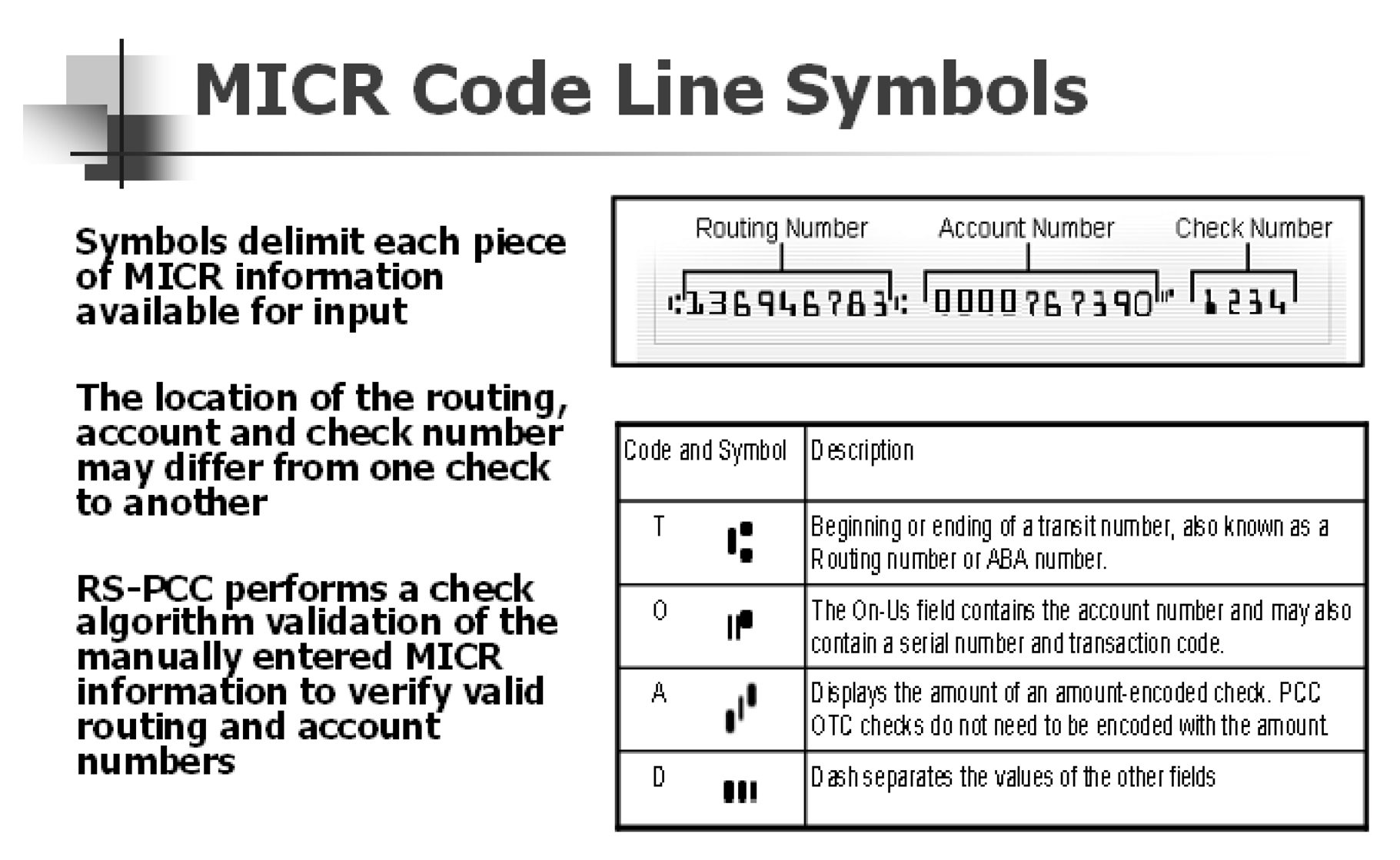
MICR Code Line SymbolsThis graphic shows the special symbols on the bottom of checks or money orders that are before and after the routing number, account number and check numberThe first and last symbol of the Bank Routing Number is represented by TThe second symbol at the end of the Account Number is represented by OThe third symbol is represented by AThe fourth symbol is represented by D
Please click here for the text description of the image.
Exhibit 3.17.278-5
Reconciliation Report
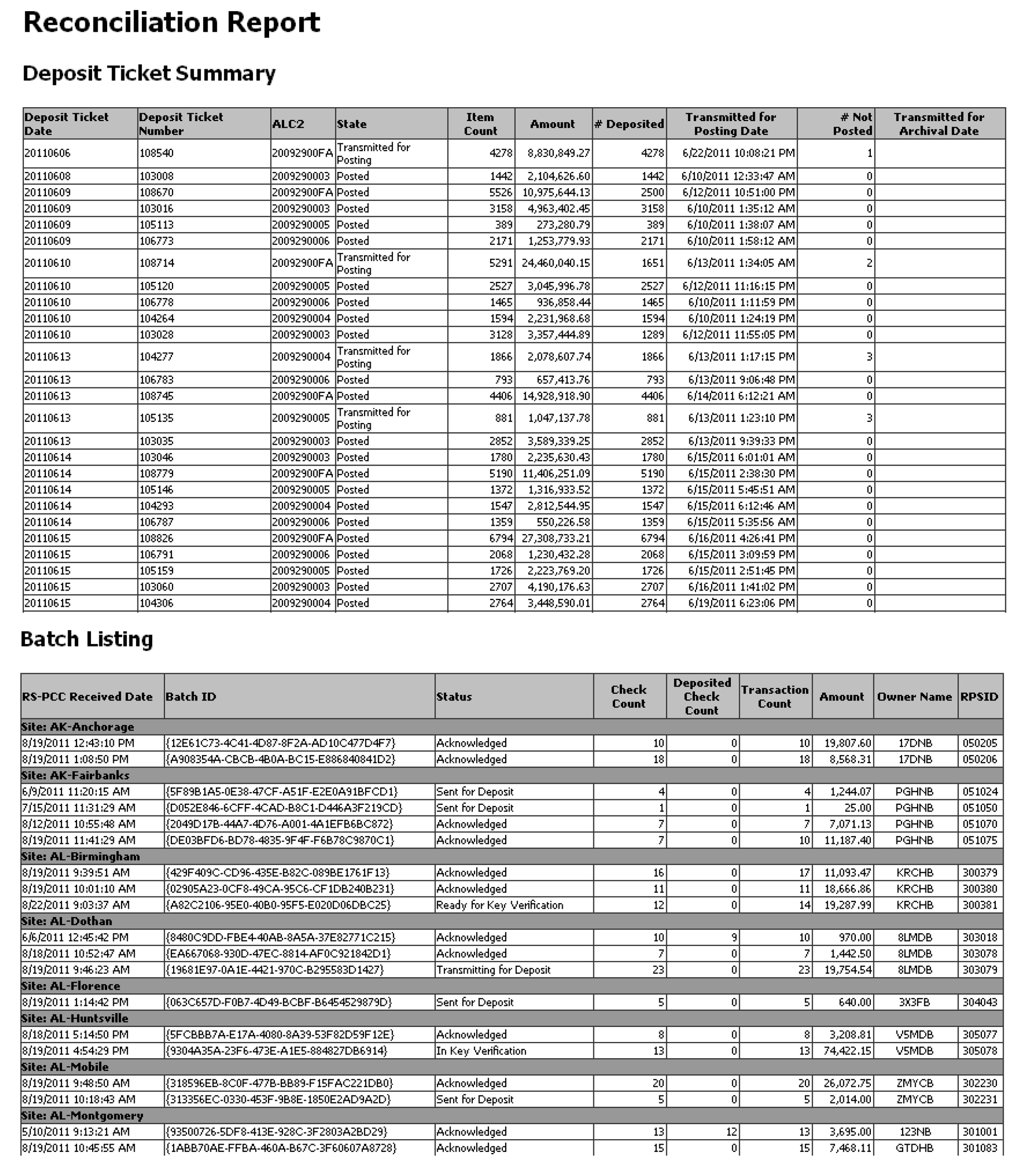
Reconciliation ReportThis graphic shows a summary of the deposit tickets and batch activities by site that have not been deleted from the RSPCC database. The Report has two section Deposit Ticket Summary and Batch Listing.The Deposit Ticket Summary each row represents a deposit ticket for a sites:Deposit Ticket Date (first column)Deposit Ticket Number (second column)ALC2 (third column)State (fourth column)Item Count (fifth column)Amount (sixth column)Total Deposited (seventh column)Transmitted for posting date (eighth column)Total not posted (ninth column)Transmitted for Archival Date (tenth column)The Batch Listing shows batch for each site that have not been deleted:RSPCC Received Date (first column)Batch ID (second column)Status (third column)Check Count (fourth column)Deposited Check Count (fifth column)Transaction Count (sixth column)Amount (seventh column)Owner Name (eighth column)RPSID (ninth column).
Please click here for the text description of the image.
Exhibit 3.17.278-6
RSPCC End of Day Report
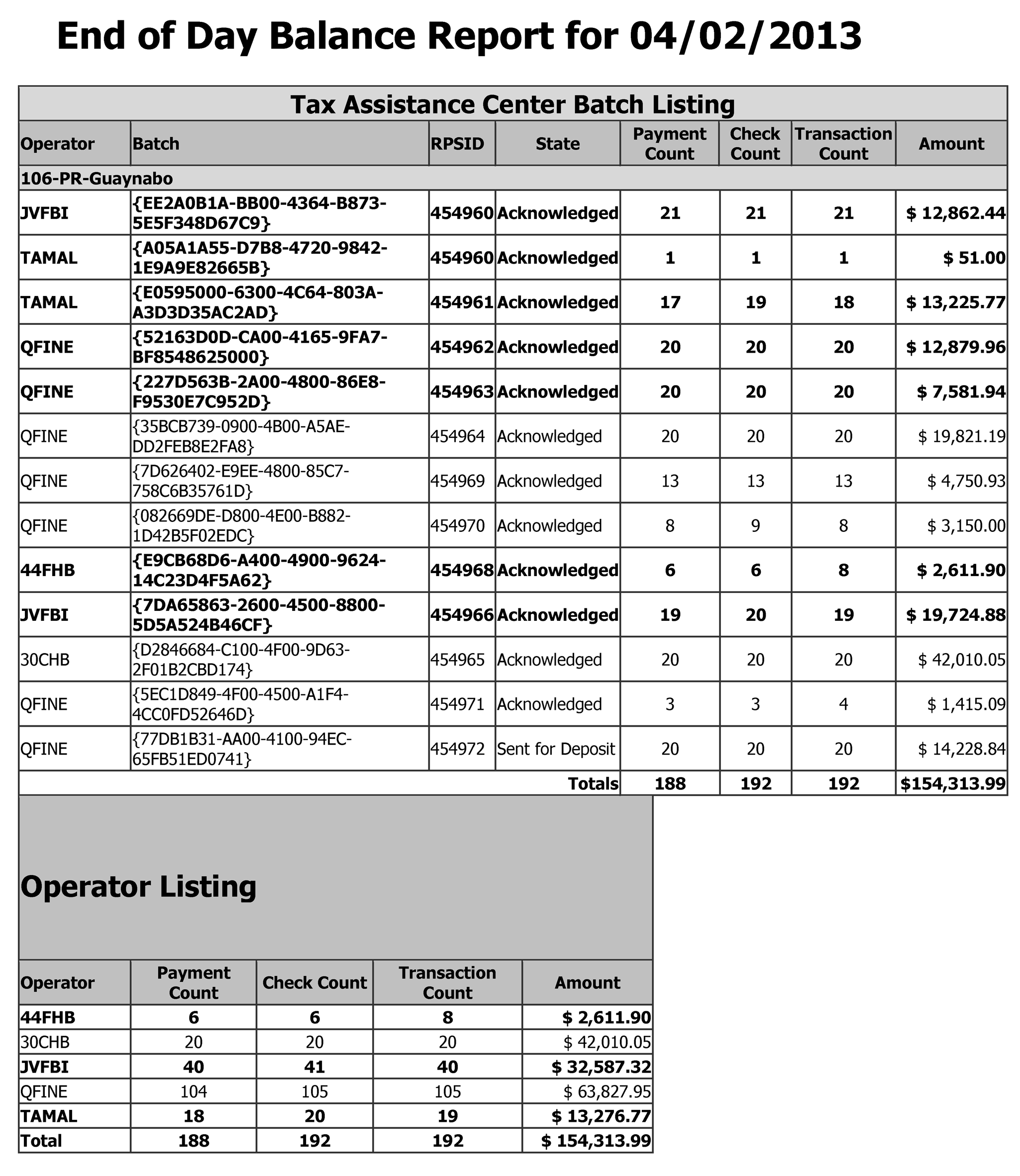
RSPCC End of Day ReportThis graphics shows the daily activity for a site. It has two sections: Batch Listing and Operator Listing.Batch Listing shows a daily batch activity:Operator (first column)Batch (second column)RPSID (third column)State (fourth column)Payment Count (fifth column)Check Count (sixth column)Transaction Count (seventh column)Amount (eighth column)Operator Listing shows the total daily activity per operator:Operator (first column)Payment Count (second column)Check Count (third column)Transaction Count (fourth column)Amount (fifth column)
Please click here for the text description of the image.
Exhibit 3.17.278-7
RSPCC Batch Listing
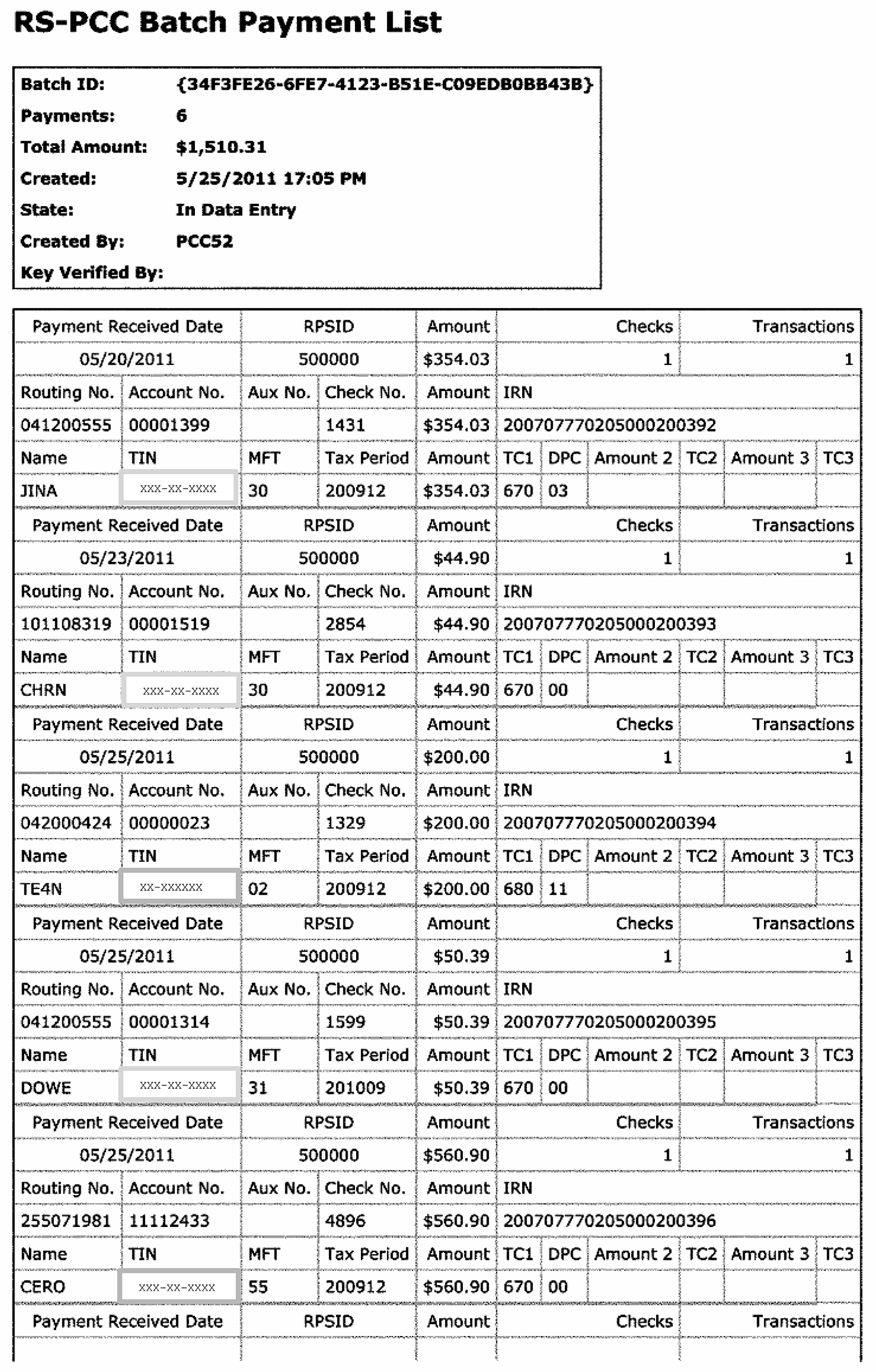
RSPCC Batch Payment ListThis graphic show the status of a batch and list of payments included in the batch at the time it is generated. It display a breakdown of each payment.Part One of this report is the status box:Batch ID (first row)Payments (second row)Checks (third row)Created (fourth row)State (fifth row)Created by (six row)Key Verified by (seventh row)Part two is a breakdown of the payment information for each check. The headers are:Payment Received Date (row 1, column 1)RPSID (row 1, column 2)Amount (row 1, column 3)Checks (row 1, column 4) Transactions (row 1, column 5)Routing No (row 3, column 1)Account No (row 3, column 2)Aux No (row 3, column 3)Check No (row 3, column 4)Amount (row 3, column 5)IRN (row 3, column 6)Name (row 5, column 1)TIN (row 5, column 2)MFT (row 5, column 3)Tax Period (row 5, column 4)Amount (row 5, column 5)TC1 (row 5, column 6)DPC (row 5, column 7)Amount 2 (row 5, column 8)TC2 (row 5, column 9)Amount 3 (row 5, column 10)TC3 (row 5, column 11)
Please click here for the text description of the image.
Exhibit 3.17.278-8
Master File Form Processing Table
| Form Number, CP Notice or Letter | MFT | Transaction Code | Tax Period Ending | Type |
|---|---|---|---|---|
| 11C | 63 | 610 | 01 - 12 | BMF |
| 668A (C) | Various | 670, 640,690,694, | 01 - 12 | IMF BMF |
| 668W (C) | Various | 670, 640,690,694, | 01 - 12 | IMF BMF |
| 720 | 03 | 610 | 03/06/09/12 | BMF |
| 720X | 03 | 670/570 | 03/06/09/12 | BMF |
| 730 | 64 | 610 | 01 - 12 | BMF |
| 870P (AD) | 30 | 640 | 01 - 12 | IMF |
| 940 | 10 | 610 | 12 | BMF |
| 940 PR | 10 | 610 | 12 | BMF |
| 940 v | 10 | 610 | 12 | BMF |
| 941 | 01 | 610 | 03/06/09/12 | BMF |
| 941 M | 01 | 670 | 03/06/09/12 | BMF |
| 941 PR | 01 | 610 | 03/06/09/12 | BMF |
| 941 SS | 01 | 610 | 03/06/09/12 | BMF |
| 941 V | 01 | 610 | 03/06/09/12 | BMF |
| 941-X | 01 | 670/570 | 03/06/09/12 | BMF |
| 943 | 11 | 610 | 12 | BMF |
| 943 V | 11 | 610/570 | 12 | BMF |
| 943 PR | 11 | 610 | 12 | BMF |
| 944 | 14 | 610 | 12 | BMF |
| 944 V | 14 | 610 | 12 | BMF |
| 944 SP | 14 | 610 | 12 | BMF |
| 944 PR | 14 | 610 | 12 | BMF |
| 944 SS | 14 | 610 | 12 | BMF |
| 945 | 16 | 610 | 12 | BMF |
| 945 V | 16 | 610 | 12 | BMF |
| 990 | 67 | 610 | 01 - 12 | BMF |
| 990 EZ | 67 | 610 | 01 - 12 | BMF |
| 990 PF | 44 | 610 | 01 - 12 | BMF |
| 990 T | 34 | 610 | 01 - 12 | BMF |
| 1040 Return | 30 | 610 | 01 - 12 | IMF |
| 1040 Notice | 30 | 670/570, 640,690,694 | 01 - 12 | IMF |
| 1040 Innocent Spouse Return | 31 | 610 | 01 - 12 | IMF |
| 1040 Innocent Spouse Notices | 31 | 670/570, 640,690,694 | 01 - 12 | IMF |
| 1040 ES | 30 | 660 | 01 - 12 | IMF |
| 1040 V | 30 | 610 | 01 - 12 | IMF |
| 1040 X | 30 | 670/570 | 01 - 12 | IMF |
| 1041 | 05 | 610 | 01 - 12 | BMF |
| 1041 A | 36 | 610 | 01 - 12 | BMF |
| 1041 ES | 05 | 660 | 01 - 12 | BMF |
| 1041 V | 05 | 610 | 01 - 12 | BMF If Form 1041-V is received with a Form 8453-F, utilize the 1041-V as the payment voucher and route the 8453-F to Batching OSPC STOP 6054. |
| 1042 | 12 | 610 | 12 | BMF |
| 1065 | 06 | 640 | 01 - 12 | BMF |
| 1066 | 07 | 670 | 12 | BMF |
| 1096 | 13 | 640 | 12 | BMF |
| 1096 | 55 | 640 | 12 | IMF |
| 1098 | Transship to Submission Processing | |||
| 1099 | Transship to Submission Processing | |||
| 1120 Returns | 02 | 610 | 01 - 12 | BMF |
| 1120 Notices | 02 | 670/570, 640,690,694 | 01 - 12 | BMF |
| 1120 X | 02 | 670/570 | 01 - 12 | BMF |
| 1128 | Transship to Submission Processing | |||
| 2210 | 30 | 670 | 01 - 12 | IMF |
| 2210 | 05 | 670 | 01 - 12 | BMF |
| 2220 | 02 | 670 | 01 - 12 | BMF |
| 2290 | 60 | 610 | 01 - 12 | BMF |
| 2350 | 30 | 670 | 01 - 12 | IMF |
| 2350 | 51 | 670 | 12 | BMF |
| 3244 | Various | 670/570, 640,690,694 | 01 - 12 | IMF BMF |
| 4549 | various | 640 | 01 - 12 | IMF BMF |
| 4549 EZ | 30 | 640 | 01 - 12 | |
| 4666 | 01, 10 | 640 | 03/06/09/12 | BMF |
| 4667 | 10 | 640 | 01 - 12 | BMF |
| 4668 | 01, 11 | 640 | 03/06/09/12 | BMF |
| 4720 | 50 | 610 | 01 - 12 | BMF |
| 4868 | 30 | 670 | 01 - 12 | |
| 4868 (Timely) | 51 | 670/460 | 01 - 12 | BMF |
| 4868 (Delinquent) | 51 | 670 | 01 - 12 | BMF |
| 5329 | 29 | 670 | 01 - 12 | IMF |
| 5564 | Various | 640 | 01 - 12 | IMF BMF |
| 7004 | Various | 670 | 01 - 12 | BMF |
| 8082 | 30 | 670/570 | 01 - 12 | IMF |
| 8109/8109 B | 01, 02,03,09, 10, 11, 12, 14, 16, 33, 34, 44 | 670 | 01 - 12 | BMF |
| 8453 | 30 | 670 | 01 - 12 | IMF |
| 8453-F | 05 | 670 | 01 - 12 | BMF If the 1041-V is received with a Form 8453-F, utilize the 1041-V as the payment voucher and route the 8453-F to Batching OSPC STOP 6054. Process 1041-V payments with TC 610 and MFT 05. |
| 8489 | 13 | 670 | 01 - 12 | BMF |
| 8489 | 55 | 670 | 01 - 12 | IMF |
| 8519 | Various | 670/570, 640,690,694 | 01 - 12 | IMF BMF |
| 8615 | 30 | 670/570 | 01 - 12 | IMF |
| 8697 for filing year beginning January 1, 2005 | Various | 670/570 | 01 - 12 | IMF BMF |
| 8697 for filing year prior to January 1, 2005 | Transship to Submission Processing | |||
| 8716 | Transship to Submission Processing | |||
| 8752 | 15 | 610 | 01 - 12 | BMF |
| 8804 Tax Year 2004 and Subsequent | 08 | 670 | 01 - 12 | BMF |
| 8804 Tax Year 2003 and Prior | Transship to Submission Processing | |||
| 8805 Tax Year 2004 and Subsequent | 08 | 670 | 01 - 12 | BMF |
| 8805 Tax Year 2003 and Prior | Transship to Submission Processing | |||
| 8813 Tax Year 2004 and Subsequent | 08 | 670 | 01 - 12 | BMF |
| 8813 Tax Year 2003 and Prior | Transship to Submission Processing | |||
| 8820 | 13 | 640 | 01 - 12 | BMF |
| 8831 | Various | 670 | 01 - 12 | BMF |
| 8879 | 30 | 670 | 01 - 12 | IMF |
| 8879C | 02 | 670 | 01 - 12 | BMF |
| 8879S | 02 | 670 | 01 - 12 | BMF |
| 8879F | 05 | 670 | 01 - 12 | BMF |
| 8892 | 51 | 670 | 01 - 12 | BMF |
| 9465 | Various | 670, 640 | 01 - 12 | IMF BMF |
| CT-1 | 09 | 610 | 12 | BMF |
| CT-1V | 09 | 610 | 12 | BMF |
| CP 45 | 30 | 670 Prior Year | 01 - 12 | IMF |
| CP 45 | 30 | 660 Current year | 01 - 12 | IMF |
| CP 215 | 13 | 670 | 01 - 12 | BMF |
| CP 215 | 55 | 670/570 | 01 - 12 | IMF |
| CP 251 | 01 | 640 | 01 - 12 | BMF |
| CP 253 | 13 | 640 | 01 - 12 | BMF |
| CP 259 | Various | 670/570 | 01 - 12 | IMF BMF |
| CP 403 - 587 (IDRS Notices) | Various | 670/570 | 01 - 12 | IMF BMF |
| CP 543 | 16 | 670/570 | 12 | BMF |
| CP 972 CG | 13 | 640 | 01 - 12 | BMF |
| CP 972 CG | 55 | 640 | 01 - 12 | IMF |
| CP 2000 | 30 | 640 | 01 - 12 | IMF |
| CP 2100 | 13 | 640 | 01 - 12 | BMF |
| CP 2100 | 55 | 640 | 01 - 12 | IMF |
| CP 2102 | 13 | 640 | 01 - 12 | BMF |
| CP 2102 | 55 | 640 | 01 - 12 | IMF |
| CP 2501 | 30 | 640 | 01 - 12 | IMF |
| EUR CP 2000 | 30 | 640 | 01 - 12 | IMF |
| Sch. H | 05 | 670/570 | 01 - 12 | BMF |
| Sch. H | 30 | 670/570 | 01 - 12 | IMF |
| 510C | Transship payment to Submission Processing. | |||
| 1151C | 30 | 640 | 01 - 12 | IMF |
| 1802C | 30 | 640 | 01 - 12 | IMF |
| 2626C | Various | 640 | 01 - 12 | IMF BMF |
| 3064C | Various | 670/570 | 01 - 12 | IMF BMF |
| 3404C | 30 | 640 | 01 - 12 | IMF |
| 4010C | 10 | 640 | 12 | BMF |
| 4314C | Various | 640 | 01-12 | IMF BMF |
Exhibit 3.17.278-9
OTCnet-OTC ELVIS 215 Report
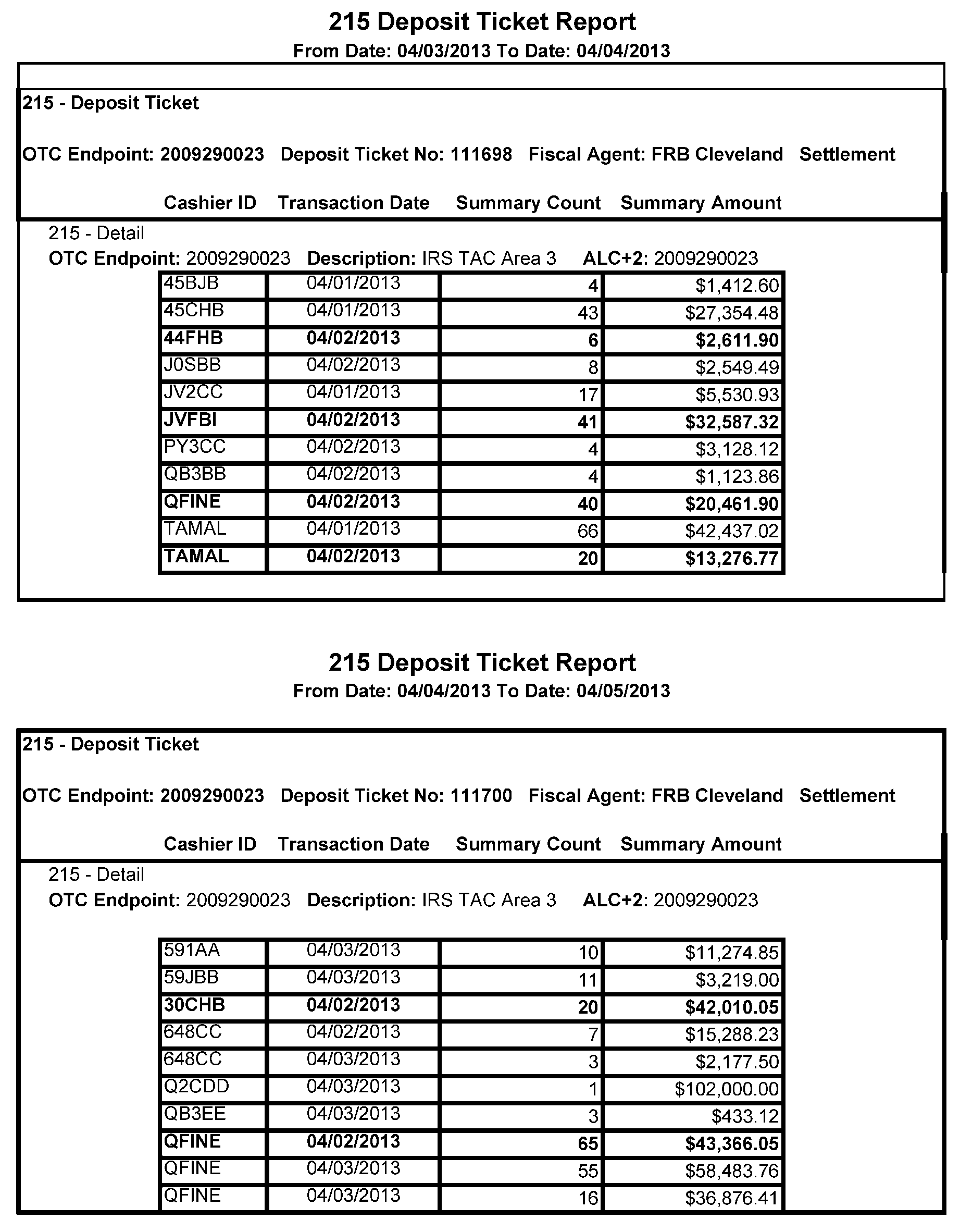
215 Deposit Ticket ReportThis graphics show a breakdown of the deposit ticket by ALC+2:215 - Deposit Ticket (row 1)OTC Endpoint (row 2, column 1)Deposit Ticket No: (row 2, column 2)Fiscal Agent: FRB Cleveland (row 2, column 3)Settlement Date: (row 2, column 4)Cashier ID (row 3, column 1)Transaction Date (row 3, column 2)Summary Count (row 3, column 3)Summary Amount (row 3, column 4)215- Detail (row 4, column 1)ALC OTC Endpoint (row 5, column 1)Description Location Name (row 5, Column 2)ALC+2 ((row 5 column 4).
Please click here for the text description of the image.