Internal Revenue Manual § 3.24.37 - General Instructions
3.24.37 General Instructions
Manual Transmittal
September 08, 2025
Purpose
(1) This transmits revised IRM 3.24.37, ISRP System, General Instructions.
Material Changes
(1) IRM 3.24.37.2.1.1, Log in to Windows, Updated subsection title and instructions to current system log in procedures.
(2) IRM 3.24.37.2.1.2, Working with Multiple Windows, Updated subsection title and revised instructions to current system log in procedures.
(3) IRM 3.24.37.2.1.3, Log on to the ISRP System, Revised instructions to current system log in procedures.
(4) IRM 3.24.37.2.5.3, Special Key Characteristics, Updated the Special Key Characteristics table.
(5) IRM 3.24.37.2.6, Operator Statistics, revised instructions to current procedures.
(6) IRM 3.24.37.3.3, Block Edit (BE), revised instructions to current procedures.
(7) IRM 3.24.37.4.8, Date, IRS Received Date, Tax Year and Tax Period Fields, Updated subsection title and added additional instructions and clarification of a what is considered a valid Received Date, Tax Year and Tax Period and additional transcription instruction.
(8) Incorporated various editorial changes throughout the IRM including, updating line numbers and dates, adding or correcting references, citations, and hyper-links, January 2025 Executive Order and OPM Guidance, and reorganizing the IRM without changing substantive content or its meaning.
Effect on Other Documents
IRM 3.24.37 dated June 23, 2025 (effective June 23, 2025), is superseded. DEI updates required this IRM to be re-published mid-year.
Audience
This IRM provides instructions for Submission Processing Data Entry Operators.
Effective Date
(01-01-2026)
Scott Wallace
Director, Submission Processing
Taxpayer Services
3.24.37.1 (06-23-2025)
Program Scope and Objectives
-
Purpose: The instructions in this IRM apply to the Original Entry, Key Verification, and Block Edit of paper filed tax returns, remittances and related data through the Integrated Submission and Remittance Processing System (ISRP) and Quality Review of Original Entry and Key Verification.
-
Audience: Submission Processing Data Conversion Operation personnel including general clerks, leads and Managers. These instructions apply to all campuses.
-
Policy Owner: The Director, Submission Processing, Taxpayer Services.
-
Program Owner: Mail Management Data Conversion Section, Return Processing Branch (an Organization within Submission Processing).
-
Primary Stakeholders: Those affected by these procedures or have input to the procedures including a change in workflow, additional duties, change in established time frames, and similar issues include (but not limited to):
-
Accounts Management (AM)
-
Chief Counsel
-
Compliance
-
Information Technology (IT) Programmers
-
Statistics of Income (SOI)
-
Submission Processing (SP)
-
Taxpayer Advocate Service (TAS)
-
-
Program Goals: The goal of this program is to correctly transcribe Individual Master File paper filed tax returns and related documents for further processing using the instructions in this IRM.
3.24.37.1.1 (11-10-2017)
Background
-
This section of the IRM provides general instructions for utilizing the ISRP system to transcribe data from a variety of forms listed in IRM 3.24.37.1.7 and how to utilize the ISRP system to perform quality review.
-
The purpose of the Integrated Submission and Remittance Processing (ISRP) System is to transcribe and format data from paper returns/documents/vouchers for input into the Generalized Mainline Framework (GMF) and other systems by key entry operators. It also captures check images for archiving. Transaction Management System (TMS) is a COTS product that is an integral part of ISRP. The entries from transcription are transferred to ERS fields.
3.24.37.1.2 (11-10-2017)
Authority
-
The Budget and Accounting Act of 1950 required the heads of each department and agency to establish and maintain adequate systems of internal controls.
-
In 1982, the act was amended with the Federal Manager’s Financial Integrity Act (FMFIA) Public Law 97-255:
-
The Comptroller General to prescribe the internal accounting and administrative control standards.
-
Each executive agency to conduct annual evaluations of its systems of control, using guidelines set by the Office of Management and Budget (OMB) Director.
-
Each executive agency to submit an annual statement to the President and Congress on the status of the IRS’s system of internal controls.
-
3.24.37.1.3 (01-01-2022)
Responsibilities
-
The Director, Submission Processing approves and authorizes issuance of this IRM.
-
The Planning and Analysis staff provides feedback and supports local management to monitor and achieve scheduled goals.
-
The Operations Manager secures, assigns and provides training for the staff needed to perform the duties presented in this IRM.
-
The Team Manager/Lead assigns, monitors and controls the workflow to complete the work timely.
-
The Team Employee applies the instruction for the duties presented in this IRM on the ISRP system to accurately convert paper data to an electronic data record for proper posting for use by the IRS.
-
IRM deviations must be submitted in writing following instructions from IRM 1.11.2.2, Internal Management Documents System - Internal Revenue Manual (IRM) Process, IRM Standards, and elevated through appropriate channels for executive approval.
3.24.37.1.4 (11-18-2020)
Program Management and Review
-
Program Reports: The Monitoring Section under Submission Processing Program Management/Process Assurance monitors Data Conversion reports. Below are a list of reports to use to show receipts, production and inventory for the paper return to electronic data conversion process. These reports will be utilized to report and monitor daily and weekly status of the program to completeness.
-
PCC 6040, SC WP&C Performance and Cost Report
-
PCC 6240, SC WP&C Program Analysis Report
-
-
Program Effectiveness: Program effectiveness is determined by Submission Processing employees being able to successfully transcribe data from a wide variety of tax forms. Goals are measured utilizing standard managerial reports by documents processed per hour and completion of each function compared to the established schedule for completion each week. Each function is expected to retain or exceed schedule prior to the program completion date stated in IRM 3.30.123, Processing Timeliness: Cycles, Criteria, and Critical Dates. Quality reviews are expected to be conducted and monitored by local management and corrective action taken to ensure quality products are released to the next function.
3.24.37.1.5 (01-01-2022)
Program Controls
-
Integrated Submission and Remittance Processing (ISRP) system access is granted through the Business Entitlement Access Request System (BEARS) process.
-
The processes included in this IRM are reviewed annually to ensure accuracy and promote consistency.
-
The reports for the Control Data Analysis, Project PCD, are on the Control-D/Web Access server, which has a login program control.
3.24.37.1.6 (01-01-2023)
Acronyms, Terms, and Definitions
-
The following is a list of the acronyms that are used in this IRM section:
Acronym Term Definition AIL Additional Information Line Used to place additional information notated (e.g., P.O. Box and another address) ACT C Action Code A three-digit number used to alert the computer of a special condition or computation. AKA Also Known As Used to designate the meaning, pseudonym or the best-known name for a person. ATIN Adoption Taxpayer Identification Number A temporary tax identification number until a Social Security Number (SSN) could be obtained for a child in the process of being adopted. AUD C Audit Code An alpha or numeric character used to identify questionable conditions for Examination. BE Block Edit Used for correction of entered data and for Quality Review. BMF Business Master File A magnetic tape or disk file containing information about taxpayers filing business returns and related documents. CCC Computer Condition Code Computer Condition Codes (CCC) are used to identify a special condition or computation for the computer which posts to the Master File. They are entered in the center portion of the Form 1040 between the entity area and dependents area. DLN Document Locator Number The Document Locator Number (DLN) is the 14-digit number assigned to every return or document. Refer to DLN Composition Document 6209 IRS Processing Codes and Information, for detailed information. EEFAX Enterprise Electronic FAX A new technology that allows users to electronically receive and route faxes. EIN Employer Identification Number A nine-digit number identifying the account of a taxpayer on the Business Master File (BMF). The format is xx-xxxxxxx. EOP Entry Operator The workstation operators who manually enter information into the system. FMFIA Federal Managers' Financial Integrity Act The Office ensures compliance with the Federal Managers’ Financial Integrity Act. FPC Form Processing Code A code to identify forms attached to a tax return. GPP General Purpose Programs Documents or returns processed and sent to the intake systems directly without passing through generalized master file (GMF) also known as GMF mainline processing. IMF Individual Master File A file containing information about taxpayers filing individual income tax returns and related documents. IRM Internal Revenue Manual The primary, official source of "instructions to staff" relating to the administration and operation of the IRS. IRSN Internal Revenue Service Number A number assigned by the IRS and is used in place of a required TIN during processing. ISRP Integrated Submission and Remittance Processing System The Integrated Submission and Remittance Processing (ISRP) System transcribes and formats data from paper returns/documents/vouchers for input into the Generalized Mainline Framework (GMF) and other systems by key entry operators. It also captures check images for archiving. ITIN Individual Taxpayer Identification Number A number assigned to a person with tax consequences who does not have and is not eligible for a Social Security Number (SSN). KV Key Verification A status for ISRP terminals to enable data records to be verified by KV operators. MCC Major City Code Code developed to decrease keystrokes for highly populated cities and/or cities with lengthy names. MFT Master File Taxes A code to identify the specific module to which a transaction is to be posted. NMI No Middle Initial Information for the name line entries. NMN No Middle Name Information for the name line entries. OE Original Entry Menu selection used to transcribe data from paper into computer system. OMB Office of Management and Budget Office of Management and Budget (OMB) oversees the implementation of the President Budget and measures the quality of IRS programs, policies, and procedures to see if they comply with the president policies and coordinates with inter-agency policy initiates. PIN Personal Identification Number A numeric or alpha-numeric password used in the process of authenticating a user accessing a system. PRP Program Requirements Package The instructions that define how tax returns and tax forms can be processed to the Master File (MF). PTIN Preparer Taxpayer Identification Number A nine-digit number that begins with a "P" and the first digit is "0" . QR Quality Review A method to monitor, measure, and improve the quality of work. RPC Return Processing Code An alpha or numeric character used to alert the computer to a special condition or computation. SA System Administrator Serves as a subject matter expert with substantial responsibility for resolving complex and unique problems related to implementation, integration, evaluation, and management of a variety of computer systems, computer related equipment, files management and inventory, networking, operating systems, and systems software and their integration with other systems and networks. SmartID Smart Identification - IDENTITY, CREDENTIAL, AND ACCESS MANAGEMENT Identification designed with smart card technology (computer chip embedded into the card) to verify the card holder’s identity. SOP Supervisory Operator Responsible for monitoring work in progress, managing workflow and generating and processing reports in the program functions. SPC Special Processing Code An alpha or numeric character used to alert the computer to a special condition or computation. SSN Social Security Number A nine-digit number identifying the account of a taxpayer on the Individual Master File (IMF). The format is xxx-xx-xxxx. TIN Taxpayer Identification Number Each taxpayer account on the Master File is permanently assigned a nine-digit number for identification of the tax account: EINs for business and SSNs for individual taxpayers.
3.24.37.1.7 (01-01-2026)
Related Resources
-
The following table lists the IRM Number, IRM Title, Forms, Job Name/Program #, Tax Class/Document Code, Transaction Code, MFT, and related PRP (Program Requirements Package) Sections for IRM 3.0, IRM 3.24.0 and IRM 3.37.0. The table shows valid combinations for accessing the programs, program numbers, and entering the Block Header.
IRM 3.24.3, Individual Income Tax Returns
FORMS JOB NAME/PROGRAM NUMBER TAX CLASS/ DOC. CODE TRANSACTION CODE MFT PRP SECT. 1040 43110 43112 43114 43130 43210 43170 (ITIN) 43172 (ITIN) 43810 (SP) 43812 (SP) 43820 (SP) 46120 46129 46140 13142 46145 46160 46180 46280 46121 46221 205, 206, 211, 212, 221, 222 31 1040-SR 43120 43122 43124 43220 43910 (SP) 43912 (SP) 43920 (SP) 205, 206 31 1040X 44400 205, 206, 211, 212, 221, 222 31 8379 44400 211 31 1040SFR 44630 210 33 IRM 3.24.3, Individual Income Tax Returns (AUSPC only)
FORMS JOB NAME/PROGRAM NUMBER TAX CLASS/ DOC. CODE TRANSACTION CODE MFT PRP SECT. 1040 (Foreign) 46110 46115 46170 (ITIN) 46220 211, 212, 221, 222 31 1040 (Foreign Prior Year) 46112 46172 (ITIN) 211, 212, 221, 222 31 1040-NR 46120 46124 (PY) 46129 46140 46142 (PY) 46145 272, 273 31 1040-SS 46127 46128 46227 46228 226 (SS), 227 (SS-PP) 36 IRM 3.24.7, Delinquent Accounts
FORMS JOB NAME/PROGRAM NUMBER TAX CLASS/ DOC. CODE TRANSACTION CODE MFT PRP SECT. 5466B 15507 977 68 5466B 45507 277 68 3177 15502 977 460 68 3177 45502 277 460 68 3177 72880 077 68 IRM 3.24.8, Information Returns Processing
FORMS JOB NAME/PROGRAM NUMBER TAX CLASS/ DOC. CODE TRANSACTION CODE MFT PRP SECT. 1096 44310 569 69 69 1097-BTC 44307 550 69 1098 44312 581 69 1098Q 44311 574 69 1098C 44312 578 69 1098E 44312 584 69 1098F 44300 503 69 1098T 44312 583 69 1099A 44309 580 69 1099B 44301 579 69 1099C 44303 585 69 1099CAP 44303 573 69 1099DIV 44302 591 69 1099G 44303 586 69 1099INT 44300 592 69 1099K 44300 510 69 1099LS 44300 516 69 1099LTC 44300 593 69 1099MISC 44305 595 69 1099NEC 44306 571 69 1099OID 44304 596 69 1099PATR 44307 597 69 1099Q 44308 531 69 1099QA 44351 51A 66 1099R 44306 598 69 1099S 44308 575 69 1099SA 44300 594 69 1099SB 44300 543 69 3921 44317 525 69 3922 44318 526 69 W–2G 44314 532 69 5498ESA 44313 572 69 5498SA 44315 527 69 5498 44313 528 69 5498QA 44352 52A 66 IRM 3.24.10, Revenue Receipts
FORMS JOB NAME/PROGRAM NUMBER TAX CLASS/ DOC. CODE TRANSACTION CODE MFT PRP SECT. 1040ES/C, 3244 44200 220, 261 60 1041ES 11920 217 05 60 Various Forms (BMF) 15501 117–119, 124, 145, 148, 151, 158, 170, 176, 187 60 Various Forms (BMF) 15501 217–219, 224, 245, 248, 251, 258, 270, 276, 287 05, 06, 15 60 Various Forms (BMF) 15501 317–319, 324, 345, 348, 351, 358, 370, 376, 387 60 Various Forms (BMF) 15501 417–419, 424, 445, 448, 451, 458, 470, 476, 487 60 Various Forms (BMF) 15501 517–519, 524, 545, 548, 551, 558, 570, 576, 587 60 Various Forms (BMF) 15501 717–719, 724, 745, 748, 751, 758, 770, 776, 787 60 Various Forms (BMF) 15501 817–819, 824, 845, 848, 851, 858, 870, 876, 887 60 PJ710 (BMF) 15501 117 60 Various Forms (IMF) 45501 217–219, 224, 245, 248, 251, 258, 270, 276, 287 60 Various Forms (IRAF) 45501 017–019, 024, 045, 048, 051, 058, 070, 076, 087 29 60 3753 (BMF) 15501 145, 345, 445, 545, 745, 845 840 60 3753 (BMF) 15501 245 840 05, 06, 15 60 3753 (IMF) 45501 245 840 60 3753 (IRAF) 45501 045 840 29 60 IMF Revenue Receipts 45501 217 60 IRM 3.24.12, Exempt Organization Returns
FORMS JOB NAME/PROGRAM NUMBER TAX CLASS/ DOC. CODE TRANSACTION CODE MFT PRP SECT. 990 (2007 and Prior), CP140/144, CP411–414 13110 490 39 990EZ (2007 and Prior) 13120 409 27 990 (2008-2013) 13410 493 39 990EZ (2008-2015) 13420 492 27 990 (2014 and 2015 Years), CP140/ 144, CP411-414 13450 462 27 990 (2016-2018), CP140,/ 144, CP411-414 13452 462 27 990 (2019 and Later), CP140/144, CP411- 414 13456 462 27 990-EZ (2016 and Later) ISRP 13430 462 27 990-EZ (2016 and Later Years) 13423 462 27 990-EZ 527 (2016 and Later Years) 13424 462 27 990T 13141 393 32 990PF 13131 491 34 1041A 13162 481 38 4720 13161 471 38 5227 13190 483 28 5578 13160 984 35 1120–POL 13170 320 50 8872 16010 462 81 5768 15502 977 460 60 IRM 3.24.13, Employment Tax Returns
FORMS JOB NAME/PROGRAM NUMBER TAX CLASS/ DOC. CODE TRANSACTION CODE MFT PRP SECT. 941 2021 2nd Qtr Revision 11200 141 42 941 2022 1st Qtr Revision 11202 141 42 941 2022 2nd Qtr through 2023 4th Qtr 11204 141 42 941 2014 through 2016 Revisions 11209 141 42 941 * 2024 and 2025 Revisions * 2017 through 2020 1st Qtr Revisions * 2013 and Prior Revisions 11210 141 42 941 2020 2nd Qtr Revision 11211 141 42 941 2020 3rd Qtr Revision 11212 141 42 941 2021 1st Qtr Revision 11213 141 42 CT-1, 2025 and Later Revisions 11305 711 45 CT-1 2023 Revision 11304 711 45 CT-1 2022 Revision 11303 711 45 CT-1 2021 Revision 11302 711 45 CT–1 2020 Revisions 11301 711 45 CT-1 * 2024 Revision * 2019 and Prior Revisions 11300 711 45 Form 943 / Form 943 (sp), 2025 and Later Revisions 11605 143 44 943 2023 Revision 11604 143 44 943 2022 Revision 11602 143 44 943 2021 Revision 11600 143 44 943 2020 Revisions 11609 143 44 943 * 2024 Revision * 2017 through 2019 Revisions * 2013 and Prior Revisions 11608 143 44 943 2014 through 2016 Revisions 11611 143 44 Form 944, 944(SP), 2025 and Later Revisions 11653 149 45 944 / 944(SP) 2023 Revision 11652 149 45 944 / 944(SP) 2022 Revision 11651 149 45 944 / 944(SP) 2021 Revision 11650 149 45 944 / 944(SP) 2020 Revision 11662 149 45 944 / 944(SP) * 2024 and Later Revisions * 2017 through 2019 Revisions * 2013 and Prior Revisions 11661 149 45 944 / 944(SP) 2014 through 2016 Revisions 11660 149 45 Form 945, 2025 and Later Revisions 11250 144, 137 40 945 2024 and Prior Revisions 11260 144, 137 40 941PR/SS 2022 1st Qtr Revision 11203 141 42 941PR/SS 2022 2nd Qtr through 2023 4th Qtr 11207 141 42 941PR/SS 2021 2nd Qtr Revision 11201 141 42 941PR/SS 2021 1st Qtr Revisions 11223 141 42 941PR/SS 2020 3rd Qtr Revision 11222 141 42 941PR/SS 2020 2nd Qtr Revision 11221 141 42 941PR/SS * 2024 and 2025 Revisions * 2017 through 2020 1st Qtr Revisions * 2013 and Prior Revisions 11220 141 42 941PR/SS 2014 through Revisions 11219 141 42 943PR 2023 Revision 11605 143 44 943PR 2022 Revision 11603 143 44 943PR 2021 Revision 11601 143 44 943PR 2020 Revisions 11618 143 44 943PR * 2024 Revision * 2017 through 2019 Revisions * 2013 and Prior Revisions 11617 143 44 943PR 2014 through 2016 Revisions 11616 143 44 IRM 3.24.14, Fiduciary Income Tax Returns
FORMS JOB NAME/PROGRAM NUMBER TAX CLASS/ DOC. CODE TRANSACTION CODE MFT PRP SECT. 1041 (TY 2020 and Prior) 11900 244, 236 47 Form 1041 (TY 2021 and 2022) 11901 244, 236 47 Form 1041 (TY 2023 and Later) 11902 244, 236 47 1041-N (OSPC only) 11910 239 47 Form 1041 QFT 11910 239 47 IRM 3.24.15, Partnership Return of Income
FORMS JOB NAME/PROGRAM NUMBER TAX CLASS/ DOC. CODE TRANSACTION CODE MFT PRP SECT. 1065 12200 265, 267 48 1065B (OSPC Only) 12220 268 IRM 3.24.16, Corporation Income Tax Returns
FORMS JOB NAME/PROGRAM NUMBER TAX CLASS/ DOC. CODE TRANSACTION CODE MFT PRP SECT. 1120 (TY 2022 and Prior) 11500 310, 311 50 1120 (TY 2023 and Later) 11504 310, 311 50 1120–C (TY 2022 and Prior) 11540 303 54 1120–C (TY 2023 and Later) 11541 303 54 1120–F 11502 366, 367 54 1120-FSC 11506 307 51 1120–H 11501 371 50 1120–L 11503 311 51 1120-ND 11505 308 51 1120-PC (TY 2022 and Prior) 11511 313 51 1120-PC (TY 2023 and Later) 11512 313 51 1120–REIT (TY 2022 and Prior) 11508 312 50 1120-REIT (TY 2023 and Later) 11510 312 50 1120–RIC (TY 2022 and Prior) 11509 305 50 1120–RIC (TY 2023 and Later) 11513 305 50 1120–SF 11507 306 51 1120S 12100 316 51 IRM 3.24.21, Credit and Account Transfers
FORMS JOB NAME/PROGRAM NUMBER TAX CLASS/ DOC. CODE TRANSACTION CODE MFT PRP SECT. 3413 38600 251, 252 370 61 3413 38620 251, 252 370 05, 06, 15 61 3413 38620 151, 152 351, 352 451, 452 551, 552 751, 752 851, 852 370 61 3413 38600 051 370 29 61 3552 38601 251 370 61 3552 38621 251 370 05, 06, 15 61 3552 38621 151, 351 451, 551 751, 851 370 61 3552 38601 051 370 29 61 IRM 3.24.22, Employee Plan Returns
FORMS JOB NAME/PROGRAM NUMBER TAX CLASS/ DOC. CODE TRANSACTION CODE MFT PRP SECT. 5330 72860 435 18 5330 72867 435 18 IRM 3.24.23, Excise Tax Returns
FORMS JOB NAME/PROGRAM NUMBER TAX CLASS/ DOC. CODE TRANSACTION CODE MFT PRP SECT. 720 11800 420 03 46 2290, 2290 (sp) 12300 495 60 52 11C 12701 403 55 730 12702 413 58 IRM 3.24.25, BMF International Miscellaneous Tax Returns (OSPC Only)
FORMS JOB NAME/PROGRAM NUMBER TAX CLASS/ DOC. CODE TRANSACTION CODE MFT PRP SECT. 3520 12310 383 68 87 3520-A 12320 382 42 89 8288 11330 140 17 88 8804 11340 129 08 20 IRM 3.24.26, Miscellaneous Tax Exempt and Government Entities (TE/GE) Tax Returns
FORMS JOB NAME/PROGRAM NUMBER TAX CLASS/ DOC. CODE TRANSACTION CODE MFT PRP SECT. 8038 13200 361 80 8038–CP 13210 388 80 8038–B 13211 385 80 8038–TC 13212 386 80 8038–G 13201 362 80 8038–GC 13202 372 80 8038–T 13203 374 80 8328 13204 375 80 8703 13250 301 80 IRM 3.24.27, EPMF Return Processing Form 5500-EZ
FORMS JOB NAME/PROGRAM NUMBER TAX CLASS/ DOC. CODE TRANSACTION CODE MFT PRP SECT. 5500–EZ 72840 031 17 5500–EZ 72841 031 17 IRM 3.24.106, Estate Tax Returns
FORMS JOB NAME/PROGRAM NUMBER TAX CLASS/ DOC. CODE TRANSACTION CODE MFT PRP SECT. 706 12400 506 56 706NA 12402 505 706GS(D) 12403 559 21 706GS(T) 12404 529 IRM 3.24.143, Gift Tax Returns
FORMS JOB NAME/PROGRAM NUMBER TAX CLASS/ DOC. CODE TRANSACTION CODE MFT PRP SECT. 709 12410 509 57 709 NA, Non Refund 12412 509 57 709 NA, Refund 12413 509 57 IRM 3.24.154, Unemployment Tax Returns
FORMS JOB NAME/PROGRAM NUMBER TAX CLASS/ DOC. CODE TRANSACTION CODE MFT PRP SECT. 940, 940PR, 940 (sp), 2024 and Prior 11100 840, 839 41 940, 940 (sp), 2025 and Later 11101 840, 839 41 IRM 3.37.110, Chapter 3 Withholding Returns (OSPC Only)
FORMS JOB NAME/PROGRAM NUMBER TAX CLASS/ DOC. CODE TRANSACTION CODE MFT PRP SECT. 1042 12500 125 26 1042–S 71720 502 1042–T 71700 501 IRM 3.24.212, Applications for Extension of Time to File Tax Returns
FORMS JOB NAME/PROGRAM NUMBER TAX CLASS/ DOC. CODE TRANSACTION CODE MFT PRP SECT. 8892 15502 977 460 68 2350 45502 277 460 68 4868 (approved) 44700 217 460 60 7004 11700 204, 304 49 4868 45501 277 68 IRM 3.24.213, Real Estate Mortgage Investments Conduit Income Tax Returns
FORMS JOB NAME/PROGRAM NUMBER TAX CLASS/ DOC. CODE TRANSACTION CODE MFT PRP SECT. 1066 12201 360 53 IRM 3.24.249, Fiscal Year Required Payments/Form 8752
FORMS JOB NAME/PROGRAM NUMBER TAX CLASS/ DOC. CODE TRANSACTION CODE MFT PRP SECT. 8752 19000 223 11 IRM 3.24.133, Residual Remittance Processing System
FORMS JOB NAME/PROGRAM NUMBER TAX CLASS/ DOC. CODE TRANSACTION CODE MFT PRP SECT. 1040ES, 3244, 1040C 44201 220 430 30 70 1040, 1040X 45510, 45500, 45520 270, 276, 217, 219 610, 670/570 30 1040PR, 1040SS 45510, 45520 270, 276 610 30 1040PR, 1040SS, 1040NR, 1040NR-EZ 45510 270, 276 610 30 1042 15510 170, 176 610 12 941, 941PR, 941SS 15510 170, 176 610 01 943, 943PR, 944, 15510 170, 176 610 11 945 15510 170, 176 610 16 1065, 1065-B 15510 270, 276 610 06 1066 15510 370, 376 610 07 1120, 1120-C, 1120L, 1120-FSC, 1120S, 1120-POL, 1120F, 1120-H, 1120-ND, 1120-SF, 1120-REIT, 1120-RIC, 15510 370, 376 610 02 8038–T 15510 370, 376 610 46 990C 15510 370, 376 610 33 990T 15510 370, 376 610 34 11C 15510 470, 476 610 63 730 15510 470, 476 610 64 720 15510 470, 476 610 03 4720 15510 470, 476 610 50 1041A 15510 470, 476 610 36 5227 15510 470, 476 610 37 990 15510 470, 476 610 67 70 990PF 15510 470, 476 610 44 990EZ 15510 470, 476 610 67 2290 15510 470, 476 610 60 706, 706NA 15510 570, 576 610 52 706GS(D) 15510 570, 576 610 78 706GS(T) 15510 570, 576 610 77 709 15510 570, 576 610 51 CT–1 15510 770, 776 610 09 940, 940PR 15510 870, 876 610 10 1041, 1041QFT 15510 270, 276 610 05 Return Payment Vouchers 45520 270, 276 610 30 Return Payment Vouchers 15520 170, 176 610 01, 04, 08, 11, 12, 14, 16, 17 Return Payment Vouchers 15520 270, 276 610 06 Return Payment Vouchers 15520 370, 376 610 02, 07, 33, 34, 46 Return Payment Vouchers 15520 470, 476 610 03, 36, 37, 44, 50, 60, 63, 64, 67, 74, 76 Return Payment Vouchers 15520 570, 576 610 51, 52, 77, 78 Return Payment Vouchers 15520 770, 776 610 09 Return Payment Vouchers 15520 870, 876 610 10 Return Payment Vouchers 15520 270, 276 610 05, 15 1041ES 11921 217, 219 660 05 4868 44701 217, 219 670 30 CP 2000 45500 217, 219 640 30 8210, CP2100, CP 2102 15500 317, 319 640 13 CP2501, NOT 972 45500 217, 219 640 55 Various Forms (IMF) (670/570) 45500 217, 219 640, 670, 680, 690, 694 30, 31, 55 70 Various Forms (IRAF) (670/570) 45500 017, 019 640, 670 29 Various Forms (BMF) (670/570) 15500 117, 119 640, 670, 680, 690, 694 01, 04, 08, 11, 12, 14, 16, 17 Various Forms (BMF) (670/570) 15500 217, 218 640, 670, 680, 690, 694 05, 06, 15 Various Forms (BMF) (670/570) 15505 317, 319 640, 670, 680, 690, 694 02, 07, 33, 34, 46 Various Forms (BMF) (670/570) 15500 417, 419 640, 670, 680, 690, 694 03, 36, 37, 40, 44, 50, 58, 60, 62, 63, 64, 67, 74, 76 Various Forms (BMF) (670/570) 15500 517, 519 640, 670, 680, 690, 694 51, 52, 77, 78 Various Forms (BMF) (670/570) 15500 717, 719 640, 670, 680, 690, 694 09 Various Forms (BMF) (670/570) 15500 817, 819 640, 670, 680, 690, 694 10 Accelerated Payments (IMF) 45503 217, 219 640, 670, 690, 694 30, 31, 55 Accelerated Payments (IRAF) 45503 017, 019 670 29 Accelerated Payments (BMF) 15503 117, 119 670 01, 04, 11, 12, 14, 16, 17 Accelerated Payments (BMF) 15503 217, 218 670 05, 06, 15 Accelerated Payments (BMF) 15503 317, 319 670 02, 07, 13, 33, 34, 46 Accelerated Payments (BMF) 15503 417, 419 670 03, 36, 37, 40, 44, 50, 58, 60, 62, 63, 64, 67, 74, 76 Accelerated Payments (BMF) 15503 517, 519 670 51, 52, 77, 78 Accelerated Payments (BMF) 15503 717, 719 670 09 Accelerated Payments (BMF) 15503 817, 819 670 10 Levy Payments, CP–01 (IMF) 45500 217, 219 670, 680, 690, 694 30, 31, 55 Levy Payments (BMF) 15500 117, 119 670, 680, 690, 694 01, 04, 08, 11, 12, 14, 16, 17 Levy Payments (BMF) 15500 217, 219 670, 680, 690, 694 05, 06, 15 Levy Payments (BMF) 15500 317, 319 670, 680, 690, 694 02, 07, 13, 33, 34, 46 Levy Payments (BMF) 15500 417, 419 670, 680, 690, 694 03, 36, 37, 40, 44, 50, 58, 60, 62, 63, 64, 67, 74, 76 Levy Payments (BMF) 15500 517, 519 670, 680, 690, 694 51, 52, 71, 78 Levy Payments (BMF) 15500 717, 719 670, 680, 690, 694 09 70 Levy Payments (BMF) 15500 817, 819 670, 680, 690, 694 10 Note:
For all 155XX and 455XX Programs, Doc Code 45 and Trans Code 720 are valid.
-
The following table lists the IRM Number, IRM Title, Forms, Job Name/Program #, Format Code and related PRP section for Internal Revenue Manuals 3.24.0 (formerly known as the General Purpose Programs (GPP), and formerly numbered 3.29.0). The table shows the valid Job Name/Program # and Format code to access the various programs. GPP IRM Program Numbers and Block Header Validity Checks:
IRM 3.24.28, Foreign Account Tax Compliance General Purpose Programs
FORMS JOB NAME/PROGRAM NUMBER Format Code PRP SECT. Form 8938 (attached to Form 1040, Form 1041, Form 1065, Form 1120 and Form 1120-S) 43300 201 37 Form 8938 (attached to Form 1040-NR) 43310 202 37 Form 8966 36500 217 23 IRM 3.24.29, SCRS Error Resolution
FORMS JOB NAME/PROGRAM NUMBER Format Code PRP SECT. IRP (Errors) 44900 206 77 BMF Errors 15900 207 IMF Errors 45900 210 IRAF/EPMF Errors 72820 211 IMF Rej. 45901 204 BMF Rej 15901 203 IRAF/EPMF Rej. 72822 205 IRM 3.24.30, Data Controls
FORMS JOB NAME/PROGRAM NUMBER Format Code PRP SECT. 4028 38300 216 79 4028A 38300 310 2345 38300 311 813 38300 312 IRM 3.24.40, Application for Taxpayer Identification Number for Pending U.S. Adoptions (AUSPC Only)
FORMS JOB NAME/PROGRAM NUMBER Format Code PRP SECT. W-7A 33060 008 100 IRM 3.24.50, Campus Performance Evaluation Reporting System
FORMS JOB NAME/PROGRAM NUMBER Format Code PRP SECT. 3081 59600 073 82 Salary Update 59602 055 83 Emp. Master Adj 59602 056 OFP Update 59602 057 Emp. Time Err 59602 058 QR Error Listing 59602 059 Cum File Adj 59602 060 IRM 3.24.162, BOB Transcription Instructions
FORMS JOB NAME/PROGRAM NUMBER Format Code PRP SECT. BMF BOBs 15910 213 78 IMF BOBs 45910 214 IRAF/EPMF BOBs 72821 215 IRP BOBs 44910 212 IRM 3.24.180, Allocated Tips
FORMS JOB NAME/PROGRAM NUMBER Format Code PRP SECT. 8027 80310 170 93 8027 80319 175 IRM 3.24.183, Planning and Control Data
FORMS JOB NAME/PROGRAM NUMBER Format Code PRP SECT. 8350 59701 221 92 Block Deletes Processed List 59705 176 IRM 3.24.226, Declaration for Electronic Filing
FORMS JOB NAME/PROGRAM NUMBER Format Code PRP SECT. 8453–FE 12933 264 90 8453–FE Multiples 12930 265 90 8453 42900 140 90
3.24.37.1.8 (01-01-2014)
Data Entry Phases
-
Data entry is accomplished using Original Entry and Key Verification. A brief description of each follows:
-
Original Entry (OE) consists of:
-
Entering data from input documents into the ISRP System.
-
Checking program number and tax class/document code/transaction/MFT code year combinations to assure that the type of block is valid.
-
Sequence checking all Document Serial Numbers and Section Numbers within documents.
-
Assuring that the Section Number entered is valid for the document being entered.
-
Determining if all systematically required sections for a given document have been entered.
-
Zero balancing the interrelated money amounts. Specific sections are subjected to a zero-balance routine, in which the combination of all positive and negative amounts should equal zero, within given tolerances.
-
Checking entries between two lines or between a line and a section for missing data.
-
Determining if the information entered for a field is valid (e.g., alpha, numeric); if a field must contain data; if the field must be filled (e.g., Social Security Number (SSN), Employer Identification Number (EIN)); or if there are too many characters in a field (i.e., overflow).
-
-
Key Verification (KV) is, in effect, a duplication of the Original Entry input with the following exceptions:
-
The KV EOP (Entry Operator) is prompted by the system, for the document and section or part of a section to verify. This procedure allows those sections and parts of a section that do not require verification to bypass this phase.
-
The KV EOP is alerted when a difference between the KV entry and the OE entry is encountered. This allows the KV EOP to make corrections as necessary.
-
-
Block Edit (BE) is used for correction of entered data and for Quality Review. Block Edit allows access to blocks which are partially entered, entered but not key verified, and which have been key verified. Quality Review can only access completed blocks.
3.24.37.2 (01-01-2019)
General Information
- This section provides instructions for using the ISRP system.
3.24.37.2.1 (01-01-2019)
ISRP Login and Security
-
This section provides instructions for log in, log off and security.
Note:
Logging on to the ISRP system requires activation through the BEARS process. This will assign a User Name to the employee. The User Name identifies the type of user as an Entry Operator (EOP), Quality Review Operator (QR), Supervisory Operator (SOP), Work Leader Operator (WOP) or System Administrator (SA).
3.24.37.2.1.1 (01-01-2026)
Log in to Windows
-
Press --
to begin logging in to the Windows environment. -
An Authorized Government Use Only screen will display. Be sure to read the entire message. If you are not authorized to use the system, do not continue logging in. If you are authorized, press to continue when Security box appears. A screen with Other user, Connect a smart card, Sign-in options, and graphics showing a key card and a key appear.
-
Insert your Smart Identification (SmartID) card into the card reader attached to your computer.
Note:
The card reader may be built into the keyboard or attached as a separate USB device.
-
After a short delay, the Connect a smart card information is replaced with your name, an e-mail address with your SEID, smart card sign-in, and the cursor in the PIN box.
-
Input your SmartID Personal Identification Number (PIN). To protect your PIN, the system displays a dot for each character typed.
Note:
Make sure the is on if using the 10-key pad.
-
Press to log in to Windows.
3.24.37.2.1.2 (01-01-2026)
Working with Multiple Windows
-
The Windows environment allows you to have multiple windows open and switch between them as needed. For example, you can have the ISRP application open in one window with the SERP IRM via Microsoft Edge open in another. When open, the ISRP application will take up your entire monitor in a "full screen" mode. However, you can still switch between currently open windows or open a new window while in the ISRP application.
-
A new window/application can be opened within the ISRP application by pressing the key on your keyboard (lower left corner in between the and keys). Pressing this key opens the Windows Start menu and allows you to search for and select/open other windows and applications.
-
Select open windows using - on your keyboard.
-
Press - together to open the window selection screen.
-
While continuing to hold down the key, press the key to move forward through available windows.
-
When you’ve selected the desired window, release the key and the selected window will display.
-
3.24.37.2.1.3 (01-01-2026)
Log on to the ISRP System
-
Select the Windows icon in the lower left corner. This can be done by pressing the Windows key on the keyboard or using the mouse to select the icon.
-
Select "All" , to see all applications.
-
Scroll down to the letter "I" in the list of available applications.
Figure 3.24.37-1
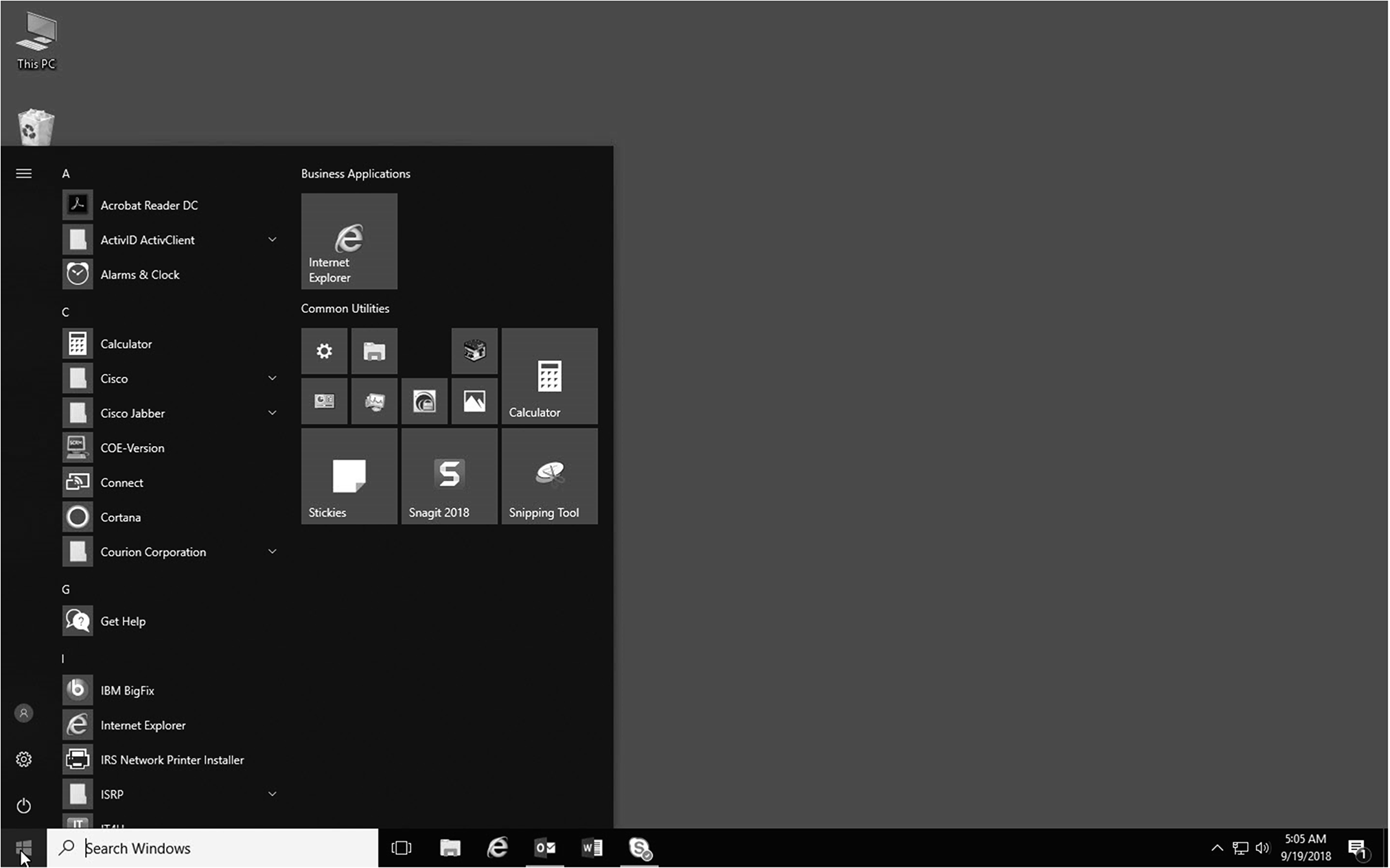
This graphic shows the expanded menu to show how to select the ISRP application.
Please click here for the text description of the image.
-
Select the ISRP folder. The folder expands to show the options of "2D Barcode Reader" , "Data Entry Operations" , "ISRP System Information" , "SuperSOP" and "Supervisory Functions" .
-
Select the appropriate option. For data entry, select "Data Entry Operations" .
-
The "ISRP Data Entry Operations" Windows Security pop-up box appears. Enter your Smart Card PIN.
-
The sp_eop application dialog box appears.
3.24.37.2.1.4 (01-01-2019)
Log off the ISRP System
-
To log off when entering or verifying document data:
-
Be sure to exit the Visual Basic Data Entry Application (VBDEA) properly before logging off when entering or verifying document data by pressing twice A confirmation message will appear: "EXIT SECTION? DATA WILL BE LOST!" .
-
Enter "Y" .
-
Press again. A confirmation message will appear: "CONFIRM APPLICATION EXIT?"
-
Enter "Y" . The Data Entry Operations window will appear. Select the "X" in the upper right corner of the screen.
-
-
To log off from the Data Entry Operations window:
-
Press ++.
-
At the option screen, select Sign Out.
-
Remove your SmartID card.
Figure 3.24.37-2
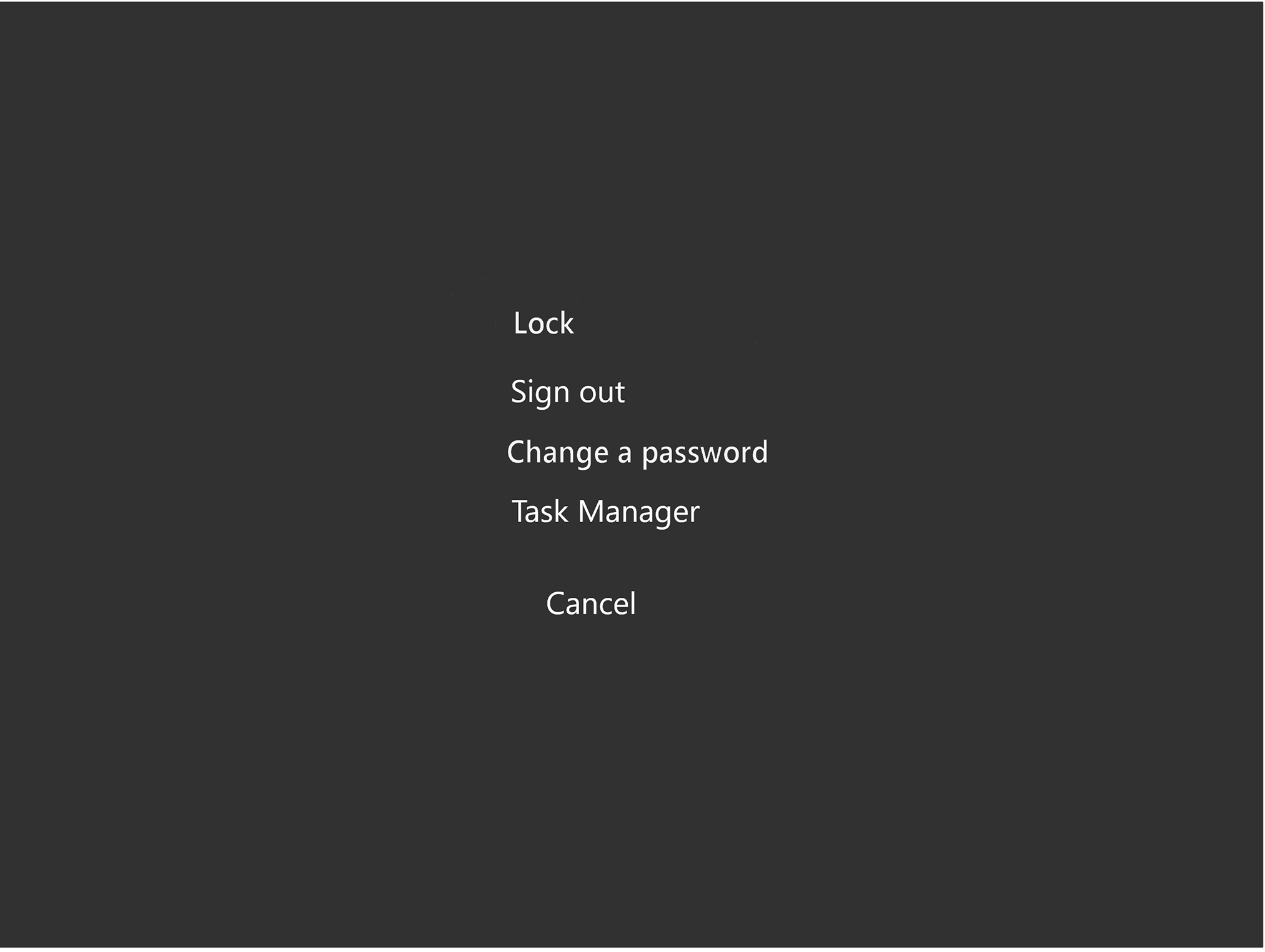
This graphic shows the system access screen that displays when a user is logged on that can be used to lock or log off the system.
Please click here for the text description of the image.
-
3.24.37.2.2 (01-01-2014)
Data Entry Operations Window
-
After successfully logging in as an Entry Operator (EOP), the Data Entry Operations window appears. SOPs may also display the Data Entry Operations by selecting "eop-applications" from the Start menu. The window consists of the following components:
-
Title bar which displays the name of the window.
-
Menu bar which provides pull-down menu choices (detailed below) for access to ISRP functions.
-
Tool bar which displays a printer icon and a Help icon.
-
Status bar which indicates if the Num Lock Key is activated.
Figure 3.24.37-3
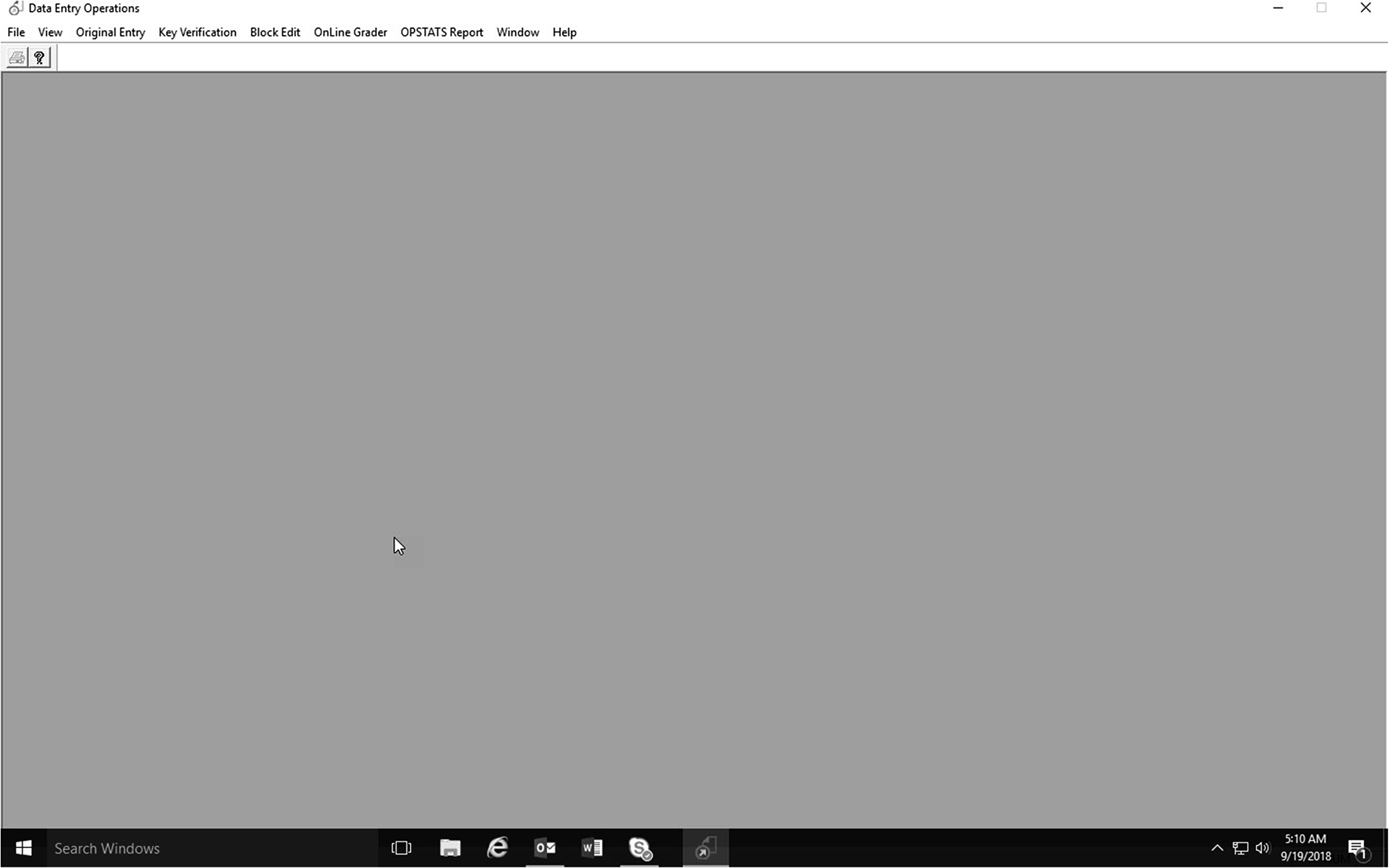
This graphic shows the title bar, menu bar, and status bar that displays after logging on the system.
Please click here for the text description of the image.
-
3.24.37.2.2.1 (01-01-2014)
Menu Bar
-
The Menu Bar is used to open pull-down menus containing options that allow the EOP to access Data Entry options.
-
There are two ways to access the Menu Bar:
-
Press and the underlined letter(s) of the menu option(s); or
-
Press , arrow to the selected function and press .
-
-
Selecting a menu title opens a pull-down menu. The user can select the appropriate menu option to perform the desired function. The following are the menu choices available to the operator:
-
File→Delete — Closes the currently displayed report window.
-
File→Print — Prints the currently displayed report.
-
File→Print Setup — Allows a printer to be specified for printing reports.
-
View→Toolbar — Allows the Toolbar to be toggled on and off.
-
View→Status Bar — Allows the Status Bar to be toggled on and off by pressing .
-
Original Entry→OE→New — Allows initial entry of a block.
-
Original Entry→OE→Resume — Allows resumption entry of a partially entered block.
-
Original Entry→OET — Allows original entry of any ISRP program in a training mode.
-
*Original Entry→OEK→OEK for KVT→New — Allows initial entry of a block for use in KVT (see below).
-
*Original Entry→OEK→OEK for KVT→Resume — Allows resumption of entry of a partially entered block for use in KVT (see below).
-
*Original Entry→OEK→OEK for OLG→New — Allows initial entry of a block for use in OLG (see below).
-
*Original Entry→OEK→OEK for OLG→Resume — Allows resumption of entry of a partially entered block for use in OLG (see below).
-
Key Verification→KV→New — Allows initial Key Verification of a block.
-
Key Verification→KV→Resume — Allows resumption of Key Verification of a partially verified block.
-
Key Verification→KVT — Allows key verification of any ISRP program in a training mode.
-
Block Edit — Allows editing of a block that has been completed.
-
Online Grader→Practice Exercises with Feedback — Allows entry of practice blocks with immediate on-screen feedback when errors are made.
-
Online Grader→Practice Blocks — Allows entry of practice blocks with a report of errors displayed on the screen at the conclusion of the block.
-
Online Grader→Run for Grade — Allows entry of practice blocks with a printed report of errors generated.
-
Online Grader→Keyboard Drill — Allows entry of practice data with a printed report of errors generated.
-
Online Grader→Assign Printer— Allows a printer to be specified for printing reports.
-
OPSTATS Report — Generates the operators current Operator Statistics.
-
Window — Lists open windows.
-
Help — Not enabled in ISRP. (only displays ISRP system information)
Note:
Menu choices marked with an asterisk (*) are used by Course Developers or other operators designated by management.
-
3.24.37.2.3 (11-18-2020)
Visual Basic Data Entry Application (VBDEA)
- The application used for data entry in the ISRP system is Visual Basic Data Entry Application (VBDEA).
3.24.37.2.3.1 (11-18-2020)
Entry Operator (EOP) Dialog Box — Access Block
-
VBDEA data entry screens are accessed by selecting an operation from the drop-down menus in the Data Entry Operation window as described in IRM 3.24.37.2.2.1, Menu Bar. After selection of a menu option, the EOP Dialog box appears.
-
If you select New or Resume from the Original Entry (OE) or Key Verification (KV) Menu Bar, an EOP (Entry Operator) Dialog box appears.
-
Follow the instructions for accessing a block:
IF THEN Original Entry of a new block 1. Enter Program Number. Press . 2. Enter ABC. Press . 3. Enter SOP if different from the assigned SOP. 4. Select "OK" or press 5. Sight verify the ABC and Program Number. If incorrect, press and begin again. Key Verification 1. Enter ABC. Press . 2. Enter SOP. Press . 3. Select "OK" or press . See Figure 3.24.37-4 below for picture of the EOP Dialog box.
Note:
If you have just ended a block, the program number of the block just entered will already be displayed and must be changed if the next block is a different program.
Figure 3.24.37-4
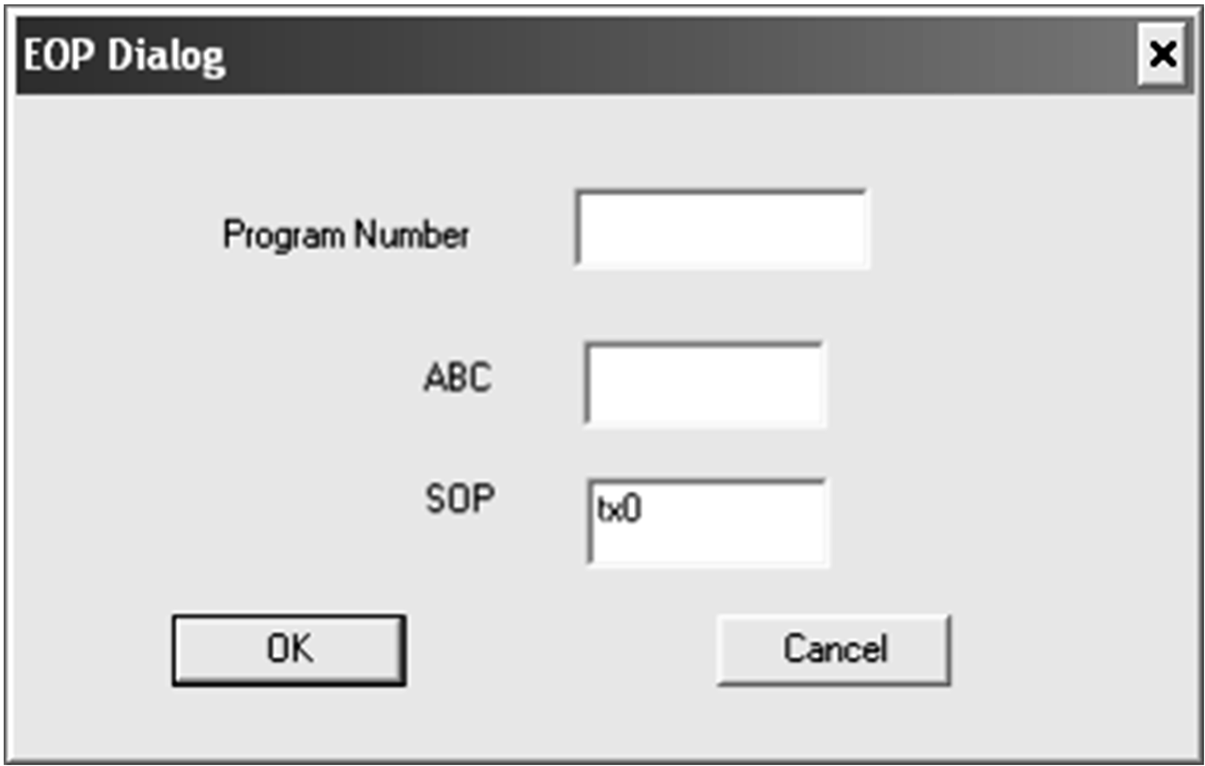
This graphic shows the pop up window that is used to enter the required information to start a new block of work or resume an existing block of work.
Please click here for the text description of the image.
3.24.37.2.3.2 (01-03-2022)
Visual Basic Data Entry Application Screen Display
-
The Input Area contains the fields in which the document data is entered by the operator. Color is used to distinguish certain field characteristics: Data Input Display
Type Color MUST ENTER Green Accepts Negative Pink MUST ENTER & Accepts Negative Yellow Requires no entry Gray. (An example is the Remittance field on a non-remit return) -
The General Purpose Display Area displays error messages, pop-up boxes, or informational messages.
-
The Status Bar Area (Status Line) displays the current operation and location in the block. It contains the following fields:
-
Status: the operation being performed (OE, KV, and BE)
-
Type: the program number
-
ABC: the Alphanumeric Block Control number for the current block
-
DSN: the current document's serial number (blank if block header)
-
Section Number: the current section number or "Blk Hdr" if block header
-
-
The Function Key Area displays function keys available to the operator based on the field the cursor is in. Function Key use is described IRM 3.24.37.2.5.3, Special Key Characteristics.
Figure 3.24.37-5
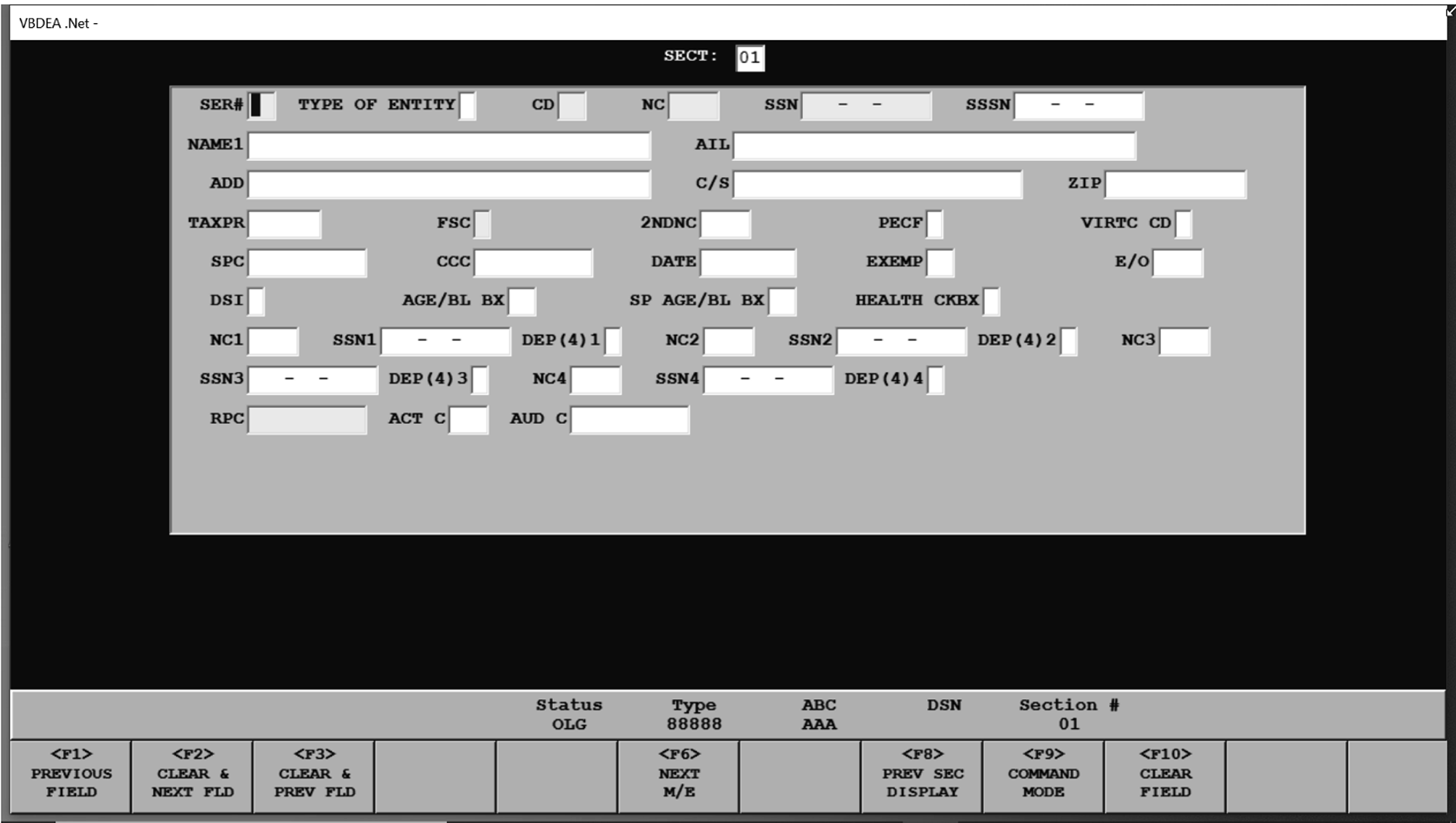
This graphic shows the system window that displays the data entry area to enter the specified fields, the display area where system messages may appear, the status line, and the function key menu bar.
Please click here for the text description of the image.
3.24.37.2.4 (01-01-2014)
Locked Block
- If a locked block message appears, contact the Manager or Lead immediately. The Manager must release the block at the workstation before you can resume.
3.24.37.2.5 (01-01-2014)
ISRP Keyboard
-
The ISRP Keyboard has three types of keys:
-
Function Keys - located on the top of the keyboard and numbered to .
-
Typewriter Keys - located under the function keys.
-
Numeric Keys - located on the right side of the keyboard.
-
3.24.37.2.5.1 (01-01-2014)
Embedded Keypad
- The embedded keypad refers to a set of non-numeric keys in the right portion of the main part of the keyboard that can be used to enter numbers in certain fields. The embedded keypad is automatically activated for numeric fields and manually activated by pressing in alphanumeric fields.
3.24.37.2.5.2 (01-01-2014)
Numeric Keypad
- The numeric keypad is automatically active for OE, KV, and Block Edit (BE). To activate the numeric keypad when in the EOP Dialog box, press
3.24.37.2.5.3 (01-01-2026)
Special Key Characteristics
-
Various functions unique to VBDEA are assigned to function keys and certain other keys on the ISRP keyboard. Specific functions vary depending on the processing mode and current field. The three processing modes are:
-
Append/Edit Mode allows the operator to add documents and sections to a block. It is the default mode for OE.
-
Command Mode allows the operator to move within the block and insert, delete, or edit sections and documents.
-
Verify Mode is used in KV and allows the operator to verify OE data by re-keying the data on a field-by-field basis.
Use of the keys in each of the modes is described in the table below.
Special Key CharacteristicsKEY MODE: APPEND/EDIT (OE and BE) MODE: COMMAND (OE, BE and KV) MODE: VERIFY (KV) Moves the cursor to the previous field without erasing characters that have been entered. Moves the cursor to the previous section in all sections except the block header. Moves the cursor to the previous field without erasing characters that have been entered. Moves the cursor to the next field and erases any characters that have been entered. Moves the cursor to the next section except in the last entered section. Moves the cursor to the next field and erases any characters that have been entered. Moves the cursor to the previous field and erases any characters that have been entered. Changes Mode to Append/Edit allowing data to be entered and/or edited in the currently displayed section. Moves the cursor to the previous field and erases any characters that have been entered. Returns to Append Mode in the last document entered in the block. Returns to next document to be key verified. Duplicates data from the same field in the previous document and moves the cursor to the next field. Initiates a search to find a document and section within the block. Duplicates data from the same field in the previous document and moves the cursor to the next field. Moves the cursor to the next MUST ENTER field in the current section. (The cursor will skip any MUST ENTER field if it already has data present.) If no MUST ENTER field is present, the cursor moves to the prompt for the next section. Moves the cursor to the next Must Verify field in the current section. (The cursor will skip any Must Verify field if it already has data present.) If no Must Verify field is present, the cursor moves to the prompt for the next section. Clears and overrides an error message, if allowed, and moves the cursor to the next field. Deletes a section or document within a block except for the block header. If in Section 01, it will delete the document. Clears and overrides an error message, if allowed, and moves the cursor to the next field. Displays the previously entered section. To finish viewing the section and return to the current section, the operator enters "Y" in the "DONE VIEWING PREVIOUS SECTION?" confirmation box. Inserts section into the current document. Displays the data entered in OE for a field. To continue verifying the field, the operator enters "Y" in the "DONE VIEWING OE VALUE?" confirmation box. Accesses Command Mode. If in the Block Header, it exits the block. Also used to clear error messages. Exits the application. Accesses Command Mode. If in the Block Header, it exits the block. Also used to clear error messages. Clears the field. The cursor remains in the field. Clears the field. The cursor remains in the field. * Enters PO BOX in an address field. * Copies the same name control entered at the Primary Name Control (NC) prompt into specific other 1040 name control fields within a document. The cursor will automatically advance. For all sections except the block header and first document, moves back to the same section in the last document where that section exists. * Enters PO BOX in an address field. * Copies the same name control entered at the Primary Name Control (NC) prompt into specific other 1040 name control fields within a document. The cursor will automatically advance. Fills a zero-filled field with question marks (???) and moves the cursor to the next field unless in the Block Header. If in the Block Header, clears all fields except the ABC field. For all sections except the block header and last document, moves to the same section in the next document where that section exists. Fills a zero filled field with question marks (???) and moves the cursor to the next field unless in the Block Header. If in the Block Header, clears all fields except the ABC field. - Displays the previous section. To finish viewing the section and continue verifying the current section, operator enters "Y" in the "DONE VIEWING PREVIOUS SECTION?" confirmation box. - Inserts a document Shows the KV operator the data previously entered in OE for the current section. To continue verifying the section, the operator enters "Y" in the "DONE VIEWING OE VALUES?" confirmation box. - Deletes End of Block (Block Edit only). - This function is currently not available. This function is currently not available. - This function is currently not available. This function is currently not available. Moves the cursor to the next field. Moves the cursor to the next field. Moves the cursor to the first position of the Section Number field. Moves the cursor to the first position of the Section Number field. Deletes section or document within a block except for the block header. If in Section 01, deletes the document. Moves cursor to previous character and erases character. Moves to the previous section for all sections except the block header. If the operator has entered any characters in the section, it will prompt the operator for an edit cancellation confirmation. Once the cancellation is confirmed, the previous section is displayed. Moves to the previous section for all sections except the block header. If the operator has entered any characters in the section, it will prompt the operator for an edit cancellation confirmation. Once the cancellation is confirmed, the previous section is displayed. Moves to the previous section for all sections except the block header. If the operator has entered any characters in the section, it will prompt the operator for an edit cancellation confirmation. Once the cancellation is confirmed, the previous section is displayed. Moves to the next section. If the operator has entered any characters in the section, it will prompt the operator for an edit cancellation confirmation. Once the cancellation is confirmed, the next section is displayed. Moves to the next section for all sections except the last section entered. If the operator has entered any characters in the section, it will prompt the operator for an edit cancellation confirmation. Once the cancellation is confirmed, the previous section is displayed. Moves to the next section. If the operator has entered any characters in the section, it will prompt the operator for an edit cancellation confirmation. Once the cancellation is confirmed, the next section is displayed. <↑> (up arrow) Moves the cursor to the previous field without erasing characters that have been entered. Moves to the previous section for all sections except the block header. Moves the cursor to the previous field without erasing characters that have been entered. <↓> (down arrow) Moves the cursor to the next field and erases any characters that have been entered. Moves to the next section for all sections except the last section entered. Moves the cursor to the next field and erases any characters that have been entered. <→> (right arrow) Moves the cursor one position to the right within the current field without erasing any characters. If the cursor is in the last position of the field, the cursor moves to the first position of the next field. Moves the cursor one position to the right within the current field without erasing any characters. If the cursor is in the last position of the field, the cursor moves to the first position of the next field. <←> (left arrow) Moves the cursor one position to the left within the current field without erasing any characters. If the cursor is in the first position of the field, the cursor moves to the last position of the previous field. Moves the cursor one position to the left within the current field without erasing any characters. If the cursor is in the first position of the field, the cursor moves to the last position of the previous field. <\*> (asterisk) on numeric keypad Moves the cursor to the next MUST ENTER field in the current section. (The cursor will skip any MUST ENTER field if it already has data present.) If no MUST ENTER field is present, the cursor moves to the prompt for the next section. Moves the cursor to the next Must Verify field in the current section. (The cursor will skip any Must Verify field if it already has data present.) If no Must Verify field is present, the cursor moves to the prompt for the next section. <+> (plus sign) on numeric keypad Enters double zero ("00" ) Enters double zero ("00" ) <-> (minus sign) on numeric keypad or in row of numeric keys Enters data as a negative amount. Enters data as a negative amount. </> (forward slash) on numeric keypad Inserts the letter "P" in the Preparer Taxpayer Identification Number (PTIN) field. Inserts the letter "P" in the PTIN field. -<6> in row of numeric keys (not keypad) Inserts the character "<" , commonly called a caret or bracket in ISRP. Inserts the character "<" , commonly called a caret or bracket in ISRP. <6> in row of numeric keys (not keypad) Inserts the character <, commonly called a caret or bracket in some name fields. Otherwise, press -<6> to enter a caret. <7> in row of numeric keys (not keypad) Inserts the character**&** without using Shift for NAME1 and AIL entries. Inserts the character**&** without using Shift for NAME1 and AIL entries. Note:
If a function key is used to copy data, it is the responsibility of the EOP to ensure that the copied information is correct.
-
3.24.37.2.6 (01-01-2026)
Operator Statistics
-
The Individual OPSTATS Report is a display that shows the operators production statistics for the current shift. To view the report, select "OPSTATS Report" from the Data Entry Operations window and press . To remove data from the screen, press - and .
Note:
Do not use data shown in the report for time reporting purposes.
-
Fields displayed in the "OPSTATS" window are as follows:
-
EOP — User ID of the EOP requesting the report.
-
PROGRAM — Program(s) worked during the shift.
-
KS — Total keystrokes for the program/operation.
-
KS/HR — Keystrokes per hour for the program/operation.
-
DOCS — Total documents entered for the program/operation. (Block Headers are counted as documents.)
-
D/HR — Documents per hour for the program/operation.
-
CHARS — Total alphanumeric and special characters entered for the program/operation.
-
CHAR/DOC — Characters entered per document for the program/operation.
-
E-TIME — Total time spent in the program/operation.
Note:
The KS, KS/HR, DOCS, D/HR, CHARS, CHAR/DOC, and E-TIME columns appear three times, once for each operation (OE, KV, and BE).
-
3.24.37.3 (01-01-2014)
Data Entry Information
- Data entry is accomplished using Original Entry (OE), Key Verification (KV) and Block Edit (BE).
3.24.37.3.1 (01-01-2014)
Original Entry (OE)
-
This section provides instructions for the Original Entry (OE) of data into the ISRP System for processing. This data is transcribed by EOPs from blocks of documents. The OE function consists of OE New and OE Resume. OE New is used when first starting to enter a block. OE Resume is used to resume entering a block that was exited prior to entering all documents in the block. Detailed instructions for transcribing different types of documents are located in the document-specific IRMs.
-
During OE, the system does the following:
-
Checks program number and tax class/document code/transaction/MFT code year combinations to assure that the type of block is valid.
-
Sequence checks all document serial numbers and section numbers within documents.
-
Assures that the section number entered is valid for the document being transcribed.
-
Determines if all systematically required sections for a given document have been entered.
-
Zero balances the interrelated money amounts. Specific input sections are subjected to a zero-balance routine in which the combination of all positive and negative amounts should equal zero within given tolerances.
-
Checks entries between two lines or between a line and a section for missing data.
-
Validates the TIN against the Check Digit to ensure both are transcribed correctly.
-
Determines if the information entered for a field is valid (i.e., alpha, numeric); if a field must contain data (i.e., Social Security Number (SSN), Employer Identification Number (EIN); if a field must be filled (i.e., SSN, EIN); or if a field contains too many characters (overflow).
-
-
To access a block for Original Entry (OE) of work use the following instructions.
IF THEN You are starting OE of a new block, 1. Select Original Entry→OE→New 2. Enter program number. Press 3. Enter ABC. Press . 4. Enter SOP ID if different from your SOP ID. 5. Select "OK" or press . You are resuming OE of a block that has been partially entered, 1. Select Original Entry→OE→Resume 2. Enter ABC. Press . 3. Enter SOP ID if different from your SOP ID. 4. Select "OK" or press . Note:
If a locked block message appears, contact the Manager or Lead. The Manager or Lead must release the block at the workstation.
-
The EOP must, as entries are made, visually check the Serial Number of each DLN for illegibility or multiple "live" DLNs. (A "live" DLN is one that is not lined through or marked void.) In these situations, refer the document to the Manager.
-
EOPs will enter each block of documents in appropriate formats as outlined in the ISRP Transcription Operation Sheets in other chapters of the IRMs (e.g., IRM 3.24.0).
3.24.37.3.1.1 (01-01-2014)
Block Header — Original Entry (OE)
-
Visually compare the Document Locator Number (DLN) of Form 813, Form 1332, or Form 3893 with the DLN on the first document of the block before entering the block. If the DLNs do not match, refer the block to the Manager or Lead.
-
Enter the Program Number, ABC, and SOP ID in the EOP Dialog box. The block header screen display appears
-
The Block Header Display is shown below.
Figure 3.24.37-6
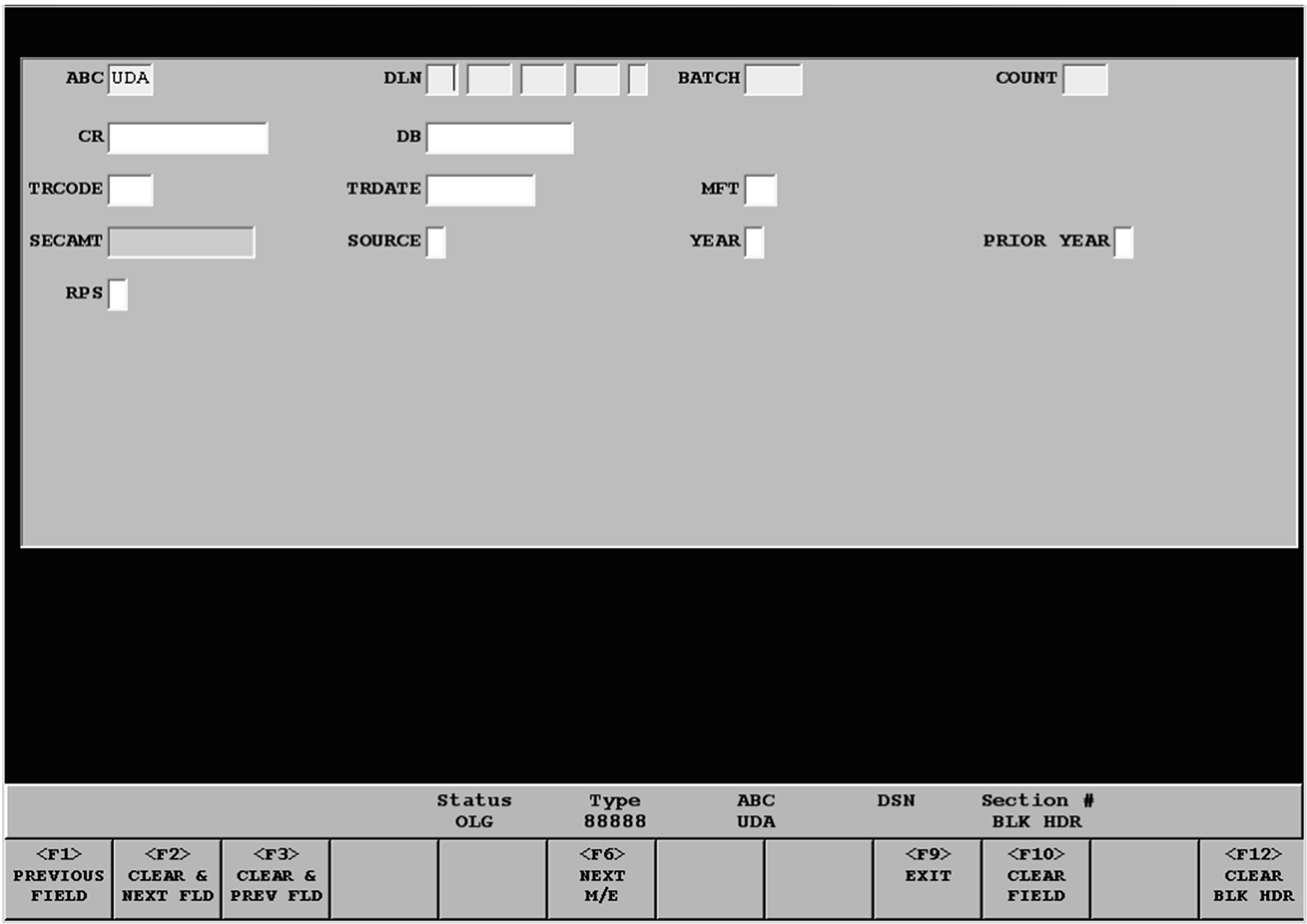
This graphic shows the screen that displays to enter the required information to start a block of work.
Please click here for the text description of the image.
-
The system displays the entered ABC and Program Number. (If you entered an incorrect ABC or Program Number in the EOP Dialog box, exit the block header and start over by pressing then answering "Y" to the confirmation message "Cancel Block and Exit Application? All Data will be Lost!" .) Enter remaining fields as instructed. The block header display for transcribing tax returns contains the following prompts/fields:
-
ABC — The Alphanumeric Block Control number is a three-character code assigned to a block to track it during processing. This field cannot be entered or changed. It is generated by the system.
-
DLN — The Document Locator Number is the 12-digit number that uniquely identifies a block. Enter the first eleven digits. The twelfth (12th) digit is generated by the system. If the generated digit is incorrect, enter the correct digit.
-
BATCH — The Cart Batch Number identifies the cart on which the block is located.
-
COUNT — The Count is the number of documents in the block.
-
CR — The Credit amount is the sum of all the credit amount fields for the entire block.
-
DB — The Debit amount is the sum of the debit amount fields for the entire block.
-
TRCODE — The Transaction Code is a three-digit code used to identify activity on a taxpayer's account.
-
TRDATE — The Transaction Date is an eight-digit number in MMDDCCYY format that corresponds to the date the document remittance is received by the IRS.
-
MFT — The Master File Tax Code is a two-digit number that identifies the specific type of account to which a transaction is to be posted.
-
SECAMT — Secondary Amount is the sum of the secondary amount fields for the entire block. If there is no entry in this field, the system zero-fills the field.
-
SOURCE — The Source Code indicates the type of re-entry documents in the block. The Source Code can be “4”, “R”, or “N”. If there is no entry in this field, the system zero-fills the field.
-
YEAR — The Year is the last digit of the year for which the documents are to be applied.
-
PRIOR YEAR — Prior Year indicates that the documents are for a year prior to the current processing year. If there is no entry in this field, the system zero-fills the field.
-
RPS — The RPS Indicator identifies that RPS processing has been performed for remittances associated with the block of documents.
Note:
Form 1332, Block and Selection Record, or Form 813, Document Register, with "RPS" or "RRPS" annotated on the form will indicate that they are from RRPS. An RPS indicator of "S" for IMF should be entered.
-
-
All re-entry documents are grouped by Re-entry Source Code and then grouped together with any other documents from the same block that are batched during the same daily batching cycle.
-
It is important to process each day's receipts of re-entry documents timely so that ISRP will allow entry of the next day's receipts.
3.24.37.3.1.2 (01-01-2014)
Document Entry — Original Entry (OE)
-
After the Block Header information has been entered, the first section of the first document in the block is displayed. Enter data as instructed in the document-specific IRM. If the DLN is illegible, refer the block to the Manager or Lead. Section 01 of the first document must be completed before logging off the system or pressing . If the EOP logs off or presses before Section 01 of the first document is complete, the ABC and block header data are purged and the block is not saved in the system. Once Section 01 of the first document has been entered, the block can be resumed later.
-
After each field has been entered (except the TIN and Name Control fields), press , to move to the next field. If no data is present for a field, press unless another action is specified. Care must be taken in scanning the document to determine if there is additional data to be entered for a section. If there is no additional data to be entered for the section, but there is additional data to be entered for the document, press /<*> and continue with the next section. The Section Number field (Prompt "SECT" ) will be displayed. No entry should be made for sections where no data is present for any element in that section unless specifically instructed. Overlay the section number with the next section containing data.
-
When you have entered all data from the document, enter "D" (End of Document) in the Section Number field to end the document. If you enter data in the last field of the last section of the document or ""D"" has been entered, Section 01 will appear for the next document.
-
Continue entering documents in the block in ascending serial number sequence (00, then 01, etc.). In a normal block, if the document serial number is not one number greater than the previous document, the system will display the error message "OUT OF SEQUENCE" or "NON ASCENDING" . If either of these messages is received:
-
If you entered an incorrect serial number, correct the serial number and continue.
-
If the serial number is correct, check the block for the missing document(s) and replace any document found out of sequence in the block.
-
If the document has a duplicate Document Locator Number (DLN), or the DLN is missing, remove the document from the block and give it to your Manager or Lead.
Note:
If a "Re-input" block, the system will accept non-consecutive Serial Numbers. For these blocks, a "4" , "R" , or "N" will have been entered in the Source Code element of the Block Header. If you are entering a Re-entry block, the system will accept non-sequential serial numbers without displaying the "OUT OF SEQUENCE" error message.
-
-
If an incorrect or non-ascending serial number was entered, the system will display the error message repeatedly until the entry is corrected.
Note:
The ISRP System allows individual centers to determine whether they want the Serial Number to be manually entered, or to be automatically generated. If the center has chosen manual entry, the EOP must enter the Serial Number (00–99) and after entry, the cursor will go directly to the next field. If the center has chosen automatic generation, the Serial Number will be automatically generated by the system and the cursor will go to the next field. The EOP may change the Serial Number by pressing to back up and overlaying the Serial Number.
-
Continue entering the block until the last document has been entered. If the block does not contain 100 documents, an "EB" (End of Block) must be entered in the Section Number field to end the block. If there are 100 documents, the block ends automatically.
-
After the "EB" has been entered, any corrective action (e.g., inserting, deleting) should be done prior to verifying the Block Header.
-
Documents can be added by the OE EOP using Block Edit after "EB" .
-
If a block has been erroneously ended, access Block Edit. Press -. A message will appear asking "CONFIRM THE DELETE OF THE END OF THE BLOCK?" If "Y" , is selected/input, this will delete the erroneous end of block. If this action does not delete the erroneous end of block, contact the Manager or Lead for instructions.
-
-
After the "EB" has been entered, the system may display the EOP Dialog box for the next blocks ABC to be entered. If the EOP wishes to continue with Original Entry using the same program number, enter the ABC for the next block. If a different program number is needed, close the current EOP Dialog box and re-access Original Entry (OE).
3.24.37.3.1.3 (01-01-2014)
Mixed Entity/Data
-
During OE, if data is mixed - entity from one document, data from the next - notify the SOP at once. Do not end the block. There are three methods of corrective action which will be determined by the SOP. These three are:
-
If the entire block is going to be verified (i.e., not just the Block Header), prepare a note for the verifier stating which documents are involved. Attach the note to the face of the control document.
-
If the block is not going to be fully verified, use Block Edit to find and correct the documents involved. This must be done prior to verifying the Block Header.
-
Reject the block.
-
3.24.37.3.2 (01-01-2014)
Key Verification (KV)
-
This section provides instructions for Key Verification (KV) of documents in which operators verify data previously transcribed into the ISRP system. A KV EOP selects Key Verification from the Data Entry Operations Menu Bar. The KV function consists of KV New and KV Resume. KV New is used when first starting to verify a block. KV Resume is used to resume verifying a block that was exited prior to verifying all documents in the block. Detailed instructions for transcribing different types of documents are located in document-specific IRMs.
-
Key Verification (KV) takes place after a block has been completed in OE and consists of re-keying certain portions of the data that was entered during OE to ensure that accurate data is passed forward from ISRP to other systems for further processing. When there is a difference between the KV entry and the OE entry, the system signals the operator to make corrections as necessary.
-
All block headers require Key Verification. KV of other data in the block is determined by programming requirements and criteria set by SOPs.
-
An operator must not verify a block of work that they previously entered unless authorized by management.
-
To access a block for KV of work use the following instructions.
Key Verification (KV)IF THEN You are starting KV of a block for which no KV has been performed, 1. Select Key Verification→KV→New 2. Enter ABC. Press . 3. Enter SOP ID if different from your SOP ID. 4. Select "OK" or press . If you are resuming KV of a block that has been partially verified, 1. Select Key Verification→KV→Resume 2. Enter ABC. Press . 3. Enter SOP ID if different from your SOP ID. 4. Select "OK" or press . Note:
If a locked block message appears, contact the Manager or Lead. The Manager or Lead must release the block at the workstation.
3.24.37.3.2.1 (01-01-2014)
Block Header — Key Verification (KV)
-
After selecting Key Verification, enter the ABC and SOP ID of the block to be verified in the EOP Dialog box.
-
If for any reason the block is not available for KV, the error message "Cannot KV this block. See your manager." will be displayed. Take the following action:
-
Check the display to be sure the ABC and SOP ID were entered correctly and correct as necessary.
-
If the data entered was correct, refer the block to the SOP, and proceed with the ABC of the next block to be verified. The SOP can track the status of the block using an on-demand report.
-
-
Enter the block header information using the appropriate instructions. The KV EOP MUST enter the DLN for the Block Header from the first document of the block. Enter the remaining data for the block header. You can correct any data in the Block Header except the ABC.
-
If the data you enter matches the OE operator entry, the system will display the first section of the first document of the block if full KV is set for the block. If the block is set to Header KV, the message "ALL SECTIONS VERIFIED" will appear and you will be placed in Command Mode.
-
A field that has been generated will not have to be entered after initial verification of the field unless you change the data. However, fields that are populated from Document "00" will require the operator to press to accept the data that is displayed.
-
If you enter an "RB" (reject block) in the section number field during KV, a prompt will appear asking "ARE YOU SURE?" . If you enter "N" , you can resume KV without any effect. If you enter "Y" , the block will be marked for rejection at that point even though the message "UNVERIFIED RECORDS — EXIT ANYWAY?" is displayed.
3.24.37.3.2.2 (01-01-2014)
Verifying Documents — Key Verification (KV)
-
Sections that require validation are as follows:
-
The first section of every document input by Original Entry.
-
All sections that fail the zero-balance check.
-
Systemically required sections that were not input during Original Entry.
-
-
Documents are verified one section at a time in ascending serial and section number sequence.
-
When the data entered by the OE operator and the KV operator agree, the system will display the first section of the first document of the block.
-
If the data entered by the KV operator differs from the data entered by the OE operator, an error message "VERIFY ERROR - REKEY FIELD" will display. The KV operator will clear the error message with .
-
As the KV EOP enters a field, a box will appear at the point of the first mismatch. The KV operator should check the document, and if the KV entry is wrong, correct the entry by pressing and entering the correct data. If the KV data is correct, the KV operator will finish entering the field, and press . The value compared will be the KV entered value.
-
If there are errors remaining when the KV operator comes to the end of the field, the message "VERIFY ERROR - REKEY FIELD" will be displayed. The KV operator will clear the error message with .
-
If the field is a money amount field, the error message will not appear until the KV operator has entered the entire field.
-
-
Entry and comparison of the last field required to be verified will end the document and the next document of the block to be verified will appear.
-
If the result of the entity check during OE was a short entity, the Check Digit, Name Control and TIN fields will be bypassed with the Check Digit and TIN displayed. No entity check will be performed. If the OE entry is incorrect, you can back up to the incorrect field(s) and correct the data. The system will then perform an entity check.
-
The KV operator can use Edit or Block Edit to move to sections previously entered for corrective action.
-
In verifying each field, the KV operator must press to move to the next "MUST VERIFY" field. When there are no more fields to be verified, the KV operator can use to move to the next section to be verified. If there are no more sections to be verified, will move to the next document.
-
Fields which have been generated will not have to be entered after initial verification of the field, unless they are changed by the KV operator. However, fields that are populated from Document 00 will require the KV operator to press to accept the data that is displayed.
-
During KV you can insert a document that was omitted during OE.
-
The system will display the section number. All other fields will appear as blanks.
- If the KV operator wishes to see the data as it was entered in OE, the KV operator can press - to view the entire section, or to view the current field.
-
A required section that was not entered by the OE operator will be displayed for any corrective action. If there is no data present, press .
-
If you enter an "RB" (reject block) in the section number field during KV, a prompt will appear asking ARE YOU SURE?. If you enter "N" , you can resume KV without any effect. If you enter "Y" , the block will be marked for rejection at that point even though the message UNVERIFIED RECORDS — EXIT ANYWAY? is displayed.
3.24.37.3.2.3 (01-01-2014)
Entity Access for Key Verification
-
The KV EOP will be prompted for the entity access at KV by receiving the prompt "TYPE OF ENTITY" . If the KV EOP enters L, P, or I, the system will respond by displaying the appropriate entity prompts. If the EOP enters "S" , the system will perform the Check Digit algorithm.
-
If the KV EOP presses , after receiving the "TYPE OF ENTITY" prompt, the system will access the Enhanced-Entity Index File using the SSN, SSSN, Address Key, and FSC. The KV EOP will be prompted for these fields. If the KV EOP enters data that is different from that entered by the OE EOP, an error message will be displayed. If the entity response is I, P, or L from the entity look-up, the KV EOP will enter the prompted fields and if entered data is different, an error message will appear.
3.24.37.3.2.4 (01-01-2014)
Mixed Data/Missing Section or Document — Key Verification (KV)
-
The KV operator can indicate that entity and data sections are mixed within a block by overlaying the section number with "MI" .
-
If after verification of at least 10 documents the KV operator determines that the data is still mixed, the block may be rejected only with the manager's concurrence.
-
The mixed data indication causes the block to be rejected by the system during end of shift processing.
-
-
If the system expects a Serial Number that is not in the block or one that should not be in the block (i.e., an extra document), examine the control form and documents within the block to determine:
-
If the document requested by the system is an extra document entered by the OE operator. If so, delete the document.
-
If the document is missing from the block (document has either been withdrawn or lost after original entry). If so, enter "MS" in the section number. Each section number for the missing document must have the "MS" overlaid in the Section Number field.
-
3.24.37.3.3 (01-01-2026)
Block Edit (BE)
-
Block Edit is used by EOPs to do searches and corrections. It is used by Quality Reviewers to review work. BE allows access to any block that has not been sent forward from ISRP for further processing.
-
To access a block for Block Edit, use the following instructions.
IF THEN Editing or reviewing a block already in the system 1. Select Block Edit 2. Enter ABC. Press . 3. Enter SOP ID, or 4. Instead of entering the ABC and SOP ID, you may enter the block DLN. 5. Select "OK" or press . -
EOPs can select a block of work for Block Edit when the block is in the following statuses:
-
OE Partial
-
OE Complete
-
KV Partial
-
Format Pending
-
Format Complete
-
-
If the block is in OE Partial and the operator performing BE ends the block (EB), the status of the block will change to OE Complete. If the block is in OE Complete, the status at the end of BE will remain the same. BE does not act as KV for the block.
-
Quality Review (QR) can select a block of work for review by taking the following actions. The dialog request box is somewhat different for QR:
ACTIONS RESULTS 1\. Access BE as a Quality Reviewer BE Request Work Dialog box appears. 2\. Select criteria for BE by entering the appropriate data in the fields For example, enter the EOP User ID if selecting work for an individual employee. Enter Program Number if selecting work from a program, etc. 3\. Press The select work dialog appears, with the Block DLN/RPSID/GPPID from which to select. 4\. Use arrow key to highlight the block Block is highlighted. 5\. Press Section 01 of the first document is displayed. -
The block status must be OE complete to retrieve blocks using a QR ID. Blocks can be reviewed if they are in "Format Complete" status. If QR does review these blocks, they will go back to a status of "In Format" .
-
All users are able to view data. EOPs are able to change data. Each processing site determines whether its QR operators are allowed to change data.
-
Navigation is exactly the same for BE as for OE; and, the same rules apply when performing BE. All field validation rules and field type rules are the same.
3.24.37.4 (11-18-2020)
Common Data Entry Instructions–Original Entry (OE), Key Verification (KV), and Block Edit (BE)
- This section provides information and instructions applicable to all VBDEA data entry operations — OE, KV, and BE.
3.24.37.4.1 (02-21-2020)
Section or Document Entry
-
The following instructions are for entering a section:
-
Most sections may be ended at any point when there is no further data to be transcribed by pressing .
Exception:
Some sections contain fields that require entry of data. These fields are referred to as MUST ENTER fields. If is used prior to entering data in a MUST ENTER field, the system will stop on the field and generate the message "MUST ENTER FIELD"
-
No entry should be made for sections where no data is present for any element in that section, unless otherwise instructed. Overlay the Section Number with the next section containing data or end the document.
-
Once all entries for a section have been made, overlay the Section Number with the next section containing data or end the document.
-
-
The following instructions are for entering a document:
-
Any document may be ended before the last section by entering "D" in the Section Number field if significant data is not present for succeeding sections.
-
If entries are made to the final possible section of a document, the system will automatically end the document upon entry of the last field of that section.
Exception:
If entering the last section of document 99, the system will automatically end the block.
-
If line item entries require a corresponding section to be entered, the system will give the "MISSING SECTION(S) ERROR REQUIRED SECTION(S) MISSING" error banner. See IRM 3.24.3.1.11.2, Individual Income Tax Returns, MISSING SECTION(S) XX, XX, XX, ERROR===REQUIRED SECTION(S) MISSING, for instructions to correct this error message.
-
3.24.37.4.2 (01-01-2014)
MUST ENTER Fields
-
Some sections contain fields that require entry of data. These fields are referred to as MUST ENTER fields and are color-coded on the VBDEA screen as described in IRM 3.24.37.2.3.2, Visual Basic Data Entry Application Screen Display, and are denoted by stars (★★★★★★) in the "Fld. Term" column in the document-specific transcription instructions. If you try to bypass a MUST ENTER field without entering data, the system will stop on the field and generate the message "MUST ENTER FIELD" . Some MUST ENTER fields can be overridden as indicated in the specific instructions for the field. However, most require that something be entered. To continue entering data, use the following procedures:
-
If there is data present for field, press to clear the error message and enter the data.
-
If there is no data present for the field, enter a zero (0) unless otherwise instructed by the document-specific IRM.
-
3.24.37.4.3 (01-01-2014)
Document Locator Number (DLN)
-
It is the responsibility of the EOP to visually check the DLN on Form 813, Form 1332, or Form 3893 with the DLN on the first document of the block before entering the Block Header record. If it does not match, refer the block to the Manager.
-
EOPs MUST, as data is being entered, visually check each DLN on the documents for illegibility or multiple "live" DLNs. (A "live" DLN is one that is not lined through or marked void.) In these situations, refer to the Manager. This can be done after the block is entered.
-
The KV EOP must key verify the DLN of the Block Header entry from the first document of the block of work.
3.24.37.4.4 (01-01-2014)
Colored Editing
-
Editing on documents will be in various colors as follows:
-
Coding/Editing written or edited in red, orange, brown, blue, purple, or green.
-
Remittance—underlined or written in green.
-
-
Honor misplaced entries arrowed from one line to another.
-
Honor misplaced or corrected entries, arrowed or changed by the taxpayer, although not in red, orange, brown, blue, green, or purple.
Exception:
Any taxpayer editing to the RTN or DAN will not be honored. Follow instructions for altered Direct Deposit Section in IRM 3.24.3.1.10.14.
Exception:
Taxpayer editing to the Third-Party Information Yes/No boxes will not be honored unless the taxpayer has initialed the change.
-
Prior Year forms will have transcription lines edited to reflect current year line numbers.
-
If any field has had its line number deleted (lined-through, Xed out, etc.) and has not been edited to reflect a new line number, do not enter information in that field.
-
If any field has not had its line number deleted (lined-through, Xed out, etc.) and has not been edited to reflect a new line number, enter the information in that field if present.
-
3.24.37.4.5 (01-01-2014)
Red, Orange, Brown, Blue, Purple, or Green "Xed" Items
-
With two exceptions, items on a document with a red, orange, brown, blue, purple, or green "X" to the left will not be entered. Treat an "Xed" item as follows:
-
If only "X" to the left of the item, press .
-
If "X" with a corrected amount to the left of or just above the "X" , enter the corrected amount.
Exception:
If the "Xed" item is green underlined (Remittance) and is the Amount You Owe, enter the green underlined amount as the Remittance Amount and enter zero for the Amount You Owe.
Exception:
If the "Xed" item is green underlined (Remittance) and a corrected amount is shown to the left of or just above the X, enter the green underlined amount as the Remittance and the corrected amount as the Amount You Owe.
-
-
If Code & Edit or the taxpayer has "Xed" a section out, do not enter the section.
3.24.37.4.6 (01-01-2014)
Red, Orange, Brown, Blue, Purple, or Green Circled Items
-
All fields, except for money amounts, circled in red, orange, brown, blue, purple, or green will not be entered. Treat red, orange, brown, blue, purple, or green circled items as follows:
-
If circled only, press .
Exception:
Circled money amounts will be transcribed. If a green underlined Remittance is also circled in red, orange, brown, blue, purple, or green, DO NOT ENTER THIS AMOUNT AS THE REMITTANCE. Enter the amount as the Amount You Owe.
Exception:
If the Direct Deposit area is circled, enter the data present.
-
If circled and a correction is written to the left of or just above the circled item, enter the correction.
-
3.24.37.4.7 (01-01-2014)
Mis-Blocked Documents and Documents with a Differing Format
-
Mis-blocked documents (e.g., a Form 1040EZ in a Form 1040 block), documents with a format differing so greatly from the current format that they cannot be feasibly transcribed (a Form 1040 in the 1962 format in a current Form 1040 block), or mixed forms (e.g., page 1 of Form 1040-NR with page 2 of Form 1040) should be processed as follows:
-
Enter the document as Short Entity with all MUST ENTER fields and Action Code 610 in Section 01 and end the document.
Exception:
With Remittance returns, the Remittance section will automatically display after the Action Code is entered. After the Remittance amount is entered, the system will automatically end the document.
Note:
If additional information in Section 01 or other sections have been entered prior to identifying the document as a mis-blocked document, there is no need to delete any additional information (including type of entity) or sections that have been entered. Enter Action Code 610 in Section 01 (and the Remittance amount if it is a Remittance return), press , then press , and end the document.
Note:
For all submission processing sites other than AUSPC, enter Action Code 651 for an international return. For AUSPC only, enter Action Code 610 for a mis-blocked international return (an international return in a domestic batch).
-
If the document with a differing format has been edited or converted onto a current form, the entity and Remittance amount will be entered from the original document.
Note:
If edited as a prior year return, prior year returns are not subject to the above procedures. Although the Tax Period and Received Date fields are not systemically coded as MUST ENTER on current year programs, the EOP is responsible for entering these fields. If the information is not available on the return, periods must be entered.
-
-
If a schedule or form cannot be transcribed because it is with the wrong program (e.g., Form 8283 with Form 1040) do not enter Action Code 610. Enter all valid sections.
3.24.37.4.8 (01-01-2026)
Dates, IRS Received Date, Tax Year and Tax Period Fields
-
The IRS Received Date, often referred to as Received Date, is the date a document is first received by the IRS at any office or Submission Processing Site. Although most returns will have a Submission Processing Site Received Date stamp, returns from other IRS offices with a stamped Received Date are valid. Some examples of other offices are: Field Offices, Collection Branch, Examination Branch, etc., See Exhibit 3.24.37–7 and Exhibit 3.24.37–8 for examples of valid and invalid Received Date Stamps. If you have any doubt as to the validity of the Received Date stamp, contact the Manager. The Received Date, if it is stamped on the face of the return, will be transcribed into each document in MMDDYY format.
-
An Official Received Date Stamp may consist of no less than:
-
Month "MM" — two digits: 01–12.
-
Day "DD" — two digits: 01–31. (For example, -1, 1, or 01)
-
Year "YY" — two or four digits. (The century of the year may automatically generate.)
-
Area Office (AO), Campus, Field Office, TAC Office (or similar term for an IRS location) plus the City/Location of the site, or
-
A functional area within one of these sites (e.g., Compliance Services Collection Operations (CSCO), Examination (Exam), Image Control Team (ICT), Accounts Management (AM), etc.).
Note:
Any Date stamp that DOES NOT have to have the word "Received." should not be entered as the Received Date. Honor Received Dates that are faxed from an internal source (e.g., CI).DO NOT enter dates from other date stamps such as Resort Received Date, Postmark, Received Dates stamped by taxpayers, EEFAX dates, etc.
-
-
The Received Date cannot be greater than the current processing date.
-
Honor date stamped information edited in black ink or pencil. Do not enter date stamp information if "Xed" or circled in black ink or pencil.
Reminder:
Effective March 4, 2024, for all returns enter a Received Date when present. If the return is late filed, enter the Received Date. If the Received Date is missing, enter 6 periods.
-
Process all dates, e.g., Received Date, Transaction Date, Tax Period, Year of Birth, etc. EXCEPTION: THOSE IN THE BLOCK HEADER, as follows unless otherwise instructed in the document-specific IRMs:
ExamplesIF THEN Dates not present Enter enough periods to fill the field. Dates Illegible Enter one period for each illegible digit. ### Note: If the periods are entered for the YY, the system will generate 20 for the century. This cannot be changed. Dates Incomplete Enter periods for missing digits. Two or more different dates without editing Enter the earliest date. Two or more different dates with editing (ie. underlined or written in orange, red, green, brown etc.) Enter the edited date. Date is Invalid (For example, day is 32 or month is 13, or date is a future date.) Enter enough periods to fill the field. Note:
Once the date field has been started, all positions must be filled or an error message will display.
-
Tax Period - the time covered by a particular return represented by the year and month in which the period ends. Tax Periods can be edited or shown at the top of the face of the return. Tax Periods are required on prior year returns, fiscal year returns, and current year returns that are found in prior year blocks. Tax Periods are 6 positions in CCYYMM format. Enter YYMM. The century digits, CC, will be generated by the system based on the year entered.
-
Tax Year/Birth Year require only a year entry. Tax Years are 4 positions in CCYY format. Enter YY. The century digits, CC, will be generated by the system based on the year entered.
-
Use the following table to translate months into MM format:
Month MM Format Month MM Format January 01 July 07 February 02 August 08 March 03 September 09 April 04 October 10 May 05 November 11 June 06 December 12
3.24.37.4.9 (01-01-2022)
Taxpayer Identification Numbers (TINs)
-
The IRS uses four different types of Taxpayer Identification Numbers (TINs) when processing Individual Master File (IMF) Taxpayer accounts. The following table contains the type of TINs and their format:
Taxpayer Identification Number (TIN) Type Format Social Security Number (SSN) xxx-xx-xxxx Individual Taxpayer Identification Number (ITIN) 9xx-(70-88)-xxxx Adoption Taxpayer Identification Number (ATIN) 9xx-93-xxxx Internal Revenue Service Number (IRSN) 9xx-XX-xxxx -
The Form 1040 family may also contain Employer Identification Numbers (EINs) and/or Preparer Taxpayer Identification Numbers (PTINs) on the tax return or associated forms and schedules.
Taxpayer Identification Number (TIN) Type Format Employer Identification Number (EIN) xx-xxxxxxx Preparer Taxpayer Identification Number (PTIN) Pxxxxxxxx Sxxxxxxxx Sxx-xx-xxxx (pre-printed boxes) -
The following rules apply to all TIN type elements.
-
SSNs and EINs can appear with the hyphens on the ISRP displays.
-
If identical TINs are shown for taxpayer, spouse, and/or dependents, enter as shown.
-
It is not necessary to press after entry of the primary TIN. The cursor is automatically positioned on the next field of entry.
-
If the Primary TIN in Section 01 is not present, enter 9 periods. If any other TIN is not present, press only.
-
If two or more TINs are shown on the same line, enter 9 periods.
Exception:
If one of the TINs is a red, edited ITIN, enter the ITIN (AUSPC only).
-
If the TIN is incomplete, enter the digits shown followed by periods to complete an entry of 9 digits.
-
If the TIN is more than 9 digits, enter the first 8 digits and a period.
-
Enter a period for each illegible digit in the TIN.
-
If a TIN contains all the same digits, such as 000-00-0000, 111-11-1111, or P22222222, press .
Exception:
For the Primary TIN, enter 9 periods.
-
If any TIN contains an alpha character, including Xs, enter the numerics followed by periods to complete an entry of 9 digits.
Exception:
The PTIN can start with "P" or "S" .
-
If preparer PTIN or EIN is not in the designated area (e.g., stamped), enter the PTIN or EIN in the appropriate field based on the format shown in (2). If the PTIN or EIN is not in the required format, do not enter.
Note:
If the PTIN is located on the EIN line, or vice-versa, do not move the misplaced entry unless edited.
Figure 3.24.37-7
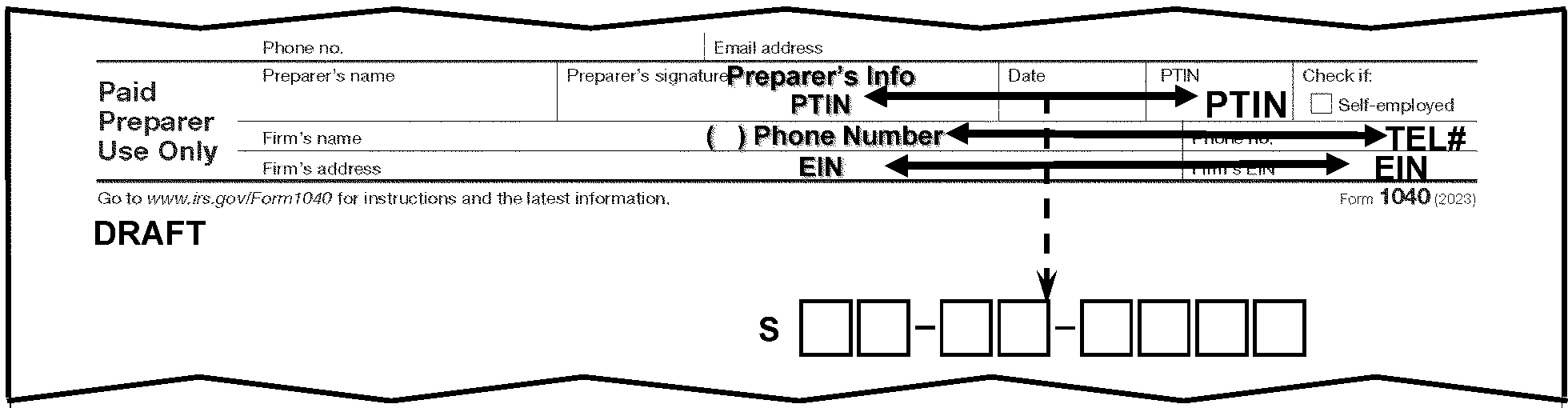
This graphic shows the paid preparer's area of the tax return to show where the field entries can be obtained from stamped preparer information
Please click here for the text description of the image.
3.24.37.4.10 (01-01-2018)
Money Amounts
-
All money fields will be DOLLARS ONLY unless otherwise specified.
-
The dollar fields will be prompted with a dollar sign ($) to indicate dollars only.
-
If the prompt does not include the dollar sign ($), the entry is DOLLARS AND CENTS.
-
-
Entry of Cents
-
If a dollar amount is present and no cents are present, enter two zeros.
-
If a dollar amount is present and cents are lined through, enter two zeros.
-
If there is only a single numeric digit in the cents column, enter the digit followed by one zero (0).
Note:
If a cent sign (¢) immediately follows the single digit, enter one zero (0) and the single digit.
-
-
Zero Amounts — Press only for all zero or blank amounts unless otherwise directed in the procedures.
-
Negative amounts — If the taxpayer indicates a loss (e.g., negative sign, brackets, the word "loss" ) in the near vicinity of the line, accept taxpayer's indication, when possible. If the field does not accept a negative entry, enter the amount as positive, unless otherwise instructed.
-
Edited Amounts — Enter the amount exactly as edited, unless otherwise instructed.
-
If there are two or more money amounts shown on a single line, if the amount is illegible, cannot be determined, or not in US currency, press to fill the field with question marks (?).
3.24.37.4.10.1 (11-18-2020)
Discovered Remittance
-
If a check, money order, or cash is discovered attached to a document (usually found in W-2s) complete entry of all valid sections, then refer to the Manager.
-
See IRM 3.8.46, Deposit Activity - Discovered Remittance, for guidelines to handle discovered remittances.
-
If a person returns a Debit Card indicating "Economic Impact Payment" , forward the Returned Debit Card along with any document(s) to the Refund Inquiry Unit in a sealed envelope or container using Form 3210, Document Transmittal. Form 3210 must list the Debit Card Number.
Note:
If the Refund Inquiry is located in another building, ensure the debit cards are sealed in an envelope and placed in a lockable canvas bag or container, or double wrapped and double sealed in opaque paper envelope or box.
3.24.37.4.10.2 (01-06-2021)
Million Dollar Refunds
-
Returns that contain a "refund" amount of $100 million (100,000,000.00) or more on the refund amount line only are required to be handled expeditiously by entering Action Code 341 to send these returns to the ERS Rejects unit for immediate processing.
-
If a Million Dollar Refund return is found in a "normal" batch of work, enter Action Code 341.
Note:
A normal batch of work is a batch that is not identified as Expedite Processing.
3.24.37.4.10.3 (01-01-2022)
Conversions
-
A Form 1040 must reflect current year Form 1040 line numbers.
-
A Form 6114, Prior Year and Conversion Form 1040 Edit Sheet or a copy of the current Form 1040, may be attached to the front of a tax return.
-
If present, the conversion sheet will be attached to the front of the return under the Presidential Election Campaign Fund (PECF) area and will contain the following edits on the conversion sheet:
-
Section 01
An edited check mark in the upper right-hand corner to indicate Age/Blind Indicators present on page 2 of the original form.
The edited RPC, ACT C, and AUD C at the bottom of page 1. -
Section 03, money amounts only
-
-
Enter Dependent information, Third-Party, Preparer information, Direct Deposit, Identity Theft Personal Identification Number information, and E-WAIV from the original return. Also edited on original return: SPC, CCC, DSI, Age/Blind Indicators, FPC. When one or more of the Age/Blind Indicators is marked on page 2 of the original return, a check mark will be edited in the upper right-hand corner of the Form 6114 to alert the DEC.
-
Additionally, Form 6114-A may be attached in place of Schedules 1 through 3. This one-page form contains the information needed to enter all the prompts for Section 04 and Section 05 for Form 1040.
-
Attached forms and schedules should be entered as shown or edited.
3.24.37.4.11 (01-01-2014)
Field Overflow
-
If the amount on the document is too large for the field, the system will respond with the error message "FIELD OVERFLOW" . To correct:
-
Press to clear the error message.
-
Press to fill the field with question marks and cause the document to go to the Error Resolution System.
-
-
If any of the entity data lines are too long, the system will respond with the error message "FIELD OVERFLOW" . It is the responsibility of the EOP to enter a pound sign (#) in the field as directed by the following instructions.
-
NAME1 — When the caret (<) is not at the end of the field and has been entered:
-
Press to clear the error message.
-
Enter a pound sign (#) in the last position of the field.
Note:
If this results in "NOT VALID DATA" due to the second caret (<) being next to the pound sign (#), clear the error and space for the second caret (<) and end the field with the pound sign (#).
-
-
NAME1 — When the caret (<) is at the end of the field or has not been entered:
-
Press to clear the error message.
-
Press two times.
Exception:
If backspace results in the cursor in a position immediately after a space, backspace one more time to remove the space.
-
Enter a caret (<) and the first letter of the last name.
Exception:
Enter the first two letters of the last name if backspace was pressed one additional time to remove the space. See the following table for examples of names that will result in an error message and appropriate corrections.
-
Enter a pound sign (#) in the last position of the field.
-
If the error message is "NOT VALID DATA" see IRM 3.24.3.1.11.6.1, Name Line Validity Checks.
Example Enter As Samantha Annette & Raymond Benjamin Oak SAMANTHA ANNETTE & RAYMOND BENJA<O# Jeremiah James III & Janice Ann Marie Acorn JEREMIAH JAMES III & JANICE ANN<AC# -
-
AIL (Additional Information Line)
-
Press to clear the error message.
-
Enter a pound sign (#) in the last position of the field.
-
-
ADD
-
Press to clear the error message.
-
Enter a pound sign (#) in the last position of the field.
-
-
C/S (City/State)
-
Press to clear the error message.
-
Enter a pound sign (#) in the last position of the field.
-
3.24.37.4.12 (01-01-2023)
Illegible Data
-
When the name is illegible in the NAME1 field, enter a period (.) for the illegible character and continue entering the rest of the line.
-
When the AIL, street, or city/state is illegible, enter the pound sign (#) for the illegible character and go to the next field.
-
When the Computer Condition Code (CCC), Return Processing Code (RPC), Audit Code (AUD C), Form Processing Code (FPC), or Special Processing Code (SPC) is illegible, enter a pound sign (#) for each illegible character.
3.24.37.4.13 (01-01-2014)
Check Digit/Name Control-Primary
-
Enter the Name Control as follows:
-
Press for the Check Digit field. The system will position the cursor on the Name Control field.
-
Enter the four-character Name Control in the First Name Line area in the Name Control field, see IRM 3.24.37.4.14, for Name Control determination. It will not be necessary to press if four characters are entered. When entering NAME1, the caret will precede the last name of the primary taxpayer. The first four significant characters after the caret should match the primary taxpayer's Name Control (NC).
-
If less than four characters, enter those shown and press .
-
If the Name Control is missing or illegible, enter one period followed by , unless otherwise instructed by the specific program IRM.
-
Code & Edit will edit "MINOR" to the name line if they determine the taxpayer is a minor. Do not use MINOR as the Name Control, when it is edited.
Note:
Both fields cannot contain entries.
-
3.24.37.4.14 (01-01-2014)
Name Control Determination
-
Determine a Name Control using the following procedures. The individual's last name must be determined in order to enter the correct Name Control. See IRM 3.24.37.4.15 for procedures in identifying the individual's last name when determining Name Controls.
-
Individual Name Control
-
A Name Control consists of the first four significant characters of the individual's last name. When entering NAME1, the caret will precede the last name of the primary taxpayer. The first four significant characters after the caret should match the primary taxpayer's Name Control (NC).
-
Ignore spaces between letters in the last name.
-
Omit special characters (except hyphen), titles and suffixes.
-
Consider certain foreign names as part of the taxpayer's last name. Particular attention must be given to those names which incorporate a mother's maiden name as part of the last name. This practice is common in names of Spanish extraction.
-
If the Name Control is other than the primary, enter a period for each illegible character, unless otherwise instructed.
-
-
Examples of individual Name Controls:
Individual Name Name Control John Swallow SWAL John Lea-Wren LEA- Mary Lea/Jones LEAJ Mary Smith/Jones SMIT John Di Pigeon DIPI Cindy St. James STJA John O'Willow OWIL John Ao, Sr. AO Harry Laurel, Owner LAUR John Hardy, Minor HARD Pedro Paz Ayala PAZA Abdullah Allar-Sid ALLA Joe McElm MCEL Juan de la Oro Y Plata DELA Maria Rivas de Smith DESM John de Berber DEBE Jose Alvarado Lopez ALVA John Smith Gonzalez GONZ Maria Acevedo Smith SMIT John Garcia Garza Hernandez GARZ Donald Van Oak VANO Mark Von Hickory VONH Joe Running Bear RUNN John Big Eagle BIGE Mary Her Many Horses HERM Mary White & John Gold Primary: WHIT Secondary: GOLD -
Business/Corporate and Other BMF Name Controls
- Instructions for determining BMF Name Controls are found in Document 7071-A, BMF Name Control Job Aid, catalog number 38048k.
3.24.37.4.15 (02-12-2025)
Name Line Entries
-
Enter a caret (<) instead of a space to identify the primary taxpayer's last name.
Note:
The primary taxpayer is the taxpayer listed first on the tax form.
-
Do not space before or after the caret.
-
If there is a suffix, enter a second caret between the last name and the suffix.
-
Do not enter aliases, Also Known As (AKA), pseudonyms, etc.
-
Do not enter "No Middle Initial" (NMI), "No Middle Name" (NMN), or "No Last Name."
Examples:
Example Enter As Henry A. Cherry HENRY A<CHERRY Wes Kern Jr WES<KERN<JR John Pine AKA Jack Pine JOHN<PINE Fred (NMI) Jones FRED<JONES Note:
The primary taxpayer's last name may not always appear in the "Last name" box.
-
-
On a joint return, enter an ampersand (&) between the primary and spouse's names or for the word "and" or "or" .
-
Space before and after the ampersand (&) unless preceded by a caret (<), in which case, space after the "&" only.
Example Enter As Your Name: Mary Beagle Spouse's Name: John Beagle MARY & JOHN<BEAGLE Your Name: John Beagle and Spouse's Name: Karen J. JOHN & KAREN J<BEAGLE Your Name: Mary Beagle or Spouse's Name: John Beagle MARY & JOHN<BEAGLE Your Name: Mary Beagle or Spouse's Name: John Maltese MARY<BEAGLE<& JOHN MALTESE -
If the taxpayer writes both names on the "Your Name" line, enter the data as shown in the following examples.
Example Enter As Sue or Chester Deer SUE & CHESTER<DEER Drew and Alice Carp DREW & ALICE<CARP
-
-
The following rules and examples should be used when the primary taxpayer's name contains two last names. See IRM 3.24.37.4.15(5), (6), and (7) for Hispanic, Asian-Pacific, and Native American names. The rules are to ensure a match on the E-EIF and are not necessarily what the taxpayer has indicated in the "Last name" box.
-
If two last names are shown for a primary taxpayer, enter the caret before the last "Last name" .
Example Enter As Janet C Birch Laurel JANET C BIRCH<LAUREL Mary Peach Apple and Joe Apple MARY PEACH & JOE<APPLE Mohammed Adjul Jamin Kahlib MOHAMMED ADJUL JAMIN<KAHLIB -
On a joint return, if the taxpayers have two different last names, enter the carets before and after the primary taxpayer's last name.
Example Enter As Your Name: Dell Ash Spouse's Name: Linda Birch DELL<ASH<& LINDA BIRCH Your Name: Mary Lea-Wren Spouse's Name: John Wren MARY<LEA-WREN<& JOHN WREN -
If the last name for a primary taxpayer is connected by a hyphen, enter the caret before the name preceding the hyphen.
Note:
Never space before or after a hyphen.
Example Enter As Mary Lea-Wren MARY<LEA-WREN
-
-
If the taxpayer uses a Prefixed last name, such as and not to be limited to, "Van" , "Von" ,"Van der" , "Vonder" , "Vander" , "Al" , "El" , "Le" , "Abu" , "St." , "La" , "Di" , "Da" , "De" , "Der" , or "Du" , consider this prefix as part of the taxpayer's last name. See IRM 3.24.37.4.15(6)a for Asian-Pacific names.
Example Enter As Mary Van Elm MARY<VAN ELM Daniel Di Almond DANIEL<DI ALMOND Susan Von Birch SUSAN<VON BIRCH Jules Vander Voss JULES<VANDER VOSS Ali El Smadi ALI<EL SMADI Abdullah Al Smadi ABDULLAH<AL SMADI Sharif Abu Patel SHARIF<ABU PATEL Charles St. John CHARLES<ST JOHN Maria La France MARIA<LA FRANCE John de Berber JOHN<DE BERBER Phil Berber de Smith PHIL BERBER<DE SMITH Francois Du Bois FRANCOIS<DU BOIS Diane San Juan DIANE<SAN JUAN -
Use the following rules for entering Hispanic names.
Note:
These rules may not accurately reflect all Hispanic last names but following them will provide consistency.
-
When "del" , "de" , "de los" , "de las" , or "de la" precedes a Hispanic name, include it as part of the last name.
Example Enter As Pablo De Lerma PABLO<DE LERMA Maria de los Angeles Perez MARIA<DE LOS ANGELES PEREZ Juanita de la Fuente JUANITA<DE LA FUENTE -
When two Hispanic last names are shown for a primary taxpayer, enter the caret before the first last name.
Example Enter As Your Name: Juan Garza Lerma JUAN<GARZA LERMA Your Name: Maria de Jesus Garza Spouse's Name: Juan Martinez MARIA<DE JESUS GARZA<& JUAN MARTINEZ -
When more than two Hispanic last names are shown for a primary taxpayer, enter the caret(s) as shown below.
Example Enter As Juan Garza Gomez Nazas JUAN GARZA<GOMEZ NAZAS Juan Garza Gomez-Nazas JUAN<GARZA GOMEZ-NAZAS Rosa Ramos Sanchez Martinez and Eduardo Martinez ROSA RAMOS<SANCHEZ MARTINEZ<& EDUARDO MARTINEZ -
If "Y" joins multiple Hispanic last names, ignore the "Y" when determining the placement of the caret as shown below.
Example Enter As Juan de la Oro Y Plata JUAN<DE LA ORO Y PLATA -
When two last names are shown for a primary taxpayer and only one is Hispanic, enter the caret before the second last name.
Example Enter As Mary Johnson Lerma MARY JOHNSON<LERMA John Acevedo Apple JOHN ACEVEDO<APPLE Lucy Lerma De Jones LUCY LERMA<DE JONES
-
-
Use the following rules for entering Asian-Pacific names.
-
When "Van" (male) or "Thi" (female) appears with an Asian-Pacific name, do not include it as part of the last name.
Example Enter As Dang Van Le DANG VAN<LE Nhat Thi Pham NHAT THI<PHAM -
The last name may appear first on the name line. Reverse the first and last names in this situation.
Example Enter As Kwan, Kim Van & Yue Le KIM VAN & YUE LE<KWAN
-
-
Native American last names may contain several words.
Example Enter As Mary Her Many Horses MARY<HER MANY HORSES Spike Big Horn SPIKE<BIG HORN -
Enter spaces as follows.
-
Enter a space for a period (.) or a slash (/).
Note:
When a slash (/) is present, treat it like a hyphen to determine the last name and name control, but do not enter a hyphen in the name line or name control fields in place of the slash.
Example Enter As J. T. Periwinkle J T<PERIWINKLE Mary Apple/Pear MARY<APPLE PEAR Mary Apple/Pear and Joe Pear MARY<APPLE PEAR<& JOE PEAR -
Space within a last name where shown.
Example Enter As Mary Mc Donald MARY<MC DONALD John G. O Connor JOHN G<O CONNOR -
Never enter two consecutive spaces.
Example Enter As James K. T. Apple JAMES K T<APPLE
-
-
Omit prefixes such as Mr., Rev., Dr., Capt., Sgt., Hon., Gov., Ms., and Miss. Also omit "Mrs." if the woman's given name is present.
Example Enter As Dr. John Periwinkle JOHN<PERIWINKLE Mr. Tom and Mrs. Kay Aspen TOM & KAY<ASPEN Exception:
Enter "Mrs." as shown when shown with the husband’s name or when the first name cannot be determined.
Example Enter As Mr. & Mrs. Tom L. Azure TOM L & MRS TOM L<AZURE Mrs. George Apple MRS GEORGE<APPLE Mrs. G Apple MRS G<APPLE Reminder:
"Mrs." should only be used when used in the Name Line as specified in the previous example, otherwise see IRM 3.24.37.4.15(17)b.
-
Reverse the first and last names when the last name is obviously first.
Example Enter As Apple, John JOHN<APPLE -
Enter hyphens where shown.
Note:
Never space before or after a hyphen.
Example Enter As James Purple-Orange JAMES<PURPLE-ORANGE Joy Apple-Pear or Joe Pear JOY<APPLE-PEAR<& JOE PEAR -
Omit and do not space for an apostrophe (') or parenthesis ().
Example Enter As James R. O'Hickory JAMES R<OHICKORY Cora Plum (Birch) CORA PLUM<BIRCH Cora (Plum) Birch CORA PLUM<BIRCH -
Always enter suffixes Jr., Sr., or Minor where shown or edited on the document. Omit suffixes such as "MD" , "CPA" , "TP" , and "SP" .
Example Enter As Hugh J. Apple Sr. HUGH J<APPLE<SR John Apple Jr. and Mary Apple JOHN JR & MARY<APPLE J.B.Oriole Jr. or Ann Wren J B<ORIOLE<JR & ANN WREN Mary and John Apple Jr. MARY & JOHN<APPLE<JR Fred Pear Minor FRED<PEAR<MINOR John Periwinkle M.D. JOHN<PERIWINKLE -
Enter Roman Numerals (alpha) for numbers that follow a name where shown on the document.
Example Enter As John E. Jackson 4th JOHN E<JACKSON<IV John H. Camelot III JOHN H<CAMELOT<III John Apple, Second JOHN<APPLE<II Mary Apple IV and John Apple IV MARY IV & JOHN<APPLE<IV John Apple IV and Mary Apple JOHN IV & MARY<APPLE -
Enter "DECD" as an abbreviation for Decedent, Deceased, Dec'd, Dec't, etc. where shown:
-
In the entity area.
-
Above the entity area, if noticed.
Example Enter As James C. Green Jr. Dec'd JAMES C<GREEN<JR DECD Jim E. Deceased and Joy Brown JIM E DECD & JOY<BROWN John and Mary Dec'd Apple JOHN & MARY DECD<APPLE John and Mary Apple Decedent JOHN & MARY<APPLE<DECD John A. Doe Deceased and Jane B. Peach JOHN A<DOE<DECD & JANE B PEACH John B. Peach and Jane A. Doe Dec'd JOHN B<PEACH<& JANE A DOE DECD John A Deceased and Jane B Deceased Doe JOHN A DECD & JANE B DECD<DOE John A Doe Deceased and Jane B Peach Deceased JOHN A<DOE<DECD & JANE B PEACH DECD -
-
Omit "Estate of" if shown or edited.
Example Enter As Estate of Frederick Jacana FREDERICK<JACANA -
Refer to the following instructions when part of the name is missing.
-
On a joint return, if either of the last names is missing, presume both taxpayers have the same last name.
Example Enter As Your Name: John Apple Spouse's Name: Linda JOHN & LINDA<APPLE Your Name: John Spouse's Name: Linda Apple JOHN & LINDA<APPLE -
On a joint return, if one of the first names or both last names are missing, enter a period for the missing name(s).
Example Enter As Your Name: \\\\\_Apple Spouse's Name: Linda Apple . & LINDA<APPLE Your Name: John \\\\\Apple Spouse's Name: \\\\_\_Apple JOHN & .<APPLE Your Name: John Apple Spouse's Name: \\\\\_Orange JOHN<APPLE<& . ORANGE Your Name: John Spouse's Name: Linda JOHN & LINDA< . -
Consider a single letter the last name if it is not followed by a period. If followed by a period, consider it an initial.
Example Enter As Danette B DANETTE<B Joe Apple Y JOE APPLE<Y Joe Apple Y. JOE<APPLE Y Maria Nazas R MARIA NAZAS<R Maria Nazas R. MARIA<NAZAS R -
If only a single name appears in the entity area, enter a hyphen (-) in the first position followed by a caret (<) and the name. (The hyphen or the MINUS (-) key can be used.) Do not space between the hyphen, caret and the name.
Example Enter As Goliath –<GOLIATH Frances –<FRANCES Rita J. –<RITA J
-
-
When entering a name at the NAME1 prompt and the error message "FIELD OVERFLOW" displays, see IRM 3.24.37.4.11.
3.24.37.4.16 (01-01-2022)
Additional Information Line (AIL) Entries
-
Underlining will identify an entry for the AIL prompt.
Note:
Do not enter anything at the AIL if it is not edited, unless otherwise instructed.
-
The name line rules apply to names that are present in the AIL.
Exception:
Do not enter carets in the AIL field.
Example Enter As Salad Trust, Executor for John Orange Decd NAME1: JOHN<ORANGE<DECD AIL: SALAD TRUST EXECUTOR Paul DECD & Freida Yew NAME1: PAUL DECD & FREIDA<YEW AIL: FREIDA YEW -
If both a PO Box and a Street Address are present, enter the Street Address on AIL. (See IRM 3.24.37.4.17 (2)e for further instructions.)
Example Enter As Mr. John Aster 000 Zero Street P.O. Box 1234 NAME1: JOHN<ASTER AIL: 000 ZERO ST ADD: PO BOX 1234
-
-
When entering an address at the AIL prompt, follow the street address procedures.
Example Enter As 123 East 10 Lane 1-B Post Office Box 95 AIL: 123 E 10TH LN 1 B ADD: PO BOX 95 -
In-Care-of Names/Addresses should be entered on the AIL whether underlining is present or not.
-
Enter "%" , a space and the name.
-
Do not enter "%" with an address. "%" belongs with a name but never with an address.
-
If the only address present has In-Care-of (%), omit the % and enter it in the address line.
-
If only an e-mail address is present for the AIL field, enter a single pound sign (#).
-
If edited, enter as edited.
-
If multiple names are present for the AIL, enter the In-Care-of name (%) first, if present, then enter all other information from left to right starting with the first line containing information.
Example Enter As In care of Robert C. Apple AIL: % ROBERT C APPLE c/o 123 First Street 49 Main Road AIL: 123 FIRST ST ADD: 49 MAIN RD c/o 23 Oak Street (no other address) AIL: ADD: 23 OAK ST c/o Mary Peach AIL: MARY PEACH ### Note: If c/o is not underlined, but other information is underlined as the AIL, enter only the underlined information. Do not enter "%" . c/o John@email.com PO Box 834 AIL: # ADD: PO BOX 834 -
-
For any return where DECD has been identified for entry on NAME1 and there is not a person's name edited or present for the AIL, enter a single pound sign (#) at the AIL prompt. If the AIL field contains an entry other than a person's name, enter the AIL information followed by a # at the AIL prompt.
Example Enter As John Aster DECD 49 Main Road NAME1: JOHN<ASTER<DECD AIL: # ADD: 49 MAIN RD John Aster DECD c/o 123 First Street 49 Main Road NAME1: JOHN<ASTER<DECD AIL: 123 FIRST ST# ADD: 49 MAIN RD John Aster DECD c/o Paul Yew 49 Main Road NAME1: JOHN<ASTER<DECD AIL: % PAUL YEW ADD: 49 MAIN RD -
When entering additional information at the AIL prompt and the error message "FIELD OVERFLOW" displays, see IRM 3.24.37.4.11.
3.24.37.4.17 (01-01-2015)
Street Address Entries
-
The purpose for the following instructions is to achieve uniformity so that duplicate filers can be identified.
-
Use the following rules if required to enter a street address.
-
The street address must always be entered first.
Note:
Address information preceding the street address should be entered after all other street address information
Exception:
See IRM 3.24.37.4.17(2)e.
Example Enter As Ste 820 291 Daisy Ln 291 DAISY LN STE 820 Apt 7 534 Red St Office B 534 RED ST OFFICE B APT 7 Wright College 123 Main St 123 MAIN ST WRIGHT COLLEGE Wright 123 Main St 123 MAIN ST WRIGHT -
Use standard address abbreviations unless the word is a proper name. See Exhibit 3.24.37–1 and Exhibit 3.24.37–2.
Example Enter As 45 Circle Drive 45 CIRCLE DR 96 Avenue C 96 AVE C 128 Northeast Lane 128 NORTHEAST LN 12 Parkway Street 12 PARKWAY ST 716 Parkway 716 PARKWAY 54 West Valley Street South 54 W VALLEY ST S -
Abbreviate words not part of the proper name or numbered street.
Caution:
When a street address contains multiple, consecutive, street designations (e.g., street, avenue, circle, road, etc.), abbreviate the last street designation.
Example Enter As 17 South Court Street 17 S COURT ST 57 Park Circle Boulevard 57 PARK CIRCLE BLVD 12291 Country Place Drive 12291 COUNTRY PLACE DR -
Directional addresses in the following formats should be entered as shown:
Example Enter As 3 South Circle 3 SOUTH CIR 37 North 40 West 37 N 40 W -
When there is a P.O. Box and another address or additional information, and neither is edited, only the P.O. Box should be entered on the address line. The remaining address or information should be entered in the AIL (additional information line). If the AIL already contains an entry, enter only the P.O. Box in the address field. Disregard the remaining address or information.
Example Enter As Mr. John Aster 000 N. Zero Street P.O. Box 1234 NAME1: JOHN<ASTER AIL: 000 N ZERO ST ADD: PO BOX 1234 Mr. John Aster P. O. Box 1234 000 N. Zero St. NAME1: JOHN<ASTER AIL: 000 N ZERO ST ADD: PO BOX 1234 Mr. John Aster P. O. Box 1234, 000 N. Zero St. NAME1: JOHN<ASTER AIL: 000 N ZERO ST ADD: PO BOX 1234 Mr. John Aster Jane Smith Exec P. O. Box 1234, 000 Zero St. NAME1: JOHN<ASTER AIL: JANE SMITH EXEC ADD: PO BOX 1234 Mr. John Aster P. O. Box 1234 PMB 12 NAME1: JOHN<ASTER AIL: PMB 12 ADD: PO BOX 1234 Mr. John Aster P.O. Box 10202 DHCC NAME1: JOHN<ASTER AIL: DHCC ADD: PO BOX 10202 Mr. John Aster c/o Wrightax P.O. Box 10202 DHCC NAME1: JOHN<ASTER AIL: % WRIGHTAX ADD: PO BOX 10202 -
When there are two unedited addresses and neither is a P.O. Box, or if two unedited P.O. Boxes are present, enter a single pound sign (#) in the address field, unless otherwise instructed.
Example Enter As RR 1 Box 3 124 Main St ADD: # P.O. Box 236 P.O. Box 137 ADD: # -
If only an e-mail address is present in the address field, enter a single "#" sign.
-
Omit "No" , "No." , "Num" , "#" symbol and "Number" if it appears as a prefix to a house, apartment, Route, or PO Box number.
Note:
If No or No. is used as a direction, enter "N" only.
Example Enter As 859 Adams Avenue No 7 859 ADAMS AVE 7 57 Adams Avenue No. 7 57 ADAMS AVE 7 57 No 123 Ave 57 N 123RD AVE 123 Third Street #5 123 THIRD ST 5 123 Third Street Number 5 123 THIRD ST 5 -
Only add st, nd, rd, or th to a numbered street when there is a street designation (e.g., street, avenue, circle, road, etc.).
Exception:
Do not add suffix to numbered streets with fractions.
Example Enter As 102 S. 38 Road 102 S 38TH RD 102 S. 38 102 S 38 102 S. 38 Road W 102 S 38TH RD W 1801 N 13 1/2 Street 1801 N 13 1/2 ST -
Always include Box or Private Mailbox (PMB) with the street address. PMB should be entered at the end of the address regardless of where shown in the address.
Example Enter As 102 S. 38 Private Mailbox 3 102 S 38 PMB 3 Private Mailbox 3 102 S. 38 102 S 38 PMB 3 405 Cedar Lane Box 37 405 CEDAR LN BOX 37 -
If a "Highway" name contains a number, always enter "HWY" before the number.
Example Enter As 40 Highway HWY 40 -
If data appears in an Apartment Number box/area, always enter "APT" before the apartment information. Never enter the apartment or Apt no. box/area data twice.
Exception:
If, in the Apt box, the taxpayer notates anything other than Apartment, such as: Lot, Unit, Space, the operator has the option of entering "APT" before the data in the box/area.
Example of Mailing Address Example of Apt no. Enter As 987 1st Circle 231 987 1ST CIR APT 231 987 1st Circle Apt 231 231 987 1ST CIR APT 231 562 Cedar Drive 76 562 CEDAR DR 76 253 State Avenue Lot 9 253 STATE AVE APT LOT 9 or 253 STATE AVE LOT 9 -
Do not change text numbers to numeric digits or numeric digits to text numbers.
Exception:
For fractions, use numeric digits.
Example Enter As One Main Street ONE MAIN ST 1 Main Street 1 MAIN ST 123 10th Lane 123 10TH LN 123 Tenth Lane 123 TENTH LN 167 One Half Eighth Lane 167 1/2 EIGHTH LN -
Plurals for street, road, avenue, apartment, etc., will be entered as STS, RDS, AVES, APTS, etc.
Example Enter As Elm and Oak Roads ELM AND OAK RDS -
Never include the letters "APO" , "DPO" or "FPO" as part of the street address.
-
Omit "in care of" symbol (%) if shown with an address.
Example Enter As c/o 246 Rose Court 246 ROSE CT -
Space for all special characters in the address line. Never enter two consecutive spaces.
Exception:
See the following instructions for the ampersand (&), apostrophe ('), slash (/), and standard address abbreviations.
Example Enter As 357 Blue-Green St 357 BLUE GREEN ST 462 A. B. White Lane 462 A B WHITE LN -
Always enter "AND" if an ampersand (&) is shown.
Example Enter As Elm & Oak Roads ELM AND OAK RDS -
Omit apostrophe (') if shown in address line. Do not space for apostrophe.
Example Enter As 630 O'York Place 630 OYORK PL -
Enter a slash (/), if present, in the address line. Do not space before or after the slash.
Example Enter As 15 1/2 Tyler 15 1/2 TYLER -
See Exhibit 3.24.37-1 for a listing of Standard Address Abbreviations that should always be used, unless the word is being used as a proper name.
-
See Exhibit 3.24.37-2, Optional Address Abbreviations, for a listing of Optional Address Abbreviations that must be used when an address line is too long, or may be used when the word is not the proper name of the street.
-
-
When entering the address information at the ADD prompt and the error message "FIELD OVERFLOW" displays, see IRM 3.24.37.4.11.
3.24.37.4.18 (01-01-2014)
City, State, ZIP Code
- The following instructions cover generating or entering the city, state, and ZIP Code (including Armed Forces Post Office (APO), Diplomatic Post Office (DPO), and Fleet Post Office (FPO)).
3.24.37.4.18.1 (01-01-2024)
City/State and ZIP Code Generation
-
After pressing in the address field, a pop-up window appears. This window allows the system to generate the city and state from the first three letters of the city and the five-digit ZIP Code, accessing US Postal Service data.
-
The pop-up window contains City Key and ZIP Code fields:
-
Exit the City Key/ZIP Code pop-up window if the city is missing or illegible, if there are multiple cities/ZIP Codes, or if the ZIP Code is missing, illegible, or less than five-digits. Press , or press twice to exit the pop-up.
-
City Key - If there is a Major City Code (MCC), you may, at your option, enter the two-character code and press . See Exhibit 3.24.37-3. Otherwise, enter the first three letters of the city. If the first word of the city only has two letters, omit the space between the first and second word. When three letters are entered, the cursor automatically moves to the ZIP Code field.
Note:
Do not use abbreviations, such as N, NO, S, SO, E, W, ST, or FT when entering the City Key, even if the abbreviation is shown on the return. Instead, enter the first three letters of the spelled-out city name. This note only applies to entering the City Key. If the city must be manually entered in the C/S field, the standard abbreviation should be used, as directed in the instructions in IRM 3.24.37.4.18.2.
Example Enter City Key As St. Louis SAI So. Pasadena SOU W. Covina WES Ft. Lauderdale FOR N. Kansas City NOR Mc Allen MCA El Segundo ELS -
ZIP Code - Enter the five-digit (or first five digits of a nine-digit) ZIP Code, and press .
-
-
After entering the ZIP Code, the pop-up window closes.
-
If an MCC and the ZIP Code were entered, no attempt is made to match against postal data. The MCC will appear in the C/S field, the ZIP Code will appear in the ZIP field, and the cursor will be positioned in the C/S field. Verify that the MCC and ZIP Code are correct and or through the generated fields.
-
If the first 3 letters of the city and the ZIP Code were entered and a "good match" is found in the postal data, the city and state will be generated, the ZIP Code will appear in the ZIP field, and the cursor will be positioned in the C/S field. A "good match" occurs when there is one, and only one, exact match between the data entered in the pop-up window and the US Postal Service data. Verify that the City, State, and ZIP Code are correct and or through the generated fields. (If no state is shown on the return, but a "good match" was found, accept the generated state as correct.)
-
There are certain cities for which the City/State generation fails. The reasons for this include alternative spellings or abbreviations for cities in the US Postal Service's database. For example, both Phila and Philadelphia, and Hono and Honolulu are valid city names, however because ISRP requires one and only one exact match, no City/State will be generated. Many of these cities have Major City Codes (MCC) associated with them. See Exhibit 3.24.37-4 for a list of MCCs that can be used when the City/State generation fails.
-
If a generated city or City/State exceeds the number of characters allowed in the field, the system will generate a pound sign (#) as the last character of the city/state field.
-
If the system generates a city that is spelled differently than the spelling on the document, leave the spelling as generated. This includes cities with directions or abbreviations.
-
Correct or change the City/State information only if a different city is generated.
-
If there is no "good match" found and an MCC was not entered, the city and state must be entered manually. The ZIP Code will remain in the ZIP field.
-
3.24.37.4.18.2 (01-01-2014)
City/State Entry
-
If the city/state is not generated or must be changed, enter the city name as follows:
-
At your option, enter the Major City Code (MCC) for cities in your Submission Processing Site as shown in Exhibit 3.24.37-3.
-
Space for all special characters in the city/state line. Never enter two consecutive spaces.
Exception:
See the following instructions for the ampersand (&) and apostrophe (').
-
Always enter "AND" if an ampersand (&) is shown.
-
Omit apostrophe from city line. Do not space for an apostrophe.
-
Disregard all counties and parishes.
-
Townships and military installations should be entered if no city is shown.
Example Enter As Delhi Township DELHI TOWNSHIP Delhi Twp DELHI TWP Wright Patterson AFB WRIGHT PATTERSON AFB -
Correct obviously misspelled cities.
-
When "APO" "DPO" , or "FPO" is shown, enter "APO," "DPO" , or "FPO" as the city.
Example Enter As APO APO DPO DPO FPO FPO Note:
APO/DPO/FPO addresses are not International returns, even if an international address is present, unless one of the criteria for International returns is met. If not an international return, ignore the international address if present with an APO/DPO/FPO address.
-
If North, South, East or West is shown at the beginning of the city name, use the standard abbreviation (e.g., N = North, S = South). In all other situations, spell out the direction. Major City Codes are not used in this instance.
Example Enter As West Miami W MIAMI Pueblo West PUEBLO WEST East Covina E COVINA South San Francisco S SAN FRANCISCO North Ogden N OGDEN -
If a number is shown as part of the city, it must be spelled out.
Example Enter As 84 EIGHTY FOUR 1000 Oaks THOUSAND OAKS
-
-
Use the state codes in Exhibit 3.24.37-5.
-
APO/DPO/FPO States are entered as follows:
-
Armed Forces Americas — AA
-
Armed Forces Europe — AE
-
Armed Forces Pacific — AP
-
APO New York or APO AE — APO/AE
-
DPO FL, DPO Miami, or DPO AA — DPO/AA
-
FPO Seattle, FPO San Francisco, or FPO AP — FPO/AP
Note:
APO/DPO/FPO addresses are not International returns, even if an international address is present, unless one of the criteria for International returns is met. See IRM 3.24.3.1.10.2. If not an international return, ignore the international address if present with an APO/DPO/FPO address.
-
-
If two cities and/or states are present, enter a single pound sign (#).
-
When entering city/state information at the C/S prompt and the error message "FIELD OVERFLOW" displays, see IRM 3.24.37.4.11.
3.24.37.4.18.3 (01-01-2024)
ZIP Code Entry
-
Enter the five-digit or nine-digit ZIP Code.
-
If the ZIP Code is less than five digits, press only.
-
If the ZIP Code is more than five digits and less than nine, enter the first five digits.
-
If the ZIP Code is more than nine digits, enter the first nine.
-
If illegible or missing, press only.
-
If two or more ZIP Codes are present, press only.
-
If the five-digit ZIP Code is generated using the CITY KEY/ZIP Code pop-up window, press only.
-
3.24.37.4.19 (01-01-2022)
International Returns
-
An international return is generally a tax return with an address outside of the 50 states and the District of Columbia. The most common other international returns contain at least one of the following:
-
US Possession address (Puerto Rico, Guam, etc.). For a complete list of US Possessions, see IRM 3.24.37.4.19.1.2 (2).
Note:
Domestic addresses and APO/DPO/FPO addresses are not international returns unless one of the following are attached.
-
Form 2555 or Form 2555-EZ, Foreign Earned Income (Attachment Sequence Number 34/34A/35).
Note:
If a Form 2555 or Form 2555–EZ is attached to any form other than the Form 1040 in an international block, treat the document as a misblocked document.
-
Form W-2 with foreign income (if noticed)
-
Form 8833, Treaty-Based Return Position Disclosure Under Section 6114 or 7701(b)
-
Notation of Dual Status
-
Primary taxpayer is a Non-Resident Alien (NRA)
-
Form 4563, Exclusion of Income for Bona Fide Residents of American Samoa (Attachment Sequence Number 68).
-
Form 8689, Allocation of Individual Income Tax to the U.S. Virgin Islands, attached (Attachment Sequence Number 85).
-
Form 1042-S, Foreign Person's U.S. Source Income Subject to Withholding.
-
-
Instructions for International Addresses received at a Submission Processing Site other than AUSPC.
-
Returns with international addresses will be sent to AUSPC. This includes all US Possessions. Examples are Puerto Rico and US Virgin Island addresses.
Exception:
Excise tax returns (e.g., Form 11-C, Form 720, and, Form 2290) should be transshipped after Deposit Activity to the Ogden campus. EP Form 5330 should be transshipped to the Ogden campus. Tax Exempt Government Entity (TEGE) returns (e.g., Form 990/990EZ, Form 990C, Form 990T, Form 1041-A, Form 4720, and Form 5227) should be transshipped after Deposit Activity to the Ogden campus.
-
If the return is unnumbered, it should be pulled from the block and routed to Receipt & Control.
-
If the return is numbered, enter the document as Short Entity with all MUST ENTER fields and Action Code 651 (610 for AUSPC, only if the return is misblocked) in Section 01 and end the document.
Exception:
With Remittance returns, the Remittance section will automatically display after the Action Code is entered. After the Remittance amount is entered, the system will automatically end the document.
Note:
If additional information in Section 01 or other sections have been entered prior to identifying the document as an international return, there is no need to delete any additional information (including type of entity) or sections that have been entered. Enter Action Code 651 in Section 01 (and the Remittance amount if it is a Remittance return), press , then press , and end the document.
-
-
General instructions for international returns received at AUSPC.
-
If additional information in Section 01 or other sections have been entered prior to identifying the document as a misblocked return, there is no need to delete any additional information (including type of entity) or sections that have been entered. Enter Action Code 610 in Section 01 (and the Remittance amount if it is a Remittance return), press , then press and end the document.
-
When entering international returns, follow international procedures first, unless otherwise instructed. Use regular Form 1040 procedures when there are no international procedures and for entry of the C/S prompt for domestic or U.S. possession addresses.
-
If the entity area of the return contains both a domestic (including US Possessions and APO/DPO/FPO addresses) and an international address, enter only the domestic address information in the appropriate entity lines. Disregard the international address information, even if edited.
-
Ignore prefixes, even if shown after the name, unless otherwise instructed. (See IRM 3.24.37.4.15 (9).
Example Enter as William Hoyt Mr WILLIAM<HOYT Corazon Tolentino Ms CORAZON<TOLENTINO Estrella Parlor Dr ESTRELLA<PARLOR -
Do not correct misspelled cities, provinces, countries, etc., Honor the taxpayer's spelling and abbreviations.
-
Do not use standard address abbreviations for international address returns unless edited by C&E. They should be used with US possessions or US domestic addresses.
-
Special character letters that have a corresponding key on the keyboard should be entered as the letter. Treat all other foreign characters as illegible.
Example Enter As ñ N ö O ° (A degree sign) \# (treat as illegible and go to the next field) -
Do not enter Action Code 651, even if edited.
-
See IRM 3.24.37.4.19.1 and IRM 3.24.37.4.19.2 for specific instructions on entry of international returns.
-
See IRM 3.24.37.4.19.1 and IRM 3.24.3.1.10.2(3) for specific instructions for entry of VI Cover Over returns.
-
3.24.37.4.19.1 (01-01-2014)
U.S. Possessions or Domestic Address International Returns (AUSPC only)
-
US possession or US domestic addresses contain:
Data Prompt Taxpayer Name NAME1 AIL AIL (only if underlined or as instructed) Street Address ADD City Name and State or Possession abbreviation C/S ZIP Code ZIP
3.24.37.4.19.1.1 (01-01-2019)
U.S. Possessions or Domestic Address International Returns Type of Entity
-
Follow normal entity determination procedures
Exception:
Consider Apartado, Apartado Postal, Aptdo., and Apdo. to be PO BOX when determining entity.
Exception:
For VI Cover Over returns, if the ZIP Code has been edited as “00801”, enter as Long Entity.
3.24.37.4.19.1.2 (02-14-2019)
U.S. Possessions or Domestic Address International Returns Entity Lines
-
For an address within the 50 states, Washington DC, Possessions, and APO/DPO/FPO addresses, follow instructions for NAME1, AIL, ADD, C/S, and ZIP entries found in IRM 3.24.37.4.15, IRM 3.24.37.4.16, IRM 3.24.37.4.17 and IRM 3.24.37.4.18, including Standard Address Abbreviations.
Exception:
For "In Care of" (c/o) names or places, enter "C/O" (C, slash O) and the name or place
Note:
Do not consider c/ as In Care of.
Exception:
Enter PO BOX for Apartado, Apartado Postal, Aptdo., and Apdo.
Exception:
Always enter APT for all variations of apartment, apartment no., apartamento, etc.
Exception:
For addresses in other than English, enter from left to right.
Exception:
For VI Cover Over returns, if the ZIP Code has been edited as “00801”, press for the ADD and C/S prompts. Enter the remaining entity elements following normal procedures.
-
U.S. Possession names have a two character "state" abbreviation. This may be either an edited or taxpayer entry.
US Possession State Abbreviation American Samoa AS Federated States of Micronesia FM Guam GU Marshall Islands MH Northern Mariana Islands MP Palau PW Puerto Rico PR Virgin Islands VI
3.24.37.4.19.2 (01-01-2014)
International Address Returns (AUSPC)
-
International addresses contain:
Data Prompt Taxpayer Name NAME1 Street Address AIL (as instructed) City, State, Province, Territory and Mail Routing Code ADD Country C/S
3.24.37.4.19.2.1 (01-01-2014)
International Type of Entity (AUSPC)
- For International addresses always enter as Long Entity.
3.24.37.4.19.2.2 (01-01-2014)
International AIL (AUSPC)
-
If the AIL is unedited on an International address, enter a single pound sign (#) at the AIL prompt.
-
For an International address return where DECD has been added, but no person's name is edited for the AIL, enter the AIL information followed by a pound sign (#) at the AIL prompt.
-
On International programs, for "in care of" (c/o) names or places, enter "C/O" (C, slash, O), space, and the name or place.
-
If an AIL is underlined, but an apartment box is not underlined, include the apartment box at the end of the street address in the AIL entry.
-
For International addresses, if an edited AIL contains multiple entries, enter in the following order:
-
In Care Of (c/o)
Note:
Do not consider c/ as In Care Of.
-
All other information from left to right starting with the first line containing information.
-
-
Do not use standard address abbreviations for International address returns unless edited by C&E.
Exception:
Always enter PO BOX for all versions of Apartado, Apartado Postal, Aptdo. Apdo., Post Office Box, P.O. box, etc.
Exception:
Always enter APT for all variations of apartment, apartment no., apartamento, etc.
-
For International addresses, do not enter suffixes for numbered street, etc.
-
For International addresses, enter "No" , "Num" , and "Number" as shown.
Exception:
See IRM 3.24.37.4.19.2.2(6).
-
On International programs, enter all hyphens, slashes, and ampersands regardless of whether the entry is a name or an address. Ignore and do not space for apostrophes. Space for all other special characters. Never enter two consecutive spaces.
3.24.37.4.19.2.3 (01-01-2014)
International ADD (AUSPC)
-
On an International address, all information in the entity area not underlined, other than the taxpayer's name(s), or edited as the country, should be entered in the ADD field. Enter the information from left to right starting with the first line containing information.
-
Enter mailing codes where shown.
Note:
When entering a mailing code from Canada, it usually alternates between alpha and numeric characters.
-
Enter counties if present.
-
C&E may shorten part of the ADD entry by editing a shortened code for the city, state, or province. They may also circle out specific letters in the name that are not to be entered. These should be entered together with no spaces.
-
If International information (country, mailing code, province, etc.) is present twice for the same line and not edited out, enter the information only once.
Caution:
Some cities and countries can be the same.
-
On International programs, enter a slash (/) if present, do not space before or after the slash. Always enter "AND" for an ampersand. Ignore and do not space for apostrophes. Space for all other special characters. Never enter two consecutive spaces.
3.24.37.4.19.2.4 (01-01-2014)
International C/S (AUSPC)
-
The foreign country to be transcribed in the C/S (City/State) field will be edited with a slash (/), the country, a slash (/), and a dollar sign ($). Enter as: slash, country, slash, and a period (.). Always enter a period instead of the dollar sign. If the country is missing or unedited, enter slash (/), slash (/), period (.).
-
If International information (country, mailing code, province, etc.) is present twice for the same line and not edited out, enter the information only once.
Caution:
Some cities and countries can be the same.
-
Directions in the country name must be completely spelled out. Do not use directional abbreviations.
Example Enter As /E. Timor/$ /EAST TIMOR/. /S. Africa/$ /SOUTH AFRICA/. -
Always enter "AND" if an & (ampersand) is shown.
-
Enter a pound sign (#) for an illegible character and go to the next field.
Example Enter As /South Korea/$ (the r is illegible) /SOUTH KO# -
If multiple edited countries are present, enter a single pound sign (#) with no slashes.
-
Enter a pound sign (#) in the last position of the field for a FIELD OVERFLOW message.
Example Enter As /British Indian Ocean Territory/$ /BRITISH INDIAN OCEAN TE#
3.24.37.4.19.2.5 (01-01-2014)
International ZIP(AUSPC)
- For International addresses, press for ZIP.
3.24.37.4.19.2.6 (02-14-2019)
International Return Examples (AUSPC)
-
Examples:
Example Enter As 825 Old Church Road Dublin/Ireland/$ AIL: 825 OLD CHURCH ROAD ADD: DUBLIN C/S: /IRELAND/. 625 St. Martin Place London UK/United Kingdom/$ (UK is circled out) AIL: 625 ST MARTIN PLACE ADD: LONDON C/S: /UNITED KINGDOM/. Krasilovskaya 10 Kiev - 90 016H /Ukraine/$ AIL: KRASILOVSKAYA 10 ADD: KIEV 90 016H C/S: /UKRAINE/. 2, Avenue Gabriel 75382 Paris /France/$ AIL: 2 AVENUE GABRIEL ADD: 75382 PARIS C/S: /FRANCE/. 23 Via Bologne Rome Italia AIL: # ADD: 23 VIA BOLOGNE ROME ITALIA C/S: //.
3.24.37.4.19.3 (01-01-2019)
International Miscellaneous (AUSPC)
-
Money amounts that are not in US currency, press for the field.
-
Some European countries use commas in place of periods and vice versa when reporting money amounts on tax returns. For example: 36,02 for $36.02. See examples below for entry guidelines.
Shown Dollars only entry Dollars and cents entry 129.736,06 129736 129736.06 1.027,86 1027 1027.86 1.275.163 1275163 1275163.00 1368,65 1368 1368.65 86,37 86 86.37 -
On International programs (46xxx), do not Action Code 610 due to the return having a domestic address. This includes APO/FPO/DPO addresses. It has been determined that this document meets International requirements.
-
In an International program, if the ISRP system does not allow you to enter data for Sections 34/35 (Form 2555/2555-EZ), enter an Action Code 610 for a misblocked document. (This will happen when the DLN begins with 21.) Please notify your manager or work leader immediately about any problems where you are consistently entering an Action Code 610 in a block. C&E should be notified and the problem corrected before the remainder of the block is entered.
-
For International telephone numbers, ignore 11 and follow regular telephone procedures. See IRM 3.24.37.4.20.
-
If gold is the only thing present in the Direct Deposit area for the RTN and/or DAN, do not enter the section.
3.24.37.4.20 (01-01-2014)
Transcribing Telephone Numbers
-
Enter the first 10 characters of the Preparer's Telephone Number from the Preparer's area of the return, or from the stamp, label, or written below the Preparer's area.
-
A-Z and 0-9 are valid.
-
If two telephone numbers are present, enter the first 10 characters of the first complete telephone number.
-
Ignore blanks and special characters.
-
Disregard a leading "1" or "011" , hyphens (-), and parentheses
.
- Do not enter the telephone number if it is incomplete (not at least 10 characters), any characters are illegible, or if all the characters are the same.
3.24.37.4.21 (01-01-2014)
Error Correction
-
To correct a field or character on the current section, use the following procedures:
-
Press the , arrow keys, or to reposition the cursor on the field/character that is to be corrected.
-
Enter the correct data.
-
After correcting the data, press to end the field.
-
-
To correct a field or character in a previously entered section, use the following procedures:
-
Press or to access Command Mode.
-
Press and to move backward and forward one section at a time.
-
Press to Edit.
-
Make corrections to data fields in the section.
-
Press on the last MUST ENTER field, or on the last field of the section to save the edited section. Press to return to the Command Mode, then press the appropriate function key (i.e., to append to end).
-
3.24.37.4.22 (01-01-2014)
Error Messages
-
If a message can be overridden, the EOP can press either to clear the message and override, or to only clear the message.
-
If you receive a message and cannot correct it, contact the Manager.
3.24.37.4.23 (01-01-2014)
End of Block
-
When the last section of a document with Serial Number 99 is entered, the system will end the block and may prompt for the next ABC.
-
If a block has less than 100 documents, after the last document has been ended, end the block by overlaying the "01" in the SECT: prompt with "EB" . The system will end the block and may prompt for the next ABC.
-
If the next block of work does not have the same program number as the previous block, close the EOP Dialog box and re-access Original Entry.
-
To return to the Data Entry Operations window, close the EOP Dialog box if necessary.
3.24.37.4.24 (01-01-2014)
Workstation Security
-
While a block is in process, the system will store data entries until the block is completed.
-
If entry of data is interrupted (break, meetings, etc.) or if leaving the workstation for an extended period:
-
Complete the section being entered, if applicable.
-
Press twice to return to the Data Entry Operations window.
-
Lock the workstation or log off if necessary.
-
3.24.37.4.25 (01-01-2014)
Inserting and Deleting Documents
-
To insert a document, use the following procedures:
-
Press or for Command Mode.
-
Press +.
-
Enter the data for the inserted document.
-
Complete and exit the section.
-
Press to access Command Mode.
-
Press for "APPEND TO END" .
-
-
To delete a document, use the following procedures:
-
Press or for Command Mode.
-
Press or to scroll back to a previous Section 01, or or to scroll forward to the Section 01 of the document to be deleted, or press to locate a specific document and section.
-
Press to delete. A confirmation message appears. Press "Y" .
-
Press for "APPEND TO END" .
-
3.24.37.5 (11-18-2020)
Block Edit
-
Block edit is used by EOPs to do searches and corrections. It is used by Quality Reviewers to review work. Following are the procedures to select a block of work for Block Edit and the results associated with each procedure.
-
Block Edit for EOPs is accessed as follows:
Actions Results Select Block Edit from the Data Entry Operations window. The BE Request Work Dialog box appears. Press to move to the desired selection criteria - either ABC/SOP combination, or Block DLN/RPSID/GPPID, or use +A to select ABC, or +B for block DLN. Cursor is positioned in the desired selection criteria. Press or OK. Section 01 of the first document appears. -
EOPs can select a block of work for Block Edit when the block is in the following statuses:
-
OE Partial
-
OE Complete
-
KV Partial
-
Format Complete
-
-
If the block is in OE Partial and the EOP performing BE ends the block (EB), the status of the block will change to OE Complete. If the block is in OE Complete, the status at the end of BE will remain the same. BE does not act as KV for the block.
-
Block Edit for QRs is accessed as follows:
Actions Results Access BE as a Quality Reviewer. QR Request Work Dialog box appears. Press to move to the desired selection criteria. Cursor is positioned in the desired selection criteria. Enter either the EOP User ID if selecting work for an individual employee, or Program Number if selecting work from a program, etc. User ID or Program Number appears. Press . The QR Select Work Dialog box appears, with the Block DLN/RPSID/GPPID from which to select. Use arrow key to highlight the block. Block is highlighted. Press . Section 01 of the first document is displayed. -
To retrieve blocks using a QR ID, the block status should be "OE Complete" . Blocks can be reviewed if they are in "Format Complete" status. If QR does review these blocks, they will go back to a status of "In Format" .
-
All users are able to view data. EOPs are able to change data. There is a system configuration parameter to allow QR to change data. For this to be invoked, a System Administrator must change the configuration parameter.
-
Once in BE, the navigation is exactly the same as for OE. The same rules apply when performing BE as for OE. All field validation and field type rules are the same.
3.24.37.6 (01-01-2014)
Operator Statistics
- The Individual OPSTATS Report is an on-screen display that shows the EOP's production statistics for the current shift. To access the report, select OPSTATS from the Data Entry Operations window. Press to view the report. To delete the report, press <ALT> and .
Exhibit 3.24.37-1
Standard Address Abbreviations
The following standard address abbreviations should always be used, unless the word is being used as a proper name.
| WORD | ABBR | WORD | ABBR |
|---|---|---|---|
| Air Force Base | AFB | One-half (all fractions space before and after the number) | 1/2 |
| Apartment | APT | Parkway | PKWY |
| Avenue | AVE | Place | PL |
| Boulevard | BLVD | Plaza | PLZ |
| Building | BLDG | Post Office Box, P.O. Box, P.O. Drawer, POB, PO | PO BOX |
| Circle | CIR | Private Mailbox, PMB | PMB |
| Court | CT | Road | RD |
| Department | DEPT | Room | RM |
| Drive | DR | Route, RT, Rte. | RTE |
| East, Ea | E | Rural Route, Rural Delivery, R.D., RFD, R.F.D., RR, R.R. | RR |
| Floor, Flr | FL | South, So., So | S |
| Fort | FT | Southeast, S.E. | SE |
| Highway | HWY | Southwest, S.W. | SW |
| Highway Contract | HC | Space | SPC |
| Lane | LN | Square | SQ |
| North, No., No (See 3.24.37.6.16(2)h for rules.) | N | Street | ST |
| Northeast, N.E. | NE | Suite | STE |
| Northwest, N.W. | NW | Terrace, Terr | TER |
| West, We | W |
Exhibit 3.24.37-2
Optional Address Abbreviations
The following is a list of additional address abbreviations honored by the post office. See Exhibit 3.24.37-2 for a listing of Optional Address Abbreviations that must be used when an address line is too long, or may be used when the word is not the proper name of the street. These do not apply to the City/State field.
| WORD | ABBR | WORD | ABBR | WORD | ABBR |
|---|---|---|---|---|---|
| Alley | ALY | Ford | FRD | Overpass | OPAS |
| Annex | ANX | Forest | FRST | Passage | PSGE |
| Arcade | ARC | Forge | FRG | Penthouse | PH |
| Basement | BSMT | Fork | FRK | Pine | PNE |
| Bayou | BYU | Forks | FRKS | Plain | PLN |
| Beach | BCH | Freeway | FWY | Plains | PLNS |
| Bend | BND | Front | FRNT | Point | PT |
| Bluff | BLF | Gardens | GDNS | Port | PRT |
| Bottom | BTM | Gateway | GTWY | Prairie | PR |
| Branch | BR | Glen | GLN | Radial | RADL |
| Bridge | BRG | Green | GRN | Ranch | RNCH |
| Brook | BRK | Grove | GRV | Rapids | RPDS |
| Burg | BG | Hangar | HNGR | Rest | RST |
| Bypass | BYP | Harbor | HBR | Ridge | RDG |
| Camp | CP | Haven | HVN | River | RIV |
| Canyon | CYN | Heights | HTS | Shoal | SHL |
| Cape | CPE | Hill | HL | Shoals | SHLS |
| Causeway | CSWY | Hills | HLS | Shore | SHR |
| Center | CTR | Hollow | HOLW | Shores | SHRS |
| Cliffs | CLFS | Inlet | INLT | Skyway | SKWY |
| Club | CLB | Island | IS | Spring | SPG |
| Common | CMN | Islands | ISS | Springs | SPGS |
| Corner | COR | Junction | JCT | Station | STA |
| Corners | CORS | Key | KY | Stravenue | STRA |
| Course | CRSE | Knolls | KNLS | Stream | STRM |
| Cove | CV | Lake | LK | Summit | SMT |
| Creek | CRK | Lakes | LKS | Throughway | TRWY |
| Crescent | CRES | Landing | LNDG | Trace | TRCE |
| Crest | CRST | Light | LGT | Track | TRAK |
| Crossing | Loaf | LF | Trafficway | TRFY | |
| Crossroad | XRD | Lobby | LBBY | Trail | TRL |
| Curve | CURV | Locks | LCKS | Trailer | TRLR |
| Dale | DL | Lodge | LDG | Tunnel | TUNL |
| Dam | DM | Lower | LOWR | Turnpike | TPKE |
| Divide | DV | Manor | MNR | Underpass | UPAS |
| Estates | EST | Meadows | MDWS | Union | UN |
| Expressway | EXPY | Mill | ML | Upper | UPPR |
| Extension | EXT | Mills | MLS | Valley | VLY |
| Falls | FLS | Mission | MSN | Viaduct | VIA |
| Ferry | FRY | Mount | MT | View | VW |
| Field | FLD | Mountain | MTN | Village | VLG |
| Fields | FLDS | Neck | NCK | Ville | VL |
| Flats | FLTS | Office | OFC | Vista | VIS |
| Orchard | ORCH | Wells | WLS |
Exhibit 3.24.37-3
Major City Codes
| State | City | MCC |
|---|---|---|
| District of Columbia | Washington, D.C. | DC |
| Puerto Rico | San Juan | XJ |
| Alabama | Auburn | AF |
| Birmingham | BI | |
| Florence | FC | |
| Huntsville | HU | |
| Mobile | MO | |
| Montgomery | MG | |
| Tuscaloosa | TB | |
| Alaska | Anchorage | AN |
| Fairbanks | FK | |
| Arizona | Chandler | YZ |
| Glendale | GE | |
| Mesa | MZ | |
| Peoria | PY | |
| Phoenix | PX | |
| Scottsdale | YS | |
| Tempe | TE | |
| Tucson | TU | |
| Arkansas | Fayetteville | FB |
| Fort Smith | FS | |
| Jonesboro | JB | |
| Little Rock | LR | |
| North Little Rock | NL | |
| Pine Bluff | PB | |
| California | Alhambra | YA |
| Anaheim | AH | |
| Bakersfield | BD | |
| Berkeley | BE | |
| Chula Vista | DV | |
| Fresno | FO | |
| Glendale | GL | |
| Huntington Beach | HB | |
| Inglewood | ID | |
| Irvine | IV | |
| Long Beach | LB | |
| Los Angeles | LA | |
| Modesto | MC | |
| North Hollywood | NW | |
| Oakland | OA | |
| Oceanside | OE | |
| Oxnard | OX | |
| Palo Alto | PQ | |
| Pasadena | PD | |
| Riverside | RS | |
| Sacramento | SC | |
| Salinas | YL | |
| San Bernadino | SR | |
| San Diego | SD | |
| San Francisco | SF | |
| San Jose | SJ | |
| Santa Ana | SA | |
| Santa Barbara | SZ | |
| Stockton | SN | |
| Torrance | TN | |
| Van Nuys | VN | |
| Colorado | Arvada | AV |
| Aurora | AZ | |
| Boulder | BV | |
| Colorado Springs | CS | |
| Denver | DN | |
| Greeley | GC | |
| Lakewood | LW | |
| Pueblo | PU | |
| Westminster | WD | |
| Connecticut | Bridgeport | BP |
| Hartford | HD | |
| New Haven | NH | |
| Stamford | ST | |
| Waterbury | WT | |
| Delaware | Wilmington | WI |
| Florida | Boca Raton | BZ |
| Bradenton | BG | |
| Cape Coral | CF | |
| Clearwater | CQ | |
| Daytona Beach | DF | |
| Fort Lauderdale | FL | |
| Fort Pierce | FP | |
| Gainesville | GF | |
| Hialeah | HI | |
| Hollywood | HW | |
| Jacksonville | JV | |
| Lakeland | LK | |
| Melbourne | ML | |
| Miami | MF | |
| Orlando | OR | |
| Pembroke Pines | PP | |
| Pensacola | PE | |
| Punta Gorda | PJ | |
| St. Petersburg | SP | |
| Sarasota | XS | |
| Tallahassee | TL | |
| Tampa | TA | |
| Titusville | TT | |
| West Palm Beach | WP | |
| Winter Haven | WG | |
| Georgia | Albany | AY |
| Athens | AE | |
| Atlanta | AT | |
| Augusta | AG | |
| Columbus | CM | |
| Macon | MA | |
| Marietta | MT | |
| Savannah | GS | |
| Hawaii | Honolulu | HL |
| Idaho | Boise | BS |
| Pocatello | PC | |
| Illinois | Aurora | AO |
| Champaign | CX | |
| Chicago | CH | |
| Decatur | DT | |
| East Saint Louis | ES | |
| Evanston | EN | |
| Joliet | JT | |
| Naperville | NP | |
| Oak Park | OP | |
| Peoria | PL | |
| Rockford | RF | |
| Springfield | XL | |
| Indiana | Bloomington | BQ |
| Evansville | EV | |
| Fort Wayne | FY | |
| Gary | GY | |
| Hammond | HM | |
| Indianapolis | IN | |
| Lafayette | LF | |
| South Bend | SB | |
| Terre Haute | TH | |
| Iowa | Cedar Rapids | CR |
| Davenport | DP | |
| Des Moines | DM | |
| Dubuque | DQ | |
| Sioux City | SX | |
| Waterloo | WL | |
| Kansas | Kansas City | KA |
| Overland Park | OV | |
| Shawnee Mission | SM | |
| Topeka | TP | |
| Wichita | WK | |
| Kentucky | Lexington | LX |
| Louisville | LE | |
| Owensboro | OW | |
| Louisiana | Baton Rouge | BR |
| Bossier City | BW | |
| Lafayette | LL | |
| Lake Charles | LC | |
| Metairie | MI | |
| Monroe | MB | |
| New Orleans | NO | |
| Shreveport | SH | |
| Maine | Augusta | AA |
| Lewiston | LT | |
| Portland | PT | |
| Maryland | Baltimore | BA |
| Cumberland | CK | |
| Gaithersburg | GG | |
| Silver Spring | SS | |
| Massachusetts | Boston | BO |
| Cambridge | CB | |
| Fall River | FR | |
| Lawrence | LQ | |
| Lowell | LM | |
| Lynn | LY | |
| New Bedford | ND | |
| Newton | NE | |
| Quincy | QU | |
| Springfield | XA | |
| Worcester | WE | |
| Michigan | Ann Arbor | AP |
| Battle Creek | QK | |
| Dearborn | DB | |
| Detroit | DE | |
| East Lansing | ET | |
| Flint | FT | |
| Grand Rapids | GR | |
| Kalamazoo | KZ | |
| Lansing | LG | |
| Muskegon | MK | |
| Saginaw | SG | |
| Sterling Heights | YH | |
| Warren | WR | |
| Minnesota | Bloomington | BN |
| Duluth | DL | |
| Minneapolis | MS | |
| St. Paul | SU | |
| Mississippi | Biloxi | BL |
| Greenwood | GW | |
| Hattiesburg | HT | |
| Jackson | JN | |
| Meridian | MD | |
| Missouri | Independence | IE |
| Kansas City | KC | |
| Springfield | XO | |
| St. Joseph | XM | |
| St. Louis | SL | |
| Montana | Billings | IB |
| Great Falls | GT | |
| Helena | HE | |
| Missoula | MM | |
| Nebraska | Lincoln | LN |
| Omaha | OM | |
| Nevada | Henderson | HF |
| North Las Vegas | NT | |
| Las Vegas | LV | |
| Reno | RE | |
| New Hampshire | Manchester | MR |
| Nashua | NS | |
| Portsmouth | PS | |
| New Jersey | Atlantic City | AC |
| Camden | CD | |
| East Orange | EO | |
| Elizabeth | EL | |
| Hackensack | HS | |
| Jersey City | JC | |
| New Brunswick | NB | |
| Newark | NK | |
| Paterson | PN | |
| Trenton | TR | |
| New Mexico | Albuquerque | AQ |
| Las Cruces | LZ | |
| Santa Fe | YF | |
| New York | Albany | AL |
| Binghamton | BC | |
| Bronx | BX | |
| Brooklyn | BK | |
| Buffalo | BF | |
| Far Rockaway | RK | |
| Flushing | FG | |
| Jamaica | JA | |
| Jamestown | JM | |
| Long Island City | LI | |
| New York | NY | |
| Niagara Falls | NF | |
| Rochester | RC | |
| Schenectady | SK | |
| Staten Island | SI | |
| Syracuse | SY | |
| Utica | UT | |
| White Plains | WJ | |
| Yonkers | YK | |
| North Carolina | Asheville | AS |
| Chapel Hill | CJ | |
| Charlotte | CE | |
| Durham | DU | |
| Fayetteville | FN | |
| Gastonia | GN | |
| Greensboro | GO | |
| High Point | HC | |
| Raleigh | RL | |
| Wilmington | WN | |
| Winston-Salem | WS | |
| North Dakota | Bismarck | BB |
| Fargo | FA | |
| Ohio | Akron | AK |
| Canton | CA | |
| Cincinnati | CN | |
| Cleveland | CL | |
| Columbus | CO | |
| Dayton | DY | |
| Hamilton | HA | |
| Lorain | LO | |
| Parma | PZ | |
| Springfield | XH | |
| Toledo | TO | |
| Warren | WO | |
| Youngstown | YO | |
| Oklahoma | Norman | NR |
| Oklahoma City | OC | |
| Tulsa | TS | |
| Oregon | Eugene | EU |
| Portland | PO | |
| Salem | XR | |
| Pennsylvania | Allentown | AW |
| Bethlehem | BM | |
| Easton | EA | |
| Erie | ER | |
| Harrisburg | HG | |
| Johnstown | JO | |
| Lancaster | LP | |
| Philadelphia | PH | |
| Pittsburgh | PI | |
| Reading | RD | |
| Scranton | XC | |
| Wilkes-Barre | WB | |
| Williamsport | WM | |
| York | YR | |
| Rhode Island | Cranston | RT |
| Providence | PR | |
| Warwick | WW | |
| South Carolina | Anderson | AJ |
| Charleston | CT | |
| Columbia | CU | |
| Florence | FE | |
| Greenville | GV | |
| North Charleston | NC | |
| Rock Hill | RH | |
| Spartanburg | SQ | |
| South Dakota | Aberdeen | AD |
| Sioux Falls | IQ | |
| Tennessee | Chattanooga | CG |
| Clarkesville | YN | |
| Johnson City | JH | |
| Kingsport | KP | |
| Knoxville | KN | |
| Memphis | ME | |
| Nashville | NA | |
| Texas | Abilene | AB |
| Amarillo | AM | |
| Arlington | IA | |
| Austin | AU | |
| Brownsville | BJ | |
| Beaumont | BT | |
| Corpus Christi | CC | |
| Dallas | DA | |
| El Paso | EP | |
| Fort Worth | FW | |
| Galveston | GA | |
| Garland | GD | |
| Harlingen | HR | |
| Houston | HO | |
| Irving | IR | |
| Laredo | LD | |
| Lubbock | LU | |
| Plano | PF | |
| Port Arthur | PA | |
| San Antonio | SO | |
| Waco | WX | |
| Wichita Falls | WF | |
| Utah | Ogden | OG |
| Provo | PV | |
| Salt Lake City | XU | |
| West Valley City | WC | |
| Vermont | Burlington | BU |
| Virginia | Alexandria | AX |
| Arlington | AR | |
| Charlottesville | CV | |
| Chesapeake | CP | |
| Hampton | HP | |
| Newport News | NN | |
| Norfolk | NV | |
| Petersburg | PG | |
| Portsmouth | PM | |
| Richmond | RI | |
| Roanoke | RO | |
| Virginia Beach | VB | |
| Washington | Bellingham | BH |
| Bremerton | BY | |
| Kennewick | KW | |
| Olympia | OL | |
| Seattle | SE | |
| Spokane | SW | |
| Tacoma | TC | |
| Vancouver | VA | |
| West Virginia | Charleston | CW |
| Huntington | HN | |
| Parkersburg | PK | |
| Wheeling | WH | |
| Wisconsin | Green Bay | GB |
| Janesville | JE | |
| Kenosha | KE | |
| Madison | MN | |
| Milwaukee | MW | |
| Oshkosh | OK | |
| Racine | RA | |
| Sheboygan | XB | |
| West Allis | WA | |
| Wyoming | Casper | CZ |
| Cheyenne | CY |
Exhibit 3.24.37-4
Majors City Codes (MCCs) for which City/State Generation Fails
| State | City | MCC |
|---|---|---|
| Alabama | Montgomery | MG |
| Florida | Hialeah | HI |
| Jacksonville | JV | |
| Georgia | Atlanta | AT |
| Columbus | CM | |
| Hawaii | Honolulu | HL |
| Massachusetts | Newton | NE |
| New York | New York | NY |
| Schenectady | SK | |
| Syracuse | SY | |
| North Carolina | Winston-Salem | WS |
| Ohio | Akron | AK |
| Pennsylvania | Philadelphia | PH |
| Pittsburgh | PI | |
| South Carolina | Charleston | CT |
| Tennessee | Kingsport | KP |
| Memphis | ME | |
| Nashville | NA | |
| Texas | El Paso | EP |
| Utah | Salt Lake City | XU |
| Virginia | Charlottesville | CV |
| Virginia Beach | VB | |
| Wisconsin | West Allis | WA |
Exhibit 3.24.37-5
State Codes for States
The following State Codes should always be used for States.
| State | Abbreviation | State | Abbreviation |
|---|---|---|---|
| Alabama | AL | Montana | MT |
| Alaska | AK | Nebraska | NE |
| Arizona | AZ | Nevada | NV |
| Arkansas | AR | New Hampshire | NH |
| California | CA | New Jersey | NJ |
| Colorado | CO | New Mexico | NM |
| Connecticut | CT | New York | NY |
| Delaware | DE | North Carolina | NC |
| District of Columbia | DC | North Dakota | ND |
| Florida | FL | Ohio | OH |
| Georgia | GA | Oklahoma | OK |
| Hawaii | HI | Oregon | OR |
| Idaho | ID | Pennsylvania | PA |
| Illinois | IL | Rhode Island | RI |
| Indiana | IN | South Carolina | SC |
| Iowa | IA | South Dakota | SD |
| Kansas | KS | Tennessee | TN |
| Kentucky | KY | Texas | TX |
| Louisiana | LA | Utah | UT |
| Maine | ME | Vermont | VT |
| Maryland | MD | Virginia | VA |
| Massachusetts | MA | Washington | WA |
| Michigan | MI | West Virginia | WV |
| Minnesota | MN | Wisconsin | WI |
| Mississippi | MS | Wyoming | WY |
| Missouri | MO |
Exhibit 3.24.37-6
State Codes for US Possessions (Austin Only)
US Possessions (for International Returns Only)
| State | Abbreviation | State | Abbreviation |
|---|---|---|---|
| Puerto Rico | PR | Virgin Islands | VI |
| Guam | GU | American Samoa | AS |
| Northern Mariana Islands | MP | Marshall Islands | MH |
| Federated States of Micronesia | FM | Palau | PW |
Exhibit 3.24.37-7
Valid Received Date Stamps
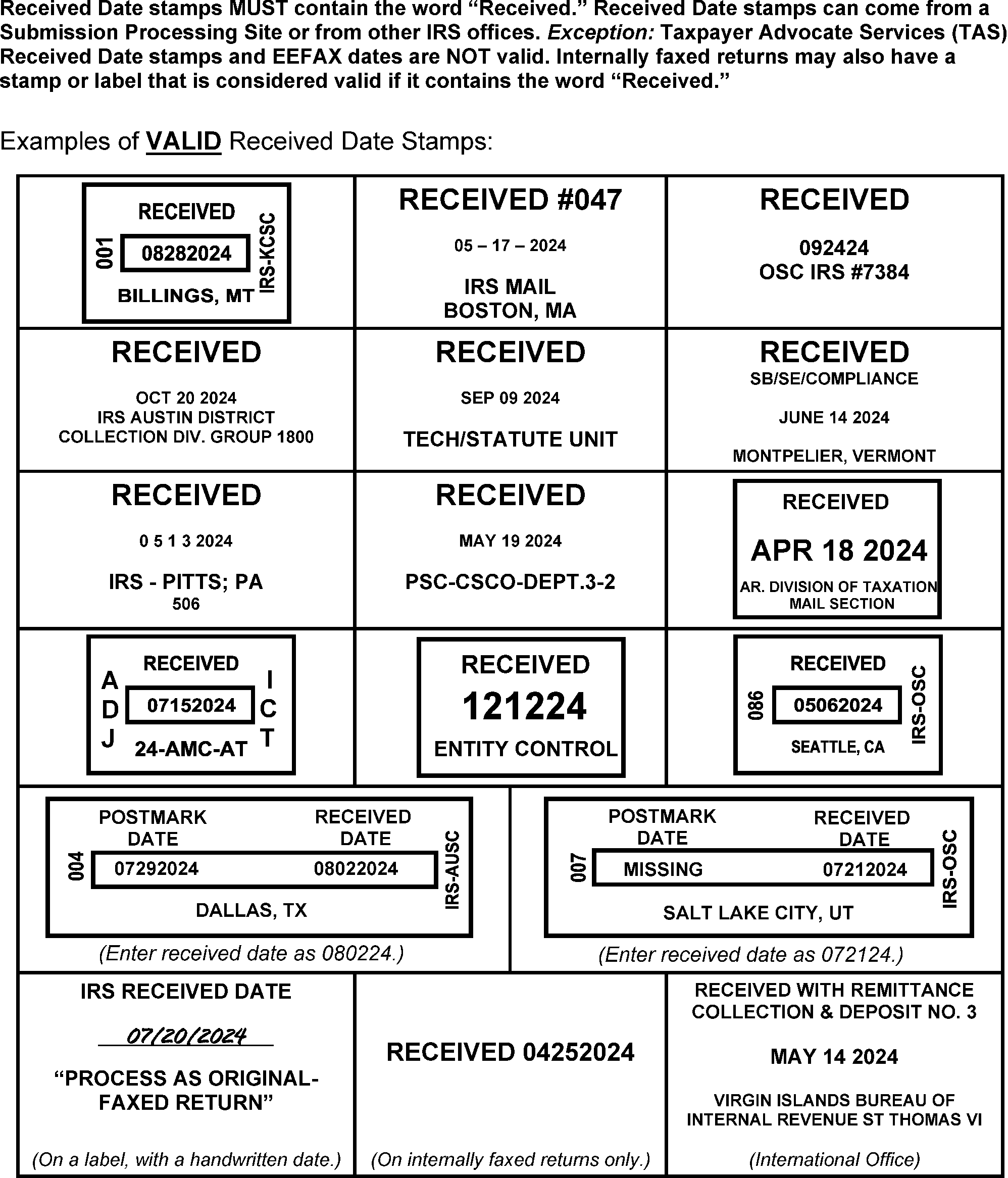
This graphic shows 17 examples of valid Received Date Stamps.
Please click here for the text description of the image.
Exhibit 3.24.37-8
Invalid Received Date Stamps
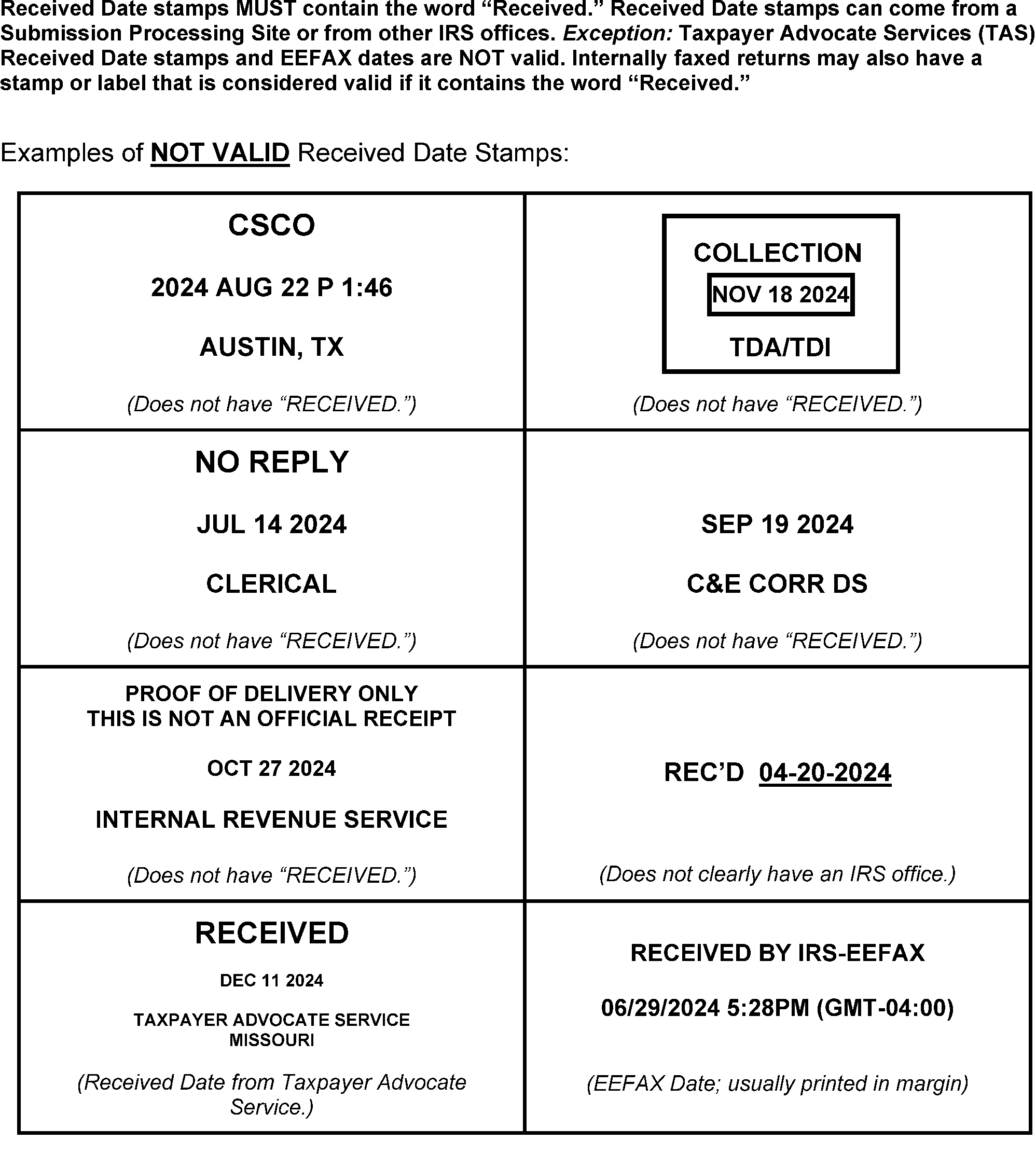
This graphic shows 8 examples of invalid Received Dates.
Please click here for the text description of the image.
Exhibit 3.24.37-9
Glossary
| Term | Definition |
|---|---|
| Alpha Block Control (ABC) | A three-character code assigned to each block of documents for submission processing control purposes. It is normally pre-printed in the upper left corner of the control document (e.g., Form 813, Form 1332, or Form 3893). However, it may be hand printed, and appear in another location, i.e., in the box entitled "Block Control Number" . |
| Batch Number | A number assigned to a group of blocks to aid in the control of documents during subsequent processing. |
| Blank Section | A Blank Section is a section where only the Must Enter fields are entered. |
| Block Out of Balance (BOB) | A condition exists in a given block of documents that creates an out-of-balance condition. Common examples of BOB conditions are: the sum of money amounts in each document does not match the Block Header total for the block or the actual count of documents within the block may be different than the count from the Block Header. A KV EOP may BOB a block by overlaying the Section Number with "BB" . |
| Calendar Year | Twelve (12) consecutive months ending December 31. |
| Check Digit | Two alpha characters, A to Z (excluding E, G, and M) that are derived by applying a mathematical formula to the EIN or SSN at the National Computing Center. |
| Document Locator Number (DLN) | A fourteen (14) digit number assigned to each document for control purposes. The computer-generated fourteenth (14th) digit may be changed on re-input or prior year documents as needed. The number is made up as follows: * Digits 1-2 — File Location Code (Submission Processing Site or D.O.) * Digit 3 — Tax Class * Digits 4-5 — Document Code * Digits 6-8 — Julian Date (numeric day of the year) * Digits 9-11 — Block Number * Digits 12-13 — Serial Number * Digit 14 — Year Digit (ISRP will generate the current processing year as the year digit. Re-input and prior year documents may require manual entry of the year digit.) |
| Edited Data | Colored pencil and/or ink entries and alterations to existing entries on documents by other IRS functional areas, such as Code and Edit, Entity, etc., Examples include colored pencil and/or ink circling, X-ing, underlining and changing of existing entries, and new entries. |
| Element | An item of information that is to be transcribed. Each element has been clearly identified on the ISRP Transcription Operation Sheets to indicate its location on the document, the sequence of transcription, and the instructions for transcription. |
| End of Block (EB) | "EB" must be entered if the block does not contain 100 documents. The OE EOP will overlay the Section Number with "EB" . The block will automatically end after 100 documents are entered. |
| Entity Area | The face of a document where the name, address, and Taxpayer Identification Number may appear. |
| Field | Where data is entered for each element within a section, (e.g., SSN, Name Control, etc.). A field may be either fixed or variable in length. |
| Field Termination Keys | 1. or <-> (MINUS) keys. identifies a positive field or indicates that no data was present for the field. <-> (MINUS) identifies negative amounts. 2. , or <\*> on the numeric keypad may be used as a field termination key when used to move to the next MUST ENTER field. |
| Filling Periods | In fixed-length elements, all positions must be filled (except in the Primary Name Control) to assure proper processing. If data is not present or is incomplete, filling periods are entered in the blank positions. |
| Fiscal Year | Twelve (12) consecutive months ending on the last day of any month other than December or a 52-53-week year. |
| Fixed Length Element | An element of data that does not require the use of a field termination key. Every position allocated to the element must be filled. When data for a position is not available, periods must be inserted, except for the Primary Name Control (NC). When the Primary Name Control is less than 4 characters, filling periods are not required, but pressing is necessary. This procedure assures that the data is sequenced in a manner that the system can recognize for subsequent processing. |
| Intermediate Entity | A document entered with a Name Control/Check Digit, TINs, and the full address. Used to update the address on accounts already established on the Masterfile. |
| Log On/Log Off | The procedures used to log on and off the ISRP system. |
| Long Entity | A document entered with the TINs, full name, AIL, and address. Used to establish accounts on the Masterfile and to update accounts already established. |
| Missing Section Indicator | A section was present and transcribed by the OE EOP, but the document was physically missing at KV is indicated by the KV EOP overlaying the Section Number with "MS" . |
| Mixed Data | An EOP has transcribed the entity from one document and the remaining information from another document. |
| Negative Entries | Data Conversion will transcribe entries as negative if bracket(s) are pre-printed on the form, bracketed or otherwise indicated as negative by the taxpayer, or edited by IRS personnel. If the field does not accept minus in the field termination column (Fld. Term.) of the IRM, enter the amount and press unless otherwise instructed. |
| Non-Compute | A tax return on which the taxpayer reported all income items but did not compute the tax. |
| Partial Entity | A document entered with TINs, name line, and/or AIL. Used to update the name line or AIL on accounts already established on the Masterfile. |
| Positive Entries | Line entries on a return that are not negative entries. These fields will be terminated with . |
| Prior Year | A tax return with a due date prior to the current processing year. |
| Prompt | A word, phrase, or instruction that appears on the screen to indicate what should be entered by the EOP or what action should be taken. |
| Record | A structured unit of data shown on the workstation display, one screen at a time. |
| Re-entry Blocks | 1. Re-entry blocks contain documents that were incorrectly processed initially and must be re-entered in ISRP. They consist of three types, depending on the point at which they fall out: 1. Documents that fall out during submission processing (for example, during Error Resolution) are classified as "SC Reinputs" , and are identified with Re-entry Source Code "4" . 2. A document that falls out during Master File processing as Unpostable is classified as a "Reinput of Unpostable Document" and is identified with Re-entry Source Code "N" . 3. A document that has posted incorrectly to the Master File is called a "Reprocessable" , and is identified with Re-entry Source Code "R" . 2. The generated year digit and the year digit in box 12 on Form 3893 must be the same. |
| Section | A series of fields that have been grouped together for processing purposes and assigned an identifying Section Number. |
| Serial Number | The last two digits before the year digit of the Document Locator Number (DLN). The year digit is the last digit of the DLN and may be after a hyphen, or in a larger size font than the serial numbers. |
| Short Entity | A document entered with Check Digit/Name Control and TINs. Used for accounts already established on the Masterfile with no entity change. |
| Special Characters | Special Characters are any keyboard characters that are not alpha or numeric. Enter a space for a special character unless otherwise instructed. When the "Instructions" column of the program-specific IRMs indicate to "ignore" or "omit" special characters, do not enter a space. ### Note: Never enter two consecutive spaces. |
| Variable Length Element | An element of data that is closed with a field termination key. Only the positions required to enter the data are utilized. The use of a field termination key signifies the end of data and is used to sequence the data for subsequent processing. A variable length element may contain fixed length data in addition to variable data; i.e., a Transaction Code (fixed length) and a related amount (variable length) constitutes one variable length element. |