Internal Revenue Manual § 3.24.38 - Bmf General Instructions
3.24.38 BMF General Instructions
Manual Transmittal
September 09, 2025
Purpose
(1) This transmits revised IRM 3.24.38, ISRP System, BMF General Instructions.
Material Changes
(1) IRM 3.24.38.2.4, Revised instructions to current system log in procedures.
(2) IRM 3.24.38.2.9.3, Updated the Special Key Characteristics table.
(3) IRM 3.24.38.3.4.5.1, Updated to include and addition reminder for the EEIF check.
(4) IRM 3.24.38.3.4.14.22, Added instruction for entering Direct Deposit information from BMF Tax Returns.
(5) Exhibit 3.24.38-6, BMF ISRP IRMs, Program Numbers and Block Header Validity Checks, Updated to add new programs and forms.
(6) Exhibit 3.24.38-7, Other ISRP IRMs, Program Numbers and Block Header Validity Checks, Updated to add new programs and forms.
(7) Exhibit 3.24.38-8, Program Number Look-up, Updated to add new programs and forms.
(8) Editorial corrections and consistency changes made throughout including spelling, grammar, punctuation and formatting, removing italics, updating titles, correcting IRM links, Plain Language updates to improve readability, January 2025 Executive Order and OPM Guidance, etc.
Effect on Other Documents
IRM 3.24.38 dated May 28, 2025 (effective date May 28, 2025), is superseded. DEI updates required this IRM to be re-published mid-year.
Audience
Data Conversion Operations
Effective Date
(01-01-2026)
Scott Wallace
Director, Submission Processing
Customer Account Services
Taxpayer Services
3.24.38.1 (05-28-2025)
Program Scope and Objectives
-
Purpose: The instructions in this IRM apply to the Original Entry, Key Verification, and Block Edit of paper filed tax returns, remittances and related data through the Integrated Submission and Remittance Processing System (ISRP) and Quality Review of Original Entry and Key Verification.
-
Audience: Submission Processing Data Conversion Operation personnel including general clerks, leads and supervisors. These instructions apply to all campuses.
-
Policy Owner: The Director, Submission Processing, Taxpayer Services.
-
Program Owner: Mail Management Data Conversion Section, Return Processing Branch (an Organization within Submission Processing).
-
Primary Stakeholders: Those affected by these procedures or have input to the procedures including a change in workflow, additional duties, change in established time frames, and similar issues include (but not limited to):
-
Accounts Management (AM)
-
Chief Counsel
-
Compliance
-
Information Technology (IT) Programmers
-
Large Business and International (LB&I)
-
Small Business Self-Employed (SBSE)
-
Statistics of Income (SOI)
-
Submission Processing (SP)
-
Taxpayer Advocate Service (TAS)
-
Tax Exempt and Government Entities (TEGE)
-
-
Program Goals: The goal of this program is to correctly transcribe Business Master File paper filed tax returns and related documents for further processing using the instructions in this IRM.
3.24.38.1.1 (10-30-2019)
Background
-
This section of the IRM provides general instructions for utilizing the ISRP system to transcribe data from a variety of forms listed in Exhibit 3.24.38-6, BMF ISRP IRMs, Program Numbers and Block Header Validity Checks, and how to utilize the ISRP system to perform quality review.
-
The purpose of the Integrated Submission and Remittance Processing (ISRP) System is to transcribe and format data from paper returns/documents/vouchers for input into the Generalized Mainline Framework (GMF) and other systems by key entry operators. It also captures check images for archiving. Transaction Management System (TMS) is a COTS product that is an integral part of ISRP. The entries from transcription are transferred to ERS fields.
3.24.38.1.2 (01-01-2018)
Authority
-
The following provide authority for the instructions in this IRM to be performed in support of completing compliance functions to make credits or refunds of any internal revenue tax, processing of non-revenue forms, and administrative support forms.
-
Title 26 of the United States Code (USC) or more commonly known as the Internal Revenue Code (IRC).
-
All Policy Statements for Submission Processing are contained in IRM 1.2.1.4, Servicewide Policies and Authorities, Policy Statements for Submission Processing Activities:
-
Code sections which provide the IRS with the authority to issue levies.
-
Congressional Acts which outline additional authorities and responsibilities like the Travel and Transportation Reform Act of 1998 or the Tax Reform Act of 1986.
-
Policy Statements that provide authority for the work being done.
-
3.24.38.1.3 (01-01-2018)
Responsibilities
-
The Director, Submission Processing approves and authorizes issuance of this IRM.
-
The Planning and Analysis staff provides feedback and supports local management to monitor and achieve scheduled goals.
-
The Operations Manager secures, assigns and provides training for the staff needed to perform the duties presented in this IRM.
-
The Team Manager/Lead assigns, monitors and controls the workflow to complete the work timely.
-
The Team Employee applies the instruction for the duties presented in this IRM on the ISRP system to accurately convert paper data to an electronic data record for proper posting for use by the IRS.
-
IRM deviations must be submitted in writing following instructions from IRM 1.11.2.2, Internal Management Documents System - Internal Revenue Manual (IRM) Process, IRM Standards, and elevated through appropriate channels for executive approval.
3.24.38.1.4 (01-01-2023)
Program Management and Reviews
-
Program Reports: The Monitoring Section under Submission Processing Program Management/Process Assurance monitors Data Conversion reports. Below are a list of reports to use to show receipts, production and inventory for the paper return to electronic data conversion process. These reports will be utilized to report and monitor daily and weekly status of the program to completeness.
-
PCC 2240, Daily Production Report - Program Sequence
-
PCC 6040, SC WP&C Performance and Cost Report
-
PCC 6240, SC WP&C Program Analysis Report
-
PCB 0440, Daily Workload and Staff hours Schedule
-
PCB 0540, Weekly Workload and Staffing Schedule
-
-
Program Effectiveness: Management measures weekly goals using the above reports for each function compared to the established completion schedule. Each function is expected to complete the inventory on or before the program completion date, and to retain or exceed schedule prior to the program completion date stated in IRM 3.30.123, Work Planning and Control Processing Timeliness: Cycles, Criteria, and Critical Dates. Local management conducts and monitors quality reviews and takes corrective action to ensure quality products. Managerial and product reviews supplement the quality review process.
-
Annual Review: Management reviews the processes in this manual annually to ensure accuracy and promote consistent tax administration.
3.24.38.1.5 (01-01-2023)
Program Controls
-
Integrated Submission and Remittance Processing (ISRP) system access is granted through the Business Entitlement Access Request System (BEARS), request process.
-
The reports for the Control Data Analysis, Project PCD, are on the Control-D/Web Access server, which has a login program control.
-
Quality Review conducts a statistical valid sample size review of completed work to ensure IRM guidelines are followed.
3.24.38.1.6 (01-01-2018)
Terms/Definitions/Acronyms
- For terms, definitions, and acronyms, visit Exhibit 3.24.38-1, Abbreviations and Acronyms.
3.24.38.1.7 (01-01-2023)
Related Resources
-
The following table lists related sources of guidance on the processing of BMF tax returns and related documents:
RESOURCE LINK/TITLE Instructor’s Corner for Submission Processing Instructors Corner for SP Servicewide Electronic Research Program (SERP) SERP Integrated Automation Technologies (IAT) IAT -
Document 7071-A, Name Control Job Aid - For Use Outside of the Entity Area.
3.24.38.1.8 (01-01-2018)
IRM Deviations
- IRM deviations must be submitted in writing following instructions from IRM 1.11.2.2, Internal Management Documents System - Internal Revenue Manual (IRM) Process, IRM Standards, and elevated through appropriate channels for executive approval.
3.24.38.1.9 (01-01-2023)
Data Entry Phases
-
Data entry is accomplished using Original Entry, Key Verification and Block Edit. A brief description of each follows:
-
Original Entry (OE) consists of:
-
Entering data from documents into the ISRP System.
-
Checking program number and tax class/document code/transaction/MFT code year combinations to assure that the type of block is valid.
-
Sequence checking all Document Serial Numbers and Section Numbers within documents.
-
Assuring that the Section Number entered is valid for the document being entered.
-
Determining if all systematically required sections for a given document have been entered.
-
Zero-balancing the interrelated money amounts. Specific sections are subjected to a zero-balance routine, in which the combination of all positive and negative amounts should equal zero, within given tolerances.
-
Checking entries between two lines or between a line and a section for missing data.
-
Determining if the information entered for a field is valid (e.g., alpha, numeric); if a field must contain data; if the field must be filled (e.g., Social Security Number (SSN), Employer Identification Number (EIN)); or if there are too many characters in a field (i.e., overflow).
-
-
Key Verification (KV) is, in effect, a duplication of the Original Entry input with the following exceptions:
-
The KV EOP (Entry Operator) is prompted by the system, for the document and section or part of a section to verify. This procedure allows those sections and parts of a section that do not require verification to bypass this phase.
-
The KV EOP is alerted when a difference between the KV entry and the OE entry is encountered. This allows the KV EOP to make corrections as necessary.
-
-
Block Edit (BE) is used for correction of entered data and for Quality Review. Block Edit allows access to blocks which are partially entered, entered but not key verified, and have been key verified. Quality Review can only access completed blocks.
3.24.38.2 (01-01-2016)
General Information
- This section provides instructions for using the ISRP system.
3.24.38.2.1 (01-01-2023)
ISRP Log in and Security
-
This section provides instructions for log in, log off and security.
Note:
Logging on to the ISRP system requires activation through the BEARS process. This will assign a User Name to the employee. The User Name identifies the type of user as an Entry Operator (EOP), Quality Review Operator (QR), Supervisory Operator (SOP), Work Leader Operator (WOP) or System Administrator (SA).
3.24.38.2.2 (01-01-2023)
Log in to Windows
-
Press --
to begin logging in to the Windows environment. -
An Authorized Government Use Only screen will display. Be sure to read the entire message. If you are not authorized to use the system, do not continue logging in. If you are authorized, press to continue when Security box appears. A screen with Other user, Connect a smart card, Sign-in options, and graphics showing a key card and a key appear.
-
Insert your Smart Identification (SmartID) card into the card reader attached to your computer.
Note:
The card reader may be built into the keyboard or attached as a separate USB device.
-
After a short delay, the Connect a smart card information is replaced with your name, an e-mail address with your SEID, smart card sign-in, and the cursor in the PIN box.
-
Input your SmartID Personal Identification Number (PIN). To protect your PIN, the system displays a dot for each character typed.
Note:
Make sure the is on if using the 10-key pad.
-
Press to log in to Windows.
3.24.38.2.3 (10-30-2019)
Working with Multiple Windows
-
The Windows environment allows you to have multiple windows open and switch between them as needed. For example, you can have the ISRP application open in one window with the SERP IRM via Microsoft Edge open in another. When open, the ISRP application will take up your entire monitor in a "full screen" mode. However, you can still switch between currently open windows or open a new window while in the ISRP application.
-
A new window/application can be opened within the ISRP application by pressing the key on your keyboard (lower left corner in between the and keys). Pressing this key opens the Windows Start menu and allows you to search for and select/open other windows and applications.
-
Select open windows using - on your keyboard.
-
Press - together to open the window selection screen.
-
While continuing to hold down the key, press the key to move forward through available windows.
-
When you’ve selected the desired window, release the key and the selected window will display.
-
3.24.38.2.4 (01-01-2026)
Log on to the ISRP System
-
Select the Windows icon in the lower left corner. This can be done by pressing the Windows key on the keyboard or using the mouse to select the icon.
-
Select "All" , to see all applications.
-
Scroll down to the letter "I" in the list of available applications.
-
Select the ISRP folder. The folder expands to show the options of "2D Barcode Reader" , "Data Entry Operations" , "ISRP System Information" , "SuperSOP" and "Supervisory Functions" .
-
Select the appropriate option. For data entry, select "Data Entry Operations" .
-
The "ISRP Data Entry Operations" Windows Security pop-up box appears. Enter your Smart Card PIN.
-
The sp_eop application dialog box appears.
3.24.38.2.5 (01-01-2023)
Log off the ISRP System
-
To log off when entering or verifying document data:
-
Be sure to exit the Visual Basic Data Entry Application (VBDEA) properly before logging off when entering or verifying document data by pressing twice. A confirmation message will appear: "EXIT SECTION? DATA WILL BE LOST!" .
-
Enter "Y" .
-
Press again. A confirmation message will appear: "CONFIRM APPLICATION EXIT?"
-
Enter "Y" . The Data Entry Operations window will appear. Select the "X" in the upper right corner of the screen. See Figure 3.24.38-1 below.
-
-
To log off from the Data Entry Operations window:
-
Press --.
-
At the option screen, select Sign Out.
-
Remove your SmartID card.
-
-
Logging off or removing your Smart ID from the workstation prevents unauthorized access.
Figure 3.24.38-1

This graphic shows the Data Entry Operations window and displays where to select the “X” in the upper right corner to log off the system.
Please click here for the text description of the image.
3.24.38.2.6 (01-01-2016)
Data Entry Operations Window
-
After successfully logging in as an Entry Operator (EOP), the Data Entry Operations window appears. SOPs may also display the Data Entry Operations by selecting "eop-applications" from the Start menu. The window consists of the following components:
-
Title bar which displays the name of the window.
-
Menu bar which provides pull-down menu choices (detailed below) for access to ISRP functions.
-
Tool bar which displays a printer icon and a Help icon.
-
Status bar which indicates if the Num Lock Key is activated.
Figure 3.24.38-2
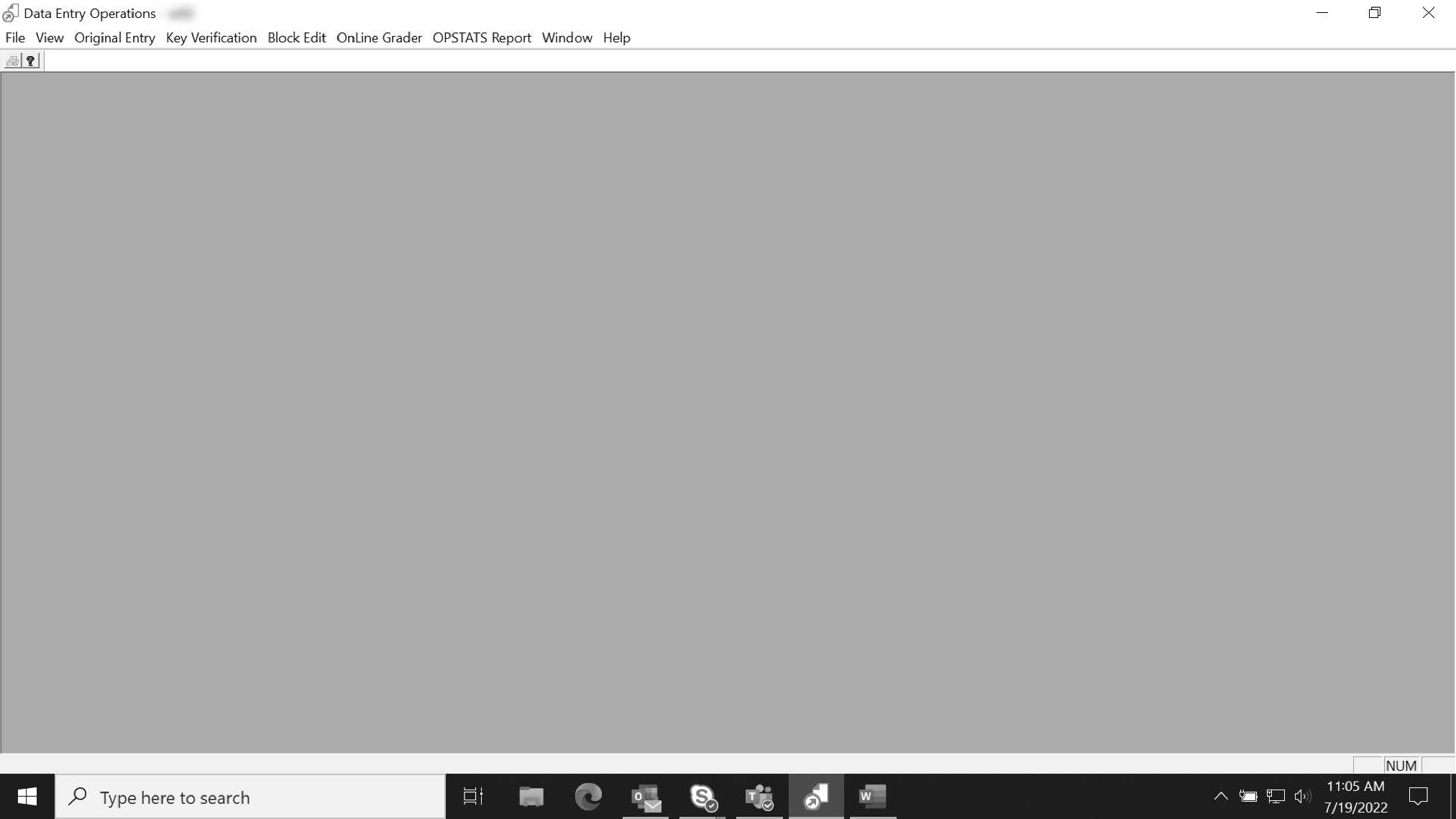
This is a graphic of the Data Entry Operations Window which consists of: The Title bar that displays Data Entry Operations.The Menu bar which displays: (1) File (2) View (3) Original Entry (4) Key Verification (5) Block Edit (6) Online Grader (7) OPSTATS Reports (8) Window (9) HelpThe Tool bar which displays a printer icon and a Help icon.The Status bar that indicates if the Num Lock key is activated.
Please click here for the text description of the image.
-
3.24.38.2.6.1 (01-01-2023)
Menu Bar
-
The Menu Bar is used to open pull-down menus containing options that allow the EOP to access Data Entry options.
-
There are two ways to access the menu bar:
-
Press and the underlined letter(s) of the menu option(s); or
-
Press , arrow to the selected function and press .
-
-
Selecting a menu title opens a pull-down menu. The user can select the appropriate menu option to perform the desired function. The following are the menu choices available to the operator:
-
File→Delete — Closes the currently displayed report window.
-
File→Print — Prints the currently displayed report.
-
File→Print Setup — Allows a printer to be specified for printing reports.
-
View→Toolbar — Allows the Toolbar to be toggled on and off.
-
View→Status Bar — Allows the Status Bar to be toggled on and off by pressing .
-
Original Entry→OE→New — Allows initial entry of a block.
-
Original Entry→OE→Resume — Allows resumption entry of a partially entered block.
-
Original Entry→OET — Allows original entry of any ISRP program in a training mode.
-
*Original Entry→OEK→OEK for KVT→New — Allows initial entry of a block for use in KVT (see below).
-
*Original Entry→OEK→OEK for KVT→Resume — Allows resumption of entry of a partially entered block for use in KVT (see below).
-
*Original Entry→OEK→OEK for OLG→New — Allows initial entry of a block for use in OLG (see below).
-
*Original Entry→OEK→OEK for OLG→Resume — Allows resumption of entry of a partially entered block for use in OLG (see below).
-
Key Verification→KV→New — Allows initial Key Verification of a block.
-
Key Verification→KV→Resume — Allows resumption of Key Verification of a partially verified block.
-
Key Verification→KVT — Allows key verification of any ISRP program in a training mode.
-
Block Edit — Allows editing of a block that has been completed.
-
Online Grader→Practice Exercises with Feedback — Allows entry of practice blocks with immediate on-screen feedback when errors are made.
-
Online Grader→Practice Blocks — Allows entry of practice blocks with a report of errors displayed on the screen at the conclusion of the block.
-
Online Grader→Run for Grade — Allows entry of practice blocks with a printed report of errors generated.
-
Online Grader→Keyboard Drill — Allows entry of practice data with a printed report of errors generated.
-
Online Grader→Assign Printer— Allows a printer to be specified for printing reports.
-
OPSTATS Report — Generates the operators current Operator Statistics.
-
Window — Lists open windows.
-
Help — Not enabled in ISRP.
Note:
Menu choices marked with an asterisk (*) are used by Course Developers or other operators designated by management.
-
3.24.38.2.7 (01-01-2016)
Visual Basic Data Entry Application (VBDEA)
- The application used for data entry in the ISRP system is Visual Basic Data Entry Application (VBDEA).
3.24.38.2.7.1 (01-01-2023)
Entry Operator (EOP) Dialog Box
-
VBDEA data entry screens are accessed by selecting an operation from the drop-down menus in the Data Entry Operation window as described in IRM 3.24.38.2.6.1, Menu Bar. After selection of a menu option, the EOP Dialog box appears.
-
If you select New or Resume from the Original Entry (OE) or Key Verification (KV ) Menu Bar, an EOP (Entry Operator) Dialog box appears.
-
Follow the instructions for accessing a block:
IF THEN Original Entry of a new block 1. Enter the Program Number. Press . 2. Enter the ABC (Alphanumeric Block Control). Press . 3. Enter SOP if different from the assigned SOP. 4. Select "OK" or press . 5. Sight verify the ABC and Program Number. If incorrect, press and begin again. Key Verification 1. Enter ABC. Press . 2. Enter SOP. Press . 3. Select "OK" or press . See Figure 3.24.38-3 below for picture of the EOP Dialog box.
Note:
If you have just ended a block, the program number of the block just entered will already be displayed and must be changed if the next block is a different program.
Figure 3.24.38-3
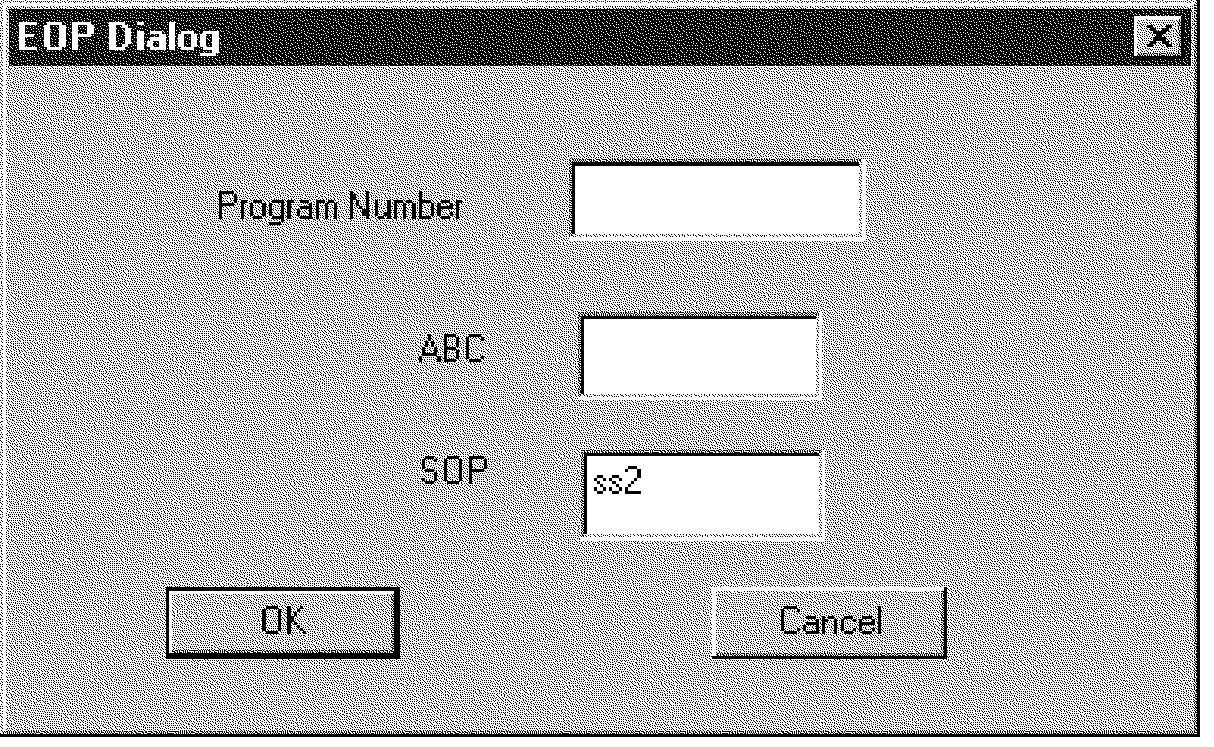
This graphic shows the pop-up window of the EOP Dialog box which is used to access a block of work. The window displays boxes where the operator enters the Program Number, Alphanumeric Block Control (ABC) Number and Supervisory Operator (SOP) ID.
Please click here for the text description of the image.
3.24.38.2.7.2 (01-01-2018)
Visual Basic Data Entry Application Screen Display
-
The VBDEA Screen Display contains four components. From top to bottom, they are the Input Area, General Purpose Display Area, Status Bar Area or Status Line, and Function Key Area. See Figure 3.24.38-4 below for picture of the Data Input Display screen.
Figure 3.24.38-4
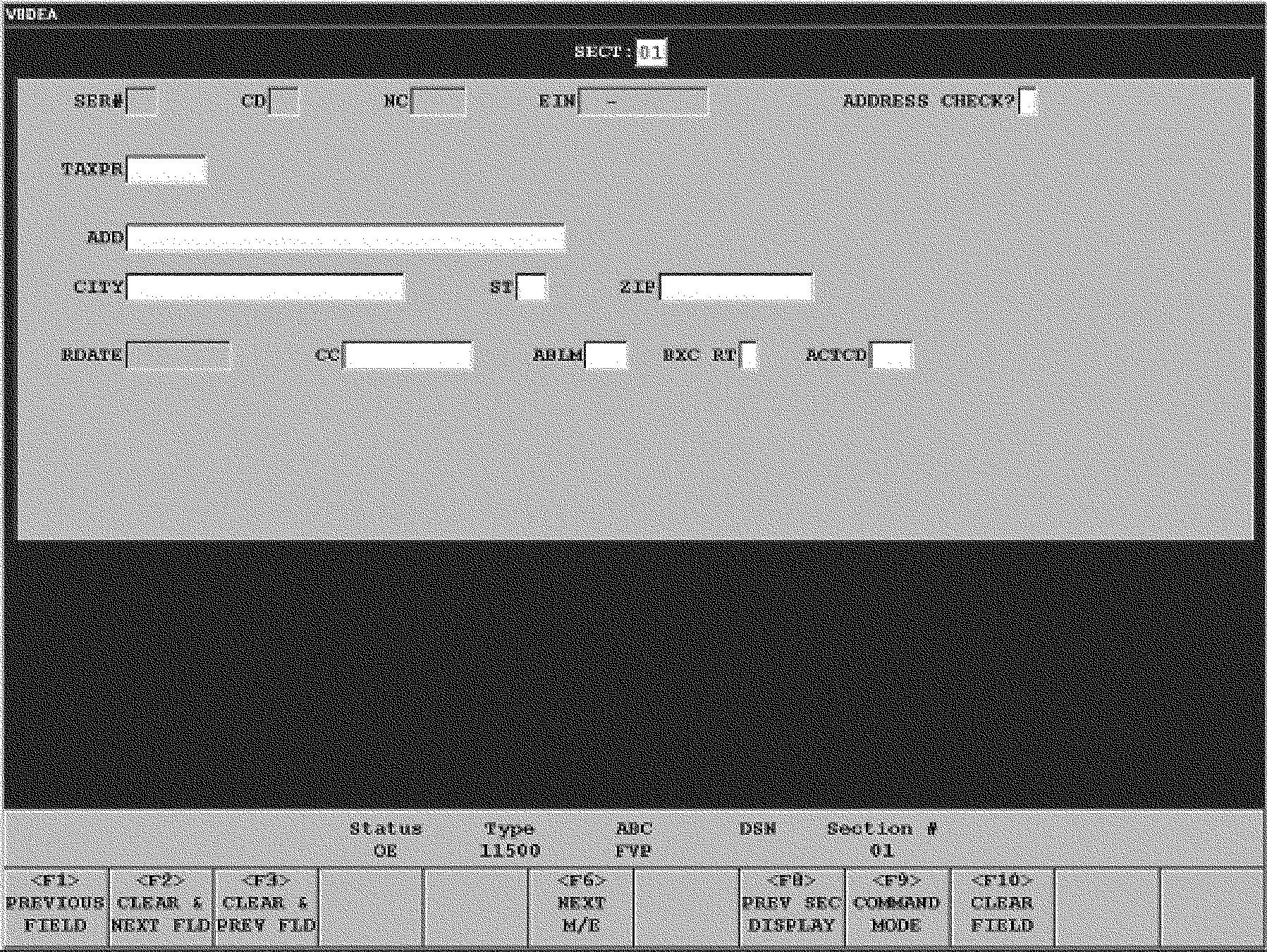
This graphic shows the Data Input Display Screen which consists of the Input, General Purpose Display, Status Bar, and Function Key Areas.
Please click here for the text description of the image.
-
The Input Area contains the fields in which the document data is entered by the operator. Color is used to distinguish certain field characteristics: Data Input Display
COLOR TYPE Green MUST ENTER Pink Enter/Minus (Positive/Negative) Yellow MUST ENTER and Enter/Minus (Positive/Negative) Grayed-out No entry allowed, such as the Remittance field on a non-remit return. -
The General Purpose Display Area displays error messages, pop-up boxes, or informational messages.
-
The Status Bar Area (Status Line) displays the current operation and location in the block. It contains the following fields:
-
Status: the operation being performed (OE, KV, and BE)
-
Type: the program number
-
ABC: the Alphanumeric Block Control number for the current block
-
DSN: the current document's serial number (blank if block header)
-
Section Number: the current section number or "Blk Hdr" if block header
-
-
The Function Key Area displays function keys available to the operator based on the field the cursor is in. Function Key use is described IRM 3.24.38.2.9.3, Special Key Characteristics.
3.24.38.2.8 (01-01-2023)
Locked Block
- If a locked block message appears, contact the Manager or Lead immediately. The Manager must release the block at the workstation before you can resume.
3.24.38.2.9 (01-01-2016)
ISRP Keyboard
-
The ISRP Keyboard has three types of keys:
-
Function Keys - located on the top of the keyboard and numbered to .
-
Typewriter Keys - located under the function keys.
-
Numeric Keys - located on the right side of the keyboard.
-
3.24.38.2.9.1 (01-01-2016)
Embedded Keypad
- The embedded keypad refers to a set of non-numeric keys in the right portion of the main part of the keyboard that can be used to enter numbers in certain fields. The embedded keypad is automatically activated for numeric fields and manually activated by pressing in alphanumeric fields.
3.24.38.2.9.2 (01-01-2016)
Numeric Keypad
-
The numeric keypad is the set of 17 numeric and non-numeric keys located on the far-right end of the keyboard.
-
The key on the numeric keypad is automatically activated when you log into ISRP. Do not turn it off. If you should accidentally turn off, press to turn it back on.
3.24.38.2.9.3 (01-01-2026)
Special Key Characteristics
-
Various functions unique to VBDEA are assigned to function keys and certain other keys on the ISRP keyboard. Specific functions vary depending on the processing mode and current field. The three processing modes are:
-
Append/Edit Mode allows the operator to add documents and sections to a block. It is the default mode for OE.
-
Command Mode allows the operator to move within the block and insert, delete, or edit sections and documents.
-
Verify Mode is used in KV and allows the operator to verify OE data by re-keying the data on a field-by-field basis.
Use of the keys in each of the modes is described in the table below.
Special Key CharacteristicsKEY MODE: APPEND/EDIT (OE and BE) MODE: COMMAND (OE, BE and KV) MODE: VERIFY (KV) Moves the cursor to the previous field without erasing characters that have been entered. Moves the cursor to the previous section in all sections except the block header. Moves the cursor to the previous field without erasing characters that have been entered. Moves the cursor to the next field and erases any characters that have been entered. Moves the cursor to the next section except in the last entered section. Moves the cursor to the next field and erases any characters that have been entered. Moves the cursor to the previous field and erases any characters that have been entered. Changes Mode to Append/Edit allowing data to be entered and/or edited in the currently displayed section. Moves the cursor to the previous field and erases any characters that have been entered. Returns to Append Mode in the last document entered in the block. Returns to next document to be key verified. Duplicates data from the same field in the previous document and moves the cursor to the next field. Initiates a search to find a document and section within the block. Duplicates data from the same field in the previous document and moves the cursor to the next field. Moves the cursor to the next MUST ENTER field in the current section. (The cursor will skip any MUST ENTER field if it already has data present.) If no MUST ENTER field is present, the cursor moves to the prompt for the next section. Moves the cursor to the next Must Verify field in the current section. (The cursor will skip any Must Verify field if it already has data present.) If no Must Verify field is present, the cursor moves to the prompt for the next section. Clears and overrides an error message, if allowed, and moves the cursor to the next field. Deletes a section or document within a block except for the block header. If in Section 01, it will delete the document. Clears and overrides an error message, if allowed, and moves the cursor to the next field. Displays the previously entered section. To finish viewing the section and return to the current section, the operator enters "Y" in the "DONE VIEWING PREVIOUS SECTION?" confirmation box. Inserts section into the current document. Displays the data entered in OE for a field. To continue verifying the field, the operator enters "Y" in the "DONE VIEWING OE VALUE?" confirmation box. Accesses Command Mode. If in the Block Header, it exits the block. Also used to clear error messages. Exits the application. Accesses Command Mode. If in the Block Header, it exits the block. Also used to clear error messages. Clears the field. The cursor remains in the field. Clears the field. The cursor remains in the field. Enters "PO BOX" in an address field. For all sections except the block header and first document, moves back to the same section in the last document where that section exists. Enters "PO BOX" in an address field. Fills a zero-filled field with question marks (???) and moves the cursor to the next field unless in the Block Header. If in the Block Header, clears all fields except the ABC field. For all sections except the block header and last document, moves to the same section in the next document where that section exists. Fills a zero filled field with question marks (???) and moves the cursor to the next field unless in the Block Header. If in the Block Header, clears all fields except the ABC field. - Displays the previous section. To finish viewing the section and continue verifying the current section, operator enters "Y" in the "DONE VIEWING PREVIOUS SECTION?" confirmation box. - Inserts a document Shows the KV operator the data previously entered in OE for the current section. To continue verifying the section, the operator enters "Y" in the "DONE VIEWING OE VALUES?" confirmation box. - Deletes End of Block (Block Edit only). - This function is currently not available. This function is currently not available. - This function is currently not available. This function is currently not available. Moves the cursor to the next field. Moves the cursor to the next field. Moves the cursor to the first position of the Section Number field. Moves the cursor to the first position of the Section Number field. Deletes section or document within a block except for the block header. If in Section 01, deletes the document. Moves cursor to previous character and erases character. Moves to the previous section for all sections except the block header. If the operator has entered any characters in the section, it will prompt the operator for an edit cancellation confirmation. Once the cancellation is confirmed, the previous section is displayed. Moves to the previous section for all sections except the block header. If the operator has entered any characters in the section, it will prompt the operator for an edit cancellation confirmation. Once the cancellation is confirmed, the previous section is displayed. Moves to the previous section for all sections except the block header. If the operator has entered any characters in the section, it will prompt the operator for an edit cancellation confirmation. Once the cancellation is confirmed, the previous section is displayed. Moves to the next section. If the operator has entered any characters in the section, it will prompt the operator for an edit cancellation confirmation. Once the cancellation is confirmed, the next section is displayed. Moves to the next section for all sections except the last section entered. If the operator has entered any characters in the section, it will prompt the operator for an edit cancellation confirmation. Once the cancellation is confirmed, the previous section is displayed. Moves to the next section. If the operator has entered any characters in the section, it will prompt the operator for an edit cancellation confirmation. Once the cancellation is confirmed, the next section is displayed. <↑> (up arrow) Moves the cursor to the previous field without erasing characters that have been entered. Moves to the previous section for all sections except the block header. Moves the cursor to the previous field without erasing characters that have been entered. <↓> (down arrow) Moves the cursor to the next field and erases any characters that have been entered. Moves to the next section for all sections except the last section entered. Moves the cursor to the next field and erases any characters that have been entered. <→> (right arrow) Moves the cursor one position to the right within the current field without erasing any characters. If the cursor is in the last position of the field, the cursor moves to the first position of the next field. Moves the cursor one position to the right within the current field without erasing any characters. If the cursor is in the last position of the field, the cursor moves to the first position of the next field. <←> (left arrow) Moves the cursor one position to the left within the current field without erasing any characters. If the cursor is in the first position of the field, the cursor moves to the last position of the previous field. Moves the cursor one position to the left within the current field without erasing any characters. If the cursor is in the first position of the field, the cursor moves to the last position of the previous field. <\*> (asterisk) on numeric keypad Moves the cursor to the next MUST ENTER field in the current section. (The cursor will skip any MUST ENTER field if it already has data present.) If no MUST ENTER field is present, the cursor moves to the prompt for the next section. Moves the cursor to the next Must Verify field in the current section. (The cursor will skip any Must Verify field if it already has data present.) If no Must Verify field is present, the cursor moves to the prompt for the next section. <+> (plus sign) on numeric keypad Enters double zero ("00" ) Enters double zero ("00" ) <-> (minus sign) on numeric keypad or in row of numeric keys Enters data as a negative amount. Enters data as a negative amount. </> (forward slash) on numeric keypad Inserts the letter "P" in the Preparer Taxpayer Identification Number (PTIN) field. Inserts the letter "P" in the PTIN field. -<6> in row of numeric keys (not keypad) Inserts the character "<" , commonly called a caret or bracket in ISRP. Inserts the character "<" , commonly called a caret or bracket in ISRP. <7> in row of numeric keys (not keypad) Inserts the character**&** without using Shift for NAME1 Inserts the character**&** without using Shift for NAME1 Note:
If a function key is used to copy data, it is the responsibility of the EOP to ensure that the copied information is correct.
-
3.24.38.2.10 (10-30-2019)
Operator Statistics
-
The Individual OPSTATS Report is a display that shows the operators production statistics for the current shift. To view the report, select "OPSTATS Report" from the Data Entry Operations window and press . To remove data from the screen, press - and .
Note:
Do not use data shown in the report for time reporting purposes.
-
Fields displayed in the "OPSTATS" window are as follows:
-
EOP — User ID of the EOP requesting the report.
-
PROGRAM — Program(s) worked during the shift.
-
KS — Total keystrokes for the program/operation.
-
KS/HR — Keystrokes per hour for the program/operation.
-
DOCS — Total documents entered for the program/operation. (Block Headers are counted as documents.)
-
D/HR — Documents per hour for the program/operation.
-
CHARS — Total alphanumeric and special characters entered for the program/operation.
-
CHAR/DOC — Characters entered per document for the program/operation.
-
E-TIME — Total time spent in the program/operation.
Note:
The KS, KS/HR, DOCS, D/HR, CHARS, CHAR/DOC, and E-TIME columns appear three times, once for each operation (OE, KV, and BE).
-
3.24.38.3 (01-01-2016)
Data Entry Information
- Data entry is accomplished using Original Entry (OE), Key Verification (KV) and Block Edit (BE).
3.24.38.3.1 (01-01-2016)
Original Entry (OE)
-
This section provides instructions for the Original Entry (OE) of data into the ISRP System for processing. This data is transcribed by EOPs from blocks of documents. The OE function consists of OE New and OE Resume. OE New is used when first starting to enter a block. OE Resume is used to resume entering a block that was exited prior to entering all documents in the block. Detailed instructions for transcribing different types of documents are located in the document-specific IRMs.
-
During OE, the system does the following:
-
Checks program number and tax class/document code/transaction/MFT code year combinations to assure that the type of block is valid.
-
Sequence checks all document serial numbers and section numbers within documents.
-
Assures that the section number entered is valid for the document being transcribed.
-
Determines if all systematically required sections for a given document have been entered.
-
Zero balances the interrelated money amounts. Specific input sections are subjected to a zero-balance routine in which the combination of all positive and negative amounts should equal zero within given tolerances.
-
Checks entries between two lines or between a line and a section for missing data.
-
Validates the TIN against the Check Digit to ensure both are transcribed correctly.
-
Determines if the information entered for a field is valid (i.e., alpha, numeric); if a field must contain data (i.e., Social Security Number (SSN), Employer Identification Number (EIN); if a field must be filled (i.e., SSN, EIN); or if a field contains too many characters (overflow).
-
-
To access a block for Original Entry (OE) of work use the following instructions:
IF THEN You are starting OE of a new block, 1. Select Original Entry→OE→New 2. Enter program number. Press . 3. Enter ABC. Press . 4. Enter SOP ID if different from your SOP ID. 5. Select "OK" or press . You are resuming OE of a block that has been partially entered, 1. Select Original Entry→OE→Resume. 2. Enter ABC. Press . 3. Enter SOP ID if different from your SOP ID. 4. Select "OK" or press . Note:
If a locked block message appears, contact the Manager or Lead. The Manager or Lead must release the block at the workstation.
3.24.38.3.1.1 (01-26-2023)
Block Header — Original Entry (OE)
-
Visually compare the Document Locator Number (DLN) of Form 813, Form 1332, or Form 3893 with the DLN on the first document of the block before entering the block. If the DLNs do not match, refer the block to the Manager or Lead.
-
Enter the Program Number, ABC, and SOP ID in the EOP Dialog box. The block header screen display appears.
-
The Block Header Display is shown below.
Figure 3.24.38-5
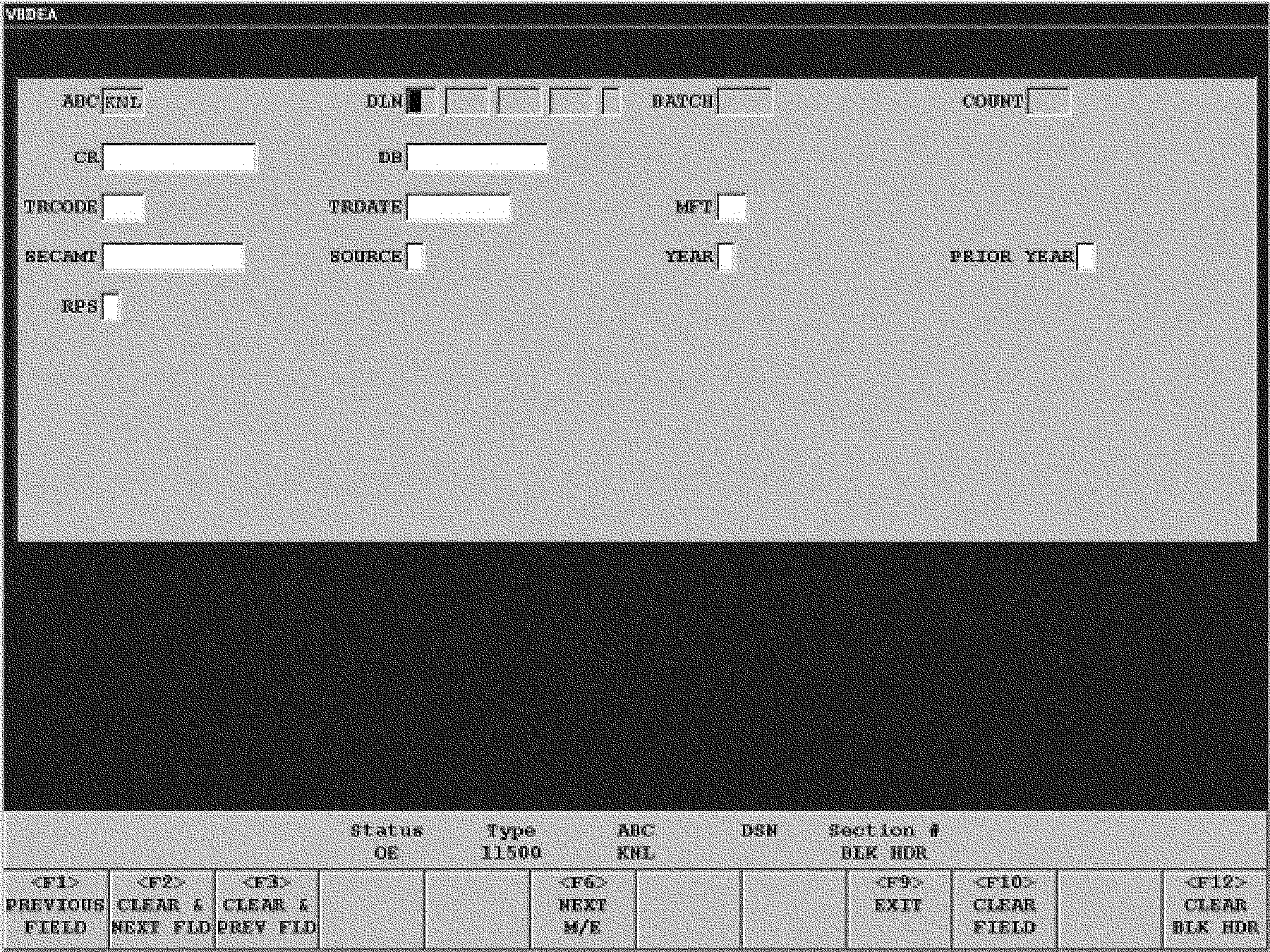
This is a graphic of the Block Header Display Screen.
Please click here for the text description of the image.
-
The system displays the entered ABC and Program Number. (If you entered an incorrect ABC or Program Number in the EOP Dialog box, exit the block header and start over by pressing then answering "Y" to the confirmation message "Cancel Block and Exit Application? All Data will be Lost!" .) Enter remaining fields as instructed. The block header display for transcribing tax returns contains the following prompts/fields:
-
ABC — The Alphanumeric Block Control number is a three-character code assigned to a block to track it during processing. This field cannot be entered or changed. It is generated by the system.
-
DLN — The Document Locator Number is the 12-digit number that uniquely identifies a block. Enter the first eleven digits. The twelfth (12th) digit is generated by the system. If the generated digit is incorrect, enter the correct digit.
-
BATCH — The Cart Batch Number identifies the cart on which the block is located.
-
COUNT — The Count is the number of documents in the block.
-
CR — The Credit amount is the sum of all the credit amount fields for the entire block.
-
DB — The Debit amount is the sum of the debit amount fields for the entire block.
-
TRCODE — The Transaction Code is a three-digit code used to identify activity on a taxpayer's account.
-
TRDATE — The Transaction Date is an eight-digit number in MMDDCCYY format that corresponds to the date the document remittance is received by the IRS.
-
MFT — The Master File Tax Code is a two-digit number that identifies the specific type of account to which a transaction is to be posted.
-
SECAMT — Secondary Amount is the sum of the secondary amount fields for the entire block. If there is no entry in this field, the system zero-fills the field.
-
SOURCE — The Source Code indicates the type of re-entry documents in the block. The Source Code can be “4”, “R”, or “N”. If there is no entry in this field, the system zero-fills the field.
-
YEAR — The Year is the last digit of the year for which the documents are to be applied.
-
PRIOR YEAR — Prior Year indicates that the documents are for a year prior to the current processing year. If there is no entry in this field, the system zero-fills the field.
-
RPS — The RPS Indicator identifies that RPS processing has been performed for remittances associated with the block of documents.
Note:
Form 1332, Block and Selection Record, or Form 813, Document Register, with "RPS" or "RRPS" annotated on the form will indicate that they are from RRPS. An RPS indicator of "2" for BMF should be entered.
-
-
If you receive a "Block Mismatch" error message, correct any transcription errors. If you still receive the error message, make sure the data is valid by checking the tables in Exhibit 3.24.38-6, BMF ISRP IRMs, Program Numbers and Block Header Validity Checks and Exhibit 3.24.38-7, Other ISRP IRMs, Program Numbers and Block Header Validity Checks. If the data is invalid, notify the Manager or Lead.
-
If you receive a "Block Exists" error message, correct any transcription errors. If you still receive the error message, notify the Manager or Lead.
3.24.38.3.1.2 (02-15-2023)
Document Entry — Original Entry (OE)
-
After the Block Header information has been entered, the first section of the first document in the block is displayed. Enter data as instructed in the document-specific IRM. If the DLN is illegible, refer the block to the Manager or Lead. If Section 01 is not completed, the block will not be stored on the system. Once Section 01 of the first document has been entered, the block can be resumed later.
-
After each field has been entered press , if necessary, to move to the next field. If no data is present for a field, press unless another action is specified. If there is no additional data to be entered for the section, press /<*>. The Section Number field (Prompt "SECT" ) will be displayed. No entry should be made for sections where no data is present for any element in that section. Overlay the section number with the next section containing data.
Note:
Code and Edit is instructed to edit a slash on any blank form or schedule. However, this does not mean that a section in ISRP should not be transcribed if the information is provided on an attachment. Entry Operators (EOPs) must transcribe any information from an attachment.
-
When you have entered all data from the document, enter "D" (End of Document) in the Section Number field to end the document. If you enter data in the last field of the last section of the document, the document will end automatically.
-
Continue entering documents in the block in ascending serial number sequence (00, then 01, etc.). In a normal block, if the document serial number is not one number greater than the previous document, the system will display the error message "OUT OF SEQUENCE" or "NON ASCENDING" . If either of these messages is received:
-
If you entered an incorrect serial number, correct the serial number and continue.
-
If the serial number is correct, check the block for the missing document(s) and replace any document found out of sequence in the block.
-
If the document expected by the system is missing from the block, overlay the generated serial number with the correct number for the next document and press . This will allow the out of sequence document to be entered. Notate "MISSING" on the batch header sheet in the space to the right of the missing document number.
Note:
If you are entering a Re-entry block, the system will accept non-sequential serial numbers without displaying the "OUT OF SEQUENCE" error message.
-
If the document has a duplicate Document Locator Number (DLN), or the DLN is missing, remove the document from the block and give it to your Manager or Lead.
-
-
If an incorrect or non-ascending serial number was entered, the system will display the error message repeatedly until the entry is corrected.
-
Continue entering the block until the last document has been entered. If the block does not contain 100 documents, an "EB" (End of Block) must be entered in the Section Number field to end the block. If there are 100 documents, the block ends automatically.
-
After the "EB" has been entered, any corrective action (e.g., inserting, deleting) should be done prior to verifying the Block Header.
-
Documents can be added by the OE EOP using Block Edit after "EB" .
-
If a block has been erroneously ended, access Block Edit. Press -. A message will appear asking "CONFIRM THE DELETE OF THE END OF THE BLOCK?" If "Y" , is selected/input, this will delete the erroneous end of block. If this action does not delete the erroneous end of block, contact the Manager or Lead for instructions.
-
-
After the "EB" has been entered, the system may display the EOP Dialog box for the next blocks ABC to be entered. If the EOP wishes to continue with Original Entry using the same program number, enter the ABC for the next block. If a different program number is needed, close the current EOP Dialog box and re-access Original Entry (OE).
3.24.38.3.2 (01-01-2016)
Key Verification (KV)
-
This section provides instructions for Key Verification (KV) of documents in which operators verify data previously transcribed into the ISRP system. The KV function consists of KV New and KV Resume. KV New is used when first starting to verify a block. KV Resume is used to resume verifying a block that was exited prior to verifying all documents in the block. Detailed instructions for transcribing different types of documents are located in document-specific IRMs.
-
Key Verification (KV) takes place after a block has been completed in OE and consists of re-keying certain portions of the data that was entered during OE to ensure that accurate data is passed forward from ISRP to other systems for further processing. When there is a difference between the KV entry and the OE entry, the system signals the operator to make corrections as necessary.
-
All block headers require Key Verification. KV of other data in the block is determined by programming requirements and criteria set by SOPs.
-
An operator must not verify a block of work that they previously entered unless authorized by management.
-
To access a block for KV of work use the following instructions:
Key Verification (KV)IF THEN You are starting KV of a block for which no KV has been performed, 1. Select Key Verification→KV→New. 2. Enter ABC. Press . 3. Enter SOP ID if different from your SOP ID. 4. Select "OK" or press . If you are resuming KV of a block that has been partially verified, 1. Select Key Verification→KV→Resume. 2. Enter ABC. Press . 3. Enter SOP ID if different from your SOP ID. 4. Select "OK" or press . Note:
If a locked block message appears, contact the Manager or Lead. The Manager or Lead must release the block at the workstation.
3.24.38.3.2.1 (01-01-2016)
Block Header — Key Verification (KV)
-
After selecting Key Verification, enter the ABC and SOP ID of the block to be verified in the EOP Dialog box.
-
If for any reason the block is not available for KV, the error message "Cannot KV this block. See your manager." will be displayed. Take the following action:
-
Check the display to be sure the ABC and SOP ID were entered correctly and correct as necessary.
-
If you entered the data correctly, refer the block to the Manager or Lead for further action.
-
-
Enter the block header information using the appropriate instructions. The KV EOP MUST enter the DLN for the Block Header from the first document of the block. Enter the remaining data for the block header. You can correct any data in the Block Header except the ABC.
-
If the data you enter matches the OE operator entry, the system will display the first section of the first document of the block if full KV is set for the block. If the block is set to Header KV, the message "ALL SECTIONS VERIFIED" will appear and you will be placed in Command Mode.
-
A field that has been generated will not have to be entered after initial verification of the field unless you change the data. However, fields that are populated from Document "00" will require the operator to press to accept the data that is displayed.
-
If you enter an "RB" (reject block) in the section number field during KV, a prompt will appear asking "ARE YOU SURE?" . If you enter "N" , you can resume KV without any effect. If you enter "Y" , the block will be marked for rejection at that point even though the message "UNVERIFIED RECORDS — EXIT ANYWAY?" is displayed.
3.24.38.3.2.2 (01-01-2023)
Verifying Documents — Key Verification (KV)
-
Sections that require validation are as follows:
-
The first section of every document input by Original Entry.
-
All sections that fail the zero-balance check.
-
Systemically required sections that were not input during Original Entry.
-
-
Documents are verified one section at a time in ascending serial and section number sequence.
-
When the data entered by the OE operator and the KV operator agree, the system will display the first section of the first document of the block.
-
If the data entered by the KV operator differs from the data entered by the OE operator, an error message "VERIFY ERROR - REKEY FIELD" will display. The KV operator will clear the error message with .
-
As the KV EOP enters a field, a box will appear at the point of the first mismatch. The KV operator should check the document, and if the KV entry is wrong, correct the entry by pressing and entering the correct data. If the KV data is correct, the KV operator will finish entering the field, and press . The value compared will be the KV entered value.
-
If there are errors remaining when the KV operator comes to the end of the field, the message "VERIFY ERROR - REKEY FIELD" will be displayed. The KV operator will clear the error message with .
-
If the field is a money amount field, the error message will not appear until the KV operator has entered the entire field.
-
-
Entry and comparison of the last field required to be verified will end the document and the next document of the block to be verified will appear.
-
If the result of the entity check during OE was a short entity, the Check Digit, Name Control and TIN fields will be bypassed with the Check Digit and TIN displayed. No entity check will be performed. If the OE entry is incorrect, you can back up to the incorrect field(s) and correct the data. The system will then perform an entity check.
-
The KV operator can use Edit or Block Edit to move to sections previously entered for corrective action.
-
In verifying each field, the KV operator must press to move to the next "MUST VERIFY" field. When there are no more fields to be verified, the KV operator can use to move to the next section to be verified. If there are no more sections to be verified, will move to the next document.
-
Fields which have been generated will not have to be entered after initial verification of the field, unless they are changed by the KV operator. However, fields that are populated from Document 00 will require the KV operator to press to accept the data that is displayed.
-
During KV you can insert a document that was omitted during OE.
-
The system will display the section number. All other fields will appear as blanks.
- If the KV operator wishes to see the data as it was entered in OE, the KV operator can press - to view the entire section, or to view the current field.
-
A required section that was not entered by the OE operator will be displayed for any corrective action. If there is no data present, press .
-
If you enter an "RB" (reject block) in the section number field during KV, a prompt will appear asking ARE YOU SURE?. If you enter "N" , you can resume KV without any effect. If you enter "Y" , the block will be marked for rejection at that point even though the message UNVERIFIED RECORDS — EXIT ANYWAY? is displayed.
3.24.38.3.2.3 (01-01-2016)
Mixed Data/Missing Section or Document — Key Verification (KV)
-
The KV operator can indicate that entity and data sections are mixed within a block by overlaying the section number with "MI" .
-
If after verification of at least 10 documents the KV operator determines that the data is still mixed, the block may be rejected only with the manager's concurrence.
-
The mixed data indication causes the block to be rejected by the system during end of shift processing.
-
-
If the system expects a Serial Number that is not in the block or one that should not be in the block (i.e., an extra document), examine the control form and documents within the block to determine:
-
If the document requested by the system is an extra document entered by the OE operator. If so, delete the document.
-
If the document is missing from the block (document has either been withdrawn or lost after original entry). If so, enter "MS" in the section number. Each section number for the missing document must have the "MS" overlaid in the Section Number field.
-
3.24.38.3.3 (01-01-2016)
Block Edit (BE)
-
Block Edit is used by EOPs to do searches and corrections. It is used by Quality Reviewers to review work. BE allows access to any block that has not been sent forward from ISRP for further processing.
-
To access a block for Block Edit, use the following instructions:
IF THEN Editing or reviewing a block already in the system, 1. Select Block Edit→BE. 2. Enter ABC. Press . 3. Enter SOP ID, or 4. Instead of entering the ABC and SOP ID, you may enter the block DLN. 5. Select "OK" or press . -
EOPs can select a block of work for Block Edit when the block is in the following statuses:
-
OE Partial
-
OE Complete
-
KV Partial
-
Format Pending
-
Format Complete
-
-
If the block is in OE Partial and the operator performing BE ends the block (EB), the status of the block will change to OE Complete. If the block is in OE Complete, the status at the end of BE will remain the same. BE does not act as KV for the block.
-
Quality Review (QR) can select a block of work for review by taking the following actions. The dialog request box is somewhat different for QR:
ACTIONS RESULTS 1\. Access BE as a Quality Reviewer BE Request Work Dialog box appears. 2\. Select criteria for BE by entering the appropriate data in the fields For example, enter the EOP User ID if selecting work for an individual employee. Enter Program Number if selecting work from a program, etc. 3\. Press The select work dialog appears, with the Block DLN/RPSID/GPPID from which to select. 4\. Use arrow key to highlight the block Block is highlighted. 5\. Press Section 01 of the first document is displayed. -
The block status must be OE complete to retrieve blocks using a QR ID. Blocks can be reviewed if they are in "Format Complete" status. If QR does review these blocks, they will go back to a status of "In Format" .
-
All users are able to view data. EOPs are able to change data. Each processing site determines whether its QR operators are allowed to change data.
-
Navigation is exactly the same for BE as for OE and, the same rules apply when performing BE. All field validation rules and field type rules are the same.
3.24.38.3.4 (01-01-2016)
Data Entry Operation Instructions — Original Entry (OE), Key Verification (KV) and Block Edit (BE)
- This section provides information and instructions applicable to all VBDEA data entry operations — OE, KV, and BE.
3.24.38.3.4.1 (01-01-2016)
Coding and Editing
-
Prior to being transcribed in ISRP, many documents are annotated with various markings and entries by IRS employees using red, orange, brown, green or purple pens/pencils. This process is known as coding and editing and may require you to enter data different from or additional to data originally appearing on the document. Enter edited data exactly as shown.
-
Coding and editing consists of characters or edit marks written on a document or on a separate internal document called an "Edit Sheet" . Edit marks are:
EDIT MARK DESCRIPTION Underlining Indicates data to be transcribed Circling, Lining through or X-ing Indicates data not to be transcribed. Can be used for a form, section of a form or individual lines ### Note: For individual lines, the "X" appears to the left of the item that will not be transcribed. There may be edited characters above or to the left to replace the data circled, lined through or X-ed. ### Note: Code and Edit will use the asterisk (\*) instead of the "X" on Employment and Unemployment Tax Returns. See IRM 3.24.13, Employment Tax Returns, and IRM 3.24.154, Unemployment Tax Returns, for a list of these forms Slash Indicates a deleted form or schedule not being transcribed Asterisk (\*) If in the entity area of the return, ignore. Elsewhere on the return, do not enter the data to the right of the asterisk Arrows Indicates data to be entered in a different field other than where the taxpayer entered it. If the data is underlined (SCRIPS) or the arrow is double-headed (<———>), enter the data in both fields Green rocker A curved line in green pencil under a money amount indicating a payment received with a return Bracket or parentheses Indicates an amount to be entered as a negative Vertical line or decimal point Used to separate dollars from cents Check Mark Indicates that an entry has been manually math verified Double slash followed by Dollar sign (//$) Used in the entity area to identify the beginning and ending of a foreign country code. For example, /EI/ is edited for Germany Note:
Ogden Submission Processing Center (OSPC) - If conflicting editing is present in the entity area, editing in purple always takes precedence.
Note:
If conflicting editing is present in the entity area, editing in orange always takes precedence.
-
Special rules for green rockered items that are also asterisk-ed, X-ed or circled:
-
If the amount on the Tax Due or Balance Due line is asterisk-ed or X-ed, and a corrected amount is shown to the left of or just above the "X" or "*" , enter the green rockered amount as Remittance/Payment Received and the corrected amount as Tax Due or Balance Due.
-
If the amount on the Tax Due or Balance Due line is asterisk-ed or X-ed, and no corrected amount is shown, enter the amount as the Remittance/Payment Received Amount in Section 03 and press for the Tax Due or Balance Due.
-
If the amount is circled and on the Tax Due or Balance Due line, do not enter the amount as the Remittance/Payment Received; but, enter it as the Tax Due or Balance Due.
-
-
Only editing in red, orange, brown, green or purple should be transcribed unless the editing was done by the taxpayer. If unable to determine the editing, follow instructions in IRM 3.24.38.3.4.7, Illegible Data.
3.24.38.3.4.2 (01-01-2016)
MUST ENTER Fields
-
Some sections contain fields that require entry of data. These fields are referred to as MUST ENTER fields and are color-coded on the VBDEA screen as described in IRM 3.24.38.2.7.2, Visual Basic Data Entry Application Screen Display, and are denoted by stars (★★★★★★) in the "Fld. Term" column in the document-specific transcription instructions. If you try to bypass a MUST ENTER field without entering data, the system will stop on the field and generate the message "MUST ENTER FIELD" . Some MUST ENTER fields can be overridden as indicated in the specific instructions for the field. However, most require that something be entered. To continue entering data, use the following procedures:
-
If there is data present for field, press to clear the error message and enter the data.
-
If there is no data present for the field, enter a zero (0) unless otherwise instructed by the document-specific IRM.
-
3.24.38.3.4.3 (11-10-2020)
Mis-Blocked Documents and Documents with a Differing Formats
-
If you find a mis-blocked document (such as a Form CT–1 in a Form 941 block) or a document with a format differing so greatly from the current format that it cannot be feasibly transcribed and has not been edited to conform to the current format (such as a Form 941 in the 1962 format in a current Form 941 block), process it as follows:
-
Enter all fields of the document up to the Error Resolution System (ERS) Action Code field, if present.
-
Enter "610" in the ERS Action Code field.
-
Enter Action Code 610 for a mis-blocked international return (an international return in a domestic batch).
-
If there is no ERS Action Code field in the program being worked:
(1) Enter all fields of the document through the Condition Code field or the Received Date field whichever comes later.
(2) Enter a "U" in the Condition Code field. -
If the return is a non-remittance return, end the document. Otherwise, end the section by pressing /<*>, proceed directly to Section 03, enter the Remittance/Payment Received and then end the document.
-
3.24.38.3.4.4 (01-01-2024)
Correspondence Imaging Inventory (CII) Returns
-
Correspondence Imaging Inventory (CII) is an inventory system for scanning all Accounts Management (AM) receipts into digital images and working the cases from those images.
-
"CII" returns are identified with "CII Image-Do not correspond for Signature" stamped below the signature line or "CII" annotated on the front of the return.
-
Code and Edit will verify all edit marks on "CII" returns.
-
If unsure of edit marks, consult your Manager or Lead.
3.24.38.3.4.5 (01-01-2016)
Entity Processing
-
BMF entity processing is designed to:
-
Ensure posting of the return to the correct Master File account;
-
Update the taxpayer's address as necessary; and
-
Avoid entering an entire address if it is the same as what is already on the Master File.
Note:
The source of the entity information (IRS supplied or taxpayer supplied, see paragraphs (2) and (3), below) and whether the taxpayer makes changes to IRS pre-printed information determines how much of the return's entity information is entered.
-
-
IRS supplied information can appear in one of the following formats:
-
Standard label or pre-printed return. The information shown reflects the entity information currently on Master File. (A label which has no Check Digit or illegible Check Digit should not be treated as a standard label. Instead, treat it as taxpayer supplied entity information for purposes of entity processing.)
-
National Change of Address (NCOA) label or pre-printed return. NCOA labels are identified by black bars or pound signs printed vertically in the upper left corner of the entity area and no Check Digit. Some NCOA labels may also have the bars or pound signs printed horizontally above the address. (NCOA labels are treated as taxpayer supplied entity information for purposes of entity processing.)
-
-
Taxpayer supplied entity information can be typed, handwritten, or generated by tax preparation software.
3.24.38.3.4.5.1 (01-01-2026)
Enhanced-Entity Index File (E-EIF) Check
-
If the operator enters a Check Digit and TIN and enters "N" in the "ADDRESS CHECK?" field, the Enhanced-Entity Index File (E-EIF) is not checked. Instead, the system validates the TIN against the Check Digit to ensure both are transcribed correctly. In all other cases, the E-EIF is accessed and input data is compared to data in the E-EIF. The E-EIF check compares some or all of the following items: Name Control, TIN, first 6 characters (including spaces) of the street address, and ZIP code.
-
The "ADDRESS CHECK?" field determines whether the E-EIF check includes an address comparison. Enter a "Y" (Yes) or an "N" (No) as follows:
E-EIF CheckIF AND THEN The return has a standard IRS label or pre-printed entity information, One of the following is true: * There are no changes to the name, EIN or address * The name, EIN or address is edited in your campus color * TC 013, TC 014 or TC 016 is stamped or edited in the left margin of the return * An Action Code in the "600" series * Computer Condition Code "G" is present Enter "N" . (Always enter the Check Digit.) There are changes to the in care of name, anything other than the first six characters of the address Enter "N" (Always enter the Name Control.) There are changes to the EIN Enter "Y" (Always enter the Name Control.) There are changes to the first six characters of the address, or the first 5 digits of the ZIP Code Enter "Y" (Always enter the Check Digit.) The return has taxpayer supplied entity information (typed/handwritten/generated by tax preparation software) OR the return has an NCOA label or NCOA pre-printed entity information, One of the following is true: * The name, EIN or address is edited in your campus color * TC 013, TC 014 or TC 016 is stamped or edited in the left margin of the return * An Action Code in the "600" series * Computer Condition Code "G" is present Enter "N" . (Do not enter any address fields including the foreign address and do not enter the in care of name.) One of the following is true: * The Name Control/Check Digit, EIN, street address or ZIP Code is missing, illegible or multiple * The EIN is more or less than 9 digits * The ZIP Code is less than 5 digits Enter "N" . None of the above is present Enter "Y" . (If there is a change to the in care of name on an NCOA label and no other changes, press for the STREET KEY and ZIP KEY fields, enter the in care of name; but, do not enter the address fields including the foreign address.) -
If you entered an "N" at the "ADDRESS CHECK?" prompt and the:
-
Check digit was entered, the system will bypass the E-EIF and the address fields will not be prompted.
-
Name control was entered, the E-EIF check compares only the name control and TIN. If they match, the check digit from the E-EIF is displayed in the check digit field and the name control is grayed out and filled with blanks. The address fields will be prompted.
-
-
If you entered a "Y" at the "ADDRESS CHECK?" prompt, a data entry window appears. (To use the embedded keypad in this window you must use the key.) Enter information as follows:
-
STREET KEY: Enter the first six characters of the address line as follows (include spaces, hyphens ("-" ) and slashes ("/" ) but no other punctuation marks such as periods, commas, apostrophes, etc.).
Street Key ExamplesNote:
Enter the Street Key using the examples listed below.
IF THEN "P.O. Box" , "POB" , or "P.O. Drawer" is present with or without a street address Enter the first six characters following the literal "P.O. Box" , "POB" , or "P.O. Drawer" "Box" is present at the beginning of the address and there is no street address Enter the first six characters following the literal "Box" "Box" is present elsewhere in an address or is in front of a street address Enter the first six characters of the street address A street address is present without a "P.O. Box" or "P.O. Drawer" Enter the first six characters of the street address Reminder:
Enter the street key using the address rules and standard address abbreviations, using only directional abbreviations if the direction is spelled out.
-
ZIP KEY: Enter the first 5 digits of the ZIP Code and press .
ZIP Key Examples
SHOWN AS STREET KEY (B = SPACE) ZIP KEY 304 West Central Ave. Austin, TX 78723 304bWb 78723 10 Church St. San Marcos, TX 78745 10bCHU 78745 Rogers Lane Box 3 Kyle, TX 78750 ROGERS 78750 Chandler Bldg. Austin, TX 78723 CHANDL 78723 Rt. 1, Box 304 Alexandria, VA 22311 RTEb1b 22311 64 W. 192nd St. Bronx, N.Y. 10467 64bWb1 10467 10 Arrow Ave. #9C Bronx, N.Y. 10467 10bARR 10467 1418 Main Street P.O. Box 15468 Alexandria, VA 22311 15468b 22311 P.O. Drawer W34 San Marcos, TX 78745 W34bbb 78745 PO Box 63 Brighton Hub Arlington, TN 38072 63bBRI 38072 -
-
If the entity information matches the E-EIF, the system will not allow access to the address fields. The Name Control will change to Check Digits and the cursor will advance to the next field for input.
-
If the entity information does not match the E-EIF, the system will allow access to the address fields. Enter the address where prompted. If there is an in care of name shown on the return AND the notation "TC 013," "TC 014," or "TC 016," is edited in the left margin of the return, DO NOT enter the in care of name in the "In Care of Name" field. An in care of name may be indicated by "in care of" , an in care of sign (c/o), a percent sign (%) or some variation of those in front of the name.
-
If you have made an incorrect entry in any field involved in the entity processing, you may correct the incorrect entry or entries allowing the entity processing to occur correctly. Position the cursor in the first incorrect field, correct the entry then enter through or correct remaining fields as appropriate.
Note:
If the system has generated a Check Digit because of a good Name Control/TIN match, you must clear the Check Digit and re-enter the Name Control.
3.24.38.3.4.6 (01-01-2016)
Excess Data (Field Overflow)
-
If more characters are keyed than a field allows, the system will respond with the error message "TOO MANY CHARACTERS" and the cursor will be positioned after the last character in the field.
-
If this happens, take the following steps:
-
Check to make sure the correct data was entered. If not, make any necessary corrections.
-
If the entry is correct, press to clear the error message.
-
If the field is a zero-filled field, press to fill the field with question marks (???). ( can be pressed in any field position)
-
If the field is other than a zero-filled field, verify that information is abbreviated as instructed in IRM 3.24.38.3.4.14.8, Street Address, as well as Exhibit 3.24.38-9, Standard Abbreviations, then press .
Note:
Entry Operators (EOPs) will no longer enter a "#" when excess data error is displayed; EOPs can input as many characters as possible and press .
-
3.24.38.3.4.7 (01-01-2019)
Illegible Data
-
When the name is illegible in a name field, enter a period (.) for each illegible character and continue entering the entire line.
-
When the street or city is illegible, enter a pound sign (#) then go to the next field.
-
When the Computer Condition Code (CCC) or Return Processing Code (RPC) is illegible, enter a pound sign (#).
-
When the TIN is illegible, enter a period (.) for each illegible digit. See IRM 3.24.38.3.4.14.4, Taxpayer Identification Numbers (TINs).
-
If the ERS Action Code is illegible, enter a "U" in the Condition Code field.
-
If data for a zero-filled field is illegible, press to fill the field with question marks (???).
-
For all other illegible or incomplete data, press unless otherwise instructed in the document specific IRM.
3.24.38.3.4.8 (01-01-2018)
Zero Balancing
-
The system performs certain mathematical calculations during data entry to identify potentially incorrect money amount entries. This function is known as zero-balancing. It consists of adding up individual line items entered by the taxpayer then subtracting the taxpayer's entry from the total of the items.
IF THEN The taxpayer added correctly and that data was entered correctly, The result should be 0 (zero). The result differs by more than a specified tolerance, The system displays the error message DOES NOT ZERO BALANCE - CHECK MONEY FIELDS and the fields involved in the calculation are highlighted on the screen. -
Check all money entries for keying errors.
IF THEN An error was made, Press to unlock the keyboard then correct the entry. The entries are correct, Press to override the error message then continue entering the information from the document.
3.24.38.3.4.9 (01-01-2016)
Error Messages
- When entering data the system does not expect, an error message is displayed on the screen and the keyboard is locked. If an incorrect entry is made, press to unlock the keyboard then correct the entry. If the entry is correct, press to override the error message then continue. Certain error messages cannot be overridden. If the error message cannot be overridden, will not be displayed in the Function Key Area and the entry must be corrected. If unable to determine the correct entry, contact your Manager or Lead.
3.24.38.3.4.10 (01-01-2016)
Error Correction
-
To correct a field or character in the current section, use the following procedures:
-
Use the , arrow keys, or key to reposition the cursor on the field/character that is to be corrected.
-
Enter the correct data.
-
After the correct data has been entered, press to end the field.
-
-
To correct a field or character in a previously entered section, use the following procedures:
-
Press or to switch to Command Mode.
-
Press and or and to move backward and forward one section at a time.
-
Press to Edit.
-
Make corrections to data fields in the section.
-
Press /<*> on the last MUST ENTER field or on the last field of the section to save the edited section. Press to return to the Command Mode then press the appropriate function key (i.e., to append to end).
Note:
Pressing to return to the Command Mode will NOT save edited data.
-
3.24.38.3.4.11 (01-01-2016)
Inserting and Deleting Documents and Sections
- This section provides instructions for inserting and deleting documents and sections.
3.24.38.3.4.11.1 (01-01-2016)
Inserting and Deleting Documents
-
Documents can be inserted anywhere in the block provided that the document does not already exist.
Note:
Do not insert a document with a serial number higher than that of the last document entered.
-
To insert a document, press for Command Mode and - to insert. Enter the document serial number.
-
To delete a document, press for Command Mode or or to move to Section 01 of the document to be deleted then press or . A prompt will appear that says "DELETE DSN # xx?" . Enter a "Y" .
3.24.38.3.4.11.2 (01-01-2016)
Inserting and Deleting Sections
-
Sections can be inserted anywhere in the document, provided that the section does not already exist. To insert a section, enter the section number in the "SECT:" field. If the section already exists, it will be displayed for editing.
-
To delete a section, press for Command Mode or or to move to the section to be deleted then press or . A prompt will appear that says, "DELETE SECTION # xx DSN # xx?" . Enter a "Y" .
3.24.38.3.4.12 (01-01-2016)
End of Block (EB)
-
When the last section of a document with serial number 99 is entered, the system will end the block and prompt for the next ABC.
-
If a block has less than 100 documents after the last document has been entered, end the block by entering "EB" in the "Sect:" prompt. The system will end the block and prompt for the next ABC with the Program Number of the block just entered displayed in the EOP Dialog box.
-
To delete end of block, open the block in Block Edit and press -.
3.24.38.3.4.13 (01-01-2016)
Uncompleted Blocks
-
When a block is in process, the system will store the data entries until the block is complete. If the data entry is interrupted (breaks, meetings, lunch, etc.) before finishing the block, do the following:
-
Complete the section being entered.
-
Press ****twice to return to the Data Entry Operations window.
-
Lock your workstation or log off if necessary.
-
3.24.38.3.4.14 (01-01-2016)
Common Field Types
- The following subsections provide instructions for those fields which are common to most BMF forms.
3.24.38.3.4.14.1 (01-01-2016)
Document Locator Number (DLN)
-
The DLN is a 14-digit number assigned to each input document for control purposes. It is made up of the following elements:
-
File Location Code (1st and 2nd digits)
-
Tax Class (3rd digit)
-
Document Code (4th and 5th digits)
-
Julian Date (6th, 7th, and 8th digits)
-
Block Number (9th, 10th, and 11th digits)
-
Document Serial Number (12th and 13th digits)
-
Year Digit (14th digit)
-
-
All the above elements except the Document Serial Number are entered on the Block Header Screen Display. The Document Serial Number is entered on each individual document.
-
It is the responsibility of the Entry Operator (EOP) to visually check the DLN on the control documents with the DLN on the first document of the block before entering the Block Header. If it does not match, refer the block to the Manager or Lead.
3.24.38.3.4.14.2 (01-01-2025)
Check Digit/Name Control
-
If the Taxpayer Identification Number (TIN) is unaltered on a preprinted label, enter the Check Digit. See IRM 3.24.38.3.4.14.4, Taxpayer Identification Numbers (TINs) for instructions on TINs. If altered, enter the Name Control. (You cannot enter both the Check Digit and the Name Control.)
-
Check Digit:
-
Enter the two letters shown above the name line on the preprinted label.
-
The system will position the cursor on the TIN field. Enter the TIN.
-
If the Check Digit is invalid, the error message "CHECK DIGIT ERROR" will appear. The cursor will be positioned on the first digit of the TIN. Check the Check Digit and TIN fields for errors.
-
If entered incorrectly, correct the error(s) then press .
-
If both the Check Digit and TIN fields are correct, press to override the error message then continue.
-
-
Name Control:
-
Press at the Check Digit field. The system will position the cursor in the Name Control field.
-
Enter the edited or underlined Name Control. If not edited or underlined, see IRM 3.24.38.3.4.14.3 for Determining the Name Control.
-
If the Name Control is less than four characters, enter the characters shown then press .
-
If the Name Control is four characters, there is no need to press since the system will position the cursor in the next field.
-
If the Name Control is missing or illegible, enter a single period (.) then press .
Note:
Reminder: The IRS stopped printing and distributing pre-printed labels to taxpayers in 2009.
-
3.24.38.3.4.14.3 (01-01-2019)
Determining the Name Control
-
The Name Control generally consists of the first four significant characters of the taxpayer's name and is normally edited on the return. The first character must be a letter or numeric and the remaining characters can be letters, numbers, an ampersand (&) or a hyphen (-). Any other characters are omitted.
-
The hyphen will be entered using the minus key <-> located to the left of the equal key <=> in the numeric keys located over the alphabetic keyboard or the hyphen located on the top row of the numeric keypad keys.
-
Do not use the letters "DBA" (Doing Business As) or "FBO" (For Benefit Of) as a part of the Name Control.
-
If any of the items listed below are included in the business name, use the first four characters of the business name.
Determining Names Controls Examples:ENTITY NAME NAME CONTROL Incorporated INC Company CO Corporation CORP Foundation FDN Professional Corporation PC Small Corporation SC Profession Association PA Limited Liability Company LLC Association ASSN -
If the Name Control is not edited or more than one Name Control is edited, use the following procedures to determine the Name Control from the name line area.
-
Business/Corporate Trade Names
The Name Control for a business or corporate trade name is the first four significant characters of the business/corporate name. An exception to this rule is to exclude "The" when used as a prefix to the trade name when "The" is followed by more than one word.
Business/Corporate Trade Names Examples:TRADE/BUSINESS NAME NAME CONTROL John Ash Plows, Inc. JOHN The Black Co. BLAC 1 & 2 Company 1&2C The 123 Club, Inc. 123C The Maroon THEM 11th Street Agency 11TH XY Corporation XYCO ABC Club Assoc. ABCC E-1 Drive Co. E-1D JBX.com JBXC J. S. Green Inc. JSGR Jav LLC JAVL C and R Blue Inc. CAND Carl Sandpiper M. D. P. A. CARL Harold Almond dba Howard Development, Inc HOWA Sam Sparrow, SC SAMS -
Partnership Names
The Name Control for partnerships is derived using the first four characters of the trade (business) name. If there is no trade (business) name, then use the first four characters of the first listed partner's last name (surname).
Partnership Name Examples:PARTNERSHIP NAME NAME CONTROL WP Coffee & N H Tea Ptr. COFF James En & Robert Yee Ptr. EN Alice, Jack, and Mary Hen Ptr. HEN J Aspen & W Aspen Ptrshp. ASPE Green & Yellow Ptr. GREE Eng, En & Yeb Ptrshp. ENG Black and White Assoc. BLAC Michael Woods & Joseph Light, Ptrs dba M&J Furniture M&JF B and W Cola BAND W & R Cola W&RC -
Individual Names with Trade Names
When both an individual's surname and a trade name are present, the name control is the first four significant characters of the individual's surname unless the trade name is a corporate or Limited Liability Company (LLC) name.
When an individual's surname is shown with a corporate or LLC name, the name control is the first four significant characters of the corporate or LLC name.
Individual Names with Trade Names Examples:INDIVIDUAL NAME WITH TRADE NAME NAME CONTROL James P. Cedar Redwood Restaurant CEDA James P. Cedar Redwood Restaurant, Corp. REDW John Maple, Ptr Maple Pizza, LLC MAPL James P. Cedar Redwood Restaurant, Inc. REDW Jason Wolf dba Cornerstone Construction WOLF -
Political Organizations
Political Organization Examples:POLITICAL ORGANIZATION NAME CONTROL Committee to Elect John Doe JOHN Avery Rose for Congress AVER Jones for State Representative JONE Citizens for John Beagle JOHN Friends of Jasper Maker JASP -
Other Organizations
Unions, Municipal Groups, Churches, Lodges, Associations, Tax Exempt Organizations, Government Entities and other like entities are edited as Corporate Trade Names.
If Parent Teacher Association "(PTA)" or Parent Teacher Organization "(PTO)" is present, use "PTA" or "PTO" and the first letter of the state where the organization is located even if the state name is not present. Use the state found in the entity area of the return.
If "VFW" (Veterans of Foreign Wars) is present, use "VETE" as the Name Control.
If the name of a national organization is present, use the first four characters of the national title.
Other Organization Examples:ORGANIZATION NAME NAME CONTROL Bluebird Builders Union BLUE Local 242 International Brotherhood of Table Makers INTE Roofers Union Local #49 ROOF Board of Trustees of the Public Library BOAR The BXVJ Foundation BXVJ Ice Wagon Drivers Helpers Union ICEW BCO Closed Mess Bldg #358 BCOC VFW Post 3120 VETE Parent Teacher's Organization of Maryland PTOM Parent Teacher's Association of Maryland PTAM Parent Teacher's Association of San Francisco PTAC PTA of Jasper County, RI PTAR City of Jackson, Board of Commissioners CITY Diocese of St. Louis, St. Mark's Hospital STMA St. Joseph's Church of Cypress STJO Department of Flowers DEPA -
Trust Names
The Name Control for trusts is determined by applying either the rules of corporate or individual names, as applicable, to the name of the maker of the trust as appears in the First Name Line. Ignore the word "Trust" or "Fund" if it comes at the beginning of the name.
Trust Name Examples:TRUST NAME NAME CONTROL Kate B. Begonia Trust UW FBO Edna M. Ryan Rose Trust Co TR BEGO Molar Dental Office Ltd. Sunday Sharing retirement Plan UA DTD Sept. 23, 1969 National Chestnut Bank TR MOLA Trust 12345 Walnut Tree Bank TR 1234 -
Estate Names
The name control for an estate is derived from the surname of the decedent. If a "GNMA" pool number is present, use the first four digits of the pool number except do not include any leading zeros or trailing alphas. If there are fewer than four numbers, use the "GNMA" to complete the Name Control.
Estate Name Examples:ESTATE NAME NAME CONTROL Estate of D. T. Morning Allen T. Night EX Someday Brother's Co. MORN GNMA Pool No. 00108B 108G 0003 GNMA POOL 3GNM GNMA Pool # 18A 18GN 0020, GNMA POOL 20GN -
Individual Name Controls
The Name Control consists of the first four significant characters of the individual's last name. Disregard spaces between letters in the last name. Omit titles, suffixes, and punctuation marks except hyphens.
When two unhyphenated last names are shown, the Name Control is the first four characters of the second last name unless the name is of Hispanic origin. When two Hispanic last names are shown, the Name Control is the first four characters of the first last name.
Note:
This rule may not accurately identify all Hispanic names, but it provides Name Control consistency.
When "de" , "del" , or "de la" appears as part of a Hispanic name, include it in the Name Control.
When "Van" or "Thi" appears with an Asian-Pacific name, do not include these as part of the Name Control. These are common middle names. Asian Pacific names often include a hyphen (-) as part of the first name.
Native American names often contain several words. The Name Control always begins with the first word.
Individual Name Control Examples:INDIVIDUAL NAME NAME CONTROL John Swallow SWAL Joan Hickory-Hawthorn HICK John Lea Wren WREN Jane Lea-Cedar LEA- John Di Pigeon DIPI John O'Willow OWIL John Ao, Sr. AO Pedro Paz Ayala PAZA Abdullah Allar-Sid ALLA Joe McElm MCEL Juan de la Oro DELA Maria Beagle y Maltese BEAG Sylvia Juarez de Reyes JUAR Sylvia de Reyes DERE Juan Garza Morales GARZ Donald Van Oak VANO Otto Von Hickory VONH Binh To La LA Nam Tran & Thuy Thanh Vo TRAN Dang Van Le LE Nhat Thi Pham PHAM Yen-Yin Chiu CHIU Mary White & John Gold WHIT Jake Running Bear RUNN Flying Eagle FLYI John Hardy, Minor HARD
-
-
If unable to determine the Name Control, enter a single period (.).
-
See Document 7071–A (Name Control Job Aid) for more information on determining BMF Name Controls.
3.24.38.3.4.14.4 (01-01-2024)
Taxpayer Identification Numbers (TINs)
-
A TIN is a nine-digit identification number that can be a Social Security Number (SSN), Employer Identification Number (EIN), or a Preparer Tax Identification Number (PTIN). The following rules apply to all TINs.
Note:
If the TIN is all zeros and the field is not a must enter field, press only.
-
The SSN format is xxx–xx–xxxx; the EIN format is xx–xxxxxxx; the PTIN format is Pxxxxxxxx. Do not enter the hyphens (-).
Note:
If a TIN in SSN format appears in the EIN field on a return, enter it as an EIN.
Note:
If a TIN in EIN format appears in the SSN field on a return, enter it as an SSN.
Note:
If the “P” or “S” is followed by the letter(s) “O”, consider the letter “O” to be a zero (0).
-
SSNs and EINs are formatted with the hyphens on the VBDEA displays. TIN fields which accept either an SSN or an EIN are not formatted.
-
If a TIN is not present in Section 01, enter 9 periods. If a TIN is missing in any other section, press .
-
If the TIN is less than 9 digits, enter the digits shown (for PTIN, "P" and the digits shown) followed by periods to complete an entry of 9 digits.
-
If the TIN is more than 9 digits, enter the first 8 digits (for PTIN, "P" and the first 7 digits) and a period.
-
Enter a period for each illegible character in the TIN.
-
If an SSN is preceded by a "T" , use the following procedures:
-
If 9 digits are present, ignore the "T" and enter the 9 digits shown.
-
If 8 digits are present, key a "9" in place of the "T" followed by the 8 digits shown.
-
-
If two or more TINs are shown, enter 9 periods.
-
It is not necessary to press after entry of the TIN in Section 01. The cursor is automatically positioned in the next field.
3.24.38.3.4.14.5 (02-28-2024)
Date, IRS Received Date, Tax Year and Tax Period Fields
-
The IRS Received Date, often referred to as Received Date, is the date a document is first received by the IRS. It is stamped or edited on the face of the return. If edited, it should be in MMDDYY format.
-
An Official Received Date Stamp may consist of no less than:
-
"Month" — alpha or numeric characters.
-
"Day " — two digits: 01–31. (For example, -1, 1, or 01)
-
"Year" — two or four digits.
-
Area Office (AO), Campus, Field Office, TAC Office (or similar term for an IRS location) plus the City/Location of the site, or
-
A functional area within one of these sites (e.g., Compliance Services Collection Operations (CSCO), Examination (Exam), Image Control Team (ICT), Correspondence Imaging Inventory (CII), Accounts Management (AM), etc.).
Note:
Any Date stamp that DOES NOT have to have the word "Received." should not be entered as the Received Date. DO NOT enter dates from other date stamps such as Resort Received Date, Postmark, Received Dates stamped by taxpayers, EEFAX dates, etc.
-
-
Date fields are 8 positions in MMDDCCYY format. Normally operators enter the received date in MMDDYY, the century digits are system generated based on the year entered. However, if the last two digits of the year (YY) is greater than or equal to 50, all 8 positions must be entered. If the incorrect century is generated, correct the century by arrowing back to the century digits and correcting them.
Note:
In some date fields, the full 8 digit date must always be entered. These fields are indicated in the document-specific IRMs.
-
When a hyphen is before a digit, enter a zero (0) in place of the hyphen. When a hyphen is after a digit, enter a zero (0) before the digit.
Date Field Examples:
SHOWN AS ENTER AS DISPLAYED AS April 15, 2000 041500 04152000 Dec 31 1231.. 123120.. Nov 2 65 11021965 11021965 09/27/08 092708 09272008 11/27 1127.. 112720.. Apr 7 05 040705 04072005 \-9/-4/93 09041993 09041993 May -4 07 050407 05042007 10/-4/08 100408 10042008 May 7- 2008 050708 05072008 9/4/07 090407 09042007 12/3/05 120305 12032005 April 15, 1949 04151949 04151949 -
The "Received Date" must be an "Official" stamp or edited on the return. If two or more Received Dates are stamped on the return and neither has been edited, pick up the earliest date.
Caution:
Taxpayer Advocate Services (TAS) Received Dates and EEFAX Received Dates are NOT VALID as an IRS Received Date.
-
Effective March 4, 2024, for all returns enter a Received Date when present. If the return is late filed, enter the Received Date. If the Received Date is missing and required or is a MUST ENTER field, enter 6 periods.
-
Tax Period - the time covered by a particular return represented by the year and month in which the period ends. Tax Periods can be edited or shown at the top of the face of the return. Tax Periods are required on prior year returns, fiscal year returns, and current year returns that are found in prior year blocks. Tax Periods are 6 positions in CCYYMM format. Enter YYMM. The century digits, "CC" , will be generated by the system based on the year entered.
Note:
If Tax Period is missing and a Form 13596 is attached, enter the Tax Period shown on the Form 13596.
-
Tax Year - the time covered by a particular return represented by the year in which the period ends. Tax Years can be edited or shown at the top of the face of the return. Tax Years are required on prior year returns, fiscal year returns, and current year returns that are found in prior year blocks. Tax Years are 4 positions in CCYY format. Enter YY. The century digits, "CC" , will be generated by the system based on the year entered.
-
Process all dates and tax periods EXCEPTION: THOSE IN THE BLOCK HEADER, as follows unless otherwise instructed in the document-specific IRMs:
Date and Tax Period Field ExamplesIF THEN Dates not present Press . ### Exception: If it is a MUST ENTER field, enter 6 periods (date) or 4 periods (Tax Period). ### Note: If it is the "Received Date" field and the return is filed late, enter 6 periods. Dates Illegible Enter one period for each illegible digit. ### Note: If the periods are entered for the YY, the system will generate 20 for the century. This cannot be changed. Dates Incomplete Enter periods for missing digits. Two or more dates Enter the earliest date. Date is Invalid (For example, day is 32 or month is 13.) Enter a period (.) for the invalid digit. ### Note: If "YY" contains a period for an illegible digit, the system will generate a "20" for the century digits. The "20" cannot be changed.
3.24.38.3.4.14.6 (01-01-2019)
Name Line Entries
-
Enter the information exactly as shown from the name block on the document except as instructed below. These procedures do not apply to the in care of name.
Note:
For a list of Standard Abbreviations, please refer to Exhibit 3.24.38-9.
-
Enter ampersand (&) for the word "and" or the word "or" .
-
Space for a period.
-
Never enter two consecutive spaces.
-
Space within a true last name where shown.
-
Omit apostrophe (') if shown in name line. Do not space for an apostrophe.
-
Omit slash (/) if shown in name line. Space for slash.
-
Enter a hyphen (-) where shown. Use the minus sign located in the row of numeric keys. Do not space before or after the hyphen.
-
For deceased, enter "DECD" where shown on the document.
-
Reverse the first and last names when the need is obvious.
-
Delete prefixes such as Mr., Rev., Dr., Capt., Sgt., Hon., Gov., Miss, etc. Also omit "Mrs." if the woman's given name is present.
-
Omit "Estate of" if shown or edited.
-
"Jr." or "Sr." should be entered where shown on the document.
-
Numeric characters with a name should be entered as Roman Numerals (alpha).
-
"MINOR" should be entered where shown on the document.
-
Do not enter Also Known As (AKA), Doing Business As (DBA), or Formerly Known As (FKA).
-
-
Special characters are keyboard characters that are neither alpha nor numeric. They are the exclamation point "(!)" , pound or number sign "(#)" , percent sign "(%)" , caret "(^)" , ampersand "(&)" , asterisk "(*)" , left and right parentheses ("( )" ), underscore" (_)" , hyphen or minus sign" (-)" , equal sign "(=)" , left and right brackets" (
)" , forward slash "(/)" , back slash "(\)" , left and right braces "({ })" , vertical bar "(|)" , semi-colon "(;)" , colon "(:)" , apostrophe "(')" , period "(.)" ,comma "(,)" , angle brackets "(> <)" , question mark "(?)" , tilde "(~)" , grave accent "(')" and quotation mark "(″)" .
3.24.38.3.4.14.7 (01-01-2016)
In Care of Name
-
The "In Care of Name" field allows entry of an in care of name when necessary. An in care of name is indicated by the presence of the in care-of sign (c/o) or the percent sign (%) in front of the name or some other indication that it is an in care-of name. Enter the in care of name exactly as shown on the return. This field will be enabled if access to the address lines is enabled; otherwise, it will be grayed out.
-
Do not enter a percent sign (%). This character will be generated by post-ISRP processing.
-
This field must not be used to enter a street address.
-
If the in care of name is illegible, enter a period (.) then press .
-
Enter an ampersand (&) for the words "and" or the word "or" .
-
Enter a hyphen where shown. Use the minus sign located on the numeric key pad. Do not space before or after the hyphen.
-
Omit apostrophe (') if shown in name line. Do not space for an apostrophe.
-
Enter a space for all special characters except as instructed above. If the "In Care of Name" field begins with a special character, omit the special character, but do not enter a space.
-
Never enter two consecutive spaces.
-
Reverse the first and last names when the need is obvious.
-
Numeric characters with a name should be entered as Roman Numerals (alpha).
-
If two or more in care of names are present, enter the first in care of name.
-
Code and Edit will not edit the "in care of name" by arrowing when it appears on the address line before the street address. EOPs will pick up the "in care of name" then the street address from the address line.
-
Code and Edit will not edit the" in care of name" if present in the entity area of the return for some forms. EOPs are to transcribe the" in care of name" when present in the entity area of the return.
3.24.38.3.4.14.8 (01-01-2018)
Street Address
-
The purpose for the following instructions is to ensure that the correct street address is on the Taxpayer's Master File Account and to achieve uniformity so that duplicate filers can be identified.
-
Enter the house number and street, route number, post office box, or box number.
-
Abbreviate words requiring standard abbreviations unless the word is a proper name.
-
Enter a slash (/), if present in the address line. Do not space before or after the slash.
-
If two complete addresses are present and neither is edited, but one of them is a P. O. Box, enter the P.O. Box. Both "POB" and "PO Drawer" should be treated as if they read "PO Box" .
-
If two complete addresses are present and neither is edited nor a P.O. Box, enter a single pound sign.
-
-
Be sure to enter all particulars of the mailing address (apartment numbers, suite numbers, box numbers, etc.) in the street address field. This may require abbreviation of lengthy address information in order to provide all pertinent information necessary for accurate delivery.
Note:
Always enter the street address first.
-
Enter college, building, post office branch as the address if no mailing address is given.
-
Omit the pound symbol "(#)" and "Number" if they precede a number to a house, apt., route, Box, or P.O. Box.
-
Omit "No." unless it refers to a direction.
-
Enter numbered streets including avenues, boulevards, etc., as shown. Do not add "ST" to a "1" , "RD" to a "3" , "ND" to a "22" , etc.
-
Always include Private Mail Box (PMB) after the mailing and/or street address.
-
Enter plurals for the standard street, road, avenue, apartment, etc., abbreviations as "STS" , "RDS" , "AVES" , "APTS" , etc. where necessary.
-
Never include the letters Air/Army Post Office "(APO)" and Fleet Post Office "(FPO)" as part of the street address.
-
Omit "in care of" symbol (%) if shown with an address.
-
If data appears in an Apartment Number box, always key "APT" before the apartment information.
-
If a "Highway" contains a number, always key "HWY" before the number.
-
Enter a hyphen (-) where shown. Use the minus sign located in the row of numeric keys. Do not space before or after the hyphen.
-
Space for all periods (.). Never enter two consecutive spaces.
-
Always key "AND" if an ampersand (&) is shown.
-
Omit apostrophe (') if shown in address line. Do not space for apostrophe.
-
Do not enter an In Care of Name in this field.
-
Space for all special characters that are not listed above.
Street Address Examples
STREET ADDRESS ENTER AS South Court Street S COURT ST Circle Dr CIRCLE DR Lane Building LANE BLDG Northeast Street NORTHEAST ST Third Street THIRD ST 123 Avenue C 123 AVE C Route 1, Box #66 RTE 1 BOX 66 15 1/2 Tyler 15 1/2 TYLER P. O. Box #6 P O BOX 6 624 Evans Road Number 6 624 EVANS RD 6 Apt. 47 6223 Rosewood Ave. 6223 ROSEWOOD AVE APT 47 Ste. 209B 24071 Daisy Ave. 24071 DAISY AVE STE 209B Room 843 XYZ Building XYZ BLDG RM 843 Box 1234 2222 Clover Terrace 2222 CLOVER TER BOX 1234 Box 3 Roberts Lane ROBERTS LN BOX 3 102 S. 38 Avenue 102 S 38 AVE PO Box 63 Station N P O BOX 63 STA N 57 Adams Ave. No. 123 57 ADAMS AVE 123 102 S. 38 Private Mailbox 3 102 S 38 PMB 3 -
-
Always use the following standard abbreviations when abbreviating addresses unless the word is part of the street name (such as "Court Street" or "Circle Avenue" ). If the taxpayer has used a non-standard abbreviation and the operator can determine if it corresponds to one below (such as "Str" instead of "St" or "Hghwy" instead of "Hwy" ), use the standard abbreviation. The following list of address abbreviations, that are honored by the post office, must be used when an address line is too long, or may be used when the word is not the proper name of the street. These do not apply to the City/State field. These standard abbreviations may also be used on foreign returns.
Standard Street Abbreviation Examples
WORD ABBR WORD ABBR WORD ABBR Air Force Base AFB Alley ALY Apartment APT Annex ANX Arcade ARC Avenue AVE Basement BSMT Bayou BYU Beach BCH Bend BND Bluff BLF Bottom BTM Boulevard BLVD Branch BR Bridge BRG Brook BRK Building BLDG Burg BG Bypass BYP Camp CP Canyon CYN Cape CPE Causeway CSWY Center CTR Circle CIR Cliff CLF Club CLB Common CMN Corner COR Course CRSE Court CT Cove CV Creek CRK Crescent CRES Crest CRST Crossing XING Crossroad XRD Curve CURV Dale DL Dam DM Department DEPT Divide DV Drive DR East E Estate EST Expressway EXPY Extension EXT Ferry FRY Field FLD Flat FLT Floor FL Ford FRD Forest FRST Forge FRG Fork FRK Fort FT Freeway FWY Front FRNT Garden GDN Gateway GTWY Glen GLN Green GRN Grove GRV Hangar HNGR Harbor Harbour HBR Haven HVN Heights HTS Highway HWY Hill HL Hollow HOLW Inlet INLT Island IS Junction JCT Key KY Knoll KNL Lake LK Landing LNDG Lane LN Light LGT Loaf LF Lobby LBY Lock LCK Lodge LDG Lower LWR Manor MNR Meadow MDW Mill ML Mission MSN Motorway MTWY Mount MT Mountain MTN Neck NCK North N Northeast NE Northwest NW Office OFC Orchard ORCH Overpass OPAS Parkway PKWY Passage PSGE Penthouse PH Pine PNE Place PL Plain PLN Plaza PLZ PO Box, PO Drawer, POB PO Box Point PT Port PRT Prairie PR Radial RADL Ranch RNCH Rapid RPD Rest RST Ridge RDG River RIV Road RD Room RM Route RTE Shoal SHL Shore SHR South S Southeast SE Southwest SW Space SPC Spring SPG Square SQ Station STA Stravenue STRA Stream STRM Street ST Suite STE Summit SMT Terrace TER Throughway TRWY Trace TRCE Track TRAK Trail TRL Trailer TRLR Underpass UPAS Union UN Upper UPPR Valley VLY Viaduct VIA View VW Village VLG Ville VL Vista VIS Well WL West W -
If "TC 013," "TC 014," or "TC 016," is edited in the left margin of the return, do not input the address fields. They have been previously entered.
3.24.38.3.4.14.9 (01-01-2018)
Foreign Address
-
Returns with foreign addresses will be sent to the Ogden Submission Processing Center.
Exception:
Forms CT-1, Employers Annual Railroad Retirement Tax Return, and Estate and Gift Tax Returns (i.e., Forms 706, Forms 706 NA and Forms 709) must be transshipped after Deposit Activity to the Kansas City Submission Processing Center.
-
Enter the foreign address exactly as shown using the following guidelines.
-
Enter a slash (/) if present. Do not space before or after the slash.
-
Omit the pound symbol (#).
-
Omit "in care of" or "%" .
-
Space for all periods (.). Never enter two consecutive spaces.
-
Enter a hyphen (-) where shown. Use the minus sign located in the row of numeric keys. Do not space before or after the hyphen.
-
Always key "AND" if an ampersand (&) is shown.
-
If the foreign address is illegible, enter a period (.) then press .
-
Enter the foreign city, province, and postal code in the street address field. Enter the data exactly as edited on the return.
-
Enter the foreign country code in the city field.
-
Enter a period (.) in the state field. Never enter a dollar sign ($) in this field.
-
Leave the ZIP Code field blank.
-
If two or more foreign addresses are present and neither has been edited, enter a single pound sign.
-
Omit apostrophe (') if shown in address line. Do not space for an apostrophe.
Note:
Enter American Possession addresses, (e.g., Puerto Rico) as domestic, as they have zip codes the same as mainland.
-
-
The following instructions are for the Kansas City Submission Processing Center.
IF THEN An international return (returns with a foreign address) is received Transship to Ogden ### Exception: Form CT-1, and Estate and Gift Tax Returns (i.e., Form 706, Form 706 NA and Form 709) must be processed in Kansas City Submission Processing Center. The return is unnumbered Pull it from the block and route to Receipt and Control. The return is numbered Enter the following fields without accessing the Enhanced Entity Index File: 1. Enter the Check Digit or Name Control, TIN, and Received Date. Enter the tax period if edited or if it is a MUST ENTER field. 2. Enter "650" in the ERS Action Code field. If there is no ERS Action Code field in the program being worked, enter a U in the Condition Code field. 3. For non-remittance returns, end the document. 4. For remittance returns, end the section by pressing /<\*>, proceed directly to Section 03, enter the Remittance/Payment Received amount then end the document.
3.24.38.3.4.14.10 (01-01-2016)
City
-
After pressing in the address field, a City/State Generation pop-up window will appear, unless your site has disabled this feature. This window allows the system to access US Postal Service data to generate the city and state from the first 3 letters of the city and the 5 digit ZIP Code.
-
The pop-up window contains City Key and ZIP Code fields:
-
City Key - If there is a Major City Code (MCC) available for the city as shown in Exhibit 3.24.38-3, enter the 2 digit code and press . If the city is shown in the list in Exhibit 3.24.38-4, the MCCs from the list can be used because the system is unable to generate the city and state for these cities. If you do not enter an MCC, enter the first 3 letters of the city. After 3 letters are entered, the cursor automatically moves to the ZIP Code field.
Note:
If "DPO" , "APO" or "FPO" is shown, enter "DPO" , "APO" or "FPO" as the City Key.
Note:
Do not use abbreviations such as N, NO, S, SO, E, W, NW, ST or FT when entering the city key even if the abbreviation is shown on the return. Use the first three letters of the spelled-out city name.
City Key Examples
CITY SHOWN ON RETURN ENTER CITY KEY AS St. Louis SAI So. Pasadena SOU W. Covina WES Ft. Lauderdale FOR N. Kansas City NOR McAllen MCA APO New York APO FPO Miami FPO -
ZIP Code - Enter the first 5 digits of the ZIP Code and press . If other than 5 digits, enter the digits shown up to a maximum of 5 digits. Do not enter digits from the ZIP plus 4 code. If illegible or missing, press .
-
-
For returns with a foreign address, enter the foreign country code for the City Key and leave the ZIP Key blank. Verify that the foreign country code is correct and press or /<*> through the generated fields.
-
After entering the ZIP Code, the pop-up window closes.
-
If a Major City Code (MCC) and the ZIP Code were entered, no attempt is made to match against Postal Data. The MCC will appear in the CITY field, the ZIP Code will appear in the ZIP field, and the cursor will be positioned in the CITY field. Verify that the MCC and ZIP Code are correct and press or /<*> through the generated fields.
-
If the first 3 letters of the city and the ZIP Code were entered and a "good match" is found in the postal data, the city and state will generate, the ZIP Code will appear in the ZIP field, and the cursor will be positioned in the CITY field. A "good match" occurs when there is one and only one exact match between the data entered in the Pop-up window and the US Postal Service data. Verify that the City, State, and ZIP Code are correct and press or /<*> through the generated fields. (If no state is shown on the return but a "good match" was found accept the generated State as correct.)
-
If the system generates a city that is spelled differently than the spelling on the document, leave the spelling as generated.
-
If there is no "good match" found and an MCC was not entered, the city and state must be entered manually. The ZIP Code will appear in the ZIP field.
-
-
If the city and state are not generated or the City/State Generation pop-up window did not appear, enter the city as follows:
-
Space for all hyphens (-) and ampersands (&).
-
Omit any apostrophes. Do not space for an apostrophe.
-
Disregard all counties and parishes.
-
If two or more cities are present and neither is edited, enter a single pound sign.
-
If no city is shown, but a township or military installation is shown, enter it as the city.
-
If there is a Major City Code (MCC) available for the city, as shown in Exhibit 3, enter the 2 letter alpha code and press .
-
Correct obviously misspelled cities.
-
If North, South, East or West is shown at the beginning of the city name, use the standard abbreviation (i.e., N = North, S = South). In all other situations, spell out the direction. Major City Codes are not used in this instance.
-
If a number is shown as part of the city, it must be spelled out.
Examples of city names are as follows:
SHOWN ENTER AS West Miami W MIAMI Pueblo West PUEBLO WEST East Covina E COVINA South San Francisco S SAN FRANCISCO Delhi Township DELHI TOWNSHIP Delhi Twp DELHI TWP Wright Patterson AFB WRIGHT PATTERSON AFB North Ogden N OGDEN 29 Palms TWENTY NINE PALMS 1000 Oaks THOUSAND OAKS -
3.24.38.3.4.14.11 (01-01-2016)
State
-
Always use the following standard abbreviations for STATES and TERRITORIES:
STATE ABBR STATE ABBR Alabama AL New Jersey NJ Alaska AK New Mexico NM Arizona AZ New York NY Arkansas AR North Carolina NC California CA North Dakota ND Colorado CO Ohio OH Connecticut CT Oklahoma OK Delaware DE Oregon OR District of Columbia DC Pennsylvania PA Florida FL Rhode Island RI Georgia GA South Carolina SC Hawaii HI South Dakota SD Idaho ID Tennessee TN Illinois IL Texas TX Indiana IN Utah UT Iowa IA Vermont VT Kansas KS Virginia VA Kentucky KY Washington WA Louisiana LA West Virginia WV Maine ME Wisconsin WI Maryland MD Wyoming WY Massachusetts MA Zero Liability Tax in Credit Reduction State(s) Only. ZZ Michigan MI Puerto Rico PR Minnesota MN Virgin Islands VI Mississippi MS Guam GU Missouri MO American Samoa AS Montana MT Marianna Islands MP Nebraska NE Marshall Islands MH Nevada NV Federated States of Micronesia FM New Hampshire NH Palau PW Atlantic AA Europe AE Pacific AP -
If two or more states are present and neither is edited, enter a single pound sign.
-
APO/FPO/DPO States are entered as follows:
-
Armed Forces Americas - AA
-
Armed Forces Europe - AE
-
Armed Forces Pacific - AP
-
APO Seattle, APO San Francisco, or APO AP - APO/AP
-
APO New York or APO AE - APO/AE
-
APO Florida, APO Miami, or APO AA - APO/AA
-
Diplomatic Post Office - DPO
-
3.24.38.3.4.14.12 (01-01-2016)
ZIP Code
-
Enter the first five digits of the ZIP Code.
-
If other than 5 digits, enter the digits shown up to a maximum of 5 digits.
-
Do not enter digits from the Zip+4 Code.
-
If illegible or missing, press .
-
If two or more Zip Codes are present, press .
-
3.24.38.3.4.14.13 (01-01-2016)
Computer Condition Code (CCC)
-
Computer Condition Codes, often referred to as "Condition Codes" , are edited on returns prior to being transcribed. There can be up to 10 Condition Codes on a return. The location varies by return. Instructions in document-specific IRMs specify the location of this field for each return.
-
If the Condition Code is illegible, enter a pound sign (#), for the illegible character.
-
Condition Code "I" will be edited with a line on the top and bottom (as in block letter style).
-
Assume that a character appearing to be a zero is an alpha "O" .
-
If Condition Code "G" is present, enter the return as follows unless otherwise instructed by the document-specific IRM. If the return is a:
-
Non-remittance return, press and end the document after the Error Resolution System (ERS) Action Code field. If there is a subsequent MUST ENTER field in the section, enter zero in the field and press then end the document.
-
Remittance return, press after the ERS Action Code field. If there is a subsequent MUST ENTER field in the section, enter zero in the field and then press to end the section. Proceed directly to Section 03, enter the remittance amount then end the document.
-
3.24.38.3.4.14.14 (01-01-2019)
Privacy and Civil Liberties Impact Assessment (PCLIA) / North America Industry Classification System (NAICS) Codes
-
Enter the PCLIA/NAICS code exactly as shown except as follows:
IF THEN More than one code is present, Enter the first code. There is no information and the field is a MUST ENTER, Enter a 0 (zero) unless otherwise instructed There is no information and the field is not a MUST ENTER field, Press only. The code is other than "4" or "6" digits, Enter 0 (zero). There are any illegible digits, Enter 0 (zero).
3.24.38.3.4.14.15 (01-01-2016)
Error Resolution System (ERS) Action Code
-
The ERS Action Code, often referred to as simply "Action Code" , is a numeric 3-digit code generally edited in the bottom left margin of the return. Ignore anything after the 3-digit code, such as hyphens, dashes, or subsequent characters.
-
If an Action Code is edited on a return that does not have an Action Code field, enter a "U" in the Condition Code field.
-
If an Action Code in the "600" series is present on the return,
-
If it is a non-remittance return, press and end the document after this field. If there is a subsequent MUST ENTER field in the section, enter zero in the field, press and then end the document.
-
If it is a remittance return, press to end the section after this field. If there is a subsequent MUST ENTER field in the section, enter zero in the field and then press to end the section. Proceed directly to Section 03, enter the remittance amount and end the document.
-
-
If the Action Code is illegible, enter a "U" in the Condition Code field.
-
If more than one Action Code is edited on the return, enter the highest Action Code.
3.24.38.3.4.14.16 (01-01-2023)
Money Amounts
-
If zero or blank amounts are present and the field IS NOT a MUST ENTER field, press unless otherwise directed in the document-specific IRM.
-
If zero or blank amounts are present and the field IS a MUST ENTER field, enter zero (0) then press .
-
If there are two or more money amounts shown on a single line or if the amount is illegible or cannot be determined, press to fill the field with question marks (???).
-
Enter cents in money amounts as follows:
-
If a dollar amount is present and no cents are present, enter two zeros.
-
If a dollar amount is present and followed by a line, dash or hyphen, enter two zeros.
-
If a dollar amount is present and the cents are lined through, enter two zeros.
-
If there is a single numeric digit in the cent’s column, enter the digit followed by a 0 (zero).
Note:
If a cent sign (¢) immediately follows the single digit, enter a 0 (zero) and the single digit.
-
If there are 3 or more digits in the cent’s column, enter the first two digits.
-
-
All money amounts will be entered in DOLLARS AND CENTS unless otherwise specified. A space and a dollar sign following the prompt (for example, LN2 $) indicates that the field is a dollars only field.
-
Transcribe entries as negative amounts if brackets are pre-printed on the form, bracketed or otherwise shown as negative by the taxpayer, or edited by IRS personnel. If the field does not accept a MINUS (-) in the field termination (FLD Term) column, enter the amount and press unless otherwise instructed.
-
Some European countries use commas in place of periods and vice versa when reporting dollar amounts on tax returns. For example: 36,02 for $36.02. When transcribing these returns, replace commas with periods and periods with commas. See Money Amount Examples as follows:
SHOWN ENTER AS 129.736,06 129736.06 1.027,86 1027.86 1.275.163 1275163.00 1368,65 1368.65 86,37 86.37
3.24.38.3.4.14.17 (01-01-2016)
Remittance/Payment Received
-
The Remittance or Payment Received is an amount printed or edited on the return to indicate a payment was received with the return. This field can be entered only if a Pre-journalized Credit Amount was entered in the Block Header and is a MUST ENTER field in this case.
-
Enter the amount printed by a cash register in any location on the return or edited in green pencil in the "Balance Due" or "Tax Due" area.
-
Check the control document (Form 813 or Form 3893) if the amount is illegible.
-
Enter the "RPS" amount printed on the upper right corner of the return ONLY if underlined in green.
-
If Condition Code "G" is present or the ERS Action Code is in the "600" series, end the document after entering the Remittance amount.
-
3.24.38.3.4.14.18 (01-01-2016)
Third Party Designee and Discuss with Preparer Check boxes
- The Third-Party Designee and Discuss with Preparer Check boxes are used by the taxpayer to designate a person with whom the IRS is authorized to discuss the return. The checkbox is located just above the signature area on the return. Enter a "1" in this field if only the "Yes" box is checked. Otherwise, press .
3.24.38.3.4.14.19 (01-01-2016)
Third Party Designee ID Number
- The Third-Party Designee ID Number is a unique number chosen by the Third Party Designee to allow an IRS employee to verify the person's identity when calling on the telephone. Only A-Z, 0-9, and blanks are valid. If the ID number is too long, enter as much of the data as possible.
3.24.38.3.4.14.20 (01-01-2018)
Preparer's SSN, Firm's EIN and Preparer's TIN
-
The Preparer's Social Security Number (PSSN) field can contain the preparer's true SSN or a unique number assigned to the preparer by the IRS to protect the confidentiality of an SSN. A number assigned by the IRS contains a "P" in the first position followed by 8 numbers. The Preparer's TIN contains the preparer's true EIN.
-
If the Preparer's Taxpayer Identification Number (PTIN) or Firm's EIN is not in the proper box (i.e., stamped on the return), put it in the proper field based on the format as shown on the return.
-
If the number is not in the standard format or illegible, follow instructions in IRM 3.24.38.3.4.14.4, Taxpayer Identification Numbers (TINs).
3.24.38.3.4.14.21 (01-01-2016)
Telephone Numbers
-
Enter the 10 digit numeric phone number including Area Code. Disregard any special characters and blanks.
-
If more than 10 digits are present, only enter the first 10 digits.
-
If any part of the number (for example, Area Code) is missing or illegible, press .
-
If there is more than one telephone number present, enter the first 10 digits of the first complete telephone number.
-
Disregard a leading "1" or "011" .
-
Tax preparer may stamp the telephone number on the return along with the Firm's EIN or Preparer's TIN. If so, enter the telephone number stamped.
3.24.38.3.4.14.22 (01-01-2026)
Direct Deposit
-
Colored editing:
Reminder:
Any editing present in the Direct Deposit Lines/Fields is a courtesy ONLY. Operators are responsible for following the correct transcription procedures contained in this IRM. ISRP transcription procedures shown in (2) below should always be followed regardless of editing present.
-
If the Direct Deposit area is circled, enter the data present.
-
Code & Edit may edit a red checkmark in the Direct Deposit area of the return as a "courtesy" to remind the EOPs that entries may be present in that section.
-
Code & Edit may edit a single "X" over both Routing number and Account number lines, typically in the first position, to indicate there is no entry for the section.
-
Code & Edit may edit a small "x" in the beginning, typically in the first position, of the Routing number and/or Account number lines to indicate there is no entry for that line.
-
-
Enter Direct Deposit information as follows:
Figure 3.24.38-6a
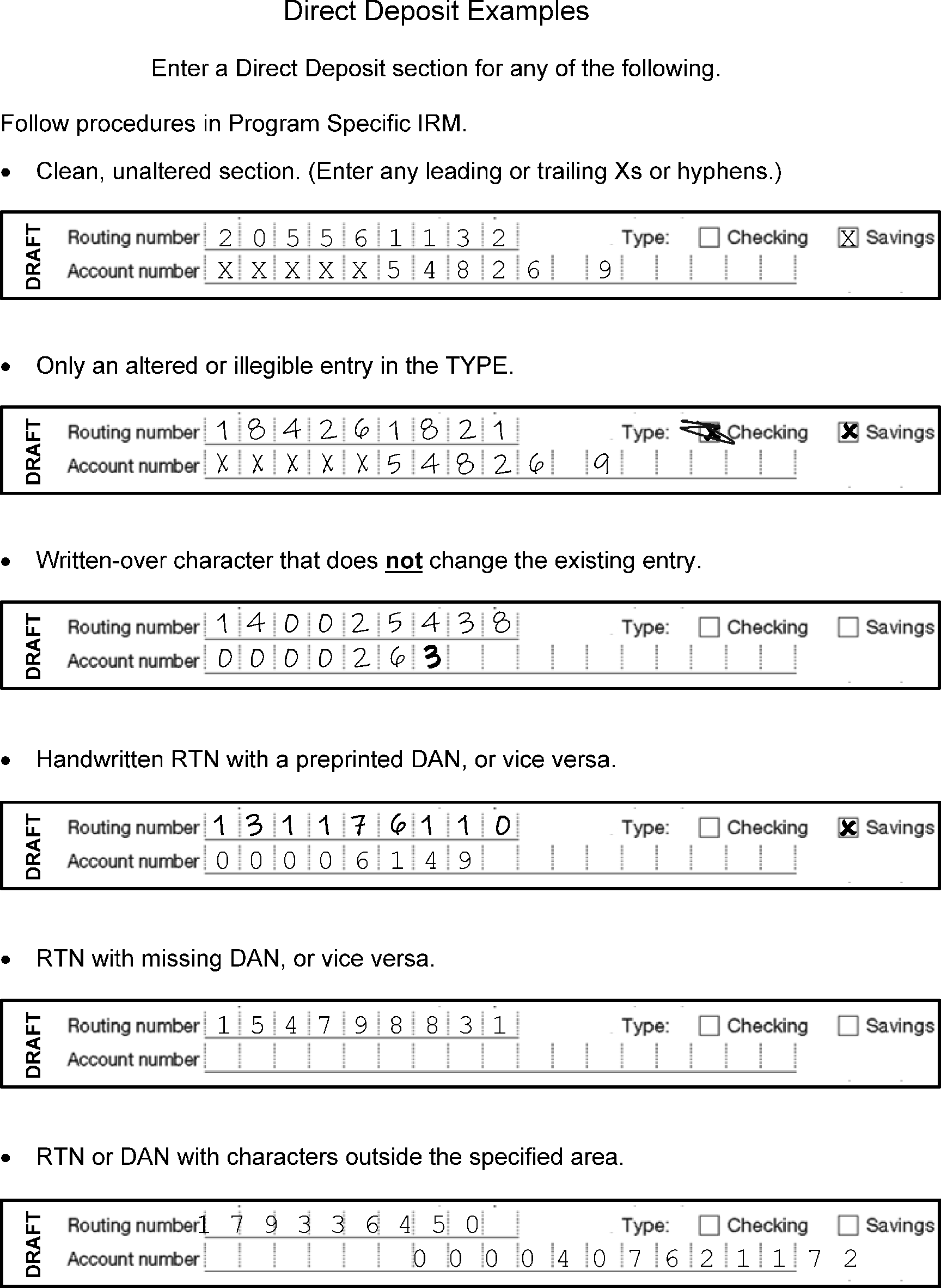
The following 6 boxes are examples of when the direct deposit information can be entered into the system. The first box is an example of clean unaltered Routing number and Account numbers from direct deposit fields on the BMF forms. Box 2 is an example with altered or illegible entry in the TYPE. Box 3 is an example with written-over characters that does not change the existing entry. Box 4 is an example with handwritten routing number with a preprinted Account Number. Box 5 is an example with a Routing number and no Account number. Box 6 is an example with Routing numbers or Account numbers with characters outside the specified area.
Please click here for the text description of the image.
Figure 3.24.38-6b
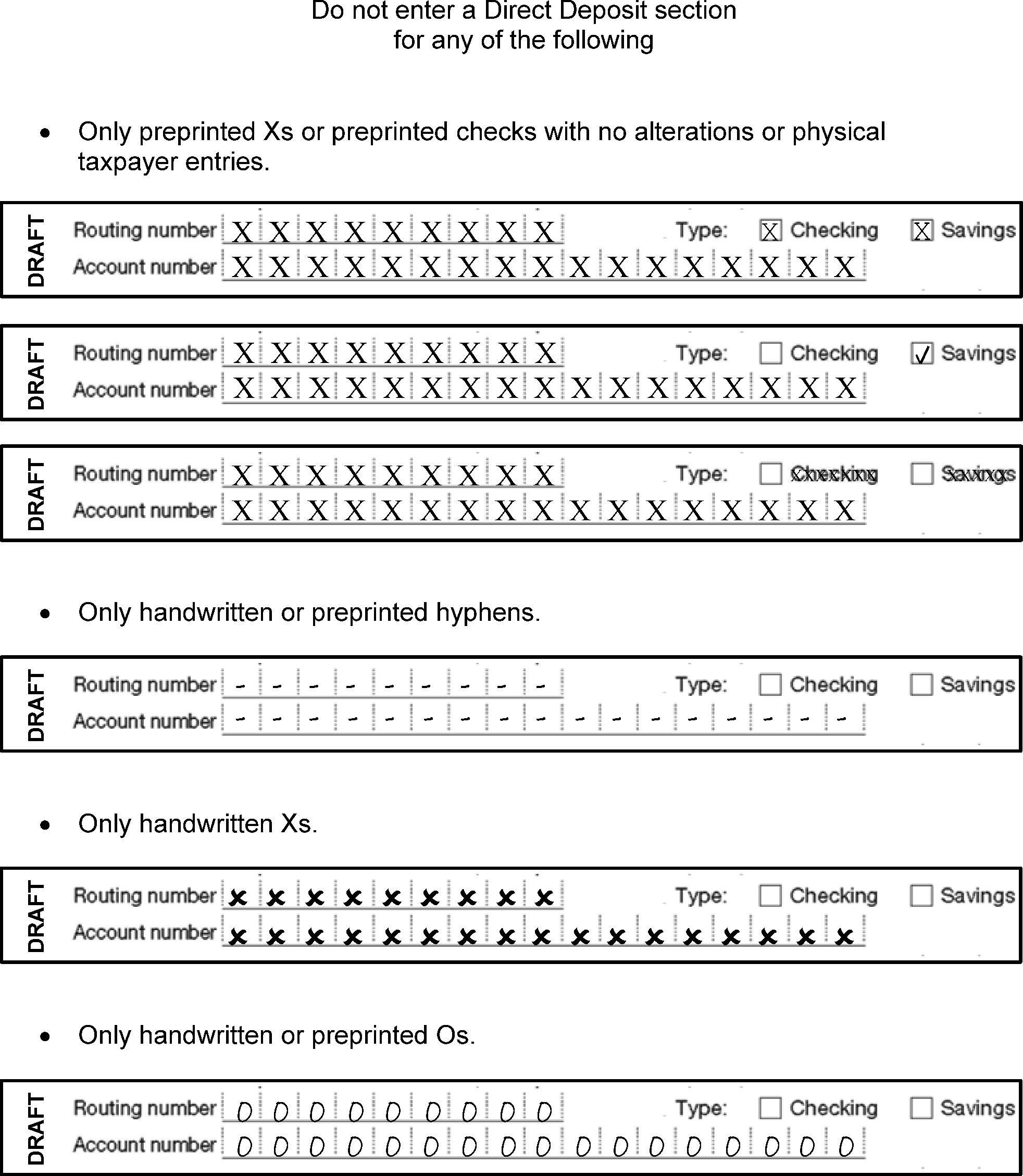
Examples of when the direct deposit information should not be entered into the system. The following 6 boxes are examples of entries where the Routing numbers and Account numbers are not to be entered. Box 1, 2, and 3 are examples where the Routing numbers and Account numbers are preprinted Xs. Box 4 is an example of handwritten or preprinted hyphens. Box 5 is an example of handwritten Xs. Box 6 is an example of handwritten or preprinted Os.
Please click here for the text description of the image.
Figure 3.24.38-6c
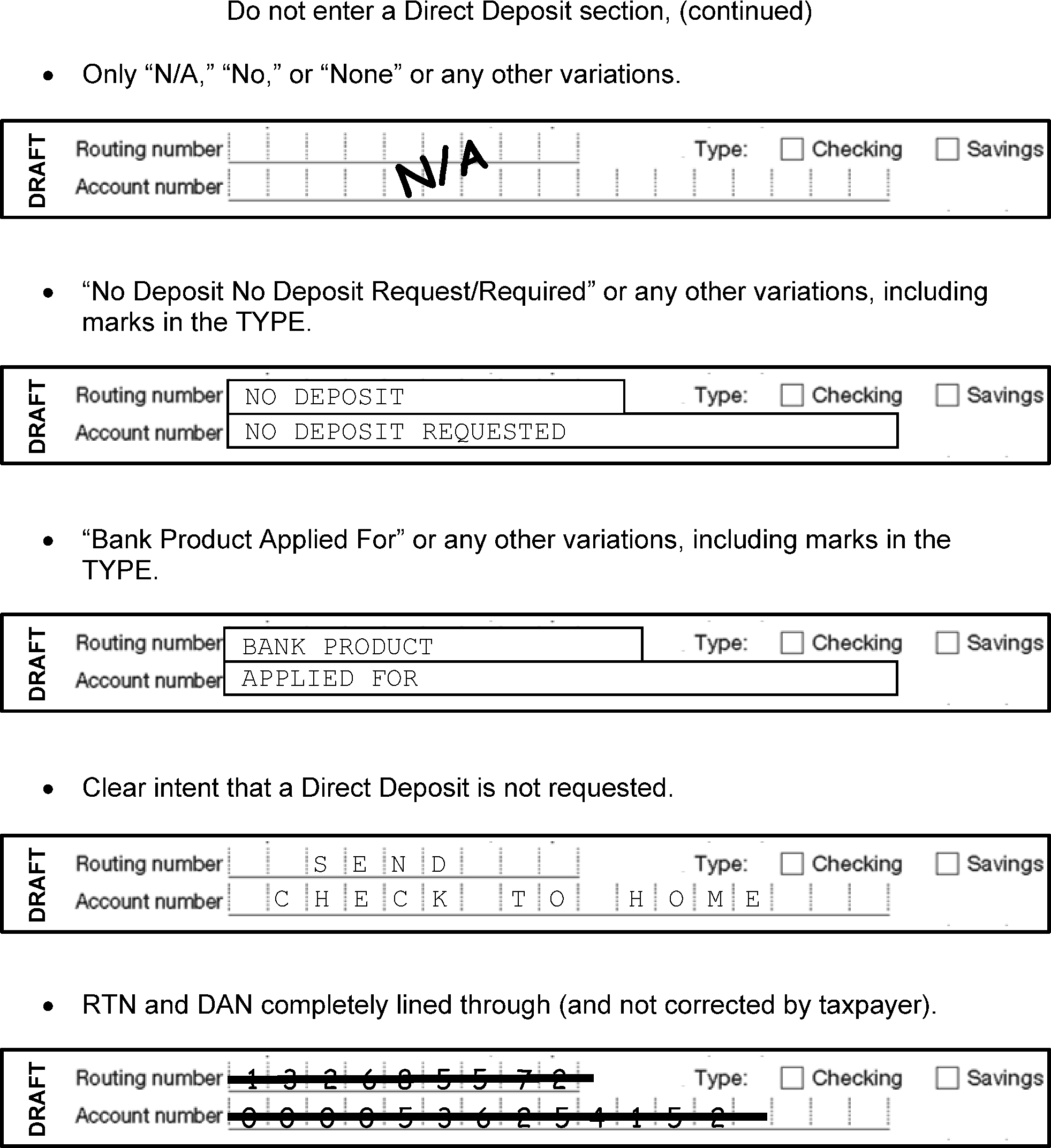
A continuation of examples when the direct deposit information should not be entered into the system. Box 1 is an example of Routing number or Account number is marked n/a. Box 2 is an example of No Deposit written in the Routing number or Account number. Box 3 is an example of bank product written in for the Routing number or Account number. Box 4 is an example of clear intent that a direct deposit is not requested and the Routing number or Account number states that the check is to be sent home. Box 5 is an example where the Routing number and the Account number is completely lined through.
Please click here for the text description of the image.
Figure 3.24.38-6d
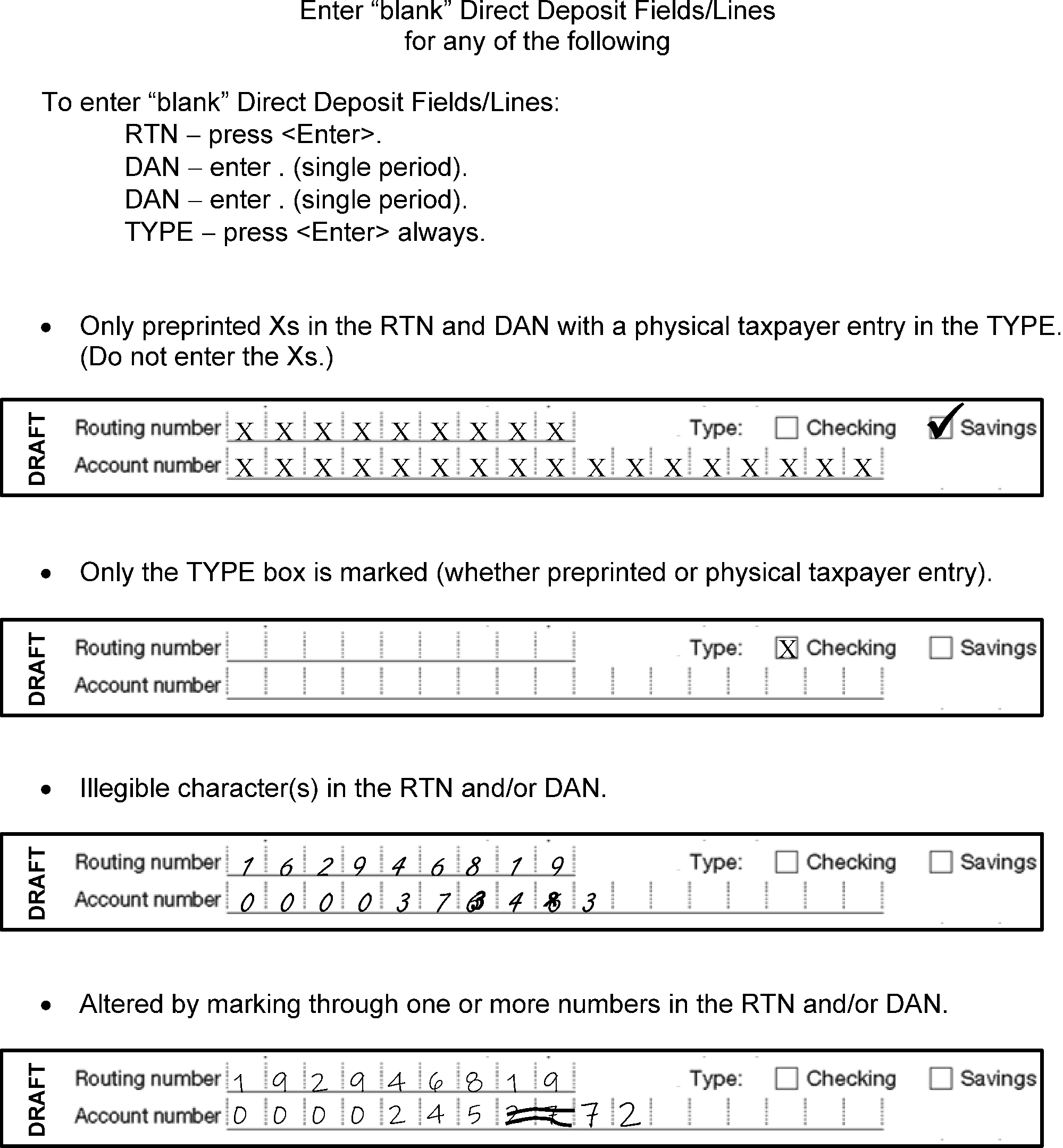
Examples of when the direct deposit fields/lines should be entered with no data to generate correspondence to the taxpayer. Box 1 is an example of preprinted Xs for the Routing number and Account number. Box 2 is an example of blank Routing number and Account number. Box 3 an example of illegible characters in the Routing number or Account number. Box 4 is an example of an altered Account number by marking through one or more of the numbers.
Please click here for the text description of the image.
Figure 3.24.38-6e
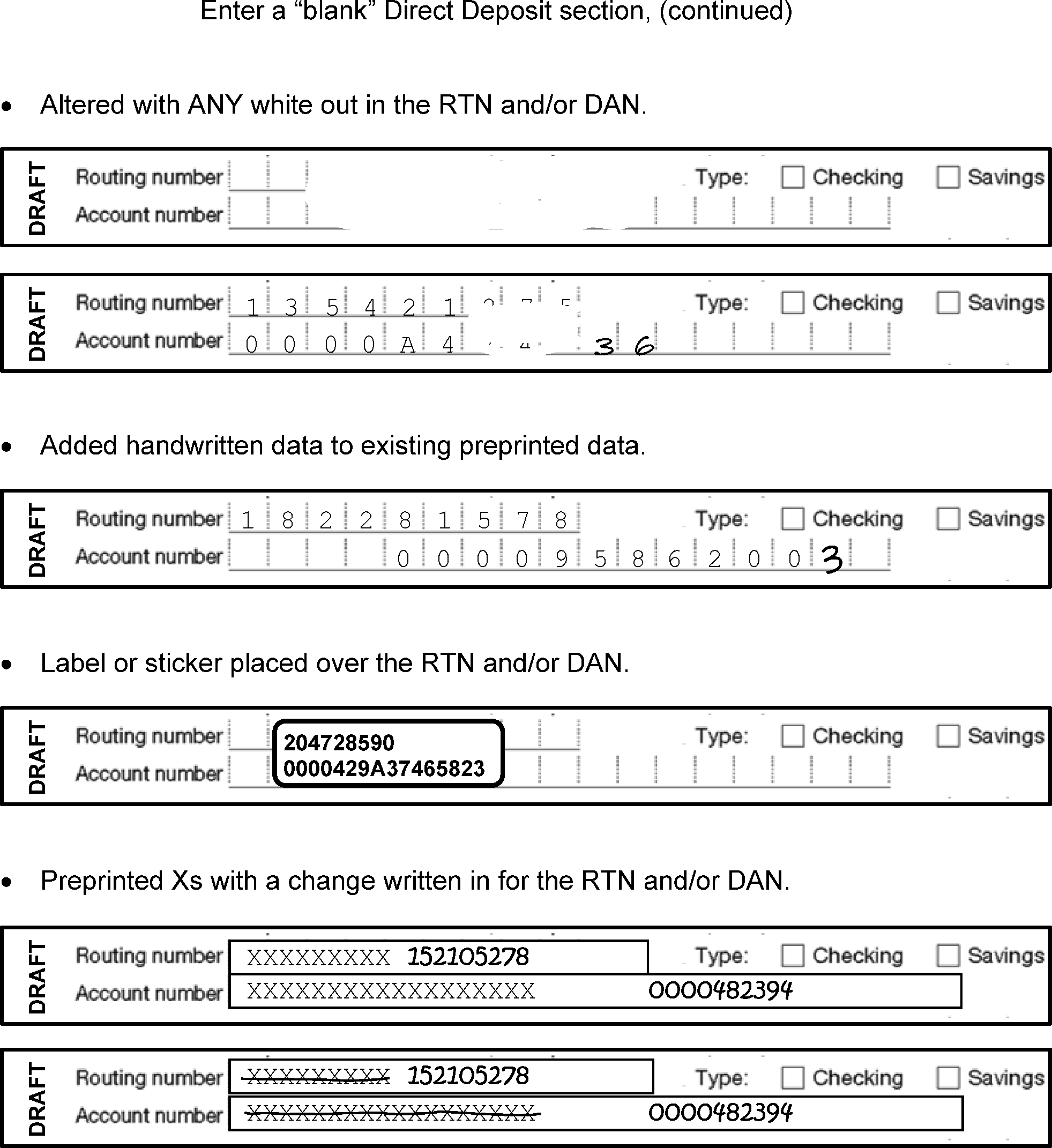
Additional examples of when the direct deposit fields/lines should be entered with no data to generate correspondence to the taxpayer. Box 1,2, and 3 are examples of Routing numbers and Accounts numbers with white out over all or part of the numbers. Box 4 is an example of the Routing number and Account number on a sticker placed over the fields. Box 5 and 6 are examples of preprinted Xs in the fields with a handwritten Routing number and Account number.
Please click here for the text description of the image.
Exhibit 3.24.38-1
Abbreviations and Acronyms
AbbreviationsAcronyms
-
ABC - Alphanumeric Block Control
-
BE - Block Edit
-
BMF - Business Master File
-
BOB - Block Out of Balance
-
CD - Check Digit
-
DLN - Document Locator Number
-
EB - End Block
-
ED - End Document
-
E-EIF - Enhanced Entity Index File
-
EIN - Employer Identification Number
-
EOP - Entry Operator
-
GLDS - Support Services (GSS)
-
IRM - Internal Revenue Manual
-
IRS - Internal Revenue Service
-
ISRP - Integrated Submission and Remittance Processing System
-
KV - Key Verification
-
KVT - Key Verification Training
-
MCC - Major City Code
-
NC - Name Control
-
NCOA - National Change of Address
-
OE - Original Entry
-
OET - Original Entry Training
-
OLG - On Line Grader
-
OPSTATS - Operator Statistics
-
PTIN - Preparer Tax Identification Number
-
QR - Quality Review Operator
-
RB - Reject Block
-
RPC - Return Processing Code
-
RRPS - Residual Remittance Processing System
-
SA - System Administrator
-
SB/SE - Small Business/Self-Employed
-
SOP - Supervisory Operator
-
SP - Submission Processing
-
SSN - Social Security Number
-
TIN - Taxpayer Identification Number
-
TRIDOC - Technical Research Information Document
-
TS - Taxpayer Services
-
VBDEA - Visual Basic Data Entry Application
Exhibit 3.24.38-2
Definitions
Definitions
-
Alphanumeric Block Control (ABC) — A three-character alpha-numeric code assigned to each block of input documents to track and control the movement of work through submission processing. It may be pre-printed, handwritten, or appear on a label in the upper left corner of the block header document, i.e., Form 1332 or Form 813, or in the box entitled "Block Control Number" .
-
Batch Number — A number assigned to one or more blocks of documents to aid in the control and tracking of documents during submission processing.
-
Block Out of Balance (BOB) — A condition existing in a given block of documents that creates an out-of-balance condition. Examples of BOB conditions are:
-
The sum of money amounts in each document does not match the block header total for the block.
-
The actual count of documents within the block is different than the count from the block header.
-
-
Calendar Year — Twelve (12) consecutive months ending December 31.
-
Check Digit — Two letters, A to Z (excluding E, G, and M), that are validated by the system against the TIN to make sure both are entered correctly.
-
Document Locator Number (DLN) — A fourteen (14) digit number assigned to each input document for control purposes.
-
Document-specific IRM — An IRM containing data entry instructions that are specific to the forms or documents covered by the IRM.
-
Edited Data — Colored pencil entries and alterations to existing entries by other IRS functional areas, such as Code and Edit, Entity, etc., on an input document. Examples include colored pencil circling, X-ing, underlining and changing of existing entries, and new entries.
-
Element — An item of data that is to be transcribed. Each element is identified on the ISRP Transcription Operation Sheets to indicate its location on the document and the sequence of transcription.
-
Enhanced Entity Index File (E-EIF) — A database containing entity information extracted from taxpayer account data on the Master File.
-
Entity — Taxpayer identifying information, such as name, address, Taxpayer Identification Number, Tax Period.
-
Entity Area — The area of an input document where the taxpayer's identifying information appears.
-
Field — The area on the input screen in which an item of data is transcribed.
-
Field Termination Keys — A key that is used to move to a subsequent field. The four keys are
-
indicates a positive field and moves the cursor to the next field
-
<-> (minus sign) indicates negative amounts and moves the cursor to the next field
-
/<*> indicates a positive field and moves the cursor to the next MUST ENTER field or to the next section.
-
-
Fiscal Year — Twelve (12) consecutive months ending on the last day of any month other than December.
-
Intermediate Entity — A condition in which the operator must enter all the taxpayer's address information because an entity check resulted in a match on the TIN/Name Control and a mismatch on the Address Key.
-
Long Entity — A condition in which the operator must enter all the taxpayer's address information because an entity check resulted in a mismatch on both the TIN/Name Control and the Address Key or no entity check was performed.
-
MUST ENTER Field — A field that requires an entry or a field that must be overridden if there is no entry.
-
Must Fill Field — A field in which all positions must be filled.
-
Must Verify Field — A field that must be key-verified because data was entered in OE.
-
Name Control — The first four characters of the taxpayer's name. The Name Control is used for validation purposes.
-
Negative Entry — An entry that is indicated as negative by the presence of brackets, parentheses or a minus sign.
-
Positive Entries — An entry that is indicated as positive by the absence of brackets, parentheses or a minus sign.
-
Prior Year — A tax return with a tax period other than the current tax period.
-
Prompt — A series of letters, numbers and/or special characters appearing on the screen display. The prompt indicates to the operator which item of data on the input document is to be transcribed.
-
Received date — The date a return or payment is received by the IRS at any office or Submission Processing site.
-
Re-Entry Blocks — A block containing documents that were incorrectly processed initially and must be re-entered in ISRP. A Re-entry block can be one of three types depending on how far along in processing the document(s) in the block was when the incorrect processing was identified:
-
A document that fell out during submission processing (for example, during Error Resolution) is called a "SC Reinput" and is identified with re-entry source code "4" .
-
A document that fell out during Master File processing as Unpostable is called a "Reinput of Unpostable Document" and is identified with re-entry source code "N" .
-
A document that has posted incorrectly to the Master File is called a "Reprocessable" and is identified with re-entry source code "R" .
-
-
Residual Remittance Processing System Identification Number (RPSID)— a number assigned to all remittances received by the service. The number contains the batch number, sequence number, and the date the remittance was processed.
-
Section — A series of fields that have been grouped together for processing purposes and assigned an identifying section number.
-
Serial Number — The 12th and 13th digits of the DLN that uniquely identify a document within a block.
-
Short Entity — Condition in which the operator does not enter the taxpayer's address.
-
Zero filled Field — A field in which the system generates leading zeros in front of the data entered in the field.
Exhibit 3.24.38-3
Major City Codes (MCC)
Major City Codes (MCC)
| STATE / TERRITORY | MCC |
|---|---|
| Washington, D.C. | DC |
| STATE / TERRITORY | |
| Alabama | |
| CITY | |
| Auburn | AF |
| Birmingham | BI |
| Florence | FC |
| Huntsville | HU |
| Mobile | MO |
| Montgomery | MG |
| Tuscaloosa | TB |
| STATE / TERRITORY | |
| Alaska | |
| CITY | |
| Anchorage | AN |
| Fairbanks | FK |
| STATE / TERRITORY | |
| Arizona | |
| CITY | |
| Chandler | YZ |
| Glendale | GE |
| Mesa | MZ |
| Peoria | PY |
| Phoenix | PX |
| Scottsdale | YS |
| Tempe | TE |
| Tucson | TU |
| STATE / TERRITORY | |
| Arkansas | |
| CITY | |
| Fayetteville | FB |
| Fort Smith | FS |
| Jonesboro | JB |
| Little Rock | LR |
| North Little Rock | NL |
| Pine Bluff | PB |
| STATE / TERRITORY | |
| California | |
| CITY | |
| Alhambra | YA |
| Anaheim | AH |
| Bakersfield | BD |
| Berkeley | BE |
| Chula Vista | DV |
| Fresno | FO |
| Glendale | GL |
| Huntington Beach | HB |
| Inglewood | ID |
| Irvine | IV |
| Long Beach | LB |
| Los Angeles | LA |
| Modesto | MC |
| North Hollywood | NW |
| Oakland | OA |
| Oceanside | OE |
| Oxnard | OX |
| Palo Alto | PQ |
| Pasadena | PD |
| Riverside | RS |
| Sacramento | SC |
| Salinas | YL |
| San Bernardino | SR |
| San Diego | SD |
| San Francisco | SF |
| San Jose | SJ |
| Santa Ana | SA |
| Santa Barbara | SZ |
| Stockton | SN |
| Torrance | TN |
| Van Nuys | VN |
| STATE / TERRITORY | |
| Colorado | |
| CITY | |
| Arvada | AV |
| Aurora | AZ |
| Boulder | BV |
| Colorado Springs | CS |
| Denver | DN |
| Greeley | GC |
| Lakewood | LW |
| Pueblo | PU |
| Westminster | WD |
| STATE / TERRITORY | |
| Connecticut | |
| CITY | |
| Bridgeport | BP |
| Hartford | HD |
| New Haven | NH |
| Stamford | ST |
| Waterbury | WT |
| STATE / TERRITORY | |
| Delaware | |
| CITY | |
| Wilmington | WI |
| STATE / TERRITORY | |
| Florida | |
| CITY | |
| Boca Raton | BZ |
| Bradenton | BG |
| Cape Coral | CF |
| Clearwater | CQ |
| Daytona Beach | DF |
| Fort Lauderdale | FL |
| Fort Pierce | FP |
| Gainesville | GF |
| Hialeah | HI |
| Hollywood | HW |
| Jacksonville | JV |
| Lakeland | LK |
| Melbourne | ML |
| Miami | MF |
| Orlando | OR |
| Pembroke Pines | PP |
| Pensacola | PE |
| Punta Gorda | PJ |
| St. Petersburg | SP |
| Sarasota | XS |
| Tallahassee | TL |
| Tampa | TA |
| Titusville | TT |
| West Palm Beach | WP |
| Winter Haven | WG |
| STATE / TERRITORY | |
| Georgia | |
| CITY | |
| Albany | AY |
| Atlanta | AT |
| Athens | AE |
| Augusta | AG |
| Columbus | CM |
| Macon | MA |
| Marietta | MT |
| Savannah | GS |
| STATE / TERRITORY | |
| Hawaii | |
| CITY | |
| Honolulu | HL |
| STATE / TERRITORY | |
| Idaho | |
| CITY | |
| Boise | BS |
| Pocatello | PC |
| STATE / TERRITORY | |
| Illinois | |
| CITY | |
| Aurora | AO |
| Champaign | CX |
| Chicago | CH |
| Decatur | DT |
| East Saint Louis | ES |
| Evanston | EN |
| Joliet | JT |
| Naperville | NP |
| Oak Park | OP |
| Peoria | PL |
| Rockford | RF |
| Springfield | XL |
| STATE / TERRITORY | |
| Indiana | |
| CITY | |
| Bloomington | BQ |
| Evansville | EV |
| Fort Wayne | FY |
| Gary | GY |
| Hammond | HM |
| Indianapolis | IN |
| Lafayette | LF |
| South Bend | SB |
| Terre Haute | TH |
| STATE / TERRITORY | |
| Iowa | |
| CITY | |
| Cedar Rapids | CR |
| Davenport | DP |
| Des Moines | DM |
| Dubuque | DQ |
| Sioux City | SX |
| Waterloo | WL |
| STATE / TERRITORY | |
| Kansas | |
| CITY | |
| Kansas City | KA |
| Overland Park | OV |
| Shawnee Mission | SM |
| Topeka | TP |
| Wichita | WK |
| STATE / TERRITORY | |
| Kentucky | |
| CITY | |
| Lexington | LX |
| Louisville | LE |
| Owensboro | OW |
| STATE / TERRITORY | |
| Louisiana | |
| CITY | |
| Baton Rouge | BR |
| Bossier City | BW |
| Lafayette | LL |
| Lake Charles | LC |
| Metairie | MI |
| Monroe | MB |
| New Orleans | NO |
| Shreveport | SH |
| STATE / TERRITORY | |
| Maine | |
| CITY | |
| Augusta | AA |
| Lewiston | LT |
| Portland | PT |
| STATE / TERRITORY | |
| Maryland | |
| CITY | |
| Baltimore | BA |
| Cumberland | CK |
| Gaithersburg | GG |
| Silver Spring | SS |
| STATE / TERRITORY | |
| Massachusetts | |
| CITY | |
| Boston | BO |
| Cambridge | CB |
| Fall River | FR |
| Lawrence | LQ |
| Lowell | LM |
| Lynn | LY |
| New Bedford | ND |
| Newton | NE |
| Quincy | QU |
| Somerville | SV |
| Springfield | XA |
| Worcester | WE |
| STATE / TERRITORY | |
| Michigan | |
| CITY | |
| Ann Arbor | AP |
| Battle Creek | QK |
| Dearborn | DB |
| Detroit | DE |
| East Lansing | ET |
| Flint | FT |
| Grand Rapids | GR |
| Kalamazoo | KZ |
| Lansing | LG |
| Muskegon | MK |
| Saginaw | SG |
| Sterling Heights | YH |
| Warren | WR |
| STATE / TERRITORY | |
| Minnesota | |
| CITY | |
| Bloomington | BN |
| Duluth | DL |
| Minneapolis | MS |
| St. Paul | SU |
| STATE / TERRITORY | |
| Mississippi | |
| CITY | |
| Biloxi | BL |
| Greenwood | GW |
| Hattiesburg | HT |
| Jackson | JN |
| Meridian | MD |
| STATE / TERRITORY | |
| Missouri | |
| CITY | |
| Independence | IE |
| Kansas City | KC |
| Springfield | XO |
| St. Joseph | XM |
| St. Louis | SL |
| STATE / TERRITORY | |
| Montana | |
| CITY | |
| Billings | IB |
| Great Falls | GT |
| Helena | HE |
| Missoula | MM |
| STATE / TERRITORY | |
| Nebraska | |
| CITY | |
| Lincoln | LN |
| Omaha | OM |
| STATE / TERRITORY | |
| Nevada | |
| CITY | |
| Henderson | HF |
| Las Vegas | LV |
| North Las Vegas | NT |
| Reno | RE |
| STATE / TERRITORY | |
| New Hampshire | |
| CITY | |
| Manchester | MR |
| Nashua | NS |
| Portsmouth | PS |
| STATE / TERRITORY | |
| New Jersey | |
| CITY | |
| Atlantic City | AC |
| Camden | CD |
| East Orange | EO |
| Elizabeth | EL |
| Hackensack | HS |
| Jersey City | JC |
| New Brunswick | NB |
| Newark | NK |
| Paterson | PN |
| Trenton | TR |
| STATE / TERRITORY | |
| New Mexico | |
| CITY | |
| Albuquerque | AQ |
| Las Cruces | LZ |
| Santa Fe | YF |
| STATE / TERRITORY | |
| New York | |
| CITY | |
| Albany | AL |
| Binghamton | BC |
| Bronx | BX |
| Brooklyn | BK |
| Buffalo | BF |
| Far Rockaway | RK |
| Flushing | FG |
| Jamaica | JA |
| Jamestown | JM |
| Long Island City | LI |
| New York | NY |
| Niagara Falls | NF |
| Rochester | RC |
| Schenectady | SK |
| Staten Island | SI |
| Syracuse | SY |
| Utica | UT |
| White Plains | WJ |
| Yonkers | YK |
| STATE / TERRITORY | |
| North Carolina | |
| CITY | |
| Asheville | AS |
| Chapel Hill | CJ |
| Charlotte | CE |
| Durham | DU |
| Fayetteville | FN |
| Gastonia | GN |
| Greensboro | GO |
| High Point | HC |
| Raleigh | RL |
| Wilmington | WN |
| Winston-Salem | WS |
| STATE / TERRITORY | |
| North Dakota | |
| CITY | |
| Bismarck | BB |
| Fargo | FA |
| STATE / TERRITORY | |
| Ohio | |
| CITY | |
| Akron | AK |
| Canton | CA |
| Cincinnati | CN |
| Cleveland | CL |
| Columbus | CO |
| Dayton | DY |
| Hamilton | HA |
| Lorain | LO |
| Parma | PZ |
| Springfield | XH |
| Toledo | TO |
| Warren | WO |
| Youngstown | YO |
| STATE / TERRITORY | |
| Oklahoma | |
| CITY | |
| Norman | NR |
| Oklahoma City | OC |
| Tulsa | TS |
| STATE / TERRITORY | |
| Oregon | |
| CITY | |
| Eugene | EU |
| Portland | PO |
| Salem | XR |
| STATE / TERRITORY | |
| Pennsylvania | |
| CITY | |
| Allentown | AW |
| Bethlehem | BM |
| Easton | EA |
| Erie | ER |
| Harrisburg | HG |
| Johnstown | JO |
| Lancaster | LP |
| Philadelphia | PH |
| Pittsburgh | PI |
| Reading | RD |
| Scranton | XC |
| Wilkes-Barre | WB |
| Williamsport | WM |
| York | YR |
| STATE / TERRITORY | |
| Rhode Island | |
| CITY | |
| Cranston | RT |
| Providence | PR |
| Warwick | WW |
| STATE / TERRITORY | |
| South Carolina | |
| CITY | |
| Anderson | AJ |
| Charleston | CT |
| Columbia | CU |
| Florence | FE |
| Greenville | GV |
| North Charleston | NC |
| Rock Hill | RH |
| Spartanburg | SQ |
| STATE / TERRITORY | |
| South Dakota | |
| CITY | |
| Aberdeen | AD |
| Sioux Falls | IQ |
| STATE / TERRITORY | |
| Tennessee | |
| CITY | |
| Chattanooga | CG |
| Clarkesville | YN |
| Johnson City | JH |
| Kingsport | KP |
| Knoxville | KN |
| Memphis | ME |
| Nashville | NA |
| STATE / TERRITORY | |
| Texas | |
| CITY | |
| Abilene | AB |
| Amarillo | AM |
| Arlington | IA |
| Austin | AU |
| Brownsville | BJ |
| Beaumont | BT |
| Corpus Christi | CC |
| Dallas | DA |
| El Paso | EP |
| Fort Worth | FW |
| Galveston | GA |
| Garland | GD |
| Harlingen | HR |
| Houston | HO |
| Irving | IR |
| Laredo | LD |
| Lubbock | LU |
| Plano | PF |
| Port Arthur | PA |
| San Antonio | SO |
| Waco | WX |
| Wichita Falls | WF |
| STATE / TERRITORY | |
| Utah | |
| CITY | |
| Ogden | OG |
| Provo | PV |
| Salt Lake City | XU |
| West Valley City | WC |
| STATE / TERRITORY | |
| Vermont | |
| CITY | |
| Burlington | BU |
| STATE / TERRITORY | |
| Virginia | |
| CITY | |
| Alexandria | AX |
| Arlington | AR |
| Charlottesville | CV |
| Chesapeake | CP |
| Hampton | HP |
| Newport News | NN |
| Norfolk | NV |
| Petersburg | PG |
| Portsmouth | PM |
| Richmond | RI |
| Roanoke | RO |
| Virginia Beach | VB |
| STATE / TERRITORY | |
| Washington | |
| CITY | |
| Bellingham | BH |
| Bremerton | BY |
| Kennewick | KW |
| Olympia | OL |
| Seattle | SE |
| Spokane | SW |
| Tacoma | TC |
| Vancouver | VA |
| STATE / TERRITORY | |
| West Virginia | |
| CITY | |
| Charleston | CW |
| Huntington | HN |
| Parkersburg | PK |
| Wheeling | WH |
| STATE / TERRITORY | |
| Wisconsin | |
| CITY | |
| Green Bay | GB |
| Janesville | JE |
| Kenosha | KE |
| Madison | MN |
| Milwaukee | MW |
| Oshkosh | OK |
| Racine | RA |
| Sheboygan | XB |
| West Allis | WA |
| STATE / TERRITORY | |
| Wyoming | |
| CITY | |
| Casper | CZ |
| Cheyenne | CY |
Exhibit 3.24.38-4
Major City Codes (MCCs) for which City/State Generation Fails - Use MCC
Major City Codes (MCC) for which City/State Generation Fails - Use MCC
| STATE | CITY | MCC |
|---|---|---|
| Puerto Rico | San Juan | XJ |
| Alabama | Montgomery | MG |
| Florida | Hialeah | HI |
| Jacksonville | JV | |
| Georgia | Atlanta | AT |
| Columbus | CM | |
| Hawaii | Honolulu | HL |
| Massachusetts | Newton | NE |
| New York | New York | NY |
| Schenectady | SK | |
| Syracuse | SY | |
| North Carolina | Winston-Salem | WS |
| Ohio | Akron | AK |
| Pennsylvania | Philadelphia | PH |
| Pittsburgh | PI | |
| South Carolina | Charleston | CT |
| Tennessee | Kingsport | KP |
| Memphis | ME | |
| Nashville | NA | |
| Virginia | Charlottesville | CV |
| Wisconsin | West Allis | WA |
Exhibit 3.24.38-5
Foreign Country Codes (FCC)
Foreign Country Codes (FCC)
| FOREIGN COUNTRY CODE | COUNTRY |
|---|---|
| AA | Aruba |
| AC | Antigua, Barbuda |
| AE | Abu Dubai, United Arab Emirates |
| AF | Afghanistan |
| AG | Algeria |
| AJ | Azerbaijan |
| AL | Albania |
| AM | Armenia |
| AN | Andorra |
| AO | Angola |
| AR | Argentina |
| AS | Australia |
| AT | Ashmore Island, Cartier Island |
| AU | Austria |
| AV | Anguilla |
| AX | Akrotiri Sovereign Base Area |
| AY | Antarctica |
| BA | Bahrain |
| BB | Barbados |
| BC | Botswana |
| BD | Bermuda |
| BE | Belgium |
| BF | Bahamas, The |
| BG | Bangladesh |
| BH | Belize |
| BK | Bosnia-Herzegovina |
| BL | Bolivia |
| BM | Burma |
| BN | Benin (Dahoney) |
| BO | Belarus |
| BP | Solomon Islands |
| BQ | Navassa Island |
| BR | Brazil |
| BS | Bassas da India |
| BT | Bhutan |
| BU | Bulgaria |
| BV | Bouvet Island |
| BX | Brunei |
| BY | Burundi |
| CA | Canada |
| CB | Cambodia (Kampuchea) |
| CD | Chad |
| CE | Sri Lanka |
| CF | Republic of Congo (Brazzaville) |
| CG | Democratic Republic of Congo (Kinshasa) |
| CH | China, Peoples Republic of China (including, Inner Mongolia, Tibet and Manchuria) |
| CI | Chile |
| CJ | Cayman Islands |
| CK | Cocos (Keeling) Island |
| CM | Cameroon |
| CN | Comoros |
| CO | Columbia |
| CR | Coral Sea Islands Territory |
| CS | Costa Rica |
| CT | Central African Republic |
| CU | Cuba |
| CV | Cape Verde |
| CW | Cook Islands |
| CY | Cyprus |
| DA | Denmark |
| DJ | Djibouti |
| DO | Dominica |
| DQ | Jarvis Island |
| DR | Dominican Republic |
| DX | Dhekelia Sovereign Base Area |
| EC | Ecuador |
| EG | Egypt |
| EI | Ireland |
| EK | Equatorial Guinea |
| EN | Estonia |
| ER | Eritrea |
| ES | El Salvador |
| ET | Ethiopia |
| EU | Europa Island |
| EZ | Czech Republic |
| FG | French Guiana |
| FI | Finland |
| FJ | Fiji |
| FK | Falkland Islands |
| FO | Faroe Islands |
| FP | French Polynesia (Tahiti) |
| FQ | Baker Island |
| FR | France, Corsica |
| FS | French Southern and Antarctic Lands |
| GA | Gambia |
| GB | Gabon |
| GG | Georgia |
| GH | Ghana |
| GI | Gibraltar |
| GJ | Grenada |
| GK | Guernsey |
| GL | Greenland |
| GM | Germany |
| GO | Glorioso Islands |
| GP | Guadeloupe |
| GR | Greece |
| GT | Guatemala |
| GV | Guinea |
| GY | Guyana |
| GZ | Gaza Strip |
| HA | Haiti |
| HK | Hong Kong |
| HM | Heard Island and McDonald Island |
| HO | Honduras |
| HQ | Howland Island |
| HR | Croatia |
| HU | Hungary |
| IC | Iceland |
| ID | Indonesia (including Bali, Belitung, Flores, Java, Moluccas, Sumatra, Timor) |
| IM | Isle of Man |
| IN | India |
| IO | British Indian Ocean Territory |
| IP | Clipperton Islands |
| IR | Iran |
| IS | Israel |
| IT | Italy |
| IV | Cote d'Ivoire (Ivory Coast) |
| IZ | Iraq |
| JA | Japan |
| JE | Jersey |
| JM | Jamaica |
| JN | Jan Mayen |
| JO | Jordan |
| JQ | Johnston Atoll |
| JU | Juan de Nova Island |
| KE | Kenya |
| KG | Kyrgyzstan |
| KN | Korea (North) |
| KQ | Kingman Reef |
| KR | Kiribati |
| KS | Korea (South) |
| KT | Christmas Island |
| KU | Kuwait |
| KZ | Kazakhstan |
| LA | Laos |
| LE | Lebanon |
| LG | Latvia |
| LH | Lithuania |
| LI | Liberia |
| LO | Slovakia |
| LQ | Palmyra Atoll |
| LS | Liechtenstein |
| LT | Lesotho |
| LU | Luxembourg |
| LY | Libya |
| MA | Madagascar |
| MB | Martinique |
| MC | Macau |
| MD | Moldova |
| MF | Mayotte |
| MG | Mongolia |
| MH | Montserrat |
| MI | Malawi |
| MJ | Montenegro |
| MK | Macedonia |
| ML | Mali |
| MN | Monaco |
| MO | Morocco |
| MP | Mauritius |
| MQ | Midway Islands |
| MR | Mauritania |
| MT | Malta |
| MU | Oman |
| MV | Maldives |
| MX | Mexico |
| MY | Malaysia |
| MZ | Mozambique |
| NC | New Caledonia |
| NE | Niue |
| NF | Norfolk Island |
| NG | Niger |
| NH | Vanuatu |
| NI | Nigeria |
| NL | Netherlands |
| NO | Norway |
| NP | Nepal |
| NR | Nauru |
| NS | Suriname |
| NT | Netherlands Antilles, Bonaire, Curacao |
| NU | Nicaragua |
| NZ | New Zealand |
| PA | Paraguay |
| PC | Pitcairn Island |
| PE | Peru |
| PF | Paracel Islands |
| PG | Spratly Islands |
| PK | Pakistan |
| PL | Poland |
| PM | Panama |
| PO | Portugal |
| PP | Papua New Guinea |
| PU | Guinea-Bissau |
| QA | Qatar (Katar) |
| RB | Serbia |
| RE | Reunion |
| RO | Romania |
| RP | Philippines |
| RS | Russia |
| RW | Rwanda |
| SA | Saudi Arabia |
| SB | St. Pierre and St. Miquelon |
| SC | St. Kitts, Nevis |
| SE | Seychelles |
| SF | South Africa |
| SG | Senegal |
| SH | St. Helena (Ascension Island and Tristan de Cunha Island Group) |
| SI | Slovenia |
| SL | Sierra Leone |
| SM | San Marino |
| SN | Singapore, Republic of Singapore |
| SO | Somalia |
| SP | Spain |
| ST | St. Lucia |
| SU | Sudan |
| SV | Svalbard |
| SW | Sweden |
| SX | South Georgia Island and the South Sandwich Island |
| SY | Syria |
| SZ | Switzerland |
| TD | Trinidad and Tobago |
| TE | Tromelin Island |
| TH | Thailand |
| TI | Tajikistan |
| TK | Turks and Caicos Islands |
| TL | Tokelau |
| TN | Tonga |
| TO | Togo |
| TP | Sao Tome and Principe |
| TS | Tunisia |
| TT | Timor-Leste |
| TU | Turkey |
| TV | Tuvalu |
| TW | Taiwan |
| TX | Turkmenistan |
| TZ | Tanzania |
| UG | Uganda |
| UK | Great Britain, United Kingdom |
| UP | Ukraine |
| UV | Burkina Faso (Upper Volta) |
| UY | Uruguay |
| UZ | Uzbekistan |
| VC | St. Vincent and The Grenadines (Northern Grenadines) and Windward Island |
| VE | Venezuela |
| VI | Redonda, Tortola and British Virgin Islands |
| VM | Vietnam |
| VT | Vatican City, Holy See |
| WA | Namibia |
| WE | West Bank |
| WF | Wallis and Futuna |
| WI | Western Sahara |
| WQ | Wake Island |
| WS | Western Samoa |
| WZ | Swaziland |
| XA | Ascension |
| XC | Channel Islands |
| XE | England |
| XM | Myanmar |
| XN | Northern Ireland |
| XI | Aland Island |
| XR | Slovak Republic |
| XS | Scotland |
| XT | Tristan Da Cunha |
| XW | Wales |
| XY | Canary Islands |
| XX | Other (Country not listed elsewhere) |
| XZ | Azores |
| YI | Yugoslavia |
| YM | Yemen |
| ZA | Zambia |
| ZI | Zimbabwe |
Exhibit 3.24.38-6
BMF ISRP IRMs, Program Numbers and Block Header Validity Checks
IRM 3.24.13 - Employment Tax Returns
| FORM(S) | PROGRAM | TAX CLASS DOC. CODE | PRP |
|---|---|---|---|
| Form 941, 2021 2nd Qtr Revision | 11200 | 141 | 42 |
| Form 941, 2022 1st Qtr Revision | 11202 | 141 | 42 |
| Form 941, 2022 2nd Qtr through 2023 4th Qtr | 11204 | 141 | 42 |
| Form 941, 2014 through 2016 Revisions | 11209 | 141 | 42 |
| Form 941, * 2024 and 2025 Revisions * 2017 through 2020 1st Qtr Revisions * 2013 and Prior Revisions | 11210 | 141 | 42 |
| Form 941, 2020 2nd Qtr Revision | 11211 | 141 | 42 |
| Form 941, 2020 3rd Qtr Revision | 11212 | 141 | 42 |
| Form 941, 2021 1st Qtr Revision | 11213 | 141 | 42 |
| Form 941 / Form 941 (sp), 2026 and Later Revisions | 11214 | 141 | 42 |
| Form 941(PR), Form 941-SS, 2021 2nd Qtr Revision | 11201 | 141 | 42 |
| Form 941(PR), Form 941-SS, 2022 1st Qtr Revision | 11203 | 141 | 42 |
| Form 941(PR), Form 941-SS, 2022 2nd Qtr through 2023 4th Qtr | 11207 | 141 | 42 |
| Form 941(PR), Form 941-SS, 2014 through 2016 Revisions | 11219 | 141 | 42 |
| Form 941(PR), * 2024 and 2025 Revisions * 2017 through 2020 1st Qtr Revisions * 2013 and Prior Revisions Form 941-SS, 2017 through 2020 1st Qtr Revisions and 2013 and Prior Revisions | 11220 | 141 | 42 |
| Form 941(PR),Form 941-SS, 2020 2nd Qtr Revision | 11221 | 141 | 42 |
| Form 941(PR),Form 941-SS, 2020 3rd Qtr Revision | 11222 | 141 | 42 |
| Form 941(PR), Form 941-SS, 2021 1st Qtr Revision | 11223 | 141 | 42 |
| Form 945, 2025 and Later Revisions | 11250 | 144 | 40 |
| Form 945 2024 and Prior Revisions | 11260 | 144 | 40 |
| Form CT-1, * 2024 Revision * 2019 and Prior Revisions | 11300 | 711 | 45 |
| Form CT-1, 2020 Revision | 11301 | 711 | 45 |
| Form CT-1, 2021 Revisions | 11302 | 711 | 45 |
| Form CT-1, 2022 Revision | 11303 | 711 | 45 |
| Form CT-1, 2023 Revision | 11304 | 711 | 45 |
| Form CT-1, 2025 and Later Revisions | 11305 | 711 | 45 |
| Form 943, 2021 Revision | 11600 | 143 | 44 |
| Form 943, 2022 Revision | 11602 | 143 | 44 |
| Form 943, 2023 Revision | 11604 | 143 | 44 |
| Form 943 / Form 943 (sp), 2025 and Later Revisions | 11605 | 143 | 44 |
| Form 943, * 2024 Revision * 2017 through 2019 Revisions * 2013 and Prior Revisions | 11608 | 143 | 44 |
| Form 943, 2020 Revision | 11609 | 143 | 44 |
| Form 943, 2014 through 2016 Revisions | 11611 | 143 | 44 |
| Form 943(PR), 2021 Revision | 11601 | 143 | 44 |
| Form 943(PR), 2022 Revision | 11603 | 143 | 44 |
| Form 943(PR), 2023 Revision | 11605 | 143 | 44 |
| Form 943(PR), 2014 through 2016 Revisions | 11616 | 143 | 44 |
| Form 943(PR), * 2024 Revision * 2017 through 2019 Revisions * 2013 and Prior Revisions | 11617 | 143 | 44 |
| Form 943(PR), 2020 Revision | 11618 | 143 | 44 |
| Form 944 , 944(SP), 2021 Revision | 11650 | 149 | 43 |
| Form 944 , 944(SP), 2022 Revision | 11651 | 149 | 43 |
| Form 944 , 944(SP), 2023 Revision | 11652 | 149 | 43 |
| Form 944 , 944(SP), 2025 and Later Revisions | 11653 | 149 | 43 |
| Form 944, Form 944(SP), 2014 through 2016 Revisions | 11660 | 149 | 43 |
| Form 944, Form 944(SP), * 2024 Revision * 2017 through 2019 Revisions * 2013 and Prior Revisions | 11661 | 149 | 43 |
| Form 944, Form 944(SP), 2020 Revision | 11662 | 149 | 43 |
| Form 944 , 944(SP), 2021 Revision | 11650 | 149 | 43 |
| Form 944, 944(SP), 2022 Revision | 11651 | 149 | 43 |
IRM 3.24.14 - Fiduciary Income Tax Returns
| Form(s) | PROGRAM | TAX CLASS DOC. CODE | PRP |
|---|---|---|---|
| Form 1041 (TY 2020 and Prior) | 11900 | 244, 236 | 47 |
| Form 1041 (TY 2021 and 2022) | 11901 | 244, 236 | 47 |
| Form 1041 (TY 2023 and Later) | 11902 | 244, 236 | 47 |
| Form 1041-N (Ogden only) | 11910 | 239 | 47 |
| Form 1041 QFT | 11910 | 239 | 47 |
IRM 3.24.15 - Partnership Income Tax Returns
| Form(s) | PROGRAM | TAX CLASS DOC. CODE | PRP |
|---|---|---|---|
| Form 1065 | 12200 | 265, 267 | 48 |
| Form 1065-B (TY 2017 and Prior) | 12220 | 268 | 48 |
IRM 3.24.16 - Corporate Income Tax Returns
| Form(s) | PROGRAM | TAX CLASS DOC. CODE | PRP |
|---|---|---|---|
| Form 1120(TY 2022 and Prior) | 11500 | 310, 311 | 50 |
| Form 1120(TY 2023 and Later) | 11504 | 310, 311 | 50 |
| Form 1120–C (TY 2022 and Prior) | 11540 | 303 | 54 |
| Form 1120–C (TY 2023 and Later) | 11541 | 303 | 54 |
| Form 1120-F | 11502 | 366, 367 | 51 |
| Form 1120-FSC | 11506 | 307 | 51 |
| Form 1120-H | 11501 | 371 | 50 |
| Form 1120-L | 11503 | 311 | 51 |
| Form 1120-ND | 11505 | 308 | 51 |
| Form 1120-PC (TY 2022 and Prior) | 11511 | 313 | 51 |
| Form 1120-PC (TY 2023 and Later) | 11512 | 313 | 51 |
| Form 1120-REIT (TY 2022 and Prior) | 11508 | 312 | 50 |
| Form 1120-REIT (TY 2023 and Later) | 11510 | 312 | 50 |
| Form 1120-RIC (TY 2022 and Prior) | 11509 | 305 | 50 |
| Form 1120-RIC (TY 2023 and Later) | 11513 | 305 | 50 |
| Form 1120-S | 12100 | 316 | 51 |
| Form 1120-SF | 11507 | 306 | 51 |
IRM 3.24.23 - Excise Tax Returns
| Form(s) | PROGRAM | TAX CLASS DOC. CODE | PRP |
|---|---|---|---|
| Form 11-C | 12701 | 403 | 55 |
| Form 720 | 11800 | 420 | 46 |
| IRM 730 | 12702 | 413 | 58 |
| Form 2290, Form 2290 (sp) | 12300 | 495 | 52 |
IRM 3.24.25 - BMF International Miscellaneous Tax Returns (OSPC ONLY)
| Form(s) | PROGRAM | TAX CLASS DOC. CODE | PRP |
|---|---|---|---|
| Form 3520 | 12310 | 383 | 87 |
| Form 3520-A | 12320 | 382 | 89 |
| Form 8288 | 11330 | 140 | 88 |
| Form 8804 | 11340 | 129 | 20 |
IRM 3.24.106 - Estate Tax Returns
| Form(s) | PROGRAM | TAX CLASS DOC. CODE | PRP |
|---|---|---|---|
| Form 706 | 12400 | 506 | 56 |
| Form 706-GS(D) | 12403 | 559 | 21 |
| Form 706-GS(T) | 12404 | 529 | 21 |
| Form 706-NA | 12402 | 505 | 56 |
IRM 3.24.143 - Gift Tax Returns
| Form(s) | PROGRAM | TAX CLASS DOC. CODE | PRP |
|---|---|---|---|
| Form 709 | 12410 | 509 | 57 |
| Form 709 NA, Non Refund | 12412 | 509 | 57 |
| Form 709 NA, Refund | 12413 | 508 | 57 |
IRM 3.24.154 - Unemployment Tax Returns
| Form(s) | PROGRAM | TAX CLASS DOC. CODE | PRP |
|---|---|---|---|
| Form 940, Form 940(PR), Form 940 (sp), 2024 and Prior | 11100 | 839, 840 | 41 |
| Form 940, Form 940 (sp), 2025 and Later | 11101 | 839, 840 | 41 |
IRM 3.24.213 - Real Estate Mortgage Investments Conduit Returns
| Form(s) | PROGRAM | TAX CLASS DOC. CODE | PRP |
|---|---|---|---|
| Form 1066 | 12201 | 360 | 53 |
IRM 3.24.249 - Fiscal Year Required Payments
| Form(s) | PROGRAM | TAX CLASS DOC. CODE | PRP |
|---|---|---|---|
| Form 8752 | 19000 | 223 | 11 |
IRM 3.37.110 - Chapter 3 Withholding Returns (OSPC ONLY)
| Form(s) | PROGRAM | TAX CLASS DOC. CODE | PRP |
|---|---|---|---|
| Form 1042 | 12500 | 125 | 26 |
| Form 1042-S | 71720 | 502 | 26 |
| Form 1042-T | 71700 | 501 | 26 |
Exhibit 3.24.38-7
Other ISRP IRMs, Program Numbers and Block Header Validity Checks
Note:
For all 155xx and 455xx programs, Doc. Code 45 and Trans. Code 720 are valid.
IRM 3.24.3 - Individual Tax Returns
| Form(s) | PROGRAM | TAX CLASS DOC. CODE | FORMAT CODE | PRP |
|---|---|---|---|---|
| Form 1040 | 43110 43112 (1040 Prior Year) 43114 43116 43130 43170 43172 (ITIN Prior Year) 43210 43270 43810 (1040SP) 43812(1040SP Prior Year) 43820 (1040SP FP) 46120 46129 46140 13142 46145 46160 46180 46280 46121 46221 | 205, 206, 211, 212, 221, 222 | 31 | |
| Form 1040-SR | 43120 (OTFP) 43122 (OTFP Prior Year) 43124 43220 (FP) 43910 (SP OTFP) 43912 (SP OTFP Prior Year) 43920 (SP FP) | 205, 206 | 31 | |
| Form 1040-NR | 46121 46124 (Prior Year Foreign) 46221 | 272, 273 | 31 | |
| Form 1040-SS | 46127 46128 46227 46228 | 226, 227 | 36 | |
| Form 1040X | 44400 | 205, 206, 211, 212, 221, 222 | 31 | |
| Form 1040-SFR | 44630 | 210 | 33 |
IRM 3.24.7 - Delinquent Accounts
| Form(s) | PROGRAM | TAX CLASS DOC. CODE | FORMAT CODE | PRP |
|---|---|---|---|---|
| Form 3177, 5768 | 15502 | 977 | 68 | |
| Form 3177 | 45502 | 277 | 68 | |
| Form 3177 | 72880 | 077 | 68 | |
| Form 5466-B | 15507 | 977 | 68 | |
| Form 5466-B | 45507 | 277 | 68 |
IRM 3.24.8 - Information Returns
| Form(s) | PROGRAM | TAX CLASS DOC. CODE | FORMAT CODE | PRP |
|---|---|---|---|---|
| Form 1096 | 44310 | 569 | 007 | 69 |
| Form 1097-BTC | 44307 | 550 | 050 | 69 |
| Form 1098 | 44312 | 581 | 353 | 69 |
| Form 1098-C | 44312 | 578 | 357 | 69 |
| Form 1098-E | 44312 | 584 | 358 | 69 |
| Form 1098-F | 44300 | 503 | 360 | 69 |
| Form 1098-T | 44312 | 583 | 359 | 69 |
| Form 1098-Q | 44311 | 574 | 355 | 69 |
| Form 1099-A | 44309 | 580 | 354 | 69 |
| Form 1099-B | 44301 | 579 | 021 | 69 |
| Form 1099-C | 44303 | 585 | 397 | 69 |
| Form 1099-CAP | 44303 | 573 | 029 | 69 |
| Form 1099-DIV | 44302 | 591 | 032 | 69 |
| Form 1099-G | 44303 | 586 | 026 | 69 |
| Form 1099-INT | 44300 | 592 | 033 | 69 |
| Form 1099-K | 44300 | 510 | 037 | 69 |
| Form 1099-LS | 44300 | 516 | 361 | 69 |
| Form 1099-LTC | 44300 | 593 | 034 | 69 |
| Form 1099-MISC | 44305 | 595 | 040 | 69 |
| Form 1099-NEC | 44300 | 571 | 571 | 69 |
| Form 1099-OID | 44304 | 596 | 060 | 69 |
| Form 1099-PATR | 44307 | 597 | 061 | 69 |
| Form 1099-Q | 44308 | 531 | 031 | 69 |
| Form 1099-R | 44306 | 598 | 025 | 69 |
| Form 1099-S | 44308 | 575 | 396 | 69 |
| Form 1099-SA | 44300 | 594 | 035 | 69 |
| Form 1099-SB | 44300 | 543 | 362 | 69 |
| Form 3921 | 44317 | 525 | 048 | 69 |
| Form 3922 | 44318 | 526 | 049 | 69 |
| Form 5498 | 44313 | 528 | 022 | 69 |
| Form 5498-ESA | 44313 | 572 | 028 | 69 |
| Form 5498-SA | 44315 | 527 | 023 | 69 |
| Form W-2G | 44314 | 532 | 010 | 69 |
| Form 1099-QA | 44351 | 51A | 514 | 66 |
| Form 5498-QA | 44352 | 52A | 515 | 66 |
IRM 3.24.10 - Revenue Receipts
| Form(s) | PROGRAM | TAX CLASS DOC. CODE | FORMAT CODE | PRP |
|---|---|---|---|---|
| Form 1041-ES | 11920 | 217 | 60 | |
| Form 1040-ES, Form 1040-C, Form 3244 | 44200 | 220, 261 | 60 | |
| Form 3753 (BMF) | 15501 | 145, 345, 445, 545, 745, 845 | 60 | |
| Form 3753 (BMF) | 15501 | 245 | 60 | |
| Form 3753 (IMF) | 45501 | 245 | 60 | |
| Form 3753 (IRAF) | 45501 | 045 | 60 | |
| Form PJ710 (BMF) | 15501 | 117 | 60 | |
| Various Forms (BMF) | 15501 | 117, 118, 119, 124, 145, 148, 151, 158, 170, 176, 187 | 60 | |
| Various Forms (BMF) | 15501 | 217, 218, 219, 224, 245, 248, 251, 258, 270, 276, 287 | 60 | |
| Various Forms (BMF) | 15501 | 317, 318, 319, 324, 345, 348, 351, 358, 370, 376, 387 | 60 | |
| Various Forms (BMF) | 15501 | 417, 418, 419, 424, 445, 448, 451, 458, 470, 476, 487 | 60 | |
| Various Forms (BMF) | 15501 | 517, 518, 519, 524, 545, 548, 551, 558, 570, 576, 578 | 60 | |
| Various Forms (BMF) | 15501 | 717, 718, 719, 724, 745, 748, 751, 758, 770, 776, 787 | 60 | |
| Various Forms (BMF) | 15501 | 817, 818, 819, 824, 845, 848, 851, 858, 870, 876, 887 | 60 | |
| Various Forms (IMF) | 45501 | 217, 218, 219, 224, 245, 248, 251, 258, 270, 276, 287 | 60 | |
| Various Forms (IRAF) | 45501 | 017, 018, 019, 024, 045, 048, 051, 058, 070, 076, 087 | 60 |
IRM 3.24.12 - Exempt Organization Returns
| Form(s) | PROGRAM | TAX CLASS DOC. CODE | FORMAT CODE | PRP |
|---|---|---|---|---|
| Form 990, CP140/CP 144, CP CP-411CP 414(2007 and Prior Years) | 13110 | 490 | 39 | |
| Form 990-EZ (2007 and Prior Years) | 13120 | 409 | 27 | |
| Form 990-PF | 13131 | 491 | 34 | |
| Form 990-T | 13141 | 393 | 32 | |
| Form 1041-A | 13162 | 481 | 38 | |
| Form 1120-POL | 13170 | 320 | 50 | |
| Form 4720 | 13161 | 471 | 38 | |
| Form 5227 | 13190 | 483 | 28 | |
| Form 5578 | 13160 | 984 | 35 | |
| Form 5768 | 15502 | 460 | 68 | |
| Form 990 (2008 -2013 Years), CP140, Form 144, CP411, CP414 | 13410 | 493 | 39 | |
| Form 990-EZ (2008-2015 Years) | 13420 | 492 | 27 | |
| Form 8872 | 16010 | 462 | ||
| Form 990 (2014 and 2015 Years), CP140, Form 144, CP411, CP414 | 13450 | 462 | 27 | |
| Form 990 (2016 and 2018 Years), CP140, Form 144, CP411, CP414 | 13452 | 462 | 27 | |
| Form 990 (2019 and Later Years), CP140, Form 144, CP411, CP414 | 13456 | 462 | 27 | |
| Form 990-EZ (2016 and Later Years) ISRP | 13430 | 462 | 27 | |
| Form 990-EZ (2016 and Later Years) | 13423 | 462 | 27 | |
| Form 990-EZ 527 (2016 and Later Years) | 13424 | 462 | 27 |
IRM 3.24.21 - Credit and Account Transfers
| Form(s) | PROGRAM | TAX CLASS DOC. CODE | FORMAT CODE | PRP |
|---|---|---|---|---|
| Form 3413 (BMF) | 38620 | 251, 252 | 61 | |
| Form 3413 (BMF) | 38620 | 151, 152, 351, 352, 451, 452, 551, 552, 751, 752, 851, 852 | 61 | |
| Form 3413 (IMF) | 38600 | 251, 252 | 61 | |
| Form 3413 (IRAF) | 38600 | 051 | 61 | |
| Form 3552 (BMF) | 38621 | 251 | 61 | |
| Form 3552 (BMF) | 38621 | 151, 351, 451, 551, 751, 851 | 61 | |
| Form 3552 (IMF) | 38601 | 251 | 61 | |
| Form 3552 (IRAF) | 38601 | 051 | 61 |
IRM 3.24.22 - Employee Plans Master File
| Form(s) | PROGRAM | TAX CLASS DOC. CODE | FORMAT CODE | PRP |
|---|---|---|---|---|
| Form 5330 | 72860 | 435 | 18 | |
| Form 5330 | 72867 | 435 | 18 |
IRM 3.24.26 - Miscellaneous TE/GE Tax Returns
| Form(s) | PROGRAM | TAX CLASS DOC. CODE | FORMAT CODE | PRP |
|---|---|---|---|---|
| Form 8038 | 13200 | 361 | 80 | |
| Form 8038-B | 13211 | 385 | 80 | |
| Form 8038-CP | 13210 | 388 | 80 | |
| Form 8038-G | 13201 | 362 | 80 | |
| Form 8038-GC | 13202 | 372 | 80 | |
| Form 8038-T | 13203 | 374 | 80 | |
| Form 8038-TC | 13212 | 386 | 80 | |
| Form 8328 | 13204 | 375 | 80 | |
| Form 8703 | 13250 | 301 | 80 |
IRM 3.24.27 - EP Return 5500-EZ
| Form(s) | PROGRAM | TAX CLASS DOC. CODE | FORMAT CODE | PRP |
|---|---|---|---|---|
| Form 5500-EZ | 72840 | 031 | 373 | 17 |
| Form 5500-EZ | 72841 | 031 | 373 | 17 |
IRM 3.24.28 - Foreign Account Tax Compliance General Purpose Program
| Form(s) | PROGRAM | TAX CLASS DOC. CODE | FORMAT CODE | PRP |
|---|---|---|---|---|
| Form 3926 | 59702 | 222 | 97 | |
| Form 3926-A | 59707 | 222 | 97 | |
| Form 3926 (Adjustments) | 59706 | 222 | 97 | |
| Form 3927 | 59703 | 223 | 97 |
3.24.29 - SCRS Error Register
| Form(s) | PROGRAM | TAX CLASS DOC. CODE | FORMAT CODE | PRP |
|---|---|---|---|---|
| BMF Error Register | 15900 | 207 | 77 | |
| BMF Reject Register | 15901 | 203 | 77 | |
| EPMF/IRAF Error Register | 72820 | 211 | 77 | |
| EPMF/IRAF Reject Register | 72822 | 205 | 77 | |
| IMF Error Register | 45900 | 210 | 77 | |
| IMF Reject Register | 45901 | 204 | 77 | |
| IRP Error Register | 44900 | 206 | 77 |
IRM 3.24.30 - SC Data Controls
| Form(s) | PROGRAM | TAX CLASS DOC. CODE | FORMAT CODE | PRP |
|---|---|---|---|---|
| Form 813 | 38300 | 312 | 79 | |
| Form 2345 | 38300 | 311 | 79 | |
| Form 4028 | 38300 | 216 | 79 | |
| Form 4028-A | 38300 | 310 | 79 |
IRM 3.24.50 - Performance Evaluation Reporting System
| Form(s) | PROGRAM | TAX CLASS DOC. CODE | FORMAT CODE | PRP |
|---|---|---|---|---|
| Form 3081 | 59600 | 073 | 82 | |
| Form 4293 Employee Master Adjustment | 59602 | 056 | 83 | |
| Form 5948 OFP Update | 59602 | 057 | 83 | |
| Form 6489 Cum File Adjustment | 59602 | 060 | 83 | |
| Employee Time Correction | 59602 | 058 | 83 | |
| Salary Update | 59602 | 055 | 83 |
IRM 3.24.133 - Remittance Processing System
| Form(s) | PROGRAM | TAX CLASS DOC. CODE | FORMAT CODE | PRP |
|---|---|---|---|---|
| Form 11-C | 15510 | 470, 476 | 70 | |
| Form 706 | 15510 | 570, 576 | 70 | |
| Form 706-GS(D) | 15510 | 570, 576 | 70 | |
| Form 706-GS(T) | 15510 | 570, 576 | 70 | |
| Form 706-NA | 15510 | 570, 576 | 70 | |
| Form 709 | 15510 | 570, 576 | 70 | |
| Form 720 | 15510 | 470, 476 | 70 | |
| Form 730 | 15510 | 470, 476 | 70 | |
| Form 940, Form 940(PR) | 15510 | 870, 876 | 70 | |
| Form 941, Form 941(PR), Form 941-SS | 15510 | 170, 176 | 70 | |
| Form 943, Form 943(PR) | 15510 | 170, 176 | 70 | |
| Form 944, , Form 944(SP) | 15510 | 610 | 70 | |
| Form 945 | 15510 | 170, 176 | 70 | |
| Form 990 | 15510 | 470, 476 | 70 | |
| Form 990-EZ | 15510 | 470, 476 | 70 | |
| Form 990-PF | 15510 | 470, 476 | 70 | |
| Form 990-T | 15510 | 370, 376 | 70 | |
| Form 1040, Form 1040-X | 45500, 45510, 45520 | 270, 276 | 70 | |
| Form 1040A | 45510, 45520 | 270, 276 | 70 | |
| Form 1040-ES, Form 1040-C, Form 3244 | 44201 | 220, 261 | 70 | |
| Form 1040-EZ | 45510, 45520 | 270, 276 | 70 | |
| Form 1040-PR | 45510 | 270, 276 | 70 | |
| Form 1040-SS | 45510 | 270, 276 | 70 | |
| Form 1040-NR, Form 1040-NR-EZ | 46900 | 270, 276 | 70 | |
| Form 1041 | 15510 | 270, 276 | 70 | |
| IRM 1041-A | 15510 | 470, 476 | 70 | |
| Form 1041-ES | 11921 | 217 | 70 | |
| Form 1041-QFT | 15510 | 270, 276 | 70 | |
| Form 1042 | 15510 | 170, 176 | 70 | |
| Form 1065 | 15510 | 270, 276 | 70 | |
| Form 1065-B(2017 and Prior Years) | 15510 | 270, 276 | 70 | |
| Form 1066 | 15510 | 370, 376 | 70 | |
| Form 1120, Form 1120-L | 15510 | 370, 376 | 70 | |
| Form 1120-F | 15510 | 370, 376 | 70 | |
| Form 1120-FSC | 15510 | 370, 376 | 70 | |
| Form 1120-H | 15510 | 370, 376 | 70 | |
| Form 1120-ND | 15510 | 370, 376 | 70 | |
| Form 1120-PC | 15510 | 370, 376 | 70 | |
| Form 1120-POL | 15510 | 370, 376 | 70 | |
| Form 1120-REIT | 15510 | 370, 376 | 70 | |
| Form 1120-RIC | 15510 | 370, 376 | 70 | |
| Form 1120-S | 15510 | 370, 376 | 70 | |
| Form 1120-SF | 15510 | 370, 376 | 70 | |
| Form 2290 | 15510 | 470, 476 | 70 | |
| Form 4720 | 15510 | 470, 476 | 70 | |
| Form 4868 Extensions | 44701, 44751 | 217 | 70 | |
| Form 5227 | 15510 | 470, 476 | 70 | |
| Form 8038-T | 15510 | 370, 376 | 70 | |
| Form 8210, Form P2100, CP2102 | 15506 | 317, 318 | 70 | |
| Form 8752 | 15510 | 270, 276 | 70 | |
| Accelerated Payments (BMF) | 15503 | 117, 118 | 70 | |
| Accelerated Payments (BMF) | 15503 | 217, 218 | 70 | |
| Accelerated Payments (BMF) | 15503 | 317, 318 | 70 | |
| Accelerated Payments (BMF) | 15503 | 417, 418 | 70 | |
| Accelerated Payments (BMF) | 15503 | 517, 518 | 70 | |
| Accelerated Payments (BMF) | 15503 | 717, 718 | 70 | |
| Accelerated Payments (BMF) | 15503 | 817, 818 | 70 | |
| Accelerated Payments (IMF) | 45503 | 217, 218 | 70 | |
| Accelerated Payments (IRAF) | 45503 | 017, 018 | 70 | |
| CP2000 | 45508 | 217, 218 | 70 | |
| CP2501, Notice NOT. 972 | 45506 | 217, 218 | 70 | |
| Form CT-1 | 15510 | 711 | 70 | |
| Deposit Fund Receipts | 00003 | X56 | 70 | |
| General Fund Receipts | 00002 | X57 | 70 | |
| Installment Agreement User Fees | 00005 | X57 | 70 | |
| Levy Payments (BMF) | 15509 | 117, 118 | 70 | |
| Levy Payments (BMF) | 15509 | 217, 218 | 70 | |
| Levy Payments (BMF) | 15509 | 317, 318 | 70 | |
| Levy Payments (BMF) | 15509 | 417, 418 | 70 | |
| Levy Payments (BMF) | 15509 | 517, 518 | 70 | |
| Levy Payments (BMF) | 15509 | 717, 718 | 70 | |
| Levy Payments (BMF) | 15509 | 817, 818 | 70 | |
| Levy Payments (IMF) | 45509 | 217, 218 | 70 | |
| Non-Master File Receipts | 00001 | 627, 670, 676 | 70 | |
| Refund Repayments | 00004 | X45 | 70 | |
| Return Payment Vouchers | 15520 | 170, 176 | 70 | |
| Return Payment Vouchers | 15520 | 270, 276 | 70 | |
| Return Payment Vouchers | 15520 | 270, 276 | 70 | |
| Return Payment Vouchers | 15520 | 370, 376 | 70 | |
| Return Payment Vouchers | 15520 | 470, 476 | 70 | |
| Return Payment Vouchers | 15520 | 570, 576 | 70 | |
| Return Payment Vouchers | 15520 | 770, 776 | 70 | |
| Return Payment Vouchers | 15520 | 870, 876 | 70 | |
| Return Payment Vouchers | 45520 | 270, 276 | 70 | |
| Splits/Multiples | 00000 | Various | 70 | |
| Various Forms (BMF) | 15504 | 117, 118 | 70 | |
| Various Forms (BMF) (Form 680/ Form 570) | 15505 | 117, 118 | 70 | |
| Various Forms (BMF) | 15504 | 217, 218 | 70 | |
| Various Forms (BMF) (Form 680/ Form 570) | 15505 | 217, 218 | 70 | |
| Various Forms (BMF) | 15504 | 317, 318 | 70 | |
| Various Forms (BMF) (Form 680/ Form 570) | 15505 | 317, 318 | 70 | |
| Various Forms (BMF) | 15504 | 417, 418 | 70 | |
| Various Forms (BMF) (Form 680/ Form 570) | 15505 | 417, 418 | 70 | |
| Various Forms (BMF) | 15504 | 517, 518 | 70 | |
| Various Forms (BMF) (Form 680/ Form 570) | 15505 | 517, 518 | 70 | |
| Various Forms (BMF) | 15504 | 717, 718 | 70 | |
| Various Forms (BMF) (Form 680/ Form 570) | 15505 | 717, 718 | 70 | |
| Various Forms (BMF) | 15504 | 817, 818 | 70 | |
| Various Forms (BMF) (Form 680/ Form 570) | 15505 | 817, 818 | 70 | |
| Various Forms (IMF) | 45504 | 217, 218 | 70 | |
| Various Forms (IMF) (Form 680/ Form 570) | 45505 | 217, 218 | 70 | |
| Various Forms (IRAF) | 45504 | 017, 018 | 70 | |
| Various Forms (IRAF) (Form 680/ Form 570) | 45505 | 017, 018 | 70 |
IRM 3.24.162 - BOB Transcription Instructions
| Form(s) | PROGRAM | TAX CLASS DOC. CODE | FORMAT CODE | PRP |
|---|---|---|---|---|
| BMF BOBs | 15910 | 213 | 78 | |
| EPMF/IRAF BOBs | 72821 | 215 | 78 | |
| IMF BOBs | 45910 | 214 | 78 | |
| IRP BOBs | 44910 | 212 | 78 |
IRM 3.24.180 - Allocated Tips
| Form(s) | PROGRAM | TAX CLASS DOC. CODE | FORMAT CODE | PRP |
|---|---|---|---|---|
| Form 8027 | 80310 | 170 | 93 | |
| Form 8027 Error Register | 80319 | 175 | 93 |
IRM 3.24.183 - Planning and Control Data
| Form(s) | PROGRAM | TAX CLASS DOC. CODE | FORMAT CODE | PRP |
|---|---|---|---|---|
| Form 8350 | 59701 | 221 | 92 | |
| Block Deletes Processed List | 59705 | 176 | 92 |
IRM 3.24.212 - Applications for Extension of Time to File Tax Returns
| Form(s) | PROGRAM | TAX CLASS DOC. CODE | FORMAT CODE | PRP |
|---|---|---|---|---|
| Form 2350, Form 4868 | 45502, 45508 | 277 | 68 | |
| Form 8892 | 15502 | 977 | 68 | |
| Form 4868 | 45501, 15501 | 277 | 68 | |
| Form 4868 (approved) | 44700 | 217 | 60 | |
| Form 7004 | 11700 | 204,304 | 49 |
IRM 3.24.226 - Declaration for Electronic Filing
| Form(s) | PROGRAM | TAX CLASS DOC. CODE | FORMAT CODE | PRP |
|---|---|---|---|---|
| Form 8453 | 42900 | 140 | 90 | |
| Form 8453-FE | 12933 | 264 | 90 | |
| Form 8453-FE Multiples | 12930 | 265 | 90 |
Exhibit 3.24.38-8
Program Number Look-up
Note:
For all 155xx and 455xx programs, Doc. Code 45 and Trans. Code 720 are valid.
| PROGRAM | FORM | TAX CLASS DOC. CODE | TRANS. CODE | MFT | FORMAT CODE | IRM | PRP |
|---|---|---|---|---|---|---|---|
| 00000 | Splits/Multiples | Various | IRM 3.24.133 | 70 | |||
| 00001 | Non-Master File Receipts | 627, 670, 676 | IRM 3.24.133 | 70 | |||
| 00002 | General Fund Receipts | X57 | IRM 3.24.133 | 70 | |||
| 00003 | Deposit Fund Receipts | X56 | IRM 3.24.133 | 70 | |||
| 00004 | Refund Repayments | X45 | IRM 3.24.133 | 70 | |||
| 00005 | Installment Agreement User Fees | X57 | IRM 3.24.133 | 70 | |||
| 11100 | Form 940, 2024 and Prior Revisions | 839, 840 | IRM 3.24.154 | 41 | |||
| 11100 | Form 940(PR), 2022 and Prior Revisions | 839, 840 | IRM 3.24.154 | 41 | |||
| 11100 | Form 940 (sp), 2023 and 2024 Revisions | 839, 840 | IRM 3.24.154 | 41 | |||
| 11101 | Form 940, 2025 and Later Revisions | 839, 840 | IRM 3.24.154 | 41 | |||
| 11101 | Form 940 (sp), 2025 and Later Revisions | 839, 840 | IRM 3.24.154 | 41 | |||
| 11200 | Form 941, 2021 2nd Qtr Revision | 141 | IRM 3.24.13 | 42 | |||
| 11201 | Form 941(PR), Form 941-SS, 2021 2nd Qtr Revision | 141 | IRM 3.24.13 | 42 | |||
| 11202 | Form 941, 2022 1st Qtr Revision | 141 | IRM 3.24.13 | 42 | |||
| 11203 | Form 941(PR), Form 941-SS, 2022 1st Qtr Revision | 141 | IRM 3.24.13 | 42 | |||
| 11204 | Form 941, 2022 2nd Qtr through 2023 4th Qtr | 141 | IRM 3.24.13 | 42 | |||
| 11207 | Form 941(PR), Form 941-SS, 2022 2nd Qtr through 2023 4th Qtr | 141 | IRM 3.24.13 | 42 | |||
| 11209 | Form 941, 2014 through 2016 Revisions | 141 | IRM 3.24.13 | 42 | |||
| 11210 | Form 941, * 2024 and 2025 Revisions * 2017 through 2020 1st Qtr Revisions * 2013 and Prior Revisions | 141 | IRM 3.24.13 | 42 | |||
| 11211 | Form 941, 2020 2nd Qtr Revision | 141 | IRM 3.24.13 | 42 | |||
| 11212 | Form 941, 2020 3rd Qtr Revision | 141 | IRM 3.24.13 | 42 | |||
| 11213 | Form 941, 2021 1st Qtr Revision | 141 | IRM 3.24.13 | 42 | |||
| 11204 | Form 941 and Form 941(sp), 2026 and Later Revisions | 141 | IRM 3.24.13 | 42 | |||
| 11219 | Form 941(PR), Form 941-SS, 2014 through 2016 Revisions | 141 | IRM 3.24.13 | 42 | |||
| 11220 | Form 941(PR), Form 941-SS, * 2024 and 2025 Revisions * 2017 through 2020 1st Qtr Revisions * 2013 and Prior Revisions | 141 | IRM 3.24.13 | 42 | |||
| 11221 | Form 941(PR), Form 941-SS, 2020 2nd Qtr Revision | 141 | IRM 3.24.13 | 42 | |||
| 11222 | Form 941(PR), Form 941-SS, 2020 3rd Qtr Revision | 141 | IRM 3.24.13 | 42 | |||
| 11223 | Form 941(PR), Form 941-SS, 2021 1st Qtr Revision | 141 | IRM 3.24.13 | 42 | |||
| 11250 | Form 945, 2025 and Later Revisions | 144 | IRM 3.24.13 | 40 | |||
| 11260 | Form 945, 2024 and Prior Revisions | 144 | IRM 3.24.13 | 40 | |||
| 11300 | Form CT-1 , * 2024 Revisions * 2019 and Prior Revisions | 711 | IRM 3.24.13 | 45 | |||
| 11301 | Form CT-1, 2020 Revision | 711 | IRM 3.24.13 | 45 | |||
| 11302 | Form CT-1, 2021 Revision | 711 | IRM 3.24.13 | 45 | |||
| 11303 | Form CT-1, 2022 Revisions | 711 | IRM 3.24.13 | 45 | |||
| 11304 | Form CT-1, 2023 Revision | 711 | IRM 3.24.13 | 45 | |||
| 11305 | Form CT-1, 2025 and Later Revisions | 411 | IRM 3.24.13 | 45 | |||
| 11330 | Form 8288 | 140 | IRM 3.24.25 | 88 | |||
| 11340 | Form 8804 | 129 | IRM 3.24.25 | 20 | |||
| 11500 | Form 1120, 2022 and prior | 310, 311 | IRM 3.24.16 | 50 | |||
| 11501 | Form 1120-H | 371 | IRM 3.24.16 | 50 | |||
| 11502 | Form 1120-F | 366, 367 | IRM 3.24.16 | 54 | |||
| 11503 | Form 1120-L | 311 | IRM 3.24.16 | 51 | |||
| 11504 | Form 1120, 2023 and Later | 310, 311 | IRM 3.24.16 | 50 | |||
| 11505 | Form 1120-ND | 308 | IRM 3.24.16 | 51 | |||
| 11506 | Form 1120-FSC | 307 | IRM 3.24.16 | 51 | |||
| 11507 | Form 1120-SF | 306 | IRM 3.24.16 | 51 | |||
| 11508 | Form 1120-REIT, 2022 and prior | 312 | IRM 3.24.16 | 50 | |||
| 11509 | Form 1120-RIC, 2022 and prior | 305 | IRM 3.24.16 | 50 | |||
| 11510 | Form 1120-REIT, 2023 and Later | 312 | IRM 3.24.16 | 50 | |||
| 11511 | Form 1120-PC | 313 | IRM 3.24.16 | 51 | |||
| 11512 | Form 1120-RIC, 2023 and Later | 305 | IRM 3.24.16 | 50 | |||
| 11540 | Form 1120–C, 2022 and Prior | 303 | IRM 3.24.16 | 54 | |||
| 11541 | Form 1120–C, 2023 and Later | 303 | IRM 3.24.16 | 54 | |||
| 11600 | Form 943, 2021 Revision | 143 | IRM 3.24.13 | 44 | |||
| 11601 | Form 943(PR), 2021 Revision | 143 | IRM 3.24.13 | 44 | |||
| 11602 | Form 943, 2022 Revision | 143 | IRM 3.24.13 | 44 | |||
| 11603 | Form 943(PR), 2022 Revision | 143 | IRM 3.24.13 | 44 | |||
| 11604 | Form 943, 2023 Revision | 143 | IRM 3.24.13 | 44 | |||
| 11605 | Form 943(PR), 2023 Revision | 143 | IRM 3.24.13 | 44 | |||
| 11606 | Form 943Form 943 (sp), 2025 and Later Revision | 143 | IRM 3.24.13 | 44 | |||
| 11608 | Form 943, * 2024 Revisions * 2017 through 2019 Revisions * 2013 and Prior Revisions | 143 | IRM 3.24.13 | 44 | |||
| 11609 | Form 943, 2020 Revision | 143 | IRM 3.24.13 | 44 | |||
| 11611 | Form 943, 2014 through 2016 Revisions | 143 | IRM 3.24.13 | 44 | |||
| 11616 | Form 943(PR), 2014 through 2016 Revisions | 143 | IRM 3.24.13 | 44 | |||
| 11617 | Form 943(PR), * 2024 Revision * 2017 through 2019 Revisions * 2013 and Prior Revisions | 143 | IRM 3.24.13 | 44 | |||
| 11618 | Form 943(PR), 2020 Revision | 143 | IRM 3.24.13 | 44 | |||
| 11650 | Form 944, Form 944(SP), 2021 Revision | 149 | IRM 3.24.13 | 43 | |||
| 11651 | Form 944, Form 944(SP), 2022 Revision | 149 | IRM 3.24.13 | 43 | |||
| 11652 | Form 944, Form 944(SP), 2023 Revision | 149 | IRM 3.24.13 | 43 | |||
| 11653 | Form 944, Form 944(SP), 2025 ans Later Revisions | 149 | IRM 3.24.13 | 43 | |||
| 11660 | Form 944, Form 944(SP), 2014 through 2016 Revisions | 149 | IRM 3.24.13 | 43 | |||
| 11661 | Form 944, Form 944(SP), * 2024 Revision * 2017 through 2019 Revisions * 2013 and Prior Revisions | 149 | IRM 3.24.13 | 43 | |||
| 11662 | Form 944, Form 944(SP), 2020 Revision | 149 | IRM 3.24.13 | 43 | |||
| 11700 | Form 7004 | 104, 204, 304, 504 | IRM 3.24.212 | 49 | |||
| 11800 | Form 720 | 420 | IRM 3.24.23 | 46 | |||
| 11900 | Form 1041 (TY 2020 and Prior) | 244, 236 | IRM 3.24.14 | 47 | |||
| 11901 | Form 1041 (TY 2021 and 2022) | 244, 236 | IRM 3.24.14 | 47 | |||
| 11902 | Form 1041 (TY 2023 and Later) | 244, 236 | IRM 3.24.14 | 47 | |||
| 11910 | Form 1041-QFT | 239 | IRM 3.24.14 | 47 | |||
| 11911 | Form 1041-N (Ogden only) | 239 | IRM 3.24.14 | 47 | |||
| 11920 | Form 1041-ES | 217 | IRM 3.24.10 | 60 | |||
| 11921 | Form 1041-ES | 217 | 660 | 05 | IRM 3.24.133 | 70 | |
| 12100 | Form 1120-S | 316 | IRM 3.24.16 | 51 | |||
| 12200 | Form 1065 | 265, 267 | IRM 3.24.15 | 48 | |||
| 12201 | Form 1066 | 360 | IRM 3.24.213 | 53 | |||
| 12220 | Form 1065-B (TY 2017 and Prior ) | 268 | IRM 3.24.15 | 48 | |||
| 12300 | Form 2290, Form 2290 (sp) | 495 | IRM 3.24.23 | 52 | |||
| 12310 | Form 3520 | 383 | IRM 3.24.25 | 87 | |||
| 12320 | Form 3520-A | 382 | IRM 3.24.25 | 89 | |||
| 12400 | Form 706 | 506 | IRM 3.24.106 | 56 | |||
| 12402 | Form 706-NA | 505 | IRM 3.24.106 | 56 | |||
| 12403 | Form 706-GS(D) | 559 | IRM 3.24.106 | 21 | |||
| 12404 | Form 706-GS(T) | 529 | IRM 3.24.106 | 21 | |||
| 12410 | Form 709 | 509 | IRM 3.24.143 | 57 | |||
| 12500 | Form 1042 | 125 | IRM 3.37.110 | 26 | |||
| 12701 | Form 11C | 403 | IRM 3.24.23 | 55 | |||
| 12702 | Form 730 | 413 | IRM 3.24.23 | 58 | |||
| 12930 | Form 8453–F Multiples | 265 | IRM 3.24.226 | 90 | |||
| 12933 | Form 8453–F | 264 | IRM 3.24.226 | 90 | |||
| 13110 | Form 990, CP140 /CP144, CP 411- CP 414 (2007 and Prior Years) | 490 | IRM 3.24.12 | 39 | |||
| 13120 | Form 990-EZ (2007 and Prior Years) | 409 | IRM 3.24.12 | 27 | |||
| 13120 | Form 990-EZ, 2008-2015 Years | 492 | IRM 3.24.12 | 27 | |||
| 13130 | Form 5227 | 483 | IRM 3.24.12 | 28 | |||
| 13131 | Form 990-PF | 491 | IRM 3.24.12 | 34 | |||
| 13141 | Form 990-T | 393 | IRM 3.24.12 | 32 | |||
| 13160 | Form 5578 | 984 | IRM 3.24.12 | 35 | |||
| 13161 | Form 4720 | 471 | IRM 3.24.12 | 38 | |||
| 13162 | Form 1041-A | 481 | IRM 3.24.12 | 38 | |||
| 13170 | Form 1120-POL | 320 | IRM 3.24.12 | 50 | |||
| 13200 | Form 8038 | 361 | IRM 3.24.26 | 80 | |||
| 13200 | Form 8328 | 375 | IRM 3.24.26 | 80 | |||
| 13200 | Form 8038–CP | 388 | IRM 3.24.26 | 80 | |||
| 13200 | Form 8038-G | 362 | IRM 3.24.26 | 80 | |||
| 13200 | Form 8038-GC | 372 | IRM 3.24.26 | 80 | |||
| 13200 | Form 8038-T | 374 | IRM 3.24.26 | 80 | |||
| 13211 | Form 8038–B | 385 | IRM 3.24.26 | 80 | |||
| 13212 | Form 8038–TC | 386 | IRM 3.24.26 | 80 | |||
| 13410 | Form 990 (2008-2013 Years) | 493 | IRM 3.24.12 | 39 | |||
| 13420 | Form 990-EZ (2009 and Later Years) | 492 | IRM 3.24.12 | 27 | |||
| 13423 | Form 990-EZ (2016 and Later) | 492 | IRM 3.24.12 | 27 | |||
| 13424 | Form 990-EZ 527 (2016 and Later) | 492 | IRM 3.24.12 | 27 | |||
| 13430 | Form 990-EZ (2016 and Later) | 492 | IRM 3.24.12 | 27 | |||
| 13450 | Form 990 (2014-2015 Years) | 493 | IRM 3.24.12 | 27 | |||
| 13452 | Form 990 (2016-2018 Years) | 493 | IRM 3.24.12 | 27 | |||
| 13452 | Form 990 (2019 and Later Years) | 493 | IRM 3.24.12 | 27 | |||
| 15500 | Various BMF Payments | IRM 3.24.133 | 70 | ||||
| 15501 | Form 3753 (BMF) | 245 | 840 | 05, 06, 15 | IRM 3.24.10 | 60 | |
| 15501 | Form 3753 (BMF) | 145, 345, 445, 545, 745, 845 | 840 | IRM 3.24.10 | 60 | ||
| 15501 | Form PJ710 (BMF) | 117 | IRM 3.24.10 | 60 | |||
| 15501 | Various Forms (BMF) | 117, 118, 119, 124, 145, 148, 151, 158, 170, 176, 187 | IRM 3.24.10 | 60 | |||
| 15501 | Various Forms (BMF) | 217, 218, 219, 224, 245, 248, 251, 258, 270, 276, 277, 287 | 05, 06, 15 | IRM 3.24.10 | 60 | ||
| 15501 | Various Forms (BMF) | 317, 318, 319, 324, 345, 348, 351, 358, 370, 376, 387 | IRM 3.24.10 | 60 | |||
| 15501 | Various Forms (BMF) | 417, 418, 419, 424, 445, 448, 451, 458, 470, 476, 487 | IRM 3.24.10 | 60 | |||
| 15501 | Various Forms (BMF) | 517, 518, 519, 524, 545, 548, 551, 558, 570, 576, 578 | IRM 3.24.10 | 60 | |||
| 15501 | Various Forms (BMF) | 717, 718, 719, 724, 745, 748, 751, 758, 770, 776, 787 | IRM 3.24.10 | 60 | |||
| 15501 | Various Forms (BMF) | 817, 818, 819, 824, 845, 848, 851, 858, 870, 876, 887 | IRM 3.24.10 | 60 | |||
| 15502 | Form 8892 | 977 | 460 | IRM 3.24.212 | 68 | ||
| 15502 | Form 3177, 5768 | 977 | 460 | IRM 3.24.7 | 68 | ||
| 15503 | Accelerated Payments (BMF) | 117, 118 | 670 | 01, 04, 11, 12, 14,16, 17 | IRM 3.24.133 | 70 | |
| 15503 | Accelerated Payments (BMF) | 217, 218 | 670 | 05, 06, 15 | IRM 3.24.133 | 70 | |
| 15503 | Accelerated Payments (BMF) | 317, 318 | 670 | 02, 07, 13, 33, 34, 46 | IRM 3.24.133 | 70 | |
| 15503 | Accelerated Payments (BMF) | 417, 418 | 670 | 03, 36, 37, 40, 44, 50, 58, 60, 62, 63, 64, 67, 74, 76 | IRM 3.24.133 | 70 | |
| 15503 | Accelerated Payments (BMF) | 517, 518 | 670 | 51, 52, 77, 78 | IRM 3.24.133 | 70 | |
| 15503 | Accelerated Payments (BMF) | 717, 718 | 670 | 09 | IRM 3.24.133 | 70 | |
| 15503 | Accelerated Payments (BMF) | 817, 818 | 670 | 10 | IRM 3.24.133 | 70 | |
| 15504 | Various Forms (BMF) | 117, 118 | 640, 680, 690 | 01, 04, 08, 11, 12,14, 16,17 | IRM 3.24.133 | 70 | |
| 15504 | Various Forms (BMF) | 217, 218 | 640, 680, 690 | 05, 06, 15 | IRM 3.24.133 | 70 | |
| 15504 | Various Forms (BMF) | 317, 318 | 640, 680, 690 | 02, 07, 33, 34, 46 | IRM 3.24.133 | 70 | |
| 15504 | Various Forms (BMF) | 417, 418 | 640, 680, 690 | 03, 36, 37, 40, 44, 50, 58, 60, 62, 63, 64, 67, 74, 76 | IRM 3.24.133 | 70 | |
| 15504 | Various Forms (BMF) | 517, 518 | 640, 680, 690 | 51, 52, 77, 78 | IRM 3.24.133 | 70 | |
| 15504 | Various Forms (BMF) | 717, 718 | 640, 680, 690 | 09 | IRM 3.24.133 | 70 | |
| 15504 | Various Forms (BMF) | 817, 818 | 640, 680, 690 | 10 | IRM 3.24.133 | 70 | |
| 15505 | Various Forms (BMF) (680/570) | 117, 118 | 680 | 01, 04, 08, 11, 12, 14, 16, 17 | IRM 3.24.133 | 70 | |
| 15505 | Various Forms (BMF) (Form 680/ Form 570) | 217, 218 | 680 | 05, 06, 15 | IRM 3.24.133 | 70 | |
| 15505 | Various Forms (BMF) (Form 680/ Form 570) | 317, 318 | 680 | 02, 07, 33, 34, 46 | IRM 3.24.133 | 70 | |
| 15505 | Various Forms (BMF) (Form 680/ Form 570) | 417, 418 | 680 | 03, 36, 37, 40, 44, 50, 58, 60, 62, 63, 64, 67, 74, 76 | IRM 3.24.133 | 70 | |
| 15505 | Various Forms (BMF) (Form 680/ Form 570) | 517, 518 | 680 | 51, 52, 77, 78 | IRM 3.24.133 | 70 | |
| 15505 | Various Forms (BMF) (Form 680/ Form 570) | 717, 718 | 680 | 09 | IRM 3.24.133 | 70 | |
| 15505 | Various Forms (BMF) (Form 680/ Form 570) | 817, 818 | 680 | 10 | IRM 3.24.133 | 70 | |
| 15506 | Form 8210, CP2100, CP2102 | 317, 318 | 640 | 13 | IRM 3.24.133 | 70 | |
| 15507 | Form 5466-B | 977 | IRM 3.24.7 | 68 | |||
| 15509 | Levy Payments (BMF) | 117, 118 | 670, 680, 690, 694 | 01, 04, 08, 11, 12, 14, 16, 17 | IRM 3.24.133 | 70 | |
| 15509 | Levy Payments (BMF) | 217, 218 | 670, 680, 690, 694 | 05, 06, 15 | IRM 3.24.133 | 70 | |
| 15509 | Levy Payments (BMF) | 317, 318 | 670, 680, 690, 694 | 02, 07, 13, 33, 34, 46 | IRM 3.24.133 | 70 | |
| 15509 | Levy Payments (BMF) | 417, 418 | 670, 680, 690, 694 | 03, 36, 37, 40, 44, 50, 58, 60, 62, 63, 64, 67, 74, 76 | IRM 3.24.133 | 70 | |
| 15509 | Levy Payments (BMF) | 517, 518 | 670, 680, 690, 694 | 51, 52, 71, 78 | IRM 3.24.133 | 70 | |
| 15509 | Levy Payments (BMF) | 717, 718 | 670, 680, 690, 694 | 09 | IRM 3.24.133 | 70 | |
| 15509 | Levy Payments (BMF) | 817, 818 | 670, 680, 690, 694 | 10 | IRM 3.24.133 | 70 | |
| 15510 | Form 706 | 570, 576 | 610 | 52 | IRM 3.24.133 | 70 | |
| 15510 | Form 709 | 570, 576 | 610 | 51 | IRM 3.24.133 | 70 | |
| 15510 | Form 720 | 470, 476 | 610 | 03 | IRM 3.24.133 | 70 | |
| 15510 | Form 730 | 470, 476 | 610 | 64 | IRM 3.24.133 | 70 | |
| 15510 | Form 945 | 170, 176 | 610 | 16 | IRM 3.24.133 | 70 | |
| 15510 | Form 990 | 470, 476 | 610 | 67 | IRM 3.24.133 | 70 | |
| 15510 | Form 1041 | 270, 276 | 610 | 05 | IRM 3.24.133 | 70 | |
| 15510 | Form 1042 | 170, 176 | 610 | 12 | IRM 3.24.133 | 70 | |
| 15510 | Form 1065 | 270, 276 | 610 | 06 | IRM 3.24.133 | 70 | |
| 15510 | Form 1066 | 370, 376 | 610 | 07 | IRM 3.24.133 | 70 | |
| 15510 | Form 2290 | 470, 476 | 610 | 60 | IRM 3.24.133 | 70 | |
| 15510 | Form 4720 | 470, 476 | 610 | 50 | IRM 3.24.133 | 70 | |
| 15510 | Form 5227 | 470, 476 | 610 | 37 | IRM 3.24.133 | 70 | |
| 15510 | Form 8752 | 270, 276 | 610 | 15 | IRM 3.24.133 | 70 | |
| 15510 | Form 1041-A | 470, 476 | 610 | 36 | IRM 3.24.133 | 70 | |
| 15510 | Form 1041-QFT | 470, 476 | 610 | 05 | IRM 3.24.133 | 70 | |
| 15510 | Form 1065-B (2017 and Prior ) | 270, 276 | 610 | 06 | IRM 3.24.133 | 70 | |
| 15510 | Form 1120, Form 1120-L | 370, 376 | 610 | 02 | IRM 3.24.133 | 70 | |
| 15510 | Form 1120–F | 370, 376 | 610 | 02 | IRM 3.24.133 | 70 | |
| 15510 | Form 1120-FSC | 370, 376 | 610 | 02 | IRM 3.24.133 | 70 | |
| 15510 | Form 1120-H | 370, 376 | 610 | 02 | IRM 3.24.133 | 70 | |
| 15510 | Form 1120-ND | 370, 376 | 610 | 02 | IRM 3.24.133 | 70 | |
| 15510 | Form 1120-PC | 370, 376 | 610 | 02 | IRM 3.24.133 | 70 | |
| 15510 | Form 1120-POL | 370, 376 | 610 | 02 | IRM 3.24.133 | 70 | |
| 15510 | IRB 1120-REIT | 370, 376 | 610 | 02 | IRM 3.24.133 | 70 | |
| 15510 | Form 1120-RIC | 370, 376 | 610 | 02 | IRM 3.24.133 | 70 | |
| 15510 | Form 1120–S | 370, 376 | 610 | 02 | IRM 3.24.133 | 70 | |
| 15510 | Form 1120-SF | 370, 376 | 610 | 02 | IRM 3.24.133 | 70 | |
| 15510 | Form 11-C | 470, 476 | 610 | 63 | IRM 3.24.133 | 70 | |
| 15510 | Form 706-GS(D) | 570, 576 | 610 | 78 | IRM 3.24.133 | 70 | |
| 15510 | Form 706-GS(T) | 570, 576 | 610 | 77 | IRM 3.24.133 | 70 | |
| 15510 | Form 706-NA | 570, 576 | 610 | 52 | IRM 3.24.133 | 70 | |
| 15510 | Form 8038-T | 370, 376 | 610 | 46 | IRM 3.24.133 | 70 | |
| 15510 | Form 940, Form 940(PR)Form 940 (sp) | 870, 876 | 610 | 10 | IRM 3.24.133 | 70 | |
| 15510 | Form 941, Form 941(PR), Form 941-SS | 170, 176 | 610 | 01 | IRM 3.24.133 | 70 | |
| 15510 | Form 943, Form 943(PR) | 170, 176 | 610 | 11 | IRM 3.24.133 | 70 | |
| 15510 | Form 990-EZ | 470, 476 | 610 | 67 | IRM 3.24.133 | 70 | |
| 15510 | Form 990-PF | 470, 476 | 610 | 44 | IRM 3.24.133 | 70 | |
| 15510 | Form 990-T | 370, 376 | 610 | 34 | IRM 3.24.133 | 70 | |
| 15510 | Form CT-1 | 770, 776 | 610 | 09 | IRM 3.24.133 | 70 | |
| 15520 | Return Payment Vouchers | 170, 176 | 610 | 01, 04, 08, 11, 12, 14, 16, 17 | IRM 3.24.133 | 70 | |
| 15520 | Return Payment Vouchers | 270, 276 | 610 | 05, 15 | IRM 3.24.133 | 70 | |
| 15520 | Return Payment Vouchers | 270, 276 | 610 | 06 | IRM 3.24.133 | 70 | |
| 15520 | Return Payment Vouchers | 370, 376 | 610 | 02, 07, 33, 34, 46 | IRM 3.24.133 | 70 | |
| 15520 | Return Payment Vouchers | 470, 476 | 610 | 03, 36, 37, 44, 50, 60, 63, 64, 67,74, 76 | IRM 3.24.133 | 70 | |
| 15520 | Return Payment Vouchers | 570, 576 | 610 | 51, 52, 77, 78 | IRM 3.24.133 | 70 | |
| 15520 | Return Payment Vouchers | 770, 776 | 610 | 09 | IRM 3.24.133 | 70 | |
| 15520 | Return Payment Vouchers | 870, 876 | 610 | 10 | IRM 3.24.133 | 70 | |
| 15540 | Form 8868 | 404 | IRM 3.24.212 | 49 | |||
| 15560 | Form 8868 (BMF) | 404 | IRM 3.24.212 | 49 | |||
| 15803 | Form 3541 Manual Classification Record (FTC 4) | 276 | IRM 3.24.17 | 91 | |||
| 15803 | Form 3541 Manual Comb. Ctrl. (FTC 1) | 274 | IRM 3.24.17 | 91 | |||
| 15803 | Form 3541 Manual Delete (FTC D) | 275 | IRM 3.24.17 | 91 | |||
| 15803 | Form 3541, Form 5891 Manual SCCF Adj. Record (FTC 3) | 273 | IRM 3.24.17 | 91 | |||
| 15803 | Form 5517 FTD BOB Corr (FTC 6) | 271 | IRM 3.24.17 | 91 | |||
| 15803 | Form 5890 Report Request (FTC C) | 269 | IRM 3.24.17 | 91 | |||
| 15803 | Form 5890 Report Request (FTC T) | 270 | IRM 3.24.17 | 91 | |||
| 15803 | Form 6143 FRB Verification (FTC S) | 280 | IRM 3.24.17 | 91 | |||
| 15803 | Form 8164 Manual Header Corr. (FTC 2) | 278 | IRM 3.24.17 | 91 | |||
| 15803 | Form 8712 FTD Variance Corrections/Deletions (FTC V) | 268 | IRM 3.24.17 | 91 | |||
| 15803 | FTD BOB Correction Register (FTC B) | 277 | IRM 3.24.17 | 91 | |||
| 15803 | FTD BOB Delete Register (FTC 7) | 279 | IRM 3.24.17 | 91 | |||
| 15803 | FTD Error Register (FTC E) | 266 | IRM 3.24.17 | 91 | |||
| 15805 | Form 2284, Form 8164, Form 8109, Form 8109-B, Form 8163 (FTC R) | 267 | IRM 3.24.17 | 91 | |||
| 15806 | Missing FRB-Transmittal Delete Listing | 273 | IRM 3.24.17 | 91 | |||
| 15900 | BMF Error Register | 207 | IRM 3.24.29 | 77 | |||
| 15901 | BMF Reject Register | 203 | IRM 3.24.29 | 77 | |||
| 15910 | BMF BOBs | 213 | IRM 3.24.162 | 78 | |||
| 16010 | Form 8872 | 462 | IRM 3.24.12 | ||||
| 19000 | Form 8752 | 223 | IRM 3.24.249 | 11 | |||
| 33060 | Form W-7A | 008 | IRM 3.24.259 | 100 | |||
| 35702 | Form 6754 | 103 | IRM 3.24.173 | 73 | |||
| 35706 | Form 8199 | 167 | IRM 3.24.176 | 84 | |||
| 35708 | Form 5337 | 349 | IRM 3.24.176 | 84 | |||
| 35709 | Form 5337, Form 6162 | 349 | IRM 3.24.176 | 84 | |||
| 35712 | Form 6356 | 168 | IRM 3.24.176 | 84 | |||
| 35713 | Form 6897 | 349 | IRM 3.24.176 | 84 | |||
| 35714 | Form 8757 | 349 | IRM 3.24.176 | 84 | |||
| 38300 | Form 813 | 312 | IRM 3.24.30 | 79 | |||
| 38300 | Form 2345 | 311 | IRM 3.24.30 | 79 | |||
| 38300 | Form 4028 | 216 | IRM 3.24.30 | 79 | |||
| 38300 | Form 4028-A | 310 | IRM 3.24.30 | 79 | |||
| 38600 | Form 3413 (IMF) | 251, 252 | 370 | 05, 06, 15 | IRM 3.24.21 | 61 | |
| 38600 | Form 3413 (IRAF) | 051 | 370 | 29 | IRM 3.24.21 | 61 | |
| 38601 | Form 3552 (IMF) | 251 | 370 | IRM 3.24.21 | 61 | ||
| 38601 | Form 3552 (IRAF) | 051 | 370 | 29 | IRM 3.24.21 | 61 | |
| 38620 | Form 3413 (BMF) | 151, 152, 351, 352, 451, 452, 551, 552, 751, 752, 851, 852 | 370 | IRM 3.24.21 | 61 | ||
| 38620 | Form 3413 (BMF) | 251, 252 | 370 | 05, 06, 15 | IRM 3.24.21 | 61 | |
| 38621 | Form 3552 (BMF) | 251 | 370 | 05, 06, 15 | IRM 3.24.21 | 61 | |
| 38621 | IRB 3552 (BMF) | 151, 351, 451, 551, 751, 851 | 370 | IRM 3.24.21 | 61 | ||
| 42900 | Form 8453 | 140 | IRM 3.24.226 | 90 | |||
| 43110 | Form 1040 | 205, 206, 211, 212, 221, 222 | IRM 3.24.3 | 31 | |||
| 43112 | Form 1040 (Prior Year) | 205, 206, 211, 212, 221, 222 | IRM 3.24.3 | 31 | |||
| 43114 | Form 1040 | 205, 206, 211, 212, 221, 222 | IRM 3.24.3 | 31 | |||
| 43116 | Form 1040 | 205, 206, 211, 212, 221, 222 | IRM 3.24.3 | 31 | |||
| 43120 | Form 1040-SR | 205, 206 | IRM 3.24.3 | 31 | |||
| 43122 | Form 1040-SR | 205, 206 | IRM 3.24.3 | 31 | |||
| 43124 | Form 1040-SR | 205, 206 | IRM 3.24.3 | 31 | |||
| 43130 | Form 1040 | 205, 206, 211, 212, 221, 222 | IRM 3.24.3 | 31 | |||
| 43170 | Form 1040 | 205, 206, 211, 212, 221, 222 | IRM 3.24.3 | 31 | |||
| 43210 | Form 1040 | 205, 206, 211, 212, 221, 222 | IRM 3.24.3 | 31 | |||
| 43220 | Form 1040-SR | 205, 206 | IRM 3.24.3 | 31 | |||
| 43270 | Form 1040 | 205, 206, 211, 212, 221, 222 | IRM 3.24.3 | 31 | |||
| 43300 | Form 8938 (All 1040s except 1040-NR) | 201 | IRM 3.24.28 | 97 | |||
| 43302 | Form 8938 (All 1040s except 1040-NR) | 201 | IRM 3.24.28 | 97 | |||
| 43310 | Form 8938 ( 1040-NR) | 202 | IRM 3.24.28 | 97 | |||
| 43312 | Form 8938 ( 1040-NR) | 202 | IRM 3.24.28 | 97 | |||
| 43810 | Form 1040 | IRM 3.24.3 | 31 | ||||
| 43812 | Form 1040 | IRM 3.24.3 | 31 | ||||
| 43910 | Form 1040-SR | IRM 3.24.3 | 31 | ||||
| 43912 | Form 1040-SR | IRM 3.24.3 | 31 | ||||
| 43920 | Form 1040-SR | IRM 3.24.3 | 31 | ||||
| 44200 | Form 1040-ES, Form 1040-C, Form 3244 | 220, 261 | IRM 3.24.10 | 60 | |||
| 44201 | Form 1040-ES, Form 1040-C, Form 3244 | 220, 261 | 430 | 30 | IRM 3.24.133 | 70 | |
| 44300 | Form 1099-NEC | 571 | 571 | IRM 3.24.8 | 69 | ||
| 44300 | Form 1099-INT | 592 | 033 | IRM 3.24.8 | 69 | ||
| 44300 | Form 1099-K | 510 | 037 | IRM 3.24.8 | 69 | ||
| 44300 | Form 1099-LTC | 593 | 034 | IRM 3.24.8 | 69 | ||
| 44300 | Form 1099-SA | 594 | 035 | IRM 3.24.8 | 69 | ||
| 44301 | Form 1099-B | 579 | 021 | IRM 3.24.8 | 69 | ||
| 44302 | Form 1099-DIV | 591 | 032 | IRM 3.24.8 | 69 | ||
| 44303 | Form 1099-C | 585 | 397 | IRM 3.24.8 | 69 | ||
| 44303 | Form 1099-CAP | 573 | 029 | IRM 3.24.8 | 69 | ||
| 44303 | Form 1099-G | 586 | 026 | IRM 3.24.8 | 69 | ||
| 44304 | Form 1099-OID | 596 | 060 | IRM 3.24.8 | 69 | ||
| 44305 | Form 1099-MISC | 595 | 040 | IRM 3.24.8 | 69 | ||
| 44306 | Form 1099-R | 598 | 025 | IRM 3.24.8 | 69 | ||
| 44307 | Form 1097-BTC | 550 | 050 | IRM 3.24.8 | 69 | ||
| 44307 | Form 1099-PATR | 597 | 061 | IRM 3.24.8 | 69 | ||
| 44308 | Form 1099-S | 575 | 396 | IRM 3.24.8 | 69 | ||
| 44309 | Form 1099-A | 580 | 354 | IRM 3.24.8 | 69 | ||
| 44310 | Form 1096 | 569 | 69 | 007 | IRM 3.24.8 | 69 | |
| 44312 | Form 1098 | 581 | 353 | IRM 3.24.8 | 69 | ||
| 44312 | Form 1098-C | 578 | 357 | IRM 3.24.8 | 69 | ||
| 44312 | Form 1098-E | 584 | 358 | IRM 3.24.8 | 69 | ||
| 44312 | Form 1098-T | 583 | 359 | IRM 3.24.8 | 69 | ||
| 44313 | Form 5498 | 528 | 022 | IRM 3.24.8 | 69 | ||
| 44313 | Form 5498 ESA | 572 | 028 | IRM 3.24.8 | 69 | ||
| 44314 | Form W-2G | 532 | 010 | IRM 3.24.8 | 69 | ||
| 44315 | Form 5498-SA | 527 | 023 | IRM 3.24.8 | 69 | ||
| 44317 | Form 3921 | 525 | 048 | IRM 3.24.8 | 69 | ||
| 44318 | Form 3922 | 526 | 049 | IRM 3.24.8 | 69 | ||
| 44400 | Form 1040-X | 205, 206, 211, 212, 221, 222 | IRM 3.24.3 | 31 | |||
| 44630 | Form 1040 SFR | 210 | IRM 3.24.3 | 33 | |||
| 44700 | Form 4868 (approved) | 217 | 460 | IRM 3.24.212 | 60 | ||
| 44701 | Form 4868 Extensions | 217 | 680 | 30 | IRM 3.24.133 | 70 | |
| 44900 | IRP Error Register | 206 | IRM 3.24.29 | 77 | |||
| 44910 | IRP BOBs | 212 | IRM 3.24.162 | 78 | |||
| 45500 | Form 1040, Form 1040-X | 211, 212, 221, 222 | 570, 610, 670 | 30 | IRM 3.24.133 | 70 | |
| 45501 | Form 4868 | 277 | IRM 3.24.212 | 68 | |||
| 45501 | Form 3753 (IMF) | 245 | 840 | IRM 3.24.10 | 60 | ||
| 45501 | Form 3753 (IRAF) | 045 | 840 | IRM 3.24.10 | 60 | ||
| 45501 | Various Forms (IMF) | 217, 218, 219, 224, 245, 248, 251, 258, 270, 276, 287 | IRM 3.24.10 | 60 | |||
| 45501 | Various Forms (IRAF) | 017, 018, 019, 024, 045, 048, 051, 058, 070, 076, 087 | IRM 3.24.10 | 60 | |||
| 45502 | Form 3177 | 277 | 460 | IRM 3.24.7 | 68 | ||
| 45502 | Form 2350, Form 4868 | 277 | 460 | IRM 3.24.212 | 68 | ||
| 45503 | Accelerated Payments (IMF) | 217, 218 | 670 | 30, 55 | IRM 3.24.133 | 70 | |
| 45503 | Accelerated Payments (IRAF) | 017, 018 | 670 | 29 | IRM 3.24.133 | 70 | |
| 45504 | Various Forms (IMF) | 217, 218 | 640, 680, 690 | 30 | IRM 3.24.133 | 70 | |
| 45504 | Various Forms (IRAF) | 017, 018 | 640, 680 | 29 | IRM 3.24.133 | 70 | |
| 45505 | Various Forms (IMF) (680/570) | 217, 218 | 680 | 30 | IRM 3.24.133 | 70 | |
| 45505 | Various Forms (IRAF) (680/570) | 017, 018 | 680 | 29 | IRM 3.24.133 | 70 | |
| 45506 | CP2501, Notice NOT 972 | 217, 218 | 640 | 55 | IRM 3.24.133 | 70 | |
| 45507 | Form 5466-B | 277 | IRM 3.24.7 | 68 | |||
| 45508 | CP2000 | 217, 218 | 640 | 30 | IRM 3.24.133 | 70 | |
| 45509 | Levy Payments (IMF) | 217, 218 | 670, 680, 690, 694 | 30, 55 | IRM 3.24.133 | 70 | |
| 45510 | Form 1040, Form 1040-X | 211, 212, 221, 222 | 570, 610, 670 | 30 | IRM 3.24.133 | 70 | |
| 45510 | Form 1040A | 209, 210 | 610 | 30 | IRM 3.24.133 | 70 | |
| 45510 | Form 1040-EZ | 207, 208 | 610 | 30 | IRM 3.24.133 | 70 | |
| 45510 | Form 1040-PR | 227 | 610 | 30 | IRM 3.24.133 | 70 | |
| 45510 | Form 1040-SS | 226 | 610 | 30 | IRM 3.24.133 | 70 | |
| 45520 | Form 1040, Form 1040-X | 211, 212, 221, 222 | 570, 610, 670 | 30 | IRM 3.24.133 | 70 | |
| 45520 | Form 1040A | 209, 210 | 610 | 30 | IRM 3.24.133 | 70 | |
| 45520 | Form 1040-EZ | 207, 208 | 610 | 30 | IRM 3.24.133 | 70 | |
| 45520 | Return Payment Vouchers | 270, 276 | 610 | 30 | IRM 3.24.133 | 70 | |
| 45900 | IMF Error Register | 210 | IRM 3.24.29 | 77 | |||
| 45901 | IMF Reject Register | 204 | IRM 3.24.29 | 77 | |||
| 45910 | IMF BOBs | 214 | IRM 3.24.162 | 78 | |||
| 46110 | Form 1040 | 211, 212, 221, 222 | IRM 3.24.3 | 31 | |||
| 46112 | Form 1040 (Prior Year) | 211, 212, 221, 222 | IRM 3.24.3 | 31 | |||
| 46120 | Form 1040-NR | 272, 273 | IRM 3.24.3 | 31 | |||
| 46121 | Form 1040-NR | 272, 273 | IRM 3.24.3 | 31 | |||
| 46124 | Form 1040–NR (Prior Year Foreign) | 272, 273 | IRM 3.24.3 | 31 | |||
| 46127 | Form 1040-SS | 226, 227 | IRM 3.24.3 | 31 | |||
| 46128 | Form 1040-SSA | 226, 227 | IRM 3.24.3 | 33 | |||
| 46140 | Form 1040–NR | 272, 273 | IRM 3.24.3 | 31 | |||
| 46180 | Form 1040-NR (sp) | 272, 273 | IRM 3.24.3 | 31 | |||
| 46210 | Form 1040 | 211, 212, 221, 222 | IRM 3.24.3 | 31 | |||
| 46220 | Form 1040 | 211, 212, 221, 222 | IRM 3.24.3 | 31 | |||
| 46221 | Form 1040-NR | 272, 273 | IRM 3.24.3 | 31 | |||
| 46222 | Form 1040-PR | 227 | IRM 3.24.3 | 36 | |||
| 46222 | Form 1040-SS | 226 | IRM 3.24.3 | 36 | |||
| 46227 | Form 1040-SS | 226, 227 | IRM 3.24.3 | 31 | |||
| 46228 | Form 1040–SS (sp) | 226, 227 | IRM 3.24.3 | 31 | |||
| 46810 | Form 1040 (sp) | 211, 212, 221, 222 | IRM 3.24.3 | 31 | |||
| 46900 | Form 1040-NR, Form 1040-NR-EZ | 272, 273 | 610 | 30 | IRM 3.24.133 | 70 | |
| 47132 | Form 1040-EZ (Prior Year) | 207, 208, 228 | IRM 3.24.3 | 15 | |||
| 59600 | Form 3081 | 073 | IRM 3.24.50 | 82 | |||
| 59602 | Form 4293 Employee Master Adjustment | 056 | IRM 3.24.50 | 83 | |||
| 59602 | Form 5948 OFP Update | 057 | IRM 3.24.50 | 83 | |||
| 59602 | Form 6489 Cum File Adjustment | 060 | IRM 3.24.50 | 83 | |||
| 59602 | Employee Time Correction | 058 | IRM 3.24.50 | 83 | |||
| 59602 | QR Record Correction | 059 | IRM 3.24.50 | 83 | |||
| 59602 | Salary Update | 055 | IRM 3.24.50 | 83 | |||
| 59701 | Form 8350 | 221 | IRM 3.24.183 | 92 | |||
| 59702 | Form 3926 | 222 | IRM 3.24.28 | 97 | |||
| 59703 | Form 3927 | 223 | IRM 3.24.28 | 97 | |||
| 59705 | Block Deletes Processed List | 176 | IRM 3.24.183 | 92 | |||
| 59706 | Form 3926 (Adjustments) | 222 | IRM 3.24.28 | 97 | |||
| 59707 | Form 3926A | 222 | IRM 3.24.28 | 97 | |||
| 71700 | Form 1042-T | 501 | IRM 3.37.110 | 26 | |||
| 71720 | Form 1042-S | 502 | IRM 3.37.110 | 26 | |||
| 72820 | EPMF/IRAF Error Register | 211 | IRM 3.24.29 | 77 | |||
| 72821 | EPMF/IRAF BOBs | 215 | IRM 3.24.162 | 78 | |||
| 72822 | EPMF/IRAF Reject Register | 205 | IRM 3.24.29 | 77 | |||
| 72840 | Form 5500–EZ | 031 | 373 | IRM 3.24.27 | 17 | ||
| 72860 | Form 5330 | 435 | IRM 3.24.22 | 18 | |||
| 72867 | Form 5330 | 435 | IRM 3.24.22 | 18 | |||
| 72880 | Form 5558 (EPMF) | 077 | 460 | IRM 3.24.212 | 68 | ||
| 80310 | Form 8027 | 170 | IRM 3.24.180 | 93 | |||
| 80319 | Form 8027 Error Register | 175 | IRM 3.24.180 | 93 |
Exhibit 3.24.38-9
Standard Abbreviations
When it is necessary to shorten entries, the abbreviations listed below must be used, EXCEPT when used to determine the name control.
Note:
Enter plurals by adding an "S" at the end of the abbreviation as appropriate.
| NAME/OR PHRASE | ABBREVIATION |
|---|---|
| Accounting | ACCTG |
| Account | ACCT |
| Accounts | ACCTS |
| Administration | ADMINSTR |
| Administrator/Administrators | ADM/ADMS |
| America(n) | AMER |
| Associate | ASSOC |
| Association | ASSN |
| Bank | BK |
| Beneficiary | BNFY |
| Benefit | BNFT |
| Blue Cross/Blue Shield | BC BS |
| Brooks(s) | BRK(S) |
| Brotherhood | BRTHD |
| Brothers | BROS |
| Burg(s) | BG(S) |
| Business | BUS |
| Capital | CPTAL |
| Care of/in care of | % (cannot be used on first name line) |
| Casualty | CSLTY |
| Chapter | CPTR |
| Charitable | CHBL |
| Commission | COMM |
| Community | CMNTY |
| Company/Companies | CO/COS |
| Comptroller | COMPTLR |
| Computer | CMPTR |
| Consolidated | CONS |
| Construction | CONSTRCTN |
| Cooperative | COOPRTV |
| Corporation/Corporations | CORP/CORPS |
| Co-Trustee | CO-TTEE |
| Co-Trustees | CO-TTEES |
| Credit Union | CU |
| Data Processing | DP |
| Dated Jan. 16, 1987 | Convert dates to MM-DD-YY format with hyphens. Do not enter date/dated/dtd or the alpha month. |
| Deceased | DECD |
| Department | DEPT |
| Dependent | DPNT |
| Development | DEV |
| Doing business as, D/B/A, D.B.A | DBA |
| District | DIST |
| Division | DIV |
| Education | ED |
| Educational | EDL |
| Electrical | ELECTRL |
| Employee | EMPLYE |
| Employer | EMPR |
| Enterprises | ENTRPRS |
| Equity | EQTY |
| Executor/Executors | EXTR |
| Executive/Executives | EXEC |
| Family | FMLY |
| Family Trust | FMLY TR |
| Federal | FED |
| Federal Credit Union | FCU |
| Fiduciary | FID |
| Finance | FIN |
| Financial | FINC |
| First National Bank | FNB |
| Floor | FL |
| For the Benefit of, F/B/O, F.B.O | FBO |
| Funeral Trust | FNRL TRST |
| General | GEN |
| Government | GOVT |
| Group | GRP |
| Headquarters | HDQTRS |
| Health | HLTH |
| Holding/Holdings | HLDNG/HLDNGS |
| Hospital | HOSP |
| Hourly | HRLY |
| Human Development | HMN DEV |
| Human Resources | HMN RES |
| Incorporated | INC |
| Independent | INDPNDNT |
| Industry(ies) | INDUST |
| Institute, Institution | INST |
| Insurance | INS |
| International | INTRNTL |
| Investment, Investors | INVEST |
| Irrevocable | IRRV |
| Irrevocable Trust | IRRV TRST |
| Limited | LTD |
| Management | MGMT |
| Manager | MGR |
| Manufacturing | MFG |
| Marital Trust | MRTL TRST |
| Mental Health | MEN HLTH |
| Municipal | MNCPL |
| Mutual | MUTL |
| National | NATL |
| National Guard | NATL GRD |
| Non-exempt Charitable Trust | NECT |
| Opportunity | OPRTNTY |
| Partner | PRTNR |
| Partner Number | PRTNR NO |
| Partnership | PRTNRSHP |
| Pension | PNSN |
| Pension Plan | PNSN PLAN |
| Personal Representative | PRSNL REP |
| Plan | PN |
| Private | PVT |
| Professional Association | PRO ASSN |
| Professional Corporation | PRO CORP |
| Professional Service | PRO SVC |
| Products | PRODT |
| Profit Sharing | PRFT SHR |
| Railroad | RR |
| Real Estate | REST |
| Realty | RLTY |
| Registered Education Savings Plan | RESP |
| Retirement | RTRMNT |
| Revocable | RVOC |
| Revocable Trust | RVOC TRST |
| Salary(ies) | SAL |
| Savings | SVNGS |
| Savings and Loan | S&L |
| Self Employed | SE |
| Service | SVC |
| Settlement | SETTL or STLMNT |
| Small Corporation | SC |
| Stevedoring | STVDG |
| Strategic | STRTGC |
| Subsidiary | SUBY |
| Superannuation | SUPPA |
| Tax Free Savings Account | TFSA |
| Technology | TLGY |
| Telegraph | TELG |
| Telephone | TEL |
| Testamentary | TEST |
| Transportation | TRANS |
| Trust/Trusts | TR/TRS |
| Trustee/Trustees | TTEE/TTEES |
| Under the will of, U/W, under will | UW |
| Under agreement, U/A, Under agreement with | UA |
| Under Trust Agreement | UTA |
| United States | US |
| University | UNIV |
| US Air Force | USAF |
| US Army | USA |
| US Coast Guard | USCG |
| US Marine Corps | USMC |
| US Navy | USN |
| Voluntary Employee Benefit Association | VEBA |
| World | WLD |