Internal Revenue Manual § 3.5.10 - Remittance Transaction Research (rtr) System
3.5.10 Remittance Transaction Research (RTR) System
Manual Transmittal
August 29, 2025
Purpose
(1) This transmits revised IRM 3.5.10, Accounts Services, Remittance Transaction Research (RTR) System.
Material Changes
(1) Minor editorial changes have been made throughout this IRM (e.g., spelling, punctuation, spacing, etc.).
Effect on Other Documents
IRM 3.5.10, Accounts Services, Remittance Transaction Research (RTR) System, dated November 27, 2024 (effective January 1, 2025), is superseded.
Audience
All campuses that research payment information
Effective Date
(01-01-2026)
Scott Wallace
Director, Submission Processing
Taxpayer Services
3.5.10.1 (01-01-2026)
Program Scope and Objectives
-
Purpose: This IRM describe the users of the Remittance Transaction Research (RTR) system application and what restrictive levels are used.
-
Audience: The primary users of this IRM are Accounts Management, Submission Processing, Compliance and Campus and Field Sites.
-
Policy Owner: The Director of Submission Processing.
-
Program Owner: Return Processing Branch, Mail Management / Data Conversion Section (an organization within Submission Processing).
-
Primary Stakeholder: Receipt and Control Deposit function Clerks, Batch Schedulers, and Managers. Data Conversion Remittance Processing System (RPS) Clerks and Managers.
3.5.10.1.1 (11-14-2017)
Background
- The Remittance Transaction Research (RTR) system is a universal access researchable database that contains remittance processing data and images from IRS Integrated Submission and Remittance Processing (ISRP) system, Lockbox Bank processing sites, and Remittance Strategy Paper Check Conversion (RS-PCC).
3.5.10.1.2 (01-01-2020)
Authority
-
The following provides authority for the instructions in this IRM to be performed in support of completing compliance functions to make credits or refunds of any internal revenue tax, processing of non-revenue forms, and administrative support forms:
-
Title 26 of the United States Code (USC) or more commonly known as the Internal Revenue Code (IRC).
-
Code sections which provide the IRS with the authority to issue levies.
-
Congressional Acts which outline additional authorities and responsibilities like the Travel and Transportation Reform Act of 1998 or the Tax Reform Act of 1986.
-
Policy Statements that provide authority for the work being done.
-
3.5.10.1.3 (11-14-2017)
Roles and Responsibilities
-
The Operations manager secures, assigns, and provides training for the staff needed to perform the task required throughout this instruction.
-
The Planning and Analysis Staff provides feedback and support to local management to achieve and effectively monitor scheduled goals.
-
The team manager assigns, monitors, and controls the workflow to accomplish timely completion of the tasks required throughout this IRM.
3.5.10.1.4 (11-14-2017)
Program Management and Review
-
Program Reports: The following reports are used to manage and review the Remittance Transaction Research System:
-
Daily Deposit Timeliness Report
-
Deposit Activity Report
-
Performance Metrics Report
-
Reconciliation Report
-
RPSID (Remittance Processing System Identification) Range Summary Report
-
-
Program Effectiveness: Goals will be measured utilizing standard managerial reports by documents processed per hour and completion of each function compared to the established schedule for completion each week. Each functionality is expected to retain or exceed schedule prior to the program completion date stated in IRM 3.30.123, Work Planning and Control Processing Timeliness: Cycles, Criteria, and Critical Dates. Quality reviews are expected to be conducted and monitored by local management and corrective action taken to ensure quality products are released to the next function.
-
Annual Review: Review the processes included in this manual annually to ensure accuracy and promote consistent tax administration. This may be included under responsibilities for a manager.
3.5.10.1.5 (01-01-2022)
Program Controls
-
Remittance Transaction Research access is granted through the Business Entitlement Access Request System (BEARS) process.
-
Security level monitoring.
3.5.10.1.6 (01-01-2020)
Terms and Acronyms
-
The following acronyms are used throughout this IRM:
Acronym Description Admin Administrator AMS Account Management Services COE Common Operation Environment CSR Customer Service Representatives DLN Document Locator Number ECC Enterprise Computing Center. The Martinsburg and Tennessee Computing Centers (previously named MCC and TCC) were realigned into this one organization. ECC-MEM ECC Memphis ECC-MTB ECC Martinsburg EIN Employer Identification Number EOps Enterprise Operations ERS Error Resolution System FSP Functional Specification Package HQ Headquarters IDRS Integrated Data Retrieval System IDTVA Identity Theft Victim Assistance IRM Internal Revenue Manual IRSN Internal Revenue Service Number ISRP Integrated Submission and Remittance Processing IT Information Technology ITIN Individual Taxpayer Identification Number MF Master File. ### Note: Individual Master File (IMF) or Business Master File (BMF). MFT Master File Tax Code MM/DD/YYYY Month, Day, Century and Year. Example: 12/31/2021 is December 31, 2021. RPSID Remittance Processing System Identification; also known as the batch number. Each block of work is assigned its own unique number RS-PCC Remittance Strategy for Paper Check Conversion RTR Remittance Transaction Research SB/SE Small Business/Self-Employed SPC Submission Processing Campus SSN Social Security Number TE Tax Examiner TIN Taxpayer Identification Number TS Taxpayer Services YYYYMM Century and Year, Month. ### Note: 202104 is April 2021.
3.5.10.1.7 (11-14-2017)
Related Resources
-
IRM 3.8.44, Deposit Activity - Campus Deposit Activity
-
IRM 3.30.123, Work Planning and Control Processing Timeliness: Cycles, Criteria, and Critical Dates.
3.5.10.2 (01-01-2020)
General Information
- The Remittance Transaction Research (RTR) system is a researchable database that contains remittance processing data and images from the IRS Integrated Submission and Remittance Processing (ISRP) system, Remittance Strategy for Paper Check Conversion (RS-PCC) and Lockbox Bank processing sites.
3.5.10.2.1 (01-01-2020)
IRM Deviation Procedures
- IRM deviations must be submitted in writing following instructions fromIRM 1.11.2.2, Internal Management Documents System - Internal Revenue Manual (IRM) Process, IRM Standards, and elevated through appropriate channels for executive approval.
3.5.10.2.2 (01-01-2017)
Taxpayer Advocate Service, National Service Level Agreements (SLAs)
-
The National Taxpayer Advocate has reached agreements with the Commissioners of the Taxpayer Services (TS) , Small Business/Self-Employed (SB/SE) Division, Tax Exempt and Government Entities (TE/GE) Division, and Large Business and International (LB&I), that outline the procedures and responsibilities for the processing of Taxpayer Advocate Service (TAS) casework when either the statutory or delegated authority to complete case transactions rests outside of TAS.
-
The SLAs are located at Service Level Agreement Between The National Taxpayer Advocate and the Commissioner, SB/SE Division"under the heading "TAS Favorites" and select SLA-Service Level Agreements."
-
The Taxpayer Advocate Service (TAS) is an independent organization within the IRS whose employees assist taxpayers who are experiencing economic harm, who are seeking help in resolving tax problems that have not been resolved through normal channels, or who believe that an IRS system or procedure is not working, as it should. TAS criteria include economic burden, systemic burden, best interest of the taxpayer, and public policy (as determined solely by the National Taxpayer Advocate (NTA). TAS is responsible for assisting taxpayers who have unresolved problems with the IRS. Additional information on hardship criteria can be found in IRM 13.1.7, Taxpayer Advocate Service (TAS) Case Criteria.
-
If the IRS employee receives taxpayer contact that meets TAS criteria, and the employee cannot initiate action to resolve the taxpayer's inquiry or provide the relief requested by the taxpayer, refer the case to TAS. A taxpayer should not have to request TAS assistance to be referred to TAS. IRS employees will advise taxpayers of the option to seek TAS assistance when appropriate. TAS will request documentation from the taxpayer to support the requested relief, or when required by the IRM.
-
A referral to a TAS office is not necessary even if a TAS case criterion is met if an Operating Division or Function can immediately resolve the issue within 24 hours. It is important that all IRS employees handle potential TAS cases with the taxpayer's best interest in mind. More information on "24-hour" same day resolution can be found in IRM 13.1.7.5, Same Day Resolution by Operations.
-
If action can be taken within 24 hours to resolve the taxpayer's issue however, the taxpayer requests TAS assistance or is not satisfied with the service provided, refer the taxpayer to the NTA toll-free number, 1-877-777-4778 or TTY/TDD 1-800-829-4059. Refer to IRM 21.1.3.18, Taxpayer Advocate Service (TAS) Guidelines, for more information.
3.5.10.2.3 (01-01-2016)
The Remittance Transaction Research (RTR) System
-
RTR provides universal access to a consolidated database of remittance data and images generated at ISRP, RS-PCC, and Lockbox Bank processing sites. This system permits research of data and images stored up to seven years on the RTR system. It also provides immediate retrieval for images.
-
The RTR web application is available via the IRS internet.
3.5.10.2.4 (01-01-2022)
Remittance Transaction Research (RTR) System Contingency for Lockbox Vouchers
-
If the RTR system is down, the bank site will print an image of the voucher from their system and will include all endorsement/audit trail information on the front of the voucher as required by Functional Specification Package (FSP) 1.35.04.13. The endorsement data will be printed directly below the front of a voucher image.
-
The Submission Processing Campus (SPC) may request either:
-
Copies of vouchers for individual transactions that have error, use Command Code Error Resolution Inventories (CC ERINV) to create an individual transaction report; or,
-
Copies of vouchers for blocks that contain error transactions.
-
-
Upon the SPC's request for a hard copy of images, the bank site will print images at the block or individual transaction level and ship/fax to the SPC as defined below.
Note:
The type of request will be at the discretion of the SPC.
-
For individual transaction requests received prior to 10:00 AM local time, the bank site will:
-
Print the vouchers displayed on the listing.
-
Attach the copies of the voucher to the back of the listing.
-
Depending on the volume, and the SPC's preference, ship or fax the vouchers on the same day.
Note:
The bank site will coordinate the method of transportation with the SPC.
-
-
If the request is received after 10:00 AM local time, the bank site will ship or fax the vouchers no later than the next business day.
-
Upon receipt of a block transaction request, the bank site will:
-
Print all vouchers within the identified blocks in sequential order.
-
Prepare the blocks for shipment in folders with corresponding document listers included.
-
Send the vouchers to the SPC in the overnight shipment no later than the following business day.
-
-
Anytime within 30 days of processing the payment, the bank site will provide individual or block transaction data upon request as noted above. Submission Processing Campuses will continue to be able to request individual copies of vouchers and checks after thirty days.
3.5.10.3 (01-01-2017)
Using the Remittance Transaction Research (RTR) System
-
RTR provides access to remittance processing data and images for TS Organizations that includes:
-
Customer Account Services (CAS)
-
Customer Assistance, Relationships and Education (CARE)
-
Return Integrity and Compliance Services (RICS)
-
Small Business/Self-Employed Division (SB/SE)
-
Criminal Investigation (CI)
-
Disclosure
-
National Taxpayer Advocate Service (TAS)
RTR facilitates and expedites business user efforts to reconcile taxpayer payments, balance daily deposits, and respond to customer service inquiries. RTR business users can query the RTR database to access remittance transaction data and images. RTR users have different access group levels that restrict or allow them to print various reports and add notes to transactions.
-
-
RTR users access the system with a web browser (e.g., Microsoft Internet Explorer) via their local campus, or area office. System hardware and software requirement include a Common Operation Environment (COE) converted workstation connected to a LAN and access to Microsoft Internet Explorer.
3.5.10.4 (01-01-2016)
Knowledge of Windows and Web-Based Environments
-
The user should have a basic understanding of Windows and web-based environments and how to use the mouse, menu, or key commands. Specifically, users must be able to:
-
Log on/off Windows.
-
Use Button bars and pull-down menus.
-
Understand concepts such as click, double-click, and select.
-
3.5.10.5 (01-01-2016)
The Remittance Transaction Research (RTR) User Guide, Training Course 11415
-
The RTR User Guide, or Training Course 11415, is both a training tool and a reference tool. It can be referenced by all RTR users.
-
You can access the user guide by clicking on the Help button on any RTR screen.
-
The RTR Training Course 11415, is available on the Enterprise Learning Management System (ELMS).
-
The structure of the RTR User Guide is as follows:
-
Chapter 1 defines the user group access levels and explains how to log on/off the RTR system.
-
Chapter 2 explains how to use the Research function to query for records and defines the various screens.
-
Chapter 3 defines the capabilities of the RTR Administrator (depending on the user level) and explains how to use the Admin function.
-
Chapter 4 defines the various reports available and explains how to use the Reports function to access these reports.
-
3.5.10.6 (06-23-2023)
Chapter 1 - Remittance Transaction Research (RTR) Access
-
An Business Entitlement Access Request System (BEARS) must be submitted to request access to RTR. Employees and/or Managers are responsible for inputting BEARS. The employee and/or Manager will select one appropriate BEARS Application Name for their area of location.
-
Managers will determine who has access to the RTR system. Managers will input the group level needed per IRM 3.5.10.6.1, User Group Levels, in the special remarks section in BEARS or no permissions will be granted. After management approval the BEARS request will be delivered electronically to the BEARS administrator for action.
-
Access to RTR is unlimited for the Taxpayer Services (TS) Customer Account Services (CAS), Submission Processing and Accounts Management functions.
-
Access is provided for Small Business/Self Employed (SB/SE) - Compliance and Disclosure offices, Commissioner's Office-Taxpayer Advocate Service employees, TS Care- Field Assistance (FA) and for Criminal Investigation (via the Web based Intranet) also on an unlimited access request per area.
-
Once approved, the user will access the system with their Windows username (SEID), Data System domain, and Local Area Network (LAN) password, or SmartID card pin. A separate login identification and password will not be assigned.
-
Access is granted to Information Technology (ITS) EOps-System Administrators (via operating system) and Data Base (DBA) (via database system).
-
The system has a time out function that will disconnect the user after 15 minutes of inactivity. There is a two-minute warning box that will display that the system will be closing out due to inactivity, you can click continue or logout. If the user returns to the system after being disconnected, you will have to log in again.
-
Due to the new security functions within RTR, users will now receive two separate emails indicating their RTR account will be deactivated due to 120 days of inactivity.
-
The first email will be generated indicating you have not accessed RTR within the last 106 days. If you don't login to RTR within the next 14 days, your RTR access will be disabled.
-
The second email will be generated indicating you have not accessed RTR within the last 113 days. If you don't login to RTR within the next 7 days, your RTR access will be disabled. Once a user account has been deactivated, users will see a message box on the RTR Login screen that reads: "Your account is deactivated due to inactivity for more than 120 days" . See IRM 3.5.10.6(9) below to regain access to RTR information.
-
-
To regain access to RTR after the user account has been deactivated, users must submit two BEARS requests..
-
The first BEARS request is to remove RTR from the user profile in BEARS. The user must indicate in the BEARS request the name of the RTR Application to be deleted. The BEARS request will be approved/implemented within seven to ten days.
-
Once a user receives an email from BEARS@irs.gov indicating BEARS Account changes were processed, wait 7-10 days before,submitting a second BEARS request to regain access to RTR. If second BEARS request is not submitted, users will not have access to RTR until the second BEARS request has been submitted and approved.
Note:
Do not open an IRWorks ticket. Any IRWorks ticket opened regarding the deactivation of the user’s account will be automatically closed.
-
3.5.10.6.1 (05-22-2024)
User Group Levels
-
Currently, there are seven user groups levels that may access the RTR system. The employee’s user group level will depend on the type of work they perform as well as the unit the employee is assigned to.
-
The user group levels are:
Level Function Affected Areas Research Access Criteria 00 Submission Processing Hard Core Payment Tracers Bank Discrepancies Data Control ### Note: Redesign Revenue Accounting Control System (RRACS) moved under Chief Financial Office. Date range of six months, ability to add/read notes, Max 5000 records returned, ability to sort records, wildcard document locator number (DLN) search. 05 Submission Processing Error Resolution System (ERS) Unpostables Notice Review Excess Collections Unidentified Remittance Dishonored Checks Receipt and Control Date range of two months, ability to add/read notes, Max 1000 records returned 10 Accounts Management Statute Accounts Maintenance Adjustments Automated Collections Toll-Free Taxpayer Relations (TPR) Compliance Collection Policy Offer in Compromise (OIC) ### Note: Compliance Services Collection Operations (CSCO) employees working Individual Master File (IMF)/Business Master File (BMF) Taxpayer Delinquency Investigation (TDI) Transcripts will only request access to this group level and put in special instructions on BEARS request. Collection OIC employees will request RTR LEVEL 10 USERS KCSLOGON (CONSOLIDATED RTR ACCESS - KCSC) on BEARS. ### Note: Employees in Account Management Identity Theft Victim Assistance (IDTVA) will select access at Andover. Date range of two months, ability to read notes, Max 1000 records returned 15 Compliance Revenue Officers SB/SE Automated Collections Taxpayer Advocate Service (TAS) Customer Assistance, Relationships and Education (CARE) Disclosure Field Assistance Criminal Investigation (CI) ### Note: This note only applies to CI. Employee will need a Basin LAN account to DS domain for access. Perform search using TIN or partial DLN, combined with the Site Code and deposit date range, which cannot exceed 30 days. Ability to search using a complete DLN without any additional search criteria. Results will display up to 500 records returned. 20 ECC-MEM ECC-MTB Information Technology/Enterprise Operations (ITS/EOps) Update main menu messages, run performance metrics reports, process offline requests 30 Administrators Ability to update RPSID ranges, level 10 research abilities, run deposit reports 40 Reports Administrators Lockbox Field Coordinators Ability to update interest rates, level 10 research abilities, run all reports
3.5.10.6.1.1 (02-01-2022)
Instructions to Add/Delete Approvers for RTR
-
Add and Remove a coordinator to the BEARS RTR Entitlement approval group by following the steps below.
-
From the BEARS landing page, open the Quick Links menu on the top left corner, expand the IRS Quick Links and select Modify Approval Group Request.Internet Explorer or Microsoft Edge.
-
Input RTR in the Approval Group Filter.
-
Use the Approval Group pull down menu to select your sites approval group and select Next.
-
Use the Remove Members pull down menu to select the members you would like to remove. Select Finish to submit the request.
-
If you would like to add members to the group, enter member name, SEID, or HRConnect ID in the Add Members field then select Finish.
Note:
NOTE: Each workgroup must contain at least two members. If the changes you are requesting would reduce the number of people in the workgroup to below two, an error message will appear. If there are only two people in the approval group a third must be added before one is removed. Once the request is submitted and approved by the members manager, all members of the workgroup will receive a notification directly from BEARS requesting approval or denial of the request. Members of the workgroup will receive another email from BEARS notifying them if the request was approved or rejected.
-
Your name should appear under the Order information Requested By/Requested For box.
-
Under Select Change Type, click on BEARS Administrative Change box.
-
Click on the drop-down arrow under Select Change Area and choose Approval group (workgroup administration/create new workgroup).
-
In the Enter Change Description box, type in the RTR Application name you are requesting to be an approver for or the application name you are requesting your approver rights be deleted. The application name should be the area in which you need to be an approver, or the area you are requesting your approver/denial rights be deleted.
Example to Delete BEARS approver/denial rights for RTR: Please delete approver/denial rights for BEARS for RTR for the following application: RTR LEVEL 05 USERS-COV17 (CONSOLIDATED RTR ACCESS-CSC)
Example to Approve BEARS for RTR: Please add approver/denial rights for BEARS for RTR for the following application: RTR LEVEL 05 USERS-COV17 (CONSOLIDATED RTR ACCESS-CSC) -
Copy the information you typed in the Enter Change Description box. You will need this for Justification when you checkout.
-
Click Add to Cart
-
Click on View Cart/Checkout
-
Click on Checkout
-
In the Purpose box, paste the information that you typed in the Enter Change Description box.
-
Click Submit.
-
3.5.10.7 (01-01-2022)
Remittance Transaction Research (RTR) Internet Access
-
The user must first log onto Windows. To access RTR, open Internet Explorer and type the following in the address line: https://rtr.web.irs.gov/rtr. Press Enter or . The RTR LOGIN Screen appears. Figure 3.5.10-1.
Figure 3.5.10-1
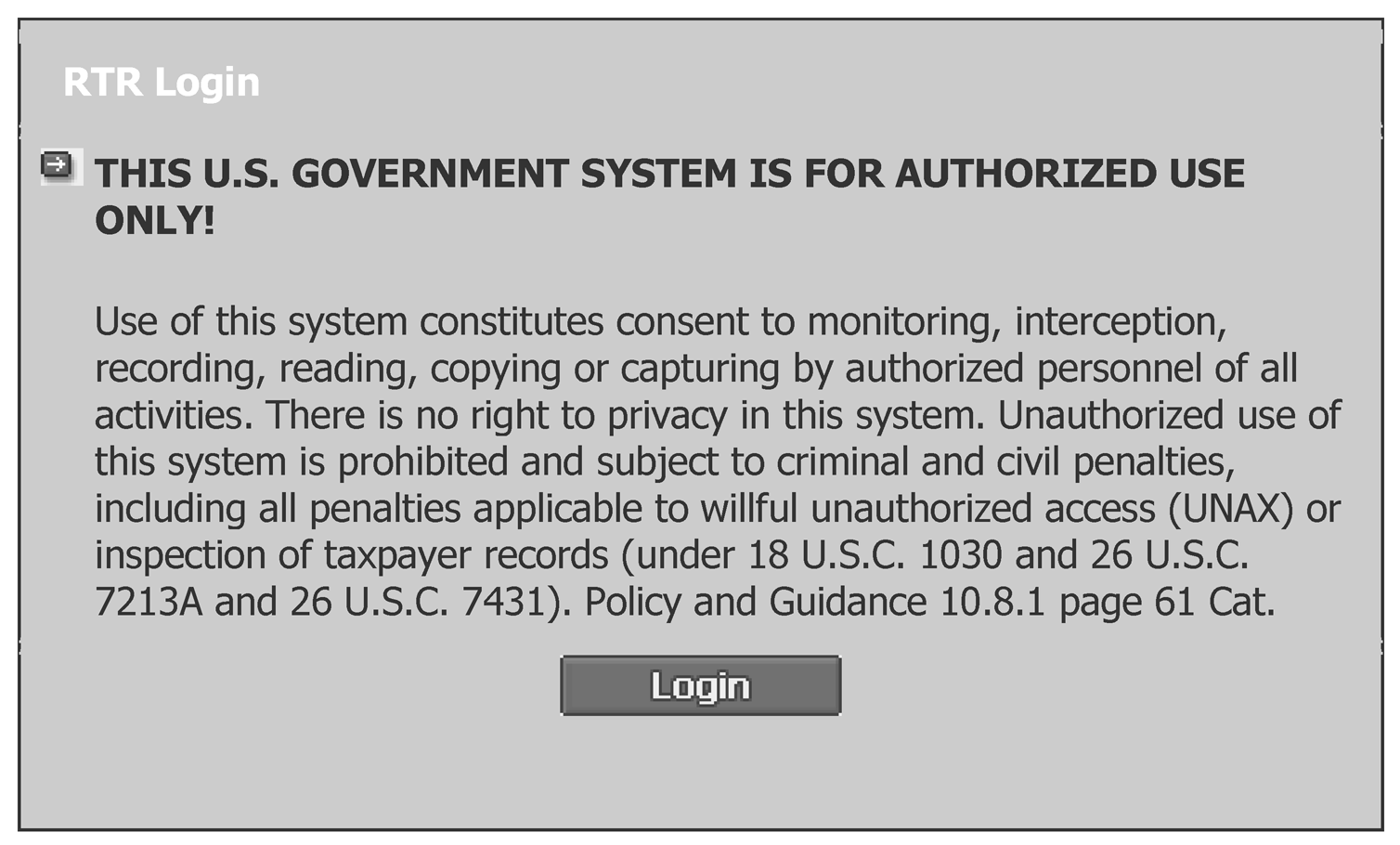
Screen displayed showing username and password fields with pre-populated domain, or pre-populated Login. Select Submit then select the Reset button or click on Login.
Please click here for the text description of the image.
-
Enter the following information on the LOGIN screen:
-
Username: Enter your current Windows login username.
-
Password: Enter your current Windows login password.
-
Domain: Enter your DS domain.
Note:
The Domain fields may be populated. Your username and Windows password may be required entry. If Login populate click on login button.
-
Click on login button to go to RTR homepage or submit or press enter key once all information has been entered.
-
If you receive the following error message, "Your active directory domain account does not have the correct permissions to access the RTR application," contact the HELP desk to have your account updated. Do not open a Knowledge, Incident/Problem, Service Asset Management (KISAM) ticket.
-
-
To create a shortcut on your desktop from the RTR screen, go to the File Menu. Select Send. Select Shortcut to Desktop.
-
You can also create a shortcut by right clicking on your desktop. Select New. Select Shortcut. Type the RTR Internet access address: https://rtr.web.irs.gov/rtr into the command line box. Click Next. Type RTR as the name for the shortcut. Click Finish to create the shortcut.
-
Access to RTR is provided in three manners:
-
a menu option on the Account Management Services (AMS) home page under systems in the tool bar on the left side of the screen.
-
an icon on the users' desktop.
-
a menu option on the Employee User Portal (EUP) under applications on the left side on the screen.
Reminder:
Access is granted to users via the Automated Business Entitlement Access Request System.
-
3.5.10.7.1 (01-01-2022)
Log On/Off the Remittance Transaction Research (RTR) System
-
Follow the steps below to log on to the RTR system.
Step Action 1 Log on to Windows. 2 Use the table below to determine your next steps If... Then... you are accessing RTR from within a case in AMS 1\. Select "RTR" from the Systems heading on the left-hand Toolbar on the AMS Home Page. you are accessing RTR from your Windows NT/Windows desktop Double-click on the RTR User icon. Result: The RTR LOGIN page appears. Figure 3.5.10-1. 3 Enter your username, if not present, and press the key. 4 Enter your password and press the key. 5 Enter your domain, if not present. 6 Click the button or press the key. Result: The RTR Home page appears. Figure 3.5.10-2 Figure 3.5.10-2
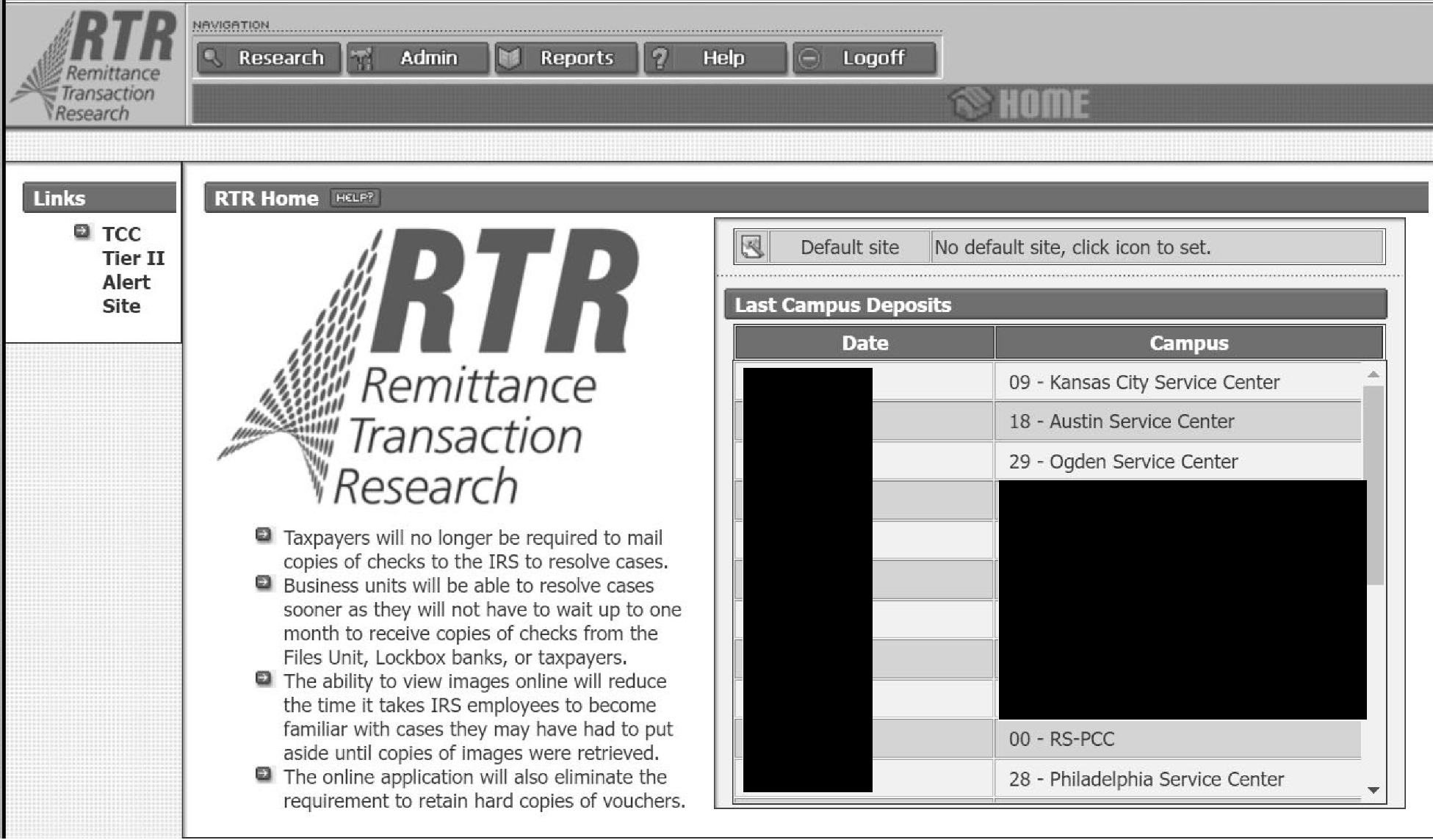
Pictured is a screen of the RTR Home page which is described in table below.
Please click here for the text description of the image.
Number Element Description 1 Links Tennessee Computer Center Tier II Alert Site Provides link to ECC-MEM alert web site for information about the system status such as program changes made or scheduled down time. 2 System Background High level description of the system. 3 Default Site Selection User must select a default site for research upon initial login. It can be changed at any time. 4 Last Campus Deposits Updated daily with latest deposit information. 5 New Image Requests Updated when offline image requests have been loaded. -
Follow the steps below to log off the RTR system.
Step Action 1 Click the button at the top of the screen. Result: The logout dialog box appears. 2 Logout Dialog: Are you sure you want to log out of the RTR application? Click the button to log out of the RTR system. Result: The RTR application will close. Click the button to continue research.
3.5.10.8 (01-01-2016)
Chapter 2 - Research
-
When performing a query (research) for records, it is critical to enter as much information as possible in order to narrow your research request. A query initiated with minimal information could have debilitating affects to the system. Ranges may be used to help limit research. A wildcard may be used when partial information for a field is known.
-
This section covers the following topics:
-
Research Screen
-
Results Screen
-
Detail Screen
-
Notes
-
Multiple/Splits
-
Images
-
3.5.10.8.1 (01-01-2022)
Research Screen
-
The Research Screen will prompt the user for information necessary to research the payment database. Payments may be researched using the following information:
-
DLN
-
Trace Identification
-
Deposit Date
-
Transaction Date
-
Transaction Code
-
Money Amount
-
Tax Period
-
MFT
-
Name Control
-
TIN
-
Batch Number
-
Routing Number
-
Site Code
-
-
Range function- Dates, money amounts and transaction codes may be researched using the range function. This can be useful in researching payments when the exact date or amount is not known. Ranges should be as narrow as possible while still allowing an adequate search.
Example:
The taxpayer states that they made a payment of $102 and "some odd cents" . The payment may be researched by entering an amount range from $102.00 to $103.00.
Note:
Do not enter an excessive range request such as $100.00 to $150.00. This would result in an increase in the system response time and the number of result records.
-
Date ranges are limited based on user group level. Group levels, 05 and 10 are limited to a two-month range. User Group Level 00 is limited to a six-month range.
-
If requesting an exact search, enter one date, money amount or transaction code.
-
-
Wildcard entries- A wildcard entry is when partial information is used in a field for researching payments. There are four fields which allow a wildcard-TIN, DLN, Routing Number and Name Control (NC). The wildcard may be used to designate either a single or group of characters and may be used anywhere within the field. Except when used in the DLN, the wildcard (*), must be the last entry in the field. It cannot be a leading character or embedded within other characters..
Note:
When searching for actual name control, you should enter as many of the characters as possible, followed by (*).
Example:
If looking for IMF payments processed at a specific site on a specific date, then input 752*100*3 in the DLN field.
.
Note:
A wildcard used in the DLN field requires a minimum of site code and deposit date digits to be entered.
Note:
This function is limited to Level 00 users.
-
Research request - Follow the steps below to submit a research request.
Step Action 1 Click the button at the top of the RTR Home page. Result: The Research Screen appears as shown in Figure 3.5.10-3a. below. Figure 3.5.10-3a
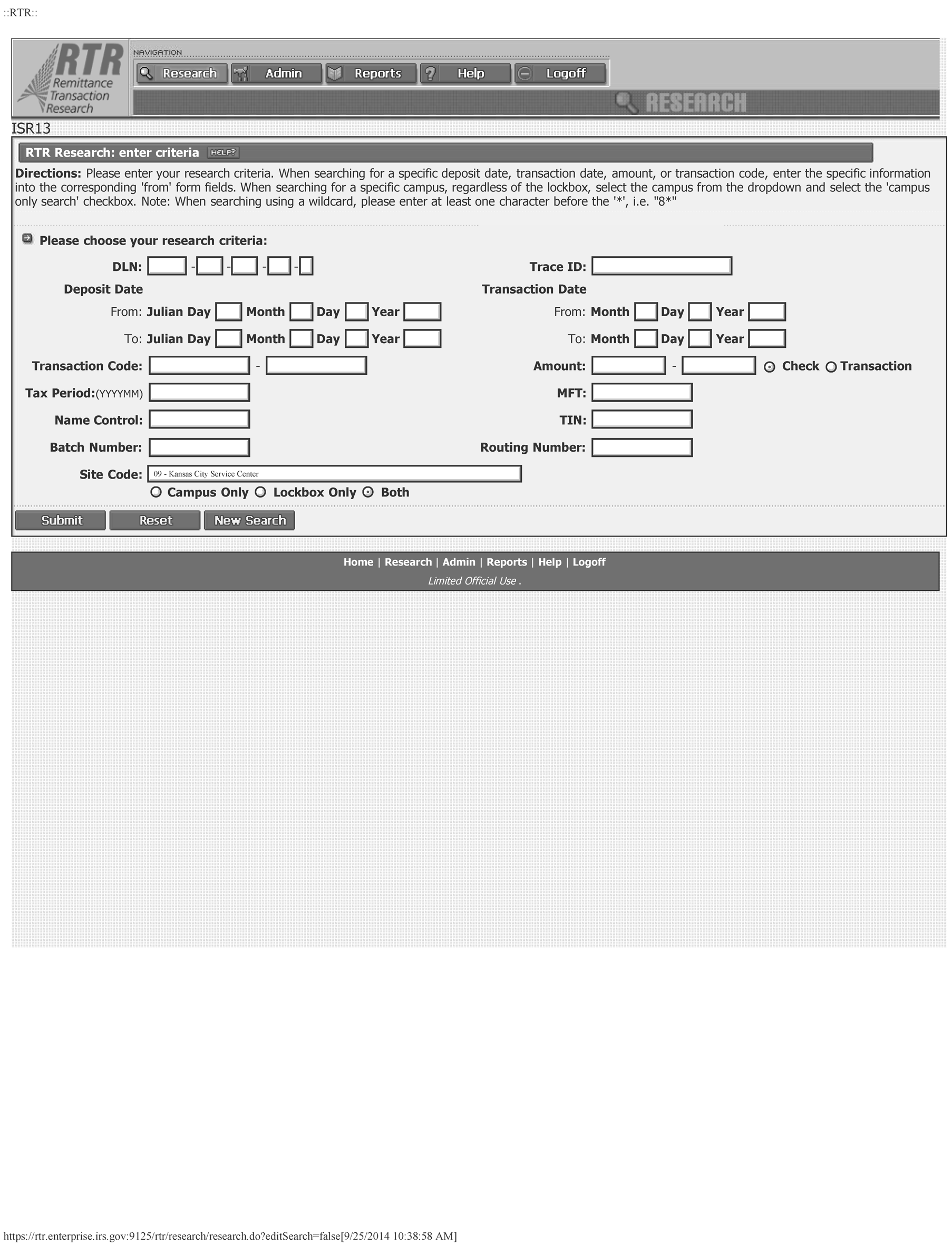
Pictured is the RTR Research screen. This screen consists of various criteria for researching on RTR and the descriptions on entering information for research. The components of the screen are listed below in table:
Please click here for the text description of the image.
Figure 3.5.10-3b
Input Data Description Deposit Date Date the check was deposited. ### Note: Required field. Transaction Date Date the payment was posted to Master File (MF). Also known as the received date of the payment. Transaction Code Payment transaction code used to post the payment to MF. Money Amount Amount of the payment. Tax Period Tax period to which the payment was applied. MFT Master File Tax code to which the payment was applied. TIN Taxpayer identification number to which payment was applied. It may be an SSN, EIN, ITIN, ATIN, or IRSN. DLN Payment DLN. This is the complete "14" digit identifier assigned to each payment. It is entered without hyphens. Routing Number Routing number for the financial institution on which the payment was drawn. Name Control Name Control on the account to which the payment was applied. Batch Number This is also known as the RPSID. Each block of work is assigned its own unique number. Site Code Site responsible for processing the payment. The user may search campus, Lockbox or both. The default site is selected upon initial login. The Both option button is set as the default. ### Note: Required field. Trace ID This is the 20-digit identifier assigned to each Deposit Ticket and Debit Voucher payments. ### Note: Date entries are broken down into three fields. Month, Day and Year. All three fields are required for a valid date entry. Step Action 2 Click in the field on which to base the research request. Note: To move from field to field, click the mouse in the appropriate field or press the key. 3 Type the appropriate information. Note: Every search requires a minimum of three entries—Deposit Date, Site Code, and one additional field. This may be any of the other remaining fields. 4 Do you wish to clear the information and enter new research criteria? * If yes, click the button and return to Step 2 * If no, go to Step 5. 5 Click the button. Result: A message stating "Retrieving Your Results Please Wait" appears. Note: If you wish to stop the search, click the button. 6 Was the search successful? (The Results Screen will display showing the list of records meeting the research criteria.) * If yes, IRM 3.5.10.8.2, Results Screen. * If no, go to Step 7. 7 Use the table below to determine your next step. If ... and ... then ... you received a warning message due to the search results containing more than 5,000 records you are in User Group 00 continue with the search by clicking the button; or cancel the search by clicking the button. Note: There is no limit on the result records for User Group 00. you received an error message due to the search results containing more than 1,000 records you are in User Group 05 or 10 re-input the search with additional information to narrow the search. No records were found verify the search criteria and correct if necessary. The search criteria were correct resubmit the search by widening the search criteria.
3.5.10.8.2 (01-01-2022)
Results Screen
-
The Results Screen will be displayed showing the results of any query initiated. The screen contains a list of all records meeting the query criteria entered. Figure 3.5.10-4. below.
Figure 3.5.10-4
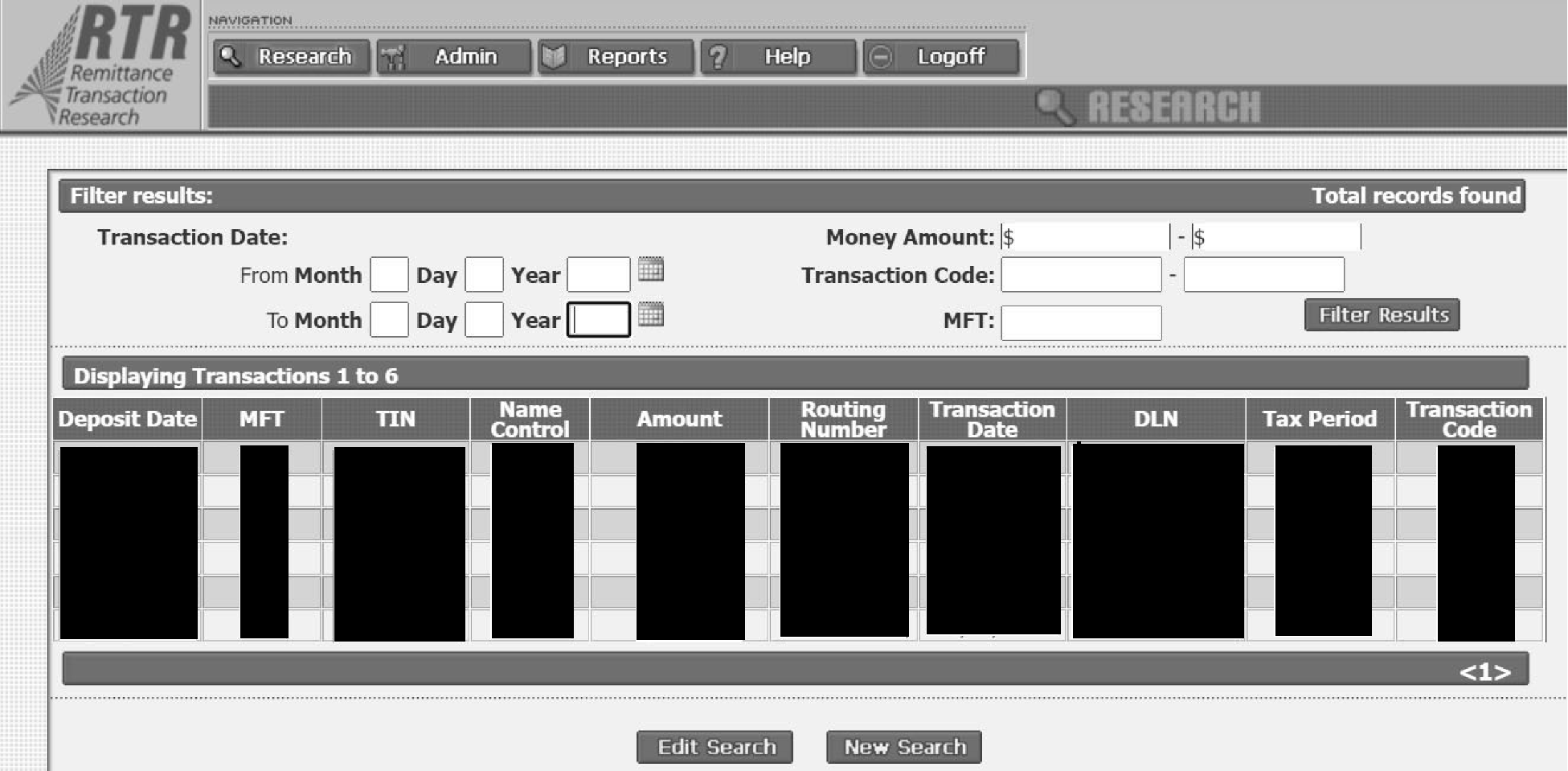
Pictured is the Filter results screen. The Filter Result screen contains the following components: Transaction DateMoney AmountTransaction CodeMFT CodeThe elements of the Filter Results Screen is listed below.
Please click here for the text description of the image.
-
Record elements :
-
Deposit Date
-
MFT
-
TIN
-
Name Control
-
Amount
-
Routing Number
-
Transaction Date
-
DLN
-
Tax Period
-
Transaction Code
-
-
Viewing transactions- Each page of results contains 20 transactions. These are not listed in any specific order. Refer to the table below for instructions on viewing transactions. Figure 3.5.10-4. Results Screen.
If you wish to ... then ... view the details of the record click on the deposit date of any individual transaction. Note:IRM 3.5.10.8.3 for information/instructions regarding the Detail Screen. view another page of 20 records click on the page numbers in the lower right corner. Note: Ten pages are available to view at a time. display page 11 and make the next 10 pages available for viewing click the button. return to the previous 10 pages click the button. -
Sorting records- To perform a sort, try flittering results to less than 5,000 records. An error message will be displayed stating," The number of search results found exceeds the sorting limit. In order to perform a sort, try to filter your results to less than 5000 records."
-
Follow the steps below to sort records.
Note:
This option has the potential to put strains on the system that can negatively affect system performance and, therefore, should be used sparingly.
Step Action 1 On the Results Screen, click the column title you wish to sort on. Result: All records (not just the page) are re-sorted in ascending order. 2 Click the column title again to re-sort in descending order. 3 Repeat Steps 1 and 2 for sorting records by any column. -
Filtering records- When multiple records are returned on a query, the results may be filtered to reduce the number further. This option is often used in lieu of starting a new query. Filter options are limited to Transaction Date, Money Amount, Transaction Code, and MFT. Follow the steps below to filter records.
Step Action 1 On the Results Screen, click on the appropriate field for which filter criteria will be input. 2 Enter the filter criteria. Note: More than one field may be used. 3 Click the button. Result: The remaining records meeting the new criteria are displayed. 4 Repeat Steps 1 through 3 to continue to filter on results. Note: Each repeated filter is conducted on new record set. -
Initiate a new search- Follow the steps below to initiate a new search.
Step Action 1 On the Results Screen, click the button (at the bottom) or click the button (at the top). Result: The Results Screen closes and the Research Screen reappears. 2 Perform Steps 2 through 7 at IRM 3.5.10.7.1(3a), Research Request.
-
3.5.10.8.3 (01-01-2020)
Detail Screen
-
The Detail Screen will be displayed once a record is selected from the results screen. This screen contains the detailed information of each payment instrument processed through the transports. Figure 3.5.10-5.
-
The Detail Screen contains four sections. The following components are listed below:
-
Payment information – includes Document Remittance Register Details and Endpoint Master Listing Information
-
Notes
-
Multiple/Split information
-
Images
Figure 3.5.10-5
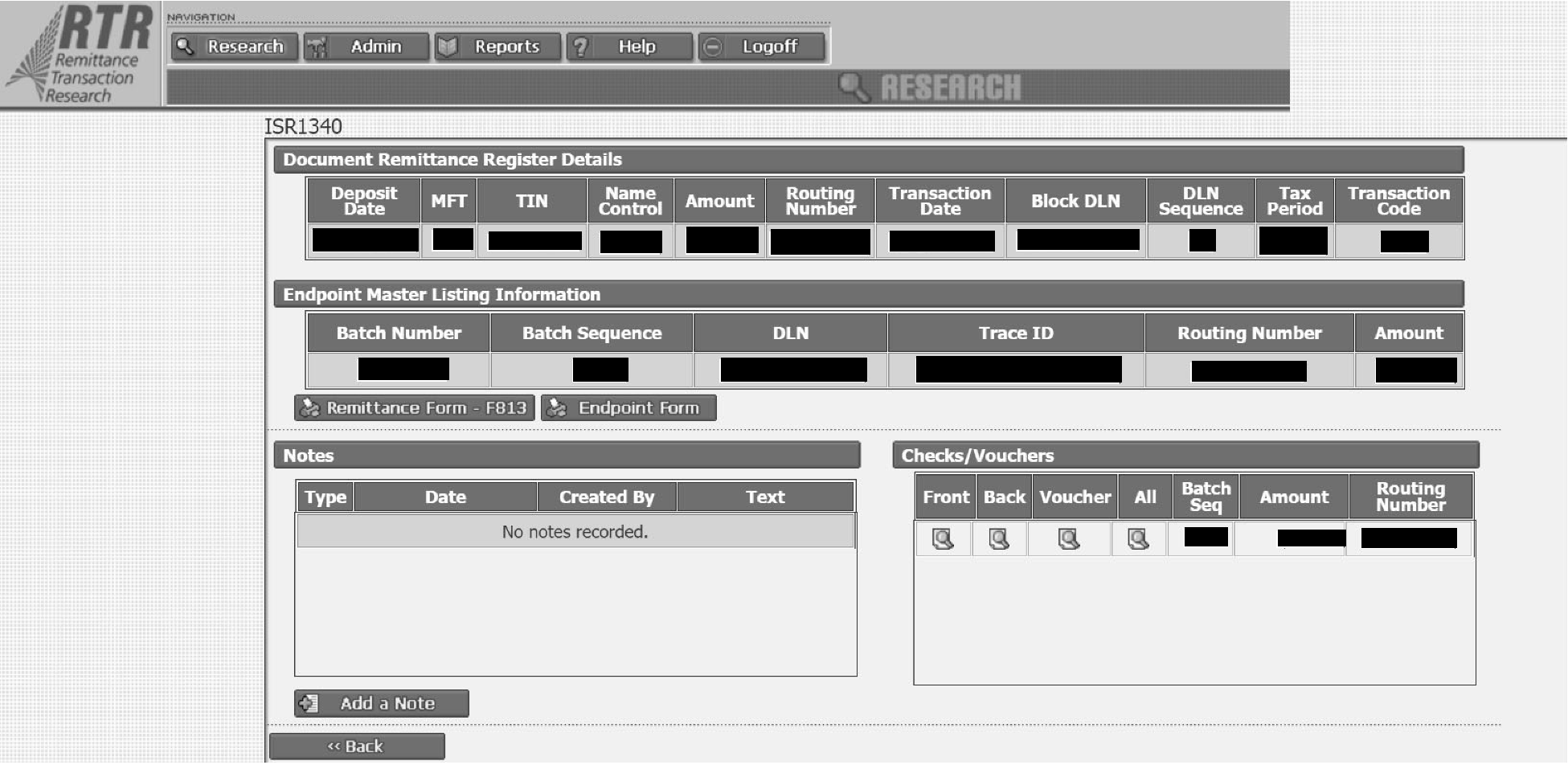
Pictured is the Document Remittance Register Details screen. The screen contains the following elements listed below in table.
Please click here for the text description of the image.
-
3.5.10.8.3.1 (01-01-2020)
Payment Information
-
Payment information includes the Document Remittance Register Details and the Endpoint Master Listing Information. Elements included in these areas are shown below.
Document Remittance Register Details
Term Description Deposit Date This is the date used for the deposit. (MM/DD/YYYY) MFT This is part of the header information and is applied to all documents in the same block DLN. TIN This is used for posting a payment to a taxpayer’s account. The field is entered with no dashes. Name Control This is used to help identify proper application of the payment to the taxpayer’s module. There may not always be data in this field. Amount This is the money amount of the credit posted to the taxpayer’s account. This amount will not always match the check amount. (i.e., Multiple/Splits) Routing Number Series of numbers taken from the bottom of the taxpayer’s check. These numbers indicate the taxpayer’s bank. Transaction Date This is representative of the actual transaction date of the payment and will post to the taxpayer’s module as such. (MM/DD/YYYY) DLN Sequence This is the two-digit unique identifier of the DLN. Each payment will have its own number. Tax Period This is used for posting a payment to a taxpayer’s account. (YYYYMM) Transaction Code This is the payment transaction code used in the block header and is indicative of how the payment posted to the taxpayer’s module. Endpoint Master Listing
Term Description Batch Number This is also known as the RPSID. Each block of work is assigned its own unique number. Batch Sequence Each payment is assigned a sequence number as it is processed through ISRP. This number is not the same as the sequence number used in a DLN. DLN This is the complete "14" digit identifier assigned to each payment. Trace ID This is the "14" digit identifier assigned to each Deposit Ticket and Debit Voucher payments. Routing Number Series of numbers taken from the bottom of the taxpayer’s check. These numbers indicate the taxpayer’s bank. Amount This is the amount of the check processed. -
Follow the steps below to access the remittance form (Form 813).
Step Action 1 Click the button. Result: A separate window opens containing the Form 813 information. Figure 3.5.10-6. below. Note: This form contains all payment data processed within the related block of work. Figure 3.5.10-6
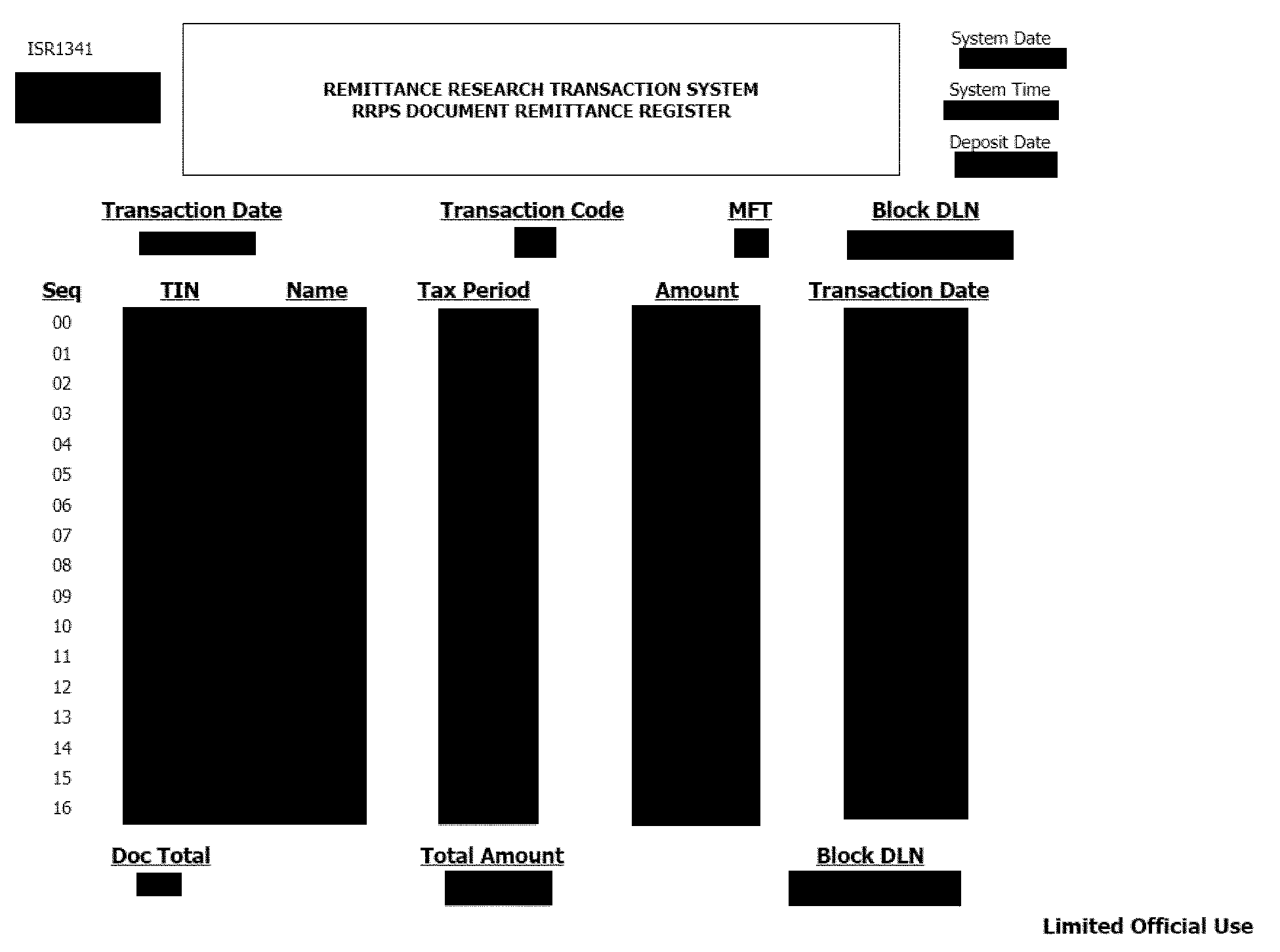
Pictured is screen displaying form 813 format and information. The Form lists all payment data information processed within the related block of work. The list of elements are:Service Center CampusTitle of DocumentSystem date requested dateSystem timeDeposit dateTransaction dateTransaction codeMFTSequence: list how many in blockTINName ControlTax PeriodAmount of checkTransaction DateDocument total: how many blocks on reportTotal AmountBlock DLN
Please click here for the text description of the image.
Step Action 2 Click the button/icon on the browser tool bar to print the Form 813. 3 Click the button to return to the Detail Screen. -
Follow the steps below to access the Endpoint Form (known as the Endpoint Form Master Listing).
Step Action 1 Click the button. Result: A separate window opens containing the Endpoint Master Listing information. Figure 3.5.10-7 below. Note: This form contains all payment data processed within the related batch of work. Figure 3.5.10-7
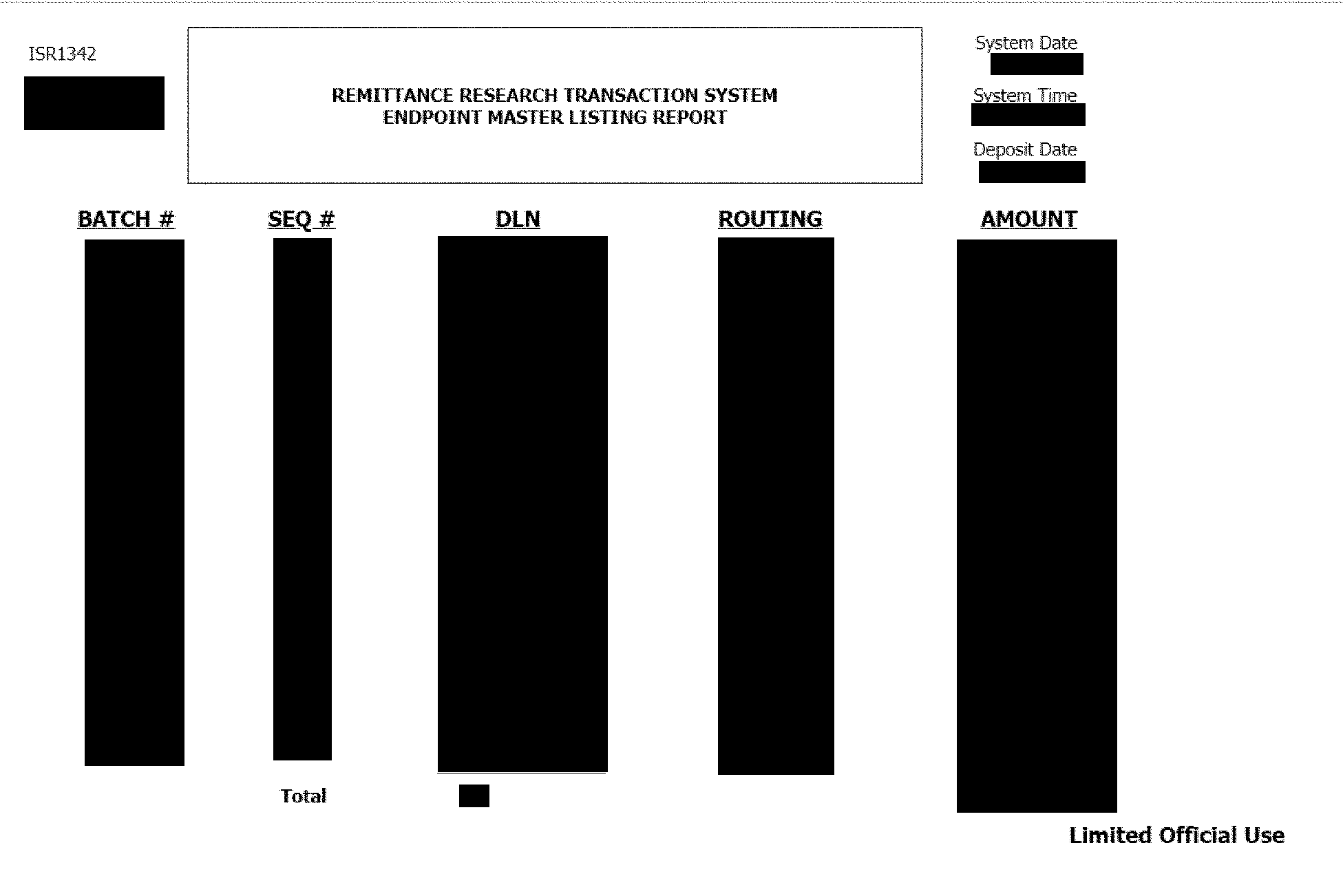
Pictured is screen shot of the Endpoint Master Listing Report. The report consists of left to right: Service Center CampusTitle of reportSystem date and timeDeposit DateBatch numberSequence numberDLNRouting numberAmountTotal pages and amount
Please click here for the text description of the image.
Step Action 1 Click the button/icon on the browser toolbar to print the Endpoint Master Listing. 2 Click the <<BACK button to return to the Detail Screen.
3.5.10.8.3.2 (01-01-2020)
Notes
-
Notes are used to record changes or deletions made to either an individual record or a block of records prior to posting to Master File. The addition of a note is restricted to Levels 00 and 05. The viewing of a note is unrestricted by Levels 00, 05 and 10.
-
Notes should contain enough information to allow users to track a payment record to the point at which it posts to a taxpayers account.
-
Once posted, changes or movement of credits are tracked through Master File via IDRS.
Example:
A block of work is deleted and renumbered. A note should be added to indicate this.
-
-
Follow the steps below to add a note.
Step Action 1 Click the button. Results: The Add Note window appears. Step Action 2 Choose a note type by clicking once on either: * Add note to the transaction * Add note to the block 3 Choose type of note from drop-down menu. 4 Click the mouse pointer in the Note Text window and type the note information. Note: A maximum of 2000 characters are allowed. If you wish to clear the information and retype the note, click the button. 5 Click the button when completed. Note: The user's login name and date will automatically be added to the end of the record. -
Once a note is added, it cannot be changed. If an error is made, an additional note will need to be added. Follow the steps below to correct a note.
Step Action 1 Follow Steps 1 through 4 above for adding a note. 2 Include corrected information in your text as well as a reference to the previous incorrect note. -
If a note is attached to a record, the first line of each note will be displayed on the screen with the date, initiator’s login name, and the type of note. Follow the steps below to view the full details of the note.
Step Action 1 Click on the text line of the individual note to be viewed. Result: A separate window opens displaying the details of the note. 2 Click the <<BACK button to return to the Detail Screen. 3 To view the next note, click the text line of the next note and repeat Steps 1 and 2.
3.5.10.8.3.3 (01-01-2022)
Multiple/Split Payments
-
Most payments received involve a single payment instrument for a single taxpayer’s account. Occasionally, there may be multiple payment instruments for a single account (Multiple) or a single payment may be designated for more than one account (Split). These payments are identified prior to processing and are coded with an "M" (Multiple) or "S." (Split). When passed through the transports, all cross-reference data will be captured and passed to RTR.
-
The Multi/Split indicator will be visible if payment was coded as such.
-
Follow the steps below to view the cross-reference information:
Step Action 1 Click the Show button. Result: All cross reference information is displayed. 2 Click the Hide button to return to normal view. -
Follow the steps below to view cross reference records.
Step Action 1 Click on any record listed to view the Detail Screen of the selected record. 2 Click the button to return to the original screen. 3 Repeat Steps 1 and 2 to view each individual record.
3.5.10.8.3.4 (01-01-2022)
Images
-
Each payment record may have up to three images available. These include:
-
front of check
-
back of check
-
voucher
-
-
Not all payments will have a voucher image. Some records may not have any images available. Buttons indicating images available will be displayed in the Checks/Vouchers area.
-
Payment images less than 7 years old are stored online and are available for immediate access. A request for retrieval of these images is made via RTR. Images are made available the same business day.
-
Follow the steps below to view images.
Step Action 1 Click the Image button for the image you want to view (Front, Back, Voucher). Step Action 2 Click the <<BACK button to return to the Detail Screen. 3 Repeat Steps 1 and 2 to view each image available. -
Follow the steps below to request offline images.
Step Action 1 Click the image button for the image you want to view (Front, Back, Voucher). Result: A message window appears stating, "The image is not available. Click to request image." 2 Click the button to request the image be loaded. Result: The image will be available the next business day. 3 The next day, the users home page will list all the images requested. * Click on each individual record to activate the associated image. * Initiate a query of the record to view the image as normal.
3.5.10.9 (01-01-2022)
Chapter 3 - Remittance Transaction Research (RTR) Administrative Functions
-
The Administrator for RTR will be able to view or edit the (Remittance Processing System ID) RPSID ranges, current and future interest rates and process requests for offline images. This chapter will provide guidance on the first two items in the order in which they appear on the Admin Menu.
Note:
The user must be profiled with the appropriate user group prior to log on. IRM 3.5.10.6.1, User Group Levels, and IRM 3.5.10.7.1, Log On/Off the Remittance Transaction Research (RTR) System, for login procedures.
Note:
The offline image request information, for User Group 20, is included in the System Operator’s Guide.
-
This chapter covers the following topics.
-
Viewing/Editing RPSID Ranges (Level 30 Users).
-
Viewing/Editing Interest Rates (Level 40 Users).
-
3.5.10.9.1 (01-01-2020)
Viewing/Editing Remittance Processing System Identification (RPSID) Ranges (Level 30 Users)
-
The Integrated Submission and Remittance Processing (ISRP) system converts paper tax and information documents, and remittances received by IRS into perfected electronic records of taxpayer data. When a tax document is received, it is opened and sorted by form type; for example, Form 1040 and Form 1040-A. Remittances with their accompanying documentation are presorted into groups called batches and a unique number, Remittance Processing System Identification (RPSID) will appear on the back of the archived remittance image of the payment (check, money order, etc.). For more extensive information concerning the RPSID, refer to IRM 3.5.61.3.75, Form CT-2, Employee Representative’s Quarterly Railroad Tax Return (OSPC only).
-
RPSID ranges are used to collect, sort and report data on both the Daily and Monthly Deposit Timeliness reports as well as the Deposit Activity report. Therefore, changes to the RPSID ranges will affect these reports.
Note:
Changes should be done by designated Headquarters (HQ) personnel only.
-
Follow the steps below to view or edit RPSID ranges.
Step Action 1 Click the button at the top of the RTR Home page. Result: The RTR Administrative Functions menu appears. Figure 3.5.10-8 Figure 3.5.10-8
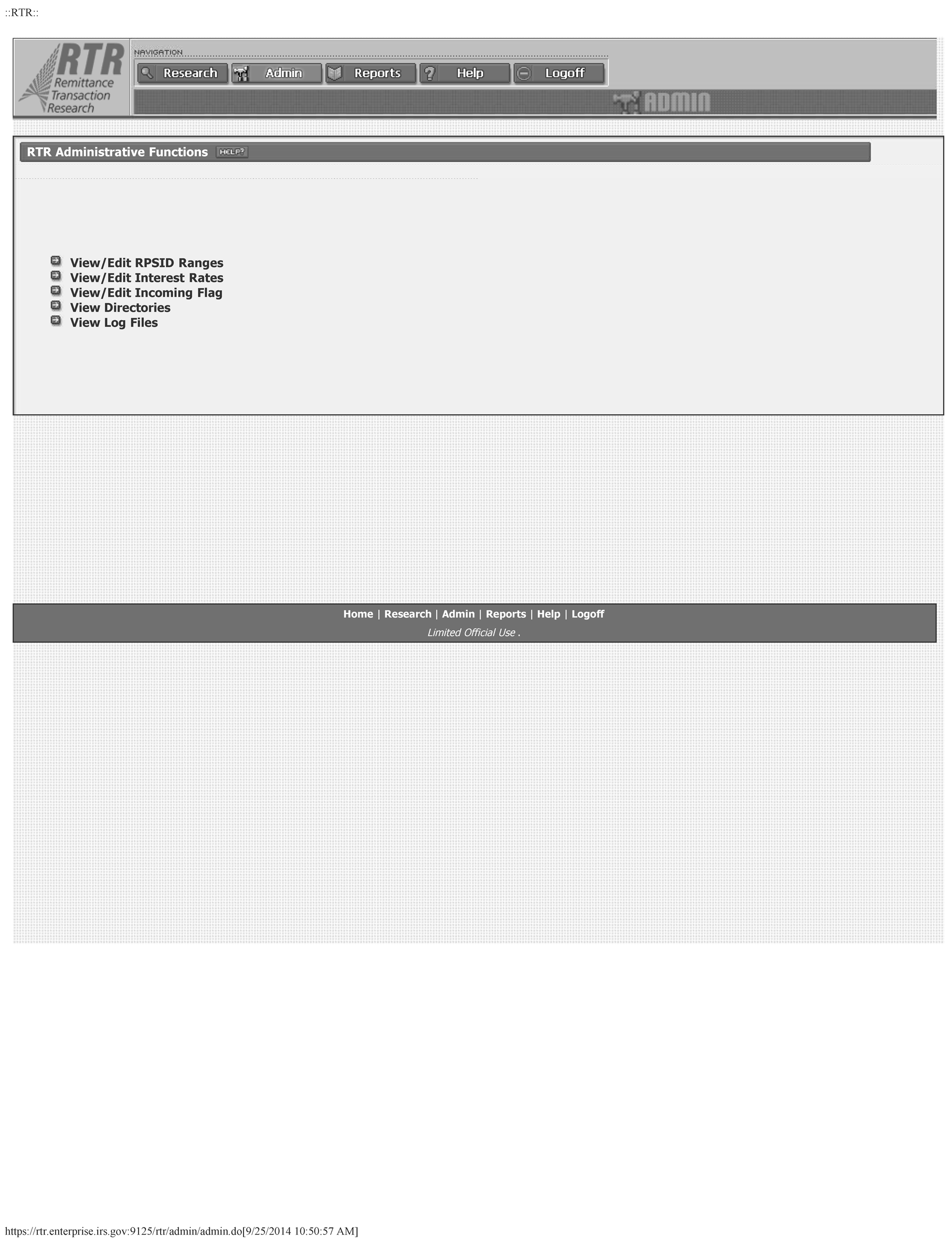
Pictured is screen shot of the RTR Administrative Functions window. The components are listed below: View / Edit RPSID RangesView / Edit Interest RatesView / Edit Incoming FlagView DirectoriesView Log Files
Please click here for the text description of the image.
Step Action 2 Click on "View/Edit RPSID Ranges." Result: The RPSID Ranges screen appears. Figure 3.5.10-9 Note: This display provides a view of the current RPSID ranges. Note: If RPSID ranges were not previously edited or added, only the current RPSID ranges (left side) will appear. Figure 3.5.10-9
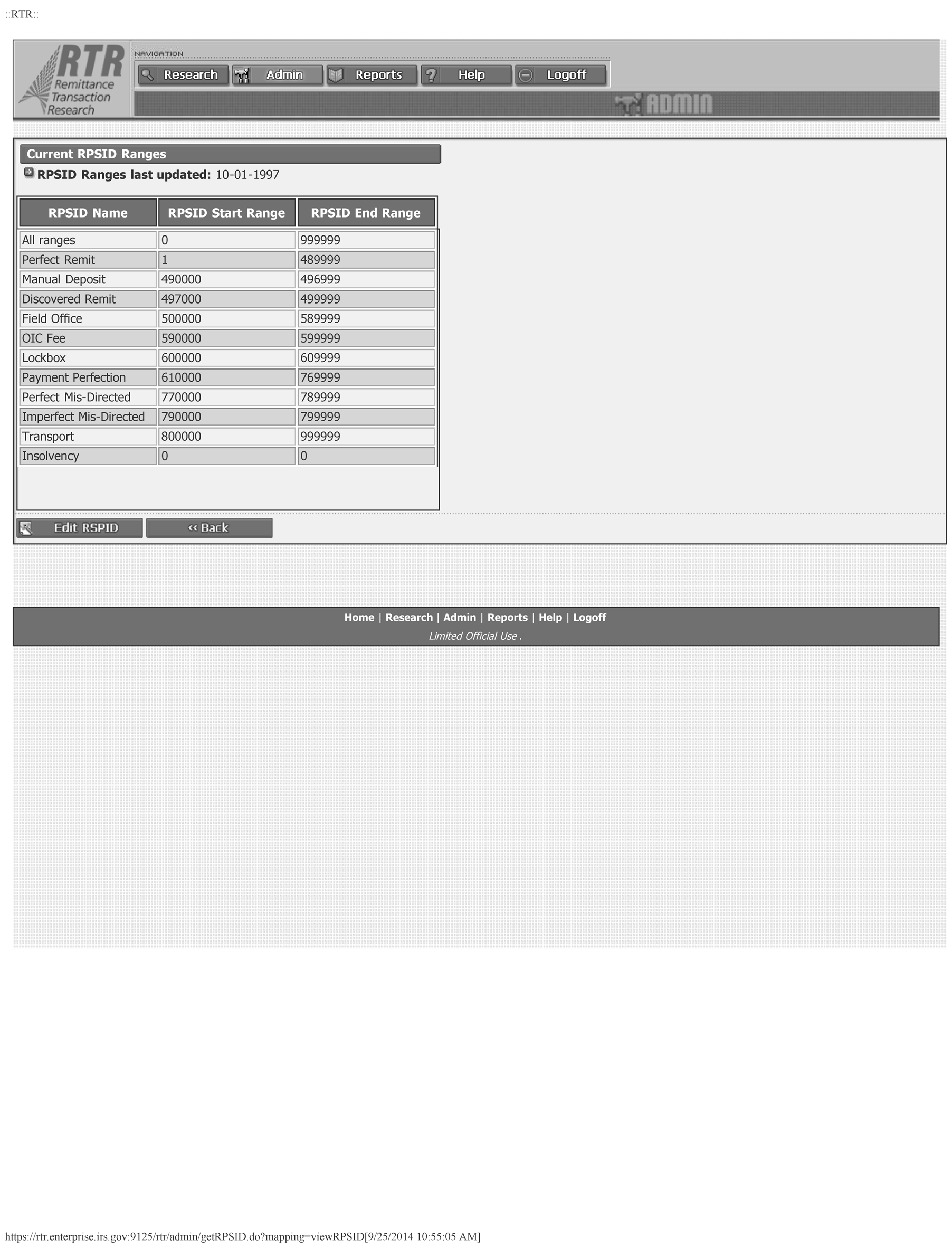
Pictured is Screen shot of RTR window showing available RPSID ranges. The elements consist of RPSID name, RPSID START RANGE AND RPSID END RANGE. Edit RPSIDBack
Please click here for the text description of the image.
Step Action 3 Are changes required (editing the current RPSID range values or adding a new range)? * If yes, go to Step 4. * If no, go to Step 13. 4 Click the button. Result: The Edit RPSID names and ranges screen appears. Figure 3.5.10-10 Figure 3.5.10-10
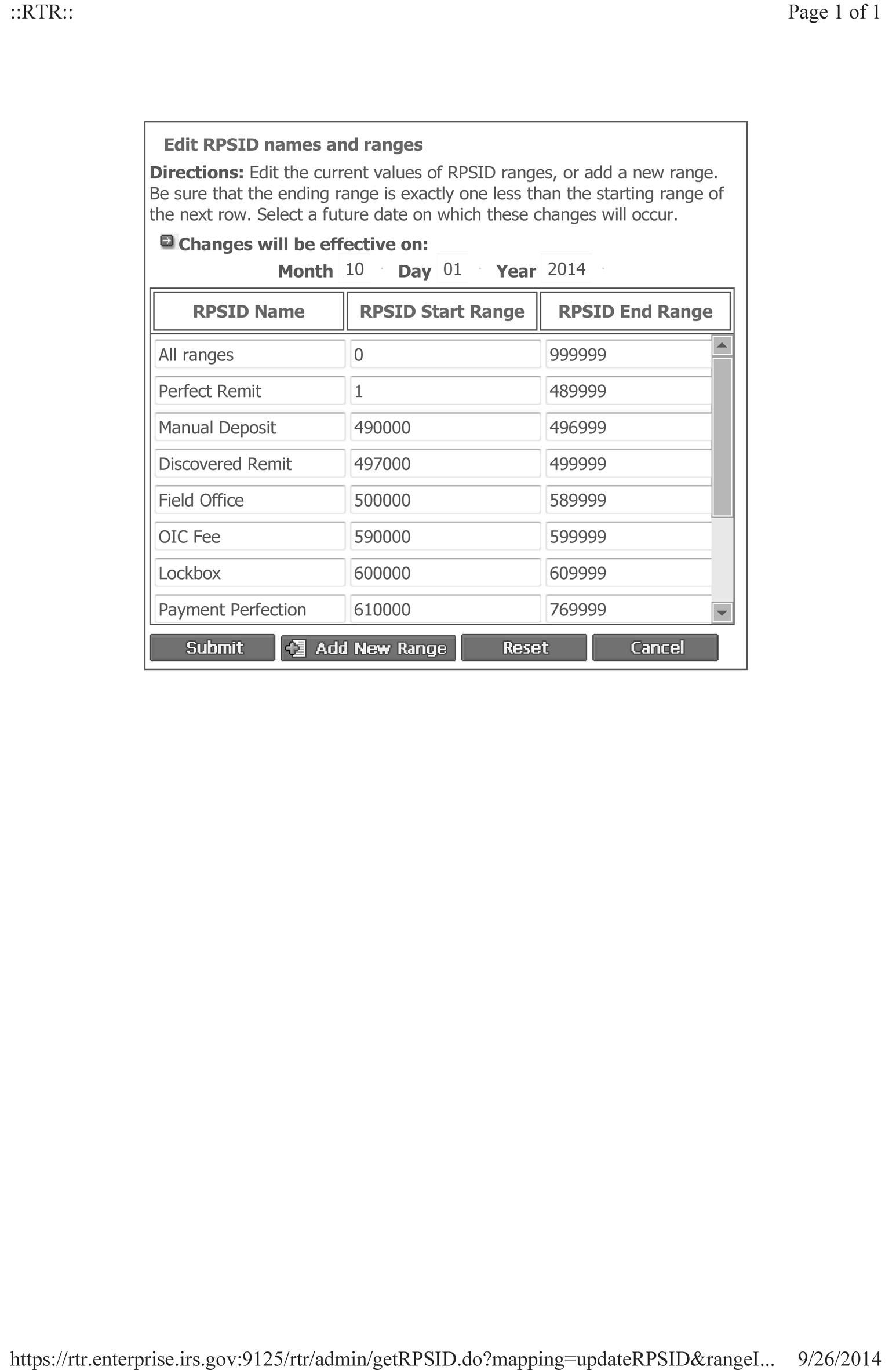
Pictured is window showing result of RPSID Ranges to be edit or changed. Below is a list of elements. Date changes will be effectiveRPSID NameRPSID Start RangeRPSID End RangeSelect Submit, Add New Range, Reset, Edit RPSID or Cancel.
Please click here for the text description of the image.
Step Action 5 Do you wish to edit the current values of RPSID ranges? * If yes, go to Step 6. * If no, go to Step 7. 6 Click in the RPSID Start and End Range columns and edit the values. Then go to Step 11. 7 Click the button. Result: A blank is inserted to add the new range. Figure 3.5.10-11 Figure 3.5.10-11
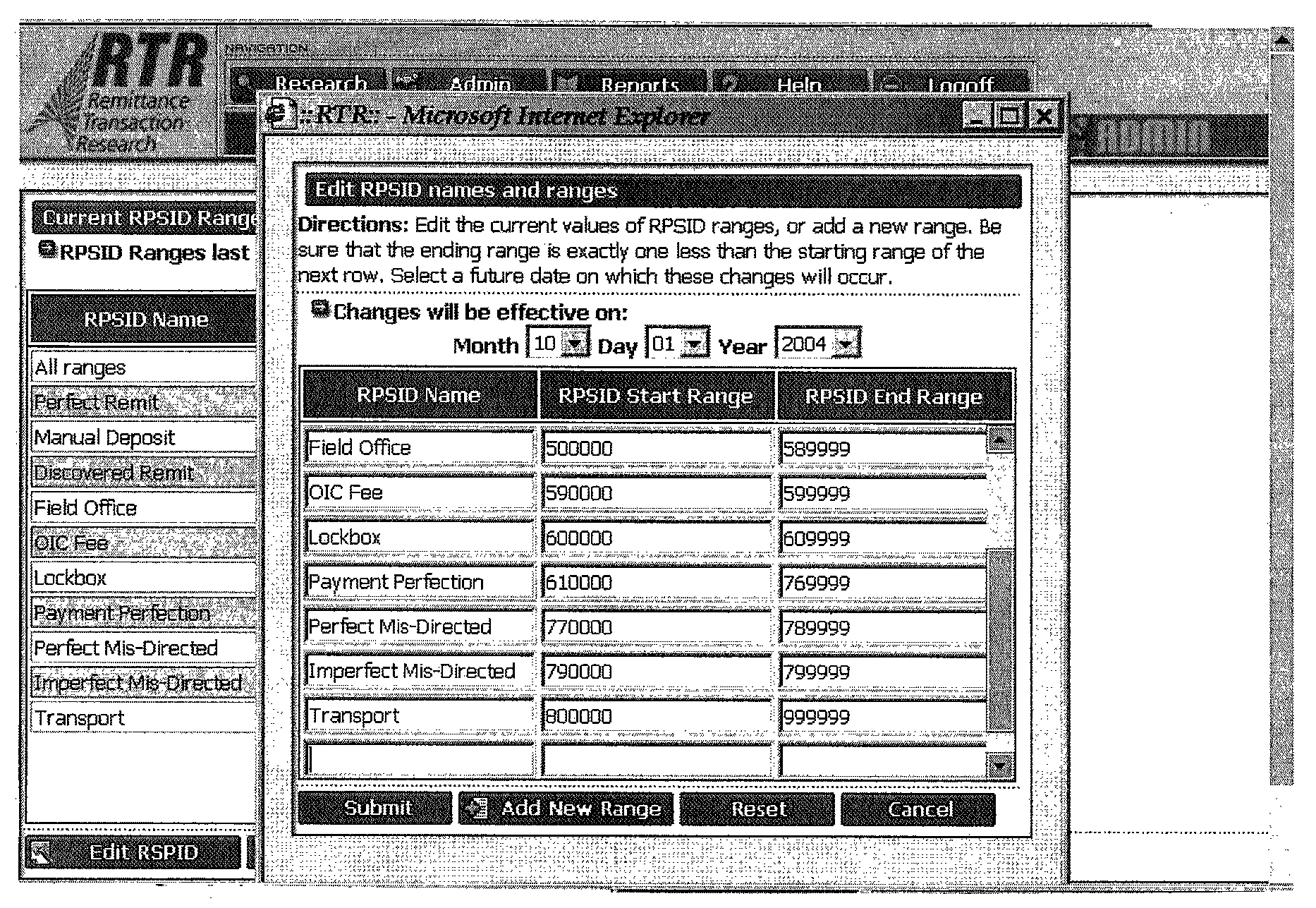
Pictured is window showing results of RPSID Range to be edited. Below is a list of elements on screen:Date change will be effectiveRPSID NameRPSID Start RangeRPSID End RangeSelect Submit, Add New Range, Reset, Edit RPSID or Cancel.
Please click here for the text description of the image.
Step Action 8 Enter the RPSID Name and press the key. 9 Enter the RPSID Start Range and press the key. 10 Enter the RPSID End Range. 11 Enter or select the effective date (Month, Day, Year) from the drop-down menu. Note: This date must be a future date. Use the button to clear the new entries or change edited entries back to the original settings. 12 Do you wish to complete the changes? * If yes, click the button. * If no, click the button to return to the previous menu. 13 Click the button to return to the RTR Administrative Functions menu.
3.5.10.9.2 (01-01-2022)
Viewing/Editing Interest Rates (Level 40 Users)
-
Interest rates are subject to change every three months and should be adjusted accordingly.
-
Interest rates are used in calculations and report data on both the Daily and Monthly Deposit Timeliness reports. Therefore, changes to the interest rate will affect these reports.
Note:
Changes should be done by designated Headquarters (HQ) personnel only.
-
-
Follow the steps below to view or edit the interest rates.
Step Action 1 Click the button at the top of the RTR Home page Result: The RTR Administrative Functions menu appears. Figure 3.5.10-12 Figure 3.5.10-12
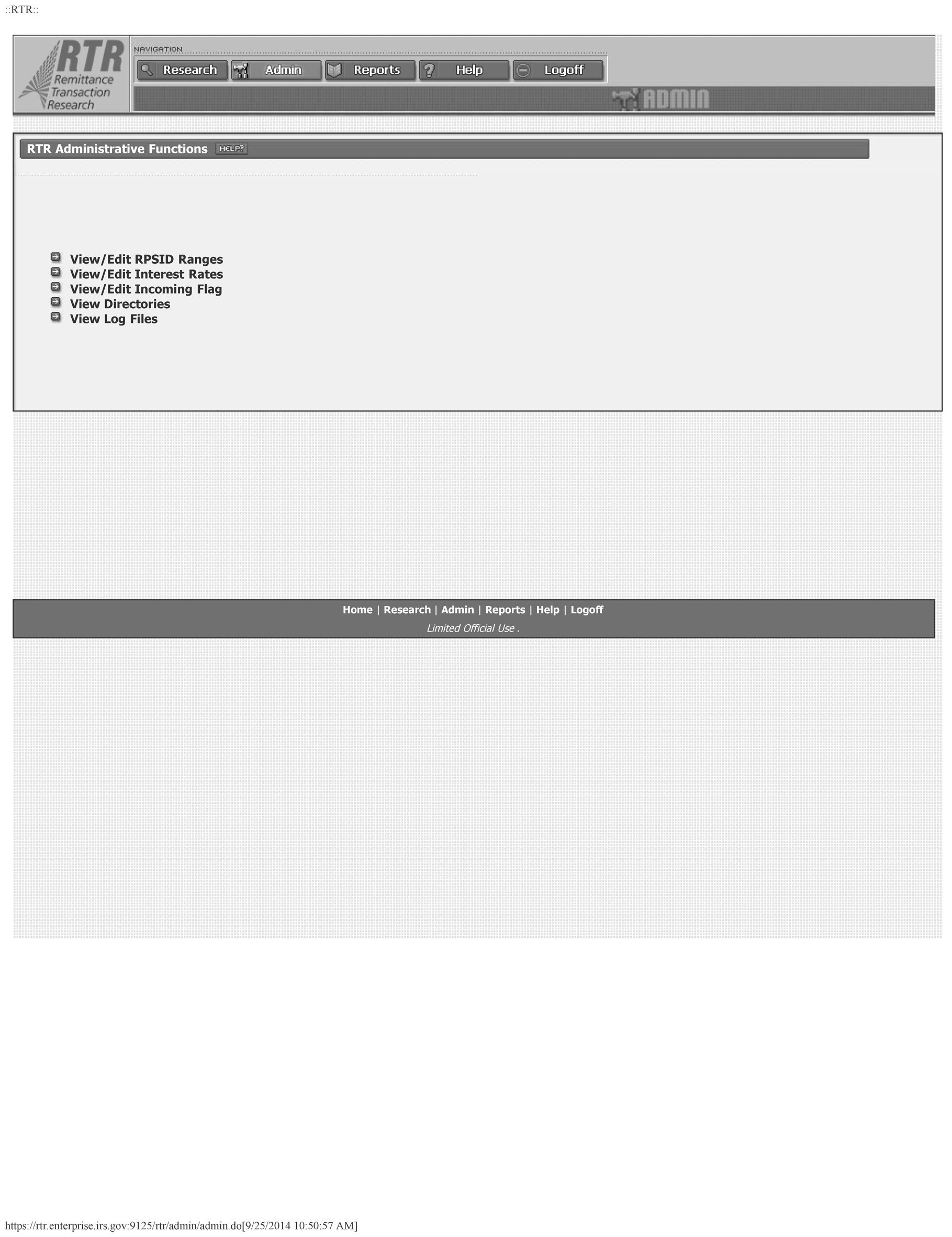
Pictured is screen of the RTR Administrative Function Window. A list of components is listed below:View / Edit RPSID RangesView / Edit Interest RatesView / Edit Incoming Flag
Please click here for the text description of the image.
Step Action 2 Click on "View/Edit Interest Rates." Result: The Current Interest Rate screen appears. Figure 3.5.10-13 Figure 3.5.10-13
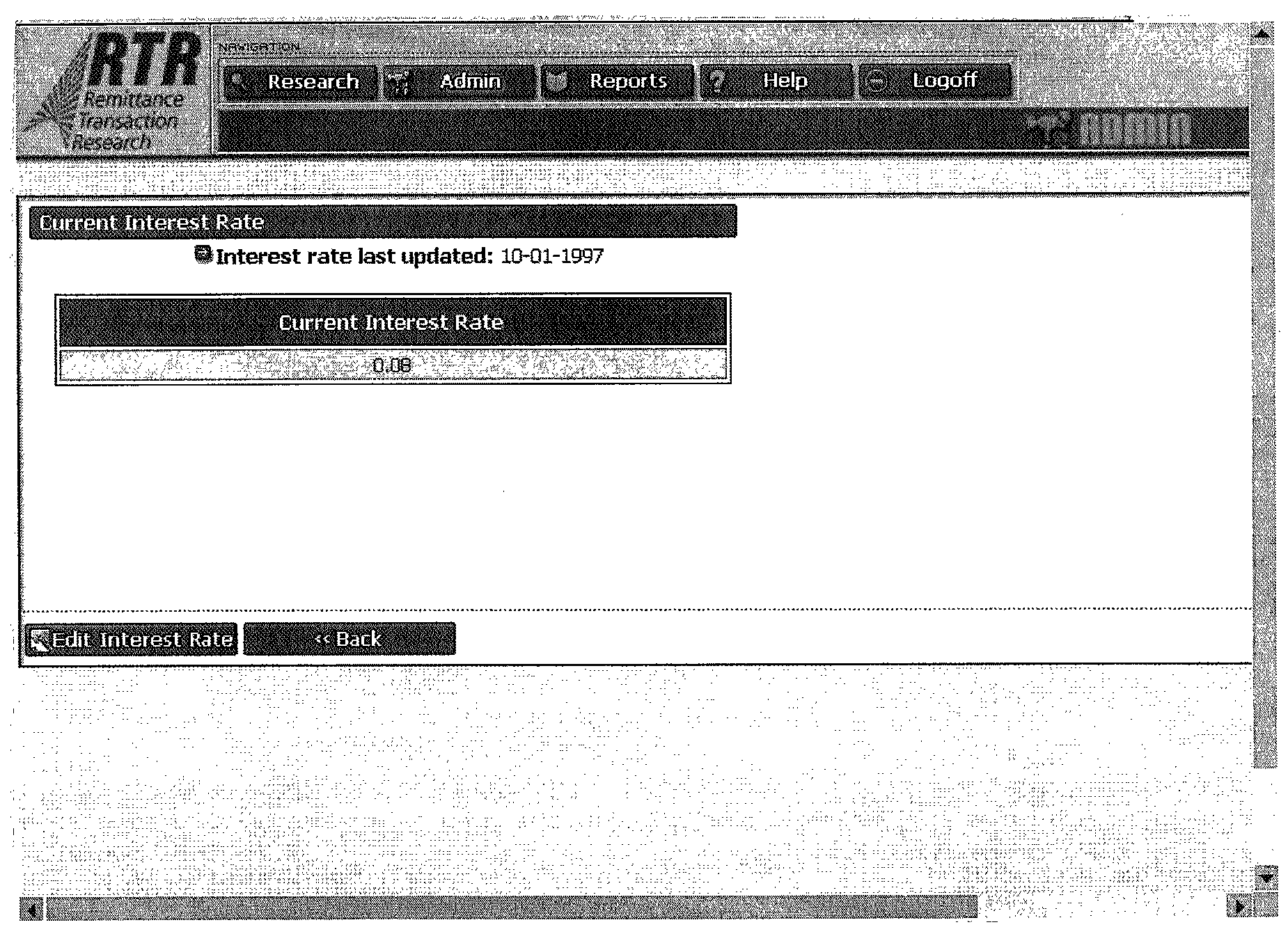
Pictured is window screen showing Editing Interest Rate. A list of components are listed below. Interest rate last updatedCurrent Interest RateEdit Interest RateBack button
Please click here for the text description of the image.
Step Action 3 Are changes required? * If yes, go to Step 4. * If no, go to Step 8. 4 Click the button. Result: The Edit Interest Rate screen appears. Figure 3.5.10-14 Note: This display will provide fields for the date and interest rate to be changed. Figure 3.5.10-14
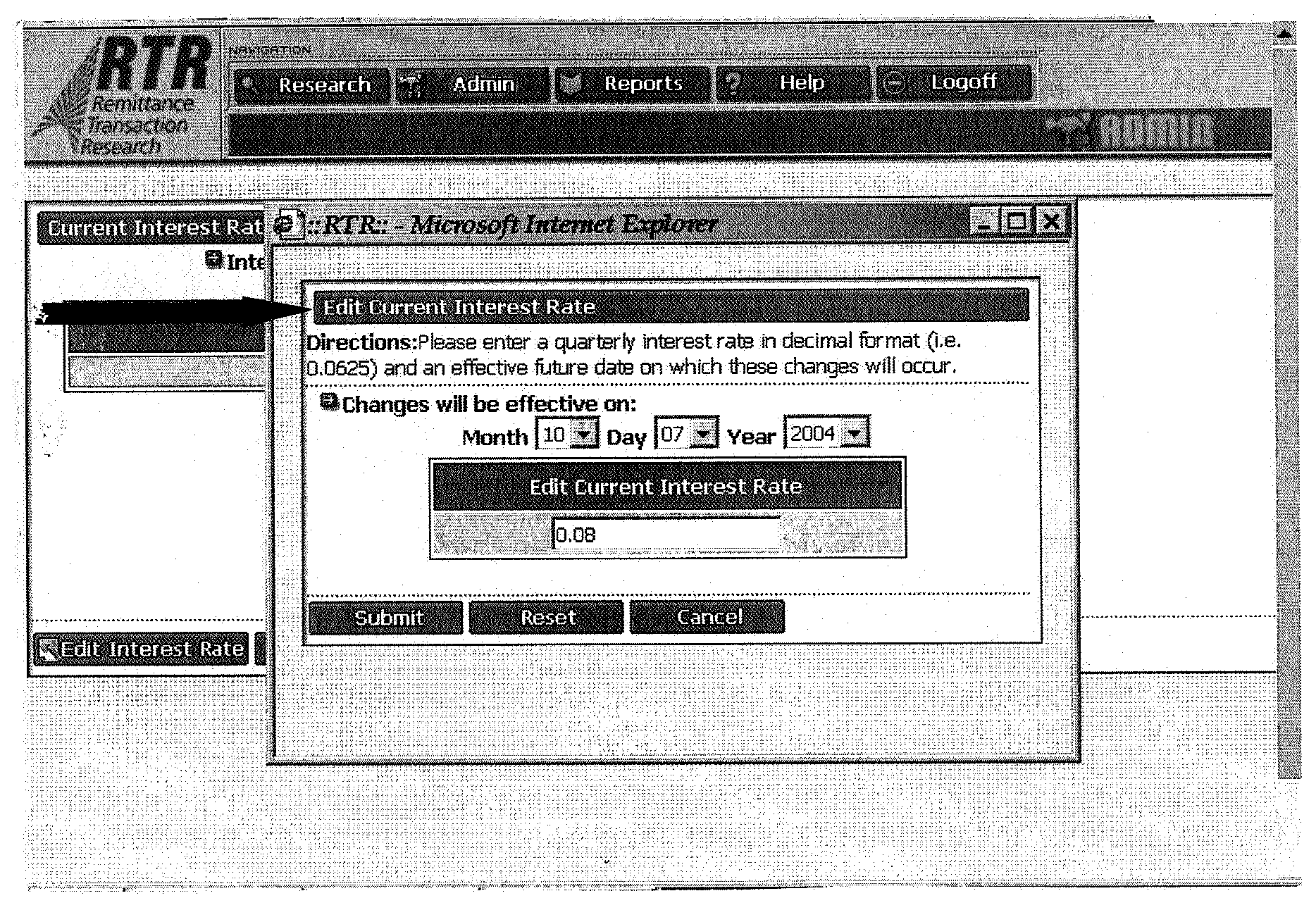
Pictured is screen print showing results of interest rate and date it is effective. Listed below is the contents of screen print:Date change will be effective.Edit Current Interest Rate.Select Submit, Reset, or Cancel Buttons.
Please click here for the text description of the image.
Step Action 5 Enter the effective month, day and year in the respective columns (or use the drop-down menu from each field) to select the future date on which the change(s) will occur. Note: This date must be a future date. 6 Enter the interest rate in decimal point format. Example: use .0625 for 6.25 percent. Note: The system will not allow changes to the current days interest rate. Use the button to change the interest rate and effective date back to the original settings. 7 Do you wish to complete the changes? * If yes, click the button. * If not, click the button to retain the original settings and return to the previous menu. 8 Click the button to return to the RTR Administrative Functions Menu.
3.5.10.10 (01-01-2016)
Chapter 4 - Reports
-
The RTR system will have the ability to generate five types of reports:
-
Daily Deposit Timeliness Report
-
Deposit Activity Report
-
Performance Metrics Report
-
Reconciliation Report
-
RPSID Range Summary Report
-
-
Only User Group Levels 20, 30 and 40 can generate or have access to some or all of these reports.
-
This section covers the following topics:
-
Generating the Daily Deposit Timeliness Report
-
Generating the Deposit Activity Report
-
Generating the Performance Metrics Report
-
Generating the Reconciliation Report
-
Generating the RPSID Range Summary Report
-
3.5.10.10.1 (01-01-2022)
Generating the Daily Deposit Timeliness Report
-
The Daily Deposit Timeliness Report provides information on daily deposits made at any of the sites. It is based upon:
-
Dates
-
RPSID Ranges
-
Site Names
-
-
This report is used in the measurement of deposit timeliness as required by the Balanced Measures criteria. The report calculates the Lost Opportunity Cost of deposits not made within the required 24-hour period. The formula for this calculation is based on 365 days at an interest rate of 8%.
Note:
Only User Levels 30 and 40 or administrators can access this report.
- The formulas in the table below will be used to calculate lost opportunity cost for (1) non-RS-PCC processed payments, and (2) RS-PCC processed payments.
(1) Non-RS-PCC Payments (2) RS-PCC Payments The RTR Software shall calculate the opportunity cost for non-RS-PCC payments using the following formula if the Deposit Date is not equal to the next business day following the Transaction Date: (Deposit Date - the next business day after the Transaction Date) \* (Transaction Amount \* (interest rate / 365). The RTR Software shall calculate the opportunity cost for RS-PCC payments using the following formula if the Deposit Date is not equal to the next business day following the Transaction Date: (Deposit Date - the second business day after the Transaction Date) \* (Transaction Amount)\* (interest rate / 365). The RTR Software shall calculate the opportunity cost for non-RS-PCC payments as zero if the Deposit Date is the next business day following the transaction date, or the same day as the transaction date, or less than the Transaction Date. The RTR Software shall calculate the opportunity cost for RS-PCC payments as zero if the Deposit Date is the next business day after the Transaction Date, the same day as the Transaction Date, or earlier than the Transaction Date. -
Follow the steps below to generate the Daily Deposit Timeliness Report.
Step Action 1 Click the button at the top of the RTR Home page. Result: The RTR Reports menu appears..Figure@Exhibit 3.5.10-16 Figure 3.5.10-15a
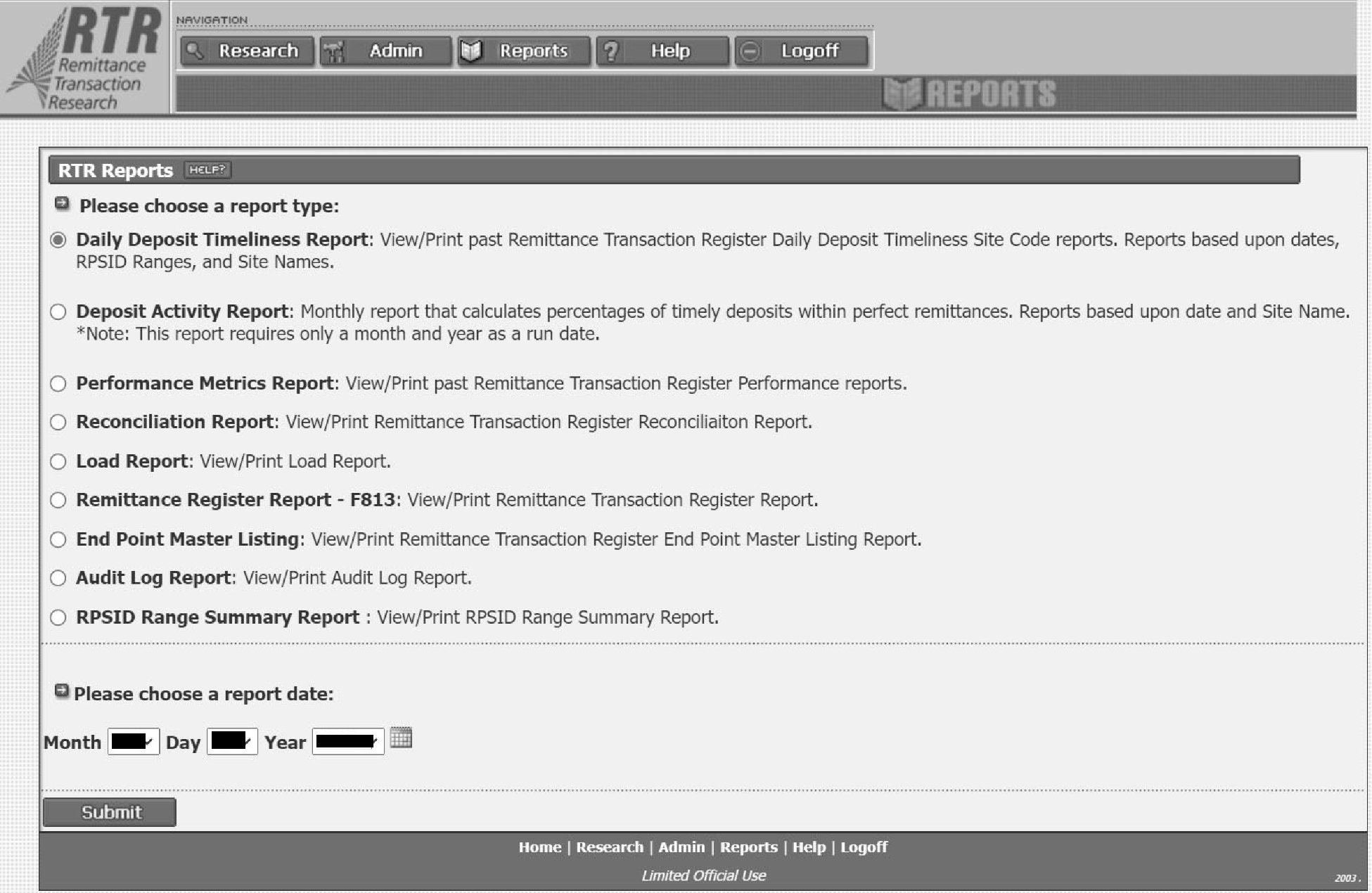
Pictured is screen print showing the RTR Reports screen. Below are the components of the RTR Report screen:
Please click here for the text description of the image.
Figure 3.5.10-15b
RTR Report Screen Input Action Daily Deposit Timeliness Report Report based upon dates, RPSID Ranges, and Site Names. Deposit Activity Report Report based upon date and Site Name ### Note: This report requires only a month and year as a run date. Performance Metrics Report Report based on Date. Reconciliation Report Report based on Date. ### Note: Option to choose Load or Deposit. Local Report Report based upon file name, load time, transfer time, opportunity calculation time, total time, and total number count of deposits, checks, transactions. Remittance Register Report - Form 813 Report based on DLN. End Point Master Listing Report based on DLN. Audit Log Report Report based on User SEID, Manager, Organization Symbols, Event, Audit Status Date, Start and End Date. RPSID Range Summary Report Report provides information on site ranges used to process payment types. Step Action 2 Click to select the Daily Deposit Timeliness Report. 3 Click a report date (Month, Day, Year). 4 Click the button. Result: A Daily Deposit Timeliness Report window appears prompting you to select a RPSID Range and Site Name. Figure 3.5.10-16 Note: The Site Name reflects the site where the deposit or transaction was made. Figure 3.5.10-16
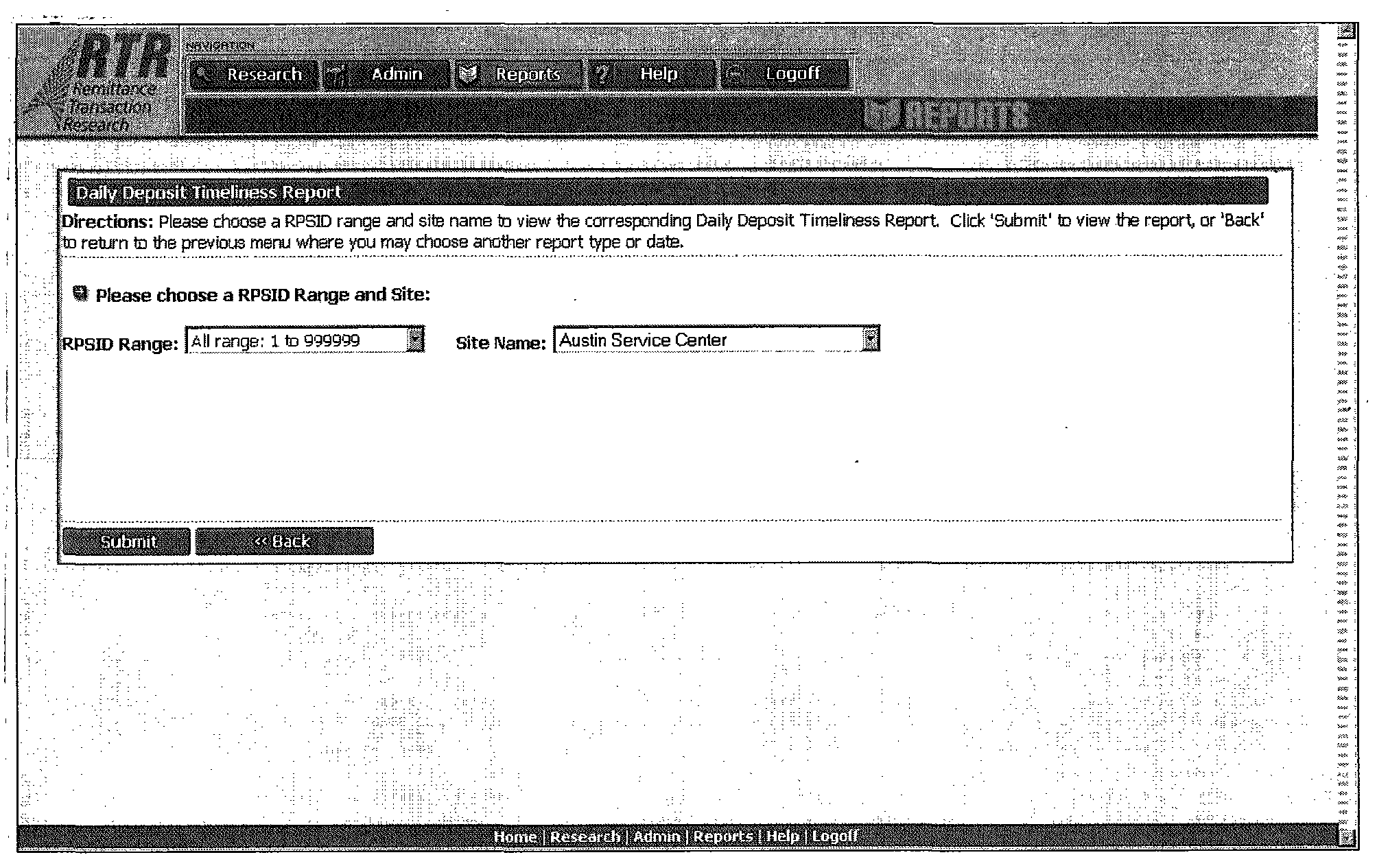
This screen print is displaying the Daily Deposit Timeliness Report for a RPSID range. The components are listed below in step, action table.
Please click here for the text description of the image.
Step Action 5 Select a RPSID Range. 6 Select a Site Name. 7 Click the button. Result: The Daily Deposit Timeliness Report appears. Figure 3.5.10-17 ### Note: If no report is available, the following message appears: Sorry no report is available, please revise your search. Click the button and try again. Figure 3.5.10-17
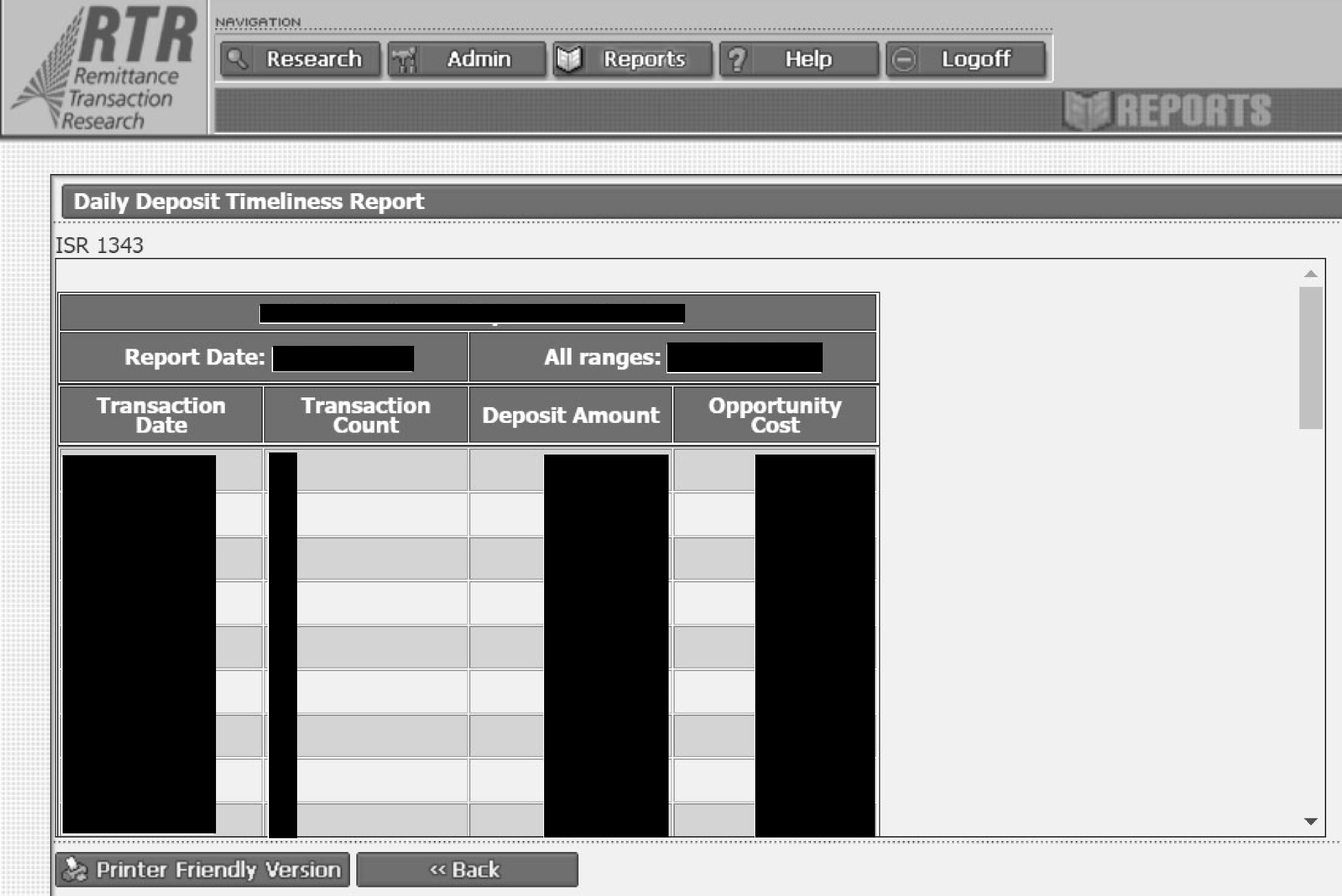
Pictured is screen print of the Daily Deposit Timeliness Report. The contents consist of Site, Report Date, Transaction Date, Transaction Count, Deposit Amount and Opportunity Cost.Click on Printer Friendly Version or Back button.
Please click here for the text description of the image.
Step Action 8 Click the button. Result: A printable version of the Daily Deposit Timeliness Report appears. Figure 3.5.10-18 Figure 3.5.10-18
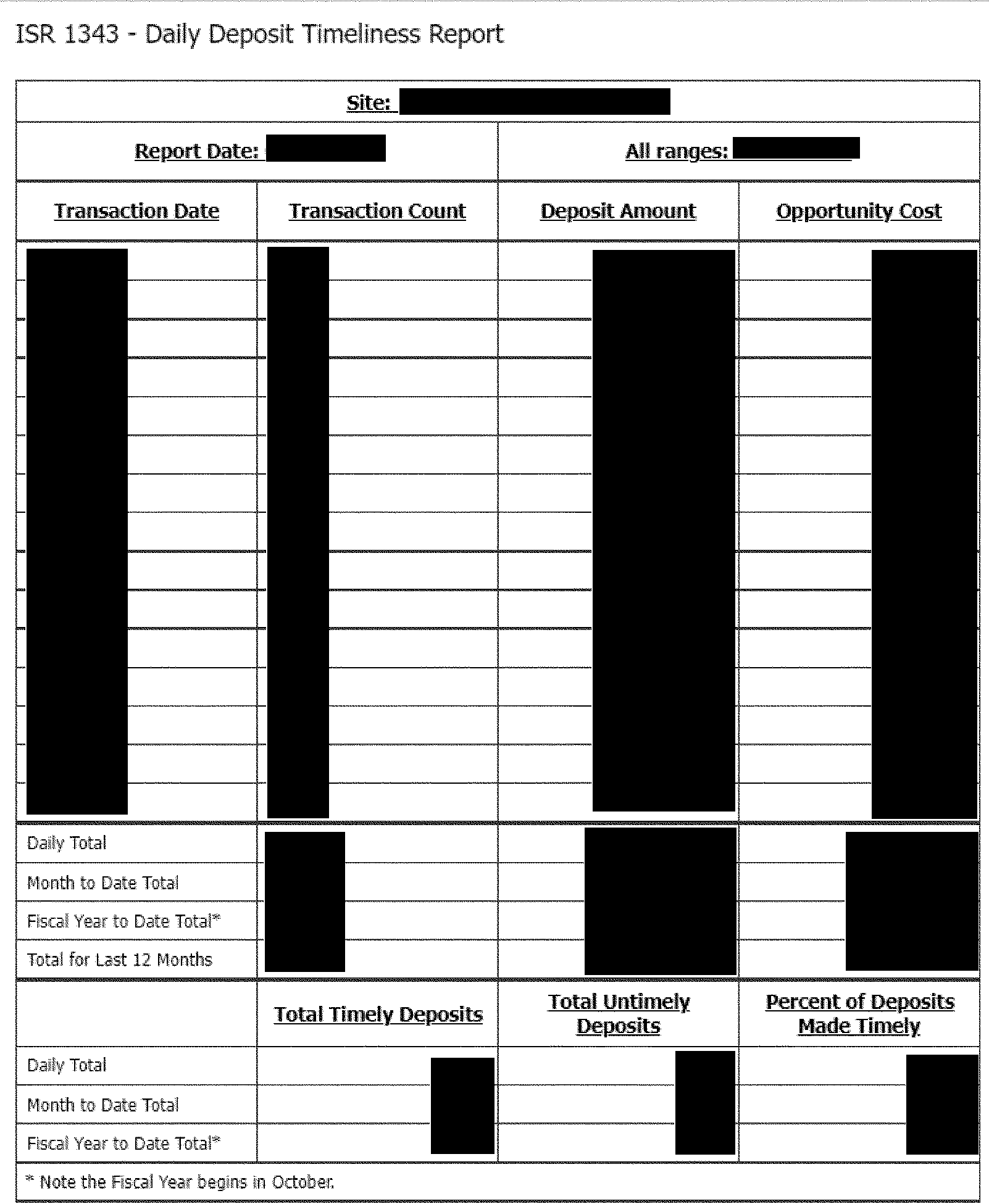
Pictured is screen print of the printed Daily Deposit Timeliness Report. The contents consist of Site, Report Date, Transaction Date, Transaction Count, Deposit Amount and Opportunity Cost.
Please click here for the text description of the image.
Step Action 9 Click the button/icon on the browser toolbar to print the report. 10 Click the <<BACK button to return to the Daily Deposit Timeliness Report screen. 11 Click the button at the top of the page to return to the RTR Reports menu. 12 To view the report for another date, return to Step 3.
3.5.10.10.2 (01-01-2022)
Generating The Deposit Activity Report
-
The Deposit Activity Report is a monthly report that calculates percentages of timely deposits within perfect remittances. These reports are based upon date and Site Name. This report is updated daily with each day’s deposits.
-
Since the report is based on differences between deposit date and transaction date (received date), the calculations for any given transaction date may change daily.
-
Additional calculations are added at the bottom to show "Total Timely Deposits" , "Total Untimely Deposits" and "Percent of Deposits Made Timely" . The information is being monitored by the Submission Processing Monitoring section.
Note:
Only User Levels 30 and 40 or administrators can access this report.
Note:
This report requires only a month and year as a run date.
-
-
Follow the steps below to generate the Deposit Activity Report.
Step Action 1 Click the button at the top of the RTR Home page. 2 Click to select the Deposit Activity Report. 3 Click a report date (Month, Day, Year). 4 Click the button. Result: A Deposit Activity Report window appears prompting you to select a Site Name. Figure 3.5.10-19 Note: The Site Name reflects the site where the deposit or transaction was made. Figure 3.5.10-19
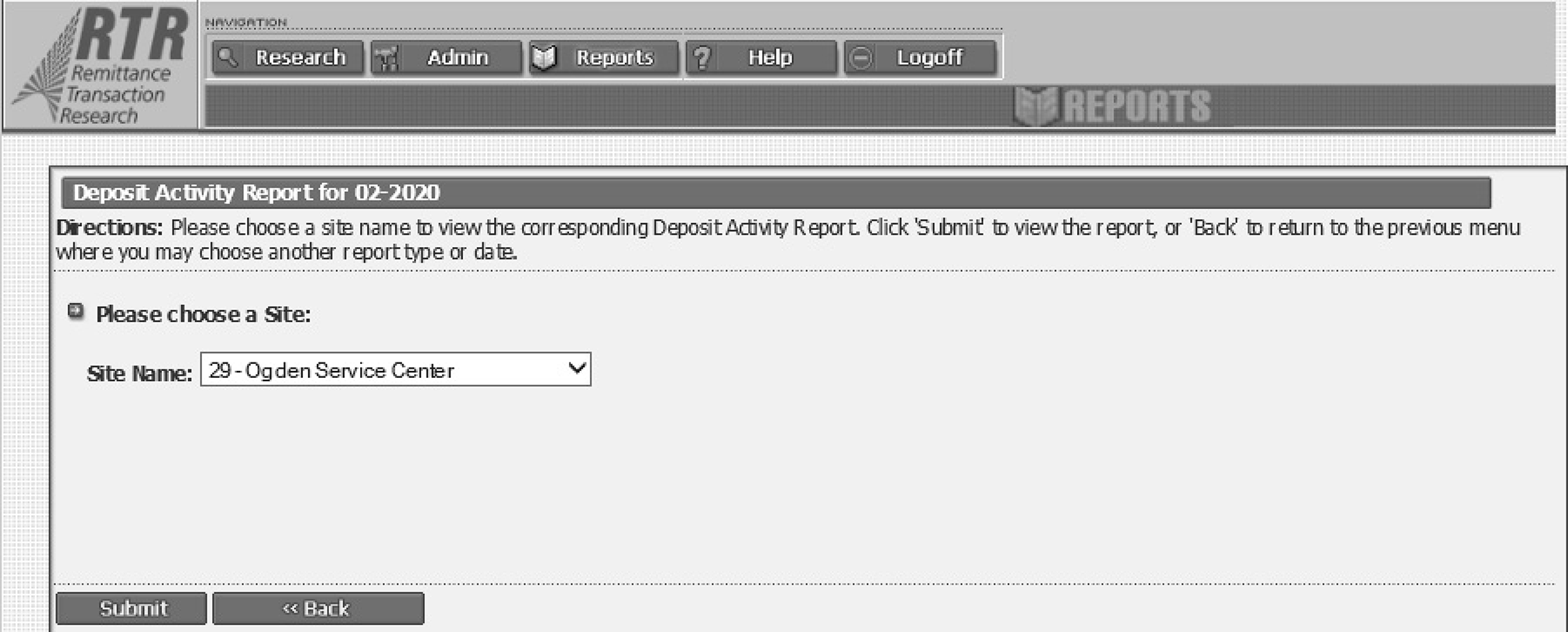
Pictured is screen print of the deposit activity report for a service center and date. The components of the screen are listed below: Site Name with drop-down menu.Click on Submit or Back button.
Please click here for the text description of the image.
Step Action 5 Select a Site Name. 6 Click the button. Result: The Deposit Activity Report appears. Figure 3.5.10-20 ### Note: If no report is available, the following message appears: Sorry no report is available, please revise your search. Click the button and try again. Figure 3.5.10-20
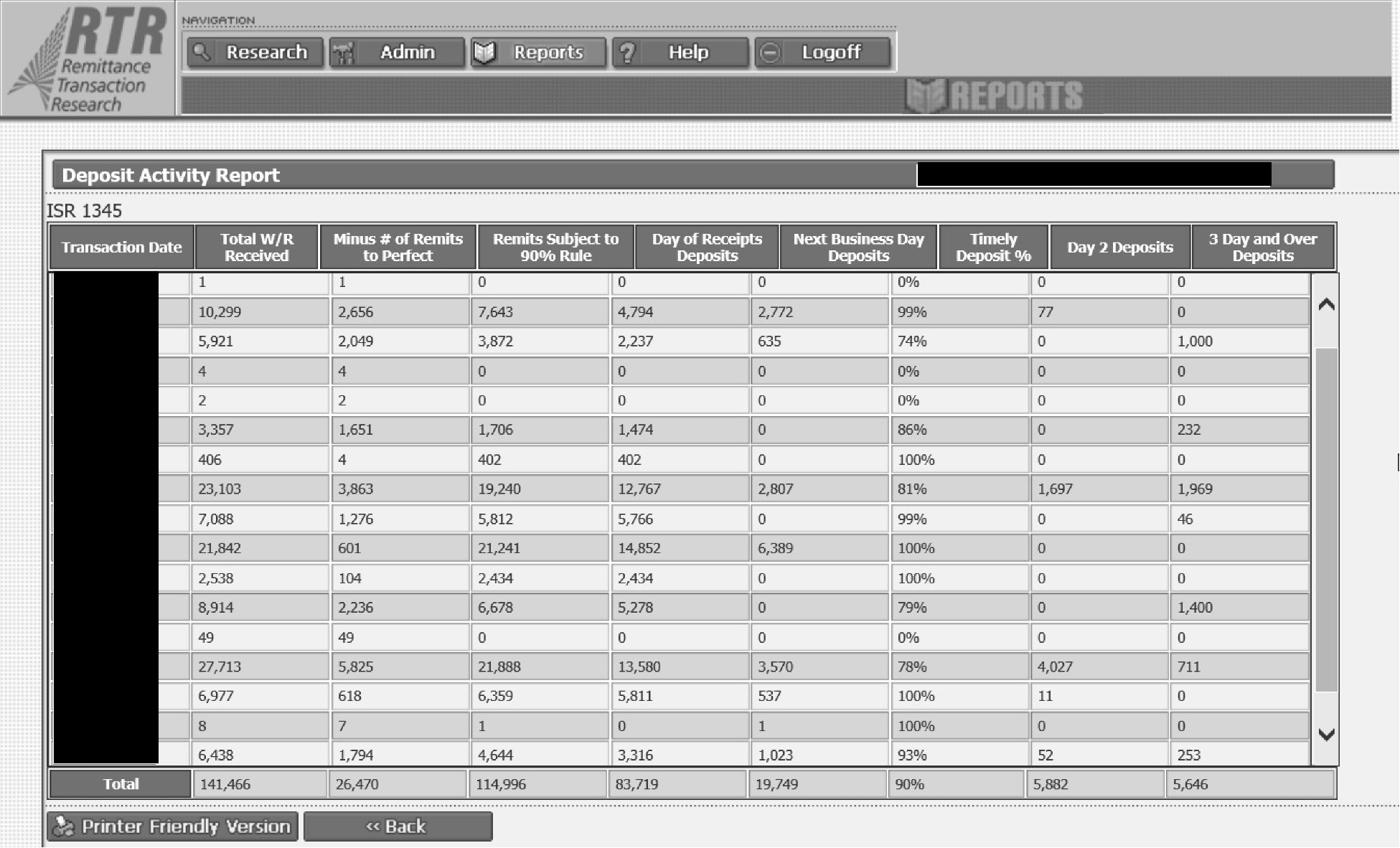
Pictured is a Screen print of the Deposit Activity Report for the center selected and date. The contents consists of: Transaction DateTotal W/R ReceivedMinus Number of Remits to PerfectRemit Subject to 90 percent RuleDay of Receipts DepositsNext Business Day DepositTimely deposit percentDay 2 Deposit3 Day and Over DepositTotalSelect Printer Friendly Version or Back button.
Please click here for the text description of the image.
Step Action 7 Click the button. Result: A printable version of the Deposit Activity Report appears. Figure 3.5.10-21
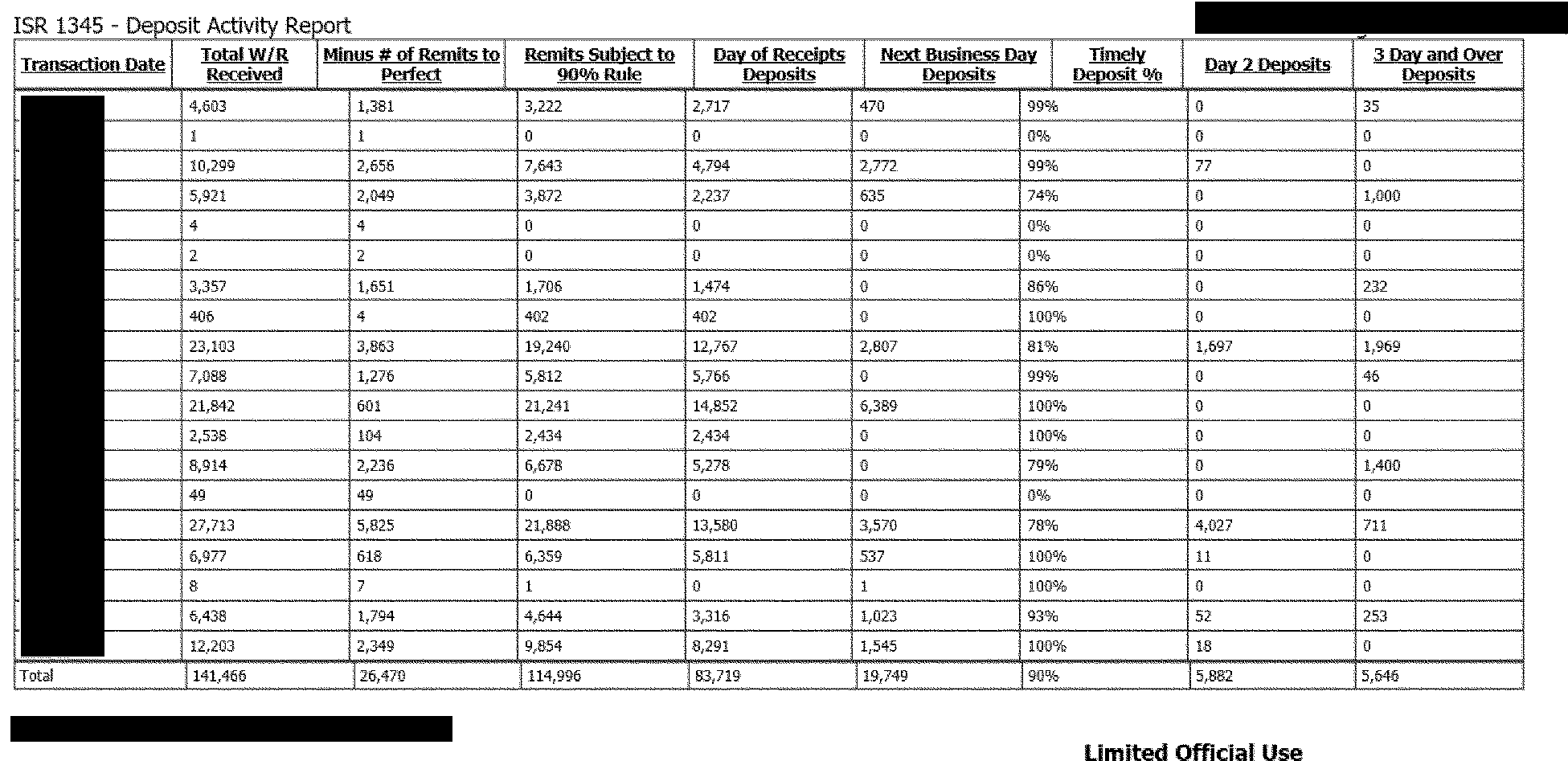
Screen displays a printed version of the deposit activity report for date and site. The contents consist of printed version of Deposit Activity Report is listed below. Transaction DateTotal W/R ReceivedMinus Number of Remits to PerfectRemit Subject to 90 percent RuleDay of Receipts DepositsNext Business Day DepositsTimely deposit percentDay 2 Deposit3 Day and Over DepositsTotal
Please click here for the text description of the image.
Step Action 8 Click the button/icon on the browser toolbar to print the report. 9 Click the <<BACK button to return to the Deposit Activity Report screen. 10 Click the button at the top of the page to return to the RTR Reports menu. 11 To view the report for another date, return to Step 2. Note:
There is a 24 hour deposit standard for tax collections.
3.5.10.10.3 (01-01-2016)
Generating The Performance Metrics Report
-
The Performance Metrics Report is a report that allows you to view/print past Remittance Transaction Register Performance reports. The RTR system monitors accesses and performances by each level of user groups.
- This report is used by HQ personnel to determine if the system meets performance requirements specified. Only User Levels 20 and 40 can access this report.
-
Follow the steps below to generate the Performance Metrics Report.
Step Action 1 Click the button at the top of the RTR Home page. 2 Click to select the Performance Metrics Report. 3 Click a report date (Month, Day, Year). 4 Click the button. Result: A Performance Metrics Report window appears. Figure 3.5.10-22 ### Note: If no report is available, the following message appears: Sorry no report is available, please revise your search. Click the button and try again. Figure 3.5.10-22
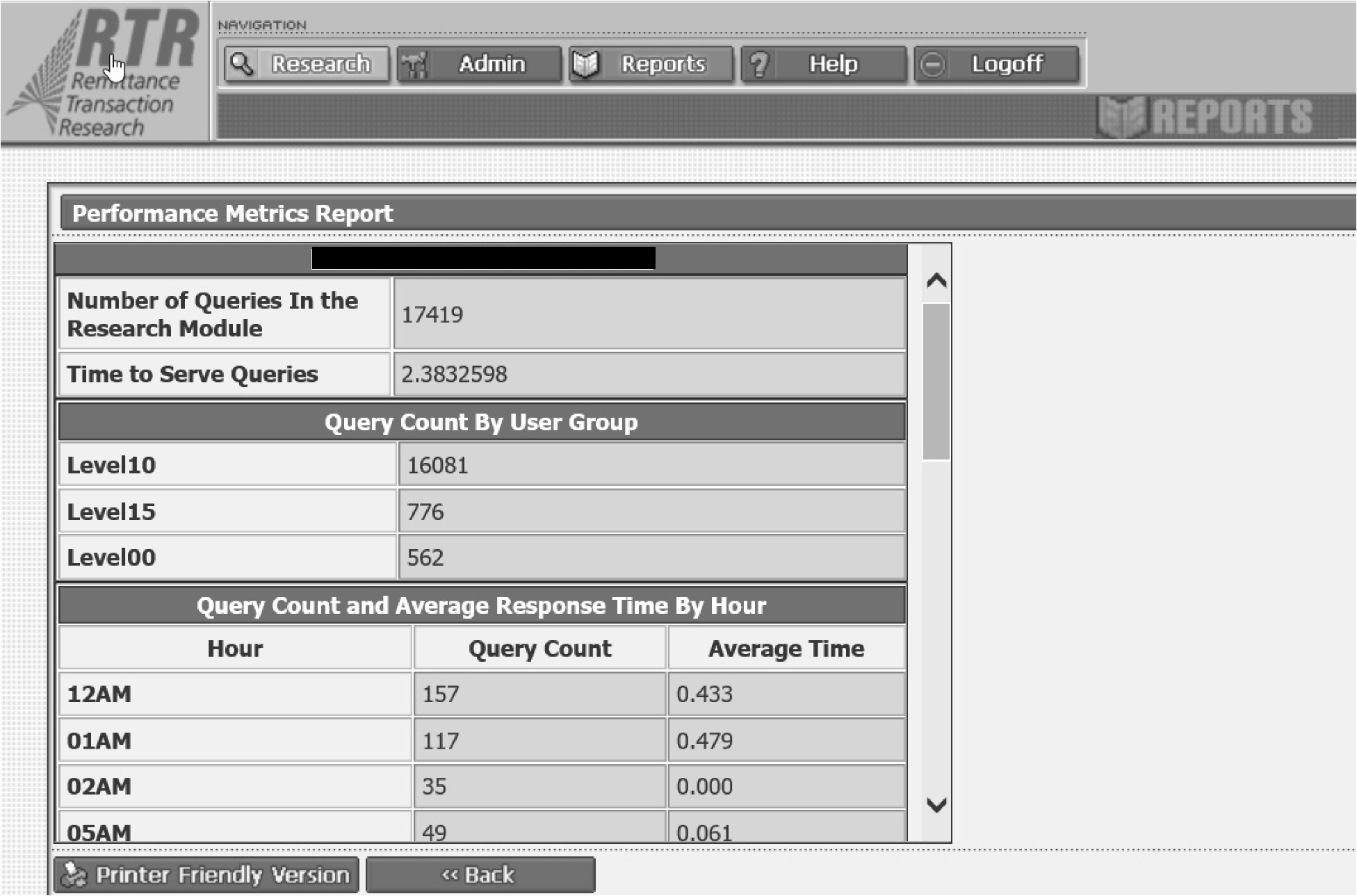
Pictured is the screen print of the resulting Performance Metrics Report. The contents consists of:Reporting Date Number of Queries in the research moduleTime to Serve QueriesQuery Count By User Group Level15Level10Level00Query Count by Hour 12AM01AM02AM04AMFilter Type Count Deposit DateTransaction Amount
Please click here for the text description of the image.
Step Action 5 Click the button. Result: A printable version of the Monthly Deposit Timeliness Report appears. Figure 3.5.10-23 Figure 3.5.10-23
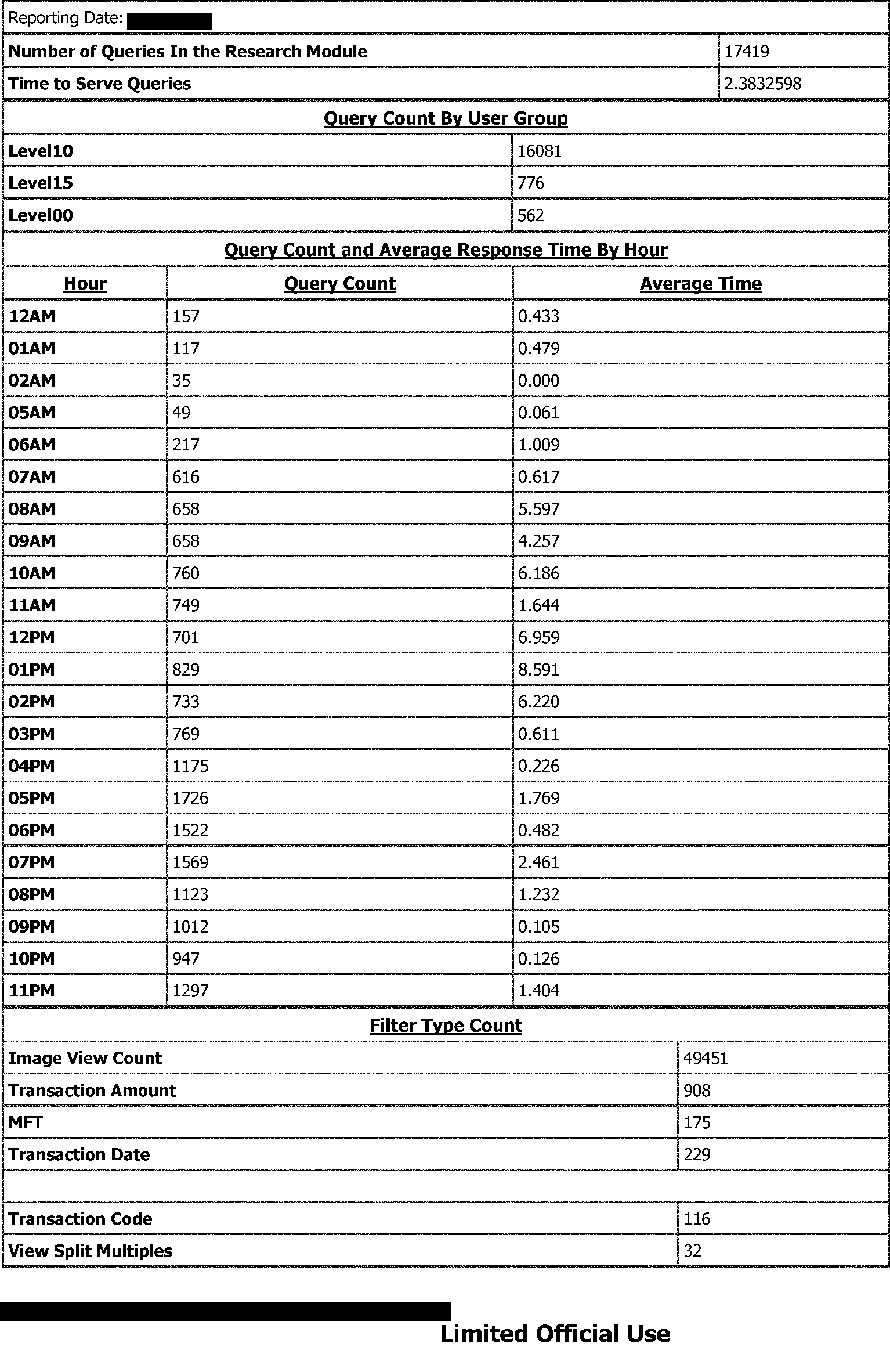
Pictured is a printed screen of the performance metrics report. The contents consists of:Reporting Date Number of Queries in the research moduleTime to Serve QueriesQuery Count By User Group Level15 16Level10 436Level00 16Query Count and Average Response Time By Hour 12AM01AM02AM04AM05AM06AMFilter Type Count Transaction AmountTransaction CodeMFTImage View Count
Please click here for the text description of the image.
Step Action 6 Click the button/icon on the browser toolbar to print the report. 7 Click the << BACK button to the Monthly Deposit Timeliness Report screen. 8 Click the button at the top of the page to return to the RTR Reports menu. 9 To view the report for another date, return to Step 2.
3.5.10.10.4 (01-01-2016)
Generating The Reconciliation Report
-
The Reconciliation Report provides information on daily Loads and Deposits. It is based on:
-
Site
-
Deposit Date (for Load); or Date Received (for Deposit)
-
Date Validated
-
Number of Transactions
-
Number of checks
-
Deposit Total
-
Number of Valid Images
-
Number of Invalid Images
-
Total Number of Images
-
-
Follow the steps below to generate the Reconciliation Report.
Step Action 1 Click the button at the top of the RTR Home page. 2 Click to select the Reconciliation Report. 3 Click a report date (Month, Day, Year). Click either Load or Deposit. 4 Click the button. Result: A Reconciliation Report window appears. Figure 3.5.10-24a ### Note: If no report is available, the following message appears: Sorry no report is available, please revise your search. Click the button and try again. Figure 3.5.10-24a
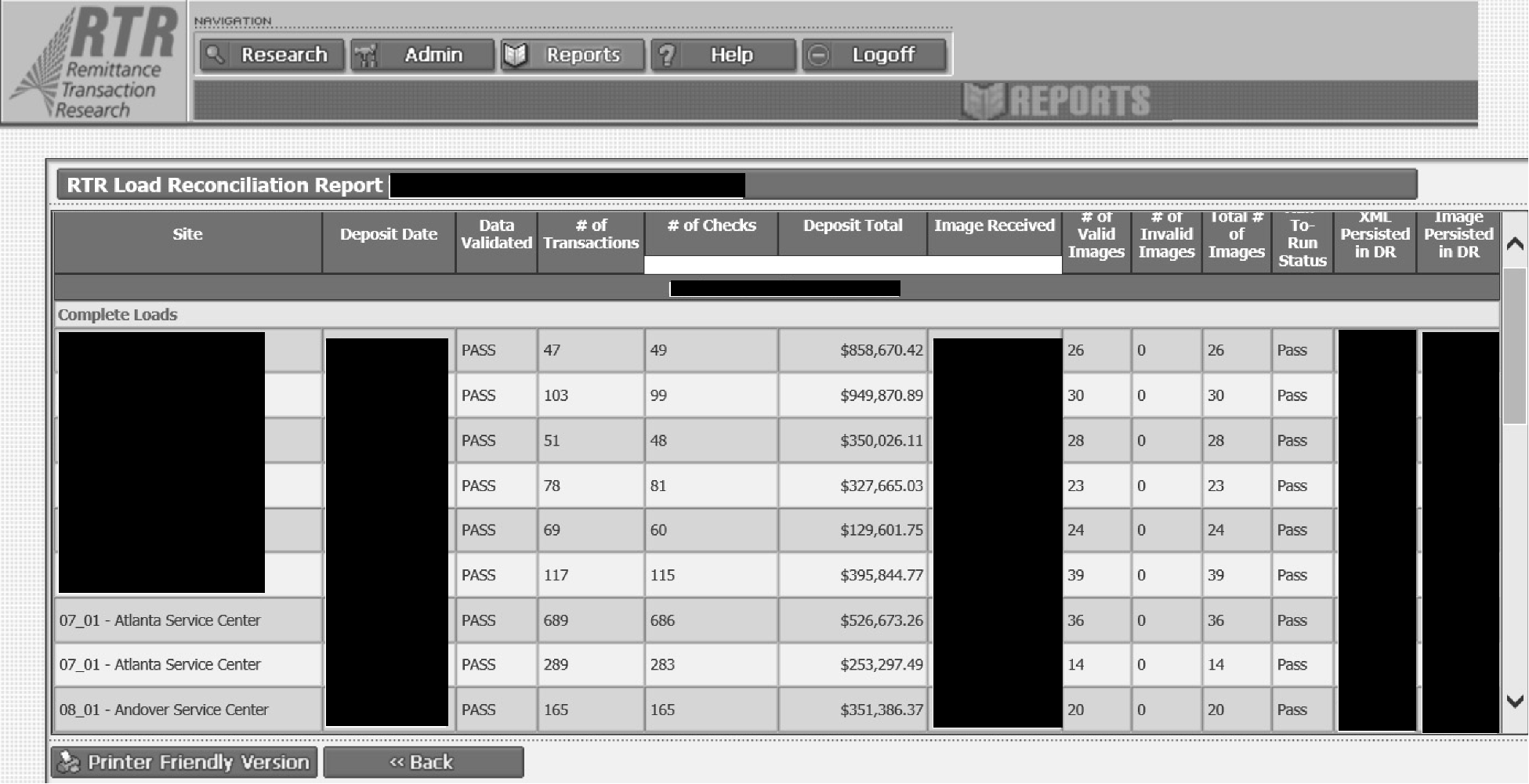
Pictured is Screen print showing the reconciliation report for deposits loaded. Below are the contents of the screen print. Date report requestedSiteDepositData validatedNumber of TransactionsNumber of ChecksDeposit TotalNumber of Valid ImagesNumber of Invalid ImagesSelect Printer Friendly Version or Back button.
Please click here for the text description of the image.
Figure 3.5.10-24b
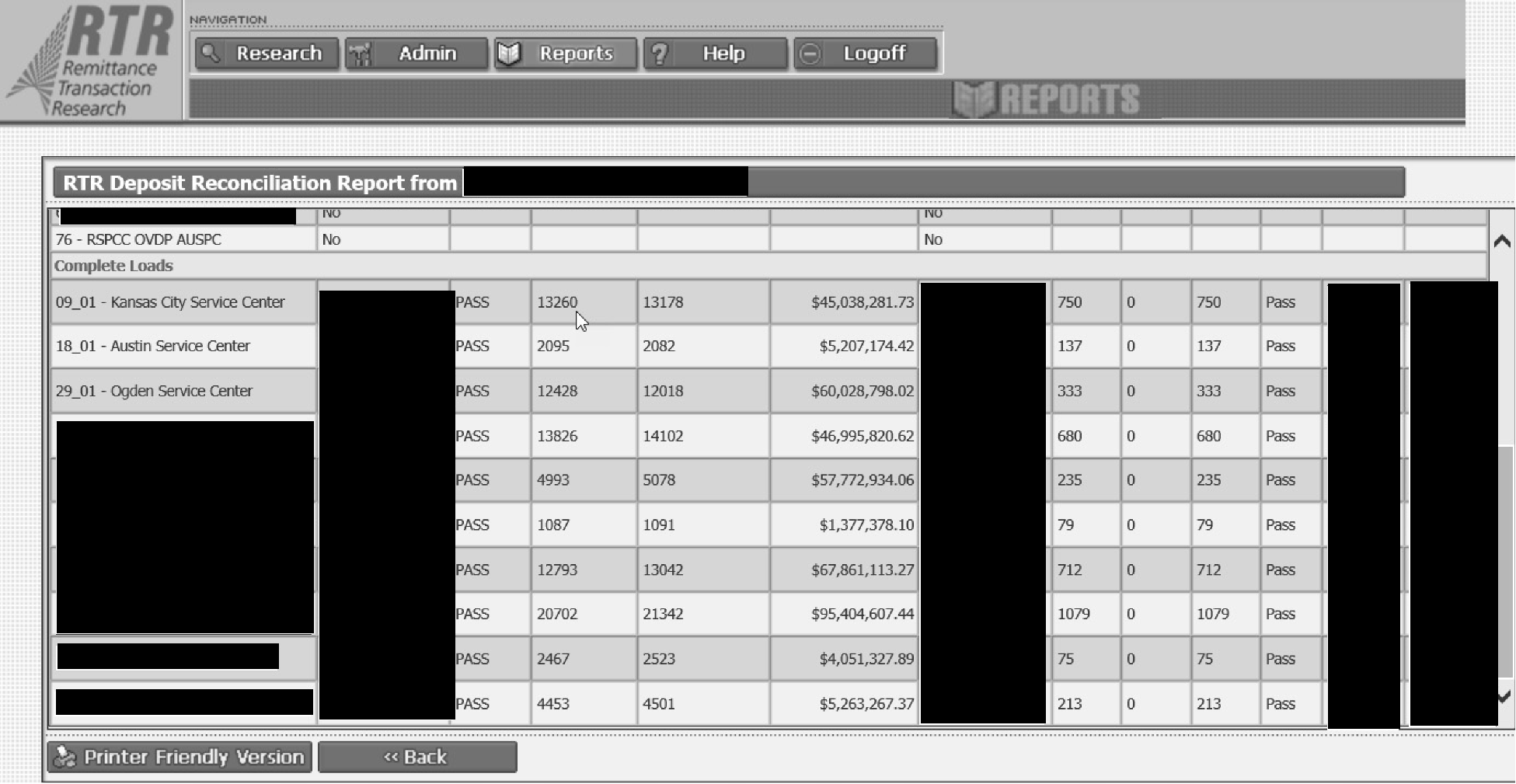
Pictured is Screen print showing the reconciliation report of site deposits by deposit date. Below is the contents of the screen: Date report requestedSiteData ReceivedDate ValidatedNumber of TransactionsNumber of ChecksDeposit TotalNumber of Valid ImagesNumber of Invalid Images
Please click here for the text description of the image.
Step Action 5 Click the button. Result: A printable version of the Reconciliation Report appears. 6 Click the button/icon on the browser toolbar to print the report. Figure 3.5.10-25a Figure 3.5.10-25a
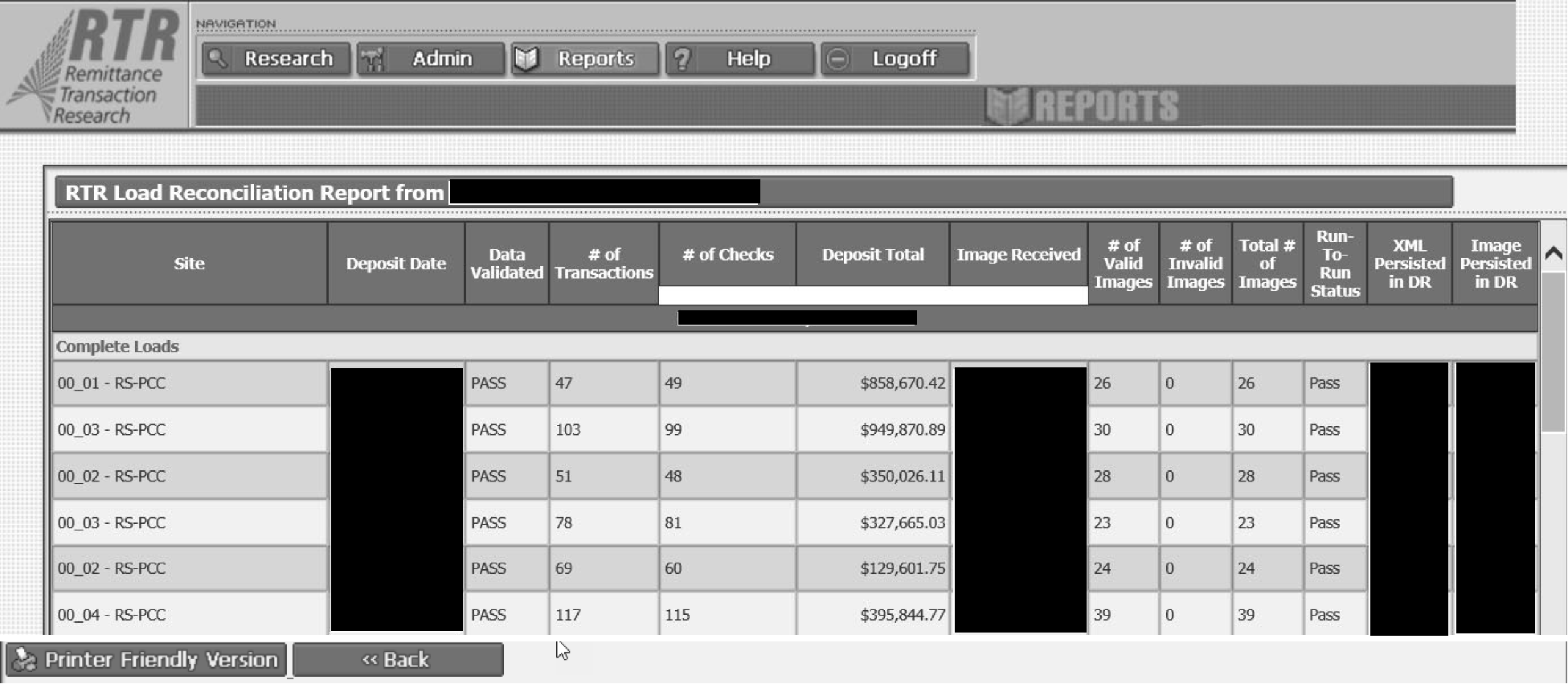
Pictured is Screen print of the printed reconciliation report by load date. Below is the contents of printed screen.SiteDeposit DateDate ValidatedNumber of TransactionsNumber of ChecksDeposit TotalImage ReceivedNumber of Valid ImagesNumber of Invalid ImagesTotal Number of ImagesRun To Run StatusXML Persisted in DRImage Persisted in DR
Please click here for the text description of the image.
Figure 3.5.10-25b
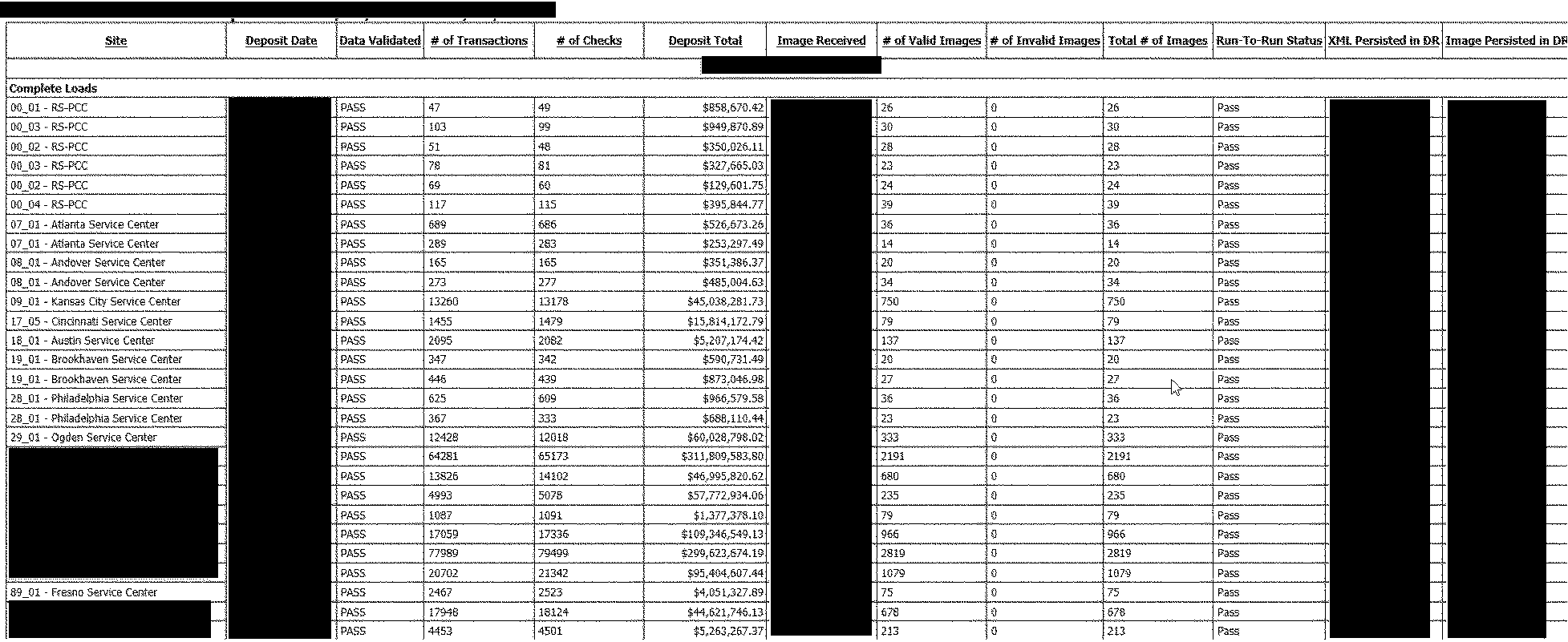
Pictured is Screen print of the printed reconciliation report by deposit date. Below is the contents of printed screen. Date report requestedSite Date ReceivedData ValidatedNumber of TransactionsNumber of ChecksDeposit TotalNumber of Valid ImagesNumber of Invalid ImagesTotal Number of Images
Please click here for the text description of the image.
Step Action 7 Click the <<BACK button to return to the Reconciliation Report screen. 8 Click the button at the top of the page to return to the RTR Reports menu. 9 To view the report for another date, return to Step 2.
3.5.10.10.5 (01-01-2022)
Generating the Remittance Processing System Identification (RPSID) Range Summary Report
-
The RPSID Range Summary Report provides information on site ranges used to process payment types. It is based upon:
-
Site
-
Range
-
Total Transactions
-
Total Transactions Amount
-
Opportunity Cost
-
-
Follow the steps below to generate the RPSID Range Summary Report.
STEP ACTION 1 Click the button at the top of the RTR Home page. 2 Select the RPSID Range Summary Report (Click Submit). 3 Select a site or multiple sites. Chose option: Add all sites, add one site, remove site, or remove all sites. 4 Select a start and end Date (Month, Day, Year). 5 Select All Opportunity cost or Zero Opportunity cost. 6 Click the button. Result: A RPSID Range Summary Report appears. ### Note: If no report is available, the following message will appear: "No data available for the specified time period." Click the button and try again.